
Troubleshooting RobotCode in VS Code
When RobotCode does not behave as you expect, for example when keywords are not found that exist or the Test Explorer stays empty, start with the versions RobotCode uses and its logs.
Check the versions in use
Section titled “Check the versions in use”Hover over the braces next to "Robot Framework" in the status bar to see the language status of the workspace folder of the active file:
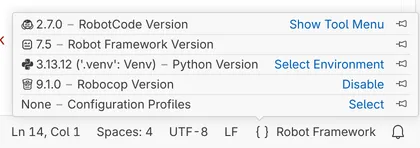
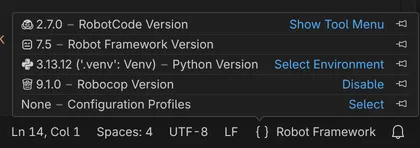
If Robot Framework shows "not installed", or the Python environment is not the one you expect, choose the right environment with Select Environment, or install Robot Framework into the environment; RobotCode notices the install and starts the language server by itself, see The Python environment. The item says what is wrong with the environment: Robot Framework missing or too old, no interpreter selected, or Python too old. Check the profiles too: a profile can change the paths, the Python path and the variables of a project.
The RobotCode menu
Section titled “The RobotCode menu”RobotCode: Show Tool Menu, or Show Tool Menu at the RobotCode version of the language status, opens a menu with RobotCode's tools:
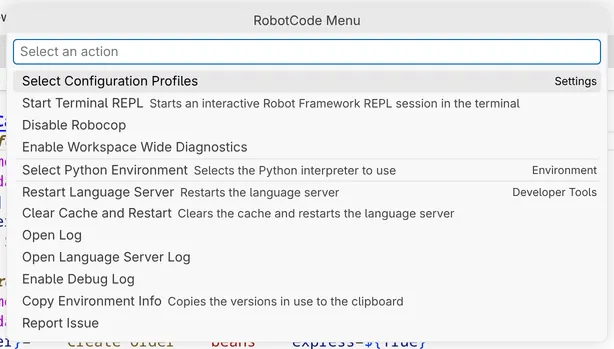
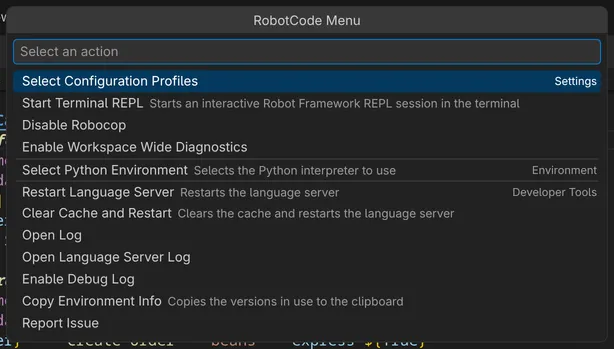
Output and logs
Section titled “Output and logs”RobotCode writes to two channels of the Output panel:
- RobotCode (Open Log in the menu) logs what the extension does, for example the
robotcodecommands it runs to discover tests, and errors of the extension. - RobotCode Language Server for folder … (Open Language Server Log) is the log of the language server of the workspace folder.
Enable Debug Log in the menu makes the language server log in detail: it sets robotcode.languageServer.extraArgs to --verbose --log --log-level DEBUG, which restarts the language server. Disable Debug Log removes the setting again.
Restart and clear the cache
Section titled “Restart and clear the cache”- RobotCode: Restart Language Servers stops the language servers and starts them again. It also checks the Python environment again and switches a folder back on that you switched off for the session from the environment message; RobotCode normally notices a changed environment or a later install of Robot Framework by itself, so this is for the cases it missed.
- RobotCode: Clear Cache and Restart Language Servers also deletes RobotCode's analysis cache, so that every library and file is loaded and analyzed again. Use it when diagnostics stay outdated although the files are right.
The RobotCode menu offers both for the workspace folder of the active file.
Report an issue
Section titled “Report an issue”RobotCode: Report Issue..., also in the RobotCode menu, opens VS Code's issue reporter for RobotCode, with the versions of Python, Robot Framework and Robocop of your workspace filled in. Describe what you did, what you expected and what happened; a small example project and the logs from above help to find the cause. You can also open an issue directly on GitHub.
RobotCode: Copy Environment Info, also in the RobotCode menu, copies the versions of the workspace folder of the active file to the clipboard: VS Code, RobotCode, the operating system, Python, Robot Framework and Robocop, as a list with the fields of RobotCode's bug report template. Paste it into an issue, a forum post or a chat. An extra line names the editor when it isn't VS Code, the remote, for example WSL, and the language server's RobotCode version when it differs from the extension's. The command also works while the language server doesn't run, for example because Robot Framework is missing in the environment, and the list contains no paths.
Released under the Apache-2.0. Copyright © 2022-present Daniel Biehl