
Finding Information in VS Code
RobotCode resolves every keyword call, variable and import the way Robot Framework does, so VS Code's navigation works for Robot Framework code too: you can jump from a call to the keyword, find every place a keyword is used and search the whole workspace. To read the documentation of a library or keyword, see Documentation Viewer.
Go to Definition
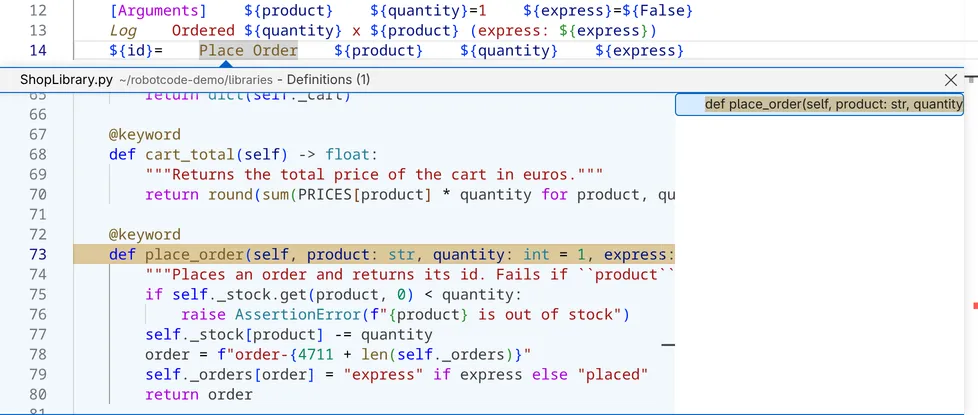
Section titled “Go to Definition”Go to Definition (F12, Ctrl+click, Cmd+click on macOS, or the context menu of the editor) on a keyword call opens the keyword: a user keyword in its suite or resource file, and a library keyword in the Python code that implements it. The same works for variables and for the names in imports.
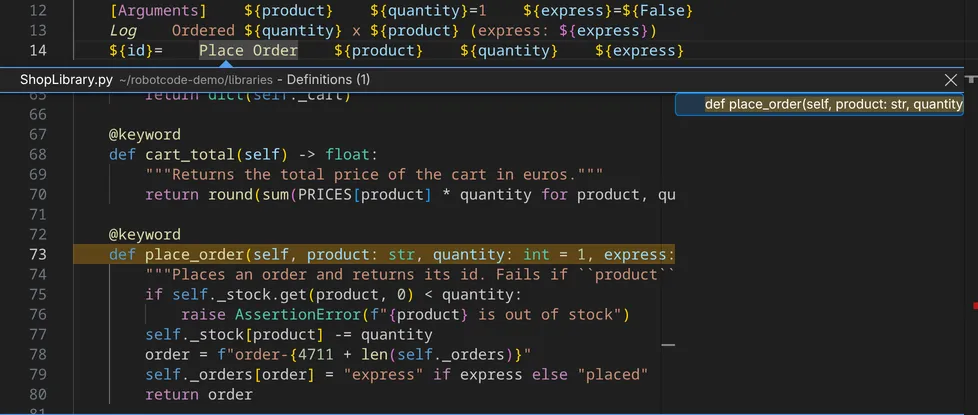
Peek Definition (Alt+F12 on Windows, Ctrl+Shift+F10 on Linux, Option+F12 on macOS, or Peek → Peek Definition in the context menu) shows the definition inside the editor instead:
Find references
Section titled “Find references”Find All References (Shift+Alt+F12, Shift+Option+F12 on macOS) lists every use of the keyword, variable or tag at the cursor in the workspace. On an import, or on the library or resource name in front of a keyword such as BuiltIn in BuiltIn.Log, it lists where that library, resource or variable file is imported and where a keyword is called with its name in front. Go to References (Shift+F12) shows them inside the editor instead, in a peek view with a preview of each place. Both are in the context menu of the editor too.
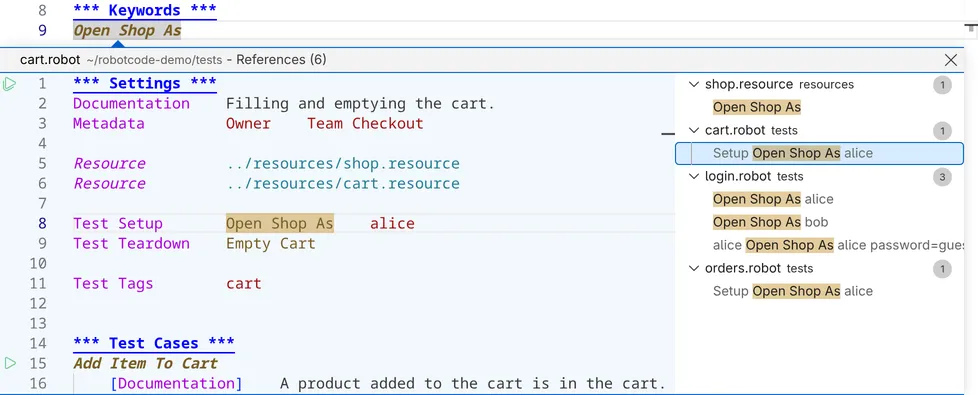
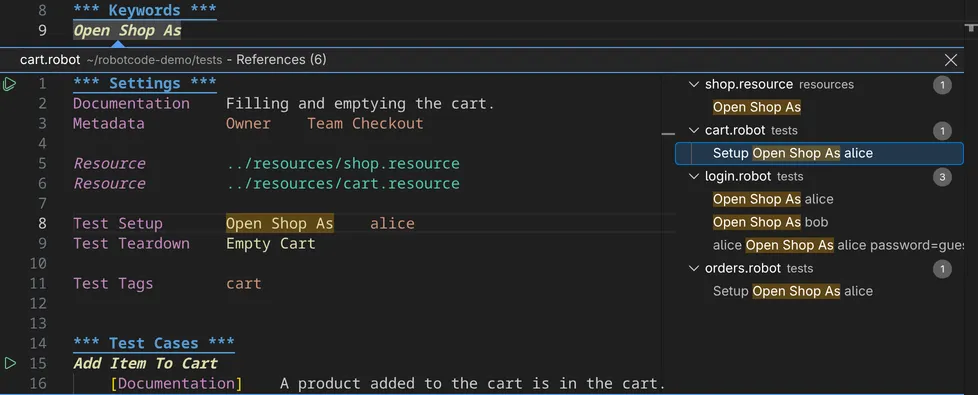
In the peek view, a click on an entry of the list, or the arrow keys, select a place, and the preview beside the list shows it:
When the cursor is on a keyword call or a variable, RobotCode also highlights its other occurrences in the file.
References CodeLens
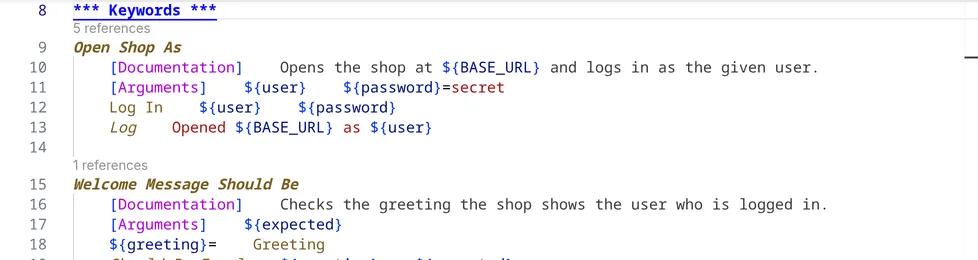
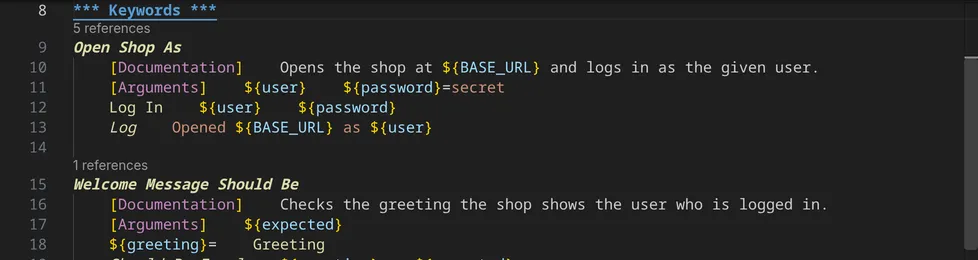
Section titled “References CodeLens”With robotcode.analysis.referencesCodeLens switched on, RobotCode shows above each keyword of a file how often it is used. A click on the number peeks the references.
Outline and breadcrumbs
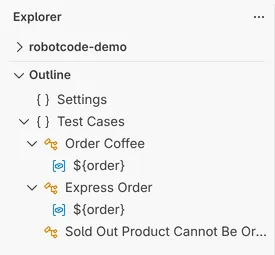
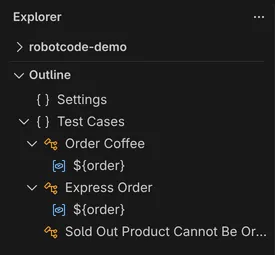
Section titled “Outline and breadcrumbs”The Outline view of the Explorer shows the structure of the file in the active editor: its sections, tests, tasks and keywords, and the variables they assign. Click an entry to go there. The breadcrumbs above the editor show where the cursor is; a click on one of their parts opens a list of the file's entries to jump to. Go to Symbol in Editor (Ctrl+Shift+O, Cmd+Shift+O on macOS, or the Go menu) searches the same entries.
Workspace symbols
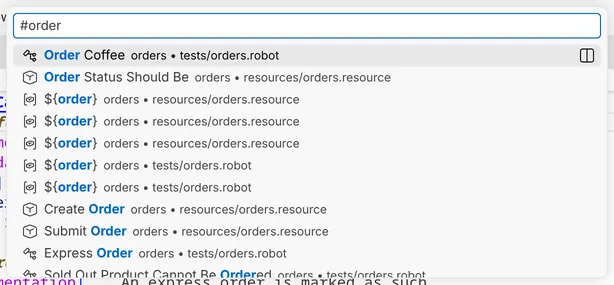
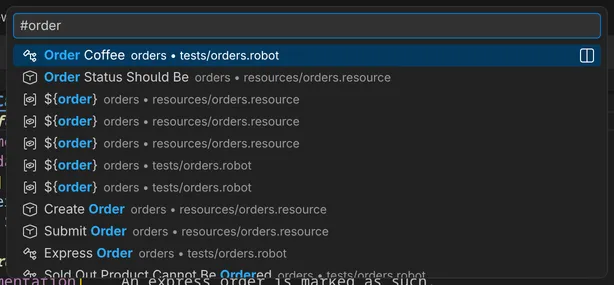
Section titled “Workspace symbols”Go to Symbol in Workspace (Ctrl+T, Cmd+T on macOS, or the Go menu) searches the tests, tasks, keywords and variables of all files in the workspace:
The Keywords view
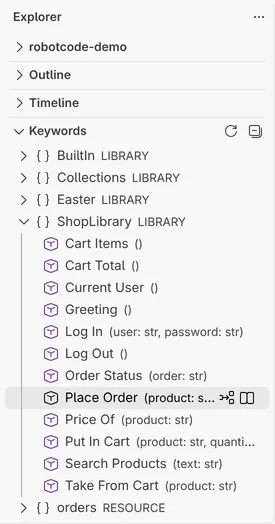
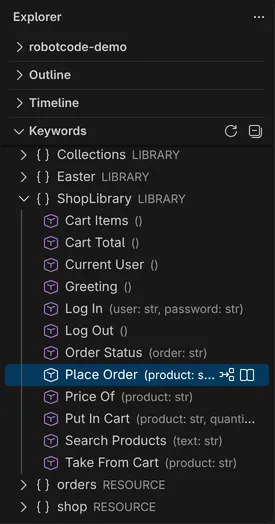
Section titled “The Keywords view”The Keywords view of the Explorer appears while a Robot Framework file is active. It lists the libraries and resource files whose keywords the file can call; expand one to see its keywords with their arguments, and hover over a keyword to see its documentation. The actions of an entry:
- Insert Keyword inserts the keyword's name at the cursor in the editor and opens the completion and signature help for its arguments.
- Show in Documentation Viewer opens the documentation of the library, resource file or keyword in the Documentation Viewer; Show in New Documentation Viewer in the context menu opens it in a new viewer.
- Refresh in the view's title bar reads the keywords again.
Released under the Apache-2.0. Copyright © 2022-present Daniel Biehl