
Finding Information in PyCharm
RobotCode knows where every keyword, variable, library and resource file of your project is defined and where it is used. PyCharm's navigation actions use that knowledge in Robot Framework files.
Go to declaration
Section titled “Go to declaration”Ctrl+click (Cmd+click on macOS) on a keyword call, a variable or an import, or Navigate | Declaration or Usages (Ctrl+B, Cmd+B on macOS), opens where it is defined: the keyword in its resource file or library, the variable where it gets its value, the imported file.
Find usages
Section titled “Find usages”Edit | Find Usages | Show Usages (Ctrl+Alt+F7 on Windows, Ctrl+Alt+7 on Linux, Cmd+Option+F7 on macOS) lists every place that uses a keyword, a variable, a library or a resource file in a popup, Edit | Find Usages | Find Usages (Alt+F7 on Windows, Option+F7 on macOS) in the Find tool window.
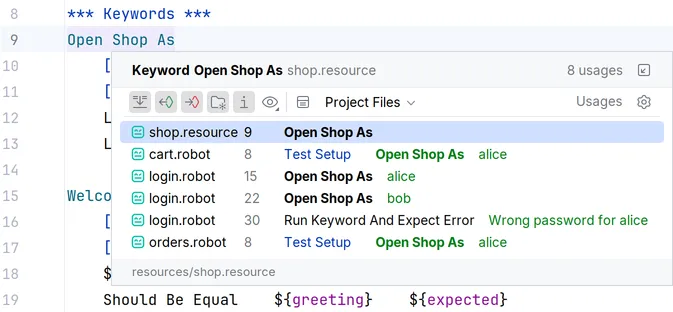
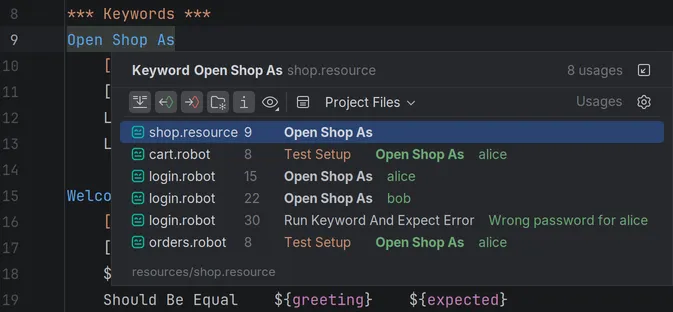
The usages of the element at the cursor are also highlighted in the editor.
References code lens
Section titled “References code lens”With References code lens on the settings page Analysis, the editor shows above each keyword how often it is used. It is off by default, see Configuration.
Structure and breadcrumbs
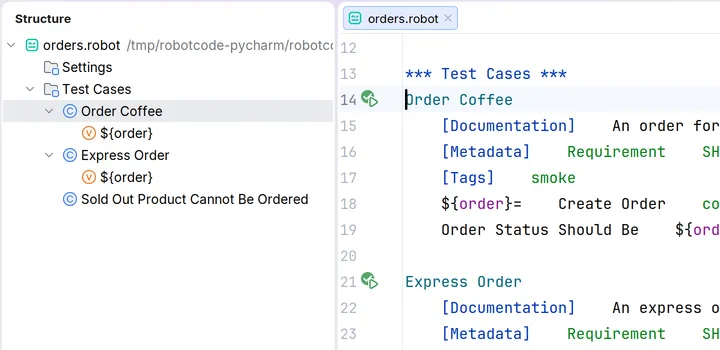
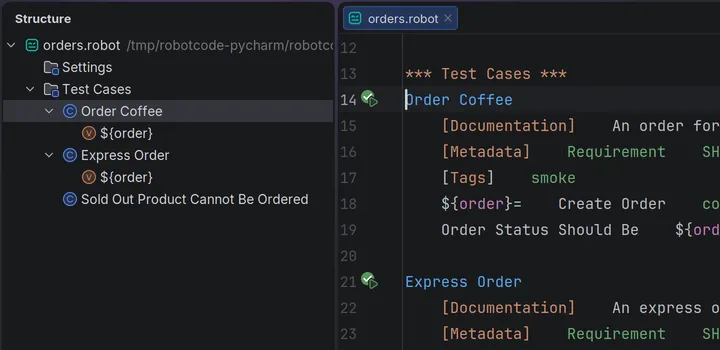
Section titled “Structure and breadcrumbs”The Structure tool window (Alt+7, Cmd+7 on macOS) and Navigate | File Structure (Ctrl+F12, Cmd+F12 on macOS) list the sections, tests, tasks, keywords and variables of the file in the editor; a click goes there. The breadcrumbs below the editor show the section and the test or keyword the cursor is in.
Go to Symbol
Section titled “Go to Symbol”Navigate | Symbol... (Ctrl+Alt+Shift+N, Cmd+Option+O on macOS) finds keywords, tests and variables of the whole project by name.
Keyword documentation
Section titled “Keyword documentation”The documentation of a keyword or library shows on hover and with View | Quick Documentation, see Writing Code. RobotCode in PyCharm has no Keywords view and no Documentation Viewer. With RobotCode's command line tools installed in the project's environment, robotcode doc shows the documentation of a library in PyCharm's terminal.
Released under the Apache-2.0. Copyright © 2022-present Daniel Biehl