
Working in PyCharm
RobotCode adds Robot Framework support to PyCharm, and to IntelliJ IDEA with its Python plugin: it helps you write and navigate code, runs and debugs your tests and reports problems while you type. This page shows where these things appear in the window and lists the actions RobotCode adds. The pages of this guide explain each task in detail; to install RobotCode and set up a project first, see Get Started with PyCharm.
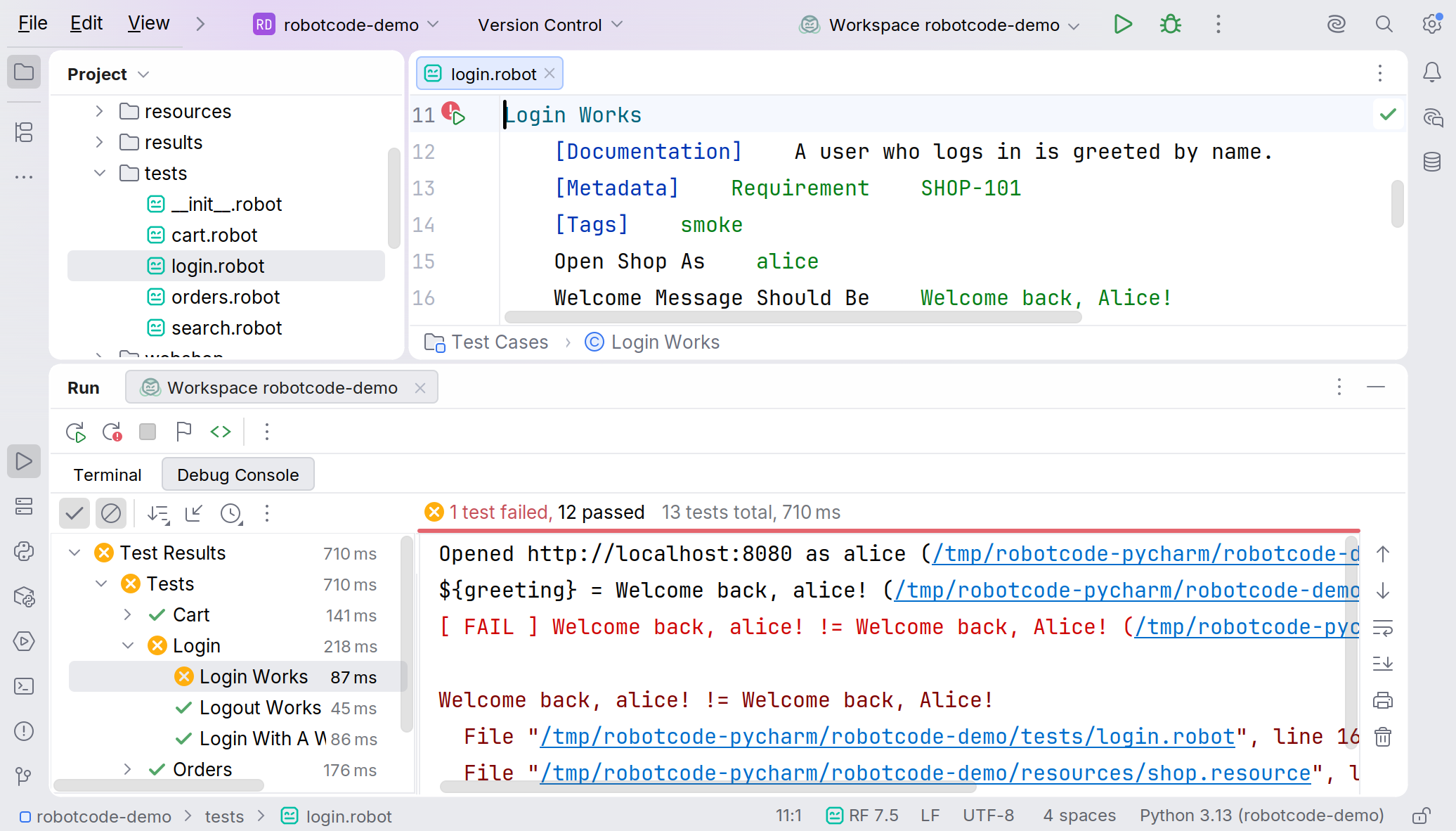
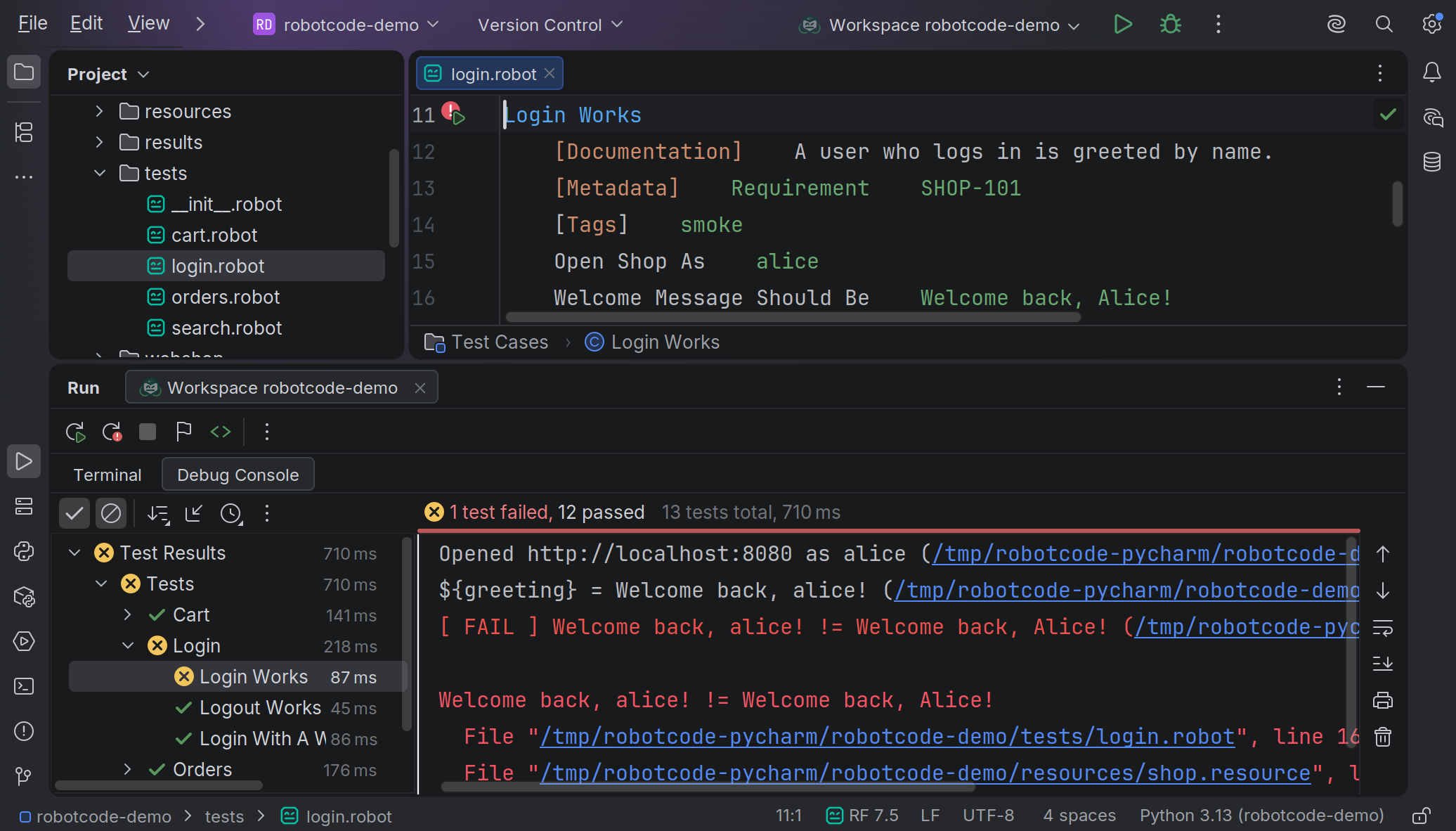
- The editor. RobotCode completes keywords, variables and imports, shows the documentation of keywords, highlights the code by its meaning and marks problems while you type. See Writing Code and Finding Information.
- The run markers beside each test and task, and on the first line of a suite file, run or debug that test, task or suite; their icon shows the last result. See Running Tests.
- The Project view runs files and folders from their context menu and creates new Robot Framework files with New | Robot Framework File.
- The Run tool window shows a run: the output of the process in the Terminal tab, and the results tree with the log messages of each test in the Debug Console tab. See Running Tests.
- RobotCode's widget in the status bar shows the Robot Framework version and the selected configuration profiles, see below.
The status bar widget
Section titled “The status bar widget”In a project with Robot Framework files, a robot.toml or a .robot.toml, and in any project once you open a Robot Framework file, the status bar shows RobotCode's widget. It is listed as "Robot Framework" among the status bar widgets.
| Text | Meaning |
|---|---|
RF 7.5 |
RobotCode runs with Robot Framework 7.5. Selected configuration profiles follow, as in RF 7.5 · dev. |
RobotCode |
RobotCode checks the Python interpreter or waits for the language server. With an error icon, the interpreter cannot be used, and the tooltip says why, see The Python interpreter. |
RobotCode off |
RobotCode is switched off for the project. |
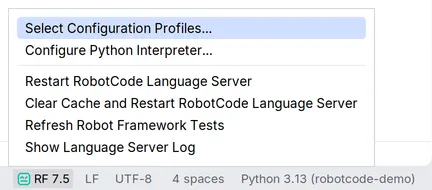
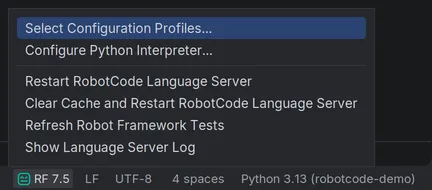
Its tooltip lists the versions of RobotCode, Robot Framework, Robocop (when it is installed) and Python, the path of the interpreter and the profiles. A click opens a menu with RobotCode's actions:
Actions
Section titled “Actions”RobotCode's actions are in the menu Tools | RobotCode and in the menu of the status bar widget:
| Action | What it does |
|---|---|
| Enable RobotCode for This Project | Switches RobotCode on again; it is shown only while RobotCode is switched off for the project. |
| Select Configuration Profiles... | Chooses the robot.toml profiles that the language server, the test discovery and runs use, see Configuration profiles. |
| Configure Python Interpreter... | Opens the settings of the Python interpreter of the project. |
| Restart RobotCode Language Server | Checks the Python interpreter again, restarts the language server and reads the tests again. |
| Clear Cache and Restart RobotCode Language Server | Also deletes RobotCode's analysis cache, while the language server runs. |
| Refresh Robot Framework Tests | Reads the tests again, from which the run markers come. |
| Show Language Server Log | Opens the Language Servers tool window with the log of the language server, see Troubleshooting. |
| Show What's New | Opens the news about the latest RobotCode release in the web browser, as the notification after an update does. |
More actions appear where they fit:
- File | New... | Robot Framework File, also in the New menu of the Project view, creates a suite file, a resource file or a file from one of your own file templates with the extension
robotorresource. - Run with Profile... and Debug with Profile... in the context menus of the editor, the editor tab, the Project view and the run markers run once with a profile you choose, see Running Tests.
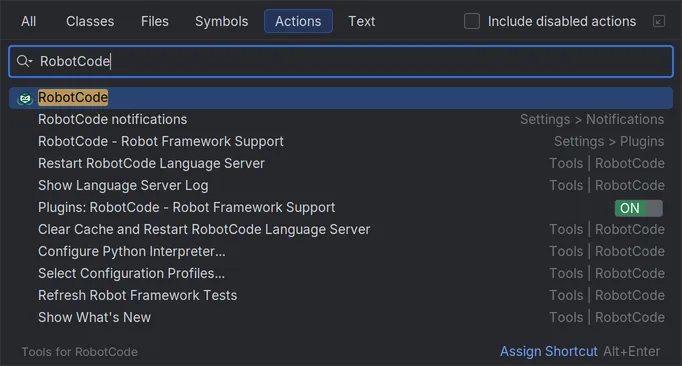
Find Action (Ctrl+Shift+A, Cmd+Shift+A on macOS), also under Help | Find Action..., runs these actions by name: type RobotCode to list the actions of Tools | RobotCode. It finds settings as well, for example RobotCode's settings pages when you type Robot Framework.
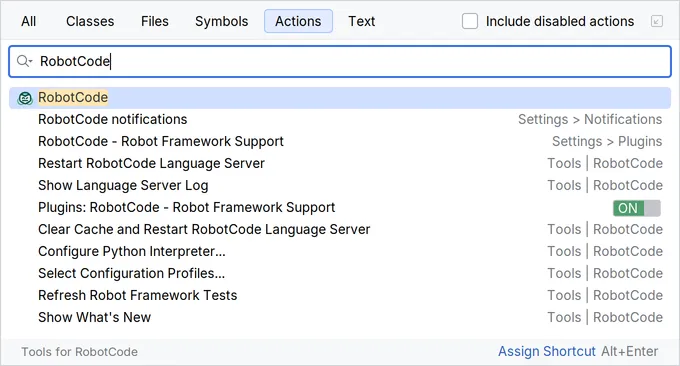
RobotCode defines no keyboard shortcuts of its own; PyCharm's shortcuts work, for example Ctrl+Shift+F10 (Ctrl+Shift+R on macOS) to run the test or suite at the cursor. The shortcuts in this guide are those of PyCharm's default keymaps for Windows and macOS. On Linux, PyCharm uses a keymap for GNOME, KDE or other desktops, in which some shortcuts differ; Settings | Keymap shows yours.
Output and logs
Section titled “Output and logs”RobotCode has no tool window of its own. The log of its language server is in the Language Servers tool window of the LSP4IJ plugin, which RobotCode uses to talk to its language server; Tools | RobotCode | Show Language Server Log opens it. When RobotCode cannot read the tests of the project, a notification "RobotCode could not discover the tests" shows the error, with Retry and, if the project folder contains a robot.toml, Open robot.toml. When a selected configuration profile is the reason, because robot.toml does not define it, the notification "RobotCode cannot find the selected profile" appears instead, with Remove from Selection and Select Configuration Profiles.... See Troubleshooting.
Pages of this guide
Section titled “Pages of this guide”Released under the Apache-2.0. Copyright © 2022-present Daniel Biehl