
Running and Debugging in VS Code
RobotCode runs and debugs your tests and tasks with Robot Framework in the Python environment of the workspace folder. This page covers runs started from the editor and debugging; the Test Explorer runs and debugs them from its tree, with run profiles.
Running from the editor
Section titled “Running from the editor”An icon beside each suite, test and task in the editor shows its last result; click it to run the test. Its context menu also debugs the test, runs it with another run profile (Execute Using Profile...), shows it in the Test Explorer and adds breakpoints:
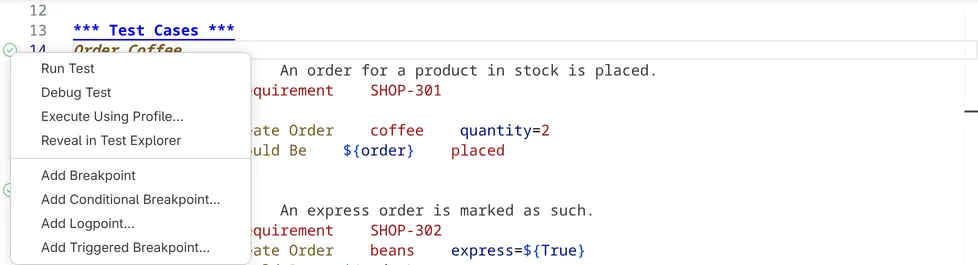
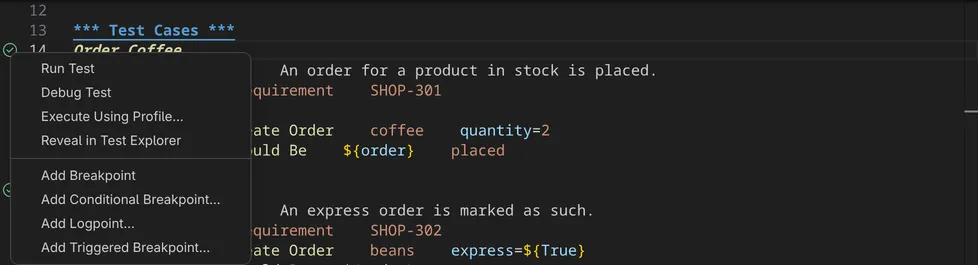
After a run, the editor shows each failure of a failed test at the step of the test that led to it, at the line that failed and at the calls in between, see Running and debugging in the Test Explorer.
RobotCode: Run Current File and RobotCode: Debug Current File run or debug all tests and tasks of the file in the active editor. Both are also in the context menu of the editor and at the run button at the top right of the editor: a click on it runs the file, the arrow beside it offers Debug Current File. The context menu of the editor also has VS Code's Run Test at Cursor and Debug Test at Cursor for the test the cursor is in, and Run Tests in Current File and Debug Tests in Current File for all tests and tasks of the file.
Choosing the configuration profiles
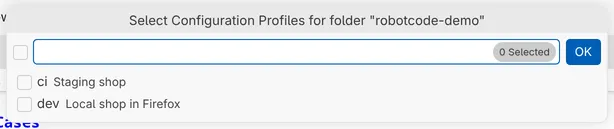
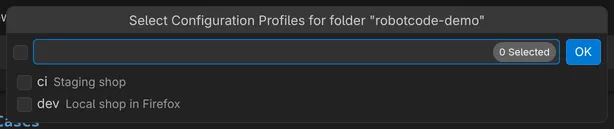
Section titled “Choosing the configuration profiles”RobotCode: Select Configuration Profiles, or Select at the profiles item of the language status, chooses the profiles of robot.toml that runs, test discovery and the language server use, for each workspace folder. The choice is stored in the setting robotcode.profiles of the workspace folder.
Debugging
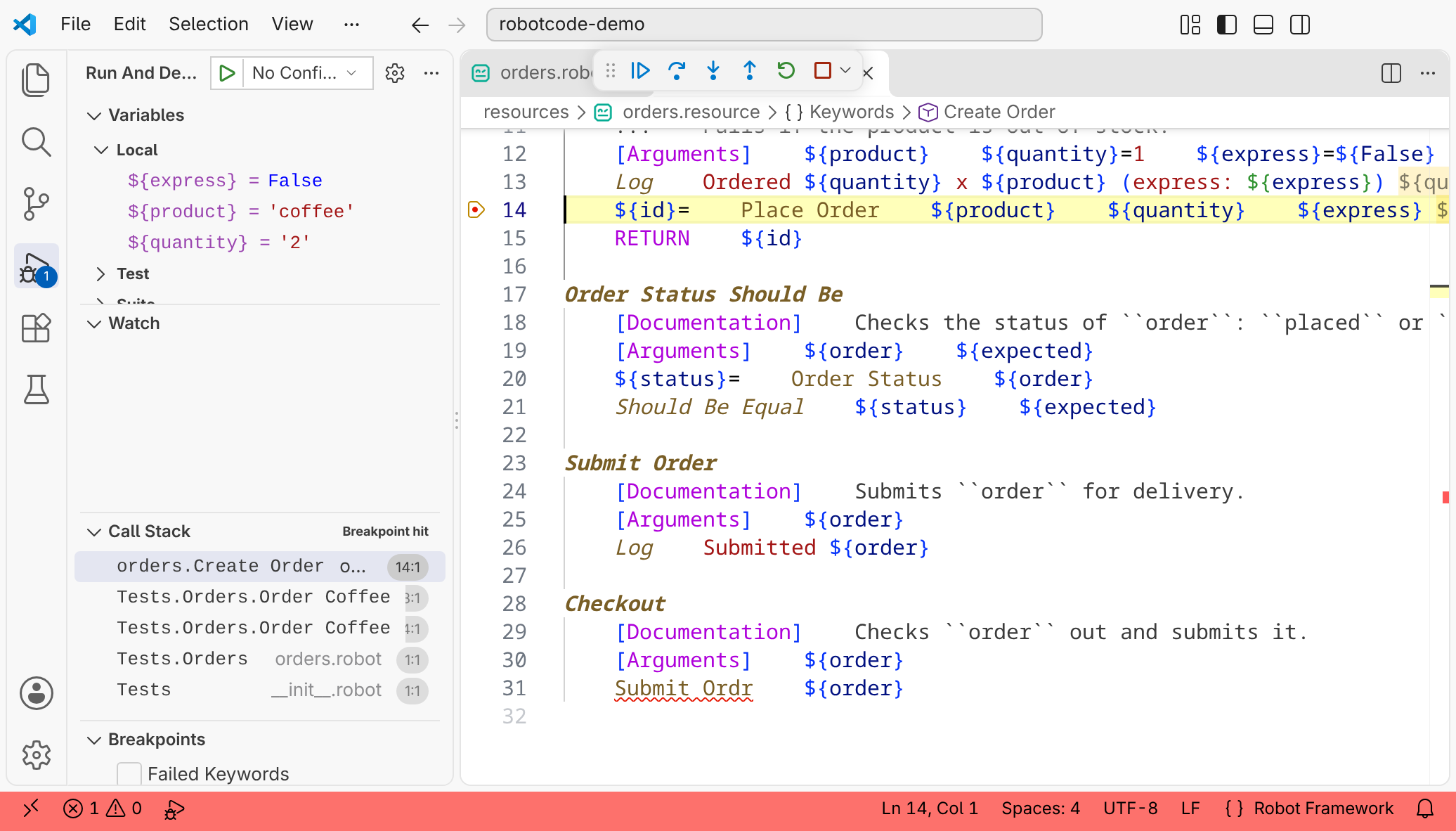
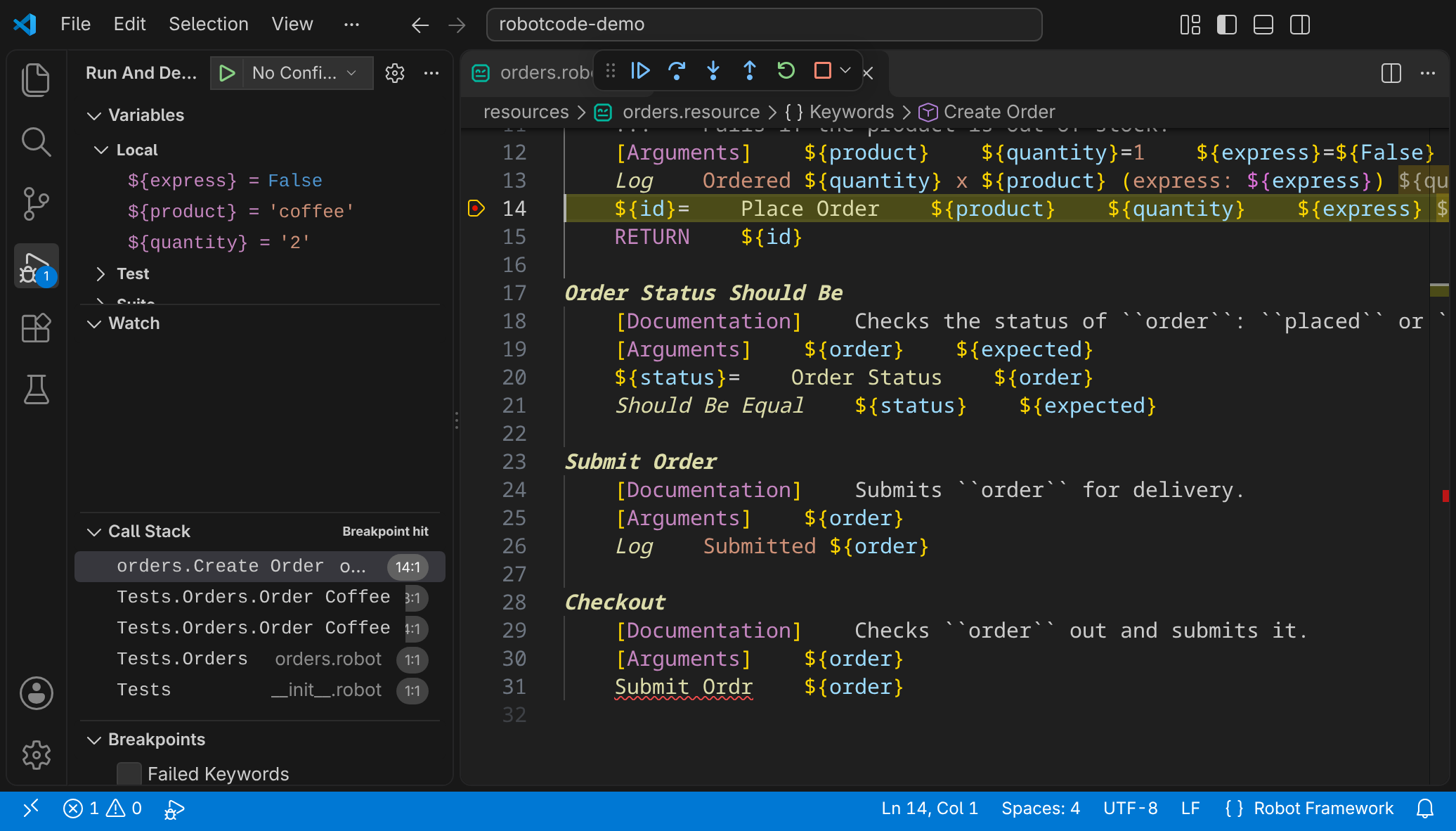
Section titled “Debugging”Click left of the line numbers to set a breakpoint in a test, a keyword or a resource file, then debug the test. The context menu of the breakpoint margin also adds conditional breakpoints, breakpoints with a hit count and logpoints, which log a message instead of stopping. A hit count of 3 stops at the third hit, >= 3 from the third hit on and % 3 at every third hit; >, < and <= work as well. While the test is stopped:
- the Run and Debug view shows the variables of each scope (local, test, suite and global) and the call stack of keywords, tests and suites;
- RobotCode shows the values of the variables at the end of the lines in the editor, and hovering over a variable shows its value;
- the debug toolbar continues (F5), steps over (F10), into (F11) and out of (Shift+F11) a keyword, and stops the run.
Stopping at failures
Section titled “Stopping at failures”The Breakpoints section of the Run and Debug view also stops at failures: Uncaught Failed Keywords is on by default and stops where a keyword fails unless the failure is handled, by a matching EXCEPT branch of a surrounding TRY or by a BuiltIn keyword that handles failures, such as Run Keyword And Expect Error, Run Keyword And Ignore Error or Wait Until Keyword Succeeds. Failed Keywords, Failed Tests and Failed Suites stop at every failed keyword, test or suite. Each of them takes a condition, with Edit Condition in its context menu.
When the run stops at a failure, the editor shows the failed keyword and its message below the line; for Failed Tests and Failed Suites, it names the test or suite instead. Under the message, it lists the calls that led there, from the test down to the failed keyword, each with a link to its file and line, and then, for an error from the Python code of a library, its Python traceback, at every log level, even though Robot Framework writes it to the log only at the level DEBUG. The links open with Ctrl+click (Cmd+click on macOS); a plain click does nothing.
The Debug Console
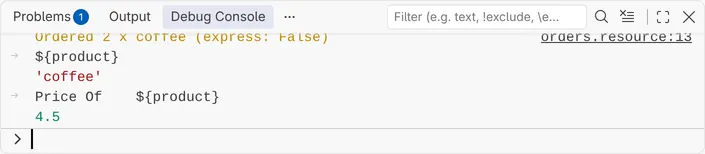
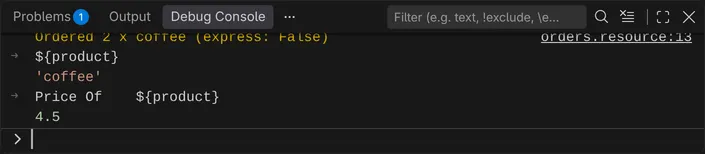
Section titled “The Debug Console”While a test is stopped, the Debug Console (Ctrl+Shift+Y, Cmd+Shift+Y on macOS, or its tab in the panel) evaluates what you type in the context of the current keyword: a variable such as ${product} shows its value, and a keyword call, written as in a test with its arguments, runs the keyword and shows what it returns.
To debug in the terminal instead, see Command-line debugging with robotcode robot-debug.
Launch configurations
Section titled “Launch configurations”The launch configurations of type robotcode in .vscode/launch.json start runs from the Run and Debug view and change how the Test Explorer and the editor run tests. Add Configuration... in launch.json offers these templates:
| Template | Purpose |
|---|---|
| RobotCode: Run Current | Runs the file in the active editor ("target": "${file}"). |
| RobotCode: Run All | Runs all tests of the workspace folder ("target": "."). |
| RobotCode: Test | With "purpose": "test": its settings apply to the runs of the Test Explorer and the editor. |
| RobotCode: Test Profile | With "purpose": "test-profile": becomes a run profile of the Test Explorer, see Run profiles. |
| RobotCode: Default | With "purpose": "default": its settings apply to all other RobotCode launch configurations. |
| RobotCode: Remote-Attach | Attaches to a run that waits for a debugger, by default on localhost:6612. |
A configuration takes the options of a run, such as profiles, variables, include, exclude, args and env; VS Code completes and explains them while you edit launch.json. The settings robotcode.robot.args, robotcode.robot.variables and robotcode.robot.env are combined with these options, profiles falls back to robotcode.profiles, and options such as console and attachPython fall back to the robotcode.debug.* settings, see the VS Code settings.
The output of a run
Section titled “The output of a run”A run writes its output to RobotCode's run terminal, named after the run, such as RobotCode: Run Tests robotcode-demo. Before each run, the terminal shows the run's command line after * Executing: as you would type it, starting with robotcode, with the configuration profiles and the other options of the run, so that you can check them; Copy Command copies it in full, with the interpreter. Robot Framework runs there without a shell, with the terminal as its input and output: its colors and its progress line work, and Ctrl+C stops the run as in a shell. Every run uses the interpreter of the workspace folder; the Python extensions do not activate an environment in this terminal.
VS Code marks the command line of each run with its command decoration, blue when the run passed and red when it failed. A click on it offers Copy Command, Copy Output and the other entries of VS Code's menu for commands; Rerun Command does nothing here. Ctrl+↑ and Ctrl+↓ (Cmd+↑ and Cmd+↓ on macOS) jump between the runs, and while you scroll through the output of a run, its command line stays at the top of the terminal.
After the run, the terminal keeps the output and says that RobotCode will reuse it: the next run with the same name runs in it, below the earlier output, and any key closes it. A run that starts while the terminal is still busy gets a terminal of its own.
The setting robotcode.debug.defaultConsole, or console in a launch configuration, chooses where a run writes its output:
| Value | Output |
|---|---|
robotcodeTerminal |
RobotCode's run terminal, the default. |
integratedTerminal |
A shell in VS Code's integrated terminal, which stays open after the run. |
internalConsole |
The Debug Console, without a terminal. |
externalTerminal |
A terminal window outside VS Code, as set in VS Code's terminal.external.* settings. |
When a run writes its output to a terminal, VS Code does not open the Debug Console by itself; Ctrl+Shift+Y (Cmd+Shift+Y on macOS) opens it. If you set VS Code's setting debug.internalConsoleOptions, or internalConsoleOptions in a launch configuration, that value decides when it opens.
The log after a run
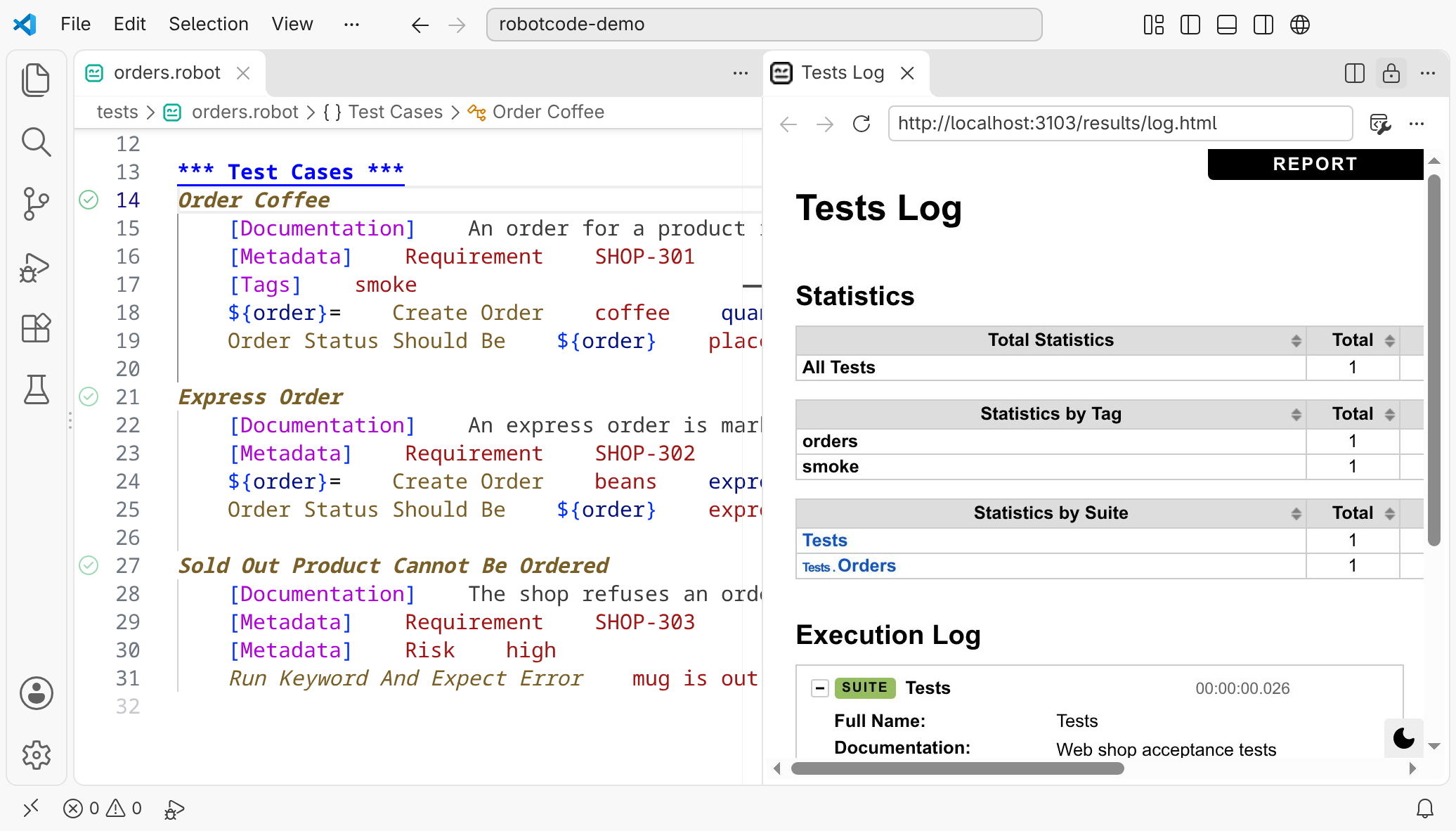
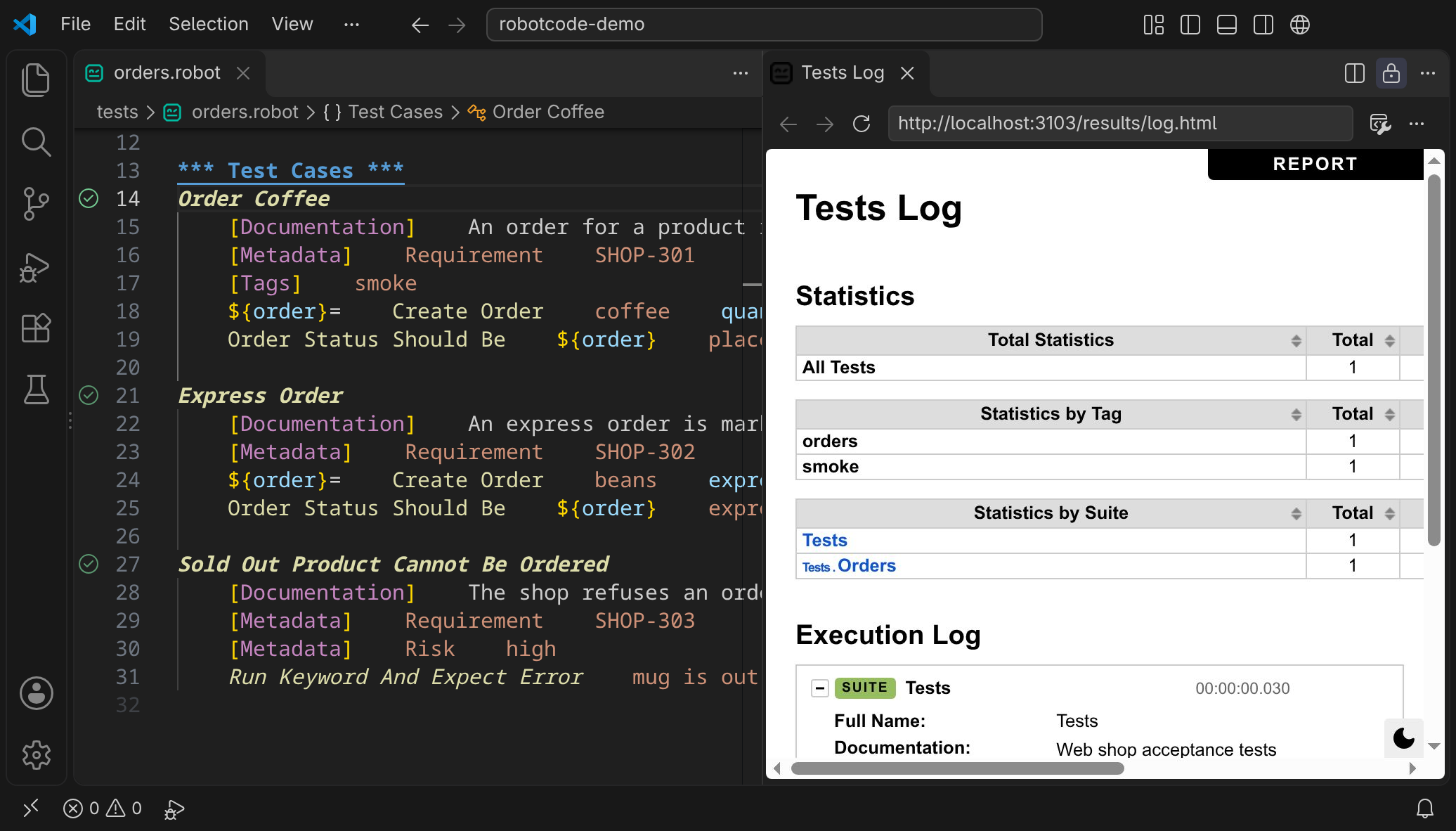
Section titled “The log after a run”With robotcode.run.openOutputAfterRun set to log or report, RobotCode opens the log or report of a run when it ends, by default in VS Code's browser beside the editor; robotcode.run.openOutputTarget opens it in your web browser instead.
Released under the Apache-2.0. Copyright © 2022-present Daniel Biehl