
Working in VS Code
RobotCode adds Robot Framework support to VS Code: it helps you write and navigate code, shows the documentation of keywords and libraries, finds and runs your tests and reports problems while you type. This page shows where these things appear in the window and lists the commands RobotCode adds. The pages of this guide explain each task in detail; to install RobotCode and set up a project first, see Get Started with VS Code.
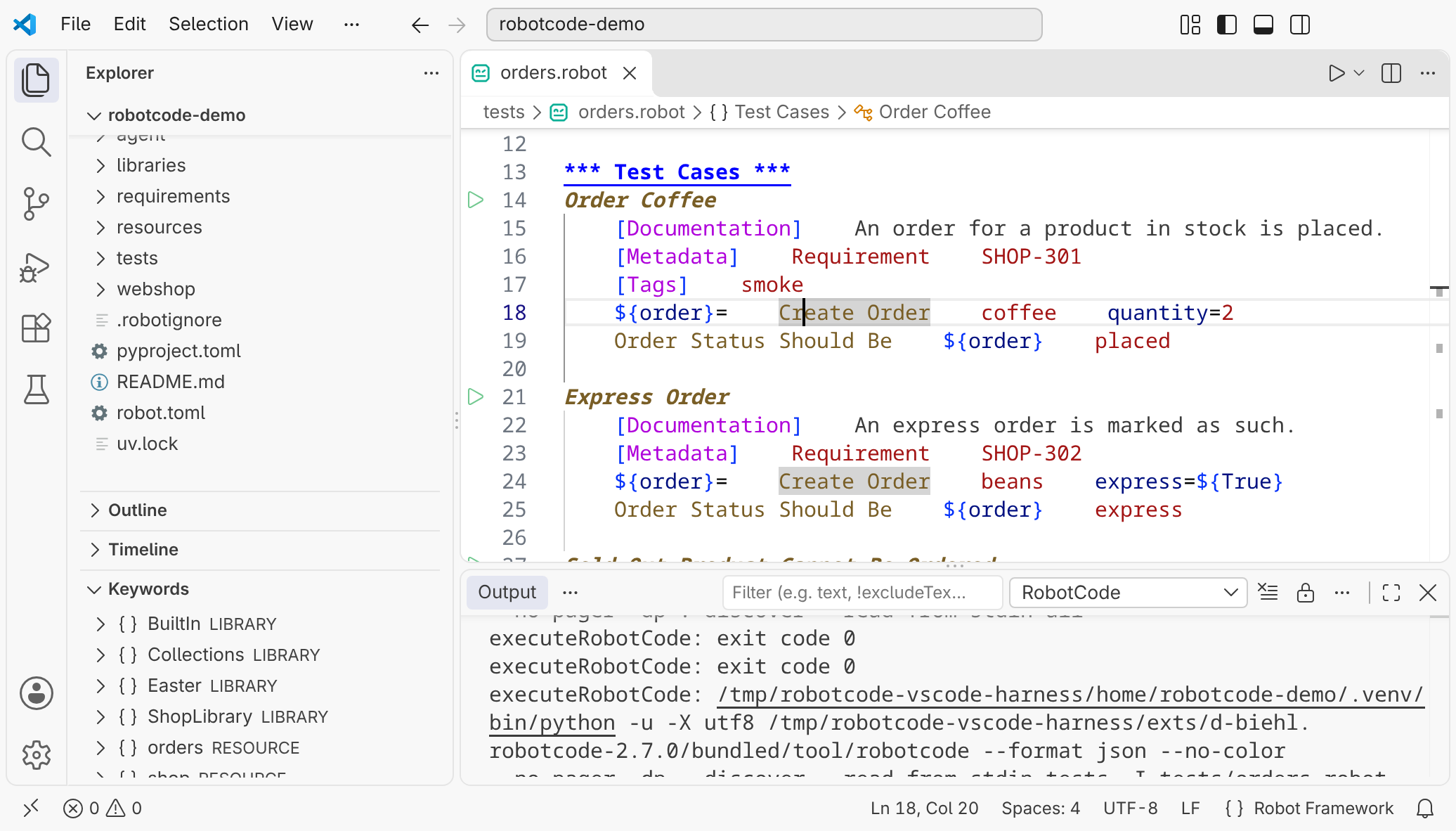
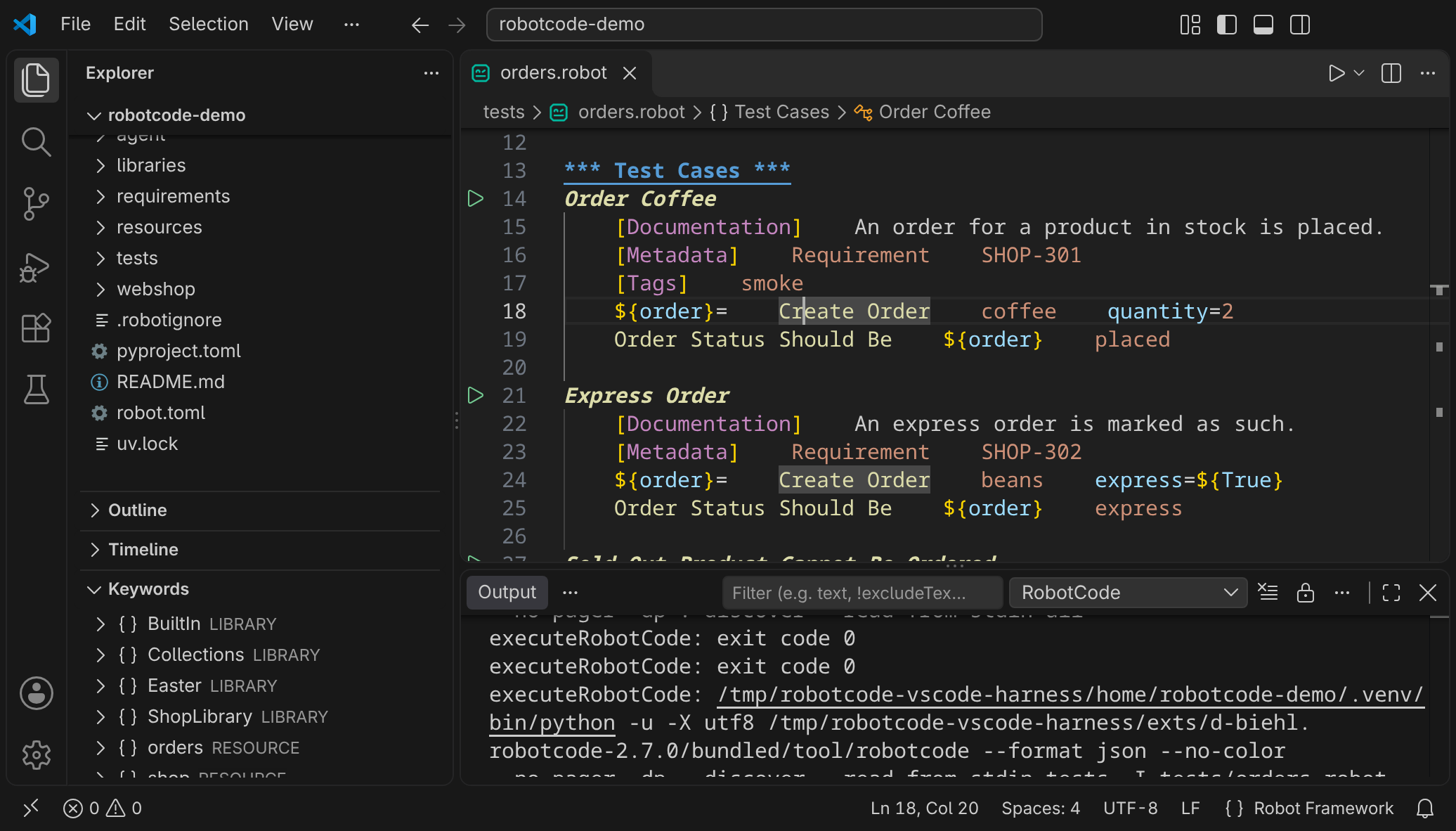
- The editor. RobotCode completes keywords, variables and imports, shows the documentation of keywords on hover, highlights the code by its meaning and marks problems while you type. The icons beside the tests run or debug them. See Writing Code and Finding Information.
- The Keywords view in the Explorer lists the libraries and resource files whose keywords the file in the active editor can call, with their keywords. See Finding Information.
- The Test Explorer opens with the Testing icon of the activity bar. It lists the suites, tests and tasks of the workspace and runs or debugs them. See Test Explorer.
- The language status. The braces next to "Robot Framework" in the status bar show RobotCode's status items when you hover over them, see below.
- The output channels of RobotCode in the Output panel, see Output and logs.
- The Command Palette opens with Ctrl+Shift+P (Cmd+Shift+P on macOS) or a click on the search field in the title bar and then on Show and Run Commands. Type
RobotCodeto see RobotCode's commands.
The language status
Section titled “The language status”When a Robot Framework file is active, the status bar shows { } next to the language name "Robot Framework". Hover over it to see RobotCode's status items for the workspace folder of the file:
| Item | Shows | Action |
|---|---|---|
| RobotCode Version | The version of the RobotCode extension. | Show Tool Menu opens the RobotCode menu. |
| Robot Framework Version | The Robot Framework version of the Python environment, or "not installed"; a version older than 5.0 is marked "not supported". | — |
| Python Version | The version and name of the Python environment RobotCode uses, or "no interpreter selected". | Select Environment opens the environment picker of the Python extension. |
| Robocop Version | The Robocop version of the Python environment, or "not installed". | Enable or Disable switches Robocop's diagnostics on or off. |
| Configuration Profiles | The robot.toml profiles in use, or "None". |
Select chooses other profiles. |
If the Robot Framework and Python items are marked as errors, the workspace folder has no usable Python environment, or RobotCode could not read the versions from it; the items name the problem, see The Python environment and Troubleshooting.
Output and logs
Section titled “Output and logs”RobotCode writes to two channels of the Output panel (View: Toggle Output, then choose the channel on the right of the panel's toolbar):
- RobotCode logs what the extension does, for example the
robotcodecommands it runs to discover tests. - RobotCode Language Server for folder … is the log of the language server of each workspace folder.
Troubleshooting explains how to make these logs more detailed.
Menus and shortcuts
Section titled “Menus and shortcuts”Many actions are in a menu too, not only behind a keyboard shortcut. A right-click in the editor opens its context menu: it goes to definitions and references, renames, formats and refactors, and in a suite file it offers RobotCode's Run Current File and Debug Current File and VS Code's commands to run or debug the test at the cursor or all tests of the file. Its last entry opens the Command Palette.
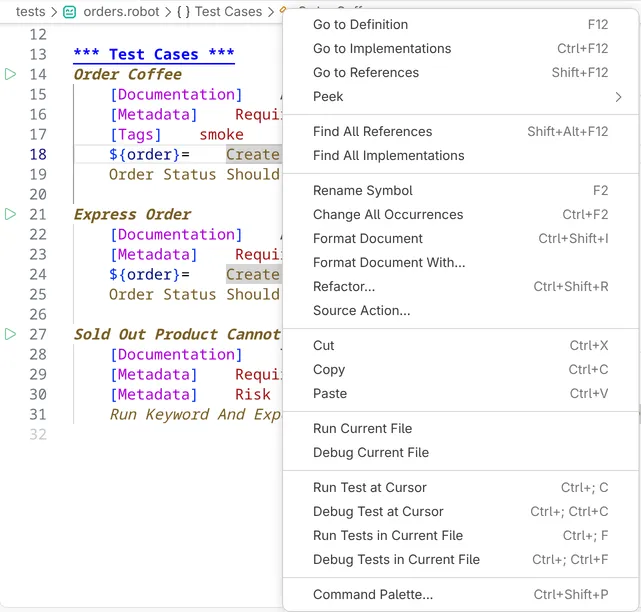
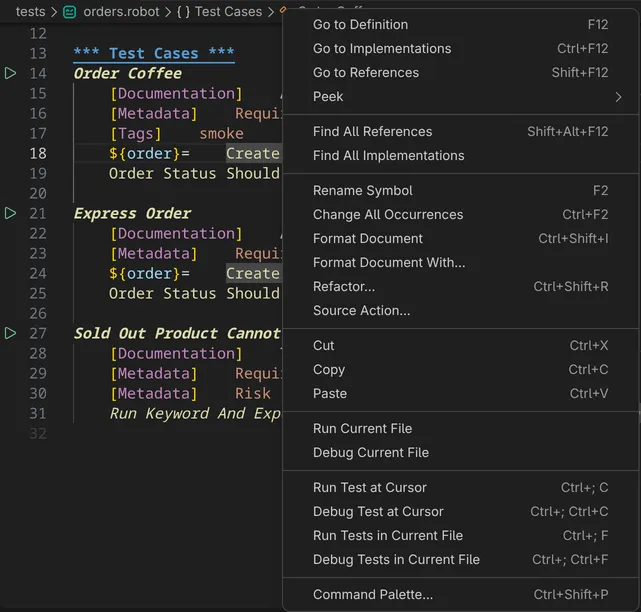
The pages of this guide name an action's keyboard shortcut and, where VS Code offers one, its menu entry or button.
Commands
Section titled “Commands”All of RobotCode's commands start with RobotCode: in the Command Palette. RobotCode: Show Tool Menu, or a click on the RobotCode version in the language status, opens a menu with the most important of them.
| Command | What it does |
|---|---|
| RobotCode: Run Current File | Runs the tests and tasks of the file in the active editor. |
| RobotCode: Debug Current File | Debugs the tests and tasks of the file in the active editor. |
| RobotCode: Select Configuration Profiles | Chooses the robot.toml profiles that test discovery, runs and the language server use. |
| RobotCode: Select Python Environment | Opens the environment picker of the Python extension for a workspace folder, see The Python environment. |
| RobotCode: Start Terminal REPL | Starts the interactive Robot Framework REPL in a terminal, see REPL. |
| RobotCode: Show Documentation Viewer | Brings the viewer that the actions use to the front, or opens one, see Documentation Viewer. |
| RobotCode: New Documentation Viewer | Opens a new viewer on BuiltIn, ready for the target you type, see Documentation Viewer. |
| RobotCode: Copy Documentation Viewer into New Window | Opens a viewer in a new window, with the target of the active or last-used viewer. |
| RobotCode: Reset Documentation Bookmarks | Removes the bookmarks and bookmarks the standard libraries again, see Bookmarks. |
| RobotCode: New Robot Framework File | Creates a suite file, a resource file or an __init__.robot file. |
| RobotCode: Enable RoboCop | Switches Robocop's diagnostics on, see Diagnostics and Linting. |
| RobotCode: Disable RoboCop | Switches Robocop's diagnostics off. |
| RobotCode: Restart Language Servers | Restarts the language servers. |
| RobotCode: Clear Cache and Restart Language Servers | Deletes the analysis cache and restarts the language servers. |
| RobotCode: Show Tool Menu | Opens the RobotCode menu. |
| RobotCode: Show What's New | Shows the release notes of the newest RobotCode version. |
| RobotCode: Copy Environment Info | Copies the versions of a workspace folder for a report, see Troubleshooting. |
| RobotCode: Report Issue... | Opens VS Code's issue reporter for RobotCode. |
| RobotCode: Add Chat Plugins Marketplace | Adds the marketplace of RobotCode's plugin for AI agents to the chat.plugins.marketplaces setting, see Working with AI Agents. |
| RobotCode: Remove Chat Plugins Marketplace | Removes the marketplace from that setting. |
Pages of this guide
Section titled “Pages of this guide”Released under the Apache-2.0. Copyright © 2022-present Daniel Biehl