
Debugging in PyCharm
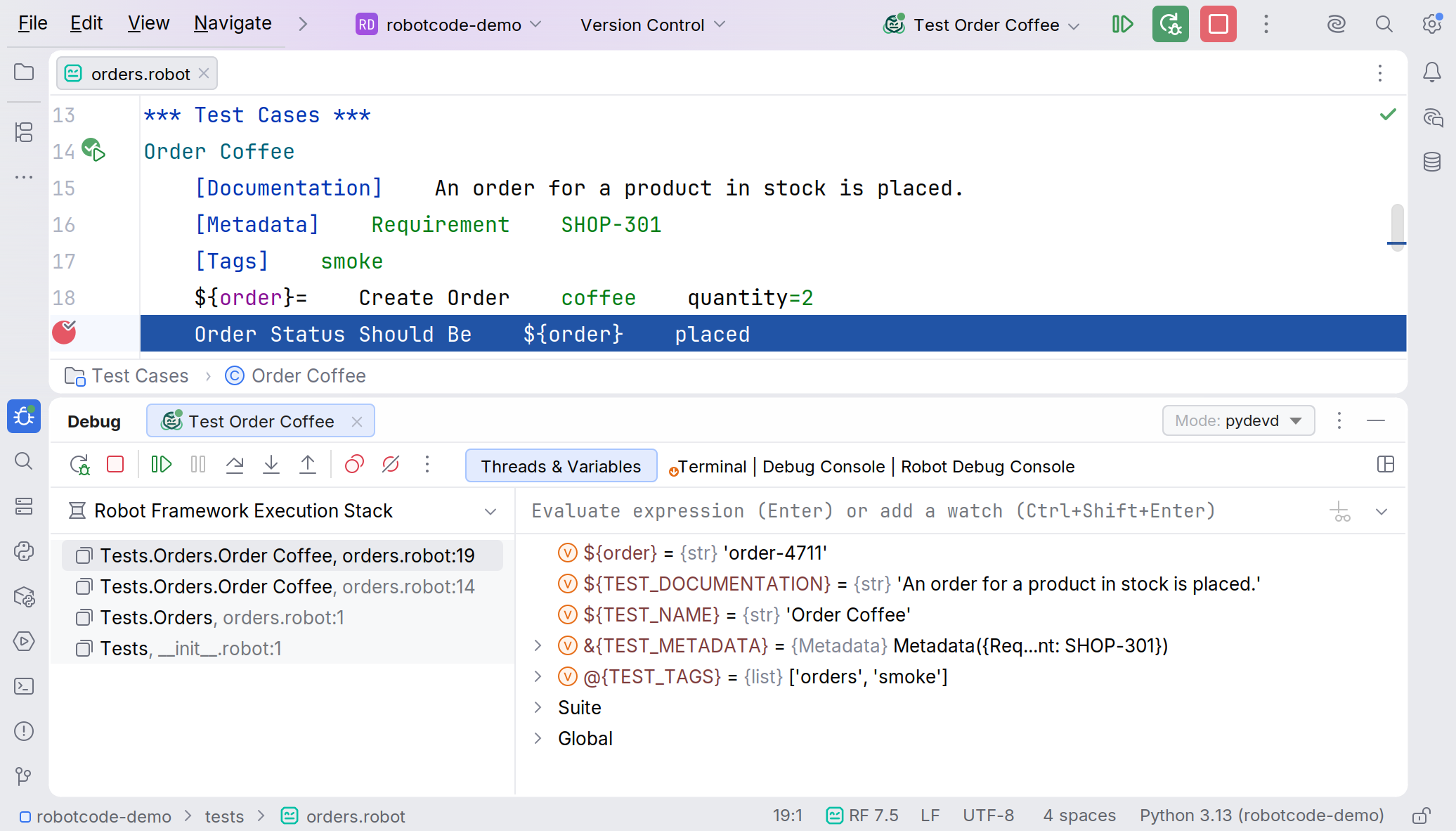
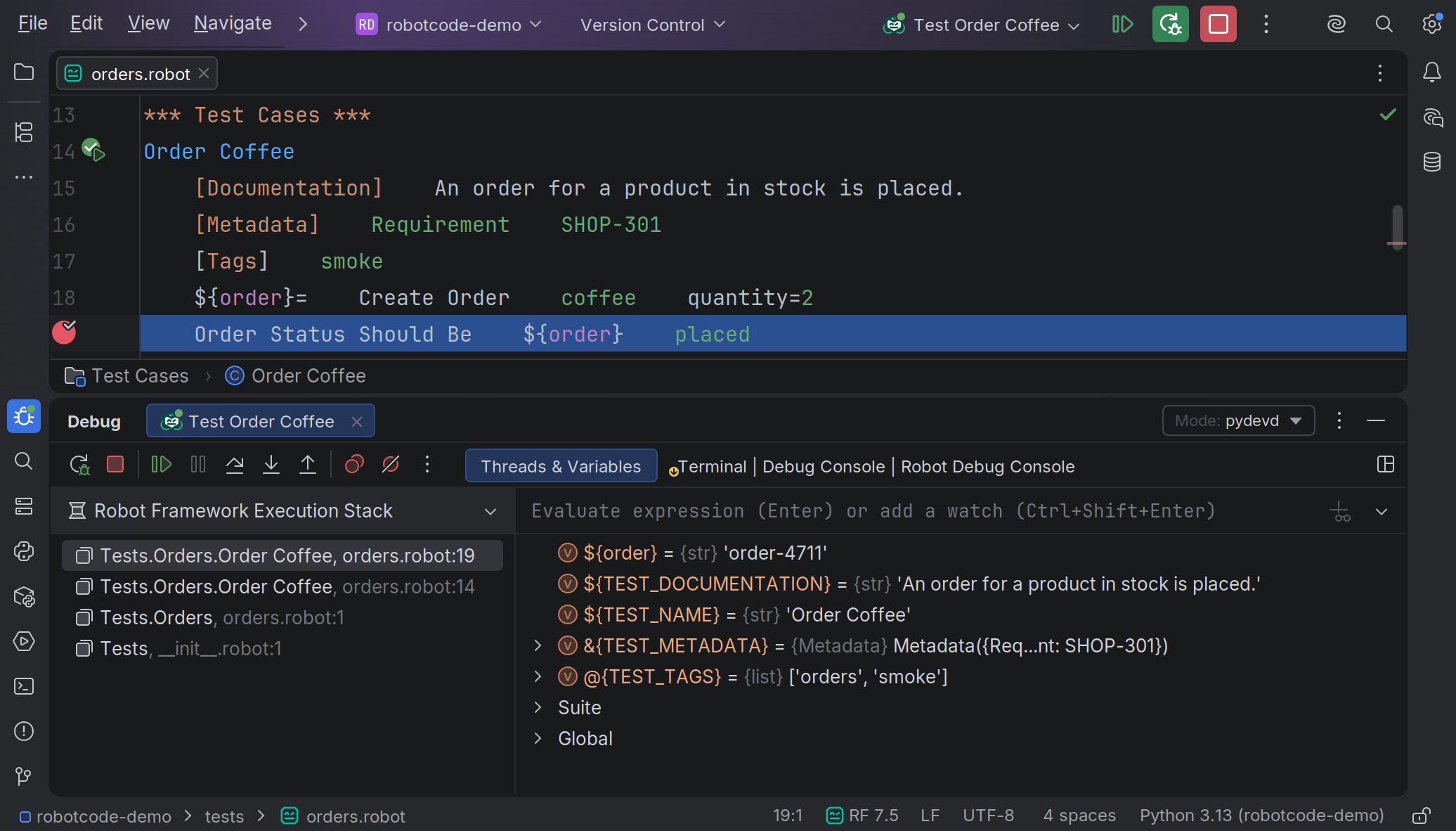
You debug tests from the same places you run them: Debug at a run marker or in a context menu, Debug with Profile..., or a run configuration started with Debug, see Running Tests. The run opens in the Debug tool window, which shows the debugger next to the tabs of a run: Terminal with the output of the process, Debug Console with the results tree, and Robot Debug Console, where you evaluate; unlike VS Code, PyCharm's tab Debug Console does not evaluate.
Breakpoints
Section titled “Breakpoints”A click in the gutter of a .robot or .resource file, or Run | Toggle Breakpoint | Line Breakpoint (Ctrl+F8, Cmd+F8 on macOS), sets a breakpoint on the line. A right-click on the breakpoint edits its condition, and More there, or Run | View Breakpoints..., shows all its options:
- Condition: a Python expression in which Robot Framework variables such as
${count}are replaced by their values, for example${count} > 2. The run stops only when it is true. - Hit count: stops only at certain hits:
3at the third,>= 3from the third on,% 3at every third. - Evaluate and log: with Suspend switched off, a text with Robot Framework variables, such as
count is ${count}, that is written to the Debug Console tab at every hit while the run goes on. With Suspend on, it is evaluated like a watch when the run stops there, so enter a variable, an expression such as${count} * 2, or!and a keyword.
PyCharm's breakpoint options apply too, for example Remove once hit and breakpoints that are enabled only after another one was hit; they do not react to a breakpoint that only logs, without Suspend.
Stopping at failures
Section titled “Stopping at failures”Run | View Breakpoints... (Ctrl+Shift+F8, Cmd+Shift+F8 on macOS) lists the group Robot Framework Exception Breakpoints. Uncaught Failed Keywords is on by default: the run stops at the first keyword that fails without being caught by TRY/EXCEPT or a keyword such as Run Keyword And Expect Error, before the failure ends the test. The add button of the group adds Failed Keywords, which stops at every failing keyword, also caught ones, Failed Tests and Failed Suites. When a run stops there, the debugger shows the failure message.
Stepping
Section titled “Stepping”While the run is paused, Resume Program (F9, Cmd+Option+R on macOS), Step Over (F8), Step Into (F7) and Step Out (Shift+F8) move through the keywords, and Run to Cursor (Alt+F9 on Windows, Shift+Alt+9 on Linux, Option+F9 on macOS) runs to the line of the cursor. Stop ends the run and lets Robot Framework write its output files.
The option Stop on entry of a run configuration pauses the run at the start of its top-level suite.
Frames and variables
Section titled “Frames and variables”The frames show the keywords, tests and suites that run, with their file and line where they have one. The variables of the selected frame are grouped: the local variables first, then those of the test, the suite and the global ones. Each variable shows the name of its Python type, and lists and dictionaries can be expanded.
Set Value... changes a local variable of the innermost frame. The new value is a Python expression in which Robot Framework variables are replaced, so a string needs quotes: 'shipped', not shipped.
While the run is paused, hovering over a variable in the editor shows its value.
Evaluate and watches
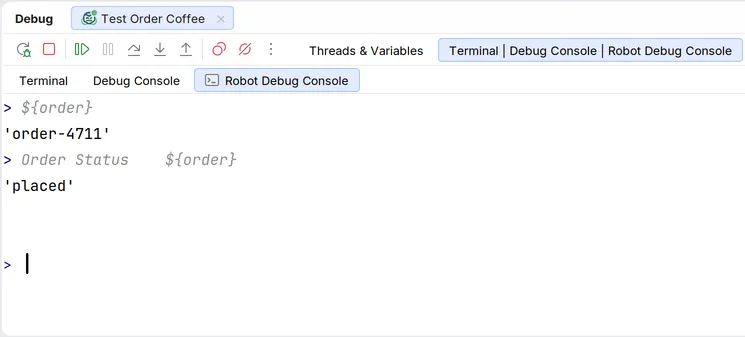
Section titled “Evaluate and watches”Run | Debugging Actions | Evaluate Expression... (Alt+F8 on Windows, Option+F8 on macOS) evaluates in the selected frame: a single variable such as ${order} shows its value, anything else runs as a keyword call, such as Log ${order}. A watch is a variable or a Python expression in which Robot Framework variables are replaced, such as ${count} + 1; to run a keyword in a watch, start it with ! . An unknown variable shows <undefined>.
While the run is paused, completion in these fields, in the fields of a breakpoint and in the Robot Debug Console offers the keywords, libraries, resource files and variables of the selected frame; it opens by itself after ${, @{, &{ and %{.
The Robot Debug Console
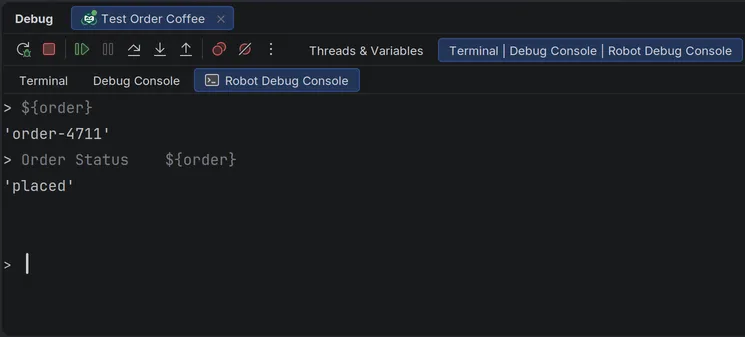
Section titled “The Robot Debug Console”The tab Robot Debug Console evaluates the lines you type in the selected frame the same way, and keeps their history. While the run is not paused, it answers "The run is not paused."
RobotCode in PyCharm does not show variable values at the end of the lines while paused, cannot debug the Python code of libraries in the same session and cannot attach to a run started outside the IDE; see PyCharm and VS Code. On the command line, robotcode robot-debug debugs a run in the terminal.
Released under the Apache-2.0. Copyright © 2022-present Daniel Biehl