
Running Tests in PyCharm
PyCharm has no Test Explorer like VS Code. You run tests where they are: from the run markers in the editor, from the context menus of the editor and the Project view, and from run configurations. RobotCode reads the tests of the project in the background to place the run markers; Tools | RobotCode | Refresh Robot Framework Tests reads them again.
Running from the editor
Section titled “Running from the editor”A run marker in the gutter sits beside every test and task, and on the first line of a suite file for the whole suite. Its icon shows the result of the last run. A click on it offers Run, Debug, Run with Profile... and Debug with Profile...:
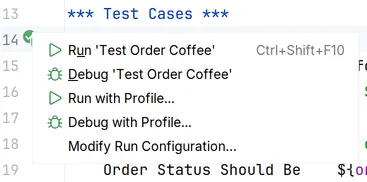
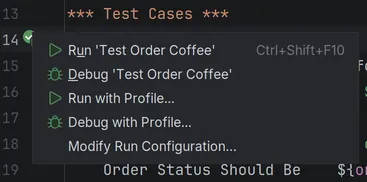
The context menu of the editor runs or debugs what is at the cursor: the test or task when the cursor is in its body, otherwise the suite of the file. Ctrl+Shift+F10 (Ctrl+Shift+R on macOS) runs it directly. The context menu of the editor tab runs the suite of the file. In PyCharm Professional, More Run/Debug in the context menu also lists PyCharm's Profile and Concurrency Diagram; Robot Framework runs support neither, and both end with a message.
A file that Robot Framework cannot read as a suite, for example one with both tests and tasks, gets an error marker on its first line instead; its tooltip names the problem.
Running from the Project view
Section titled “Running from the Project view”The context menu of a .robot file, or of a folder that contains .robot files at any depth, runs or debugs it. Several selected files and folders run together in one run. An __init__.robot file stands for its folder.
Run configurations
Section titled “Run configurations”Every run uses a run configuration of the type Robot Framework. A run from the gutter or a context menu creates one, named after what it runs, such as "Test Order Coffee" or "Suite Orders", and reuses it the next time; Run | Edit Configurations... saves and changes them.
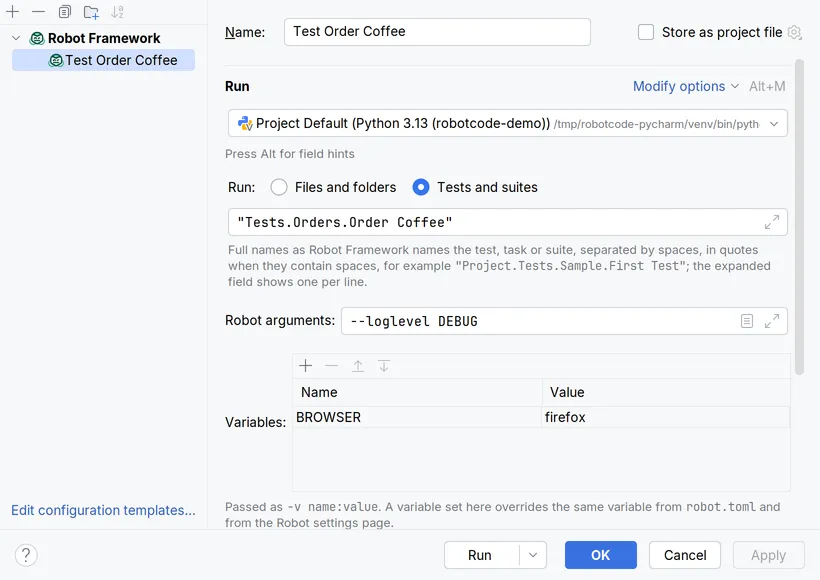
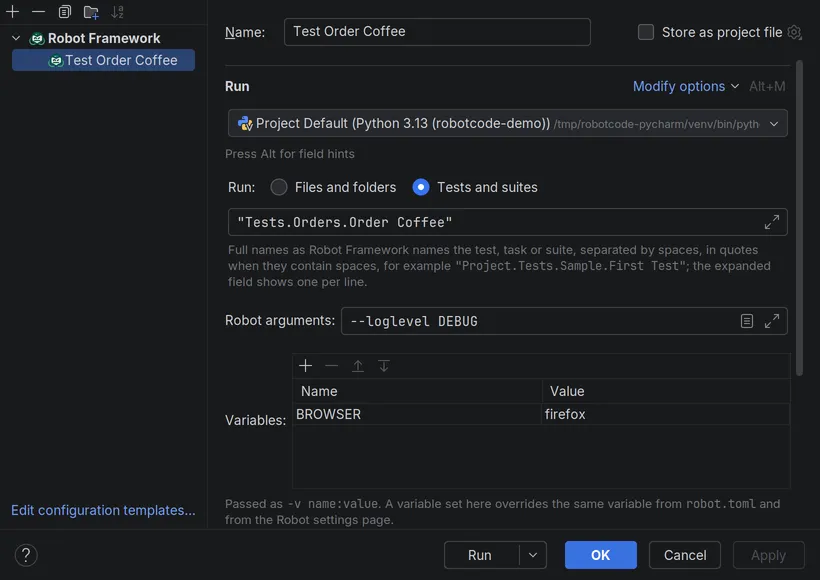
- Run: Files and folders runs paths, separated by spaces; Add Files or Folders... picks them. An empty list runs the
pathsofrobot.toml; without them the Paths of the settings page Robot, or else the project folder. Tests and suites runs tests, tasks and suites by their full names, such as"Project.Tests.Sample.First Test". - Robot arguments: further options for Robot Framework, such as
--loglevel DEBUG. - Modify options, group Robot Framework, adds Variables, Variable files, Python path, Languages, Include tags, Exclude tags, Output directory, Mode, Dry run and Configuration profiles.
- Modify options, group Run & Debug, adds Launch wrapper, robotcode arguments, Output messages, Output log, Output timestamps, Open output after run, Stop on entry, which applies to debug runs, Connection timeout and Debugger arguments.
A Robot Framework run configuration is a Python run configuration of PyCharm, so it also has PyCharm's Python options: the interpreter, its options, the working directory, environment variables and .env files, adding the content and source roots to PYTHONPATH, which is off by default, and Before launch tasks.
The run configuration adds to the settings page Robot, see Configuration: the Python path, the variable files and the Robot arguments of the page come first, then those of the configuration; a variable of the configuration wins over one of the page with the same name; languages, output directory and mode of the configuration replace those of the page. The run configuration template of the type Robot Framework, under Edit configuration templates..., sets the defaults of the configurations that runs from the gutter and the context menus create.
Running with a profile
Section titled “Running with a profile”Run with Profile... and Debug with Profile... in the menus of the run markers, the editor, the editor tab and the Project view ask for one of the profiles of robot.toml and run once with it, as a copy of the configuration named "… (profile)"; the saved configurations stay unchanged. For a profile that a configuration always uses, set the option Configuration profiles in it. Without either, a run uses the profiles selected for the project, see Configuration profiles.
The results of a run
Section titled “The results of a run”A run opens in the Run tool window, a debug run in the Debug tool window, with two tabs:
- Terminal shows the output of the process, as a run in a terminal shows it. The paths of the output files that Robot Framework names are links.
- Debug Console shows the results tree: the suites, tests and tasks as Robot Framework runs them, with their status and duration. A selected test shows its log messages, with a link to the source line of each, and for a failed test each of its failures with the calls that led to it, from the call in the test inward, as
File "<file>", line <line>, in <Library>.<Keyword>, followed by failures the test caught before, markedCaught:.
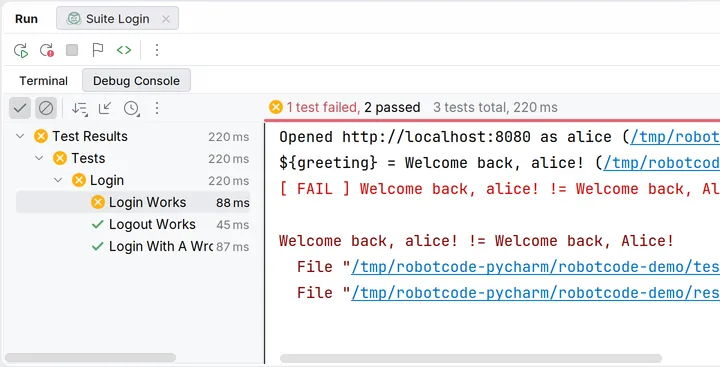
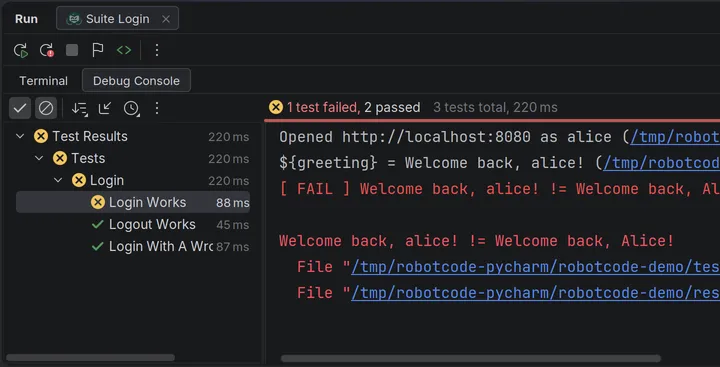
A double-click on a test goes to the test, and for a failed test to the call in the test that led to its first failure. Rerun Failed Tests in the tool window's toolbar runs exactly the failed tests again. Stop asks the RobotCode debugger to end the run as Ctrl+C in a terminal does: the running test fails, its teardowns run and Robot Framework writes its output files. Only if the debugger is not connected or does not confirm the request within five seconds does RobotCode interrupt the process. A second Stop while the run is ending ends the process at once.
To analyze the results of a run in a terminal, see robotcode results.
Report and log
Section titled “Report and log”Open Report and Open Log in the toolbar of the tool window open the report and the log of the run. The settings page Run opens one of them after every run with Open output after run, and chooses where with Open output target: RobotCode's Built-in preview, which is the default, the default browser or another browser.
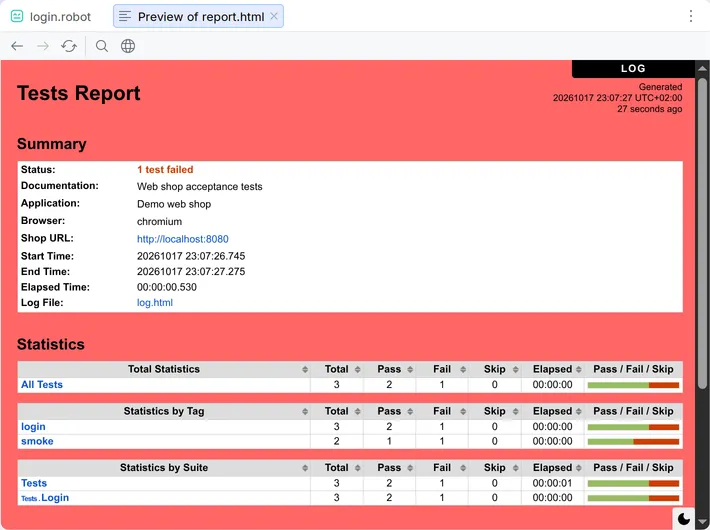
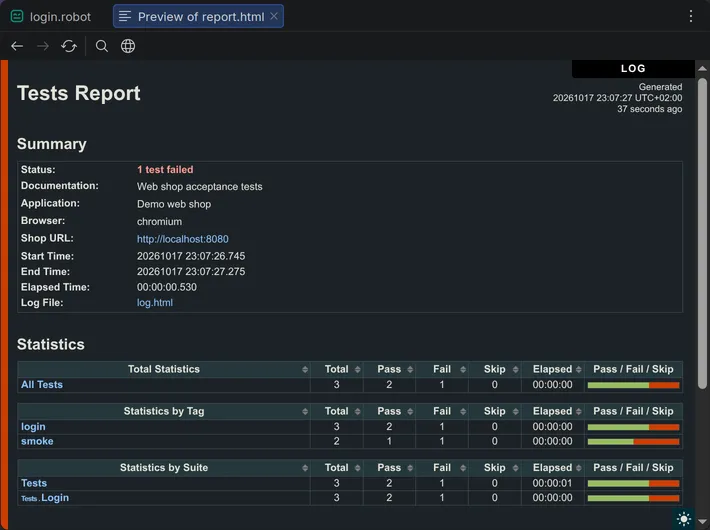
The preview opens in an editor tab with Back, Forward, Reload, Find in Page and Open in Browser. When a later run opens the report or log again, the open tab shows the new file; otherwise Reload shows it.
With Robot Framework 7.0 or later, the preview shows the report and the log in PyCharm's light or dark theme and follows a change of the theme. The theme switch of the report and the log still works: the page keeps the theme chosen with it until PyCharm's theme changes.
Released under the Apache-2.0. Copyright © 2022-present Daniel Biehl