
Diagnostics and Linting in PyCharm
RobotCode checks your files while you type: keywords and variables it cannot find, wrong arguments, imports that fail, and more. With Robocop installed, Robocop's findings join them.
Where problems appear
Section titled “Where problems appear”RobotCode marks problems in the editor; hover over a marked spot to read the message. The Problems tool window (Alt+6, Cmd+6 on macOS) lists the problems of the file in the editor.
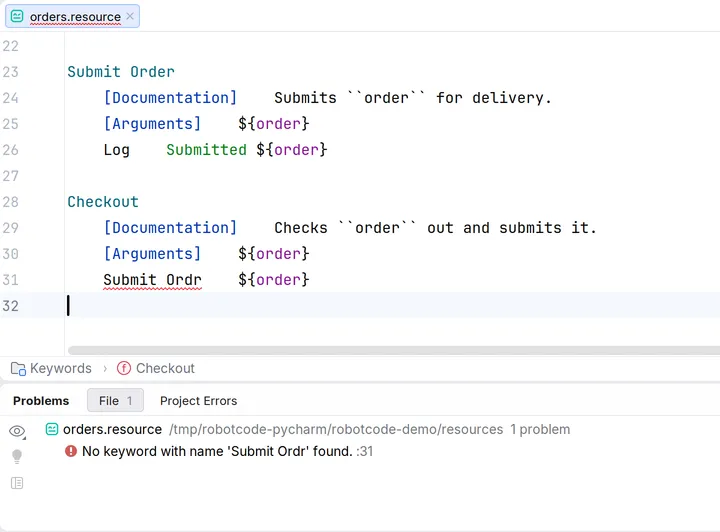
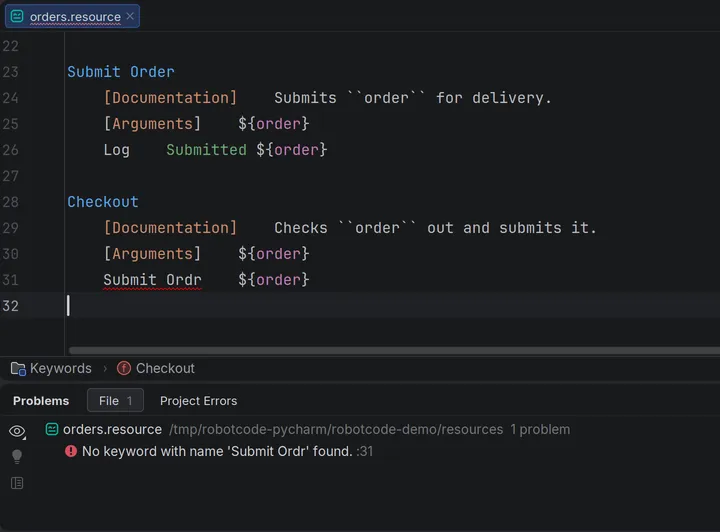
RobotCode's severities appear as PyCharm's levels:
| RobotCode | PyCharm |
|---|---|
| Error | Error |
| Warning | Warning |
| Information | Weak warning, listed in Problems |
| Hint | Not listed in Problems; the message shows on hover |
By default RobotCode checks the files you have open. With Diagnostic mode set to Workspace on the settings page Analysis, it checks all Robot Framework files of the project, and the Project view marks the files that contain errors.
Robocop
Section titled “Robocop”When Robocop is installed in the Python interpreter of the project, RobotCode runs it on the files it analyzes and shows its findings next to its own; the tooltip of the status bar widget shows Robocop's version. The settings page Robocop switches it off with Enabled, and sets a Config file; switching it off does not switch off formatting with Robocop.
Changing or hiding diagnostics
Section titled “Changing or hiding diagnostics”A comment such as # robotcode: ignore[variable-not-found] hides a diagnostic or changes its severity: at the end of a line for that line, at the start of a line for the rest of the file, indented for the rest of the block; see Controlling Diagnostics with Modifiers for the syntax. To change a code for the whole project, list it in [tool.robotcode-analyze.modifiers] of robot.toml, which works in every editor and on the command line. The group Diagnostic Modifiers on the settings page Analysis adds codes for this IDE only: Ignore, Error, Warning, Information and Hint.
Unused keywords and variables
Section titled “Unused keywords and variables”Find unused references on the settings page Analysis reports keywords, arguments and variables that nothing uses. It is off by default.
The analysis cache
Section titled “The analysis cache”RobotCode keeps what it learned about libraries and variable files, and its analysis of the project's files, in a cache, so that a start does not load and analyze everything again. Save location on the settings page Analysis keeps it in the IDE's system directory, which is the default, or in the project folder, as .robotcode_cache. Ignored libraries and Ignored variables leave libraries and variable files out of the cache, for example ones whose keywords depend on their arguments; Ignore arguments for library analyzes the listed libraries without their import arguments.
Tools | RobotCode | Clear Cache and Restart RobotCode Language Server deletes the cache while the language server runs, so that every library and file is loaded and analyzed again. Use it when diagnostics stay outdated although the files are right.
Problems while finding the tests
Section titled “Problems while finding the tests”When Robot Framework reports a problem while RobotCode reads the tests of a file, for example a file with both tests and tasks, the tooltip of the run marker on the first line of the file lists it, or the first line gets an error marker. These problems do not appear in the Problems tool window.
On the command line, robotcode analyze code checks a whole project, for example in CI.
Released under the Apache-2.0. Copyright © 2022-present Daniel Biehl