
Configuring RobotCode in VS Code
RobotCode takes its configuration from two places: the robot.toml of your project and the settings of VS Code. This page explains which belongs where, and how to choose the Python environment and the profiles.
robot.toml or a VS Code setting?
Section titled “robot.toml or a VS Code setting?”robot.toml holds the options of your Robot Framework project: the paths of the tests, the Python path for libraries, variables, the output directory, profiles for different environments and RobotCode's analysis options. RobotCode reads it everywhere it runs: in VS Code, in PyCharm, on the command line and in CI. Keep it in your repository, so that everyone who works on the project runs the tests the same way. See Configuring Projects with robot.toml and the robot.toml reference.
The settings of VS Code decide how the extension behaves in the editor: the analysis and its cache, completion, inlay hints, the Test Explorer, the output of a debug session, the Documentation Viewer. They are listed in the VS Code settings.
The settings robotcode.robot.args, robotcode.robot.paths, robotcode.robot.pythonPath, robotcode.robot.variables, robotcode.robot.variableFiles, robotcode.robot.env, robotcode.robot.languages, robotcode.robot.mode and robotcode.robot.outputDir pass options to the runs as well, but only in VS Code. Of these, the test discovery gets args, paths, pythonPath, languages and mode, and the analysis pythonPath, variables, variableFiles, env and languages. Put options that the command line and other editors need too into robot.toml instead.
Editing robot.toml
Section titled “Editing robot.toml”With the extension Even Better TOML installed, VS Code completes the settings and values of robot.toml and shows their documentation on hover, from RobotCode's JSON schema:


User, workspace and folder settings
Section titled “User, workspace and folder settings”Preferences: Open Settings (UI) (Ctrl+,, Cmd+, on macOS, or Settings in the menu of the gear at the bottom left) shows the settings; the filter @ext:d-biehl.robotcode lists RobotCode's, grouped by their categories:
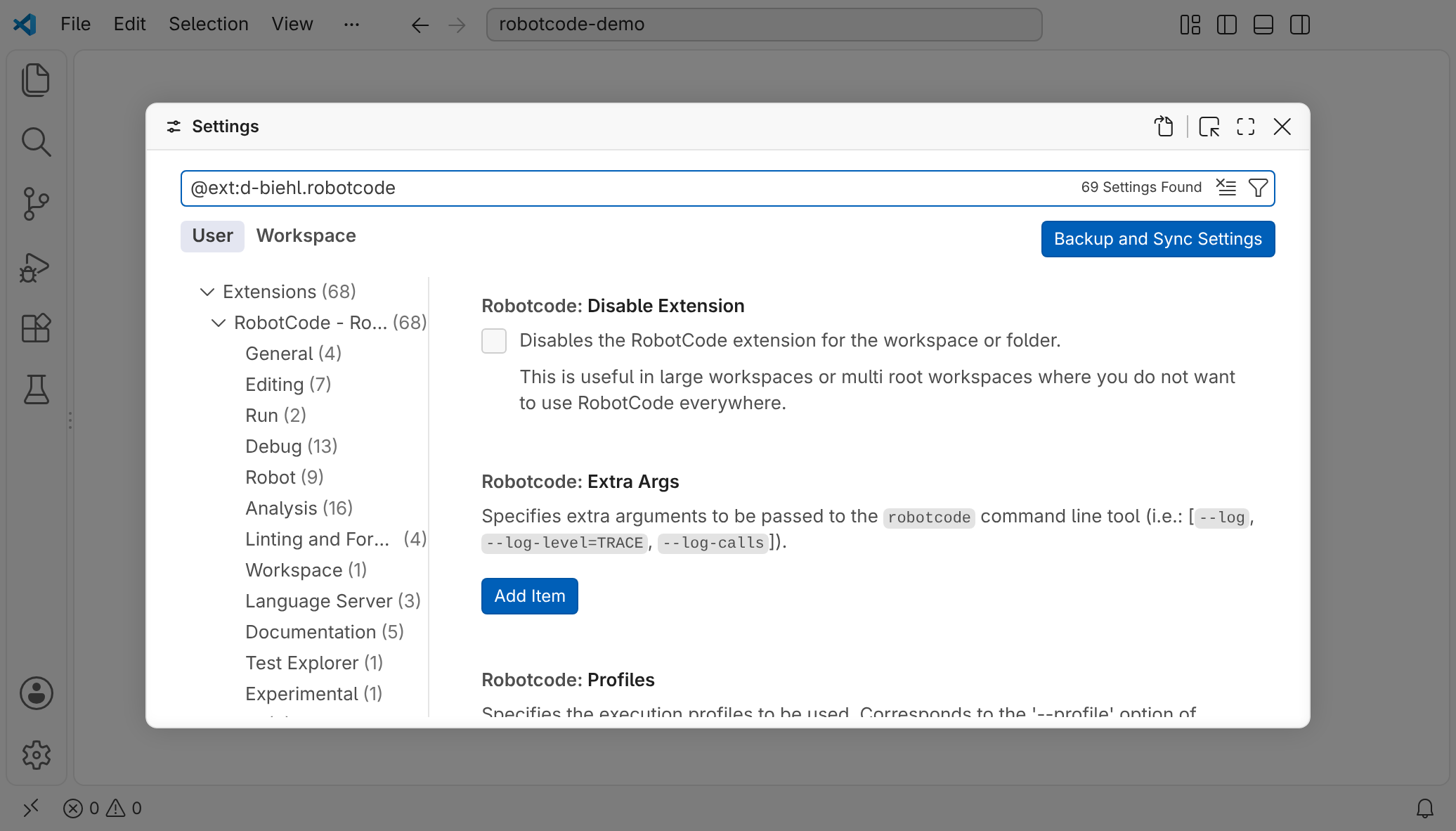
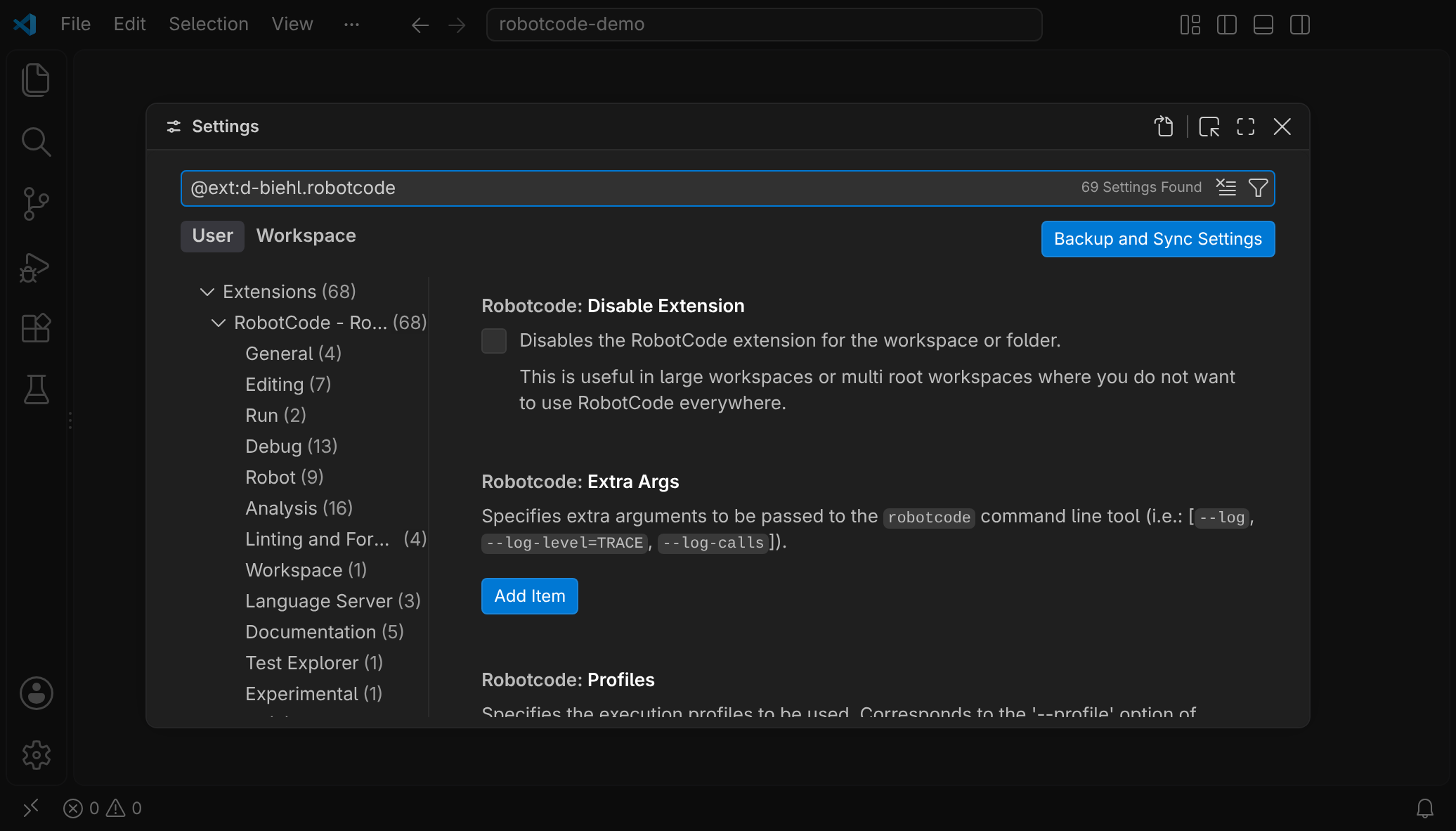
VS Code keeps settings on several levels:
- User settings apply to every project you open.
- Workspace settings, in
.vscode/settings.jsonof the project, apply to this project and override the user settings. Keep the settings the whole team should use there. - Folder settings apply to one folder of a workspace with several folders and override both.
Most of RobotCode's settings can be set on every level; the VS Code settings say for each setting where it can be set.
The Python environment
Section titled “The Python environment”RobotCode runs Robot Framework, its language server and its tools in the Python environment that VS Code's Python extension uses for the workspace folder. With the Python Environments extension, that is the environment it selects for the folder, the one its Python view and the status bar show. To choose another one, use RobotCode: Select Python Environment, or Select Environment at the Python item of the language status; both open the environment picker of the Python extension.
RobotCode needs Python 3.10 or newer with Robot Framework 5.0 or newer. When the environment of a folder with Robot Framework files does not fit, a message names the problem: no interpreter is selected, the interpreter no longer exists, Python is older than 3.10, or Robot Framework is missing or older than 5.0. In the first 15 seconds after VS Code starts or a folder is added, while the Python extension may still be selecting the folder's environment, RobotCode reports a problem only if it remains; until then the language status shows that RobotCode is still checking. The message stays until the folder has a usable environment, then it closes by itself and a short message confirms the environment: RobotCode notices a new virtual environment in the folder, for example from uv sync, a changed selection, and a Robot Framework installed into the selected environment with pip or uv. RobotCode does not install Robot Framework itself and does not suggest how, because which tool and which version your project wants is your decision. The message offers Select Environment, Create Environment, which opens the Python extension's dialog for a new virtual environment, Retry, and without the Python Environments extension Use .venv for a virtual environment in the folder that is not selected yet. Cancel closes the message and asks whether to switch RobotCode off for the folder: for this session, or for this project with the folder setting robotcode.disableExtension.
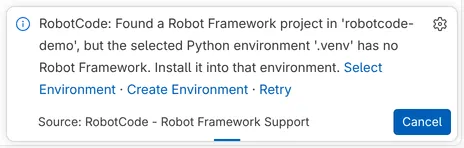
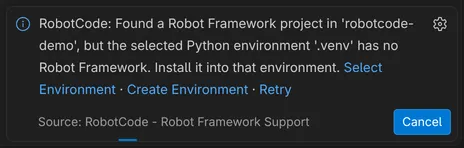
Nothing waits for the message: the Testing view and the language status show the state of the environment too, and the language server starts on its own as soon as the environment is usable. The setting robotcode.python still works but is deprecated in favor of the Python extension's interpreter; when it is set, it wins, and the message offers Open Settings instead of the environment actions.
Configuration profiles
Section titled “Configuration profiles”The profiles of robot.toml let one project run against different environments, for example a local shop and a staging server. RobotCode: Select Configuration Profiles chooses the profiles that runs, test discovery and the language server use in a workspace folder; see Choosing the configuration profiles. The Test Explorer also offers each profile as a run profile, see Run profiles.
The selection is the setting robotcode.profiles of the folder, which the user settings can also set for every folder. A name in it that the folder's configuration does not define stops the folder's test discovery, runs, REPL, notebooks and Documentation Viewer. RobotCode reports such a name when the folder's language server starts, with Remove from Selection, which removes it for this folder, and Select Configuration Profiles. Starting the REPL shows the same message instead of the REPL. The folder leaves the Testing view, which shows a hint instead while no other folder has tests.
Several workspace folders
Section titled “Several workspace folders”In a workspace with several folders, RobotCode treats each folder as a project of its own: each has its own language server, with its own output channel, its own Python environment, robot.toml, profiles and folder settings. The Test Explorer shows each folder as an entry of its own, and the run profiles carry the folder's name. To leave a folder out, set robotcode.disableExtension in its folder settings.
Released under the Apache-2.0. Copyright © 2022-present Daniel Biehl