
Configuring RobotCode in PyCharm
RobotCode takes its configuration from two places: the robot.toml of your project and the Robot Framework settings pages of PyCharm. This page explains which belongs where, how to choose the Python interpreter and the configuration profiles, and how to switch RobotCode off for a project.
robot.toml or a setting?
Section titled “robot.toml or a setting?”robot.toml describes how your project runs: the paths of the tests, the Python path, variables, the output directory and the profiles for different environments. RobotCode reads it in PyCharm, in VS Code and on the command line alike, so a run in the IDE and a run in CI see the same options. Put everything there that the project needs to run; see Configuring Projects with robot.toml. PyCharm completes the settings of robot.toml and .robot.toml from RobotCode's JSON schema, which it downloads the first time you open such a file.
The settings pages of PyCharm decide how RobotCode behaves in the IDE: the analysis and its cache, completion, inlay hints, the report after a run, the launch wrapper and the output of runs. Some of them also pass options to the runs and the analysis, but only in PyCharm.
When you create, change or delete a robot.toml, .robot.toml, pyproject.toml, .gitignore or .robotignore in the project, RobotCode restarts its language server and reads the tests again.
The settings pages
Section titled “The settings pages”Settings | Languages & Frameworks | Robot Framework (Ctrl+Alt+S, Cmd+, on macOS) has these pages:
| Page | What it sets |
|---|---|
| General | Disable extension, Extra args for the robotcode commands RobotCode runs in the background, the selected configuration Profiles, and Show whats new on update, which shows a notification with a link to the news after RobotCode was updated. |
| Editing | The Completion of private and deprecated keywords, of English headers and settings in files that use another language, and the style of section headers; the Inlay Hints. |
| Robot | Args, Paths, Python path, Env, Languages, Variables, Variable files, Output dir and Mode for the runs, the test discovery and the analysis. Add content roots to the Python path and Add source roots to the Python path, both on, also put the content roots and the folders marked as Sources or Test Sources on the Python path, as PyCharm's Python run configurations do. |
| Run | Open output after run (nothing, the report or the log) and Open output target. |
| Debug | Launch wrapper, and Output messages, Output log and Output timestamps of runs and debug sessions. |
| Analysis | Diagnostic mode, Progress mode, Find unused references, References code lens, File check interval, and the groups Cache, Robot, Diagnostic Modifiers, Workspace and Experimental. |
| Robocop | Enabled, Config file, Ignore Git dir and Ignore file config for Robocop. |
| Language Server | Extra args for the language server, for example --log --log-level DEBUG. |
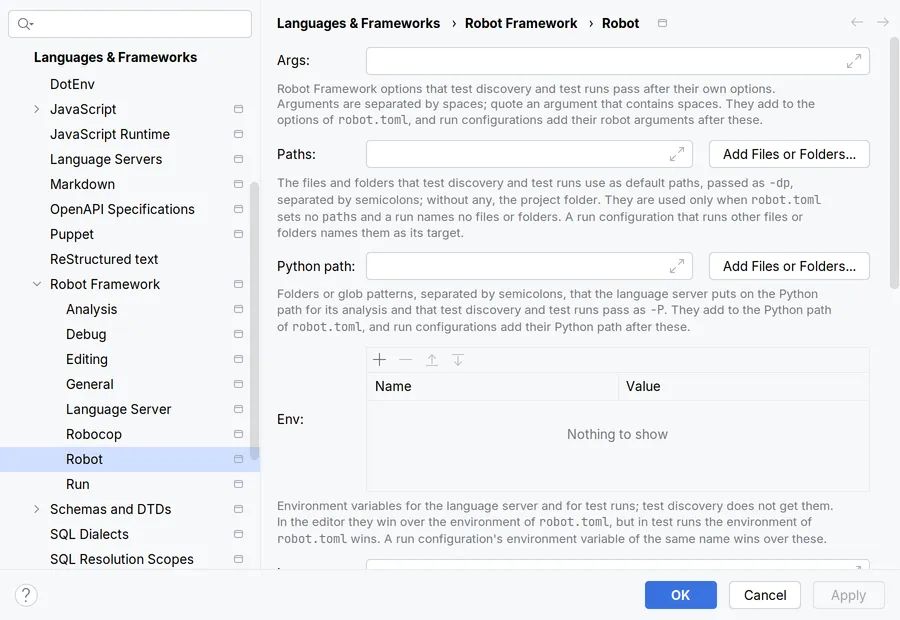
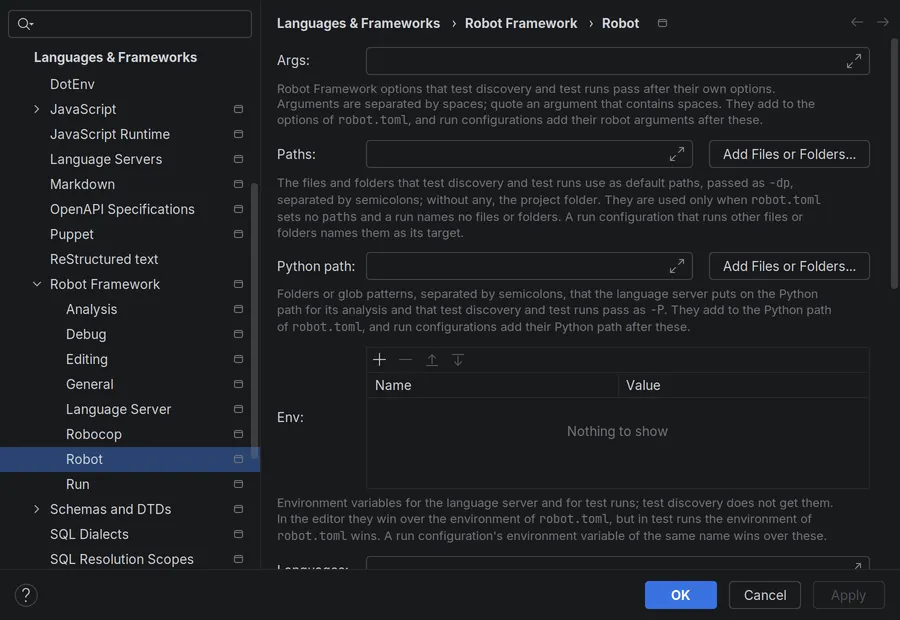
The settings search of the dialog finds every field. The pages correspond to the settings of the VS Code extension, so the VS Code settings describe most fields in more detail, although some defaults differ, for example those of the inlay hints. A list field on these pages takes its entries separated by ;.
Most settings belong to the project. They are stored in .idea/robotcodeSettings.xml, only those that differ from their defaults, and you can share the file with your team through version control. The pages General and Language Server and the selected profiles are personal: they are stored in .idea/workspace.xml. The exception is Show whats new on update on the General page: it applies to all projects and is stored with the settings of PyCharm. File | New Projects Setup | Settings for New Projects... presets the shared pages for new projects.
Applying a change restarts the language server or reads the tests again only when the change needs it.
The Python interpreter
Section titled “The Python interpreter”RobotCode runs its language server and its tools with the Python interpreter of the project. In a project with several modules, that is the interpreter of the module with the Robot Framework project, which RobotCode recognizes by a robot.toml, a dependency on Robot Framework or RobotCode, or Robot Framework files; without such a module, the first module with an interpreter. When several modules have them, RobotCode asks in a notification and in the banner which one to use, and Module for RobotCode on the settings page General changes the choice later. Runs use the interpreter of their run configuration, by default the same one. Choose it under Settings | Python | Interpreter, or with Tools | RobotCode | Configure Python Interpreter.... RobotCode brings its own tools along, so the interpreter needs only Python 3.10 or newer with Robot Framework 5.0 or newer, and Robocop if you want to use it.
RobotCode checks the interpreter in the background when the project opens; the IDE stays usable meanwhile, and a run started before the result waits for it with a progress that you can cancel. When the interpreter does not fit, every open Robot Framework file shows a banner that names the problem: no interpreter is configured, it does not exist, Python is older than 3.10, Robot Framework is missing or older than 5.0, it is a remote interpreter, or the check itself failed.


The banner offers Configure Python Interpreter..., Retry, which checks the interpreter again after you installed Robot Framework, and Disable RobotCode for This Project. Until the interpreter fits, the status bar widget shows an error, no language server runs and no run markers appear. Choosing another interpreter for the project restarts RobotCode by itself.
Remote interpreters, such as WSL, Docker or SSH, are not supported yet; RobotCode needs a local interpreter for the project and for runs.
Configuration profiles
Section titled “Configuration profiles”The profiles of robot.toml let one project run against different environments, for example a local shop and a staging server. Tools | RobotCode | Select Configuration Profiles..., or Select... at Profiles on the settings page General, chooses the profiles that the language server, the test discovery and runs use:
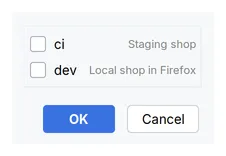
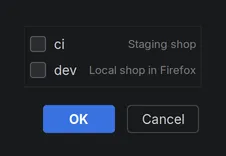
Without a selection, the default-profiles of robot.toml apply. The selection is personal, and the status bar widget shows it. A run configuration can choose its own profiles with the option Configuration profiles, and Run with Profile... runs once with another one, see Running Tests.
When the selection names a profile that robot.toml does not define, for example after it was renamed, test discovery and runs stop. RobotCode reports it after the language server has started, with Remove from Selection and Select Configuration Profiles....
Switching RobotCode off
Section titled “Switching RobotCode off”Disable extension on the settings page General, or Disable RobotCode for This Project in the banner, switches RobotCode off for the project: no language server, no test discovery and no run markers. Tools | RobotCode | Enable RobotCode for This Project switches it on again.
RobotCode runs one language server per project, in the project folder.
Released under the Apache-2.0. Copyright © 2022-present Daniel Biehl