
The Documentation Viewer
The Documentation Viewer shows the documentation of a library, a resource file or a suite file in an editor tab. It shows the same documentation as robotcode doc: the viewer runs robotcode doc lib for you and renders the page with VS Code's built-in Markdown support, styled like VS Code's Markdown preview. Code blocks marked robotframework or robot are highlighted as Robot Framework code, in the viewer and in the Markdown preview of any Markdown file.
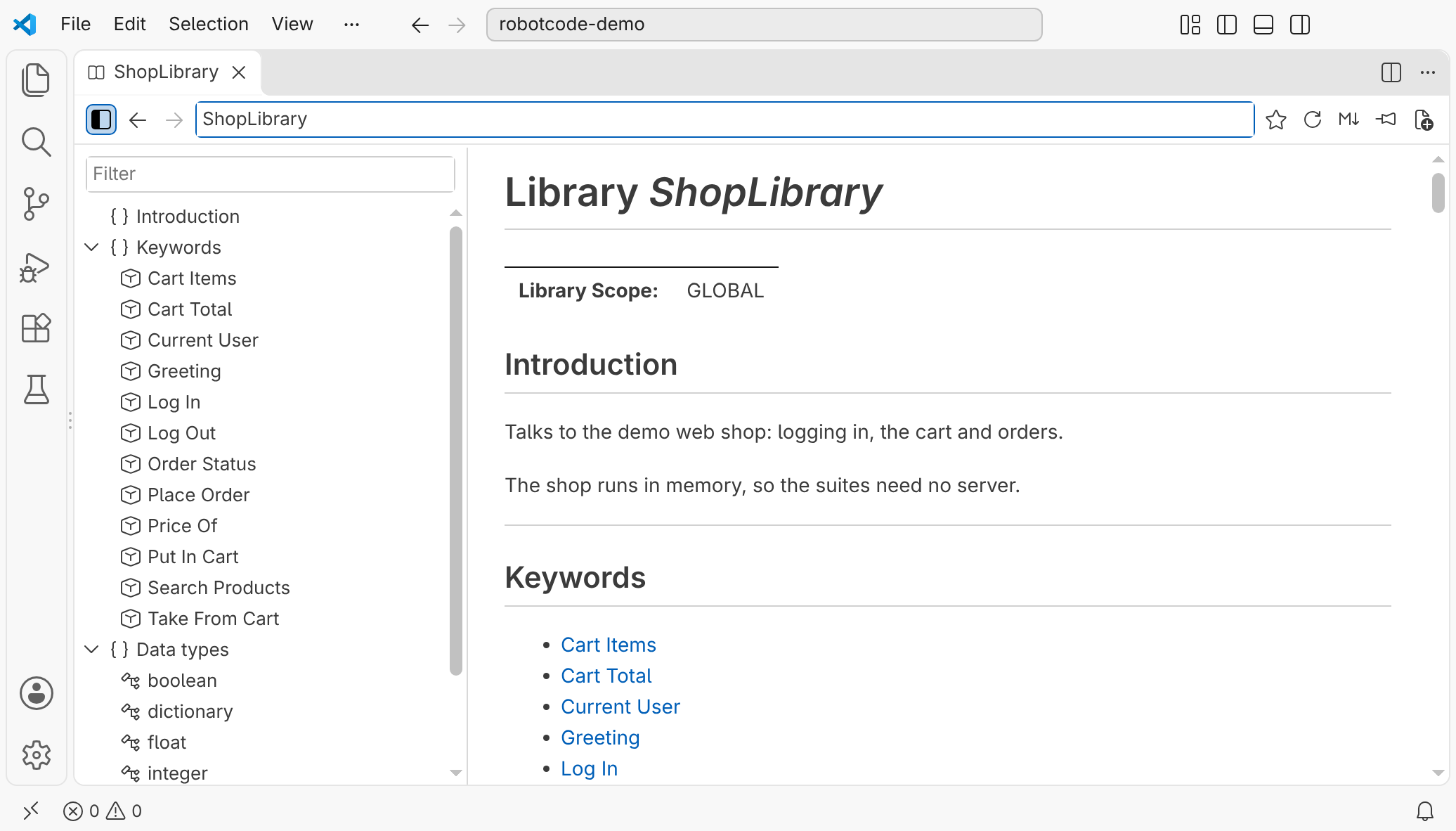
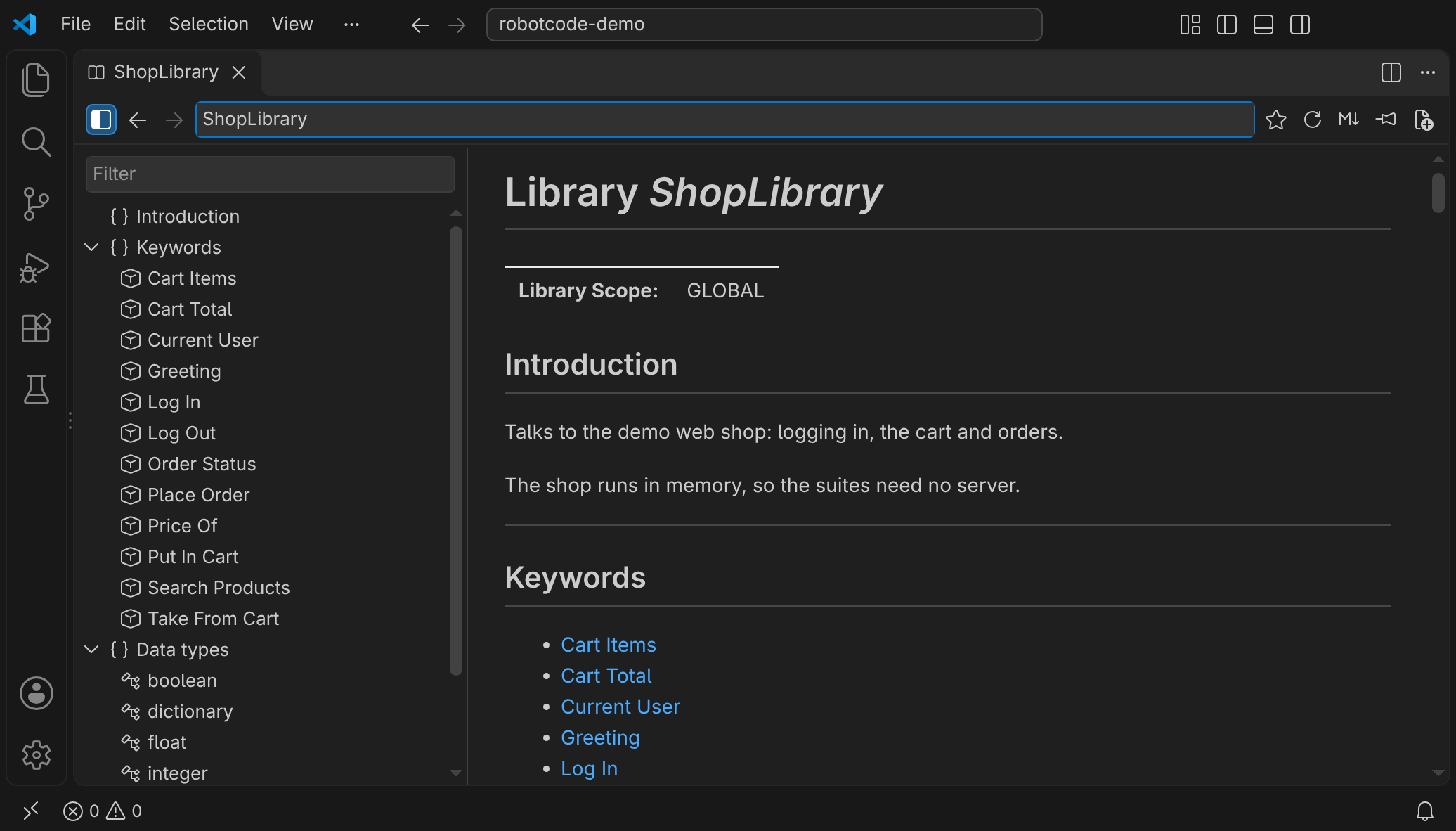
Opening a viewer
Section titled “Opening a viewer”- RobotCode: New Documentation Viewer in the command palette opens a new viewer on
BuiltIn. Its target field has the focus, so you can type the target you want. New Documentation Viewer, the last button in a viewer's toolbar, opens one the same way, in the workspace folder of that viewer. - RobotCode: Show Documentation Viewer in the command palette brings the viewer that the actions use to the front, the pinned viewer or else the one you used last, also in another window, and gives it the focus; the viewer stays at its place. Without a viewer, it opens a new one as New Documentation Viewer does.
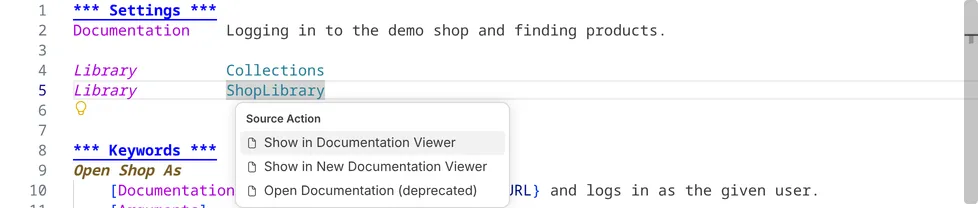
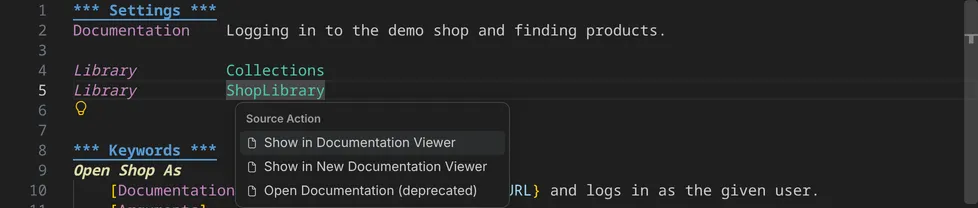
- Show in Documentation Viewer is the first source action (right-click → Source Action…). It is offered on the name of a
LibraryorResourceimport, on a keyword in a keyword call, setup, teardown or template, and on the name of a keyword definition. It shows the library, resource file or suite file and scrolls to the keyword. It is the preferred source action, so a key of your own can run it without the menu, see A key for the source actions. - Show in New Documentation Viewer, offered next to it, shows the same in a new viewer, for example to keep two libraries side by side.
- In the Keywords view, the book button of an import or keyword shows it in the Documentation Viewer, and its context menu has both actions, also for the keywords of the current file.
- In the Documentation Bookmarks view, a click on a bookmark shows it, and the buttons in its title show the viewer or open a new one, see Bookmarks.
- The links in documentation that RobotCode shows in a hover, in the details of a completion item, in signature help and in the tooltips of the Keywords view open the viewer, see Links in hovers and tooltips.
- RobotCode: Copy Documentation Viewer into New Window, in the command palette and in the context menu of a viewer's tab, opens a second viewer in a new window, with the target of the active viewer, or else of the viewer you used last, or
BuiltInwithout any viewer. From a tab's context menu it also copies the active viewer, which need not be the viewer whose tab you clicked.
A key for the source actions
Section titled “A key for the source actions”VS Code has no key for its Source Action… menu, and RobotCode does not define one. You can bind VS Code's command editor.action.sourceAction to a key in your keyboard shortcuts (Preferences: Open Keyboard Shortcuts (JSON)). This binding shows the menu with Ctrl+Shift+., one key more than Ctrl+. for Quick Fix:
{ "key": "ctrl+shift+[Period]", "command": "editor.action.sourceAction", "when": "editorTextFocus"}VS Code also uses Ctrl+Shift+., for example for Focus and Select Breadcrumbs and, in an editor, for Replace with Next Value; while an editor has the focus, your binding takes their place.
To run Show in Documentation Viewer at once, without the menu, give the binding these arguments. Show in Documentation Viewer is the preferred source action, and the menu then shows your key next to it:
"args": { "kind": "source", "preferred": true, "apply": "first" }Where the cursor offers no documentation, for example in a comment, VS Code then reports that no preferred source action is available.
Links in hovers and tooltips
Section titled “Links in hovers and tooltips”In a hover, in the details of a completion item, in signature help and in the tooltips of the Keywords view, the documentation links into the viewer:
- The heading, such as
Keyword LogorLibrary Collections, shows the library, resource file or suite file, at the keyword for a keyword. On the alias of an import and on the prefix of a keyword call, such asCollectionsinCollections.Append To List, it shows the page of that import from its start. - The names of keywords, data types and sections of the same library or file, the types in the argument table and the return type show the page at that keyword, data type or section. Names of other libraries and private keywords stay inline code, as on the page.
- Links to a place in the documentation itself, such as the entries of a table of contents, show the page at that place.
The links show the documentation of the import that the analysis used, also for the second import of a library with other arguments, and in the viewer that Show in Documentation Viewer uses. When the arguments of an import fail and RobotCode loads the library without them (LibraryLoadedWithoutArguments), the links and Show in Documentation Viewer on that import show the library without arguments, as the hover does. The hovers of a Variables import, of a call that matches several keywords, of a variable and of a test case have no links, and links to a place in their documentation are text. When the links would make documentation longer than VS Code shows, only its heading is a link.
command: links written in the documentation of a library do nothing; only the links to the viewer run.
The target field
Section titled “The target field”The field in the toolbar shows what the viewer documents and takes a new target, as the targets of robotcode doc: Name, Name::arg1::arg2, or the path of a library, resource or suite file, relative to the workspace folder or absolute. Enter shows it in the same tab, which takes the name of the library or file as its title.
As a browser's address bar shows the part of a page, the field shows after a # the place at the top of the view, the id of its heading, such as Collections#get-from-dictionary; at the top of the page it shows the target alone. A text with a # opens the target at that place: the text after the last # is the id of a heading or the name of a keyword or data type, such as BuiltIn#Should Be Equal. Entering the target and place that are shown generates the page again; another place of the same target moves there, and back returns. A target with a # of its own, such as the path issue#1/shop.resource, ends with a #: issue#1/shop.resource#. So that also the last headings of a page can come to the top, the page scrolls past its end, as VS Code's editor does.
While you type, a list under the field offers the bookmarks whose name contains what you typed, and below them the completion of the name before ::, as the editor completes the names of Library and Resource imports: modules on the Python path, the standard libraries, and library, resource and suite files and directories, relative to the workspace folder or absolute, one level at a time. Ctrl+Space and ↓ open the list too, and in an empty field it offers all bookmarks; on macOS, where Ctrl+Space usually switches the input source, Option+Esc opens it as well. As in the editor, the completions in the case you typed come first, and the first suggestion is selected. ↑ and ↓ select another, Enter or a click shows it, and Tab only puts it into the field, a bookmark with its place after a #. A directory is put in with a /, and the list then offers its content. Esc closes the list, and Enter then shows the text as you typed it. The completion needs a running language server for the folder: while RobotCode waits for the folder's Python environment, and when RobotCode is switched off for the folder, the list offers only the bookmarks.
Bookmarks
Section titled “Bookmarks”The star after the target field bookmarks the place the viewer shows, in the workspace folder of the viewer: the target as the field shows it before the #, with its arguments, and the heading at the top of the view, such as the keyword Get From Dictionary of Collections. At the top of the page, the bookmark holds the target alone. The star is filled while the viewer shows a bookmarked place, and a click on the filled star removes the bookmark. A target can have several bookmarks, one for each place. Add Bookmark in the context menu of the outline bookmarks an entry without going to it.
A bookmark shows as Collections › Get From Dictionary and opens its target at its place. At first it holds only for its workspace folder. Whether it fits your other workspaces, such as a library of your project or a path relative to the folder, is yours to decide: moved to All Workspaces in the Documentation Bookmarks view, it holds in all your workspaces. VS Code's Settings Sync takes the bookmarks of All Workspaces to your other machines while it syncs extensions, between machines with the same version of RobotCode.
In the list under the target field, a bookmark has a ✕ while the mouse rests on it and while it is selected, which removes the bookmark and keeps the list open. A bookmark of All Workspaces that you remove in a viewer, with the ✕, with the star or with Remove Bookmark of the outline, is gone in all workspaces. With the keyboard, open the bookmark and switch its star off, or remove it in the view.
The Documentation Bookmarks view in the Explorer lists the bookmarks while a Robot Framework file or a Documentation Viewer is the active editor, in the group All Workspaces and in a group for each workspace folder. A click on a bookmark shows it in the viewer that an action from the editor uses; a bookmark of All Workspaces opens in the workspace folder of that viewer. Move to All Workspaces and Move to Workspace Folder in the context menu of a bookmark move it to the other group; in a workspace with several folders, Move to Workspace Folder asks for the folder. You can also drag a bookmark onto another group. The ✕ of a bookmark, also Remove Bookmark in its context menu, removes it from its group. The buttons Show Documentation Viewer and New Documentation Viewer in the title of the view do what the commands of the same name do, see Opening a viewer.
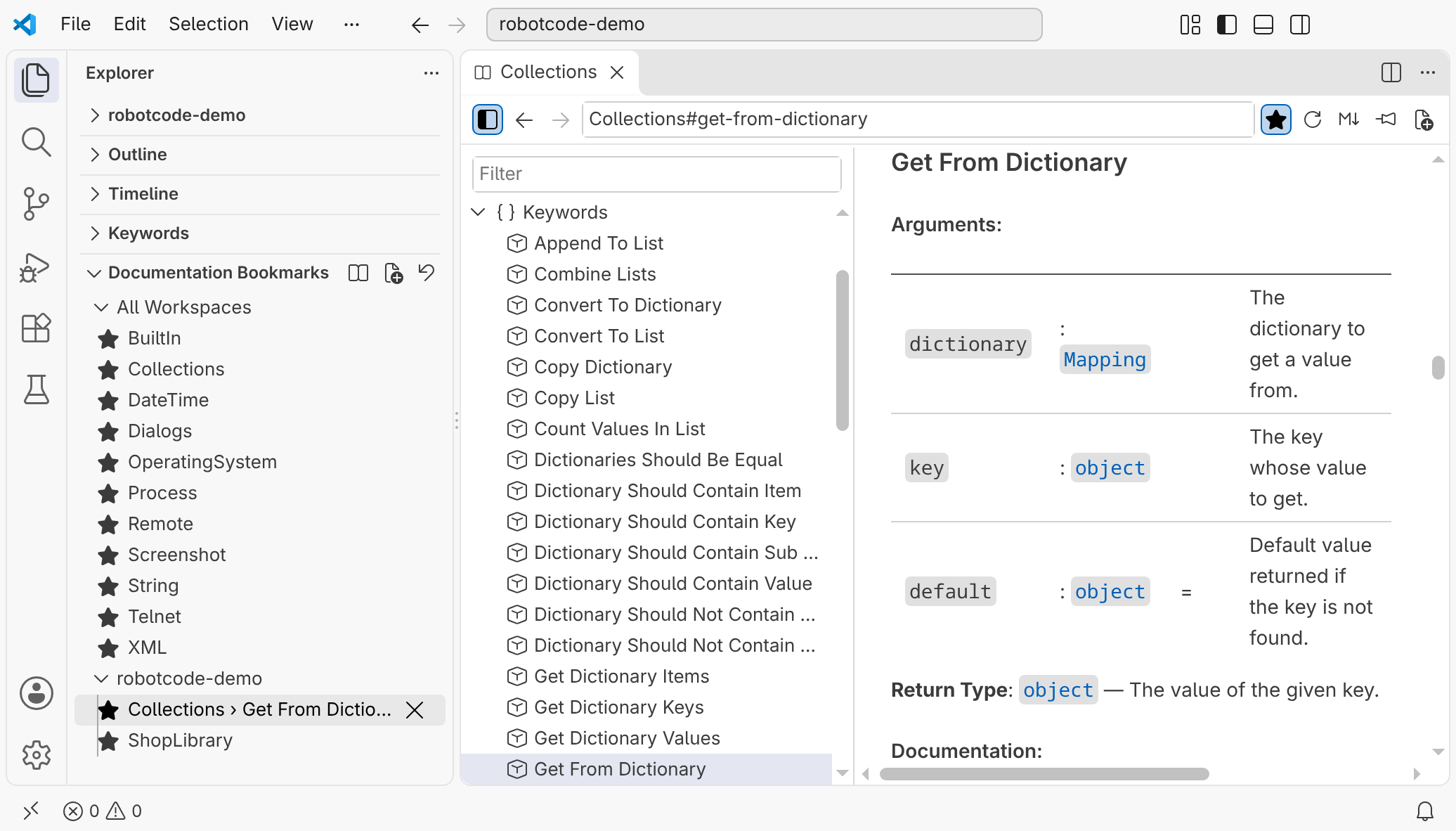
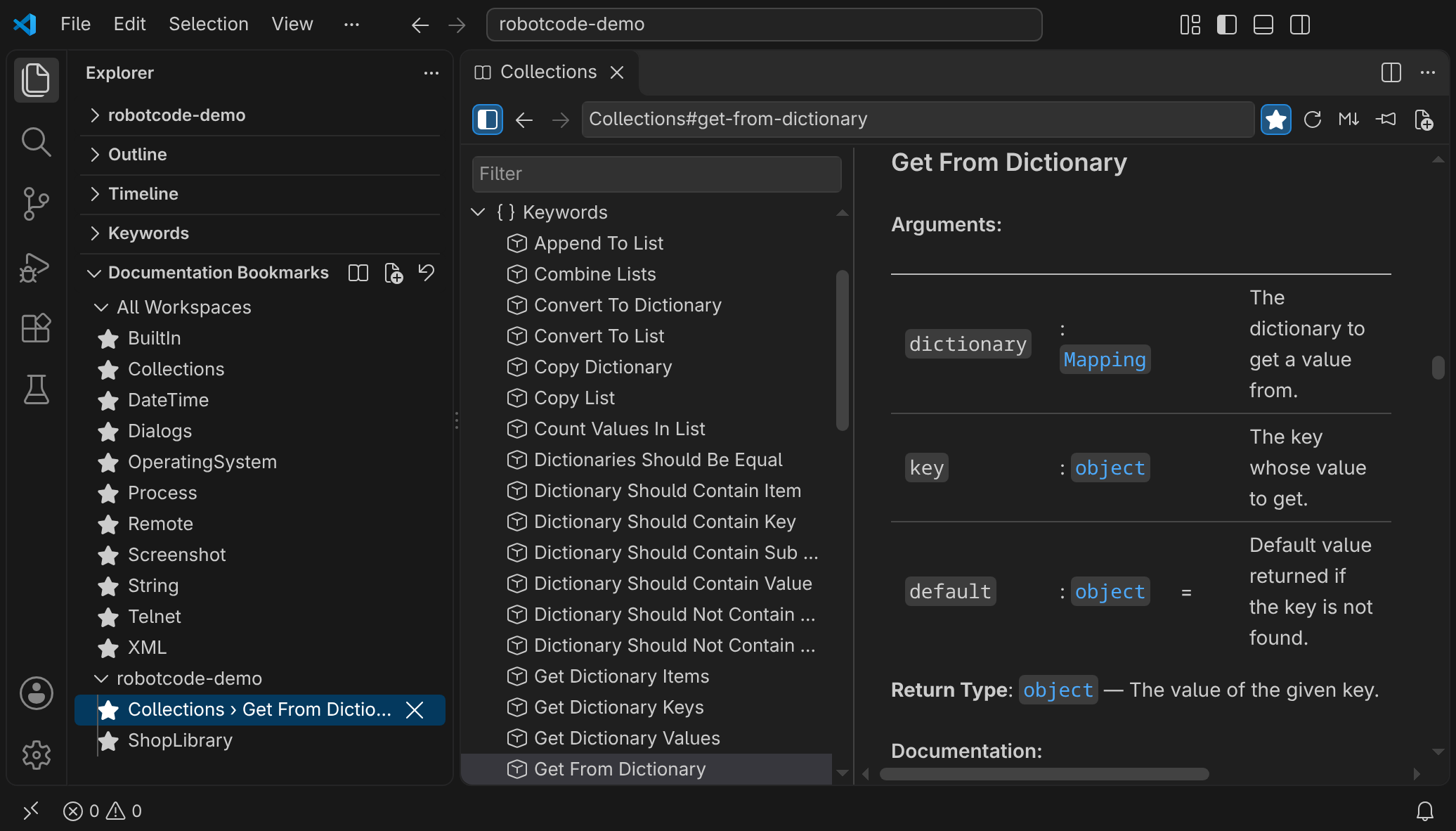
The first start of RobotCode bookmarks the standard libraries of Robot Framework in All Workspaces: BuiltIn, Collections, DateTime, Dialogs, OperatingSystem, Process, Remote, Screenshot, String, Telnet and XML. They are bookmarks like your own, so one that you remove stays removed. RobotCode: Reset Documentation Bookmarks, in the command palette and in the title of the view, asks for a confirmation, removes the bookmarks of all workspaces and of the open workspace folders, and bookmarks the standard libraries again.
Workspace folders
Section titled “Workspace folders”Each viewer belongs to a workspace folder: its pages are generated with the Python environment, the profiles and the settings of that folder. A viewer that shows documentation for an action from the editor or the Keywords view belongs to the folder of the file the action came from, also when the documented file lies in another folder. Typing an absolute path that lies in another folder switches the viewer to that folder.
In a workspace with more than one folder, the toolbar shows the name of the viewer's folder before the pin button. Click it to pick another folder; the viewer then shows its target for that folder, and back returns to the folder before.
Outline and filter
Section titled “Outline and filter”The outline on the left lists the sections of the page as a tree: below Introduction its sections and their subsections, below Importing, Keywords and Data types their entries. Clicking an entry or pressing Enter shows its heading.
↑and↓move through the entries,→opens an entry or moves to the first entry below it,←closes an entry or moves to the entry it belongs to,Home,End,Page UpandPage Downmove by more, and typing jumps to the next entry whose title starts with what you typed.- The filter field above the outline keeps the entries whose titles match, with the rules of the
keywordspatterns: contains,*,?and[…], ignoring case, spaces and underscores. An entry stays while it or one of the entries below it matches. - The button at the start of the toolbar hides the outline with its filter field, so that the page gets the full width of the viewer, and shows them again. Each viewer keeps this, also after a reload of the window. The setting
robotcode.documentationViewer.showOutlinedecides whether a new viewer starts with its outline.
The context menu of an entry, opened with a right-click, with the context menu key or with Shift+F10, offers:
- Open, which shows the entry as a click does.
- Open in New Documentation Viewer, which shows the same target at the entry in a new viewer.
- Add Bookmark, which bookmarks the place of the entry in the workspace folder of the viewer, as the star does while the entry is at the top of the view; the page stays where it is. While the place is bookmarked, Remove Bookmark takes its place and removes the bookmark, as the star does.
- Go to Source, for a keyword whose file and line are known, which opens the file at the keyword: a resource or suite file, a library of your project, or a library of the Python environment, such as
Collections.py. The file opens in the editor group of the text editor you used last, otherwise beside the viewer.
Links, back and forward
Section titled “Links, back and forward”Links to sections, keywords and data types move within the page. http, https and mailto links open outside VS Code.
Back and forward work as in a browser: with the buttons in the toolbar, with Alt+← and Alt+→ (Cmd+[ and Cmd+] on macOS) while the viewer has the focus, and with the back and forward buttons of the mouse. On Windows, Alt+← and Alt+→ in a viewer navigate the viewer instead of VS Code's editor history.
Ctrl+F (Cmd+F on macOS) opens a find bar for the page, which shows the number of matches and the current one. Enter or F3 goes to the next match, Shift+Enter or Shift+F3 to the previous one, and Esc closes the bar. The outline is not searched.
A space in the search text matches any white space, also where the documentation breaks a line within a paragraph. While the bar is open, a page you go to opens where it would without it, and the first match in view becomes the current one.
Arranging viewers
Section titled “Arranging viewers”Several viewers can be open at the same time. You arrange them like editors: drag them into other editor groups or side by side, pin their tabs, or move one into a window of its own with VS Code's Move Editor into New Window. A viewer keeps its target, position, history and filter when its tab is hidden, when it is moved, and after a reload of the window. VS Code's Split Editor and Copy Editor into New Window cannot split or copy a viewer; RobotCode: Copy Documentation Viewer into New Window opens a second one in a new window instead, see Opening a viewer. Reopen Closed Editor does not bring a closed viewer back.
Which viewer an action uses
Section titled “Which viewer an action uses”Show in Documentation Viewer, the links in hovers and tooltips, the book button of the Keywords view and the bookmarks of the Documentation Bookmarks view use:
- the viewer you pinned with the pin button in its toolbar;
- otherwise the viewer you used last;
- otherwise a new viewer, beside the active editor, so that the focus stays in the editor.
Show in New Documentation Viewer, and Open in New Documentation Viewer in the context menu of the outline, always open a new viewer, also when a viewer is pinned; the new viewer is then the viewer used last. Only one viewer can be pinned at a time. With the setting robotcode.documentationViewer.openLocation set to active, a new viewer opens in the active editor group instead. Links, the target field, back and forward, and the outline apart from Open in New Documentation Viewer, always stay in their own viewer.
What a page is generated with
Section titled “What a page is generated with”The viewer runs robotcode --format json doc lib TARGET in the Python environment that RobotCode uses for the workspace folder, with:
- the profiles of
robotcode.profiles; robotcode.robot.pythonPath,robotcode.robot.languages,robotcode.robot.variablesandrobotcode.robot.variableFiles, passed as-P,--language,-vand-V;- the environment variables of
robotcode.robot.env.
For an import of another file, such as a resource file that imports a resource file of its own, Show in Documentation Viewer, the links and the book button resolve the import against the directory of the file that contains it, as Robot Framework does.
The last page of each target is kept in VS Code's storage for the workspace, per workspace folder, Python environment, profiles and the settings above, also across restarts; the pages of the 50 most recently generated targets are kept. So a target that you show after you selected another profile or changed one of these settings is generated again. Showing a target shows its kept page at once and generates it again in the background, once per session. The refresh button in the toolbar generates it again whenever you want. When an action or a link shows a keyword, a data type or a place that the page does not have yet, such as a keyword you just added, the viewer generates the page again, and shows it from its start if the new page does not have it either. When the generation fails, the viewer shows the error, above the kept page if there is one, or with a Retry button.
The viewer generates pages only when the Python environment of the workspace folder can run Robot Framework; RobotCode checks this as it does for the language server, see The Python environment. Until then, for example while VS Code starts and the Python extension has not selected the folder's environment yet, a viewer shows the page it showed last with its progress bar, and says that it waits for the Python environment. If the environment still cannot run Robot Framework after 30 seconds, the viewer shows the problem as an error, without a Retry button; when RobotCode is switched off for the folder, it shows that at once. As soon as the environment is usable, or when you select another environment for the folder, the viewer loads its page again by itself. The refresh button checks the environment again at once.
Open as Markdown
Section titled “Open as Markdown”Open as Markdown, the button after the refresh button in the toolbar, opens the Markdown of the page the viewer shows, as robotcode doc lib writes it, as a new untitled document in the viewer's editor group. You can copy from it, or save it; saving asks for a file name. The viewer keeps its target, position and history. While the viewer shows no page, for example while the first page of a target is generated, the button is disabled.
Limits
Section titled “Limits”- Import arguments are passed to
robotcode docas text, so typed values such as${True}or lists arrive in their string form. - The completion in the target field lists every module on the Python path, as the editor's import completion does, also modules that are no libraries, such as Python's
collectionsnext to the standard libraryCollections. - Python 3.13 and newer have no
telnetlib, so the standard libraryTelnetcannot be imported there; its bookmark then shows the import error, and you can remove it. - Pages are generated from the saved files; unsaved changes in an editor are not shown.
- Libraries whose keywords exist only while a test runs cannot be documented; see Libraries that need a running test.
- The page needs VS Code's built-in extension Markdown Language Features. Without it, the viewer shows a notice and the page as plain Markdown text.
- Your Markdown settings, such as
markdown.preview.breaks, and the Markdown plugins of other extensions apply to the page. Mathematical formulas are not laid out as in the Markdown preview, and mermaid diagrams stay source text.
Open Documentation (deprecated)
Section titled “Open Documentation (deprecated)”The source action Open Documentation (deprecated) and Show Documentation (deprecated) in the context menu of the Keywords view are deprecated in favour of the Documentation Viewer. They still show Robot Framework's Libdoc HTML, served by the language server. In desktop VS Code these pages open beside the editor in VS Code's integrated browser, which reuses one tab for them. In VS Code for the Web, which has no integrated browser, they open in the Simple Browser.
Released under the Apache-2.0. Copyright © 2022-present Daniel Biehl