
Diagnostics and Linting in VS Code
RobotCode analyzes your Robot Framework files the way Robot Framework reads them and reports what would fail or is likely wrong: keywords and variables that do not exist, imports that cannot be loaded, wrong numbers of arguments, deprecated syntax and more. With Robocop installed, its findings appear too.
Where problems appear
Section titled “Where problems appear”Problems are underlined in the editor and listed in the Problems view (Ctrl+Shift+M, Cmd+Shift+M on macOS, or a click on the error and warning counts in the status bar). Each entry names its source and code, such as robotcode(KeywordNotFound) or robocop(VAR02-unused-variable); a click goes to the place.
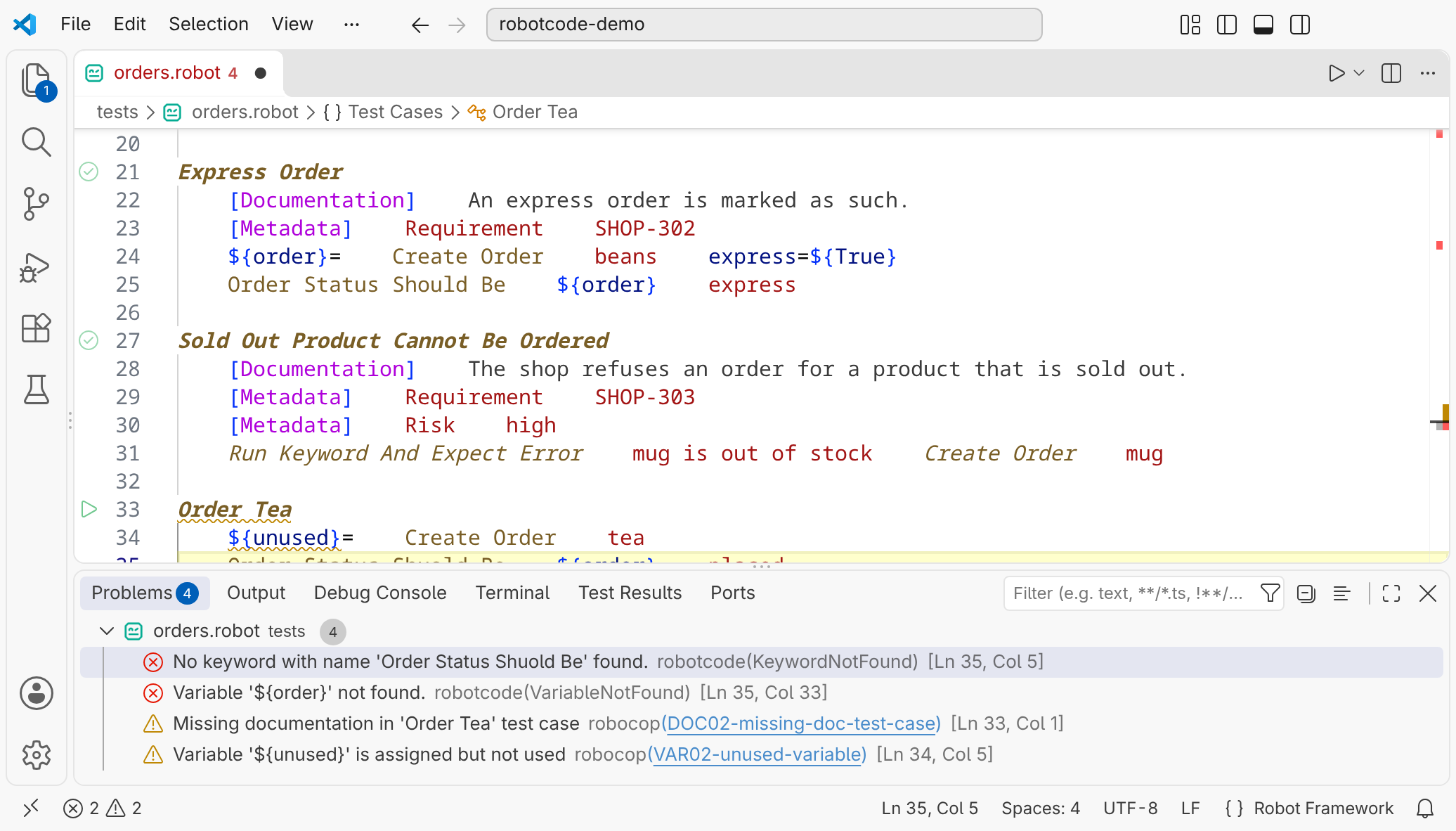
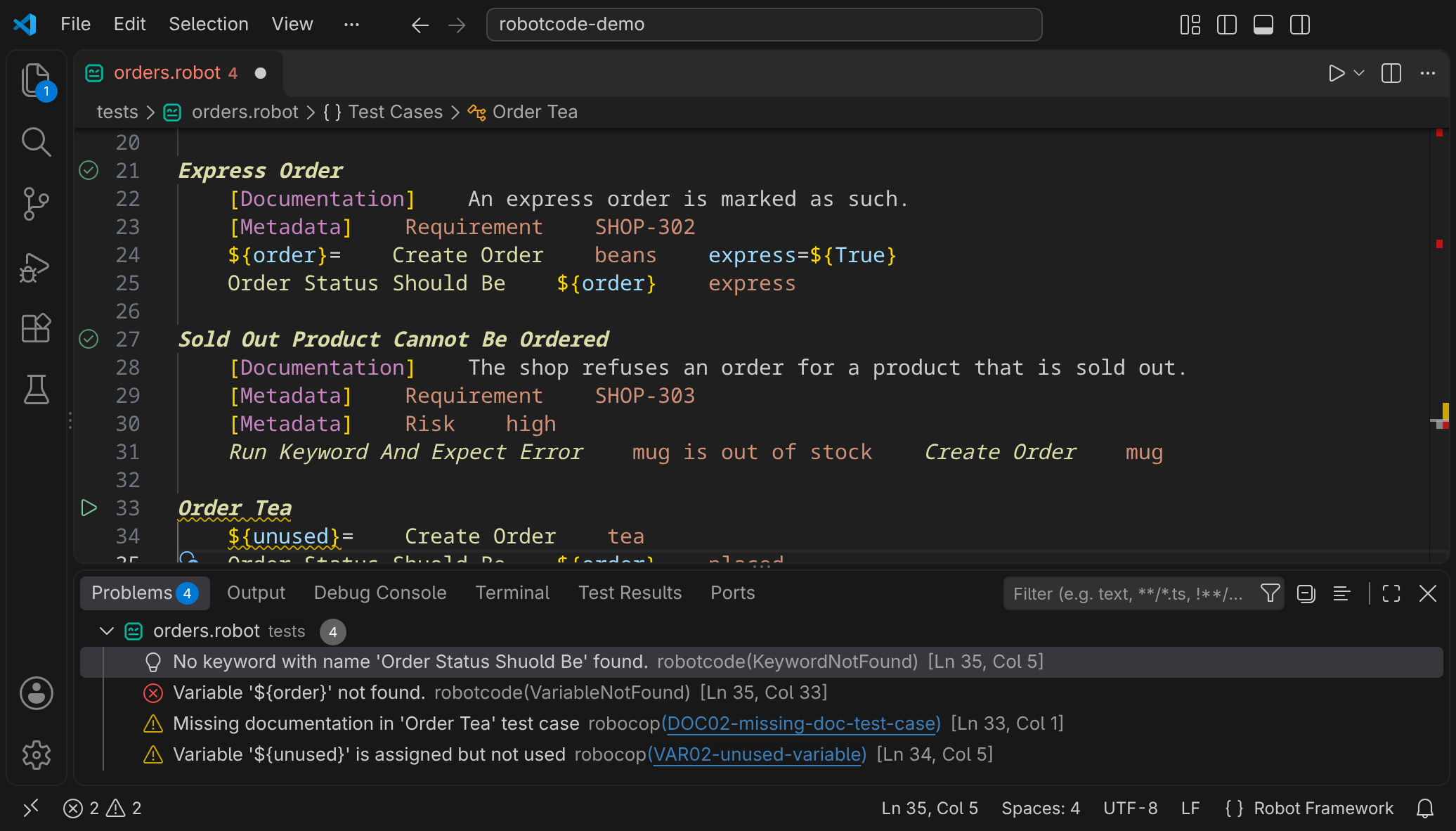
Hover over an underlined place to read the message; Quick Fix... offers the quick fixes for it:


By default, RobotCode reports the problems of the files open in the editor. With robotcode.analysis.diagnosticMode set to workspace, or Enable Workspace Wide Diagnostics in the RobotCode menu (RobotCode: Show Tool Menu), it analyzes every file of the workspace. To check a project on the command line or in CI, use robotcode analyze code.
Robocop
Section titled “Robocop”When robotframework-robocop is installed in the Python environment of the workspace folder, RobotCode runs Robocop on the files it analyzes and shows Robocop's findings next to its own. The code of a finding links to the description of its rule. Robocop reads its usual configuration files; the robotcode.robocop.* settings choose another configuration file or ignore them.
RobotCode: Disable RoboCop and RobotCode: Enable RoboCop, or the action at the Robocop item of the language status, switch Robocop's findings off and on; the item also shows which Robocop version is installed. Robocop also formats your files, see Formatting.
Changing or hiding diagnostics
Section titled “Changing or hiding diagnostics”A comment changes the severity of RobotCode's diagnostics or hides them, for a line, a block or a whole file:
*** Test Cases ***Order Coffee Keyword Only Known At Run Time # robotcode: warn[KeywordNotFound]See Controlling Diagnostics with Modifiers for the syntax. To change a code for the whole project, use the settings robotcode.analysis.diagnosticModifiers.ignore, .error, .warning, .information and .hint, or the [tool.robotcode-analyze.modifiers] section of robot.toml, which the command line uses as well. Robocop's findings are configured in Robocop's own configuration.
Unused keywords and variables
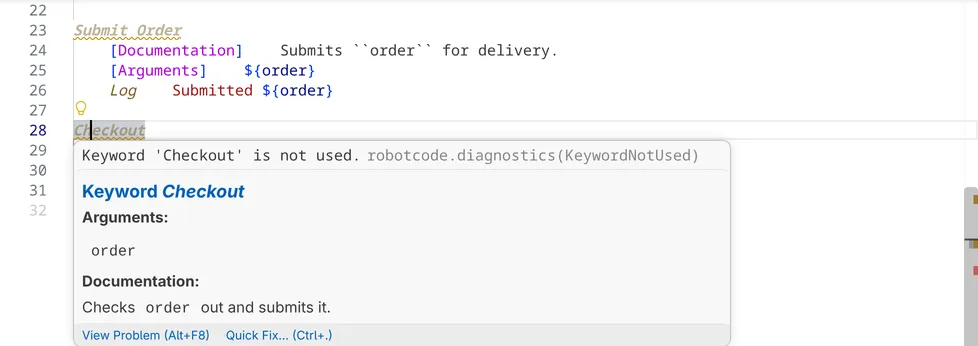
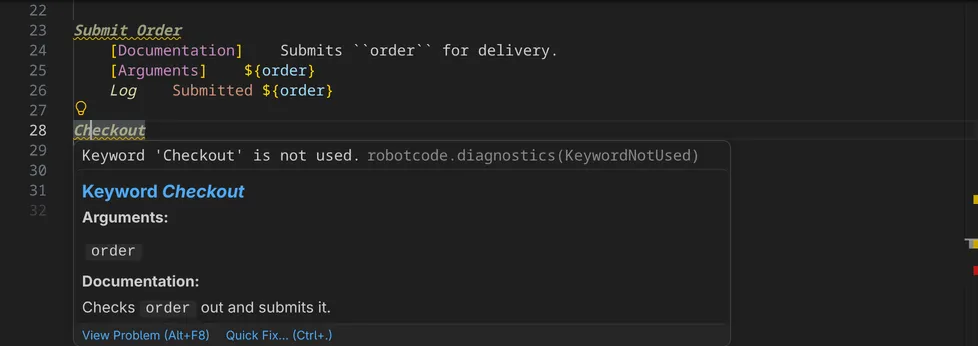
Section titled “Unused keywords and variables”With robotcode.analysis.findUnusedReferences switched on, RobotCode also reports keywords that are never called and variables and arguments that are never read, as warnings with the codes KeywordNotUsed and VariableNotUsed, and shows their names faded. Variables whose names start with an underscore, such as ${_}, are left out.
The analysis cache
Section titled “The analysis cache”RobotCode keeps what it learned about libraries, variable files and analyzed files in a cache, so that it does not have to load them again on every start. By default the cache lies in VS Code's storage for the workspace; robotcode.analysis.cache.saveLocation moves it into the workspace folder. cache-dir in the [tool.robotcode-analyze.cache] section of robot.toml takes precedence over both. A library whose keywords depend on its arguments can be left out of the cache with robotcode.analysis.cache.ignoredLibraries.
If diagnostics stay outdated although the files are right, RobotCode: Clear Cache and Restart Language Servers deletes the cache and analyzes everything anew. See also Troubleshooting.
Released under the Apache-2.0. Copyright © 2022-present Daniel Biehl