
Troubleshooting RobotCode in PyCharm
When RobotCode does not behave as you expect, for example when keywords are not found that exist or the run markers are missing, start with the versions RobotCode uses and its logs.
Check the versions in use
Section titled “Check the versions in use”The tooltip of RobotCode's widget in the status bar lists the versions of RobotCode, Robot Framework, Robocop (when it is installed) and Python, the path of the Python interpreter and the selected profiles. When the widget shows an error, its tooltip says what is wrong with the interpreter, see The Python interpreter. Check the profiles too: a profile can change the paths, the Python path and the variables of a project.
Restart and clear the cache
Section titled “Restart and clear the cache”- Tools | RobotCode | Restart RobotCode Language Server checks the Python interpreter again, for example after you installed Robot Framework in a terminal, restarts the language server and reads the tests again. It also starts a language server again that was stopped in the Language Servers tool window.
- Tools | RobotCode | Clear Cache and Restart RobotCode Language Server also deletes RobotCode's analysis cache while the language server runs, so that every library and file is loaded and analyzed again. Use it when diagnostics stay outdated although the files are right.
- Tools | RobotCode | Refresh Robot Framework Tests reads the tests again when run markers are missing. When reading them fails, a notification "RobotCode could not discover the tests" shows the error, with Retry and, if the project folder contains a
robot.toml, Open robot.toml. When a selected configuration profile is the reason, becauserobot.tomldoes not define it, the notification "RobotCode cannot find the selected profile" appears instead, with Remove from Selection and Select Configuration Profiles....
Output and logs
Section titled “Output and logs”RobotCode talks to its language server through the LSP4IJ plugin. Tools | RobotCode | Show Language Server Log opens LSP4IJ's Language Servers tool window at the running server below RobotCode Language Server: its tab Logs shows what the language server writes, and Traces the messages between PyCharm and the server when its Trace setting is not off.
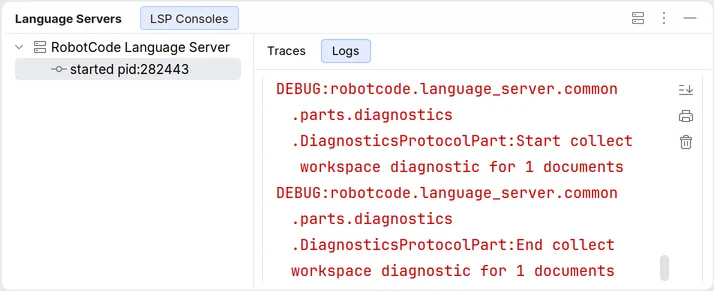
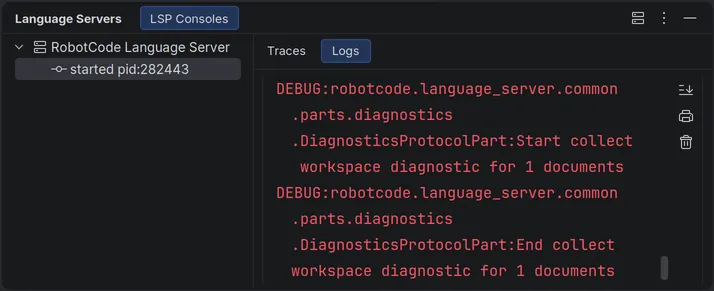
The tool window can also stop and restart the server and Copy Start Command, the command line that started it. PyCharm's own log, opened with Help | Show Log in …, contains the command line that started the language server, the checks of the Python interpreter, and the errors of reading the tests with their command lines.
Extra args on the settings page Language Server, for example --log --log-level DEBUG, makes the language server log in detail; applying it restarts the server. Extra args on the page General passes options to the robotcode commands that RobotCode runs in the background, such as reading the tests.
Report an issue
Section titled “Report an issue”Open an issue on GitHub. Describe what you did, what you expected and what happened, and add the versions from the tooltip of the status bar widget; a small example project and the logs from above help to find the cause.
Released under the Apache-2.0. Copyright © 2022-present Daniel Biehl