
The Test Explorer
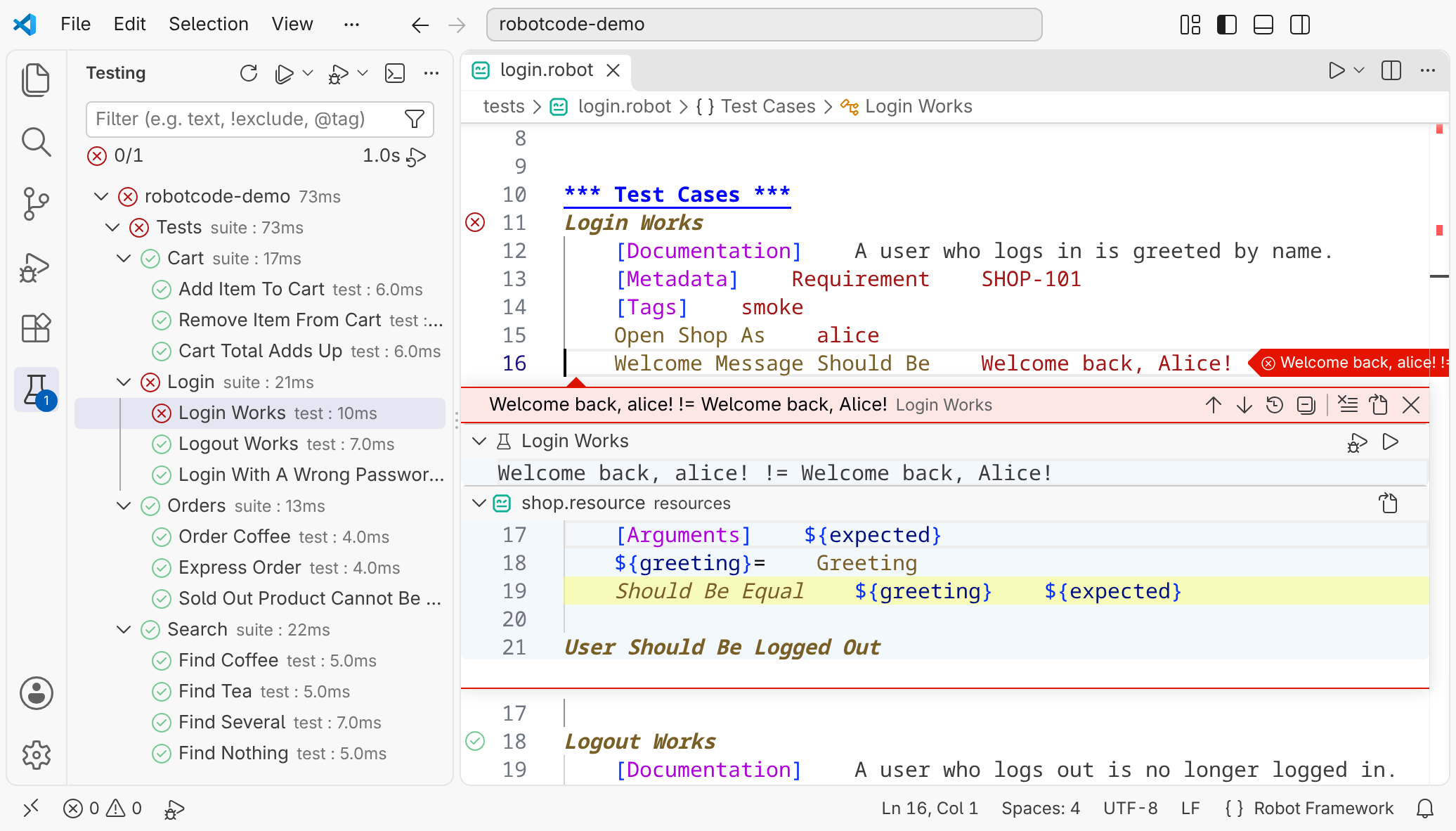
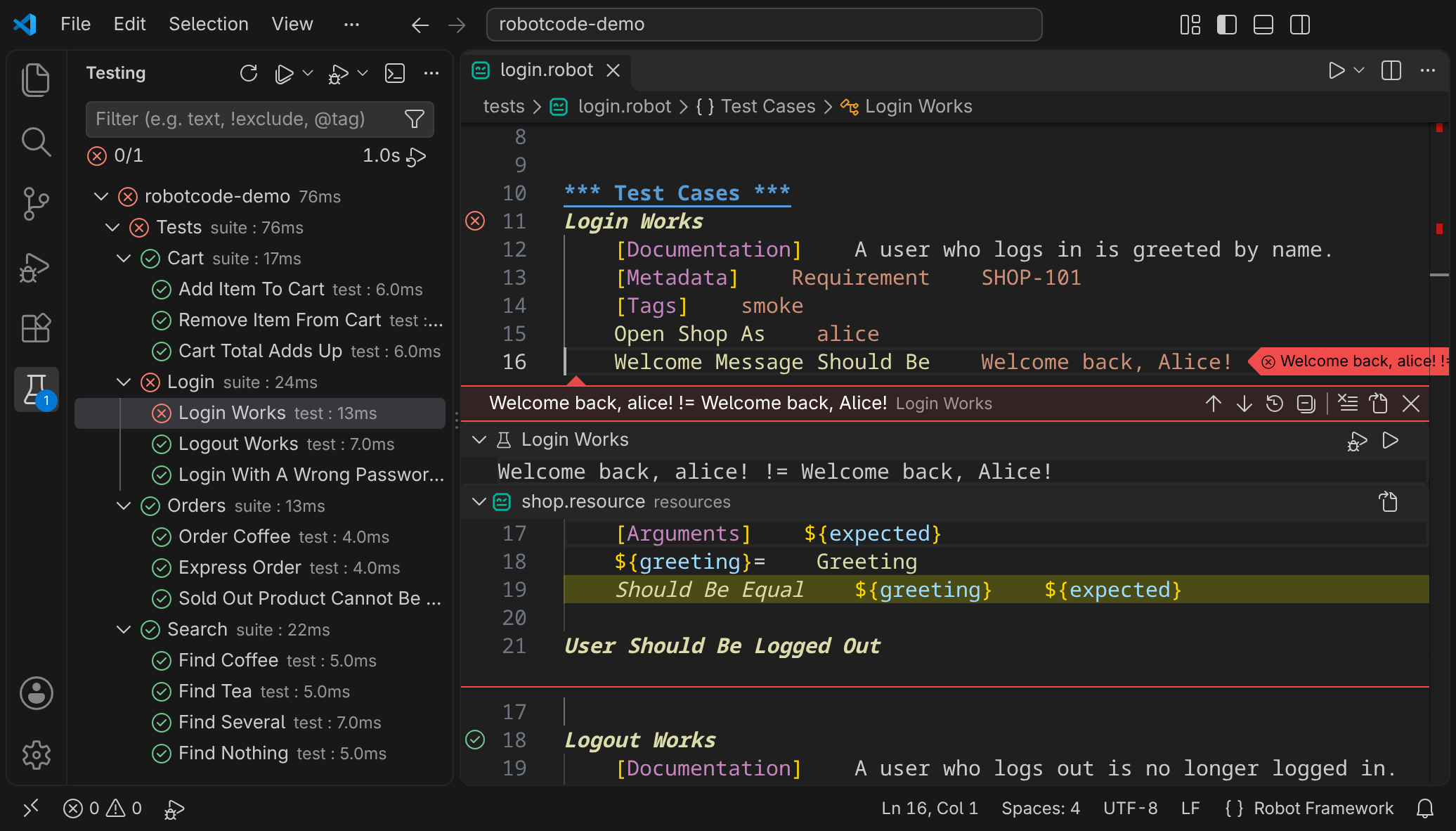
The Test Explorer is VS Code's Testing view; open it with the flask icon in the activity bar. RobotCode lists the suites, tests and tasks of every workspace folder there, as "Robot Framework Tests/Tasks", and runs or debugs them. To run and debug from the editor, see Running and Debugging.
Where the tests come from
Section titled “Where the tests come from”RobotCode finds the tests the way robotcode discover does, in each workspace folder: with the paths, profiles and other options of the folder's robot.toml, and without the files that .robotignore excludes. The tree follows Robot Framework's suite structure: the workspace folder, the suites made from directories and files, and the tests and tasks in them.
The tree updates when you change, save, create or delete a Robot Framework file, also an __init__.robot, and when you create, copy, rename, move or delete a folder; it also takes unsaved changes into account. Files and folders that are changed, created, copied, renamed, moved or deleted outside VS Code, for example by git or in a terminal, update the tree as well. A change to a resource file leaves the tree as it is, since a resource file holds no tests or tasks. A change to a robot.toml, .robot.toml, pyproject.toml, .robotignore or .gitignore in the workspace folder restarts the folder's language server and updates the tree too. After other changes, for example to a robot.toml outside the workspace folder, Refresh Tests in the view's title bar reads the tests of every workspace folder again and rebuilds the tree.
Running and debugging
Section titled “Running and debugging”Hover over a suite, test or task to run or debug it with the buttons beside it; Run Tests and Debug Tests in the view's title bar run all of them. A run shows its result at each entry: passed, failed or skipped, with the time it took. Show Output in the title bar opens the output of the run, with the messages Robot Framework logged.
For a failed test, each failure appears in the editor with its message: at the step of the test that led to it, at the line that failed, and at the calls in between. A click on a failure's marker opens a peek below the step, with the whole message and the calls that led to the failure, from the step inward to the line that failed, each with a few lines of its code. When a file has more than one of these calls, VS Code marks the first of them; at the others, the message appears as VS Code's inline test output, which Test: Toggle Inline Test Output switches off and on.
A keyword such as Wait Until Keyword Succeeds or Run Keyword And Expect Error that ends with an error of its own after failures inside it is one failure, with its own message, and its peek lists the calls of the last failure inside it. A failed test also shows the failures it caught, with TRY/EXCEPT or a keyword such as Run Keyword And Ignore Error: after the others and with Caught: before their message.
Run profiles
Section titled “Run profiles”A run uses a run profile. RobotCode creates these:
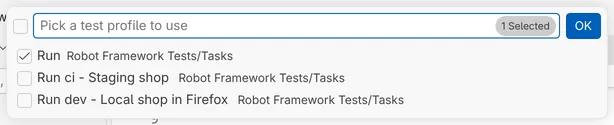
- Run and Debug for each workspace folder, with the folder's name added in a workspace with several folders. They run with the configuration profiles you selected with RobotCode: Select Configuration Profiles; Configure Test Profiles in VS Code opens that command for them.
- A Run and a Debug profile for each profile of the folder's
robot.toml, named after the profile and its description, such as "Run ci - Staging shop". - A Run and a Debug profile for each configuration in
launch.jsonwith the purposetest-profile, named after the configuration.
The arrow beside Run Tests and Debug Tests lists the profiles to run with and offers Select Default Profile, which decides the profile a click on the button uses. Execute Using Profile... in the context menu of an entry runs it once with another profile.
A test profile in launch.json combines the settings of a launch configuration; the snippet RobotCode: Test Profile creates one. For example, this profile runs the selected tests with the ci profile of robot.toml, and only those tagged smoke:
{ "name": "Smoke on staging", "type": "robotcode", "request": "launch", "purpose": "test-profile", "presentation": { "hidden": true }, "profiles": ["ci"], "include": ["smoke"]}Filtering
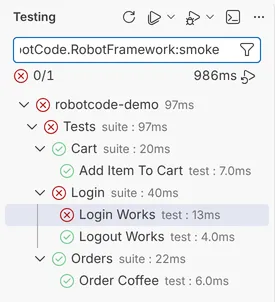
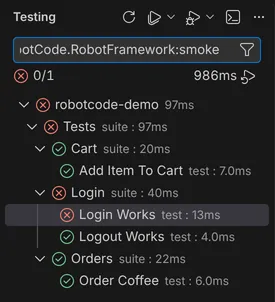
Section titled “Filtering”The filter field above the tree takes text and !text to exclude, and tags with @: the tags of your tests are offered as @robotCode.RobotFramework:<tag>. VS Code adds filters such as @failed, @executed and @openedFiles, and the funnel button beside the field.
Problems while finding the tests
Section titled “Problems while finding the tests”When Robot Framework reports a problem while RobotCode reads the tests, the problem appears in the Problems view at the file, with the source robotcode.discover, for example "'Test Cases' section is not allowed in suite initialization file." or "One file cannot have both tests and tasks." Until you fix it, the suite of that file, or its tests, may be missing from the tree.
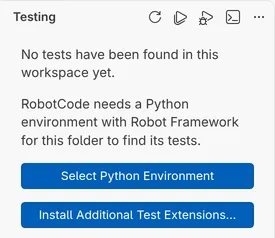
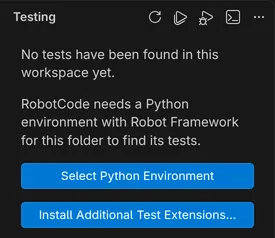
When RobotCode finds no tests or tasks at all and reports no problem, the Testing view shows a hint from RobotCode below VS Code's own text: where tests are looked for, with Refresh Tests and a link to the troubleshooting page. Without a Python environment with Robot Framework, the hint says so instead and offers Select Python Environment. When the configuration profiles selected for a folder name a profile that its configuration does not define, the folder leaves the tree, and the hint says so, with Select Configuration Profiles. VS Code shows these hints only while the tree is empty: next to another folder with tests, such a folder just leaves the tree.
Switching the Test Explorer off
Section titled “Switching the Test Explorer off”The setting robotcode.testExplorer.enabled switches the Test Explorer integration off, also for single workspace folders. While it is off for every workspace folder, the Testing view says so and offers to open the setting.
Released under the Apache-2.0. Copyright © 2022-present Daniel Biehl