
Writing Robot Framework Code in PyCharm
RobotCode analyzes your files the way Robot Framework reads them: it knows the libraries, resource files and variable files a file imports, and with them every keyword and variable the file can use. While you type, it uses that knowledge to complete, explain and check your code. RobotCode's language server does this work; PyCharm talks to it through the LSP4IJ plugin.
Completion
Section titled “Completion”Completion appears as you type, or with Ctrl+Space. It offers what fits at the cursor:
- Keywords of the file itself and of everything it imports, with the library or resource file each comes from.
- Arguments of the keyword being called, such as named arguments.
- Variables after
${,@{and&{, and environment variables after%{. - Imports: library names, the paths of resource and variable files, and the arguments of a library.
- Section headers, settings and reserved tags such as
robot:skip. - Control structures as templates:
FOR,IF,WHILE,TRYwithEXCEPTorEXCEPT ... AS,VAR(Robot Framework 7 or newer) andGROUP(Robot Framework 7.2 or newer).
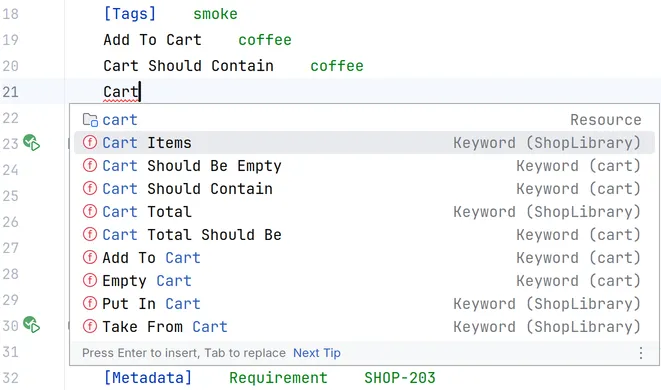
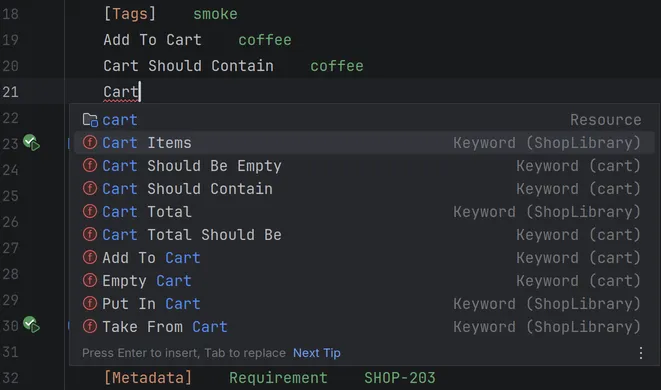
Keywords that are tagged robot:private and defined in another file are not offered. The group Completion of the settings page Editing changes that and more, see Configuration.
Parameter info
Section titled “Parameter info”While you type the arguments of a keyword call, View | Parameter Info (Ctrl+P, Cmd+P on macOS) shows the keyword's arguments and highlights the one at the cursor.
Documentation
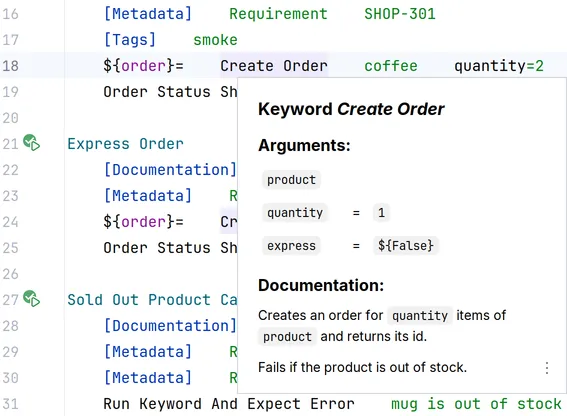
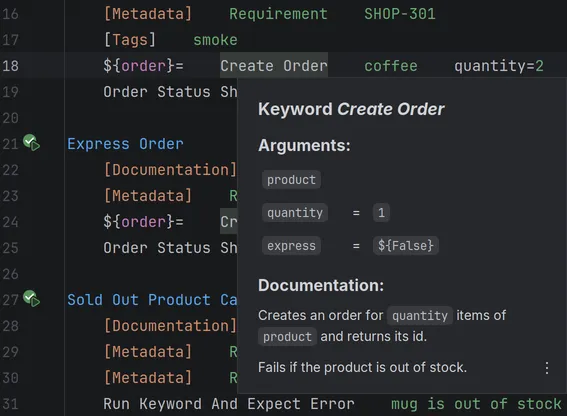
Section titled “Documentation”Hover over a keyword call to see the keyword's arguments and documentation, over a variable to see what kind of variable it is, and over the name of a library or resource file to see its documentation. View | Quick Documentation (Ctrl+Q, F1 on macOS) shows the same for the element at the cursor.
Inlay hints
Section titled “Inlay hints”Inlay hints show the names of the arguments of a keyword call and the library or resource file a keyword comes from. PyCharm shows inlay hints all the time, so RobotCode sends none by default: switch on Parameter names and Namespaces in the group Inlay Hints of the settings page Editing. You can also hide inlay hints again under Settings | Editor | Inlay Hints.
Semantic highlighting
Section titled “Semantic highlighting”RobotCode highlights the code by its meaning, also where the plain syntax cannot tell the elements apart. Settings | Editor | Color Scheme | Robot Framework has an entry for each kind of element, such as keyword calls, arguments, variables, settings and control structures, and sets their colors and font styles. By default they follow the language defaults of your color scheme.
Quick fixes and refactorings
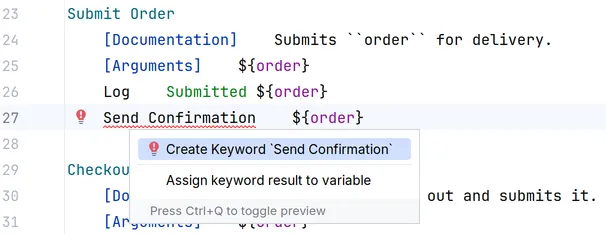
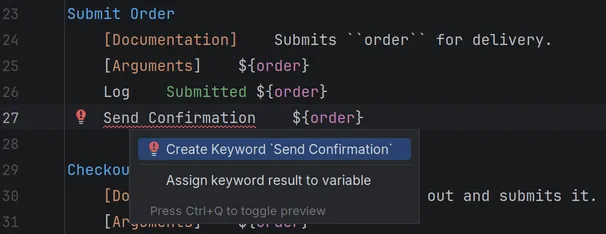
Section titled “Quick fixes and refactorings”A problem with a fix, such as a keyword that does not exist yet, offers its fixes with Show Context Actions (Alt+Enter, Option+Enter on macOS) at the problem:
- Create Keyword adds the keyword with the body
Fail Not Implementedto the file, or to the resource file the call names, and selects that line. - Create local variable and Create suite variable define a variable that is not found.
- Add argument adds a variable that is not found to the
[Arguments]of the keyword.
At a selection or a keyword call, Alt+Enter (Option+Enter on macOS) offers refactorings: Surround with TRY...EXCEPT and its variants, Assign keyword result to variable and Extract keyword, which moves the selected steps into a new keyword and starts Rename... on its name.
Rename
Section titled “Rename”Refactor | Rename... (Shift+F6) renames the keyword or variable at the cursor, at its definition and at every use RobotCode finds in the project. Keywords with embedded arguments cannot be renamed. For a keyword of a library and for built-in, imported, command-line and environment variables, RobotCode renames only the uses.
Formatting
Section titled “Formatting”Code | Reformat Code (Ctrl+Alt+L, Cmd+Option+L on macOS) formats a file with Robocop's formatter. This needs Robocop 6 or newer in the Python interpreter of the project.
New files and indentation
Section titled “New files and indentation”File | New... | Robot Framework File, also in the New menu of the Project view, opens the dialog New Robot Framework File: choose Suite file, Resource file or one of your own file templates with the extension robot or resource, and give the file a name. RobotCode's templates are Robot Suite File and Robot Resource File under Settings | Editor | File and Code Templates.
In Robot Framework files, Tab inserts spaces. With Use 4 spaces indentation, which is on by default, under Settings | Editor | Code Style | Robot Framework, it inserts as many spaces as the indent of the code style, 4 by default; switched off, it inserts spaces up to the next tab stop. With Use tab character on, it inserts a tab. Code | Comment with Line Comment (Ctrl+/, Cmd+/ on macOS) comments lines out with #.
Released under the Apache-2.0. Copyright © 2022-present Daniel Biehl