This is the full developer documentation for RobotCode
# RobotCode
> The complete Robot Framework toolkit
## Everything for your Robot Framework project
[Section titled “Everything for your Robot Framework project”](#everything-for-your-robot-framework-project)
1. Code intelligence
Context-aware completion for keywords (incl. embedded args), variables, libraries and resources. Hover docs, go-to-definition, find references, signature help, and live diagnostics — all powered by Robot Framework's own parser. Optional [Robocop](https://robocop.readthedocs.io) integration adds further linting and formatting checks on top. The Documentation Viewer and the Keywords view show the keywords of your libraries and resource files.
[Feature overview](/about/) · [Documentation Viewer](/guides/vscode/documentation-viewer/)
2. Run, debug & test explorer
Discover and run tests from the editor's test panel or the CLI. Set breakpoints, step through keywords, inspect variables via the Debug Adapter Protocol, and jump straight to failures.
[Get started with VS Code](/getting-started/vscode/) · [Command-line debugging](/guides/cli/robot-debug/)
3. One config everywhere
A unified [robot.toml](/reference/config/) with profiles for dev, staging, CI, OS-specific or browser-specific setups. Editor, CLI and CI all read the same configuration — what works locally works in CI.
[Configure your project](/getting-started/configuration/)
4. Powerful CLI
A complete command-line interface for running, discovering, analyzing and inspecting Robot Framework projects. Every command is project-aware, JSON-friendly, and CI-ready.
[CLI reference](/reference/cli/)
5. Interactive REPL
Try keywords interactively with `robotcode repl`, in a terminal or in VS Code. Great for experimentation, demos, and debugging snippets; attach the debugger at the prompt to stop inside a keyword and inspect its variables.
[REPL guide](/guides/cli/repl/) · [Debugging at the prompt](/guides/cli/repl/#debugging-at-the-prompt)
6. Multi-IDE, same core
One Robot Framework language server powers VS Code, JetBrains, Neovim and any LSP-capable editor. Choose your IDE — the language features stay aligned.
[Set up your editor](/getting-started/)
## Turn your AI agent into a Robot Framework engineer
The RobotCode skill teaches your agent to work through your project's own `robotcode` CLI — so it sees your tests, keywords and results the way Robot Framework resolves them, with the profiles of your project's `robot.toml`, instead of guessing from files. For tests and RPA tasks alike.
Works with
* GitHub Copilot
* Claude Code
* Codex
* Open Plugins agents
[Set up your agent](/guides/ai-agents/)
* **Writes tests from your requirements**Learns the libraries you use, tries keywords and locators live in the REPL, then writes the test and runs it.
* **Finds out why a test failed**From the results of the last run, a CI artifact or a colleague's run, without running everything again or loading `output.xml` into the chat.
* **Debugs at a real breakpoint**Pauses the real run where it fails, reads the call stack and the variables, and tries keywords right there.
* **Knows your project**Which tests, tasks, tags and suites exist, and which tests cover a requirement, resolved the way Robot Framework does instead of by grepping files.
* **Explains libraries and keywords**From the versions installed in your environment, including your own resources and Python libraries.
* **Runs exactly what you ask for**A single test, a tag or a suite, with the profile for staging, CI or another browser.
* **Keeps the code clean**Finds unknown keywords, wrong arguments, unresolved variables and unused code before anything runs, and fixes them.
* **Compares runs**What fails for the first time, what passes again, and statistics by tag or suite.
* **Sets up your configuration**Profiles, variables and paths in `robot.toml`, written from each setting's documentation and checked against the effective configuration.
## Watch: RoboCon 2024 tutorial
[Section titled “Watch: RoboCon 2024 tutorial”](#watch-robocon-2024-tutorial)
This recorded RoboCon 2024 tutorial starts with the RobotCode extension for VS Code and then shows RobotCode's command line tools: the `robot.toml` configuration, profiles, and querying and checking a project from the console.
* Length: \~2 hours.
* Level: Beginner to advanced — basic knowledge of Robot Framework and Python is recommended.
What you will learn:
* Installing the RobotCode and Even Better TOML extensions in VS Code and setting up a project.
* Writing a first test with the Browser library, built step by step in the Debug Console.
* Looking up library keywords and their documentation in the editor.
* Creating a `robot.toml` and running tests from the command line with different profiles, also selecting profiles in VS Code.
* Querying a project's suites, tests and tags and checking its quality with `robotcode`.
* and more...
## Latest news
[Section titled “Latest news”](#latest-news)
[All news →](/news/)
Open source
## Free and open source, built with the community
[Section titled “Free and open source, built with the community”](#free-and-open-source-built-with-the-community)
RobotCode is free and open source under the Apache-2.0 license — developed in close collaboration with the Robot Framework Core team and a worldwide community of testers, developers, and contributors.
[Star on GitHub](https://github.com/robotcodedev/robotcode)[Get involved](/contributing/)
### Sponsor RobotCode
[Section titled “Sponsor RobotCode”](#sponsor-robotcode)
**Individual:**
* [GitHub Sponsors](https://github.com/sponsors/robotcodedev) – monthly or one-time
* [Open Collective](https://opencollective.com/robotcode) – one-time or recurring
**Corporate:**
* [Open Collective](https://opencollective.com/robotcode) – direct, transparent, invoices, public ledger
* [Robot Framework Foundation membership](https://robotframework.org/foundation/) – ecosystem support, indirectly benefits RobotCode
See [Support & Contribute](/contributing/) for non-financial ways to help — bug reports, PRs, community help, and more.
### Powered by
[Section titled “Powered by”](#powered-by)
[](https://www.imbus.de) [](https://robotframework.org/foundation) [](https://jb.gg/OpenSourceSupport)
# What is RobotCode?
> Overview of what RobotCode offers for Robot Framework in VS Code, IntelliJ and on the command line: completion, navigation, diagnostics, debugging, REPL.
**RobotCode** is a set of tools, extensions and plugins for working with [Robot Framework](https://robotframework.org/) in different IDEs, editors and on the command line.
**Built on Robot Framework Core** RobotCode is based on the Robot Framework Core and uses its parser, ensuring complete compatibility and consistency. This means you get the same syntax validation, error messages, and behavior as if you were running Robot Framework directly.
**Powered by the Language Server Protocol** RobotCode is built on the Language Server Protocol (LSP), a modern standard for implementing language support across multiple editors and IDEs. This ensures a seamless and responsive user experience, while making it easier to maintain compatibility with evolving IDE features.
**Extensions for Visual Studio Code and the IntelliJ Platform** RobotCode is available for Visual Studio Code and the IntelliJ Platform. Both use the same RobotCode language server for code analysis, completion and navigation; some tools, such as the Documentation Viewer and notebooks, are only available in VS Code, see [PyCharm and VS Code](/guides/pycharm/compared-with-vscode/). (Because it is based on the Language Server Protocol, it is also possible to use it in other editors that support the LSP, like Neovim.)
**Powerful Command Line Tools** RobotCode extends the Robot Framework CLI with enhanced tools for test execution, code analysis and debugging. It supports [`robot.toml`](/guides/robot-toml/) configurations, integrates a Debug Adapter Protocol (DAP) compatible debugger, and provides an interactive REPL environment for experimenting with Robot Framework commands. Modular and flexible, these tools streamline your workflow for both development and production.
## Key Features
[Section titled “Key Features”](#key-features)
### Autocomplete and IntelliSense
[Section titled “Autocomplete and IntelliSense”](#autocomplete-and-intellisense)
* **Comprehensive Autocompletion:** Say goodbye to tedious typing! RobotCode provides autocompletion for libraries, resources, variables, and keywords, ensuring you always have the right tools at your fingertips. This includes support for local variables, resources, file-based variables (like Python and YAML), and command line variables, both static and dynamic.
* **Context-Aware Suggestions:** IntelliSense offers context-sensitive suggestions, helping you code faster with fewer errors. It’s perfect for those moments when you can’t quite remember the exact syntax.
[](/_astro/vscode-code-intelligence.BmtvrCBx.mp4)
### Code Navigation
[Section titled “Code Navigation”](#code-navigation)
* **Quick Symbol Navigation:** Easily move through your code with RobotCode’s symbol navigation, allowing you to jump straight to definitions, implementations, or references for keywords, variables, libraries, and resources.
* **Error and Warning Diagnostics:** Stay on top of your code quality with real-time diagnostics that highlight errors and warnings as you code, so you can fix issues before they escalate.
### Diagnostics and Linting
[Section titled “Diagnostics and Linting”](#diagnostics-and-linting)
* **Real-Time Code Analysis:** RobotCode continuously monitors your code for syntax errors, unknown keywords, and issues with library or resource imports. This proactive approach helps you catch and resolve problems early in the development process.
* **Seamless Integration with Robot Framework:** RobotCode uses the version of Robot Framework installed in your environment for diagnostics, ensuring accuracy and consistency with your actual test runs.
* **Enhanced Linting with Robocop:** For developers who want to go further, RobotCode integrates with [Robocop](https://robocop.readthedocs.io/) to provide even more detailed analysis and linting, giving you insights into how to optimize your code.
### Code Formatting and Tidying
[Section titled “Code Formatting and Tidying”](#code-formatting-and-tidying)
* **Automatic Code Formatting:** Keep your code clean and consistent with RobotCode’s formatting tools. Use [Robocop's formatter](https://robocop.readthedocs.io/) for modern, consistent formatting directly in RobotCode.
* **Customizable Formatting Options:** Tailor the formatting rules to suit your project’s needs, ensuring that your codebase remains consistent and easy to read.
### Running and Debugging
[Section titled “Running and Debugging”](#running-and-debugging)
* **Integrated Testing and Debugging:** RobotCode allows you to run and debug your Robot Framework test cases directly from within Visual Studio Code, PyCharm or IntelliJ IDEA. This tight integration means you can execute tests, set breakpoints, and step through code without leaving the editor.
* **Real-Time Log Navigation:** While debugging, RobotCode provides a live view of log messages in the debug console, allowing you to quickly identify and navigate to the source of any issues.
[](/_astro/vscode-run-tests.ual-oG_p.mp4)
### Multi-root Workspace Support
[Section titled “Multi-root Workspace Support”](#multi-root-workspace-support)
* **Manage Multiple Projects Seamlessly:** With support for [Multi-root Workspaces](https://code.visualstudio.com/docs/editor/multi-root-workspaces), RobotCode allows you to work on multiple Robot Framework projects simultaneously, each with its own settings and Python environments. Whether you prefer to have separate environments or share the same one across projects, RobotCode offers the flexibility to match your workflow.
* **Smooth Workflow Transitions:** Easily switch between different projects and configurations without losing your place or context, making it easier to manage complex development environments and large codebases.
### Debug Adapter Protocol (DAP) Compatible Debugger
[Section titled “Debug Adapter Protocol (DAP) Compatible Debugger”](#debug-adapter-protocol-dap-compatible-debugger)
* **Robust Debugging Capabilities:** RobotCode integrates a Debug Adapter Protocol (DAP) compatible debugger, enabling you to debug your Robot Framework tests with ease. Set breakpoints, step through code, inspect variables, and more, all from within your favorite editor.
* Every IDE that supports the DAP can be used with RobotCode to debug Robot Framework tests.
### Robot Framework Repl and Notebooks
[Section titled “Robot Framework Repl and Notebooks”](#robot-framework-repl-and-notebooks)
* **Interactive REPL Environment:** Experiment with Robot Framework commands in an interactive Read-Eval-Print Loop (REPL) environment, perfect for testing out new ideas or troubleshooting issues on the fly.
* **Jupyter Notebook-Like Experience:** Enjoy the flexibility of a Jupyter Notebook-like environment for working with Robot Framework code, allowing you to explore, test, and iterate quickly and efficiently. (direct integration with Jupyter Notebooks is planned for a future release.)
### Command Line Tools
[Section titled “Command Line Tools”](#command-line-tools)
* **Enhanced Robot Framework CLI:** RobotCode extends the Robot Framework CLI with enhanced tools for test execution, code analysis, and debugging.
### Configure your Robot Framework environment with `robot.toml`
[Section titled “Configure your Robot Framework environment with robot.toml”](#configure-your-robot-framework-environment-with-robottoml)
* **Flexible Configuration Options:** RobotCode supports the use of [`robot.toml`](/guides/robot-toml/) configuration files, allowing you to customize your Robot Framework environment with ease. Define settings for test execution in the development, production, or testing environments, and switch between configurations effortlessly.
* **Consistent Environment Management:** By using `robot.toml`, you can ensure that your Robot Framework settings are consistent across different projects and environments, reducing the risk of errors and simplifying the development process.
* **Version Control Integration:** Store your `robot.toml` files in version control systems like Git, enabling you to share configurations with your team and maintain a history of changes over time.
* **CI/CD Pipeline Integration**: Use `robot.toml` to define your test execution settings in CI/CD pipelines, ensuring that your tests run consistently across different environments and platforms.
***
**RobotCode** isn’t just a tool—it’s your coding partner. With its powerful features and seamless integration, RobotCode helps you be more productive and enjoy your coding experience. Whether you’re a seasoned Robot Framework user or just getting started, RobotCode is here to help you build, test, and deploy with confidence. Let's create something amazing together!
# Support & Contribute
> Ways to support RobotCode: sponsor it on Open Collective or GitHub Sponsors, or contribute code, documentation, bug reports, feedback and community help.
RobotCode is a powerful, open-source toolset designed to enhance development with Robot Framework. With features like intelligent code completion, test discovery, and seamless debugging, RobotCode makes test automation **faster, easier, and more efficient** for teams and individuals worldwide.
## Built for the Community, by the Community
[Section titled “Built for the Community, by the Community”](#built-for-the-community-by-the-community)
RobotCode is **100% open-source and community-driven**. Our mission is to provide a **modern, intuitive, and feature-rich development experience** for Robot Framework users. Unlike commercial alternatives, RobotCode is developed **by and for the community**, allowing it to adapt quickly to user needs and ensuring a transparent, collaborative development process.
Maintaining a project of this scale requires **continuous development, support, and infrastructure**. This includes keeping up with frequent Robot Framework updates, ensuring compatibility with multiple IDEs, and optimizing performance for larger test suites. As RobotCode grows, so does the demand for **new features, bug fixes, documentation, and long-term stability**. That’s why we need **your support** to keep RobotCode sustainable and thriving.
## Why Support RobotCode?
[Section titled “Why Support RobotCode?”](#why-support-robotcode)
Your contributions help us:
* **Continue active development** – More funding means more dedicated time for improvements and new features.
* **Fix bugs faster** – With financial support, we can prioritize critical issues and reduce delays in updates.
* **Ensure long-term stability** – Keeping up with the latest Robot Framework versions and evolving industry needs.
* **Enhance documentation & learning resources** – Making it easier for individuals and teams to get started with RobotCode.
* **Expand community support** – More engagement, better responsiveness, and stronger collaboration.
**Transparent Funding:** Every contribution is publicly tracked, ensuring complete transparency on how funds are used.
## How You Can Support RobotCode
[Section titled “How You Can Support RobotCode”](#how-you-can-support-robotcode)
### Financial Contributions
[Section titled “Financial Contributions”](#financial-contributions)
The most direct way to help RobotCode stay sustainable and grow is through financial contributions. If you or your company use RobotCode and find it valuable, consider supporting the project:
* **[Become a Backer or Sponsor on Open Collective](https://opencollective.com/robotcode)** – Recurring or one-time donations to support ongoing development.
* **[Sponsor RobotCode on GitHub](https://github.com/sponsors/robotcodedev)** – Show your support directly through GitHub Sponsors.
### Contribute Beyond Financial Support
[Section titled “Contribute Beyond Financial Support”](#contribute-beyond-financial-support)
RobotCode thrives on community contributions. Active participation helps shape the future of the project. Whether you're a developer, writer, tester, or advocate, your contributions make a difference.
We understand that not everyone can contribute financially, but **there are many other valuable ways to support RobotCode**:
* **Contribute Code** – Help improve RobotCode by fixing bugs, adding features, or optimizing performance on [GitHub](https://github.com/robotcodedev/robotcode). The [contribution guide](https://github.com/robotcodedev/robotcode/blob/main/CONTRIBUTING.md) explains how to set up the project, run the tests and open a pull request.
* **Improve Documentation** – Writing tutorials, FAQs, or guides makes it easier for new users to start using RobotCode.
* **Report Bugs & Share Feedback** – Testing new releases and the [dev builds](/getting-started/dev-builds/), reporting issues, and suggesting improvements helps the project evolve.
* **Spread the Word** – Recommend RobotCode to colleagues, write blog posts, give talks, or share it on social media.
* **Engage with the Community** – Join discussions, answer questions, and help others in forums or social media channels.
**Every form of support matters!** Whether through financial contributions or active participation, your help ensures RobotCode remains a thriving, open-source project for the entire community. You are an essential part of this project, and every contribution makes a difference.
## Join Us in Shaping the Future of Test Automation
[Section titled “Join Us in Shaping the Future of Test Automation”](#join-us-in-shaping-the-future-of-test-automation)
By supporting RobotCode, you help ensure that **Robot Framework users worldwide have access to a powerful, reliable, and evolving toolset**. Together, we can make **test automation better for everyone**.
* **[Support RobotCode on Open Collective](https://opencollective.com/robotcode)**
* **[Sponsor RobotCode on GitHub](https://github.com/sponsors/robotcodedev)**
# Getting Started
> Requirements for RobotCode and where to start: set it up in VS Code, PyCharm, IntelliJ IDEA, on the command line or in Neovim, then create the robot.toml for your project.
RobotCode is a set of tools, extensions and plugins for working with [Robot Framework](https://robotframework.org/) in different IDEs, editors and on the command line. Check the requirements, set RobotCode up in your editor or on the command line, then configure your project with a `robot.toml` file.
## Requirements
[Section titled “Requirements”](#requirements)
* Python 3.10 or above, in a version that your Robot Framework version supports; Python 3.15, for example, is supported from Robot Framework 7.5 on
* Robot Framework 5.0 or above
* For the editor extensions: VS Code 1.127 or above, or PyCharm / IntelliJ IDEA 2026.1 or above
### Optional Python Packages
[Section titled “Optional Python Packages”](#optional-python-packages)
Robot Framework needs additional Python packages for some documentation formats. They are optional in Robot Framework, so RobotCode neither depends on them nor ships them. If you need one of them, install it into the Python environment of your project, the same way you install Robot Framework itself, for example by adding it to the dependencies of your project.
| Package | Needed for | Without it |
| ------------------------------------------------------------------ | ------------------------------------------------------------------------------------------------------------------------------------------------------------------------------------------------------------------------------------------------------------------------------------------------------------------------------------------------------------------------------- | ---------------------------------------------------------------------------------------------------------------------------------------------- |
| [`docutils`](https://pypi.org/project/docutils/) | Libraries that write their documentation in reStructuredText (`ROBOT_LIBRARY_DOC_FORMAT = "reST"`), and everything else Robot Framework does with reStructuredText | RobotCode shows the documentation of such libraries as plain reStructuredText source instead of formatted text |
| [`markdown`](https://pypi.org/project/Markdown/) (Python-Markdown) | The HTML documentation of libraries that write their documentation in Markdown: "Open Documentation (deprecated)" in the editor, "Show Documentation (deprecated)" in the Keywords view and `robotcode libdoc`. Since Robot Framework 7.5 this includes the standard libraries such as `BuiltIn` and `Collections`. `robotcode doc` and the Documentation Viewer do not need it | "Open Documentation (deprecated)" shows Robot Framework's message that the `markdown` module is missing. Hover and completion are not affected |
See the [Robot Framework User Guide](https://robotframework.org/robotframework/latest/RobotFrameworkUserGuide.html) for details about these formats.
## Set up RobotCode
[Section titled “Set up RobotCode”](#set-up-robotcode)
The pages below set RobotCode up in VS Code, PyCharm or IntelliJ IDEA, on the command line and in Neovim, and configure your project:
[Get Started with VS Code](/getting-started/vscode/)Install the RobotCode extension for VS Code, set up a Python virtual environment with Robot Framework, select the interpreter and run your first test.
[Get Started with PyCharm](/getting-started/pycharm/)Install the RobotCode plugin in PyCharm or IntelliJ IDEA, set up a Python interpreter with Robot Framework and run your first test.
[Get Started on the Command Line](/getting-started/command-line/)Install the robotcode commands into the Python environment of your project with pip or uv, choose the packages for your tasks, then list and run a first test.
[Configuring RobotCode as Language Server for Neovim](/getting-started/neovim/)Use the RobotCode language server in Neovim 0.11+ without Mason import errors, via a project-local install or a global install with PYTHONPATH set.
[Try the Dev Builds](/getting-started/dev-builds/)Get the dev builds of RobotCode for VS Code, PyCharm and the command line, recognize their versions and go back to the releases.
[Configure Your Project](/getting-started/configuration/)Create a robot.toml for your Robot Framework project: a first configuration, running the tests with it, a profile for another environment and personal settings.
# Get Started on the Command Line
> Install the robotcode commands into the Python environment of your project with pip or uv, choose the packages for your tasks, then list and run a first test.
The `robotcode` command works with your Robot Framework project in the terminal, in CI pipelines and in scripts: it runs the tests, lists what a run would pick up, checks the code and shows the results of a run. It reads the same `robot.toml` as RobotCode in VS Code and PyCharm. This page installs it into your project and runs a first test with it. Editors other than VS Code and PyCharm use RobotCode's language server; see [Neovim](/getting-started/neovim/).
## Choosing the packages
[Section titled “Choosing the packages”](#choosing-the-packages)
RobotCode comes as the package `robotcode` with extras, one for each group of commands. Install the extras for the commands you need:
| Package | Commands | For |
| --------------------------- | ----------------------------------------------------------------------- | ------------------------------------------------------------------------------------------ |
| `robotcode` | `config`, `profiles` | Showing the configuration and the profiles of the project; every extra includes it |
| `robotcode[runner]` | `robot` (or `run`), `rebot`, `libdoc`, `testdoc`, `discover`, `results` | Running tests, listing them and reading the results of a run, for example in a CI pipeline |
| `robotcode[analyze]` | `analyze` | Checking the code for problems |
| `robotcode[repl]` | `repl`, `robot-debug`, `doc`, and the commands of `runner` | Trying keywords, debugging in the terminal and reading the documentation of libraries |
| `robotcode[debugger]` | `debug`, and the commands of `runner` | Debugging from a client of the Debug Adapter Protocol, such as an editor |
| `robotcode[languageserver]` | `language-server`, and `analyze` | Editors that connect to RobotCode's language server |
| `robotcode[all]` | All of them, with Robocop and the optional packages PyYAML and docutils | Everything |
The VS Code extension and the PyCharm plugin bring their own copy of these packages; you install them for the command line, for CI pipelines and for other editors.
## Installing RobotCode
[Section titled “Installing RobotCode”](#installing-robotcode)
Install the packages into the Python environment of your project, the one with Robot Framework and your libraries: the commands run Robot Framework from that environment. RobotCode needs Python 3.10 or newer with Robot Framework 5.0 or newer.
With pip, in the activated environment:
```bash
pip install "robotcode[runner]"
```
With uv, add it to a project that uv manages, or install it into an environment with uv's pip interface:
```bash
uv add "robotcode[runner]" # in a project that uv manages
uv pip install "robotcode[runner]" # in an environment
```
To install several extras, separate them with commas, for example `"robotcode[runner,analyze]"`. In a project that uv manages, `uv run` runs a command in the project's environment, for example `uv run robotcode --version`.
Check the installation:
```bash
robotcode --version
```
It prints the installed version, for example `robotcode, version 2.8.0`. `robotcode --help` lists the commands of the installed packages.
## Listing your tests
[Section titled “Listing your tests”](#listing-your-tests)
Create a folder `tests` in your project with a file `first.robot`:
tests/first.robot
```robot
*** Test Cases ***
First Test Case
Log Hello world
```
`robotcode discover all` lists the suites and tests that Robot Framework would run, without running them:
```bash
robotcode discover all tests
```
```text
# All
- **Tests** (`tests`)
- **Tests.First** (`tests/first.robot`)
- **Tests.First.First Test Case** (`tests/first.robot:2`)
## Statistics
- _Suites:_ 2
- _Suites with tests:_ 1
- _Tests:_ 1
```
## Running your first test
[Section titled “Running your first test”](#running-your-first-test)
```bash
robotcode run tests
```
`robotcode run` is short for `robotcode robot`. It runs Robot Framework with the configuration of your project; the options of Robot Framework go after `run`, as they would after `robot`. Robot Framework writes `output.xml`, `log.html` and `report.html` to the folder `results`, the output folder that RobotCode's [user configuration](/guides/robot-toml/files/#the-user-configuration) sets by default for projects without one of their own.
`robotcode results` reads the results of the last run without running the tests again:
```bash
robotcode results summary
```
```text
# Summary — results/output.xml
- _Status:_ ✅ **PASS**
- _Total:_ 1
- _Passed:_ 1
- _Failed:_ 0
- _Skipped:_ 0
- _Started:_ 2026-10-27 18:42:29
- _Ended:_ 2026-10-27 18:42:29
- _Elapsed:_ 12 ms
```
`robotcode results show` lists the tests of the run, with the failure message of each test that failed.
## Next steps
[Section titled “Next steps”](#next-steps)
* A `robot.toml` with the paths of your tests lets you leave out `tests` in these commands; see [Configure Your Project](/getting-started/configuration/).
* [Working on the Command Line](/guides/cli/) shows which command answers which task, with a guide for each.
* The [CLI reference](/reference/cli/) lists every command and option.
# Configure Your Project
> Create a robot.toml for your Robot Framework project: a first configuration, running the tests with it, a profile for another environment and personal settings.
RobotCode reads the configuration of a Robot Framework project from a `robot.toml` file in the project folder. It holds the options you would otherwise pass to `robot` on the command line or in argument files, such as the paths of the tests, the Python path and variables, and profiles for different environments. The editors and the `robotcode` commands use it alike, so the tests run the same way everywhere. This page creates a first `robot.toml`; [Configuring Projects with robot.toml](/guides/robot-toml/) explains all that it can do.
## A first `robot.toml`
[Section titled “A first robot.toml”](#a-first-robottoml)
Create a file named `robot.toml` in the root folder of your project, and commit it:
robot.toml
```toml
paths = ["tests"]
python-path = ["libraries", "resources"]
output-dir = "results"
[variables]
BROWSER = "chromium"
BASE_URL = "http://localhost:8080"
```
* **`paths`**: the folders or files with your tests.
* **`python-path`**: folders in which Robot Framework looks for your libraries and resource files.
* **`output-dir`**: the folder for `output.xml`, the log and the report.
* **`[variables]`**: variables for all tests, as `--variable` sets them on the command line.
Each setting is a command line option of Robot Framework, written with its long name in words separated by hyphens: `--outputdir` becomes `output-dir`, and `--pythonpath` becomes `python-path`. Relative paths count from the project folder.
In VS Code, the extension Even Better TOML completes the settings and shows their documentation, see [Editing `robot.toml`](/guides/vscode/configuration/#editing-robottoml). PyCharm completes the settings without further setup.
## Running the tests
[Section titled “Running the tests”](#running-the-tests)
VS Code and PyCharm use the configuration for the analysis, the test discovery and runs, and pick up a change of `robot.toml` at once.
On the command line, run the tests with `robotcode run`; Robot Framework's own `robot` command does not read `robot.toml`. `robotcode run` needs RobotCode's runner in the environment of your project:
```bash
pip install "robotcode[runner]"
```
```bash
# run the tests in paths
robotcode run
# options and paths on the command line come on top
robotcode run -i smoke
robotcode run tests/login.robot
```
An option with a single value on the command line, such as `-d`, replaces the one in `robot.toml`; a repeated option such as `-i` adds to its list, and paths on the command line replace `paths`.
## A profile for another environment
[Section titled “A profile for another environment”](#a-profile-for-another-environment)
A profile holds the settings for another environment. Add one to `robot.toml`:
robot.toml
```toml
[profiles.staging]
description = "Staging shop"
[profiles.staging.extend-variables]
BASE_URL = "https://staging.shop.example"
```
`robotcode -p staging run` runs with it. `extend-variables` adds to the variables outside of the profile, here changing `BASE_URL` and keeping `BROWSER`; `variables` would replace them all. In VS Code, **RobotCode: Select Configuration Profiles** selects the profiles, and in PyCharm **Tools | RobotCode | Select Configuration Profiles...**. [Profiles](/guides/robot-toml/profiles/) explains default profiles, inheritance and the order of profiles.
## Personal settings
[Section titled “Personal settings”](#personal-settings)
Settings that only you need go into a file named `.robot.toml` next to `robot.toml`. Add it to `.gitignore`:
.robot.toml
```toml
[extend-variables]
BROWSER = "firefox"
```
RobotCode reads `.robot.toml` after `robot.toml`. Its settings replace those of `robot.toml`, and with `extend-` they add to them: `[variables]` here would drop `BASE_URL`. See [Personal settings in `.robot.toml`](/guides/robot-toml/files/#personal-settings-in-robottoml) for more uses.
## Checking the configuration
[Section titled “Checking the configuration”](#checking-the-configuration)
`robotcode profiles show` prints the settings that a run gets, and `robotcode -p staging profiles show` those with the profile `staging`. `robotcode config files` lists the files that RobotCode reads.
## Next steps
[Section titled “Next steps”](#next-steps)
* [Configuring Projects with robot.toml](/guides/robot-toml/) explains the files, the settings, profiles, how settings combine and the command line, with recipes and troubleshooting.
* The [`robot.toml` reference](/reference/config/) lists every setting.
* RobotCode's other settings are explained for [VS Code](/guides/vscode/configuration/) and [PyCharm](/guides/pycharm/configuration/).
# Try the Dev Builds
> Get the dev builds of RobotCode for VS Code, PyCharm and the command line, recognize their versions and go back to the releases.
Between two releases, RobotCode publishes dev builds of the VS Code extension, the PyCharm plugin and the Python packages, built from the `main` branch. A new one comes out in the night after `main` has changed, if the CI run of its latest state has passed; a night without changes brings none. A dev build brings the newest fixes and features before the next release, and it can still contain bugs. Use it to try out a fix early or to help test the next release.
After an update to a release, RobotCode tells you about it with "RobotCode has been updated to v…" and a **What's New?** button. Dev builds don't show this notification.
## VS Code
[Section titled “VS Code”](#vs-code)
1. Open the **Extensions** view and select **RobotCode - Robot Framework Support**.
2. Choose **Switch to Pre-Release Version** on its page.
VS Code installs the newest dev build and from then on updates RobotCode to each new one. A dev build has a patch number of 100000 or more, such as `2.7.100631`, because the VS Code Marketplace does not accept versions such as `2.8.0-dev.631`.
To go back, choose **Switch to Release Version** on the same page. VS Code then installs the newest release.
VSCodium and other editors that install their extensions from Open VSX get the same dev builds there.
## PyCharm
[Section titled “PyCharm”](#pycharm)
The dev builds of the plugin are in the channel `dev` of the JetBrains Marketplace. PyCharm only offers them after you add that channel as a plugin repository:
1. Open **Settings | Plugins** (`Ctrl+Alt+S`, `Cmd+,` on macOS), click the gear icon and choose **Manage Plugin Repositories…**.
2. In the **Custom Plugin Repositories** dialog, add `https://plugins.jetbrains.com/plugins/dev/26216` and click **OK**.
3. Update RobotCode on the **Installed** tab, or install it from the **Marketplace** tab, and restart PyCharm when it asks you to.
A dev build of the plugin has a version such as `2.8.0-dev.631`.
To go back, remove the address again in **Manage Plugin Repositories…**. PyCharm counts a dev build as newer than the release with the same version number, `2.8.0-dev.631` as newer than `2.8.0`, so it keeps the dev build until a release with a higher number comes out. To switch to the newest release at once, uninstall RobotCode and install it again from the **Marketplace** tab.
## Command line and other editors
[Section titled “Command line and other editors”](#command-line-and-other-editors)
The VS Code extension and the PyCharm plugin bring their own RobotCode packages, and their dev builds bring the matching dev versions. For the command line, a CI pipeline or another editor, the dev builds are on PyPI as development releases, such as `2.8.0.dev631`; the [release history of robotcode on PyPI](https://pypi.org/project/robotcode/#history) lists the newest one.
### Installing a dev version
[Section titled “Installing a dev version”](#installing-a-dev-version)
pip and uv install a dev version when you name it. With pip:
```bash
pip install "robotcode[runner,analyze]==2.8.0.dev631"
```
With uv, add it to a project that uv manages, or install it into an environment with uv's pip interface:
```bash
uv add "robotcode[runner,analyze]==2.8.0.dev631" # in a project that uv manages
uv pip install "robotcode[runner,analyze]==2.8.0.dev631" # in an environment
```
The named version brings along the same dev version of the `robotcode-*` packages it needs. `robotcode --version` shows the installed version as `2.8.0-dev.631`.
To get the newest dev version without looking up its number, allow pre-releases instead:
```bash
pip install --pre "robotcode[runner,analyze]"
```
```bash
uv add --prerelease allow "robotcode[runner,analyze]" # in a project that uv manages
uv pip install --prerelease allow "robotcode[runner,analyze]" # in an environment
```
These options allow pre-releases of every package, not only of RobotCode: as soon as Robot Framework has a release candidate that is newer than its latest release, they install that as well. `uv add` writes the version it found into `pyproject.toml` as the lower bound, such as `>=2.8.0.dev631`.
### Going back to a release
[Section titled “Going back to a release”](#going-back-to-a-release)
With pip, upgrade without `--pre`. pip then takes the newest release, even if its version number is lower than the dev version's:
```bash
pip install --upgrade "robotcode[runner,analyze]"
```
With uv, name the release:
```bash
uv add "robotcode[runner,analyze]==2.7.0" # in a project that uv manages
uv pip install "robotcode[runner,analyze]==2.7.0" # in an environment
```
In a project that uv manages, putting back a version range such as `>=2.7` is not enough: uv keeps the dev version from `uv.lock`, because it matches the range. Update RobotCode afterwards to get the newest release:
```bash
uv add "robotcode[runner,analyze]>=2.7"
uv sync --upgrade-package robotcode
```
## Reporting problems
[Section titled “Reporting problems”](#reporting-problems)
Report what you find in the [issue tracker](https://github.com/robotcodedev/robotcode/issues) and name the version of the dev build: VS Code shows it on the extension's page, PyCharm under **Settings | Plugins**, and on the command line `robotcode --version` prints it.
# Configuring RobotCode as Language Server for Neovim
> Use the RobotCode language server in Neovim 0.11+ without Mason import errors, via a project-local install or a global install with PYTHONPATH set.
[Neovim](https://neovim.io/) is an extensible Vim-based text editor. While there is no fully featured plugin of RobotCode that you can just install and use "as is" like for VS Code, it is still possible to leverage the [Language Server](https://microsoft.github.io/language-server-protocol/) provided by RobotCode to enable static analysis, go-to-definition, and other useful features.
This guide shows two alternatives to set up and configure your Neovim installation to use the RobotCode language server properly.
## Common Prerequisites
[Section titled “Common Prerequisites”](#common-prerequisites)
To follow this guide, the reader is expected to already know the basics of
* installing and configuring Neovim
* adding plugins to Neovim
* Python virtual environments and how to create them
Regardless of the option you choose, using a language server in Neovim always requires to
* **install** the language server
* **configure** the language server
* **enable** the language server
This guide assumes a Neovim version >= 0.11 and uses the built-in LSP API.
## The Common Pitfall When Using Mason and nvim-lspconfig
[Section titled “The Common Pitfall When Using Mason and nvim-lspconfig”](#the-common-pitfall-when-using-mason-and-nvim-lspconfig)
Two plugins are commonly used to install and configure LSP servers for Neovim, and are included in Neovim starter distributions like [LazyVim](https://www.lazyvim.org/):
* [mason.nvim](https://github.com/mason-org/mason.nvim): a package manager that lets you install and manage LSP servers, including RobotCode
* [nvim-lspconfig](https://github.com/neovim/nvim-lspconfig): quickstart configurations for LSP servers, including a configuration for RobotCode
While this combination sounds ideal, you will quickly experience import errors for third party libraries and custom keywords. Understanding why this happens is important to understand the differences of the alternatives discussed below.

`Mason` installs every package in a dedicated virtual environment, and makes the corresponding binary available globally from within Neovim.
`nvim-lspconfig` provides the following configuration:
```lua
return {
cmd = { 'robotcode', 'language-server' },
filetypes = { 'robot', 'resource' },
root_markers = { 'robot.toml', 'pyproject.toml', 'Pipfile', '.git' },
get_language_id = function(_, _)
return 'robotframework'
end,
}
```
This will start the language server by using the first `robotcode` binary found in `PATH`, which most likely is the one installed via `Mason`.
In this situation, RobotCode can only "see" the packages that are available in the virtual environment created by `Mason`, lacking all third party keyword libraries you may have installed in your project's virtual environment.
## Setup Alternatives
[Section titled “Setup Alternatives”](#setup-alternatives)
If you want a simple LSP configuration and have RobotCode installed in your project anyway (or don't mind adding it), [Option 1](#option-1-use-local-installation-of-robotcode) is ideal.
If you prefer to install RobotCode globally via `Mason`, you need to tweak the LSP configuration a bit - see [Option 2](#option-2-use-globally-installed-robotcode-and-set-pythonpath).
### Option 1: Use Local Installation of RobotCode
[Section titled “Option 1: Use Local Installation of RobotCode”](#option-1-use-local-installation-of-robotcode)
The easiest way to run RobotCode in the context of your project's virtual environment is to add `robotcode[languageserver]` (or simply `robotcode[all]`) to your dependencies.
To configure the RobotCode language server, install `nvim-lspconfig`, or create the file manually under `~/.config/nvim/lsp/robotcode.lua`:
```lua
---@brief
---
--- https://robotcode.io
---
--- RobotCode - Language Server Protocol implementation for Robot Framework.
return {
cmd = { 'robotcode', 'language-server' },
filetypes = { 'robot', 'resource' },
root_markers = { 'robot.toml', 'pyproject.toml', 'Pipfile', '.git' },
get_language_id = function(_, _)
return 'robotframework'
end,
}
```
Enable the LSP server by adding the following line to `~/.config/nvim/init.lua`:
```lua
vim.lsp.enable("robotcode")
```
Before starting Neovim, make sure to first activate the virtual environment. If your virtual environment is created in the folder `.venv`:
* Mac/Linux
```shell
source .venv/bin/activate
nvim
```
* Windows PowerShell/pwsh
```ps
.venv\Scripts\activate.ps1
nvim
```
* Windows CMD
```cmd
.venv\Scripts\activate.bat
nvim
```
This ensures the `robotcode` binary from your project's environment is the first in `PATH`.
### Option 2: Use Globally Installed RobotCode and Set PYTHONPATH
[Section titled “Option 2: Use Globally Installed RobotCode and Set PYTHONPATH”](#option-2-use-globally-installed-robotcode-and-set-pythonpath)
With this approach it is not necessary to install RobotCode in each and every project. You use `Mason` to install and update RobotCode globally for Neovim. The LSP configuration provides a helper function to set the PYTHONPATH variable so the globally installed RobotCode can import all your project specific libraries.
First, install RobotCode by executing `:MasonInstall robotcode` from within Neovim, or by using the `Mason` UI (`:Mason`).
Next, create the LSP configuration under `~/.config/nvim/lsp/robotcode.lua`:
```lua
---@brief
---
--- https://robotcode.io
---
--- RobotCode - Language Server Protocol implementation for Robot Framework.
---@return string|nil
local function get_python_path()
-- Search for the site-packages directory in the .venv folder.
-- The folder structure differs between Windows and Unix,
-- but this function handles both.
local cwd = vim.uv.cwd()
local project_site_packages = vim.fs.find("site-packages", {
path = cwd .. "/.venv",
type = "directory",
limit = 1,
})[1]
if not project_site_packages then
-- If the site-packages were not found, RobotCode will still work,
-- but import errors will appear for third party libraries.
vim.notify("RobotCode: project virtual environment not found.")
return nil
end
local pythonpath = project_site_packages
if vim.env.PYTHONPATH then
-- Preserve original PYTHONPATH if already set by some other plugin
local separator = vim.fn.has("win32") == 1 and ";" or ":"
pythonpath = project_site_packages .. separator .. vim.env.PYTHONPATH
end
return pythonpath
end
local python_path = get_python_path()
---@type vim.lsp.Config
return {
cmd = { "robotcode", "language-server" },
cmd_env = python_path and { PYTHONPATH = python_path } or nil,
filetypes = { "robot", "resource" },
root_markers = { "robot.toml", "pyproject.toml", "Pipfile", ".git" },
get_language_id = function(_, _)
return "robotframework"
end,
}
```
Note that `get_python_path` assumes that your virtual environment is created inside your project folder in a folder called `.venv`, which is a widespread standard but not necessarily true for some tools (e.g. `pyenv`).
Finally, enable the LSP server in `~/.config/nvim/init.lua`:
```lua
vim.lsp.enable("robotcode")
```
This solution also works if you have some projects that have RobotCode installed locally. The downside is that you may have to tweak `get_python_path` if you don't follow the `.venv` folder convention.
## Final Notes
[Section titled “Final Notes”](#final-notes)
Be aware that this setup only enables the features provided by the language server, i.e. diagnostics, completions, go-to-definition etc. Unlike the VS Code plugin this setup does not enable you to run or debug robot tests from within Neovim.
# Get Started with PyCharm
> Install the RobotCode plugin in PyCharm or IntelliJ IDEA, set up a Python interpreter with Robot Framework and run your first test.
RobotCode is available as a plugin for PyCharm and IntelliJ IDEA 2026.1 or newer; IntelliJ IDEA needs its Python plugin. This page installs it, sets up a Python interpreter with Robot Framework and runs a first test.
Not everything from VS Code
RobotCode in PyCharm does not yet offer everything that RobotCode in VS Code does. There is no Test Explorer, for example: you run tests from the run markers in the editor, from the context menus and from run configurations, and see their results in the **Run** or **Debug** tool window. There is also no Documentation Viewer, no Keywords view and no command that starts the REPL. [PyCharm and VS Code](/guides/pycharm/compared-with-vscode/) compares both.
## Installing RobotCode
[Section titled “Installing RobotCode”](#installing-robotcode)
1. Open **Settings | Plugins** (`Ctrl+Alt+S`, `Cmd+,` on macOS) and select the **Marketplace** tab.
2. Search for **RobotCode** and install [RobotCode - Robot Framework Support](https://plugins.jetbrains.com/plugin/26216).
3. RobotCode needs the plugin **LSP4IJ**, through which PyCharm talks to RobotCode's language server. If PyCharm does not install it along with RobotCode, install it from the Marketplace too.
4. Restart PyCharm when it asks you to. RobotCode is active after the restart, and an update of RobotCode also takes effect after a restart.
RobotCode does not work together with other Robot Framework plugins, such as IntelliBot; disable them.
## Setting up the Python interpreter
[Section titled “Setting up the Python interpreter”](#setting-up-the-python-interpreter)
RobotCode uses the Python interpreter of your project. It needs Python 3.10 or newer with Robot Framework 5.0 or newer; RobotCode brings its own tools along.
1. Open your project folder with **File | Open...**.
2. Choose or create a Python interpreter for the project under **Settings | Python | Interpreter**, for example a new virtual environment in the folder `.venv`. PyCharm's [documentation on Python interpreters](https://www.jetbrains.com/help/pycharm/configuring-python-interpreter.html) explains the ways to set one up.
3. Install Robot Framework into that environment with the tool your project uses for its dependencies, for example `pip install robotframework` in PyCharm's terminal.
When you open a project with `.robot` or `.resource` files, a `robot.toml` or a `.robot.toml`, or open a Robot Framework file in another project, RobotCode checks the interpreter and starts. Its widget in the status bar then shows the Robot Framework version, for example `RF 7.5`. If the interpreter does not fit, every Robot Framework file shows a banner that says why:


Choose another interpreter with **Configure Python Interpreter...**, or install Robot Framework and choose **Retry**. See [The Python interpreter](/guides/pycharm/configuration/#the-python-interpreter) for details.
## Creating and running your first test
[Section titled “Creating and running your first test”](#creating-and-running-your-first-test)
1. Choose **File | New\... | Robot Framework File**, select **Suite file** and name it `first`.
2. The file opens with a sample test; replace it with:
first.robot
```robot
*** Test Cases ***
First Test Case
Log Hello world
```
3. Click the run marker beside `First Test Case` and choose **Run**.
The run opens in the **Run** tool window: the tab **Terminal** shows the output of Robot Framework, the tab **Debug Console** the results tree; select the test there to see its log message "Hello world". **Open Report** and **Open Log** in the toolbar open the report and the log of the run.
Tip
**Find Action** (`Ctrl+Shift+A`, `Cmd+Shift+A` on macOS) finds RobotCode's actions and settings by name, for example when you type `RobotCode` or `Robot Framework`.
## Next steps
[Section titled “Next steps”](#next-steps)
* Configure your project with a `robot.toml`, see [Configure Your Project](/getting-started/configuration/).
* Learn how to work with RobotCode in PyCharm in the [PyCharm guide](/guides/pycharm/).
# Get Started with VS Code
> Install the RobotCode extension for VS Code, set up a Python virtual environment with Robot Framework, select the interpreter and run your first test.
Let's explore how you can enhance your development experience with the RobotCode - Robot Framework Support extension for Visual Studio Code. We'll walk you through the steps of installing the RobotCode extension, configuring your environment, and ensuring smooth functionality. Get ready to unleash the power of RobotCode and Robot Framework in no time!
## Tutorial Video
[Section titled “Tutorial Video”](#tutorial-video)
If you prefer to watch a video tutorial, check out the tutorial I gave at RoboCon 2024, which covers installing, setting up and using RobotCode in Visual Studio Code:
## Installing RobotCode
[Section titled “Installing RobotCode”](#installing-robotcode)
To install RobotCode and set up your Robot Framework project in Visual Studio Code, follow these steps:
1. Open Visual Studio Code.
2. Go to the **Extensions** tab by pressing `CONTROL+SHIFT+X` or `COMMAND+SHIFT+X` on Mac.
3. Search for **RobotCode** and install the [RobotCode - Robot Framework Support](https://marketplace.visualstudio.com/items?itemName=d-biehl.robotcode) extension. This will also install the **Python** and **Python Debugger** extensions.
4. *(Recommended)* Install the **Even Better TOML** extension for better handling of `.toml` files, which will be useful when configuring your project settings in [Configure Your Project](/getting-started/configuration/).
Tip: Add to Workspace Recommendations (Optional)
To ensure a consistent development environment for everyone working on this project, follow these steps:
1. Right-click on the RobotCode extension in the Extensions tab.
2. Click on **Add to Workspace Recommendations**. This will prompt all team members to install the RobotCode extension, creating a unified development environment.
[](/_astro/robotcode-add-to-workspace.UpThf0xn.mp4)
See also the VS Code documentation on [how to work with extensions](https://code.visualstudio.com/docs/editor/extension-marketplace).
## Set up a Robot Framework Project
[Section titled “Set up a Robot Framework Project”](#set-up-a-robot-framework-project)
First you need to open your project folder in Visual Studio Code. You can do this by selecting **File > Open Folder** menu and navigating to the root folder of your project. If you don't have a project folder yet, you can also create a new folder in the "Open Folder" dialog.
It is a good style to manage your project dependencies in a `requirements.txt` file. This file lists all the Python packages required for your project, including Robot Framework and any other dependencies you may need. This file can be used to install all the dependencies at once, ensuring that your project runs consistently across different environments.
Note
However, it's important to note that there are alternative and better methods for setting up a Robot Framework project. Tools like [Hatch](https://hatch.pypa.io/) or [Poetry](https://python-poetry.org/) offer additional features and flexibility for managing project dependencies and environments.
Create a `requirements.txt` file in the root folder of your project and add the following content:
requirements.txt
```txt
robotframework
```
If you require additional dependencies, you can include them in the `requirements.txt` file. For instance, if you wish to utilize [robotframework-robocop](https://github.com/MarketSquare/robotframework-robocop) for formatting and linting your robot files and the [Browser library](https://robotframework-browser.org/) for website testing, you can add the following line to the `requirements.txt` file:
requirements.txt
```txt
robotframework
robotframework-robocop
robotframework-browser
```
### Installing Dependencies
[Section titled “Installing Dependencies”](#installing-dependencies)
Caution
Depending on your requirements and system environment, it is advisable to avoid using the system python interpreter for development. Utilizing the system python interpreter can potentially cause conflicts with other projects or system dependencies. Instead, it is recommended to create a virtual environment for your project. Please refer to the [Creating a Virtual Python Environment](#creating-a-virtual-python-environment) section for detailed instructions.
However, there are scenarios where using the system python interpreter is acceptable, such as when working with a docker container or a CI/CD pipeline. In such cases, you can skip the virtual environment setup and directly install the dependencies to the system python interpreter.
If you want to use a virtual environment, please continue with the [Creating a Virtual Python Environment](#creating-a-virtual-python-environment) section.
To install the dependencies listed in the `requirements.txt` file, open the terminal in Visual Studio Code and run the following command:
```shell
pip install -r requirements.txt
```
This command will install the Robot Framework and any other dependencies listed in the `requirements.txt` file. Make sure to run this command in the root folder of your project.
#### Creating a Virtual Python Environment
[Section titled “Creating a Virtual Python Environment”](#creating-a-virtual-python-environment)
It is recommended to use a virtual python environment for your project to manage dependencies and ensure consistency across different environments. A virtual environment allows you to isolate your project's dependencies from the system-wide Python installation, ensuring that your project runs consistently across different environments.
What is a Virtual Python Environment?
A virtual environment is a self-contained directory that contains a Python installation along with all the necessary packages and dependencies for a specific project.
Using a virtual environment is beneficial for several reasons:
* Dependency management: By creating a virtual environment, you can easily manage and install project-specific dependencies without affecting other Python projects or the system-wide Python installation.
* Reproducibility: With a virtual environment, you can recreate the exact environment in which your project was developed, making it easier to reproduce and debug issues.
More information about virtual environments can be found in the [Python documentation](https://docs.python.org/3/library/venv.html).
There are several ways to create a virtual Python environment and manage your project and its dependencies, depending on your preference and workflow. Below, we use the standard built-in Python methods and describe two ways for creating a virtual environment: the "VSCode way" and the "Python way". Some other good options to manage your Robot Framework/Python environment are [hatch](https://hatch.pypa.io/), [poetry](https://python-poetry.org/) or [pipenv](https://pipenv.pypa.io/en/latest/)
* The VSCode way
VSCode provides a built-in feature to create a virtual environment for your Robot Framework/ Python project. This feature allows you to create a virtual environment and install dependencies directly from the editor. You can also specify the Python version and include one or more `requirements.txt` files for managing project dependencies.
You can refer to the [Python environments in VSCode Documentation](https://code.visualstudio.com/docs/python/environments) for more information.
The short version of the steps are:
1. Open the Command Palette by pressing `CONTROL+SHIFT+P` or `COMMAND+SHIFT+P` on Mac, then search for `Python: Create Environment`, and select it.
2. Choose `Venv`, this will create a virtual environment in the `.venv` folder in your project.
3. Select your preferred Python version.
4. Check the box for requirements.txt and click OK.
[](/_astro/python-create-env.fouFUhhi.mp4)
* The Python way
To create a virtual environment in Python, you can use the built-in `venv` module. This module provides a command-line interface as well as a Python API for managing virtual environments.
Open a Terminal in VSCode and ensure you are in the root folder of your project. Then follow these steps:
1. Create a virtual environment:
```plaintext
python -m venv .venv
```
2. Activate the virtual environment:
* Windows PowerShell/pwsh
```shell
.venv\Scripts\Activate.ps1
```
* Windows CMD
```shell
.venv\Scripts\activate.bat
```
* Mac/Linux
```shell
source .venv/bin/activate
```
3. Install project-specific dependencies:
```plaintext
pip install -r requirements.txt
```
* Windows PowerShell/pwsh
```shell
.venv\Scripts\Activate.ps1
```
* Windows CMD
```shell
.venv\Scripts\activate.bat
```
* Mac/Linux
```shell
source .venv/bin/activate
```
Tip
Remember to include the virtual environment directory `.venv` in your project's `.gitignore` file to avoid committing unnecessary files to your version control system.
## Selecting the Python Interpreter
[Section titled “Selecting the Python Interpreter”](#selecting-the-python-interpreter)
RobotCode uses the Python environment that the Python extension selects for the workspace folder. If you want to switch to a different Python interpreter with Robot Framework installed for your project, you can select the Python interpreter in Visual Studio Code. This ensures that the correct Python environment is used for running your Robot Framework tests.
To select the Python interpreter, follow these steps:
1. Open the Command Palette by pressing `CONTROL+SHIFT+P` or `COMMAND+SHIFT+P` on Mac.
2. Search for `RobotCode: Select Python Environment` and select it. It opens the environment picker of the Python extension for the workspace folder.
3. Choose the Python interpreter associated with your virtual environment or the Python interpreter with Robot Framework installed.
As long as the selected environment has no Robot Framework, RobotCode shows a message that says so. You don't need to restart anything: when you install Robot Framework into the environment, RobotCode notices it within a few seconds and starts, and it also notices a virtual environment that you create in the folder; see [The Python environment](/guides/vscode/configuration/#the-python-environment).
## Verifying the Installation
[Section titled “Verifying the Installation”](#verifying-the-installation)
1. Open the terminal in Visual Studio Code. You can do this by pressing `` CONTROL+` `` or selecting **Terminal > New Terminal** from the menu. If there is an existing terminal, you can close it and open a new one to ensure that the virtual environment is activated.
2. Run the command `robot --version` to check if Robot Framework is installed correctly.
If the command returns the Robot Framework version number, your installation is successful! With a `.robot` file open, the [language status](/guides/vscode/#the-language-status) shows the Robot Framework version that RobotCode uses. If you encounter any errors, ensure that your virtual environment is activated and that all dependencies in `requirements.txt` have been installed.
## Create and Run Your First Suite/Test
[Section titled “Create and Run Your First Suite/Test”](#create-and-run-your-first-suitetest)
Create a `first.robot` file in your project with the following code to demonstrate a basic example of logging a string message to the debug console:
first.robot
```robot
*** Test Cases ***
First Test Case
Log Hello world
```
To run this test file, press the green play button next to the `First Test Case` test case in the code. You should see the `Hello world` output displayed in the **Debug Console** of Visual Studio Code.
[](/_astro/robotcode-first-test-case.BHo3fuOZ.mp4)
And that's it! To learn how to write, navigate, run and debug your tests with RobotCode in VS Code, continue with [Working in VS Code](/guides/vscode/). If you have any questions or run into issues, check out the [guides](/guides/) or join our community on [Slack #robotcode](https://slack.robotframework.org/) for support. Happy coding!
# Guides
> Guides to working with RobotCode in VS Code, in PyCharm, on the command line and with AI agents, to configuring a project with robot.toml and the files RobotCode finds in it, and tips for Robot Framework code.
The guides explain how to work with RobotCode in VS Code, in PyCharm, on the command line and with an AI agent; how to configure a project with `robot.toml` and how RobotCode finds the Robot Framework files in it; and practices for Robot Framework code that RobotCode's analysis can follow. Each group of guides starts with an overview of its pages. Have a guide or a tip to share? See [Support & Contribute](/contributing/).
[Working in VS Code](/guides/vscode/)Where RobotCode shows up in the VS Code window, the commands it adds, and where to read more about each task.
[Working in PyCharm](/guides/pycharm/)Where RobotCode shows up in PyCharm and IntelliJ IDEA, the actions it adds, what it does not offer there yet, and where to read more about each task.
[Working on the Command Line](/guides/cli/)What the robotcode commands do in a project and which command answers which task: running and discovering tests, checking the code, reading results, the REPL, debugging and library documentation.
[Working with AI Agents](/guides/ai-agents/)Set up the RobotCode chat plugin for Copilot Chat, Claude Code and other agents so they run, discover, debug and inspect tests via the robotcode CLI.
[Configuring Projects with robot.toml](/guides/robot-toml/)What robot.toml is for, who reads it, an example project that the pages of this guide build on, and what the editors take from it.
[Tips & Tricks](/guides/tips/)Practices for structuring Robot Framework code so that RobotCode can follow it, and why some of its findings appear although the tests run.
# Working with AI Agents
> Set up the RobotCode chat plugin for Copilot Chat, Claude Code and other agents so they run, discover, debug and inspect tests via the robotcode CLI.
AI coding agents are good at writing code and bad at guessing how *your* Robot Framework project is actually wired. Which files become suites, which tags a test really ends up with, where a keyword comes from, what a finished run contained — none of that is reliably visible by reading `.robot` files. It is decided at runtime by `robot.toml`, profiles, variables, the installed library versions, and pre-run modifiers.
**RobotCode** closes that gap by teaching the agent to work through the project's own [`robotcode`](/reference/cli/) CLI instead of guessing. The agent discovers tests, runs suites, inspects results, looks up keywords, debugs failing tests at a real breakpoint, and explores live in the REPL — all through the same resolved view of the project that the rest of **RobotCode** uses. The result is an agent that behaves less like a generic code model and more like a Robot Framework engineer who knows your setup.
There are two pieces, and they work independently:
* **Chat plugins** (this page's main subject) — a RobotCode plugin that packages instructions for the agent. Today it ships a single *skill* that tells the agent *how* to use `robotcode`: which command answers which question, and which habits to avoid (don't grep for tests, don't load `output.xml` into the chat). The plugin is built to grow — more skills, agents, and other capabilities will ship in the same package.
* **AI-agent detection** ([below](#ai-agent-detection)) — the CLI noticing it runs inside an agent session and quietly adjusting its terminal output for clean capture.
**Who this is for:**
* **Developers using GitHub Copilot Chat in VS Code** — the plugin ships with the extension and is on by default.
* **Users of other agents** — Claude Code, Codex, GitHub Copilot CLI, and other [Open Plugins](https://open-plugins.com/)–compatible tools install the same plugin from a marketplace.
* **Anyone scripting agents against Robot Framework projects** — the CLI's agent-aware output makes capture predictable.
## What you can ask
[Section titled “What you can ask”](#what-you-can-ask)
Once the plugin is active, everyday Robot Framework requests are handled through the CLI with the right options, against your project's real configuration. For example:
* *"run the smoke suite with the `ci` profile"* — runs it through the selected profile and reports pass/fail counts
* *"rerun just the tests that failed last time"*
* *"why did `Login Works` fail in last night's run?"* — inspects the existing results, no re-run
* *"this test keeps failing — step through it and tell me what `${response}` is when it breaks"* — pauses the real run in the [debugger](/guides/cli/robot-debug/) and reads the live stack and variables, instead of re-running blindly or guessing
* *"break at `login.robot:42` and show me the variables there"*
* *"what tests and tags exist?"* — resolves the real set with `discover` (paths, profiles, variables, pre-run modifiers), not a file scan
* *"what arguments does our `Create Order` keyword take?"* — looks it up against the installed libraries and local resources
* *"is there already a keyword for waiting until the spinner is gone?"*
* *"try the new login flow against the real app, with a visible browser"* — drives it live in the REPL (no test written yet)
* *"set up a `prod` profile with `BASE_URL=https://prod.example.com`"*
* *"lint only the files I changed today"*
## Prerequisites
[Section titled “Prerequisites”](#prerequisites)
The chat plugin guides the agent in using `robotcode`; it does not bundle or replace the CLI. The [`robotcode` CLI tools](/reference/cli/#installation) must be installed in the **project's** Python environment — not an isolated runner like `uvx` or `pipx`, which cannot see the project's libraries, resources, and local modules. If the CLI is missing, the agent is instructed to walk you through installing it (choosing scope and extras) before running anything.
## In VS Code (GitHub Copilot Chat)
[Section titled “In VS Code (GitHub Copilot Chat)”](#in-vs-code-github-copilot-chat)
The VS Code extension bundles the RobotCode chat plugin for GitHub Copilot Chat. It is **enabled by default** — no installation step, no marketplace. The agent picks it up automatically and starts using `robotcode` whenever a request is about Robot Framework.
You also don't need to install the `robotcode` CLI separately for this. The extension ships a bundled CLI — every subcommand included — and adds it to the integrated terminal's `PATH`; because Copilot Chat's agent runs its commands in that terminal, `robotcode` is available there out of the box. The bundle is only the *tool*, though: it runs against the terminal's active Python interpreter, so Robot Framework and your project's libraries still have to be installed in that environment for the CLI to inspect and run your project correctly.
Toggle it with the setting:
```json
"robotcode.ai.enableChatPlugins": true
```
Set it to `false` to turn the bundled plugin off — for example if you prefer to install the plugin from the marketplace instead (see the [duplication note](#avoiding-duplicates) below).
## Other agents — the marketplace
[Section titled “Other agents — the marketplace”](#other-agents--the-marketplace)
The same plugin is published as an [Open Plugins](https://open-plugins.com/) marketplace, [`robotcodedev/robotframework-agent-plugins`](https://github.com/robotcodedev/robotframework-agent-plugins), so agents outside VS Code can install it once and reuse it. Supported agents include Claude Code, GitHub Copilot (CLI and Chat), and Codex; check [open-plugins.com/supported-agents](https://open-plugins.com/supported-agents) for the current list.
Each agent uses its own commands to register a marketplace and install a plugin. For example:
```sh
# Claude Code
claude plugin marketplace add robotcodedev/robotframework-agent-plugins
claude plugin install robotcode@robotframework-agent-plugins
# GitHub Copilot CLI
copilot plugin marketplace add robotcodedev/robotframework-agent-plugins
copilot plugin install robotcode@robotframework-agent-plugins
```
See the [marketplace README](https://github.com/robotcodedev/robotframework-agent-plugins#install-per-agent) for the exact commands per agent, and for agents that load skill folders directly without a marketplace.
### Matching your RobotCode version
[Section titled “Matching your RobotCode version”](#matching-your-robotcode-version)
Installed this way, the plugin matches the latest **RobotCode** release. Every release is also tagged `robotcode--v`, so a project that stays on an older version can pin the plugin to the matching tag. Check the version with `robotcode --version`, then add the marketplace with that tag:
```sh
# Claude Code
claude plugin marketplace add robotcodedev/robotframework-agent-plugins#robotcode--v2.7.0
# GitHub Copilot CLI
copilot plugin marketplace add robotcodedev/robotframework-agent-plugins#robotcode--v2.7.0
# Codex
codex plugin marketplace add robotcodedev/robotframework-agent-plugins --ref robotcode--v2.7.0
```
In VS Code, append the tag to the entry in `chat.plugins.marketplaces`, for example `"robotcodedev/robotframework-agent-plugins#robotcode--v2.7.0"`. Then install the plugin as usual.
A pinned marketplace receives no updates. To move to another version, remove the marketplace, add it again with the new tag, and reinstall the plugin.
### Adding the marketplace from VS Code
[Section titled “Adding the marketplace from VS Code”](#adding-the-marketplace-from-vs-code)
To use the marketplace version in VS Code's Copilot Chat (instead of, or alongside, the bundled plugin), the extension provides two Command Palette commands that edit the user-level `chat.plugins.marketplaces` setting for you:
* **RobotCode: Add Chat Plugins Marketplace**
* **RobotCode: Remove Chat Plugins Marketplace**
Only the applicable one is shown at a time — *Add* until the marketplace is registered, *Remove* afterwards. (Removing also clears the entry if it was added by hand as a GitHub URL rather than the `owner/repo` shorthand, or pinned to a tag.)
The `chat.plugins.marketplaces` setting is owned by GitHub Copilot Chat, not by RobotCode, so these commands require Copilot Chat (or another agent that provides that setting) to be installed — without it, updating it fails with an error.
### Avoiding duplicates
[Section titled “Avoiding duplicates”](#avoiding-duplicates)
The bundled plugin and the marketplace plugin are the *same* plugin. If you install it from the marketplace, turn the bundled copy off so the agent doesn't load two identical plugins:
```json
"robotcode.ai.enableChatPlugins": false
```
The *Add Chat Plugins Marketplace* command offers to do this for you when the bundled plugin is still enabled.
## How it works
[Section titled “How it works”](#how-it-works)
The plugin currently contains a single *skill* — a set of instructions the agent loads when a request looks Robot Framework–related — and is designed to gain more skills and agents over time. The skill calls no libraries or models of its own; it teaches the agent which `robotcode` command answers which question, and how to read the project the way Robot Framework does. The core habits it installs:
* **Inventory via [`discover`](/guides/cli/discovering-tests/), never by grepping files.** Which tests, tasks, suites, and tags exist is resolved at runtime — Robot's parsing rules, `robot.toml` paths, profiles, variables, and pre-run modifiers that add, remove, rename, or retag tests. A static file scan gets it wrong; `discover` runs the real resolution with the installed Robot Framework.
* **Keyword and library lookup via [`doc`](/guides/cli/browsing-documentation/), before generic knowledge.** `robotcode doc keywords` and `robotcode doc keyword` reflect the *installed* library versions, the import arguments given with the library name (`MyLibrary::arg`), the project's variables and Python path, and local `.resource` files — things external documentation can't see.
* **Debugging a failing test via [`robot-debug`](/guides/cli/robot-debug/) — the agent's primary tool for any real test.** Whenever an existing test fails, won't run, or needs stepping through, the agent runs it under the command-line debugger: it pauses the real suite at a breakpoint (a `file:line`, a keyword, or the first uncaught failure), then reads the live call stack and per-frame variables and runs keywords in the paused context — capturing the actual state at the point of failure instead of re-running blindly or reasoning from the source. This is the default response to "why does this fail / step through it / what is `${x}` here?", and it is deliberately kept apart from the REPL below: the debugger acts on a test that *exists and runs*. Reaching for the REPL to fix a real test — instead of the debugger — is the single most common way the skill misfires.
* **Live exploration via the [REPL](/guides/cli/repl/) — only when there is *no* test yet.** A narrower tool: uncertain locators or keyword sequencing get tried interactively (optionally against the running app with a visible browser) rather than guessed. The moment a real test is in play, it is the debugger's job, not the REPL's.
* **Result inspection via [`results`](/guides/cli/analyzing-results/), not raw `output.xml`.** Finished runs are queried for bounded summaries, listings, traces, and diffs — including CI artifacts and a colleague's run — rather than loading a potentially huge XML file into the chat.
* **Static checks via [`analyze code`](/guides/cli/analyzing-code/)** before a run, and **runs via [`robot`](/reference/cli/#robot)** honoring the active profile.
Throughout, the agent respects the project's [`robot.toml`](/reference/config/) and profiles, so it operates on the same resolved configuration as the editor and the CLI.
## Give the agent project context
[Section titled “Give the agent project context”](#give-the-agent-project-context)
The skill teaches the agent *how* to drive `robotcode`, and `robotcode` resolves everything in your configuration at runtime — paths, profiles, tags, suites, installed library versions — so you never have to repeat that for the agent.
What it **can't** infer is the surrounding setup and intent. Capturing those once in your agent's instructions file — `AGENTS.md` (an emerging cross-agent convention), `CLAUDE.md` for Claude Code, `.github/copilot-instructions.md` for GitHub Copilot, or whatever your agent reads — saves it from rediscovering them on every task and keeps it from guessing wrong. Worth recording:
* **Environment & package manager** — which tool manages dependencies (`uv`, `hatch`, `poetry`, `pip`, …) and where the project's virtual environment lives, so the agent runs `robotcode` from the right interpreter (see [Prerequisites](#prerequisites)).
* **Installed libraries and their setup steps** — especially any one-off initialization needed after an install or update. For example, Browser Library needs `rfbrowser init` to download its Playwright browsers before its keywords work; an agent that doesn't know this runs into confusing failures.
* **The system under test** — what the application is, how to reach it (base URLs per environment, which profile points where), and any test data or accounts. Keep secrets out — describe *how* credentials are provided (env vars, a vault), not the values themselves.
* **Project conventions** — naming, tags, suite layout, and where new keywords belong, so generated tests match what you already have.
Keep it short and factual; this is standing context the agent reads on every request, not a place to duplicate `robot.toml`.
## AI-agent detection
[Section titled “AI-agent detection”](#ai-agent-detection)
Independently of the chat plugins, the `robotcode` CLI detects when it is running inside an AI-agent session and adjusts its presentation defaults so captured output stays clean:
* ANSI **colors** and the **pager** are disabled, so escape sequences and paging controls don't leak into the agent's captured stdout.
* The [`robotcode robot-debug`](/guides/cli/robot-debug/) prompt and the [`robotcode repl`](/guides/cli/repl/) shell fall back to the **plain input backend**, so completion popups and prompt redraws don't interfere with stdin/stdout — captured debug output (`.where`, `.vars`, `.print`) stays clean.
Detection is based on environment markers set by popular tools — Claude Code, Cursor, GitHub Copilot (CLI and VS Code agent flow), Codex, OpenCode, Gemini CLI, and others — plus the generic `AI_AGENT` and `AGENT` conventions. A marker counts as active when it is present with any value other than empty or `0`.
You rarely need to touch this, but every default can be overridden:
| Override | Effect |
| ------------------------------------------------------------------------- | ----------------------------------------------------------------------------------------------- |
| `ROBOTCODE_FORCE_AI_AGENT=1` | Force detection **on** (e.g. an agent whose marker isn't recognized yet). Wins over everything. |
| `ROBOTCODE_NO_AI_AGENT=1` | Force detection **off**. Wins over tool markers, loses to `ROBOTCODE_FORCE_AI_AGENT`. |
| `--color` / `--no-color`, `NO_COLOR`, `FORCE_COLOR` | Decide coloring explicitly, regardless of detection. |
| `--pager` / `--no-pager` | Decide paging explicitly. |
| `--plain` / `--backend`, `ROBOTCODE_REPL_PLAIN`, `ROBOTCODE_REPL_BACKEND` | Decide the prompt backend explicitly — applies to both `robot-debug` and the REPL. |
Explicit flags and environment variables always win over auto-detection, so you can opt back into colored, paged, or full-featured output inside an agent session when you want it.
## Troubleshooting
[Section titled “Troubleshooting”](#troubleshooting)
**The agent answers from generic knowledge instead of using `robotcode`.** A skill is loaded by *relevance* — the agent matches your request against the skill's description and only pulls it in when the request reads as Robot Framework work. A terse prompt in a mixed-language repo ("run it", "fix this test") may not trigger it. Name the domain — mention Robot Framework, a suite, a profile, a keyword, or `robotcode` itself — or invoke the skill explicitly by name (it's called **`robotcode`**). In VS Code, also confirm `robotcode.ai.enableChatPlugins` is `true` — see [In VS Code](#in-vs-code-github-copilot-chat).
**The agent's answers don't match your project** — libraries or keywords it should see are reported as missing, or argument lists look wrong. It is most likely driving a `robotcode` from the wrong environment rather than the project's (see [Prerequisites](#prerequisites)). Have the agent run `robotcode discover info` to show which interpreter and versions it is using, and compare that against the project's environment.
**The agent re-runs a failing test over and over (or pastes it into the REPL) instead of debugging it.** This is the skill's single most common misfire. When a *real* test fails, the right tool is the [debugger](/guides/cli/robot-debug/), not blind re-runs or the REPL — it pauses the actual run at the failure and exposes the live stack and variables. Tell it to debug the test ("step through it with `robot-debug`", "break where it fails and show me the variables"). The REPL is for exploring when there's no test yet; the debugger is for a test that already runs.
**The agent writes a `.robot` file when you only wanted it to *do* something** — try a keyword or check a locator with no test yet. Tell it not to write a test and to use the REPL instead ("don't write a test, just run it live"); it can save the session as a test afterwards if you ask. See [Interactive Robot Framework REPL](/guides/cli/repl/). (If a test already exists, you want the debugger above, not the REPL.)
**A marketplace install behaves differently from the bundled VS Code plugin.** The bundled copy always matches the extension's version. The marketplace copy matches the latest RobotCode release, or the tag you pinned it to, and updates through your agent's `plugin marketplace update`. If behavior diverges, update the marketplace copy or [pin it to your version](#matching-your-robotcode-version) — and make sure you aren't running both at once (see [Avoiding duplicates](#avoiding-duplicates)).
## See also
[Section titled “See also”](#see-also)
* [Command Line Interface](/reference/cli/) — every `robotcode` command the agent drives.
* [Discovering Tests, Tasks and Suites](/guides/cli/discovering-tests/) — how project inventory is resolved.
* [Analyzing Run Results](/guides/cli/analyzing-results/) — inspecting finished runs.
* [Command-line debugging with `robotcode robot-debug`](/guides/cli/robot-debug/) — pausing a real run at a breakpoint to inspect the live stack and variables.
* [Interactive Robot Framework REPL](/guides/cli/repl/) — the live keyword shell.
* [`robotframework-agent-plugins`](https://github.com/robotcodedev/robotframework-agent-plugins) — the marketplace and plugin source.
# Working on the Command Line
> What the robotcode commands do in a project and which command answers which task: running and discovering tests, checking the code, reading results, the REPL, debugging and library documentation.
The `robotcode` command brings RobotCode to the terminal, to CI pipelines and to scripts. It runs in the Python environment of your project, next to Robot Framework and your libraries, and reads the project's `robot.toml` files and the profiles you select with `-p`, as RobotCode does in VS Code and PyCharm. To install it, see [Get Started on the Command Line](/getting-started/command-line/); the [CLI reference](/reference/cli/) lists every command and option.
## Which command for which task
[Section titled “Which command for which task”](#which-command-for-which-task)
| Task | Command | Guide |
| ------------------------------------------------------------------------------------- | ------------------------------------------------- | ----------------------------------------------------------------------------- |
| Run the tests or tasks | `robotcode robot`, or its alias `robotcode run` | [robot.toml on the Command Line](/guides/robot-toml/command-line/) |
| See which suites, tests, tasks and tags a run would pick up, without running anything | `robotcode discover` | [Discovering Tests, Tasks and Suites](/guides/cli/discovering-tests/) |
| Check the code for problems, also in a CI pipeline | `robotcode analyze code` | [Analyzing Code](/guides/cli/analyzing-code/) |
| Find out what a finished run contained and why tests failed | `robotcode results` | [Analyzing Run Results](/guides/cli/analyzing-results/) |
| Try keywords line by line | `robotcode repl` | [Interactive Robot Framework with robotcode repl](/guides/cli/repl/) |
| Debug a run in the terminal | `robotcode robot-debug` | [Command-line debugging with robotcode robot-debug](/guides/cli/robot-debug/) |
| Read the documentation of a library or resource file | `robotcode doc` | [Browsing Library Documentation](/guides/cli/browsing-documentation/) |
| Run the tests through a command such as `xvfb-run` | `robotcode --wrapper …`, or the setting `wrapper` | [Running Tests Through a Wrapper](/guides/cli/wrapper/) |
| See the configuration and the profiles a command gets | `robotcode config`, `robotcode profiles` | [Troubleshooting robot.toml](/guides/robot-toml/troubleshooting/) |
The options of `robotcode` itself, such as `-p` for a profile, go before the name of the command, the options of the command after it; see [Where the options go](/guides/robot-toml/command-line/#where-the-options-go). AI agents can work through the same commands; [Working with AI Agents](/guides/ai-agents/) sets up RobotCode's chat plugin for them.
## Pages of this guide
[Section titled “Pages of this guide”](#pages-of-this-guide)
[Discovering Tests, Tasks and Suites](/guides/cli/discovering-tests/)List the suites, tests, tasks, tags and source files Robot Framework would pick up with robotcode discover, without running anything, as a tree or as JSON.
[Analyzing Code](/guides/cli/analyzing-code/)Run static analysis with robotcode analyze code, tune severities and exit codes, and produce JSON, SARIF, GitHub or GitLab reports for CI pipelines.
[Analyzing Run Results](/guides/cli/analyzing-results/)Summarize, list, walk, aggregate and diff Robot Framework run results with robotcode results in the terminal or CI, using filters, search and JSON output.
[Interactive Robot Framework with robotcode repl](/guides/cli/repl/)Call Robot Framework keywords line by line in robotcode repl: import libraries, keep variables across lines, run REPL scripts, capture a log and debug.
[Command-line debugging with robotcode robot-debug](/guides/cli/robot-debug/)Debug Robot Framework suites in the terminal with robotcode robot-debug: break on a line, keyword or failure, step, and inspect the stack and variables.
[Browsing Library Documentation](/guides/cli/browsing-documentation/)Show the documentation of a library, resource file or suite file with robotcode doc, as Markdown, as JSON or in a terminal viewer, with the project's configuration.
[Running Tests Through a Wrapper](/guides/cli/wrapper/)Run tests through a wrapper command like xvfb-run or your own script, set in robot.toml or on the CLI, to bring the test environment up and tear it down.
# Analyzing Code
> Run static analysis with robotcode analyze code, tune severities and exit codes, and produce JSON, SARIF, GitHub or GitLab reports for CI pipelines.
Installation
The `robotcode analyze` command comes from the optional **`analyze`** package. If it isn't installed yet, add it:
```bash
pip install "robotcode[analyze]" # or: pip install "robotcode[all]"
```
**`robotcode analyze code`** performs static analysis on a Robot Framework project: it parses the `.robot` and `.resource` files, resolves their imports, libraries, and variables, and reports diagnostics for problems such as unknown keywords, unresolved variables, wrong argument counts, duplicate or failing imports, and deprecated syntax. No tests are executed.
The analysis is performed by the same code that powers the RobotCode language server, so the diagnostics are identical to the ones shown in the editor (the VS Code extension, the IntelliJ plugin, or any other LSP client); `analyze code` applies that analysis to the whole project from the command line. Configuration and profile resolution work the same as for `robotcode robot`, so imports and variables resolve as they would at run time. The result is printed as a human-readable list or, for CI use, as a structured report (JSON, SARIF, GitHub annotations, or GitLab Code Quality).
Which diagnostics are reported, and at what severity, can be configured per project or inline in the source; this is shared with the language server and documented separately in [Controlling Diagnostics with Modifiers](/reference/diagnostics-modifiers/).
**Who this is for:**
* **Developers** who want a fast "is my project sound?" check before committing or running anything.
* **CI/CD pipelines** that want to fail a build on broken keyword references or upload findings to a code-scanning dashboard.
* **Code review / security tooling** — the SARIF output plugs straight into GitHub code scanning; the GitLab format into Merge Request Code Quality widgets.
* **AI-driven workflows** — a coding agent gets a precise, machine-readable list of what's wrong instead of having to run the suite and parse a traceback.
This guide covers **`analyze code`**. The `analyze` group has one other subcommand, [`cache`](#managing-the-analysis-cache), for inspecting and clearing the on-disk analysis cache — covered briefly at the end.
For the exhaustive, auto-generated option list see the [CLI reference](/reference/cli/#code).
## Quick start
[Section titled “Quick start”](#quick-start)
```bash
# Analyze the whole project
robotcode analyze code
# Analyze a specific folder or file
robotcode analyze code tests/acceptance
robotcode analyze code tests/acceptance/login.robot
# Only look at certain files
robotcode analyze code --filter "**/*.resource"
# Also report unused keywords and variables
robotcode analyze code --collect-unused
# Treat a specific diagnostic as ignored / as an error
robotcode analyze code -mi MultipleKeywords
robotcode analyze code -me VariableNotFound
# Machine-readable output
robotcode analyze code --output-format json
robotcode analyze code --output-format sarif --output-file robotcode.sarif
```
If you don't pass any paths, `analyze code` analyzes the **whole project** — every `.robot` / `.resource` file under the project root, minus the configured exclude patterns, the paths excluded by [`.robotignore` or `.gitignore`](/guides/robot-toml/ignoring-files/), and hidden files and folders. (This is unlike `robotcode robot`, which would run only the default paths/suites from your profile.)
## How `analyze code` finds your project
[Section titled “How analyze code finds your project”](#how-analyze-code-finds-your-project)
`analyze code` reuses the full RobotCode configuration pipeline:
1. It locates the project root and the `robot.toml` / `pyproject.toml` files the same way every other `robotcode` command does.
2. It applies the active **profile(s)** (`--profile`) and the `[tool.robotcode-analyze]` settings.
3. It honours `--variable`, `--variablefile` and `--pythonpath` (mirroring the corresponding `robot` options) so that imports and variable resolution behave exactly as they would at run time.
This matters: a keyword that only resolves because of a `--pythonpath` entry or a variable file resolves during analysis too, instead of being wrongly reported as missing.
Imports and libraries are resolved only for the files selected by `paths` / `--filter`, and the per-file diagnostics are computed only for those files, so a narrower selection makes a run faster.
## What it checks
[Section titled “What it checks”](#what-it-checks)
The diagnostics are exactly those the language server produces. Among the most common:
* **`KeywordNotFound`** — a keyword call that resolves to nothing.
* **`MultipleKeywords`** — an ambiguous keyword name matching several definitions.
* **`VariableNotFound`** / **`VariableNotReplaced`** — references to variables that don't exist or can't be resolved statically.
* **import diagnostics** — `LibraryAlreadyImported`, `ResourceAlreadyImported`, `ImportContainsErrors`, circular imports, `LibraryLoadedWithoutArguments` (information: the library could not be initialized with the import's arguments, so its keywords come from loading it without arguments), `LibraryImportIgnored` (warning, Robot Framework 7.4+: Robot Framework ignores the library import, because an earlier import already uses its name for another library or with other arguments), …
* **deprecation warnings** — `DeprecatedReturnSetting`, `DeprecatedHeader`, `DeprecatedHyphenTag`, `TagsWithoutEmptyRow` (a `Tags:` section in a keyword's documentation without an empty row before it, Robot Framework 7.5+), …
* **model errors** — empty tests/keywords, invalid headers, and other structural problems.
This is *static* analysis, so it isn't the last word: actually running the suite — or even discovering it with [`robotcode discover`](/guides/cli/discovering-tests/) — can surface errors that `analyze code` doesn't. Building the real test suite runs additional, suite-wide checks (for example duplicate test case names), and a `PreRunModifier` may have changed the suite before it's executed — neither of which the per-file static analysis sees. A clean `analyze code` result is a strong signal, not a guarantee that a run will start without errors.
### Unused keywords and variables
[Section titled “Unused keywords and variables”](#unused-keywords-and-variables)
By default `analyze code` does **not** flag unused definitions. Unlike the per-file diagnostics, deciding whether a keyword or variable is unused needs the reference data of the *whole* project: with `paths` / `--filter`, only references inside the selected files count, and anything used only outside them is reported as unused, so run it on the whole project. It also adds an extra pass that is noticeably slower on projects with many keywords and variables. Enable it explicitly:
```bash
robotcode analyze code --collect-unused
```
This adds two diagnostics:
* **`KeywordNotUsed`** — a keyword defined in the project that nothing references.
* **`VariableNotUsed`** — a variable/argument that's never read. Names that are intentionally unused (`${_}`, `${_ignored}`) are skipped.
They behave like any other diagnostic — you can remap or ignore them with the [modifiers](#severities-and-diagnostic-modifiers) (e.g. `-mh KeywordNotUsed`) or `# robotcode:` comments.
You can also turn this on permanently in `robot.toml`:
```toml
[tool.robotcode-analyze.code]
collect-unused = true
```
## Severities and diagnostic modifiers
[Section titled “Severities and diagnostic modifiers”](#severities-and-diagnostic-modifiers)
Every diagnostic has one of four severities — **Error**, **Warning**, **Information**, **Hint** — and you can remap any diagnostic code to a different severity (or silence it entirely). On the command line:
| Flag | Effect |
| ------------------------------------- | ------------------------------------ |
| `-mi`, `--modifiers-ignore CODE` | Ignore this diagnostic code entirely |
| `-me`, `--modifiers-error CODE` | Treat as **Error** |
| `-mw`, `--modifiers-warning CODE` | Treat as **Warning** |
| `-mI`, `--modifiers-information CODE` | Treat as **Information** |
| `-mh`, `--modifiers-hint CODE` | Treat as **Hint** |
Each flag can be given multiple times. The same mapping is available — and usually better kept — in `robot.toml`:
```toml
[tool.robotcode-analyze.modifiers]
ignore = ["VariableNotFound"]
error = ["MultipleKeywords"]
hint = ["KeywordNotUsed"]
```
`*` is a wildcard that matches every code, so `-mi "*"` silences all diagnostics. Re-introducing specific codes at a chosen severity then gives you an allow-list:
```bash
# show only KeywordNotFound — reported as a warning
robotcode analyze code -mi "*" -mw KeywordNotFound
```
This is a *remap* (the kept codes take the severity you assign). If you instead want to keep a code at its original severity, use the [`--code` filter](#reporting-only-some-diagnostics).
Because the severity is configurable, the text and SARIF/GitHub/GitLab output always carries the **effective** severity, not a hard-coded one. For the full modifier system — including inline `# robotcode:` comments — see [Controlling Diagnostics with Modifiers](/reference/diagnostics-modifiers/).
### Reporting only some diagnostics
[Section titled “Reporting only some diagnostics”](#reporting-only-some-diagnostics)
Two flags narrow the result to a subset. Unlike the modifiers above (which *remap* a code's severity), these *filter*: whatever you don't list is dropped from the output, the summary **and** the exit code alike — the severity of what remains is unchanged.
* **`--severity`** — keep only the given severities. Values: `error`, `warn`/`warning`, `info`/`information`, `hint`.
* **`--code`** — keep only the given diagnostic codes (e.g. `KeywordNotFound`); matching is case-insensitive.
Both are repeatable and comma-separated. When both are given they combine with **AND** — a diagnostic must match both.
```bash
robotcode analyze code --severity warning,hint # only warnings and hints
robotcode analyze code --code KeywordNotFound # only KeywordNotFound, with its real severity
robotcode analyze code --code KeywordNotUsed --severity hint # only KeywordNotUsed that are hints
```
When neither is given, everything is reported.
## Exit codes
[Section titled “Exit codes”](#exit-codes)
`analyze code` exits with a **bitwise combination** of these values, so a single status tells you which severities were present:
| Value | Name | Meaning |
| ----- | ---------- | ------------------------ |
| `0` | `SUCCESS` | nothing reported |
| `1` | `ERRORS` | at least one error |
| `2` | `WARNINGS` | at least one warning |
| `4` | `INFOS` | at least one information |
| `8` | `HINTS` | at least one hint |
For example, errors **and** warnings give `1 | 2 = 3`.
To stop certain severities from affecting the exit code — e.g. so warnings don't fail the build — use an **exit-code mask**:
```bash
# Warnings/infos/hints no longer change the exit code; only errors do
robotcode analyze code --exit-code-mask warn,info,hint
# Same, but additive to the mask configured in robot.toml
robotcode analyze code --extend-exit-code-mask hint
```
Valid mask values: `error`, `warn` (alias `warning`), `info` (alias `information`), `hint`, `all`. In `robot.toml`:
```toml
[tool.robotcode-analyze.code]
exit-code-mask = ["warn", "info", "hint"] # CI fails only on errors
```
A non-zero exit means that something was reported, which is what makes a CI step fail by default, or that the command failed: a usage error, such as an invalid option value or a missing `--output-file` directory, exits with `2`, and other failures, such as an invalid `robot.toml`, exit with `1`. To branch on a specific severity, make sure a report was written, then test the corresponding bit — in bash:
```bash
robotcode analyze code | tee analyze.txt
code=${PIPESTATUS[0]}
[ -s analyze.txt ] || exit "$code" # nothing written: the command itself failed
(( code & 1 )) && echo "errors present"
(( code & 2 )) && echo "warnings present"
```
## Output formats
[Section titled “Output formats”](#output-formats)
The local `--output-format` flag selects how results are rendered. It **overrides the global `--format`** for this command:
| Value | Output |
| --------------------- | --------------------------------------------------------------------------- |
| `concise` *(default)* | Human-readable list, one finding per line, sorted by `(file, line, column)` |
| `json` | Compact structured result (`diagnostics` + `summary`) |
| `json-indent` | Same, pretty-printed |
| `sarif` | SARIF 2.1.0 log — for GitHub code scanning and other SARIF consumers |
| `github` | GitHub Actions workflow annotations (`::error file=…`) |
| `gitlab` | GitLab Code Quality report (JSON array) |
`--output-file FILE` writes the report to a file instead of stdout (for the `json`, `json-indent`, `sarif`, `github` and `gitlab` formats) — handy for uploading a CI artifact. A missing target directory yields a clear error rather than a traceback.
```bash
robotcode analyze code --output-format sarif --output-file reports/robotcode.sarif
```
## Text output (`concise`)
[Section titled “Text output (concise)”](#text-output-concise)
The default format prints one finding per line:
```plaintext
tests/login.robot:4:5: [ERROR] KeywordNotFound: No keyword with name 'Lgin User' found.
tests/login.robot:7:1: [WARNING] KeywordNotUsed: Keyword 'Helper' is not used.
Files: 12, Errors: 1, Warnings: 1, Infos: 0, Hints: 0 (in 0.42s)
```
* Each line is `path:line:column: [SEVERITY] Code: message`; the severity tag is colored (red/yellow/blue/cyan).
* Output is **sorted by `(file, line, column)`**, so it's stable regardless of internal analysis order.
* Workspace-level problems that aren't tied to a single file (e.g. a broken command-line variable file) are prefixed with `.:`.
* Related locations are shown on indented `->` lines.
* The summary line is colored after the highest severity present.
By default RobotCode trims the Python traceback and `PYTHONPATH` listing that Robot Framework appends to import errors. Pass `--show-tracebacks` to keep the full message.
## SARIF
[Section titled “SARIF”](#sarif)
`--output-format sarif` emits a [SARIF 2.1.0](https://docs.oasis-open.org/sarif/sarif/v2.1.0/errata01/os/sarif-v2.1.0-errata01-os.html) log — the format GitHub code scanning, Azure DevOps and the VS Code SARIF Viewer consume.
```bash
robotcode analyze code --output-format sarif --output-file robotcode.sarif
```
Paths are written relative to the project root, which is what GitHub code scanning expects (use `--full-paths` for absolute paths). Once uploaded, an alert stays stable as long as the finding does — an unrelated edit that merely shifts its line number won't create a duplicate.
## GitHub Actions annotations
[Section titled “GitHub Actions annotations”](#github-actions-annotations)
`--output-format github` emits [workflow annotations](https://docs.github.com/en/actions/reference/workflows-and-actions/workflow-commands). Printed in a GitHub Actions job, they appear inline on the affected lines in the PR diff and in the run summary.
```bash
robotcode analyze code --output-format github
```
Each diagnostic becomes one annotation line:
```plaintext
::error file=tests/login.robot,line=4,endLine=4,col=5,endColumn=14,title=KeywordNotFound::No keyword with name 'Lgin User' found.
```
## GitLab Code Quality
[Section titled “GitLab Code Quality”](#gitlab-code-quality)
`--output-format gitlab` emits a [Code Quality report](https://docs.gitlab.com/ci/testing/code_quality/) that GitLab renders in the Merge Request Code Quality widget.
```bash
robotcode analyze code --output-format gitlab --output-file gl-code-quality.json
```
Each diagnostic becomes one entry in the JSON array:
```json
[
{
"description": "No keyword with name 'Lgin User' found.",
"check_name": "KeywordNotFound",
"fingerprint": "…",
"severity": "major",
"location": { "path": "tests/login.robot", "lines": { "begin": 4 } }
}
]
```
## CI recipes
[Section titled “CI recipes”](#ci-recipes)
### GitHub: upload to code scanning
[Section titled “GitHub: upload to code scanning”](#github-upload-to-code-scanning)
Produce a SARIF file and upload it so the findings appear under **Security → Code scanning**. The `security-events: write` permission is required for the upload, and `continue-on-error` lets the upload run even when `analyze code` exits non-zero because it found problems.
```yaml
name: RobotCode Analyze
on: [push, pull_request]
jobs:
analyze:
runs-on: ubuntu-latest
permissions:
security-events: write # required for upload-sarif
steps:
- uses: actions/checkout@v5
- uses: actions/setup-python@v6
with:
python-version: "3.x"
# Set up the project with whatever package manager it uses (pip, uv,
# poetry, pdm, hatch, ...); analysis just needs robotcode[analyze] available.
- run: pip install robotcode[analyze]
- run: robotcode analyze code --output-format sarif --output-file robotcode.sarif
continue-on-error: true
- uses: github/codeql-action/upload-sarif@v4
with:
sarif_file: robotcode.sarif
```
### GitHub: inline PR annotations
[Section titled “GitHub: inline PR annotations”](#github-inline-pr-annotations)
Print the `github` format directly — the diagnostics show up as inline annotations on the run and in the PR diff. No upload and no extra permissions needed.
```yaml
name: RobotCode Analyze
on: [push, pull_request]
jobs:
analyze:
runs-on: ubuntu-latest
steps:
- uses: actions/checkout@v5
- uses: actions/setup-python@v6
with:
python-version: "3.x"
# Set up the project with whatever package manager it uses (pip, uv,
# poetry, pdm, hatch, ...); analysis just needs robotcode[analyze] available.
- run: pip install robotcode[analyze]
- run: robotcode analyze code --output-format github
```
### GitLab: Code Quality artifact
[Section titled “GitLab: Code Quality artifact”](#gitlab-code-quality-artifact)
Write the GitLab report and expose it as a `codequality` artifact; GitLab renders it in the Merge Request Code Quality widget.
```yaml
robotcode-analyze:
image: python:3
script:
# set up the project with whatever package manager it uses (pip shown here)
- pip install robotcode[analyze]
- robotcode analyze code --output-format gitlab --output-file gl-code-quality.json
artifacts:
reports:
codequality: gl-code-quality.json
```
### Fail the build on errors only
[Section titled “Fail the build on errors only”](#fail-the-build-on-errors-only)
```bash
# Exit non-zero only for errors; warnings/infos/hints are reported but ignored
robotcode analyze code --exit-code-mask warn,info,hint
```
### Get just the counts
[Section titled “Get just the counts”](#get-just-the-counts)
```bash
robotcode analyze code --output-format json | jq '.summary'
```
## Managing the analysis cache
[Section titled “Managing the analysis cache”](#managing-the-analysis-cache)
To speed up repeat analysis, RobotCode caches resolved library/variable imports (and, unless you pass `--no-cache-namespaces`, analyzed namespaces) on disk. Library and variable file imports are cached per set of import arguments, so changing an import's arguments loads it again with the new ones. The `analyze cache` subcommands let you inspect and clear it:
```bash
robotcode analyze cache info # where the cache lives and how big it is
robotcode analyze cache list # what's cached
robotcode analyze cache path # print the cache directory
robotcode analyze cache clear # remove it (e.g. after changing ignored-libraries)
robotcode analyze cache prune # delete the whole cache directory, for every Python/RF version
```
`prune` refuses while another process uses the cache; `--force` deletes it anyway.
The cache lives in a `.robotcode_cache` folder in the project root. [`cache-dir`](/reference/config/#tool-robotcode-analyze-cache-cache-dir) in the `[tool.robotcode-analyze.cache]` section of `robot.toml` moves it, for `analyze` and for the language server; for `analyze`, the `ROBOTCODE_CACHE_DIR` environment variable takes precedence.
Clearing the cache is the usual fix after changing cache-affecting settings such as `ignore-arguments-for-library`.
After each run, `analyze code` removes the entries of Robot Framework files that no longer exist, also of files outside the paths it analyzed. The language server removes them as soon as it notices that a file was deleted. The analysis of a file with a failed import is not cached, so a missing file or package is found once it is there. A cached analysis is not used either when an import of the file now finds another file or none, for example after a change of the Python path, or when an environment variable that the file uses without a default value has been set or unset since.
## Configuration via `robot.toml`
[Section titled “Configuration via robot.toml”](#configuration-via-robottoml)
Everything controllable on the command line (and more) lives under `[tool.robotcode-analyze]`:
```toml
[tool.robotcode-analyze]
exclude-patterns = ["**/generated/**"]
global-library-search-order = ["MyPreferredLibrary"]
load-library-timeout = 30
[tool.robotcode-analyze.code]
collect-unused = true
exit-code-mask = ["warn", "info", "hint"]
[tool.robotcode-analyze.modifiers]
ignore = ["VariableNotFound"]
error = ["MultipleKeywords"]
[tool.robotcode-analyze.cache]
ignored-libraries = ["MyDynamicLibrary"]
```
A library or variable file that takes longer than `load-library-timeout` seconds (default 10) to load is stopped, and its import reports the timeout (`LibraryTimeoutError` or `VariablesTimeoutError`). An import that ends before it finishes, for example through `sys.exit()`, reports `LibraryExitError` or `VariablesExitError`. RobotCode loads it again when a file in the library's directory, or the variable file itself, changes, or in a new session, for example after the language server restarts or on the next `analyze code` run.
See the [`robot.toml` configuration reference](/reference/config/) for the complete list of settings.
## JSON reference
[Section titled “JSON reference”](#json-reference)
`--output-format json` (or `json-indent`) emits a single object with two keys, using the same LSP `Diagnostic` shape as `robotcode discover`:
```json
{
"diagnostics": {
"tests/login.robot": [
{
"range": { "start": { "line": 3, "character": 4 },
"end": { "line": 3, "character": 13 } },
"message": "No keyword with name 'Lgin User' found.",
"severity": 1,
"code": "KeywordNotFound",
"source": "robotcode"
}
]
},
"summary": { "files": 12, "errors": 1, "warnings": 0, "infos": 0, "hints": 0 }
}
```
Field notes:
* Keys in `diagnostics` are source paths (project-relative POSIX, or absolute with `--full-paths`). Workspace-level diagnostics key on `.`.
* `severity` follows the LSP enum: `1` = Error, `2` = Warning, `3` = Information, `4` = Hint.
* Positions are **0-based** (LSP convention), unlike SARIF/GitHub which are 1-based.
* The JSON always carries the full diagnostic message — `--show-tracebacks` does not apply.
* `summary` is always present, even for a clean run (all counts `0`), so consumers get a stable schema.
# Analyzing Run Results
> Summarize, list, walk, aggregate and diff Robot Framework run results with robotcode results in the terminal or CI, using filters, search and JSON output.
Installation
The `robotcode results` command comes from the optional **`runner`** package. If it isn't installed yet, add it:
```bash
pip install "robotcode[runner]" # or: pip install "robotcode[all]"
```
Every Robot Framework run leaves a result file behind that captures everything the run did — counts, statuses, messages, the per-test keyword tree, timing. `report.html` and `log.html` are the visual face of that data; **`robotcode results`** is the scriptable one. Same data, on the terminal or in a pipeline, without leaving the shell.
**Who this is for:**
* **Developers** triaging failures from the terminal — no need to open `report.html` in a browser every time something turns red.
* **CI/CD pipelines** that need machine-readable status, regression gates, or per-suite/tag dashboards. The structured output is stable enough to script against.
* **Teams** comparing runs across branches, builds or test agents — what got better, what got worse, what's new.
* **AI-driven workflows** — coding agents (Claude Code, Cursor, Copilot, …), failure-analysis assistants, statistics interpretation, automated triage and reporting. Feeding raw `output.xml` into the agent's context is wasteful in any of these — multi-megabyte input the agent then has to figure out how to parse. `robotcode results` returns just the slice the workflow asked for (counts, failing tests, messages above a level).
Typical things you can do with it:
* check the headline status of the last run in one command
* list just the failing tests, sorted by who took longest
* walk a single test's execution log, with timestamps and extracted screenshots
* aggregate results by tag or suite for reporting or dashboards
* diff two runs and find regressions
The five subcommands all read the same result file and share the same filter, search, and output-format options — once you've learned one the others follow:
| Subcommand | Use it when you want to … |
| --------------------------------------------------- | --------------------------------------------------- |
| [`summary`](#summary--headline-numbers) | … see the headline counts and overall status |
| [`show`](#show--list-individual-tests) | … list individual tests (with sort, filter, search) |
| [`log`](#log--walk-the-execution-tree) | … inspect the per-test execution tree |
| [`stats`](#stats--aggregate-by-tag-suite-or-status) | … aggregate by tag, suite, or status |
| [`diff`](#diff--compare-two-runs) | … compare two runs and find new failures |
This guide is split in two:
1. **[Part 1 — Using the commands](#quick-start)** walks through every subcommand from the terminal perspective: what each one does, what shows up on the screen, and what filters and flags are available.
2. **[Part 2 — JSON reference](#json-reference)** documents the structured output for scripts, CI pipelines and AI workflows — the JSON schema of every subcommand plus jq-based recipes.
For the exhaustive option list see the auto-generated [CLI reference](/reference/cli/#results).
## Quick start
[Section titled “Quick start”](#quick-start)
```bash
# Headline status of the latest run
robotcode results summary
# Headline status + the list of failing tests with their messages
robotcode results summary --failed
# Just the failing tests, sorted by who took longest
robotcode results show --failed --sort elapsed
# Full execution trace of every test that touches "Login"
robotcode results log --search Login
# Statistics grouped by tag (most failing tag first)
robotcode results stats --by tag
# What's broken now that wasn't broken before?
robotcode results diff baseline/output.xml
```
If you never pass `--output`, the result file is **auto-discovered** from the active `robot.toml` profile — the same logic `robotcode robot` uses to decide where to write it.
## How the result file is located
[Section titled “How the result file is located”](#how-the-result-file-is-located)
In order, `robotcode results` looks for:
1. An explicit `-o/--output PATH` argument.
* If `PATH` is a regular file, it's used directly.
* If `PATH` is a directory, steps 2 and 3 search inside that directory instead of the project root. Useful when CI writes timestamped output directories.
2. The output file resolved from your active `robot.toml` profile (`output-dir` / `output` settings): first exactly that file (`output.xml` by default); only if it doesn't exist, the newest timestamped variant of it (`output-*.xml` for the default name, as `--timestampoutputs` writes them), then `output.json` and the newest `output-*.json` in the same directory.
3. `output.xml`, then `output.json` in the project root.
If none of those produce a file, the command exits with an error that lists every path it tried (`No result file found. Searched: …`); an explicit `PATH` that doesn't exist gives `Result file not found: …`. If the file exists but cannot be parsed (corrupted XML, premature termination of the run), you get `failed to parse : …` with the underlying parser error.
Both `output.xml` and `output.json` are supported; `robotcode results` picks the right parser automatically based on the file. (`output.json` is the RF 7.0+ opt-in format: Robot Framework writes JSON when the output file name ends in `.json`, so you get it by passing `--output output.json` to `robotcode robot` or setting `output = "output.json"` in your profile.)
Result files with test metadata need Robot Framework 7.5 to read
`robotcode results` reads result files with the Robot Framework version installed in your environment. A result file written by Robot Framework 7.5 or newer that contains test-level `[Metadata]` cannot be read by Robot Framework 7.4 or older — neither by `robotcode results` nor by `rebot`. The command then fails with `failed to parse : … Incompatible child element 'meta' for 'test'.` — for an `output.json` read with Robot Framework 7.2–7.4 the underlying error is `… 'robot.result.TestCase' object does not have attribute 'metadata'` instead. In both cases `robotcode results` adds a hint that names the cause:
```text
The file was written by Robot Framework 7.5 or newer and contains test metadata; reading it requires Robot Framework 7.5+.
```
Analyze such files in an environment with Robot Framework 7.5 or newer.
## Output formats
[Section titled “Output formats”](#output-formats)
The default TEXT output is meant for humans reading in a terminal — colourised, paginated, with timestamps. For pipelines, scripts and AI agents the global `-f/--format` flag — set **before** the subcommand — switches to a stable structured format:
```bash
robotcode results summary # default: human-readable TEXT
robotcode --format json results summary # compact JSON, one line
robotcode --format json_indent results summary # pretty-printed JSON
robotcode --format toml results summary # TOML
```
If you only ever look at terminal output, the following sections cover everything you need. For the JSON shape of any subcommand, jump to the [JSON reference](#json-reference).
### Pager and colour in the terminal
[Section titled “Pager and colour in the terminal”](#pager-and-colour-in-the-terminal)
When the TEXT output is longer than your terminal height, `robotcode` auto-pages it through the system pager — the program named in the `PAGER` environment variable, falling back to `less` on Unix and `more` on Windows. That spares you from scrolling a multi-screen `log` listing through your shell's scrollback. Quit the pager with `q`.
Both colour and the pager auto-detect the situation:
* **Interactive shell:** colour is on, and the pager kicks in once output exceeds the terminal height.
* **Output redirected to a file or piped into another command:** both are off automatically; you get plain text on stdout.
You can override the auto-detection explicitly with the global `--pager` / `--no-pager` and `--color` / `--no-color` flags:
```bash
# Disable the pager — output streams directly to stdout
robotcode --no-pager results log
# Disable colour (the NO_COLOR=1 environment variable does the same)
robotcode --no-color results show
# Both at once — typical for CI logs
robotcode --no-color --no-pager results summary
```
The positive forms (`--pager`, `--color`) don't force either feature into a pipe: when stdout isn't a TTY, `--pager` starts no pager, and `--color` renders the TEXT output as formatted text instead of raw markdown but adds no colour codes (JSON and TOML output stays unchanged). To pipe coloured output into `less -R` yourself, set the `FORCE_COLOR=1` environment variable instead — it adds colour codes to TEXT, JSON and TOML output alike, so JSON written that way no longer parses with `jq`.
## `summary` — headline numbers
[Section titled “summary — headline numbers”](#summary--headline-numbers)
```bash
robotcode results summary
```
Output is a short block with the overall status, the test counts, the wall-clock time, and (with `--failed`) the list of failed tests below it.
```markdown
# Summary — results/output.xml
- _Status:_ ❌ **FAIL**
- _Total:_ 42
- _Passed:_ 37
- _Failed:_ 2
- _Skipped:_ 3
- _Started:_ 2026-10-05 23:50:52
- _Ended:_ 2026-10-05 23:52:16
- _Elapsed:_ 1 min 23.4 s
- _Messages:_ 2 FAIL, 4 WARN
- _Execution messages:_ 1 WARN
## Failures (2)
- ❌ **FAIL** MyProject.Login.Bad Password (`tests/login/test_login.robot:42`)
> AssertionError: Expected 'Login failed' but got 'Internal error'
- ❌ **FAIL** MyProject.Checkout.Empty Cart (`tests/checkout/test_empty.robot:11`)
> TimeoutError: keyword 'Open Cart' did not complete in 5s
```
### Useful flags
[Section titled “Useful flags”](#useful-flags)
| Flag | Purpose |
| -------------- | -------------------------------------------------------------------------- |
| `--failed` | Append the list of failed tests, each with its message and source location |
| `--full-paths` | Show absolute source paths instead of paths relative to the project root |
Filter flags (`--status`, `-i`, `-e`, `-s`, `-t`, `-bl`, `-ebl`) and `--search` work here too and narrow the underlying test set **before** the counts are computed. See [Filters](#filters) and [Search](#search).
## `show` — list individual tests
[Section titled “show — list individual tests”](#show--list-individual-tests)
`show` prints one row per test with status, source location, and (for failures) the truncated failure message. Use it to scan or to pull a specific subset.
```bash
robotcode results show # all tests, execution order
robotcode results show --top 10 # only the first 10
robotcode results show --failed # only failures (shorthand for --status fail)
```
### Flag reference
[Section titled “Flag reference”](#flag-reference)
| Flag | Effect |
| -------------------------------------------- | ----------------------------------------------------------------------------------------------------------------------------------------------------------------------------------------------------------------------------------------------------------------------------------------------------------------------------------------------------- |
| `--sort name\|status\|elapsed\|start\|suite` | Reorder before output. Default: execution order from the output file. |
| `--reverse` | Reverse whatever `--sort` produced. |
| `--top N` | Keep only the first `N` after sorting. The dropped count is reported as a footer line. |
| `--message-chars N` | Truncate failure messages to `N` characters (default `120`). Use `0` to disable truncation. |
| `--show-tags` | Render the test's tags in the output, in normalised form (`Bug 1`, `bug_1` and `Bug1` all show as `bug1`). |
| `--show-metadata` | Render the test's `[Metadata]` (Robot Framework 7.5+) in the output, as one `Metadata:` line (`name: value, …`) under the test. Names keep the spelling from the source file; the lines of a multi-line value are joined with a space. With an older Robot Framework version installed, `--help` does not list the flag and passing it has no effect. |
| `--timing / --no-timing` | Show / hide start time and elapsed. Default: shown. |
| `--full-paths` | Absolute source paths instead of relative. |
### Sort semantics
[Section titled “Sort semantics”](#sort-semantics)
Each `--sort` key has a *natural* direction — the one you almost always want. `--reverse` flips it.
| Key | Natural order |
| --------- | ------------------------------------------------------------------------------------------------------------------------ |
| `name` | Lexicographic, ascending, case-insensitive, on the full longname (`Suite.SubSuite.Test`) |
| `suite` | Lexicographic, ascending, case-insensitive, on the parent-suite longname; tests within a suite keep their original order |
| `status` | `FAIL` → `SKIP` → `PASS` → `NOT RUN` (stable within a status group) |
| `elapsed` | Longest first |
| `start` | Earliest first |
Tests with no value for the sort field (e.g. no recorded start time, no elapsed time) sort first for `start` and last for `elapsed`; `--reverse` puts them at the other end.
### Recipes
[Section titled “Recipes”](#recipes)
```bash
# What broke that's tagged smoke, sorted by who took longest?
robotcode results show --include smoke --failed --sort elapsed
# 10 slowest tests overall
robotcode results show --sort elapsed --top 10
# Failing tests with full message (no truncation) and tags
robotcode results show --failed --message-chars 0 --show-tags
# Find tests by name match
robotcode results show --search "TimeoutError" --show-tags
# All tests of one specific suite, in name order
robotcode results show --suite "MyProject.Login" --sort name
```
## `log` — walk the execution tree
[Section titled “log — walk the execution tree”](#log--walk-the-execution-tree)
`log` prints, for every selected test, the full execution body — keyword calls with arguments and assignments, control-flow blocks (FOR, WHILE, IF, TRY, …) with their children, iterations, individual log messages with their levels, and any artefacts (screenshots, embedded images, external file references) the run produced.
```bash
robotcode results log # every test, every body item
robotcode results log --failed # only failed tests (shorthand for --status fail)
robotcode results log --search "Timeout" # only tests matching the search
```
A test's `[Metadata]` (Robot Framework 7.5+) is printed directly under its header whenever present, as one `Metadata:` line (`name: value, …`) like `show --show-metadata` prints it — `log` needs no flag for it.
### Flag reference
[Section titled “Flag reference”](#flag-reference-1)
| Flag | Effect |
| ----------------------------------------------- | ------------------------------------------------------------------------------------------------------------------------------------------------------------------------------------------------------------------------- |
| `--level TRACE\|DEBUG\|INFO\|WARN\|ERROR\|FAIL` | Suppress messages below this severity. Default: `INFO`. |
| `--max-depth N` | Collapse keyword bodies deeper than `N` levels. Default: `0` (unlimited). |
| `--extract DIR` | Decode embedded `data:` URIs and copy externally-referenced files into `DIR`. |
| `--raw-html` | Keep the original HTML markup in log messages. No artefact decoding happens in this mode. |
| `--execution-messages` | Include the messages Robot Framework reports outside the tests (library import failures, syntax errors, …). |
| `--keyword-info` | Print each executed keyword's `[Documentation]`, `[Tags]` and `[Timeout]` under its header (and add them to the JSON entry). Off by default; see [`--keyword-info` and `--suite-info`](#--keyword-info-and---suite-info). |
| `--suite-info` | Group tests under suite headers showing the suite name, source, `Documentation` and `Metadata` (and add a `suites` array plus per-test `suite` ref to the JSON). Off by default. |
| `--timestamps` | Show per-message timestamps. |
| `--timing / --no-timing` | Show / hide start times and elapsed totals. |
| `--full-paths` | Absolute source paths. |
### `--extract` directory layout
[Section titled “--extract directory layout”](#--extract-directory-layout)
`--extract DIR` creates `DIR` if needed, then writes one subdirectory per test:
```plaintext
DIR/
├── MyProject.Login.Bad_Password/
│ ├── embedded-0.png # first data:image/png base64 blob in the test
│ ├── embedded-1.png # second one
│ ├── report.json # embedded
│ └── screenshot.png # external ` and `` elements such as the videos Browser records, are resolved relative to the directory containing the result file, with percent escapes such as `%20` decoded; if the referenced file doesn't exist, the artefact is recorded as skipped with reason `missing-source` and nothing is copied. A file that a test references several times is copied once, and every reference to it points to the copy, or gives the reason it was skipped. `file:` links, which OperatingSystem logs for the files it touches, count only when they point into that directory; other `file:` links, and links to folders, stay plain links in the message. References that would escape the base directory via `..` are blocked — there is no way to overwrite files outside `DIR`.
### `--raw-html` vs default
[Section titled “--raw-html vs default”](#--raw-html-vs-default)
By default, log messages tagged as HTML (Robot Framework's `Log ... HTML`) are converted to a plain-text approximation: `link ` becomes a markdown-style link.
With `--raw-html` the conversion is skipped — the original HTML markup is preserved verbatim and no artefacts are extracted. Use this when you want to feed the output into something that renders HTML itself.
### `--keyword-info` and `--suite-info`
[Section titled “--keyword-info and --suite-info”](#--keyword-info-and---suite-info)
Both flags add **structured metadata** to the log output and are independent — you can pass either or both. They default to off so the standard `log` view stays compact.
**`--keyword-info`** — for every executed `KEYWORD` / `SETUP` / `TEARDOWN`, the keyword's own `[Documentation]`, `[Tags]` and `[Timeout]` (taken from the keyword definition, not the call) are emitted. In TEXT the renderer prints them as nested `_[Documentation]_` / `_[Tags]_` / `_[Timeout]_` bullets under the keyword's bullet; in JSON they appear as `doc` / `tags` / `timeout` keys on the matching body-item entry. Fields whose underlying setting is empty are dropped, so `BuiltIn.Log` (which has a docstring but no tags) shows only `doc`.
**`--suite-info`** — tests get grouped under one `## Suite:` header per parent suite. The header carries the suite's `fullName`, source path and executed status; below it follow the suite's `Documentation` as a `>` quote (one `>` line per line of the documentation) and one `- _Name:_ value` bullet per `Metadata` key. In JSON, `LogResult.suites` is populated with one entry per surviving suite, and every test gains a `suite` field cross-referencing the parent suite by `fullName`.
Combine both for a maximal view that mirrors the structure of the original `.robot` files:
```bash
robotcode results log --suite-info --keyword-info
```
Example TEXT output:
```markdown
# Log
## Suite: MyProject.Login (`tests/login/test_login.robot`) ❌ **FAIL**
> Exercises the login flow against the staging environment.
- _OwnerTeam:_ identity-squad
…
### Test: MyProject.Login.Bad Password (`tests/login/test_login.robot:42`) ❌ **FAIL** _(23:51:01 · 1 ms)_
_Metadata:_ Issue: 4409
> AssertionError: Expected 'Login failed' but got 'Internal error'
- **[SETUP]** **Open Browser** ✅ **PASS** _(23:51:01 · 0 ms)_
- _[Documentation]_ Launches a fresh Chromium with our shared profile.
- _[Tags]_ `browser` `setup`
…
```
### Recipes
[Section titled “Recipes”](#recipes-1)
```bash
# Drill into one failing test
robotcode results log -bl "MyProject.Login.Bad Password"
# Walk only the FAIL-level messages of every failed test
robotcode results log --failed --level FAIL
# Top-level keyword calls only, with everything nested collapsed
robotcode results log --max-depth 1
# Pull screenshots out of a failed run
robotcode results log --failed --extract ./extracted
# Diagnose suites that broke before they even ran
robotcode results log --execution-messages --level WARN
# Full structured view — suite headers + per-keyword doc/tags/timeout
robotcode results log --suite-info --keyword-info
```
## `stats` — aggregate by tag, suite, or status
[Section titled “stats — aggregate by tag, suite, or status”](#stats--aggregate-by-tag-suite-or-status)
`stats` answers questions like "which tag has the worst pass rate" or "which suite is consuming most of my CI time". You pick one or more aggregation dimensions and `stats` emits one table per dimension.
```bash
robotcode results stats # default: by status
robotcode results stats --by tag
robotcode results stats --by suite
robotcode results stats --by tag --by suite # two sections, in the requested order
```
Output (`--by tag --by suite`):
```markdown
# Stats
## By Tag
| Name | Total | Pass | Fail | Skip | Elapsed |
| ---------- | ----: | ---: | ---: | ---: | -----------: |
| regression | 34 | 29 | 2 | 3 | 1 min 9.3 s |
| bug-1842 | 2 | 0 | 2 | 0 | 1 ms |
| smoke | 10 | 9 | 1 | 0 | 14.01 s |
| slow | 8 | 8 | 0 | 0 | 1 min 23.3 s |
## By Suite
| Name | Total | Pass | Fail | Skip | Elapsed |
| ------------------ | ----: | ---: | ---: | ---: | ------: |
| MyProject.Login | 12 | 11 | 1 | 0 | 16.01 s |
| MyProject.Checkout | 14 | 12 | 1 | 1 | 34.01 s |
| MyProject.Search | 16 | 14 | 0 | 2 | 33.32 s |
```
### Flag reference
[Section titled “Flag reference”](#flag-reference-2)
| Flag | Effect |
| ------------------------------------- | ------------------------------------------------------------------------------------ |
| `--by tag\|suite\|status` | Aggregation dimension. Repeatable for multiple sections. Default: `--by status`. |
| `--sort name\|total\|failed\|elapsed` | Order groups within each section. Default: `failed` descending — most painful first. |
| `--top N` | Keep at most `N` groups per section. The dropped count is reported as a footer line. |
### Aggregation rules
[Section titled “Aggregation rules”](#aggregation-rules)
* **`--by tag`**: a test with N tags counts in N buckets. Tags that differ only in case, whitespace or underscores (`Bug 1`, `bug_1`, `Bug1`) are treated as the same tag and merge into one bucket, displayed in normalised form. Tests without tags drop out — there is **no** "(untagged)" bucket. The elapsed time per group is the **sum** across all matching tests (not the average).
* **`--by suite`**: groups are keyed by the test's parent suite **full longname**, not the leaf name. `MyProject.Login` and `MyProject.Checkout.Login` are distinct groups.
* **`--by status`**: groups are the literal status strings `PASS`, `FAIL`, `SKIP`, `NOT RUN`. Empty buckets are omitted.
Filters and `--search` are applied **before** aggregation. That makes questions like "for the smoke subset, which suite has the most failures?" a single command:
```bash
robotcode results stats --include smoke --by suite --sort failed
```
### Recipes
[Section titled “Recipes”](#recipes-2)
```bash
# Worst tags by failure count (default sort)
robotcode results stats --by tag
# Five worst tags only
robotcode results stats --by tag --top 5
# Where is the CI time going?
robotcode results stats --by suite --sort elapsed
# Status breakdown for one specific tag
robotcode results stats --include flaky --by status
```
## `diff` — compare two runs
[Section titled “diff — compare two runs”](#diff--compare-two-runs)
`diff` matches tests across two result files by **full longname** and classifies the differences. Use it for regression triage, to spot flaky tests, or to confirm that a fix has actually landed.
```bash
robotcode results diff baseline/output.xml # current is auto-discovered
robotcode results diff baseline/output.xml current/output.xml # explicit pair
```
### Output sections
[Section titled “Output sections”](#output-sections)
| Section | Tests that … |
| ---------------------- | ------------------------------------------------------------ |
| `new failures` | passed in baseline, fail in current — regressions |
| `new passes` | failed or skipped in baseline, pass in current — fixes |
| `status changes` | otherwise changed status (e.g. `SKIP → FAIL`, `FAIL → SKIP`) |
| `added in current` | exist only in current (added since baseline) |
| `removed from current` | exist only in baseline (deleted/renamed since baseline) |
Tests that have the same status in both runs are **not** reported — `diff` shows changes only.
### Flag reference
[Section titled “Flag reference”](#flag-reference-3)
| Flag | Effect |
| ----------------------------------------------------------------- | ------------------------------------------------------------- |
| `--only new-failures\|new-passes\|status-changes\|added\|removed` | Restrict output to these categories. Repeatable. |
| `--message-chars N` | Truncate the per-entry messages to `N` chars. Default: `120`. |
| `--full-paths` | Absolute source paths. |
The standard `--status / -i / -e / -s / -t / -bl / -ebl / --search / --search-regex` filters apply to **both** baseline and current before matching. This lets you scope the comparison to a tag, sub-suite, or pattern without re-running anything:
```bash
robotcode results diff baseline.xml --include smoke
robotcode results diff baseline.xml --suite "*.Checkout"
robotcode results diff baseline.xml --search Timeout
```
### Why `diff` always exits 0
[Section titled “Why diff always exits 0”](#why-diff-always-exits-0)
`diff` exits 0 even when there are new failures, so it composes cleanly with other tools. For a regression gate, drive the exit code from the structured output — see [CI recipes](#ci-recipes) in the JSON reference.
### When tests have been renamed
[Section titled “When tests have been renamed”](#when-tests-have-been-renamed)
`diff` matches on `fullName`. A rename therefore looks like one `removed` entry plus one `added` entry — even if the test bodies are identical. There is currently no fuzzy-match mode; if rename detection is important to you, keep test names stable or post-process the JSON.
### Recipes
[Section titled “Recipes”](#recipes-3)
```bash
# Regression triage: every new failure, full message, with sources
robotcode results diff baseline.xml --only new-failures --message-chars 0 --full-paths
# Diff only the smoke subset
robotcode results diff baseline.xml --include smoke
# Compare two CI runs (e.g. main vs feature branch)
robotcode results diff main/output.xml branch/output.xml
```
## Filters
[Section titled “Filters”](#filters)
Every subcommand accepts the same filter set. Filters combine with **AND** — every test must satisfy every filter to make it through. Within a single repeatable flag (`--status`, `--include`, etc.) the matches combine with **OR** in the way Robot Framework normally treats those options.
| Flag | Behavior |
| ------------------------------------------ | --------------------------------------------------------------------------------------------------------------------------------------------------------------------- |
| `--status pass\|fail\|skip\|not-run` | Repeatable; tests whose status is in the chosen set. |
| `--failed` / `--passed` / `--skipped` | Shorthands for `--status fail` / `--status pass` / `--status skip`. Additive with `--status` and with each other (OR semantics). Available on `show`, `log`, `stats`. |
| `-i/--include TAG_PATTERN` | Robot tag-pattern syntax (see below). Repeatable. |
| `-e/--exclude TAG_PATTERN` | Same syntax, exclusion side. Repeatable. |
| `-s/--suite GLOB` | Match against the suite's name or full longname. Repeatable. |
| `-t/--test GLOB` | Match against the test's name or full longname. Aliased as `--task`. Repeatable. |
| `-bl/--by-longname NAME` | Exact longname match (no glob expansion). Repeatable. |
| `-ebl/--exclude-by-longname NAME` | Exclusion variant of `--by-longname`. Repeatable. |
| `-btm/--by-test-metadata PATTERN` | Tests whose `[Metadata]` matches the pattern (Robot Framework 7.5+, see [below](#test-metadata--btm-ebtm)). Repeatable. |
| `-ebtm/--exclude-by-test-metadata PATTERN` | Exclusion variant of `--by-test-metadata` (Robot Framework 7.5+). Repeatable. |
### Tag-pattern syntax (`-i`/`-e`)
[Section titled “Tag-pattern syntax (-i/-e)”](#tag-pattern-syntax--i-e)
Tag patterns follow Robot Framework's own rules:
* A plain tag (`smoke`) matches tests carrying that tag.
* `AND` (uppercase) requires multiple tags: `smokeANDregression` matches only tests that have **both** tags.
* `NOT` excludes: `smokeNOTslow` matches `smoke` minus `slow`.
* Tags are matched case-insensitively, and whitespace and underscores are ignored — `smoke_test`, `Smoke Test` and `smoketest` all refer to the same tag. Other punctuation, including hyphens, is significant: `bug-123` and `bug123` are distinct.
* Glob characters `*` and `?` work inside a tag pattern: `bug-*` matches any tag starting with `bug-`.
You can repeat `-i` to OR multiple patterns: `-i smoke -i regression` selects tests that carry **either** `smoke` **or** `regression`.
### Suite / test globs
[Section titled “Suite / test globs”](#suite--test-globs)
`-s` / `-t` accept shell-style glob patterns matched against the name or the full longname:
* `*` matches any sequence of characters (including `.`, so `*.Login` matches at any depth).
* `?` matches a single character.
* Matching is case-insensitive and ignores whitespace and underscores; a pattern matches if it fits either the name (`Bad Password`) or the full longname (`MyProject.Login.Bad Password`).
* Repeat for OR: `-s "MyProject.Login" -s "MyProject.Checkout"`.
Quote globs in the shell — `--suite "*.Login"` and `--test "Test ?"` need quotes so the shell doesn't expand them against the local filesystem.
### `--by-longname` vs `--suite` / `--test`
[Section titled “--by-longname vs --suite / --test”](#--by-longname-vs---suite----test)
* `-s` / `-t` are **glob** matches and accept patterns.
* `-bl` / `-ebl` are **exact** matches against the full longname — no glob expansion. They mirror `robotcode robot --by-longname` so you can hand the same names to `robot` and `results`.
Use `-bl` when you have a precise name to filter against (often pasted from the failure list); use `-s/-t` when you want pattern matching.
### Test metadata (`-btm`/`-ebtm`)
[Section titled “Test metadata (-btm/-ebtm)”](#test-metadata--btm-ebtm)
`-btm`/`-ebtm` (Robot Framework 7.5+) select by the test's `[Metadata]`, with the same pattern rules as `robotcode robot` and `discover`, described in [Selecting by test metadata](/guides/cli/discovering-tests/#selecting-by-test-metadata):
```bash
robotcode results show -btm Issue:4409 # the results of every test for issue 4409
robotcode results summary -btm "Author:Hans* OR Reviewer:Hans*"
robotcode results stats --by tag -ebtm "Owner:*" # tag statistics of the tests without an owner
```
A result file holds the values the run used: variables in a value are already replaced. `Build:42` matches a test with `[Metadata] Build ${BUILD}` that ran with `BUILD` set to 42, while `robot` and `discover` see `${BUILD}`. The patterns are echoed in [`filtersApplied`](#filtersapplied) as given, under `by-test-metadata` and `exclude-by-test-metadata`.
Robot Framework 7.5+
Test metadata exists since Robot Framework 7.5. With an older version installed, `--help` does not list `--by-test-metadata` and `--exclude-by-test-metadata`; they are still accepted, but `--by-test-metadata` selects nothing and `--exclude-by-test-metadata` removes nothing.
## Search
[Section titled “Search”](#search)
`--search` and `--search-regex` are **mutually exclusive** (passing both is a usage error). They apply across:
* the test's `name` and full longname
* the test's failure message
* the test's tags
* the test's `[Metadata]` names and values (Robot Framework 7.5+)
* the test's `[Documentation]`, `[Template]` and `[Timeout]`
* every keyword call's name, arguments and assignments within the test body
* every executed keyword's `[Documentation]`, `[Tags]` and `[Timeout]` (taken from the keyword definition; result-tree only)
* every log message's text
* any **ancestor suite**'s `Documentation` or `Metadata` (a hit on a suite-level field keeps every test underneath it)
A test matches if **any** of those targets matches. Once `log` decides a test matches, all of its body items are emitted as usual — the search is a test-level filter, not a per-message filter.
| Flag | Semantics |
| ------------------------ | ------------------------------------------------------------------------------------------------------------------------ |
| `--search TEXT` | Case-insensitive substring match. No metacharacters; `[` and `*` are literal. |
| `--search-regex PATTERN` | Regular expression, **case-sensitive** by default. Use `(?i)` at the start of the pattern for case-insensitive matching. |
When matching against **tags** specifically, each tag is normalised the way Robot Framework normalises tags (lowercase, whitespace and underscores ignored), and so is a `--search` pattern. So `--search "bug 1"` matches tests tagged `bug_1`, `Bug1`, or `BUG 1`. A `--search-regex` pattern is used as written against the normalised tag: `bug1` matches those tests, `Bug 1` doesn't. Other targets — name, message, keyword arguments, log text — are matched literally without normalisation.
```bash
robotcode results log --search "TimeoutError"
robotcode results log --search-regex 'AssertionError.*expected: \d+'
robotcode results log --search-regex '(?i)login' # case-insensitive
```
### Anchors and alternation
[Section titled “Anchors and alternation”](#anchors-and-alternation)
The regex is matched against each target string individually, **not anchored** to the whole string — a pattern like `Login` matches any target that contains `Login` somewhere. Use `^` and `$` if you want anchored matches. Note that anchors apply per target string, so `^Login` matches a test whose full longname is `Login.Bad Password` but also a keyword named `Login With Token` somewhere inside the test body.
### Highlighting in the terminal
[Section titled “Highlighting in the terminal”](#highlighting-in-the-terminal)
On `log` (and `show`), matches are marked as inline code in the TEXT output so you can scan visually. Structured output (JSON/TOML) is unchanged — searching only filters, it doesn't add markup.
### Search on `summary` and `stats`
[Section titled “Search on summary and stats”](#search-on-summary-and-stats)
`--search` works on these too, but its effect is subtle: the matching tests narrow the input set, and the counts / aggregations are computed against that narrowed set. So `robotcode results summary --search Login` is "how is the Login subset doing" and `robotcode results stats --by tag --search Login` is "which tags are involved in the Login subset".
### Invalid patterns
[Section titled “Invalid patterns”](#invalid-patterns)
An unparseable regex (e.g. `[unclosed`) yields a usage error pinpointing where the pattern failed to compile. The command exits non-zero before reading the result file.
## Tips for terminal use
[Section titled “Tips for terminal use”](#tips-for-terminal-use)
* **TEXT output is markdown.** On a coloured TTY the markdown is rendered to themed ANSI via `rich` (and paged if longer than your terminal); on pipes or with `--no-color` the raw markdown goes through verbatim — paste it into a PR description, a Slack message, or feed it straight to an LLM.
* **Quote your globs.** `--suite "*.Login"` and `--test "Test ?"` need quotes so the shell doesn't expand them against the local filesystem first.
* **Filters apply before aggregation.** `stats`, `summary` and `diff` all run the filter pipeline first, so `--search Login` followed by `--by tag` gives you tag stats over the Login subset, not all tags whose name happens to contain "Login".
* **`-bl` is for exact names, `-t` is for patterns.** When you copy a failing-test name out of the failure list, `-bl` is usually what you want — no need to escape glob characters.
* **Save your baselines.** Archive `output.xml` from your green main branch (or main-CI run) and feed it to `diff` from feature branches — that's the fastest way to catch regressions before review.
* **`diff` doesn't fail the build.** It always exits 0. If you want a regression gate, see the [CI recipes](#ci-recipes) in the JSON reference.
***
## JSON reference
[Section titled “JSON reference”](#json-reference)
When you set `-f json` (or `-f json_indent` for pretty-printed, or `-f toml`) between `robotcode` and the subcommand, every result command emits structured data instead of the terminal-formatted text. This is what CI pipelines, scripts and AI agents consume.
```bash
robotcode --format json results summary
robotcode --format json results show --failed --sort elapsed
robotcode --format json results log --failed
```
This part of the guide is the schema reference: what fields each subcommand emits, when they're present, and how to consume them safely.
### Schema rules
[Section titled “Schema rules”](#schema-rules)
A few rules hold across every subcommand:
* **camelCase keys.** `fullName`, `elapsedSeconds`, `messagesCount`, etc.
* **ISO-8601 timestamps** with microsecond resolution.
* **Optional fields are omitted, not `null`.** A `null` literal never appears in the output. If a field has no value (e.g. `failed` without `--failed`, `tags` on an untagged test), the key is simply absent from the JSON object.
* **Scalar fields with a meaningful zero are emitted in JSON.** `counts.failed = 0`, `truncated = 0`, `elapsedSeconds = 0.0` all stay in the object; the exception is a `stats` group's `elapsedSeconds`, which is left out when it is `0.0`. Only optional fields disappear when unset. TOML output also leaves out counters that are `0` (`counts.*`, `truncated`, `extractedCount`) and flags that are `false`.
* **Empty array ≠ missing field.** Sections that "exist but are empty" come through as `[]`; sections that were never requested (e.g. anything excluded by `diff --only`) are absent. The two are different and your queries should handle both, typically via `// []` in jq.
* **Stability.** Fields are appended over time, never renamed or removed in place. New fields are additive; existing consumers keep working.
### `summary` JSON
[Section titled “summary JSON”](#summary-json)
```json
{
"file": {
"source": "/abs/path/results/output.xml",
"relSource": "results/output.xml"
},
"status": "FAIL",
"counts": { "total": 42, "passed": 37, "failed": 2, "skipped": 3, "notRun": 0 },
"elapsedSeconds": 83.4,
"startTime": "2026-05-15T08:11:02.183025",
"endTime": "2026-05-15T08:12:25.583025",
"failed": [
{
"name": "Bad Password",
"fullName": "MyProject.Login.Bad Password",
"suite": "MyProject.Login",
"status": "FAIL",
"message": "AssertionError: Expected 'Login failed' but got 'Internal error'",
"tags": ["smoke"],
"metadata": { "Issue": "4409" },
"elapsedSeconds": 0.234,
"startTime": "2026-05-15T08:11:04.906118",
"source": "/abs/path/tests/login/test_login.robot",
"relSource": "tests/login/test_login.robot",
"lineno": 42
}
],
"messagesCount": { "WARN": 4, "FAIL": 2 },
"executionMessagesCount": { "WARN": 1 }
}
```
Field notes:
* `failed` only appears when `--failed` was passed and at least one test failed. Its entries have the same shape as the `tests[]` entries of [`show`](#show-json), including `metadata`.
* `messagesCount` counts the `WARN`, `ERROR` and `FAIL` messages by level, each message once: those logged in tests and keywords plus the execution messages; other levels are not counted. Only levels with at least one message appear — empty buckets are omitted, not emitted as `0`.
* `executionMessagesCount` counts the messages of the `` section that come from outside the tests, such as parsing and import errors. Robot Framework also copies the warnings and errors logged in tests into ``; those copies are not counted here. It appears **only** when there were any.
* `filtersApplied` (see [below](#filtersapplied)) appears when any filter was passed.
### `show` JSON
[Section titled “show JSON”](#show-json)
```json
{
"file": { "source": "/abs/path/results/output.xml" },
"counts": { "total": 42, "passed": 37, "failed": 2, "skipped": 3, "notRun": 0 },
"tests": [
{
"name": "Bad Password",
"fullName": "MyProject.Login.Bad Password",
"suite": "MyProject.Login",
"status": "FAIL",
"message": "AssertionError: Expected 'Login failed' …",
"tags": ["smoke", "regression"],
"metadata": { "Issue": "4409", "Owner Team": "core" },
"elapsedSeconds": 0.234,
"startTime": "2026-05-15T08:11:04.906118",
"source": "/abs/path/tests/login/test_login.robot",
"lineno": 42
}
],
"truncated": 0,
"elapsedSeconds": 83.4,
"startTime": "2026-05-15T08:11:02.183025",
"endTime": "2026-05-15T08:12:25.583025"
}
```
Field notes:
* `tests[]` is always present, possibly empty.
* `tags` is always emitted for tests that have any (and absent for untagged tests), in normalised form (`Bug 1`, `bug_1`, `Bug1` all come through as `"bug1"`). The `--show-tags` flag in TEXT mode is render-only — it doesn't affect the JSON.
* `metadata` is the test's `[Metadata]` as a name → value object. Names keep the spelling from the source file and values come through as recorded in the result file, the lines of a multi-line value joined with `\n`. An entry without a name — a `[Metadata]` setting with nothing after it, which Robot Framework writes to `output.json` but not to `output.xml` — is left out. The key is absent for tests without metadata; only result files written by Robot Framework 7.5 or newer contain test metadata. Like `--show-tags`, the `--show-metadata` flag is render-only.
* `truncated` is the number of tests dropped by `--top N`; `0` when nothing was dropped.
* The order of `tests[]` reflects `--sort` and `--reverse`.
### `log` JSON
[Section titled “log JSON”](#log-json)
```json
{
"file": { "source": "/abs/path/results/output.xml" },
"tests": [
{
"fullName": "MyProject.Login.Bad Password",
"status": "FAIL",
"message": "AssertionError: Expected 'Login failed' …",
"body": [ /* recursive tree of body items, see below */ ],
"artifacts": [ /* aggregated artifact refs for the whole test */ ],
"source": "/abs/path/tests/login/test_login.robot",
"lineno": 42,
"elapsedSeconds": 0.234,
"startTime": "2026-05-15T08:11:04.906118",
"suite": "MyProject.Login",
"metadata": { "Issue": "4409", "Owner Team": "core" }
}
],
"suites": [
{
"fullName": "MyProject.Login",
"name": "Login",
"status": "FAIL",
"doc": "Exercises the login flow against staging.",
"metadata": { "OwnerTeam": "identity-squad" },
"source": "/abs/path/tests/login.robot",
"elapsedSeconds": 12.7,
"startTime": "2026-05-15T08:11:02.190455"
}
],
"executionMessages": [ /* only with --execution-messages */ ],
"extractDir": "/abs/path/extracted",
"extractedCount": 7
}
```
The `body` array of each test is a recursive tree of body items. Field notes:
* `extractDir` appears only with `--extract DIR`; `extractedCount` is always present (`0` without `--extract`).
* `executionMessages` appears only with `--execution-messages`.
* The per-test `metadata` is the test's `[Metadata]` (Robot Framework 7.5+) in the same shape as in [`show`](#show-json) and as the suite-level `metadata` below; absent for tests without metadata. It does not depend on any flag.
* `suites` and the per-test `suite` cross-reference appear only with `--suite-info`. One `suites` entry per suite that contains at least one surviving test — directly or in a child suite — in traversal order. Empty `metadata` / `doc` are dropped.
* Artefact entries carry `kind` (`"image"` | `"file"`), `src`, and — when extraction happened — `extractedTo` (absolute path of the written file). Failed extractions get a `skippedReason` instead (e.g. `"missing-source"`, `"target-traversal"`).
#### Body-item types
[Section titled “Body-item types”](#body-item-types)
Every body-item entry has a `type` field. The vocabulary tracks Robot Framework's own body-item taxonomy:
| `type` | What it represents | Notable fields |
| ------------------------------- | --------------------------------------- | ----------------------------------------------------------------------- |
| `KEYWORD` | A keyword call | `name` (owner included, e.g. `BuiltIn.Log`), `args`, `assign`, `body` |
| `SETUP` / `TEARDOWN` | Suite/test setup or teardown keyword | same as `KEYWORD` |
| `FOR` | `FOR` loop | `flavor` (`IN`/`IN RANGE`/`IN ENUMERATE`/`IN ZIP`), `body` (iterations) |
| `ITERATION` | One iteration of a `FOR` / `WHILE` loop | `assign` (the loop variable values), `body` |
| `WHILE` | `WHILE` loop | `condition`, `body` |
| `IF` / `ELSE IF` / `ELSE` | Conditional branches | `condition` (on `IF` / `ELSE IF`), `body` |
| `TRY` / `EXCEPT` / `FINALLY` | Exception handling | `patterns`, `patternType` (on `EXCEPT`) |
| `VAR` | `VAR` assignment statement | `assign` (variable name), `args` (value), `scope` |
| `RETURN` / `BREAK` / `CONTINUE` | Control-flow exits | `args` (values for `RETURN`) |
| `GROUP` | `GROUP` block | `name`, `body` |
| `ERROR` | Recorded execution error | `args` |
| `MESSAGE` | A log message | `level`, `text`, `timestamp`, `isHtml`, `artifacts` |
Every entry carries `status`, `elapsedSeconds` and `startTime` where applicable. The recursive `body` field is what makes the tree walkable — you can drill into a `FOR` loop's `ITERATION` and then into the `KEYWORD` calls inside each iteration.
With **`--keyword-info`**, every `KEYWORD` / `SETUP` / `TEARDOWN` entry additionally carries the keyword's own definition metadata:
| Field | When it appears |
| --------- | ------------------------------------------------------------------------------------------------------ |
| `doc` | Keyword has a `[Documentation]` setting (library keywords always do; user keywords only when written). |
| `tags` | Keyword has at least one `[Tags]` entry. |
| `timeout` | Keyword has a `[Timeout]` setting. |
Empty entries are dropped — a user keyword without `[Tags]` will not have a `tags` key.
### `stats` JSON
[Section titled “stats JSON”](#stats-json)
```json
{
"file": { "source": "/abs/path/results/output.xml" },
"sections": [
{
"dimension": "tag",
"groups": [
{
"name": "regression",
"counts": { "total": 24, "passed": 19, "failed": 5, "skipped": 0, "notRun": 0 },
"elapsedSeconds": 252.1
}
],
"truncated": 0
}
]
}
```
Field notes:
* `sections[]` has one entry per `--by` dimension, in the order they appeared on the command line.
* `dimension` is `"tag"` | `"suite"` | `"status"`.
* `groups[]` is sorted by `--sort` (default: `failed` descending) and capped by `--top N`.
* `elapsedSeconds` per group is the **sum** of test elapsed times in that group.
* `truncated` is the number of groups dropped by `--top N`.
### `diff` JSON
[Section titled “diff JSON”](#diff-json)
```json
{
"baseline": { "source": "/abs/path/baseline/output.xml" },
"current": { "source": "/abs/path/current/output.xml" },
"newFailures": [
{
"fullName": "MyProject.Login.Bad Password",
"baselineStatus": "PASS",
"currentStatus": "FAIL",
"currentMessage": "AssertionError: Expected 'Login failed' …",
"source": "/abs/path/tests/login/test_login.robot",
"relSource": "tests/login/test_login.robot",
"lineno": 42
}
],
"newPasses": [],
"statusChanges": [],
"added": [],
"removed": []
}
```
Field notes:
* Without `--only`, all five section arrays (`newFailures`, `newPasses`, `statusChanges`, `added`, `removed`) are always present — empty `[]` when nothing matched.
* With `--only`, sections you didn't list are **omitted entirely** from the JSON. Use `// []` in jq when accessing fields that may be missing.
* Each entry carries `fullName`, the relevant status fields, and (when they exist) the relevant messages. `baselineMessage` / `currentMessage` are omitted when the corresponding run had no failure message.
### `filtersApplied`
[Section titled “filtersApplied”](#filtersapplied)
Every subcommand's JSON output includes a `filtersApplied` field when **any** filter was passed. It echoes back the filters the command actually saw:
```json
"filtersApplied": {
"status": ["fail"],
"include": ["bug1"],
"exclude": ["smokeANDregression"],
"suite": ["*.Login"]
}
```
Most filters come back verbatim. The two exceptions are `include` and `exclude`:
* A plain single-tag pattern is normalised the way Robot would (`BUG 1` → `bug1`, `Smoke_Test` → `smoketest`), so you see how the filter is actually being compared.
* A pattern containing an uppercase `AND` / `OR` / `NOT` operator is echoed verbatim, because each operand would need to be normalised individually and the surrounding structure carries deliberate meaning.
This is useful when piecing together a complex CI command — you can assert that the filter set ended up where you expected. When no filters were passed, the field is absent.
### CI recipes
[Section titled “CI recipes”](#ci-recipes)
A grab-bag of jq-based recipes. Pin `-f json` between `robotcode` and the subcommand to lock the format.
#### Pass/fail the build
[Section titled “Pass/fail the build”](#passfail-the-build)
```bash
# Fail on any test failure
robotcode --format json results summary | jq -e '.counts.failed == 0'
# Fail only on new failures vs a checked-in baseline
robotcode --format json results diff baseline/output.xml \
| jq -e '(.newFailures // []) | length == 0'
# Allow a fixed budget of failures
FAILED=$(robotcode --format json results summary | jq '.counts.failed')
test "$FAILED" -le 3
```
#### Slow-test report
[Section titled “Slow-test report”](#slow-test-report)
```bash
# Top 20 slowest tests, CSV
robotcode --format json results show --sort elapsed --top 20 \
| jq -r '.tests[] | [.fullName, .elapsedSeconds] | @csv'
# Tag-level elapsed budget (minutes)
robotcode --format json results stats --by tag --sort elapsed \
| jq -r '.sections[].groups[] | [.name, (.elapsedSeconds / 60)] | @csv'
```
#### Notification payloads
[Section titled “Notification payloads”](#notification-payloads)
```bash
# One-line Slack-style message
robotcode --format json results summary \
| jq -r '"\(.status): \(.counts.passed)/\(.counts.total) passed in \(.elapsedSeconds / 60 | floor)m. \(.counts.failed) failed."'
# Diff summary against main
robotcode --format json results diff baseline.xml \
| jq -r '"+ \((.added // []) | length) added · - \((.removed // []) | length) removed · \((.newFailures // []) | length) regressions · \((.newPasses // []) | length) fixes"'
```
#### Artefact gathering
[Section titled “Artefact gathering”](#artefact-gathering)
```bash
# After a failed CI run: pull screenshots out for upload
robotcode results log --failed --extract ./extracted
# Then: zip the lot
zip -r artefacts.zip ./extracted
```
#### Flakiness signal
[Section titled “Flakiness signal”](#flakiness-signal)
```bash
# Tests that flipped state between two runs (either direction)
robotcode --format json results diff run-1.xml run-2.xml \
| jq '((.newFailures // []) + (.newPasses // [])) | map(.fullName)'
```
### Tips for scripting
[Section titled “Tips for scripting”](#tips-for-scripting)
* **Pin the output format.** Always say `-f json` (between `robotcode` and the subcommand). The TEXT format is meant for humans and may evolve.
* **Empty array ≠ missing field.** Sections that exist but are empty come through as `[]`. Sections excluded by `diff --only` are absent. Use `// []` in jq to handle both.
* **Optional fields are absent, never `null`.** Test for presence of the key rather than for a `null` value; in jq use `(.failed // empty)`.
* **Trust `filtersApplied`.** If you're not sure your filters are being honoured, the field echoes them back — tag patterns in their canonical (normalised) form, everything else verbatim.
* **For AI agents:** when feeding tool output into an LLM, prefer the narrowest subcommand call you can make (`summary` over `show`, `show --top 5` over a full listing, `log --failed --level FAIL` over an unfiltered log). Each layer of filtering saves tokens and reduces the amount of reasoning the model has to spend on parsing.
# Browsing Library Documentation
> Show the documentation of a library, resource file or suite file with robotcode doc, as Markdown, as JSON or in a terminal viewer, with the project's configuration.
Installation
The `robotcode doc` command comes from the optional **`repl`** package. If it isn't installed yet, add it:
```bash
pip install "robotcode[repl]" # or: pip install "robotcode[all]"
```
**`robotcode doc`** shows the documentation of a library, a resource file or the keywords of a suite file the way your project sees it: with the installed library versions, the project's `robot.toml` configuration and profiles, its python path, variables and variable files, and the import arguments you give. The documentation is generated anew on every call, so a change to a library or resource shows up the next time you run the command.
The output is Markdown: rendered on a colour terminal, raw Markdown in a pipe, with `--no-color` and in AI-agent sessions, a Markdown file with `-o`, or JSON with the global `--format json` for scripts and editor integrations.
**Who this is for:**
* **Developers** who want to look up a keyword, its arguments and its documentation without leaving the terminal.
* **AI coding agents** that need the keywords of the installed libraries and of the project's resource files, instead of guessing from generic knowledge.
* **Documentation builds** that publish the documentation of a library or resource file as Markdown.
* **Editor integrations**, which read the JSON output.
The four subcommands take the same target and the same configuration options:
| Subcommand | Use it when you want to … |
| ------------------------------------------------------------ | ------------------------------------------------------------------------------------- |
| [`lib`](#lib-the-full-documentation) | … read the full documentation of a library, resource file or suite file |
| [`keywords`](#keywords-an-overview-of-the-keywords) | … list the keywords with their arguments and a short description, optionally filtered |
| [`keyword`](#keyword-the-documentation-of-single-keywords) | … read the full documentation of one or more keywords |
| [`browse`](#browse-the-documentation-in-the-terminal-viewer) | … browse the full documentation in the terminal, with links, search and back/forward |
For the exhaustive option list see the auto-generated [CLI reference](/reference/cli/#doc).
## Quick start
[Section titled “Quick start”](#quick-start)
```bash
# The full documentation of a standard library
robotcode doc lib Collections
# Every keyword of Collections with "dictionary" in its name
robotcode doc keywords Collections dictionary
# The documentation of one keyword
robotcode doc keyword Collections "Get Match Count"
# A resource file of the project, with a keyword that has embedded arguments
robotcode doc keyword resources/common.resource "Open Chrome Browser"
# Browse a library in the terminal viewer
robotcode doc browse BuiltIn
# Write the documentation of a resource file to a Markdown file
robotcode doc lib -o common.md resources/common.resource
```
## Targets
[Section titled “Targets”](#targets)
Every subcommand documents exactly one TARGET, like Robot Framework's Libdoc:
* **A library name**, such as `Collections`, `SeleniumLibrary`, a module or `module.Class`.
* **The path of a library file**, such as `lib/MyLibrary.py`.
* **The path of a resource file**, with an extension Robot Framework accepts for resource imports in the installed version, such as `.resource`, `.robot` or `.txt`, and with Robot Framework 7.5 also Markdown resource files (`.md`). Resource files take no import arguments.
* **The path of a suite file**, a file with a `*** Test Cases ***` or `*** Tasks ***` section. The keywords of its `*** Keywords ***` section are documented under the suite's name, with the type `SUITE`.
* **The path of a suite initialization file**, such as `tests/__init__.robot`. Its keywords are documented under the name Robot Framework gives the suite of its directory: `tests/01__login/__init__.robot` becomes `Suite *Login*`. A `Name` setting in the file, available since Robot Framework 6.1, wins.
Relative paths are resolved against the directory you run the command in (see [`--base-dir`](#configuration)). A library name that exists as a path is imported by that path, as Libdoc does, so a directory is imported as a library too. Whether the target is a file or a library is decided after the variables in it are resolved, so `-v COMMON:resources/common.resource '${COMMON}'` documents the resource file.
### Import arguments
[Section titled “Import arguments”](#import-arguments)
Import arguments follow the target, separated by `::`, as in Libdoc:
```bash
robotcode doc keywords 'SeleniumLibrary::plugins=MyPlugin'
robotcode doc lib 'Remote::http://localhost:8270'
```
Variables in the target and in its arguments are resolved with the project's variables (see [Configuration](#configuration)), so this works too:
```bash
robotcode -p dev doc keywords 'MyLibrary::${MODE}'
```
The target is split at `::` before variables are resolved. An argument that itself contains `::`, such as an IPv6 address, is therefore passed through a variable:
```bash
robotcode doc lib -v 'HOST:[::1]' 'Remote::http://${HOST}:8270'
```
Quote the target in the shell, so that the shell leaves `${…}` alone. A backslash in the target is part of its text, as in a Windows path such as `'${CURDIR}\resources\common.resource'`; it is not an escape character as in Robot Framework data.
## Configuration
[Section titled “Configuration”](#configuration)
`robotcode doc` loads the target the way `robot` loads it:
* **`robot.toml` and the selected profiles** (`robotcode -p doc …`) provide the environment variables (`env`), the python path, the variables and variable files, and the languages.
* **`-v/--variable`, `-V/--variablefile` and `-P/--pythonpath`** add variables, variable files and python path entries, as the options of the same name of `robot` do. Relative paths given to `-V` and `-P` are relative to the directory you run the command in, like the target.
* **`--language LANG`** adds a language to the languages of the configuration, so that translated resource and suite files can be read (Robot Framework 6.0 or newer). Robot Framework 5.0 has no language support; a language from the configuration or from `--language` is rejected there.
* **`--base-dir DIR`** sets the directory for `${CURDIR}` and for relative paths in the target. Its default is the directory you run the command in.
The analysis settings of `[tool.robotcode-analyze]` and RobotCode's cache are not used: every call imports the library or parses the file anew.
## Output
[Section titled “Output”](#output)
### Markdown
[Section titled “Markdown”](#markdown)
Without `--format`, `lib`, `keywords` and `keyword` write Markdown. On a colour terminal it is rendered and paged like the other `robotcode` commands; with `--no-color`, in a pipe and in AI-agent sessions it is written as raw Markdown.
With `-o/--output FILE` the Markdown is written to FILE instead, as UTF-8 with `\n` line endings on every platform. A relative FILE is relative to the directory you run the command in, and a missing directory is created. `-o` cannot be combined with any `--format` other than `text`.
The page of `lib` has:
* the title with the type and the name (`Library *Collections*`), the version and the scope;
* `Introduction`, the documentation of the library, resource or suite file, when there is any;
* `Importing`, with the arguments of the library, when it takes any;
* `Keywords`, starting with an index that links to every keyword, followed by the keywords ordered by name as Libdoc orders them; keywords tagged `robot:private` are left out;
* `Data types`, the types the keywords use, with Robot Framework 6.1 or newer.
The headings get the anchors GitHub gives them, so the index, the table of contents and the links from one keyword to another work in GitHub's and in VS Code's Markdown preview. References to data types in the documentation link to their entry under `Data types`, and so do the types in the argument tables and the return types, such as `int` to `integer (Standard)`; the rest of a type, such as brackets, the values of a `Literal` and types without an entry, stays inline code. Robot Framework variables in the text, such as `${name}`, are written as inline code, so that Markdown renderers with math support do not show them as formulas; documentation written in HTML or reStructuredText stays as it is.
### JSON
[Section titled “JSON”](#json)
With the global `--format json` (or `json_indent`), `lib` prints one object:
| Field | Content |
| ------------------ | ----------------------------------------------------------------------------------------------------------------------------------------------------------- |
| `name` | The name of the library, resource file or suite. |
| `type` | `LIBRARY`, `RESOURCE` or `SUITE`. |
| `version`, `scope` | The version, empty when there is none, and the scope (`GLOBAL`, `SUITE` or `TEST`). |
| `source`, `lineno` | The file the documentation comes from, empty when it is unknown, and the line in it, `-1` when it is unknown. |
| `markdown` | The page, as `robotcode --no-color doc lib` prints it. |
| `keywords` | One entry per keyword, in the order of the page. |
| `types` | One entry per data type, in the order of the page, with `name` and `anchor`: the anchor of its heading in `markdown`, to which the links to the type point. |
A keyword entry has `name`, `anchor` (the anchor of its heading in `markdown`), `args` (the arguments as one line of text), `short_doc` (the first paragraph of the documentation, as one line), `tags`, `doc` (the documentation as Markdown), and `source` and `lineno`, the file of the keyword and the line in it, empty and `-1` when they are unknown. References in `doc` and `short_doc` are written as inline code.
`keywords` and `keyword` print an object with the same fields except `markdown` and `types`; its `keywords` holds only the selected keywords.
```bash
robotcode --format json doc keywords Collections dictionary | jq -r '.keywords[].name'
```
## `lib`: the full documentation
[Section titled “lib: the full documentation”](#lib-the-full-documentation)
```bash
robotcode doc lib Collections
robotcode doc lib resources/common.resource
robotcode doc lib -o builtin.md BuiltIn
```
`lib` prints the page described in [Markdown](#markdown). The REPL's `.doc` command shows the same page for a library or resource the session has imported.
## `keywords`: an overview of the keywords
[Section titled “keywords: an overview of the keywords”](#keywords-an-overview-of-the-keywords)
```bash
robotcode doc keywords Collections # every keyword
robotcode doc keywords Collections dictionary # names that contain "dictionary"
robotcode doc keywords Collections "get*list" # "get", later followed by "list": Get From List, …
robotcode doc keywords Collections append insert # names that contain "append" or "insert"
robotcode doc keywords resources/common.resource --tag smoke # keywords tagged "smoke"
```
`keywords` lists the keywords of the page, one per line, with the name, the arguments and the first paragraph of the documentation.
* A **PATTERN** selects the keywords whose name contains it; several patterns select the keywords that match any of them. `*` and `?` are wildcards. Case, spaces and underscores are ignored, so `get_from_list` finds `Get From List`.
* **`--tag TAG`**, which can be given more than once, selects the keywords with a tag that matches TAG as a whole, with the same wildcards and ignoring case, spaces and underscores. Patterns and tags apply together.
When no keyword matches, the output says so and the exit code is 0.
## `keyword`: the documentation of single keywords
[Section titled “keyword: the documentation of single keywords”](#keyword-the-documentation-of-single-keywords)
```bash
robotcode doc keyword Collections "Get Match Count"
robotcode doc keyword BuiltIn "Should Be*"
robotcode doc keyword resources/common.resource "Open Chrome Browser"
```
`keyword` shows the full documentation of the keywords the NAMEs select, followed by the data types their arguments use. A NAME selects:
* the keyword whose name matches it, ignoring case, spaces and underscores;
* the keywords that match it as a pattern with `*` and `?`;
* the keywords with embedded arguments whose name matches it, so `Open Chrome Browser` shows `Open ${browser} Browser`.
A NAME that selects no keyword is reported on standard error, together with similar keyword names, and the exit code is 1. The keywords the other NAMEs select are still shown.
## `browse`: the documentation in the terminal viewer
[Section titled “browse: the documentation in the terminal viewer”](#browse-the-documentation-in-the-terminal-viewer)
```bash
robotcode doc browse Collections
```
`browse` opens the page of `lib` in the documentation viewer of the REPL. `Tab` moves through the links, `f` or `Enter` follows one, `[` and `]` go back and forward, and `/` searches; the REPL guide lists [all keys of the viewer](/guides/cli/repl/#the-doc-viewer). `q` closes it.
`s` opens a sidebar with the outline of the page: the sections of the introduction with their subsections, `Importing`, every keyword and every data type, each indented below the entry it belongs to. Typing filters the list with the rules of the [`keywords` patterns](#keywords-an-overview-of-the-keywords) and keeps an entry while it or one of the entries below it matches. `↑` and `↓` select an entry, the mouse wheel scrolls the list, `Enter` or a click jumps to the heading of the entry, and `Esc` hides the sidebar.
* **In a terminal with at least 94 columns**, the sidebar stands left of the page, which is rendered narrower. It stays open after a jump, and `s` moves the focus back to it. `Esc` on the page hides the sidebar; only the next `Esc` closes the viewer.
* **In a narrower terminal**, the sidebar lies over the left part of the page, which keeps its width, and closes after a jump.
In AI-agent sessions, in a pipe and without a terminal, `browse` prints the page as `robotcode doc lib` does.
## When a target cannot be loaded
[Section titled “When a target cannot be loaded”](#when-a-target-cannot-be-loaded)
Like Libdoc, `robotcode doc` documents nothing when the target cannot be found, imported or initialised. It reports the error on standard error and exits with 1:
* a library that cannot be imported, or whose initialisation with the given arguments fails — also when it could be loaded without the arguments;
* a library whose keywords cannot be read, such as `Remote` without a running server;
* a variable in the target or its arguments that is not defined;
* a resource or suite file that does not exist, or that can be read neither as a resource file nor as a suite file — the error is the one Robot Framework reports for it as a resource file;
* import arguments given to a resource or suite file;
* an option Robot Framework rejects, such as a language on Robot Framework 5.0.
Other load errors, such as a keyword of a library that cannot be created or an error in a variable file, are reported on standard error while everything else is documented, and the exit code is 0. So are the errors and warnings Robot Framework itself reports while it reads a file.
| Exit code | Meaning |
| --------- | --------------------------------------------------------------------------------------------- |
| `0` | The documentation was written. |
| `1` | The target could not be loaded, or a NAME of `keyword` selected no keyword. |
| `2` | Invalid usage, such as an empty target or `-o` together with `--format json`. |
| `251` | A dry run (`robotcode --dry doc …`) printed the target and the options it would load it with. |
## Libraries that need a running test
[Section titled “Libraries that need a running test”](#libraries-that-need-a-running-test)
A library whose keywords only exist while Robot Framework runs — for example, one that calls `BuiltIn().get_variable_value(...)` in `get_keyword_names` — cannot be documented this way: the command aborts with the library's error, as Libdoc does. Import the library in the [REPL](/guides/cli/repl/) or stop in it with [`robot-debug`](/guides/cli/robot-debug/), and use `.doc ` there, which shows the documentation of the loaded library.
## VS Code
[Section titled “VS Code”](#vs-code)
In VS Code, the [Documentation Viewer](/guides/vscode/documentation-viewer/) shows the same documentation in an editor tab, with an outline, links between keywords, search and history.
# Discovering Tests, Tasks and Suites
> List the suites, tests, tasks, tags and source files Robot Framework would pick up with robotcode discover, without running anything, as a tree or as JSON.
Installation
The `robotcode discover` command comes from the optional **`runner`** package. If it isn't installed yet, add it:
```bash
pip install "robotcode[runner]" # or: pip install "robotcode[all]"
```
Before you can run, filter, or report on a Robot Framework project you usually want to know what's actually *in* it: which suites live in which directories, what tags each test carries, which `.robot` files Robot would even pick up. **`robotcode discover`** answers those questions without executing a single test.
It applies the same configuration and profile pipeline that `robotcode robot` would use to *run* the project — so what `discover` reports is exactly what `robot` would see — and surfaces the result either as a human-readable tree on the terminal or as structured data for scripts, CI pipelines, and editors.
**Who this is for:**
* **Developers** opening an unfamiliar project who want a one-shot overview before drilling in.
* **CI/CD pipelines** that need a stable inventory of tests / tags / files for sharding, reporting dashboards, or build-time validation.
* **Editor and IDE integrations** — the JSON output is what the **RobotCode** VS Code extension consumes to build its Test Explorer view.
* **AI-driven workflows** — coding agents (Claude Code, Cursor, Copilot, …), inventory analyses, test-selection assistants. Letting the agent grep through a tree of `.robot` files is wasteful; `discover` returns just the slice the agent asked for (a tag list, a file list, the test tree under one path).
* **Test-selection scripts** that build `-bl/--by-longname` lists for `robotcode robot` — pre-filtering tests for sharded CI matrices, regression sets, or scheduled smoke runs.
Typical things you can do with it:
* get a tree view of every suite, sub-suite, test and task the active profile would discover
* list just the tests (or just the tasks) one per line, with source paths and tags
* list every distinct tag in the project with the tests it tags
* list the metadata names and values in use — of tests and tasks (Robot Framework 7.5+) and of suites — with the items that carry them
* list the `.robot` and `.resource` files of the project, honouring `.gitignore` / `.robotignore`
* check the Robot Framework version, Python version and environment the tooling is running under
The eight subcommands share the same configuration, search, and output-format pipeline — once you've learned one the others follow:
| Subcommand | Use it when you want to … |
| -------------------------------------------- | -------------------------------------------------------------------------------------- |
| [`all`](#all--the-full-tree) | … see the whole tree (workspace → suite → sub-suite → test/task) |
| [`tests`](#tests--flat-list-of-tests) | … list tests one per line (typed `test`) |
| [`tasks`](#tasks--flat-list-of-tasks) | … list tasks one per line (typed `task`, RPA mode) |
| [`suites`](#suites--flat-list-of-suites) | … list suites only — no per-test rows |
| [`tags`](#tags--tag--tests-dictionary) | … build a `tag → [tests]` index for triage or dashboards |
| [`metadata`](#metadata--metadata-index) | … see which metadata names and values are in use, and where (Robot Framework 7.5+) |
| [`files`](#files--flat-list-of-source-files) | … list every `.robot` / `.resource` file not excluded by `.gitignore` / `.robotignore` |
| [`info`](#info--environment-and-version) | … check the active Robot / Python / RobotCode versions and environment |
This guide is split in two:
1. **[Part 1 — Using the commands](#quick-start)** walks through every subcommand from the terminal perspective: what it does, what shows up on the screen, and what filters and flags are available.
2. **[Part 2 — JSON reference](#json-reference)** documents the structured output for scripts, CI pipelines, and editor integrations — the JSON schema of every subcommand plus jq-based recipes.
For the exhaustive option list see the auto-generated [CLI reference](/reference/cli/#discover).
## Quick start
[Section titled “Quick start”](#quick-start)
```bash
# Workspace tree — every suite, every test, with tags
robotcode discover all
# Flat list of tests, one per line
robotcode discover tests
# Just the test names matching "Login", in the current profile's scope
robotcode discover tests --search Login
# A tag → tests dictionary
robotcode discover tags
# Metadata names and values of tests and suites (Robot Framework 7.5+)
robotcode discover metadata --values
# Every test for issue 4409 (Robot Framework 7.5+)
robotcode discover tests --by-test-metadata Issue:4409
# Which source files would Robot even parse?
robotcode discover files
# Active Robot / Python / RobotCode versions + environment
robotcode discover info
```
If you don't pass paths or filters, `discover` falls back to the **default paths from your active `robot.toml` profile** — the same logic `robotcode robot` uses.
## How `discover` finds your project
[Section titled “How discover finds your project”](#how-discover-finds-your-project)
`discover` runs the same configuration pipeline as `robotcode robot`:
1. **Profile resolution.** `robot.toml` is loaded and combined with any `--profile` selectors. The resulting profile contributes the default paths (`paths = [...]`), variables, library paths, and any other Robot Framework settings.
2. **Argument layering.** Positional `ROBOT_OPTIONS_AND_ARGS` you pass on the command line are appended *after* the profile's settings — Robot's normal precedence rules apply. So `robotcode discover tests --include smoke ./tests/login` picks up the profile's `paths` *unless* you give explicit paths (then those win), and adds `--include smoke` on top of any profile-level includes.
3. **Static parsing only.** `discover` never executes a keyword. It walks the suite tree the same way Robot's `--dryrun` would but stops earlier — at parse time. Library imports, variable files, listeners, and pre-run modifiers are loaded only as far as needed to resolve the tree.
If you want to discover something *outside* your profile (a one-off file, a specific directory), pass it as a positional argument:
```bash
robotcode discover tests path/to/suite.robot
robotcode discover all path/to/dir/ path/to/other/
```
You can also pass any standard `robot` argument through — `--include`, `--exclude`, `--suite`, `--test`, `--variable`, `--pythonpath`, … See [Robot-native filters](#robot-native-filters) below.
## Output formats
[Section titled “Output formats”](#output-formats)
The default TEXT output is meant for humans reading in a terminal — colourised, paginated. For pipelines, scripts, editor integrations, and AI agents, the global `-f/--format` flag — set **before** the subcommand — switches to a stable structured format:
```bash
robotcode discover all # default: human-readable TEXT
robotcode --format json discover all # compact JSON, one line
robotcode --format json_indent discover all # pretty-printed JSON
robotcode --format toml discover all # TOML
```
If you only ever look at terminal output, the following sections cover everything you need. For the JSON shape of any subcommand, jump to the [JSON reference](#json-reference).
Pager and colour handling is identical to `results` — see [Pager and colour](/guides/cli/analyzing-results/#pager-and-colour-in-the-terminal) for the details.
## `all` — the full tree
[Section titled “all — the full tree”](#all--the-full-tree)
`all` prints the complete hierarchy the active profile resolves to: the workspace root, every suite and sub-suite below it, and every test or task inside those suites. It's the closest thing to "show me what's in this project".
```bash
robotcode discover all
robotcode discover all ./tests/login # restrict to a path
robotcode discover all --include smoke # restrict to a tag
```
Sample output:
```markdown
# All
- **MyProject** (`.`)
- **MyProject.Tests** (`tests`)
- **MyProject.Tests.Checkout** (`tests/checkout`)
- **MyProject.Tests.Checkout.Test Checkout** (`tests/checkout/test_checkout.robot`)
- **MyProject.Tests.Checkout.Test Checkout.Empty Cart** (`tests/checkout/test_checkout.robot:8`)
- **MyProject.Tests.Login** (`tests/login`)
- **MyProject.Tests.Login.Test Login** (`tests/login/test_login.robot`)
- **MyProject.Tests.Login.Test Login.Bad Password** (`tests/login/test_login.robot:14`)
- _Tags:_ `regression`, `smoke`
- _Metadata:_ Author: Hans Müller, Issue: 4409
- **MyProject.Tests.Login.Test Login.Good Password** (`tests/login/test_login.robot:22`)
- _Tags:_ `smoke`
- _Metadata:_ Issue: 4410
…
## Statistics
- _Suites:_ 8
- _Suites with tests:_ 3
- _Tests:_ 4
```
### Flag reference
[Section titled “Flag reference”](#flag-reference)
| Flag | Effect |
| ------------------------------------------ | -------------------------------------------------------------------------------------------------------------------------------------- |
| `--show-tags / --no-show-tags` | Show or hide the `Tags:` line under each test/task. **Default: on.** |
| `--show-metadata / --no-show-metadata` | Show or hide a `Metadata:` line (`name: value, …`) under each test/task that has `[Metadata]` (Robot Framework 7.5+). **Default: on.** |
| `--full-paths / --no-full-paths` | Absolute source paths. Default: relative to the project root. |
| `--search TEXT` / `--search-regex PATTERN` | Prune the tree to tests matching the pattern; surviving tests keep their full ancestor chain. See [Search](#search). |
| `-bl NAME` / `-ebl NAME` | Include/exclude tests, tasks or suites by exact long name. See [Robot-native filters](#robot-native-filters). |
| *any standard `robot` flag* | `--include`, `--exclude`, `--suite`, `--test`, `--variable`, `--pythonpath`, … passed through to the discovery pipeline. |
A test or task that has `[Metadata]` is followed by one line listing all its entries (hide it with `--no-show-metadata`) — in the raw markdown output `- _Metadata:_ Issue: 4409, Owner Team: core`. Names keep the spelling from the source file; the lines of a multi-line value are joined with a space. Test metadata exists since Robot Framework 7.5; with an older version installed, `--help` does not list the flag and passing it has no effect. The same flag is available on `tests` and `tasks`, where it is off by default, like `--show-tags`.
A diagnostics footer is added to TEXT output when parsing emits warnings or errors (deprecated section headers, duplicate test names, unparseable files). In JSON they land in the `diagnostics` field — see [diagnostics](#diagnostics).
## `tests` — flat list of tests
[Section titled “tests — flat list of tests”](#tests--flat-list-of-tests)
`tests` collapses the hierarchy: one row per test, with full long name and source location. The natural input for scripts that need a list of test identifiers.
```bash
robotcode discover tests
robotcode discover tests --show-tags # add a `Tags: ...` line per test
robotcode discover tests --show-metadata # add a `Metadata: ...` line per test (RF 7.5+)
robotcode discover tests --include smoke # filter by tag
robotcode discover tests --search "Login" # substring search
robotcode discover tests path/to/suite.robot # one suite only
```
Sample output:
```markdown
# Tests
- **MyProject.Tests.Checkout.Test Checkout.Empty Cart** (`tests/checkout/test_checkout.robot:8`)
- **MyProject.Tests.Login.Test Login.Bad Password** (`tests/login/test_login.robot:14`)
- **MyProject.Tests.Login.Test Login.Good Password** (`tests/login/test_login.robot:22`)
…
## Statistics
- _Suites:_ 8
- _Suites with tests:_ 3
- _Tests:_ 4
```
### Flag reference
[Section titled “Flag reference”](#flag-reference-1)
| Flag | Effect |
| ------------------------------------------ | ---------------------------------------------------------------------------------------------------------------------- |
| `--show-tags / --no-show-tags` | Include a `Tags:` line per test. **Default: off** (tests are always one-line in TEXT). |
| `--show-metadata / --no-show-metadata` | Include a `Metadata:` line (`name: value, …`) per test that has `[Metadata]` (Robot Framework 7.5+). **Default: off.** |
| `--full-paths / --no-full-paths` | Absolute source paths. |
| `--search TEXT` / `--search-regex PATTERN` | Filter by name/source/body/tags. |
| `-bl NAME` / `-ebl NAME` | Long-name include/exclude. |
| *any standard `robot` flag* | Pass-through. |
Tasks defined with `*** Tasks ***` are intentionally **not** in this list — use [`tasks`](#tasks--flat-list-of-tasks) for those.
## `tasks` — flat list of tasks
[Section titled “tasks — flat list of tasks”](#tasks--flat-list-of-tasks)
`tasks` is the RPA twin of `tests`: one row per task. The TEXT output and flag set mirror `tests`; only the heading differs (`# Tasks`).
```bash
robotcode discover tasks
robotcode discover tasks --show-tags
```
In a mixed-mode suite (rare — Robot doesn't recommend it), `tests` shows the `*** Test Cases ***` half and `tasks` shows the `*** Tasks ***` half. A project where the active `robot.toml` profile sets `rpa = true` puts everything under `tasks`.
## `suites` — flat list of suites
[Section titled “suites — flat list of suites”](#suites--flat-list-of-suites)
`suites` lists every suite the active profile resolves, one per line, no per-test detail. Useful when you want to know *which suites exist* without scrolling past hundreds of tests, or to build a suite-by-suite shard plan for CI.
```bash
robotcode discover suites
robotcode discover suites --include smoke # only suites with a smoke test
```
Sample output:
```markdown
# Suites
- **MyProject** (`.`)
- **MyProject.Tests** (`tests`)
- **MyProject.Tests.Checkout** (`tests/checkout`)
- **MyProject.Tests.Checkout.Test Checkout** (`tests/checkout/test_checkout.robot`)
- **MyProject.Tests.Login** (`tests/login`)
- **MyProject.Tests.Login.Test Login** (`tests/login/test_login.robot`)
- **MyProject.Tests.Search** (`tests/search`)
- **MyProject.Tests.Search.Test Search** (`tests/search/test_search.robot`)
## Statistics
- _Suites:_ 8
- _Suites with tests:_ 3
- _Tests:_ 4
```
A suite with no surviving tests after filtering disappears from the list — `--include smoke` against a suite where nothing is tagged `smoke` will drop that suite.
## `tags` — tag → tests dictionary
[Section titled “tags — tag → tests dictionary”](#tags--tag--tests-dictionary)
`tags` builds an index of every distinct tag in the discovered suite tree. The default TEXT output is the tag list alone; `--tests` and `--tasks` expand each tag with the tests / tasks it covers.
```bash
robotcode discover tags # just the tags
robotcode discover tags --tests # tag → tests, indented
robotcode discover tags -i smoke # tags appearing in the smoke subset
robotcode discover tags --not-normalized # keep the original tag spelling
```
Sample output (`--tests`):
```markdown
# Tags
- **regression**
- **MyProject.Tests.Login.Test Login.Bad Password** (`tests/login/test_login.robot:14`)
- **smoke**
- **MyProject.Tests.Login.Test Login.Bad Password** (`tests/login/test_login.robot:14`)
- **MyProject.Tests.Login.Test Login.Good Password** (`tests/login/test_login.robot:22`)
## Statistics
- _Suites:_ 8
- _Suites with tests:_ 3
- _Tests:_ 4
```
### Flag reference
[Section titled “Flag reference”](#flag-reference-2)
| Flag | Effect |
| ------------------------------------------ | ------------------------------------------------------------------------------------------------------------------------------------------------------------------------------------------------------------------- |
| `--normalized / --not-normalized` | Whether tag keys are normalised (lowercase, no whitespace, no underscore). **Default: on.** `Bug 1` / `bug_1` / `BUG1` collapse to a single `bug1` entry; with `--not-normalized` the three variants stay separate. |
| `--tests / --no-tests` | Add the tests carrying each tag. Default: off. |
| `--tasks / --no-tasks` | Add the tasks carrying each tag. Default: off. |
| `--full-paths` | Absolute source paths in the expanded child rows. |
| `--search TEXT` / `--search-regex PATTERN` | Filter the underlying test set first; only tags surviving on at least one matching test appear. |
| `-bl` / `-ebl` / *any `robot` flag* | Pass-through. |
### Normalisation in practice
[Section titled “Normalisation in practice”](#normalisation-in-practice)
The `--normalized` default matches Robot Framework's own tag-matching semantics: `--include "bug 1"` matches tests tagged `bug_1` or `BUG1`. Disable it (`--not-normalized`) when you want to **audit tag hygiene** — three distinct dict keys for `Bug 1` / `bug_1` / `BUG1` make accidental variants pop.
## `metadata` — metadata index
[Section titled “metadata — metadata index”](#metadata--metadata-index)
`metadata` builds an index of the metadata in the discovered suite tree, in two sections: the `[Metadata]` of tests and tasks (Robot Framework 7.5+), and the `Metadata` of suites, including metadata you give Robot with `--metadata NAME:VALUE`. The default TEXT output lists the names; `--values` adds the values of each name, and `--tests`, `--tasks` and `--suites` add the items that carry them.
```bash
robotcode discover metadata # the names in use
robotcode discover metadata --values # … with their values
robotcode discover metadata --values --tests # … and the tests under each value
robotcode discover metadata -i smoke --values # the metadata of the smoke subset
```
Sample output (`--values --tests --suites`, raw markdown):
```markdown
# Metadata
## Tests and Tasks
- **Author**
- Hans Müller
- **MyProject.Tests.Login.Test Login.Bad Password** (`tests/login/test_login.robot:14`)
- **Issue**
- 4409
- **MyProject.Tests.Login.Test Login.Bad Password** (`tests/login/test_login.robot:14`)
- 4410
- **MyProject.Tests.Login.Test Login.Good Password** (`tests/login/test_login.robot:22`)
## Suites
- **Version**
- 1.2
- **MyProject.Tests.Login.Test Login** (`tests/login/test_login.robot`)
```
How the index is built:
* The test section lists exactly the entries [`--by-test-metadata`](#selecting-by-test-metadata) matches: every line of a multi-line value is a value of its own, while the cells of one `[Metadata]` row stay one value. Every value it shows can be selected with `--by-test-metadata Name:Value`.
* Suite metadata is shown in its own section, but not selectable: `--by-test-metadata` matches a test's own metadata only.
* Names that Robot Framework treats as the same — case, spaces and underscores are ignored — are one name, shown in the first spelling found; values are grouped the same way. Names and values are sorted.
* Values are shown as written; variables in them are not replaced.
* Robot's filters, `-bl`/`-ebl`, `-btm`/`-ebtm` and `--search` narrow the discovered tests and suites first, as for [`tags`](#tags--tag--tests-dictionary). When nothing is left, the output says `(no metadata matched)`.
Robot Framework 7.5+
Test metadata exists since Robot Framework 7.5. With an older version installed, `robotcode discover --help` does not list `metadata`; it can still be called and then lists only the suite metadata.
### Flag reference
[Section titled “Flag reference”](#flag-reference-3)
| Flag | Effect |
| ------------------------------------------------------ | ------------------------------------------------------------------------------------ |
| `--values / --no-values` | Add the values of each name. Default: off. |
| `--tests / --no-tests` | Add the tests under each value, or under each name without `--values`. Default: off. |
| `--tasks / --no-tasks` | Add the tasks, like `--tests`. Default: off. |
| `--suites / --no-suites` | Add the suites under the values of the suite section. Default: off. |
| `--full-paths` | Absolute source paths in the item rows. |
| `--search TEXT` / `--search-regex PATTERN` | Filter the underlying tests first. |
| `-bl` / `-ebl` / `-btm` / `-ebtm` / *any `robot` flag* | Pass-through. |
## `files` — flat list of source files
[Section titled “files — flat list of source files”](#files--flat-list-of-source-files)
`files` lists every `.robot` and `.resource` file in the given paths (or the profile's default paths), honouring `.gitignore` / [`.robotignore`](/guides/robot-toml/ignoring-files/). Files and folders whose names start with `_` are listed too, although Robot Framework skips them when it collects suites.
```bash
robotcode discover files # respects profile paths
robotcode discover files ./tests ./resources # explicit directories
robotcode discover files --search "checkout" # filename substring filter
```
Sample output:
```markdown
# Files
- `tests/login/test_login.robot`
- `tests/checkout/test_checkout.robot`
- `tests/search/test_search.robot`
_Total:_ 3 file(s)
```
Files under directories ignored by `.gitignore` / `.robotignore` are excluded automatically. Use this when you need to feed a list of files into another tool (linter, formatter, custom pre-commit hook).
### Flag reference
[Section titled “Flag reference”](#flag-reference-4)
| Flag | Effect |
| ------------------------------------------ | ------------------------------------------------------ |
| `--full-paths / --no-full-paths` | Absolute paths. Default: relative to the project root. |
| `--search TEXT` / `--search-regex PATTERN` | Filter by path/filename substring or regex. |
## `info` — environment and version
[Section titled “info — environment and version”](#info--environment-and-version)
`info` reports the versions and platform `robotcode` is running under — useful for bug reports, CI metadata, and "does this build have the right Robot version" checks.
```bash
robotcode discover info
robotcode --format json discover info
```
TEXT output:
```markdown
# Info
- _Robot Framework:_ 7.5
- _RobotCode:_ 2.7.0
- _Python:_ 3.13.12
- _Executable:_ .venv/bin/python
- _Machine:_ x86_64
- _Platform:_ linux
- _System:_ Linux
…
```
Set `ROBOT_OPTIONS`, `ROBOT_SYSLOG_FILE`, `ROBOT_SYSLOG_LEVEL` or `ROBOT_INTERNAL_TRACES` and they're echoed back under `robotEnv`, so you can verify the run environment matches expectations.
## Robot-native filters
[Section titled “Robot-native filters”](#robot-native-filters)
Every `discover` subcommand (except `info` and `files`) passes through to Robot Framework's own filtering machinery. Anything you'd write on a `robot` command line works here:
| Flag | Effect |
| ----------------------------------------------- | ------------------------------------------------------------------------------------------------------------------------------------------ |
| `-i / --include TAG_PATTERN` | Include tests with a matching tag. Supports Robot's `AND`/`OR`/`NOT` syntax and globs (`*`, `?`). |
| `-e / --exclude TAG_PATTERN` | Exclude tests with a matching tag. |
| `-s / --suite NAME` | Limit to suites whose name matches the glob. |
| `-t / --test NAME` | Limit to tests whose name matches the glob (`--task` is the RPA alias). |
| `-bl / --by-longname NAME` | Exact long-name include — no glob expansion. |
| `-ebl / --exclude-by-longname NAME` | Exact long-name exclude. |
| `-btm / --by-test-metadata PATTERN` | Tests/tasks whose `[Metadata]` matches the pattern (Robot Framework 7.5+) — see [Selecting by test metadata](#selecting-by-test-metadata). |
| `-ebtm / --exclude-by-test-metadata PATTERN` | Exclusion side of `--by-test-metadata` (Robot Framework 7.5+). |
| `--variable NAME:VALUE`, `--pythonpath PATH`, … | Anything else Robot accepts. |
Filters compose — `--include smoke --exclude wip` means "smoke and not wip".
### `--by-longname` vs `--suite` / `--test`
[Section titled “--by-longname vs --suite / --test”](#--by-longname-vs---suite----test)
* `-s` / `-t` are **glob** matches.
* `-bl` / `-ebl` are **exact** matches against the full long name. They mirror `robotcode robot --by-longname` so you can hand the same names to `robot` and `discover`.
Use `-bl` when you have a precise name (often pasted from a failure list or a build log); use `-s/-t` when you want pattern matching.
## Selecting by test metadata
[Section titled “Selecting by test metadata”](#selecting-by-test-metadata)
`-btm/--by-test-metadata PATTERN` and `-ebtm/--exclude-by-test-metadata PATTERN` (Robot Framework 7.5+) select tests and tasks by their `[Metadata]`: the issue a test verifies, who wrote or reviewed it, and other data you keep there rather than in tags. Both are repeatable. Several `--by-test-metadata` patterns select the tests matching any of them, `--exclude-by-test-metadata` removes every test matching one, and both narrow every other selection (`--include`, `--suite`, `-bl`, `--search`, …). They work the same with `robotcode robot`, `robotcode robot-debug`, every `discover` subcommand except `files` and `info`, and every [`results`](/guides/cli/analyzing-results/#filters) subcommand.
```bash
robotcode discover tests --by-test-metadata Issue:4409 # every test for issue 4409
robotcode discover tests -btm "Author:Hans* OR Reviewer:Hans*" # written or reviewed by Hans
robotcode discover tests -btm "Author:Hans* NOT Reviewer:*" # by Hans, not reviewed yet
robotcode discover tests -ebtm "Owner:*" # tests without an owner
robotcode robot -i smoke -btm Issue:4409 # run the smoke tests for issue 4409
```
### Pattern rules
[Section titled “Pattern rules”](#pattern-rules)
A pattern is one or more terms `NAME:VALUE`, combined like a tag pattern:
* A test is matched by its **entries**, `Name:Value`, one for every line of every metadata value. A term matches when it matches one of the entries.
* `*`, `?` and `[…]` work as in tag patterns: `Issue:44*`, `*:4409` (4409 in any metadata), `Owner:*` (any `Owner`, also one without a value). For a literal `[`, write `[[]`.
* Case, spaces and underscores are ignored on both sides, so names compare the way Robot Framework compares metadata names: `owner_team:core` matches `Owner Team: core`.
* `AND`, `OR` and `NOT` combine terms. As in Robot's tag patterns, `AND` binds before `OR` and `NOT` last: `A OR B AND C` means `A OR (B AND C)`, and `A NOT B NOT C` matches when `A` matches and neither `B` nor `C` does. A pattern that starts with `NOT` matches every test that doesn't match the rest.
* An operator is only a word of its own, in upper case with whitespace or the start or end of the pattern around it. So `Issue:CORE-123`, `Issue:ANDROID-5` and `Author:NORBERT` stay literal, while Robot Framework 7.5 would read the same text as a tag pattern as `Issue:C OR E-123` and so on.
* To match an operator word inside a value, write it in lower case: `Title:rock and roll` matches `Rock AND Roll`.
### Several values of one name
[Section titled “Several values of one name”](#several-values-of-one-name)
Every line of a value is an entry of its own, so write several values of one name as continuation lines:
```robotframework
*** Test Cases ***
Transfer Money
[Metadata] Issue 4409
... 5769
Transfer 100 EUR
```
`Issue:4409` and `Issue:5769` both select this test. Several cells in one row (`[Metadata] Issue 4409 5769`) stay one value: Robot Framework joins them keeping the separator of the source, so they can't be told apart from spaces inside a value. `Issue:4409` doesn't select such a test; `Issue:4409*` does.
### What is matched
[Section titled “What is matched”](#what-is-matched)
* Only a test's own `[Metadata]`. A suite's `Metadata`, including metadata given with `--metadata`, is not part of its tests' entries; [`discover metadata`](#metadata--metadata-index) lists it in its own section.
* The values as the model holds them. Variables are replaced only when a test runs, so `robot` and `discover` see `${BUILD}` in `[Metadata] Build ${BUILD}`, while [`results`](/guides/cli/analyzing-results/#filters) sees the value the run used — as with tags.
### Invalid patterns
[Section titled “Invalid patterns”](#invalid-patterns)
A term without `:` (`Issue`) or an operator without a term on one side (`Issue:4409 AND`) makes the pattern invalid. The command fails with an error that names the pattern and doesn't run or list anything.
### With plain `robot` and in `robot.toml`
[Section titled “With plain robot and in robot.toml”](#with-plain-robot-and-in-robottoml)
The selection is done by the pre-run modifiers `robotcode.modifiers.ByTestMetadata` and `robotcode.modifiers.ExcludedByTestMetadata` from the `robotcode-modifiers` package. They also work with plain `robot`; separate the pattern from the modifier name with `;`, because the pattern contains `:`:
```bash
robot --prerunmodifier "robotcode.modifiers.ByTestMetadata;Issue:4409" tests
```
In `robot.toml`, a profile selects by metadata through `pre-run-modifiers`; RobotCode uses `;` there on its own:
```toml
[profiles.issue-4409]
pre-run-modifiers = { "robotcode.modifiers.ByTestMetadata" = ["Issue:4409"] }
```
Given an invalid pattern, the modifiers report the error and select no test. Robot Framework would otherwise skip a modifier it cannot create and run every test.
Robot Framework 7.5+
Test metadata exists since Robot Framework 7.5. With an older version installed, `--help` does not list `--by-test-metadata` and `--exclude-by-test-metadata`. They are still accepted, but no test has metadata there: `--by-test-metadata` selects nothing and `--exclude-by-test-metadata` removes nothing. A pattern that starts with `NOT` is the exception: it matches every test, so `--by-test-metadata` selects every test and `--exclude-by-test-metadata` removes every test.
## Search
[Section titled “Search”](#search)
`--search` and `--search-regex` are **mutually exclusive** (passing both is a usage error). They prune the discovered tree to tests matching the pattern; surviving tests keep their full ancestor chain so `discover all --search Login` still shows `MyProject → Tests → Login → Test Login → Bad Password` with sibling suites pruned.
The search applies across:
* the test's `name` and full long name
* the test's `source` path
* the test's `[Documentation]`, `[Template]` and `[Timeout]`
* the test's tags (Robot's normalisation rules apply)
* the test's `[Metadata]` names and values (Robot Framework 7.5+)
* every keyword call's name, arguments and assigned variables inside the test body
* FOR/WHILE/IF conditions, VAR/RETURN values, EXCEPT patterns, GROUP names
* any ancestor suite's `Documentation` or `Metadata` — a hit on a suite-level field keeps every test underneath it
| Flag | Semantics |
| ------------------------ | ---------------------------------------------------------------------------------------------- |
| `--search TEXT` | Case-insensitive substring match. No metacharacters; `[` and `*` are literal. |
| `--search-regex PATTERN` | Python regex, **case-sensitive** by default. Prefix with `(?i)` for case-insensitive matching. |
Tag targets are matched with normalisation (lowercase, whitespace and underscores ignored), so `--search "bug 1"` matches tests tagged `bug_1`, `Bug1`, or `BUG 1`. All other targets are matched literally.
```bash
robotcode discover tests --search "Login"
robotcode discover all --search-regex 'Login.*(Bad|Good)'
robotcode discover tests --search-regex '(?i)checkout'
robotcode discover tags --search smoke
robotcode discover files --search "_keywords"
```
### Highlighting in the terminal
[Section titled “Highlighting in the terminal”](#highlighting-in-the-terminal)
Matches are marked as inline code in the TEXT output so they're easy to scan. Structured output (JSON/TOML) is unchanged — searching only filters, it doesn't add markup.
### Search on `tags` and `files`
[Section titled “Search on tags and files”](#search-on-tags-and-files)
`--search` works on these too:
* **`tags`** filters the underlying tests first; tag keys whose tests are all dropped disappear from the dictionary. So `discover tags --search Login` is "what tags are involved in the Login subset".
* **`files`** matches the filename / path itself — no body inspection. So `discover files --search "_keywords"` is "every file whose path contains `_keywords`".
### Invalid patterns
[Section titled “Invalid patterns”](#invalid-patterns-1)
An unparseable regex (e.g. `[unclosed`) yields a usage error pinpointing where the pattern failed to compile. The command exits non-zero before parsing any suite.
## Tips for terminal use
[Section titled “Tips for terminal use”](#tips-for-terminal-use)
* **TEXT output is markdown.** On a coloured TTY the markdown is rendered to themed ANSI via `rich` (and paged if longer than your terminal); on pipes or with `--no-color` the raw markdown goes through verbatim — paste it into a PR description, a Slack message, or feed it straight to an LLM.
* **Quote your globs.** `--suite "*.Login.*"` and `--test "Test ?"` need quotes so the shell doesn't expand them against the local filesystem first.
* **`-bl` is for exact names, `-t` is for patterns.** When you copy a test long-name out of another tool's output, `-bl` is usually what you want — no need to escape glob characters.
* **Pre-filter before piping into `robot`.** `robotcode -f json discover tests --include smoke | jq -r '.items[].longname'` gives you a stable list of long names you can hand back to `robotcode robot -bl ...` for sharded CI runs.
* **Parse errors don't stop discovery.** Files with syntax errors still appear in the tree; their problems land in the [`diagnostics`](#diagnostics) field. Pipe through `--format json` and check `.diagnostics` for build-time gating.
***
## JSON reference
[Section titled “JSON reference”](#json-reference)
When you set `-f json` (or `-f json_indent` for pretty-printed, or `-f toml`) between `robotcode` and the subcommand, every `discover` command emits structured data instead of the terminal-formatted text. This is what CI pipelines, scripts, editor integrations, and AI agents consume.
```bash
robotcode --format json discover all
robotcode --format json discover tests --include smoke
robotcode --format json discover tags --tests
```
### Schema rules
[Section titled “Schema rules”](#schema-rules)
A few rules hold across every subcommand:
* **camelCase keys.** `relSource`, `supportsParseInclude`, `robotVersionString`, etc.
* **Optional fields are omitted, not `null`.** A `null` literal never appears. If a field has no value (a test with no tags), the key is simply absent.
* **Empty array ≠ missing field.** A field listed in the schema may be `[]` if the section "exists but is empty"; a field absent entirely means the section wasn't computed for this run. `// []` in jq smooths over the difference.
* **Stability.** Fields are appended over time, never renamed or removed in place. Existing consumers keep working.
### `TestItem` — the common shape
[Section titled “TestItem — the common shape”](#testitem--the-common-shape)
Every subcommand that returns tests/tasks/suites uses the same `TestItem` schema:
```json
{
"type": "test",
"id": "/abs/path/tests/login/test_login.robot;MyProject.Tests.Login.Test Login.Bad Password;14",
"name": "Bad Password",
"longname": "MyProject.Tests.Login.Test Login.Bad Password",
"lineno": 14,
"uri": "file:///abs/path/tests/login/test_login.robot",
"relSource": "tests/login/test_login.robot",
"source": "/abs/path/tests/login/test_login.robot",
"tags": ["regression", "smoke"],
"metadata": { "Author": "Hans Müller", "Issue": "4409" },
"range": {
"start": { "line": 13, "character": 0 },
"end": { "line": 13, "character": 0 }
},
"children": [ /* nested TestItems for type=suite/workspace */ ],
"error": "Parse error message (when this item failed to parse)",
"rpa": false
}
```
Field notes:
* `type` is one of `"workspace"`, `"suite"`, `"test"`, `"task"`. `workspace` is the synthetic root that wraps the actual project directory.
* `id` is a stable identifier (`source;longname;lineno` for tests/tasks; `source;longname` for suites). Editor integrations use this to track which `TestItem` corresponds to which on-disk artefact across reloads.
* `lineno` is 1-based; `range.start.line` / `range.end.line` are 0-based (LSP convention). Both refer to the same line of source.
* `uri` is a `file://` URI of the source file — same format the Language Server Protocol uses.
* `tags` are normalised (`Bug 1`, `bug_1`, `Bug1` all come through as `"bug1"`) and only present when the item has at least one tag.
* `metadata` is the `[Metadata]` of a test or task (Robot Framework 7.5+) as a name → value object. Names keep the spelling from the source file and values come through verbatim, the lines of a multi-line value joined with `\n`. A `[Metadata]` setting with nothing after it is no metadata and is left out. The key is absent when the test has no metadata and on Robot Framework versions older than 7.5; `suite` and `workspace` items never carry it. The `--show-metadata` flag is render-only for TEXT mode — it doesn't affect the JSON.
* `description` is declared in the schema, but `discover` never sets it, so the key does not appear in the output. A test's `[Documentation]` is not part of the item.
* `children` is the nested-tree field — present on the `workspace` item and on the `suite` items of `discover all` (`[]` when a suite is empty), absent on `test` / `task` items. `discover suites` lists its suites without it.
* `range` follows the LSP `Range` shape so editors can highlight the source span.
### `all` / `tests` / `tasks` / `suites` JSON
[Section titled “all / tests / tasks / suites JSON”](#all--tests--tasks--suites-json)
All four subcommands wrap their items in a `ResultItem`:
```json
{
"items": [ /* TestItem(s) */ ],
"diagnostics": { /* see below */ },
"filtersApplied": { "search": "Login" },
"supportsParseInclude": true
}
```
Per subcommand:
* **`all`** — `items` has exactly one entry: the `workspace` root, whose `children` is the suite tree.
* **`tests`** / **`tasks`** — `items` is a flat list of `test` / `task` entries respectively.
* **`suites`** — `items` is a flat list of `suite` entries (no children — drill into the source files separately if you want per-suite tests).
`filtersApplied` is optional and absent when unused. `diagnostics` is always present — an empty object `{}` when nothing fired.
`supportsParseInclude` is `true` when the project's Robot Framework version supports the `--parseinclude` (`-I`) option (RF ≥ 6.1). It is a property of the discovery environment, not of any single item, so it lives on the result envelope. Editor integrations use it to decide whether to pass `-I` when running a subset of tests. Omitted (treat as `false`) for RF < 6.1.
### `tags` JSON
[Section titled “tags JSON”](#tags-json)
```json
{
"tags": {
"bug1": [ /* TestItems carrying this tag */ ],
"smoke": [ /* … */ ]
},
"filtersApplied": { "search": "Login" }
}
```
Field notes:
* `tags` is always an object — possibly empty `{}` if no tag survived the filter chain.
* Keys are tag names; normalised by default, original spellings preserved with `--not-normalized`.
* Each value is an array of `TestItem` objects (the tests / tasks carrying that tag).
* A test with `n` tags appears in `n` entries.
### `metadata` JSON
[Section titled “metadata JSON”](#metadata-json)
```json
{
"metadata": {
"Issue": {
"4409": [ /* TestItems of the tests and tasks with this value */ ],
"4410": [ /* … */ ]
}
},
"suiteMetadata": {
"Version": { "1.2": [ /* suite TestItems */ ] }
}
}
```
Field notes:
* `metadata` holds the test and task metadata (Robot Framework 7.5+), `suiteMetadata` the suite metadata. Both are always objects, possibly empty `{}`; on Robot Framework versions older than 7.5, `metadata` is always `{}`.
* Keys are names in the first spelling found. Below each name, every value — one per line of a multi-line value — maps to the items that have it; an item is listed once per value.
* Items are [`TestItem`s](#testitem--the-common-shape). Suite items carry no `metadata` field. The JSON doesn't depend on `--values`, `--tests`, `--tasks` or `--suites`.
* Every test for an issue: `robotcode -f json discover metadata | jq -r '.metadata.Issue["4409"][]?.longname'`.
### `files` JSON
[Section titled “files JSON”](#files-json)
```json
[
"tests/login/test_login.robot",
"tests/login/resources/login_keywords.resource",
"tests/checkout/test_checkout.robot"
]
```
`files` is a plain JSON array of path strings — relative to the project root by default, absolute with `--full-paths`. No wrapper object, no per-file metadata. If you need richer info, use `discover all` and walk the tree.
### `info` JSON
[Section titled “info JSON”](#info-json)
```json
{
"robotVersionString": "7.5",
"robotEnv": {
"ROBOT_OPTIONS": "--include smoke"
},
"robotcodeVersionString": "2.7.0",
"pythonVersionString": "3.13.12",
"executable": ".venv/bin/python",
"machine": "x86_64",
"processor": "x86_64",
"platform": "linux",
"system": "Linux",
"systemVersion": "#1 SMP …"
}
```
Field notes:
* `robotEnv` echoes back any of `ROBOT_OPTIONS`, `ROBOT_SYSLOG_FILE`, `ROBOT_SYSLOG_LEVEL`, `ROBOT_INTERNAL_TRACES` that were set, and is absent (or `{}`) when none of them are.
### `diagnostics`
[Section titled “diagnostics”](#diagnostics)
When parsing a file produces a warning or error (deprecated syntax, duplicate test names, unparseable file …), `discover all/tests/tasks/suites` reports it as an LSP-style diagnostic keyed by the source's `file://` URI:
```json
"diagnostics": {
"file:///abs/path/parse_error.robot": [
{
"range": { "start": { "line": 13, "character": 0 },
"end": { "line": 13, "character": 0 } },
"message": "Singular section headers like '*** Keyword ***' are deprecated. Use plural format like '*** Keywords ***' instead.",
"severity": 2,
"code": "discover",
"source": "robotcode.discover"
}
]
}
```
Field notes:
* `severity` follows LSP's enum: `1` = Error, `2` = Warning, `3` = Information, `4` = Hint.
* A file whose parser failed entirely still contributes whatever tests Robot could recover; the unrecoverable parts come through here.
* `diagnostics` is an empty object `{}` when nothing fired.
### `filtersApplied`
[Section titled “filtersApplied”](#filtersapplied)
Every subcommand that accepts search flags includes a `filtersApplied` field when one was set:
```json
"filtersApplied": {
"search": "Login"
}
```
```json
"filtersApplied": {
"search-regex": "(?i)login"
}
```
The Robot-native filters (`--include`, `--exclude`, `--suite`, `--test`, `-bl`, `-ebl`) are **not** echoed here — they're handed straight to Robot Framework's filter pipeline and the effect is visible in the surviving `items` set.
### CI recipes
[Section titled “CI recipes”](#ci-recipes)
A grab-bag of jq-based recipes. Pin `-f json` between `robotcode` and the subcommand to lock the format.
#### Build a shard plan
[Section titled “Build a shard plan”](#build-a-shard-plan)
```bash
# List of suite long names → fed into a CI matrix
robotcode --format json discover suites \
| jq -r '.items[].longname'
# Long names of every smoke test
robotcode --format json discover tests --include smoke \
| jq -r '.items[].longname'
```
#### Fail the build on parse errors
[Section titled “Fail the build on parse errors”](#fail-the-build-on-parse-errors)
```bash
robotcode --format json discover all \
| jq -e '(.diagnostics // {}) | map(.[] | select(.severity == 1)) | length == 0'
```
#### List every file the test pipeline would touch
[Section titled “List every file the test pipeline would touch”](#list-every-file-the-test-pipeline-would-touch)
```bash
robotcode --format json discover files | jq -r '.[]'
```
#### Build a tag report
[Section titled “Build a tag report”](#build-a-tag-report)
```bash
# tag → count of tests carrying it
robotcode --format json discover tags \
| jq '.tags | map_values(length)'
# Tags with fewer than 3 tests (candidates for cleanup)
robotcode --format json discover tags \
| jq '.tags | to_entries | map(select(.value | length < 3)) | from_entries'
```
#### Check the Robot version in CI
[Section titled “Check the Robot version in CI”](#check-the-robot-version-in-ci)
```bash
robotcode --format json discover info | jq -r .robotVersionString
```
#### Find tests touched by a specific keyword
[Section titled “Find tests touched by a specific keyword”](#find-tests-touched-by-a-specific-keyword)
```bash
# Every test whose body calls `Open Browser`
robotcode --format json discover tests --search "Open Browser" \
| jq -r '.items[].longname'
```
***
For the per-flag reference, see the auto-generated [CLI reference](/reference/cli/#discover).
# Interactive Robot Framework with robotcode repl
> Call Robot Framework keywords line by line in robotcode repl: import libraries, keep variables across lines, run REPL scripts, capture a log and debug.
Installation
The `robotcode repl` and `robotcode robot-debug` commands come from the optional **`repl`** package. If it isn't installed yet, add it:
```bash
pip install "robotcode[repl]" # or: pip install "robotcode[all]"
```
Trying out a single Robot Framework keyword usually means more ceremony than the keyword call itself — write a `.robot` file with `*** Settings ***` and `*** Test Cases ***` headers, import the right library, run `robot`, open `log.html`, find your test, read the output. For a one-liner you just want to *try*, that's a lot of overhead, and the file lingers in the tree afterwards.
**`robotcode repl`** removes the ceremony. It's an interactive shell that runs Robot Framework syntax line by line through the same execution engine as `robotcode robot` — same library loading, same variable scoping, same keyword resolution — but with no `.robot` file, no boilerplate sections, and no output artefacts unless you ask for them. Type a keyword, press Enter, see the result. State persists across lines within a session, so you can import a library, build up a variable, then call a keyword on it, all without leaving the prompt.
Reach for it whenever "let me just *try* it" would be faster than writing a one-off test file — library exploration, keyword debugging, environment sanity checks, ad-hoc spikes.
`robotcode repl` also has a **command-line debugger** available — it starts detached, but once you attach it (`.debug on`, `--debugger-attached`, or by passing `--break …`) a breakpoint that matches a keyword you run at the prompt drops you into a debug prompt with the live call stack, per-frame variables, and a source listing. Its companion command, `robotcode robot-debug`, runs a real `.robot` suite under the same debugger (attached by default). Both are documented in [Command-line debugging](/guides/cli/robot-debug/).
**Who this is for:**
* **Developers exploring an unfamiliar library** — `Import Library SeleniumLibrary`, then start calling keywords and watching what they do, without spinning up a full test.
* **Anyone debugging a keyword in isolation** — replicate the exact arguments a failing test passes and step through the response without re-running the whole suite.
* **Quick spike scripts** — try out an XPath, prototype a data-extraction snippet, validate that a library import works in the current environment.
* **AI-driven workflows** — coding agents (Claude Code, Cursor, Copilot, …) that need to call Robot Framework keywords interactively for test development or library exploration. Piping a snippet through `robotcode repl` is often faster than spawning a full `robot` run and parsing the output.
* **Teaching / demos** — show a live keyword call with its arguments and assignment without a slide full of `*** Settings ***`.
Typical things you can do with it:
* import a library and call any of its keywords with arguments
* assign and reference variables across multiple lines (state persists for the session)
* run control structures (FOR, WHILE, IF, TRY) interactively, multi-line
* execute a `.robotrepl` script and either exit or drop into the prompt afterwards
* generate a `log.html` / `report.html` / `output.xml` from the interactive session, just like a normal `robot` run
* set breakpoints and step through a keyword you run at the prompt — or a whole suite via [`robotcode robot-debug`](/guides/cli/robot-debug/)
This is intentionally **not** a replacement for writing real test files. It's the lightweight cousin: same engine, immediate feedback, no persistence unless you ask for it.
## Quick start
[Section titled “Quick start”](#quick-start)
```bash
# Interactive prompt
robotcode repl
# Execute a REPL script, then exit
robotcode repl spike.robotrepl
# Execute a REPL script, then drop into the prompt
robotcode repl --inspect spike.robotrepl
# Pre-set variables for the whole session
robotcode repl -v BASE_URL:https://staging.example.com -v RETRIES:3
# Add a directory to the library search path
robotcode repl -P ./resources
# Capture a log.html / output.xml from the session
robotcode repl -d ./repl-output -o output.xml -l log.html
```
To debug a real suite — breakpoints, stepping, the call stack — see [Command-line debugging](/guides/cli/robot-debug/).
## `repl` and `robot-debug`
[Section titled “repl and robot-debug”](#repl-and-robot-debug)
Two commands:
| Command | What it does |
| ------------------------------------------- | ------------------------------------------------------------------------------------------------------------------------------------------------------------------------------------------------------------------------------------------------------------------------------------------------------------------------------------------------------------------------------------------------------------------------------- |
| `robotcode repl` (alias `shell`) | The interactive shell described on this page. Every existing `robotcode repl …` invocation keeps working unchanged. The debugger starts **detached** — a failing keyword just prints its error and you stay at the prompt, and nothing pauses. Attach it with `.debug on` (or start with `--debugger-attached`, or pass `--break …`) to make breakpoints, an embedded `Breakpoint`, and failures pause into the `(rdb)` prompt. |
| `robotcode robot-debug` (alias `run-debug`) | Runs a real `.robot` suite through the normal runner with the debugger attached. Takes the same arguments as [`robotcode robot`](/reference/cli/#robot) plus the debugger trigger flags. See [Command-line debugging](/guides/cli/robot-debug/). |
The shell-specific flags (`--source`, `--inspect`, `--show-keywords`, and `.robotrepl` file arguments) live on `repl`. `robot-debug` instead accepts the full `robotcode robot` option set. The prompt/backend flags (`--backend`, `--plain`, `--no-history`) and the debugger triggers (`--break`, the `--break-on-*` exception flags, and — on `robot-debug` — `--stop-on-entry`) work on both.
## How the prompt works
[Section titled “How the prompt works”](#how-the-prompt-works)
When stdin is a terminal, `repl` shows the standard Robot Framework prompts:
* `>>> `— primary prompt; type a single keyword line and press Enter to execute.
* `... `— continuation prompt; appears while a multi-line construct you've started (`FOR`, `WHILE`, `IF`, `TRY`) has no `END` yet.
Input that is complete runs right away — even when it's invalid. Robot Framework then reports the error the way it would in a test, for example `ELSE branch cannot be empty.`, and the next line starts a new input. An empty line at the `... `prompt submits the unfinished block as it is, so Robot Framework reports what's missing, for example `FOR loop must have closing END.`
A line that starts with the `...` continuation marker continues the line before it only inside an unfinished block. As the first line of a new input it has nothing to continue: the REPL reports a failure and doesn't run it.
To **exit**, press `Ctrl-D` at the `>>> `prompt or type `.exit` (or `.quit`). An empty line at `>>> `does nothing but show the prompt again. `Ctrl-C` drops the line or the unfinished block you have typed so far, prints `KeyboardInterrupt` and shows the `>>> `prompt again, as Python's REPL does; the session goes on.
When stdin is **not a terminal** (piped input, heredoc), prompts are suppressed and the REPL reads input until EOF. If the input ends inside an unfinished block, Robot Framework reports that block, and the session ends. That makes it scriptable — the exit code tells a script whether a statement failed (see [Exit code and session status](#exit-code-and-session-status)):
```bash
# bash / zsh — heredoc, exits when EOF is reached
robotcode repl <<'EOF'
${x}= Set Variable 42
Log To Console answer is ${x}
EOF
# bash / zsh — pipe a one-liner
printf 'Log To Console hello\n' | robotcode repl
```
```powershell
# PowerShell — single-quoted here-string preserves ${x} verbatim
@'
${x}= Set Variable 42
Log To Console answer is ${x}
'@ | robotcode repl
# PowerShell — pipe a one-liner
'Log To Console hello' | robotcode repl
```
## Prompt features
[Section titled “Prompt features”](#prompt-features)
Two backends, no platform-specific caveats:
* **`prompt-toolkit`** (default on an interactive terminal) — rich line editor with candidate popup, syntax highlighting, signature toolbar, Ctrl-R reverse search, fish-style auto-suggest, multi-line cursor movement, persistent history, fullscreen doc viewer with mouse + search.
* **`plain`** — basic prompt fallback. No history, no completion, no popup. Active when you select it explicitly (`--plain` / `--backend=plain`), when stdin isn't an interactive terminal (piped input, heredoc, redirected file, CI), or when AI-agent detection falls back to it.
### Picking a specific input backend
[Section titled “Picking a specific input backend”](#picking-a-specific-input-backend)
By default (`auto`) the REPL picks the backend itself. Pass `--backend` (or set `ROBOTCODE_REPL_BACKEND`) to force a specific one:
| Value | Effect |
| ---------------- | ----------------------------------------------------------------------------------------------------------------------------------------------------------------------------------------------- |
| `auto` (default) | prompt-toolkit on an **interactive terminal**; on piped/redirected stdin (`echo … \| robotcode repl`, heredocs, CI) — or inside a recognised AI agent — it falls back to `plain` automatically. |
| `prompt-toolkit` | Always use the rich editor backend — unlike `auto`, it does not fall back to `plain` on piped/redirected stdin or inside an AI agent. |
| `plain` | Bypass the editor layer and fall back to a basic prompt. |
#### Disabling all enhancements (AI agents, automation)
[Section titled “Disabling all enhancements (AI agents, automation)”](#disabling-all-enhancements-ai-agents-automation)
`--plain` (or `ROBOTCODE_REPL_PLAIN=1`) is a shorthand for `--backend=plain`. It falls back to a basic prompt — no history, no completion, no candidate popup, no auto-suggest, no syntax highlighting. Use this for AI-agent invocations or automation pipelines where ANSI escape sequences and completion popups would corrupt stdin/stdout capture.
```bash
# AI-agent style: pipe input, capture clean output
ROBOTCODE_REPL_PLAIN=1 robotcode repl <<'EOF'
Log To Console hello from agent
EOF
```
You usually don't need `--plain` for **piped/redirected input or AI agents** — the default `auto` backend already falls back to `plain` in those cases (see the table above). Reach for `--plain` to force the basic prompt on an interactive terminal too, or to be explicit in scripts. The agent fallback covers popular environments (Claude Code, Cursor, Copilot CLI, OpenCode, Codex, …); see [AI-agent detection](/guides/ai-agents/#ai-agent-detection) for the full marker list and the override hatches.
Combining `--plain` with a non-`plain` `--backend` value is rejected as a usage error; combining it with `--no-history` is fine (plain mode has no history file anyway).
### History across sessions
[Section titled “History across sessions”](#history-across-sessions)
Available on the prompt-toolkit backend; the plain backend has no history. Every command you press Enter on is saved to a history file. Arrow-up recalls the previous line, `Ctrl-R` runs incremental reverse-search over the whole history — same keybindings as bash or Python's own shell.
The history file lives in:
* `{project_root}/.robotcode_cache/repl_history` when the REPL is launched from inside a project (detected by `robot.toml` / `.robot.toml` / `pyproject.toml` / `.git` / `.hg`)
* the per-user cache directory otherwise — `~/.cache/robotcode/repl_history` on Linux, `~/Library/Caches/robotcode/repl_history` on macOS, `%LOCALAPPDATA%\robotcode\Cache\repl_history` on Windows
* `${ROBOTCODE_CACHE_DIR}/repl_history` if the env var is set — overrides both of the above
If you upgrade from an earlier build of robotcode whose history file used a different format, the old file is ignored on first read and new entries are written in the current format. The REPL keeps working; you only lose the old history.
| Flag / env var | Effect |
| ------------------------------- | ---------------------------------------------------------------------------------------------------------------------------------------------------------------------------- |
| `--no-history` | Skip loading and saving the history file. In-session arrow-up still works; nothing crosses session boundaries. |
| `ROBOTCODE_REPL_NO_HISTORY=1` | Same as `--no-history`, handy when the REPL is launched by a wrapper script. |
| `ROBOTCODE_REPL_HISTORY_SIZE=N` | Cap the history at N entries (default: 10000). Each new entry that would push the file past the cap evicts the oldest, so the file stays bounded as you keep using the REPL. |
`--no-history` is useful for AI-agent invocations, quick spike sessions, or working with secrets you don't want sitting on disk.
### Tab completion
[Section titled “Tab completion”](#tab-completion)
Tab understands Robot's cell-separator semantics (2+ spaces or a tab) and its case-/whitespace-/underscore-insensitive name resolution. The candidates come from the live session, so completions reflect exactly what the REPL would resolve at that point.
| Where you press Tab | What you get |
| ------------------------------------- | --------------------------------------------------------------------------------------------------------------------------------------------------------------------------------------------------------------------------------------------------------------------------------------------------------------------------------------------------------------------------------------------------------------------------------------------------- |
| In the keyword cell | Keyword names from every loaded library and imported resource |
| Inside `${...}` / `@{...}` / `&{...}` | Variables from the live suite scope |
| Inside `%{...}` | Environment variables from the process environment |
| After `Import Library` | Library names — installed modules (`Coll` → `Collections`), dotted module paths (`robot.libraries.Coll`), filesystem paths (`./libs/My` → `./libs/MyLib.py`) |
| After `Import Resource` | `.robot` / `.resource` files on disk |
| After `Import Variables` | `.py` / `.yaml` / `.yml` / `.json` variable files, plus discoverable variables modules |
| After ` =` (RF 7+) | Literal values declared on the argument's type — e.g. for a library keyword `my_kw(level: Literal['DEBUG', 'INFO', 'WARN'])`, typing `my_kw level=` shows the three options. Activation rules mirror Robot itself: the name before `=` must be a real positional-or-named / named-only argument of the keyword (or the keyword takes `**kwargs`). Otherwise the cell stays a literal positional value — same as Robot's own runtime behaviour. |
In other argument cells, Tab inserts a cell separator instead.
When the prefix is ambiguous the full candidate list appears on the first Tab press — no double-tap, no `Display all NNN possibilities? (y or n)` prompt.
### Multi-line blocks with auto-indent
[Section titled “Multi-line blocks with auto-indent”](#multi-line-blocks-with-auto-indent)
When you open a Robot block construct (`FOR`, `WHILE`, `IF`, `TRY`, `GROUP`), the next continuation line (`... `prompt) is automatically indented to the matching depth. Nested blocks stack — `FOR` inside `IF` inside `FOR` gets three levels. `END` closes the innermost block and the line after it pops one level of indent.
```plaintext
>>> FOR ${i} IN RANGE 2
... Log To Console ${i} # cursor lands here, already indented
... IF ${i} == 1
... Log inner # two levels deep now
... END
... END
```
On the prompt-toolkit backend you get a real multi-line buffer instead of one prompt per line. Plain **Enter** is *smart*: it submits when your buffer has no open block, otherwise it inserts a newline + auto-indent so you stay inside the block. **Ctrl-J** always inserts a newline + auto-indent, even when the block is balanced — useful when you want to add one more statement before committing. **Alt-Enter** (`Esc` then `Enter`) does the same while no completion popup is open; with the popup open, `Esc` closes it and `Enter` then acts as plain Enter. You can also use `Cursor-Up` / `Cursor-Down` to navigate back into earlier lines of the same buffer and edit them.
Shift-Enter isn't bound by default: most terminals send the same byte (`\r`) for Shift-Enter as for plain Enter, so a binding would never fire portably. Use Alt-Enter or Ctrl-J — both work in every terminal.
The plain backend falls back to one prompt per line, without auto-indent.
### What the prompt-toolkit backend adds
[Section titled “What the prompt-toolkit backend adds”](#what-the-prompt-toolkit-backend-adds)
Beyond the basic `plain` prompt, the default backend gives you several extra capabilities:
* **Live candidate popup** — completions appear *as you type*, in an inline menu under the cursor, with arrow-keys to pick and Enter to accept. No Tab needed (though Tab still works).
* **Fish-style auto-suggest** — as you type, the rest of the line you typed last time (matching the same prefix) appears greyed-out behind the cursor. Right-arrow accepts it.
* **Multi-line cursor movement** (up/down inside an open block), `Ctrl-R` reverse search with a dedicated UI.
* **Persistent history** — see *History across sessions* above. The plain backend has none.
The completion popup stays responsive even when there are hundreds of importable modules installed.
#### Argument signature in the bottom row
[Section titled “Argument signature in the bottom row”](#argument-signature-in-the-bottom-row)
When the cursor sits in an argument cell of a recognised keyword, a single status line appears at the bottom of the prompt with the keyword's signature and the active argument highlighted:
```plaintext
Log message · level='INFO' · html=False · console=None · repr='DEPRECATED' · formatter='str'
────────────
```
Highlight follows `name=…` syntax: typing `Log msg html=True` lights up `html`, not the positional cell at that index. Falls back to the positional cell index when the name before `=` isn't a real argument of the keyword.
The row only shows up when there's a signature to render — outside of an argument cell (or for an unrecognised keyword) the prompt has no toolbar at all.
#### Documentation hints in the popup
[Section titled “Documentation hints in the popup”](#documentation-hints-in-the-popup)
Each candidate in the completion popup shows a short context string to its right, so you know *what* a candidate is before picking it:
* **Keywords**: the first line of the keyword's docstring (`Logs the given message with the given level.` next to `Log`, etc.).
* **Library / resource / variables imports**: the kind of import — a built-in library, a third-party library, a `.resource` file, or a Python file discovered on disk.
* **Variables (`${…}` / `@{…}` / `&{…}`)**: a truncated preview of the current value in the live suite scope — handy when you're trying to remember whether `${COUNT}` is `42` or `"42"`.
* **Environment variables (`%{…}`)**: a truncated preview of the environment variable's value.
#### Syntax highlighting
[Section titled “Syntax highlighting”](#syntax-highlighting)
Coloured Robot syntax is on by default on the prompt-toolkit backend — keywords, variables, assigns, comments, block constructs (`FOR`, `IF`, `END`, …) and BDD prefixes (`Given`, `When`, `Then`, … plus localised variants from RF 6+ languages) each get their own colour. Variables decompose to the part level: the sigil and braces, the name, type hints (`${age: int}`), default values (`%{HOME=default}`), subscripts (`${dict}[key]`), nested variables (`${${inner}}`), and inline-Python expressions (`${{expr}}`) all render distinctly.
Colours match those used by RobotCode's VS Code extension, so the REPL prompt and the editor share a consistent palette.
### Interactive shortcuts
[Section titled “Interactive shortcuts”](#interactive-shortcuts)
Available on both backends:
* **`${_}` — last result** — like Python's interactive shell. After every keyword call the return value is mirrored into the Robot variable `${_}`, so it always reflects the most recent keyword — including keywords that return `None` (e.g. `Log` itself), which set `${_}` to `None`. Use it directly in the next argument: `Evaluate 1 + 2` → `Log ${_}` prints `3`. It's seeded to `None` at startup, so `${_}` resolves even before the first keyword runs.
`Ctrl-R` reverse-history search and the argument-signature toolbar are prompt-toolkit-only — see *History across sessions* and *Argument signature in the bottom row* above.
### REPL meta-commands
[Section titled “REPL meta-commands”](#repl-meta-commands)
Dot-prefixed commands (lines that start with `.`) are handled by the REPL itself — they aren't keyword calls, test steps, or log entries. Robot syntax never starts with a dot, so there's no clash with real Robot lines. They work at the prompt and in piped input, but not inside [REPL scripts](#running-repl-scripts), which contain only Robot Framework statements.
| Command | Effect |
| --------------------------------------------- | ----------------------------------------------------------------------------------------------------------------------------------------------------------------------------------------------------------------------------------------------------------------------------------------------------------------------------------------------------------------------------------------------------------------------------------------------------------------------------------------------------------------------------------------------------------------------------------------------------------------- |
| `.help [cmd]` | Without an argument: list all dot-commands. With an argument: detailed help (usage, flags, examples) for that command — e.g. `.help save`. Opens in the doc viewer (see below). |
| `.imports` | Show loaded libraries and resource files with their source path and keyword count. |
| `.vars [--user]` | Variables in the current scope, name + truncated `repr` of the value. `--user` hides the variables Robot Framework sets itself (`${OUTPUT_DIR}`, `${SUITE_NAME}`, `${True}`, …) and the result variable `${_}`. |
| `.kw [name-or-text]` | Keyword documentation in the doc viewer — signature, argument table (types + defaults), tags, docstring body. Same renderer the editor's hover uses. Bare `.kw` lists all loaded keywords; with non-matching text it lists keywords whose name contains it. |
| `.doc ` | Full library or resource documentation in the doc viewer — version + scope, introduction (with the auto-linked Table of Contents), a keyword index, every keyword with its own signature + arguments + body, and the data types the keywords use; keywords tagged `robot:private` are left out. It is the page [`robotcode doc lib`](/guides/cli/browsing-documentation/) prints. Only libraries and resources the current session has **imported** can be shown, addressed by their namespace name (for a library imported with `AS` / `WITH NAME`, the alias; for a resource, the file name without extension). |
| `.history [N]` | Show the last N entries (default 20), numbered. Available on the prompt-toolkit backend; plain backend has no history. |
| `.history clear` | Truncate the in-memory history and the persistent history file. |
| `.history del ` | Drop the single entry at index N from both. |
| `.cwd` | Print the working directory of the REPL process — the project root. Relative file paths passed to keywords such as `File Should Exist` resolve against it; for `${CURDIR}` and relative imports see [`--source`](#--source-run-the-session-as-if-it-lived-in-a-file). |
| `.clear` | Erase the screen. |
| `.save [-a] [-t NAME] [--keep-failed] ` | Export the session as a runnable `.robot` file (see below). |
| `.exit [CODE]` / `.quit [CODE]` | Leave the REPL. Without `CODE` it's the same as `Ctrl-D` on an empty prompt; with `CODE`, `robotcode repl` exits with that exit code (see [Exit code and session status](#exit-code-and-session-status)). |
`.kw` and `.doc` show the same documentation the editor displays on hover — full per-keyword pages with signature, argument table (types + defaults), tags, and docstring body. It's rendered as styled Markdown, so headings, lists, code blocks, tables, and inline emphasis show up formatted in any modern terminal.
With Robot Framework 7.5 or newer, keywords that document their arguments in Google style (`Args:`, `Returns:`, `Raises:`, as the standard libraries do) show that documentation with the signature: the argument table gets a fifth column with the description of each argument, the description of the return value stands next to the return type, and the exceptions the keyword raises are listed.
For libraries documented in Markdown, references such as `[Set Log Level]` are resolved. In `.doc` they are links to the keyword or section on the same page, in `.kw` they are links that open the documentation of that keyword (on the plain backend they are shown as inline code), and a `%TOC%` marker becomes a table of contents.
#### The doc viewer
[Section titled “The doc viewer”](#the-doc-viewer)
`.help`, `.kw`, `.doc` (and `F1`, which is the keyboard shortcut for `.help`) open the rendered output in a fullscreen viewer (like `less`, `man`, or `vim`). Your prompt and scrollback are untouched: when you close the viewer the terminal snaps back to exactly where you were.
| Key | Effect |
| ---------------------------------------------- | ---------------------------------------------------------------------------------- |
| `j` / `↓` / Mouse wheel down | Scroll one line down |
| `k` / `↑` / Mouse wheel up | Scroll one line up |
| `PgDn` / `Ctrl-D` / `Space` | Scroll one page down |
| `PgUp` / `Ctrl-U` / `b` | Scroll one page up |
| `g` / `Home` | Jump to top |
| `G` / `End` | Jump to bottom |
| `/` | Open search input |
| `n` / `N` | Next / previous search match |
| `Tab` / `Shift-Tab` | Cycle through links in the current viewport |
| `f` / `Enter` (on a focused link), mouse click | Follow link — `#anchor` scrolls to the section, `http(s)://` opens in your browser |
| `[` / `]` | Browser-style back / forward through anchor follows |
| `s` | Show the sidebar of a `.doc` page, or move the focus to it (see below) |
| `Shift` + drag | Native terminal text selection (mouse capture is suspended while Shift is held) |
| `q` / `Esc` / `Enter` (with no link focused) | Close the viewer — while the sidebar stands beside the page, `Esc` hides it first |
Search is case-insensitive substring. The current match is highlighted in reverse; `n`/`N` walk through all matches and scroll them into view. Link cycling skips back to the user's current scroll position if you've scrolled away, so `Tab` always lands on something you can see.
On the page of `.doc`, `s` opens a sidebar with the outline of the page: the sections of the introduction with their subsections, `Importing`, every keyword and every data type, each indented below the entry it belongs to. The sidebar is hidden until you press `s`; `.help` and `.kw` have none. While the sidebar has the focus, these keys apply:
| Key | Effect |
| -------------------------------- | --------------------------------------------------------------------------------------------------------------------------------------------------------------------------------------------------------------------------------------------------------------------------------------------------------------------------------- |
| Typing | Filter the list: entries whose name contains the text, with `*` and `?` as wildcards, ignoring case, spaces and underscores — the rules of the patterns of [`robotcode doc keywords`](/guides/cli/browsing-documentation/#keywords-an-overview-of-the-keywords). An entry stays listed while one of the entries below it matches. |
| `↑` / `↓` | Select an entry |
| Mouse wheel | Scroll the list, without changing the selection |
| `Enter`, mouse click on an entry | Jump to its heading; `[` returns to where you were |
| `Esc` | Hide the sidebar |
In a terminal with at least 94 columns, the sidebar stands left of the page, which is rendered narrower; after a jump it stays open and the page gets the focus, and `s` moves the focus back to the sidebar. `Esc` on the page hides the sidebar, and only the next `Esc` closes the viewer. Showing or hiding it keeps the heading at the top of the page in place, but clears the back / forward history, as resizing the terminal does. In a narrower terminal, the sidebar lies over the left part of the page and closes after a jump.
On the plain backend the doc-display commands still work — they print the Markdown source through the pager with no colour, no fullscreen overlay. Useful in AI-agent sessions and headless environments where a fullscreen overlay would get in the way.
### Saving a session as a runnable `.robot` file
[Section titled “Saving a session as a runnable .robot file”](#saving-a-session-as-a-runnable-robot-file)
`.save scratch.robot` writes the inputs you typed (the ones that parsed and ran without errors) to a `.robot` file you can re-run with `robot scratch.robot`:
```plaintext
robotcode repl
>>> Import Library Collections
>>> ${d}= Create Dictionary a=1 b=2
[ INFO ] ${d} = {'a': '1', 'b': '2'}
>>> Log ${d}[a]
[ INFO ] 1
>>> .save scratch.robot
Wrote scratch.robot (3 entries)
>>> .exit
$ robot scratch.robot
```
The exporter does two things automatically:
* **Hoists imports.** `Import Library / Resource / Variables` calls in the session move to a `*** Settings ***` section as `Library / Resource / Variables `.
* **Wraps the body** in a single `*** Test Cases ***` block named `REPL Session `. Override the name with `-t MyTest`.
`-a` appends to an existing file instead of overwriting, so you can build a test suite incrementally across multiple REPL sessions.
Inputs with syntax errors are never exported. Inputs whose run failed or was skipped are left out as well, so the exported file runs the way the session did; the `Wrote …` line says how many were left out. `--keep-failed` keeps them, for example to reproduce a failing check. An input that ended with `Pass Execution` counts as passed, unless failures were continued before it. One caveat: REPL-only variables such as `${_}` parse fine but don't exist in a standalone `robot` run, so a session that relied on them may need a small edit before the exported file runs on its own.
## What syntax the REPL accepts
[Section titled “What syntax the REPL accepts”](#what-syntax-the-repl-accepts)
The REPL treats each input as a **test-case body** — the lines you'd write inside `*** Test Cases ***`. So you can use:
* keyword calls with positional and named arguments
* variable assignment (`${x}= Set Variable 42`) and references (`Log ${x}`)
* multi-line control structures (`FOR`, `WHILE`, `IF` / `ELSE IF` / `ELSE`, `TRY` / `EXCEPT` / `FINALLY`, `GROUP`)
* inline `VAR ${name} value scope=GLOBAL` statements
* `Import Library LibraryName arg1 arg2` to add libraries during a session
* `Import Resource path/to/resource.robot` to bring user keywords into scope
What you **can't** type at the prompt:
* `*** Settings ***` / `*** Test Cases ***` / `*** Keywords ***` headers — the REPL is already inside a test body. Use `Import Library` / `Import Resource` instead of a `Settings` section, and put reusable keywords in a `.resource` file that you import.
* Defining new user keywords inline — same reason. Put them in a `.resource` file and import it.
* Settings such as `[Tags]`, `[Setup]`, `[Teardown]` or `[Arguments]` — the REPL session is one synthetic test, so per-test settings don't apply, and keyword settings belong in a keyword definition. The REPL reports them as an error, e.g. `Setting 'Tags' is not allowed in the REPL.`
## State persists across lines
[Section titled “State persists across lines”](#state-persists-across-lines)
Variables, library imports, and the suite's variable scope all carry over from one prompt line to the next. So this works:
```plaintext
>>> ${greeting}= Set Variable Hello
[ INFO ] ${greeting} = Hello
>>> Log To Console ${greeting}, world!
Hello, world!
>>> Import Library Collections
>>> ${items}= Create List apple banana cherry
[ INFO ] ${items} = ['apple', 'banana', 'cherry']
>>> Log To Console ${items}
['apple', 'banana', 'cherry']
```
Variables behave the way they would inside a single test case.
## Loading libraries and resources
[Section titled “Loading libraries and resources”](#loading-libraries-and-resources)
`BuiltIn` is the only library available out of the box (same as a normal Robot run), apart from `robotcode.repl.Repl`, which provides the `Breakpoint` keyword. Everything else — `Collections`, `OperatingSystem`, `SeleniumLibrary`, your own libraries — needs an explicit import:
```plaintext
>>> Import Library SeleniumLibrary
>>> Import Library OperatingSystem
>>> Import Resource ./resources/common.resource
```
The Settings-style `Library` / `Resource` / `Variables` also work at the prompt — they're **REPL-only aliases** for `Import Library` / `Import Resource` / `Import Variables`, so `*** Settings ***` muscle memory just works (`Library Browser timeout=20s AS B`). Both spellings are fine, they show up in tab-completion, and `.save` records either as the matching `Settings` line.
If your libraries live in a directory that isn't on `sys.path`, add it with `-P` at startup:
```bash
robotcode repl -P ./libs -P ./vendor/python-libs
```
`-P` accepts the same `PATH` strings as `robot --pythonpath`.
Heads-up for Robot Framework < 7.4
Bare relative paths in the BuiltIn import keywords `Import Resource` / `Import Library` / `Import Variables` (e.g. `Import Resource foo/my.resource`) only resolve against the directory of the importing file starting with RF 7.4. On older RF versions these keywords look the path up via the module search path only, so a bare relative form will fail with `Resource file '…' does not exist.` On those versions, either prefix the path with `${CURDIR}/` (e.g. `Import Resource ${CURDIR}/foo/my.resource`) or put the directory on the module search path. On RF 7.4+ the bare form just works.
## Pre-seeding variables
[Section titled “Pre-seeding variables”](#pre-seeding-variables)
Variables can be set up before the prompt opens:
| Flag | Effect |
| --------------- | ---------------------------------------------------------------------------------------------- |
| `-v NAME:VALUE` | Equivalent to `robot --variable NAME:VALUE`. Repeatable. |
| `-V PATH` | Equivalent to `robot --variablefile PATH`. Loads `.py`, `.yaml`, or `.json` files. Repeatable. |
```bash
robotcode repl -v BASE_URL:https://staging.example.com -V ./creds.yaml
```
Once inside, the variables are accessible like any other:
```plaintext
>>> Log To Console ${BASE_URL}
https://staging.example.com
```
You can also define variables inline via the `VAR` statement (RF 7+) or classic assignment.
## Profiles and `robot.toml`
[Section titled “Profiles and robot.toml”](#profiles-and-robottoml)
`repl` reads `robot.toml` and the profiles selected with `-p/--profile` just like `robotcode robot`, so settings such as variables, `python-path`, or `output-dir` from the profile apply to the session:
```bash
robotcode -p dev repl
```
`output`, `log`, `report`, and `xunit` from the profile are not used; pass the REPL's own `-o/-l/-r/-x` flags to write them (`-l` needs `-o`; see [Capturing the session as a Robot run](#capturing-the-session-as-a-robot-run)).
The whole session runs as a single internal test. Settings that would deselect or skip that test, so the REPL wouldn't start, or turn the session into a dry run in which nothing you type is executed, are ignored:
* test selection: `includes`, `excludes`, `suites`, `tests`, `tasks` (and their `extend-*` forms), `re-run-failed`, `re-run-failed-suites`
* `dry-run`
* `set-tag` (and `extend-set-tag`) — all tags it sets are dropped, not only reserved ones like `robot:skip`
* `skip` (and `extend-skip`)
`skip-on-failure` (and `extend-skip-on-failure`) and `skip-teardown-on-exit` are ignored as well. The same applies to the matching options passed via `args`, argument files, or `ROBOT_OPTIONS`.
`no-status-rc` does apply: `no-status-rc = true` makes the REPL exit with `0` regardless of failures, as it does for `robotcode robot` (see [Exit code and session status](#exit-code-and-session-status)).
## Running REPL scripts
[Section titled “Running REPL scripts”](#running-repl-scripts)
Pass one or more **REPL scripts** to execute their content before the prompt. Each is read as a **test-case body** — the same syntax as the prompt itself: just keyword calls and control structures, one entry per line. These scripts conventionally use the `.robotrepl` (or `.robotscript`) extension, which the RobotCode VS Code extension highlights as REPL input.
These are REPL scripts, not full `.robot` suites
Because the content runs as the body of a single implicit test, section headers like `*** Settings ***` or `*** Test Cases ***` are **not** allowed — a file containing them fails with `No keyword with name '*** Settings ***' found`. Import libraries and resources from inside the body with the `Import Library` / `Import Resource` keywords instead of a Settings section.
```bash
robotcode repl setup.robotrepl # execute, then exit
robotcode repl setup.robotrepl more.robotrepl # multiple files, in order, then exit
robotcode repl --inspect setup.robotrepl # execute, then drop into the prompt
```
With `--inspect`, the file runs the same way but, instead of exiting, leaves you at `>>>` with everything it set up still in scope — variables, plus any libraries or resources imported via `Import Library` / `Import Resource`. Handy for inspecting the state a long setup sequence produced without rerunning it each time.
A script runs like the body of a test in `robot`. When a statement is invalid — a `FOR` without `END`, an `ELSE` with nothing in it, a `RETURN` outside a keyword — the statements before it run, it fails with Robot Framework's message when execution reaches it, and the rest of that file is skipped. Later files still run, and `--inspect` still opens the prompt afterwards. As in `robot`, an error in a branch that isn't executed, such as inside `IF False`, isn't reported. On Robot Framework 5.0 and 6.0, errors that Robot Framework reports while parsing, such as a non-existing setting like `[Foo]`, are shown as errors and the rest of the file runs, again as with `robot`.
Dot commands such as `.exit` aren't handled in a script — there they're ordinary statements and fail as unknown keywords.
Without `--inspect`, running scripts is non-interactive: `robotcode repl` exits with `1` when a statement failed without being handled (see [Exit code and session status](#exit-code-and-session-status)).
## Capturing the session as a Robot run
[Section titled “Capturing the session as a Robot run”](#capturing-the-session-as-a-robot-run)
By default, `repl` runs everything in-process and discards the report. The standard `robot`-style output flags work here too, with the same names:
| Flag | Effect |
| --------------------- | -------------------------------- |
| `-d, --outputdir DIR` | Directory for any output files. |
| `-o, --output FILE` | Write `output.xml`. |
| `-l, --log FILE` | Write `log.html`; needs `-o`. |
| `-r, --report FILE` | Write `report.html`. |
| `-x, --xunit FILE` | Write a JUnit-style `xunit.xml`. |
```bash
robotcode repl -d ./repl-output -o output.xml -l log.html
```
After the session ends (`Ctrl-D`, the end of piped input, `.exit` / `.quit`, or the last script finishing without `--inspect`), the output files are written and you can feed them right back to `robotcode results`:
```bash
robotcode repl -d ./tmp -o output.xml
# … type a few keyword calls …
robotcode results log -o ./tmp/output.xml
```
Useful when you're prototyping a sequence of keywords and want to attach the resulting `log.html` to a bug report or an issue comment.
## Exit code and session status
[Section titled “Exit code and session status”](#exit-code-and-session-status)
The whole session runs as one test, and its status is **FAIL** as soon as a statement fails without being handled — in interactive and non-interactive sessions alike. In the output files you write with `-o`, `-l`, or `-r`, that test carries Robot Framework's failure message (`Several failures occurred: …` when there were more). What counts follows Robot Framework's rules:
* A failure handled inside the statement — by `TRY` / `EXCEPT`, `Run Keyword And Expect Error`, or `Run Keyword And Ignore Error` — doesn't count.
* `Skip` and `Pass Execution` don't count either. Failures continued with `Run Keyword And Continue On Failure` before a `Pass Execution` do count; a statement that ends with `Skip` doesn't, even after continued failures.
Keywords you evaluate at the `(rdb)` prompt of a [debugger stop](#debugging-at-the-prompt) don't count at all.
The **exit code** of `robotcode repl` depends on how the session runs:
| Session | Exit code |
| ------------------------------------------------------------------------------------------------------------------------------ | --------------------------------------------- |
| **Non-interactive** — stdin is not a terminal (piped input, heredoc, redirected file), or script files run without `--inspect` | `1` if the session test failed, otherwise `0` |
| **Interactive** — stdin is a terminal, and script files, if any, run with `--inspect` | `0` |
So a piped check or a script in CI fails when a statement fails, while an interactive session that went through a few failed attempts still ends with `0`.
To choose the behavior yourself:
| Setting | Effect |
| --------------------------------------------------------------------------- | ------------------------------------------------------------------------------------------------ |
| `--statusrc` | Exit code from the session status in any session, interactive ones included. |
| `--nostatusrc` | Exit code `0` regardless of failures, non-interactive sessions included. |
| `no-status-rc = true` in `robot.toml`, or `--nostatusrc` in `ROBOT_OPTIONS` | Exit code `0` regardless of failures. `no-status-rc = false` leaves the rules above as they are. |
| `.exit CODE` / `.quit CODE` | Ends the session with `CODE`; it takes precedence over everything else. |
`--statusrc` and `--nostatusrc` on the `robotcode repl` command line win over the configuration. A profile you share with `robotcode robot` that sets `no-status-rc = true` makes the REPL exit with `0` too. A script that needs exit code `0` even when piped statements fail can pass `--nostatusrc`.
Whether a session counts as interactive depends on whether stdin is a terminal. A terminal that doesn't identify itself as one, or automation that drives the REPL through a pseudo-terminal, gets the other rule — pass `--statusrc` or `--nostatusrc` to make it explicit.
`.exit` without a code follows the rules above. `CODE` is passed to the operating system as it is; on Linux and macOS only its lowest 8 bits reach the caller, so `.exit 256` ends with `0`.
`Ctrl-C` interrupts a keyword that runs: the statement fails, and the session goes on. With the debugger attached, `Ctrl-C` pauses at the next keyword instead, and a second `Ctrl-C` interrupts the keyword that runs (see [Debugging at the prompt](#debugging-at-the-prompt)). SIGTERM, which `kill` and process managers send on Linux and macOS, ends the session, also while it waits for input. A statement that runs is stopped, input that isn't complete doesn't run, the output files are written, and the exit code is `253`, Robot Framework's code for a run stopped by the user. A second SIGTERM before the session has ended stops the process at once, also with `253`. `robotcode repl-server` ends the same way.
Errors before the session starts keep Robot Framework's exit codes — for example `252` for an option in the configuration that the installed Robot Framework doesn't accept. Errors that RobotCode reports itself, such as an invalid `robot.toml`, an unknown option or a wrapper that can't be started, also exit with `252`, Robot Framework's code for invalid data or command line options.
## `--source`: run the session as if it lived in a file
[Section titled “--source: run the session as if it lived in a file”](#--source-run-the-session-as-if-it-lived-in-a-file)
```bash
robotcode repl --source ./tests/login_spike.robot
```
`--source FILE` makes the session behave as if the keywords you type were written in `FILE` — handy when you're prototyping a snippet that will eventually live in a real test file:
* `${CURDIR}` is the directory of `FILE`, so `Import Resource ${CURDIR}/keywords.resource` finds the same file it would find from `FILE`.
* On Robot Framework 7.4 and newer, bare relative paths in `Import Resource`, `Import Library`, and `Import Variables` resolve against that directory as well (see the [heads-up for older versions](#loading-libraries-and-resources)).
* `${SUITE SOURCE}` and the suite source in `output.xml` are `FILE`.
Without `--source`, the session behaves as if it lived in the directory you start the REPL from.
A relative `FILE` is resolved against the directory you start the REPL from. The file itself is never read or written, so the path doesn't have to exist. If you only care about the directory, point at any (real or imagined) filename inside it:
```bash
robotcode repl --source ./tests/_.robot
```
`--source` doesn't change the working directory of the REPL process. Like `robotcode robot`, the REPL runs in the project root: the folder given with `robotcode --root`, otherwise the nearest folder — starting at the REPL scripts you pass, or at the directory you start the REPL from — that contains a `robot.toml`, `.robot.toml`, `pyproject.toml`, `.git`, or `.hg` (`--no-vcs` skips `.git` and `.hg`), or the start directory if there is none. Relative file paths passed to keywords such as `File Should Exist` resolve against it; `.cwd` prints it.
## Tracing executed keywords
[Section titled “Tracing executed keywords”](#tracing-executed-keywords)
```bash
robotcode repl --show-keywords
```
`-k / --show-keywords` prints a `KEYWORD . arg1 arg2` line for every keyword the REPL dispatches, before the keyword's own output. Useful when you suspect the wrong keyword is being resolved (e.g. a name collision between two libraries, or a user keyword shadowing a library keyword):
```plaintext
>>> Log To Console hi
KEYWORD BuiltIn.Log To Console hi
hi
```
## Debugging at the prompt
[Section titled “Debugging at the prompt”](#debugging-at-the-prompt)
The same debugger that powers [`robotcode robot-debug`](/guides/cli/robot-debug/) is available in the interactive shell, but it starts **detached**: nothing pauses, and a failing keyword just prints its error and leaves you at the `>>>` prompt. **Attach it** to make breakpoints, an embedded `Breakpoint` keyword, and failures drop you into the `(rdb)` debug prompt:
* `.debug on` attaches at the prompt; `.debug off` detaches again; bare `.debug` shows the current state.
* `--debugger-attached` attaches from the start.
* Passing a pause trigger (`--break`, a `--break-on-*` flag) attaches automatically, so `robotcode repl --break "Submit Login"` just works.
Detaching is non-destructive: your breakpoints and `.catch` exception filters (see [Exception breakpoints](/guides/cli/robot-debug/#debug-commands) in the debug commands) stay configured, so `.debug on` resumes with the same setup.
While the debugger is attached, `Ctrl-C` during a statement doesn't interrupt the keyword that runs; it pauses at the next keyword of the statement, as in `robot-debug`. If the statement ends first, nothing pauses. A second `Ctrl-C` before the pause interrupts the keyword that runs.
Attaching also arms the default uncaught-failure break, so an attached session pauses on *any* uncaught failure (a typo, a `Fail`), not just your breakpoint — add `--no-break-on-exception` to keep only the explicit breakpoint.
```bash
# Pause on "Submit Login" — auto-attaches, so uncaught failures pause too
robotcode repl --break "Submit Login"
# ...but only on the breakpoint, not on every failure
robotcode repl --break "Submit Login" --no-break-on-exception
# Start with the debugger attached (breaks on an uncaught failure by default)
robotcode repl --debugger-attached
```
To debug a **real `.robot` suite** — and for the full reference on breakpoints, stepping, the call stack, inspecting variables, and the complete debug command set — see [Command-line debugging with `robotcode robot-debug`](/guides/cli/robot-debug/).
## Recipes
[Section titled “Recipes”](#recipes)
```bash
# Explore a library's API live
robotcode repl
>>> Import Library Browser
>>> ${cat}= Get Library Instance Browser
>>> Log ${cat}
… inspect the instance, try keywords on it …
# Replicate the exact arguments a failing test passes to a keyword
robotcode repl -v USER:alice -v PASS:s3cr3t
>>> Import Resource ./resources/login.resource
>>> Login With Credentials ${USER} ${PASS}
# Prototype a keyword sequence and capture a log.html for review
robotcode repl -d /tmp/probe -o output.xml -l log.html
# CI smoke check — piped input exits with 1 when a statement fails
# bash / zsh
printf 'Import Library OperatingSystem\nFile Should Exist ./config.yaml\n' \
| robotcode repl
# Validate a YAML/Python variable file loads correctly
robotcode repl -V ./vars.yaml
>>> Log To Console ${SOME_KEY_FROM_VARS}
# Run a REPL script then poke at the resulting state
robotcode repl --inspect ./scratch/setup_world.robotrepl
```
```powershell
# CI smoke check on Windows / PowerShell — $LASTEXITCODE is 1 when a statement fails
@'
Import Library OperatingSystem
File Should Exist ./config.yaml
'@ | robotcode repl
# Multi-line input through a here-string
@'
${BASE_URL}= Set Variable https://staging.example.com
Log To Console pinging ${BASE_URL}
'@ | robotcode repl
```
## What it isn't
[Section titled “What it isn't”](#what-it-isnt)
* **Not a Python REPL.** It's keyword-driven, not expression-driven. Type Robot Framework syntax, not Python.
* **Not a *graphical* debugger.** `robot-debug` is a *command-line* debugger (see [Command-line debugging](/guides/cli/robot-debug/)). For step-debugging inside the editor — gutter breakpoints, a Variables pane, the call-stack view — use the **RobotCode** VS Code extension's debugger.
* **Not a way to define new user keywords.** Those go in `.resource` files; the REPL imports them.
* **Not persistent.** Closing the prompt throws away the session unless you've passed `-o` / `-r` / `-x` to capture artefacts.
For the per-flag reference of the base `repl` options see the auto-generated [CLI reference](/reference/cli/#repl).
# Command-line debugging with robotcode robot-debug
> Debug Robot Framework suites in the terminal with robotcode robot-debug: break on a line, keyword or failure, step, and inspect the stack and variables.
Installation
The `robotcode robot-debug` command (and the `robotcode repl` shell) come from the optional **`repl`** package. If it isn't installed yet, add it:
```bash
pip install "robotcode[repl]" # or: pip install "robotcode[all]"
```
`robotcode robot-debug` is a `pdb`-style **command-line debugger** for Robot Framework. It runs a real `.robot` suite through the same runner as [`robotcode robot`](/reference/cli/#robot), but pauses at breakpoints — a `file:line`, a keyword name, an embedded `Breakpoint` keyword, or the first uncaught failure — and drops you into a debug prompt with the live call stack, per-frame variables, a source listing, and the ability to run any keyword in the paused context.
There are two ways in:
* **`robotcode robot-debug`** (alias `run-debug`) runs a real `.robot` suite through the normal runner with the debugger attached. It takes the same options and arguments as [`robotcode robot`](/reference/cli/#robot) — paths, `--variable`, `--include`, profiles, … — plus the trigger flags below.
* **[`robotcode repl`](/guides/cli/repl/)** (the interactive shell) has the *same* debugger available — though it starts **detached**, so attach it (`.debug on` or `--debugger-attached`) to have a breakpoint that matches a keyword you run at the prompt drop you into the debug prompt too.
The debugger sees every keyword and control-structure (FOR / IF / TRY / WHILE / …) start and end, on every supported Robot Framework version (5.0 – 7.x). For graphical step-debugging inside the editor, use the VS Code extension instead — see [Relationship to the VS Code debugger](#relationship-to-the-vs-code-debugger).
**Who this is for:**
* **Developers debugging a failing test or suite** — pause exactly where it breaks and inspect the live call stack and per-frame variables, instead of sprinkling `Log` statements and re-running.
* **Anyone chasing an intermittent or hard-to-reproduce failure** — the first uncaught failure pauses the run out of the box, so you catch the state at the moment it actually goes wrong.
* **Terminal, SSH, container, and headless users** — full step-debugging where a graphical editor and a DAP client aren't available, driven entirely from the command line.
* **CI and scripted debugging** — feed the debug prompt a fixed sequence of commands from a pipe or file (`.where`, `.vars`, `.continue`) to capture state non-interactively, or reproduce a CI failure locally with the same breakpoints.
* **AI-driven debugging** — coding agents (Claude Code, Cursor, Copilot, …) can drive the debugger non-interactively: set a breakpoint, then pipe `.where` / `.vars` / `.print` to capture the paused call stack and variables and reason about a failure instead of guessing. Inside a recognised agent the prompt falls back to the plain backend automatically, so the captured output stays clean.
## Quick start
[Section titled “Quick start”](#quick-start)
```bash
# A run pauses at the first uncaught failure out of the box
robotcode robot-debug tests/
# Pause at a specific line, then step and inspect
robotcode robot-debug --break login.robot:42 tests/
# Pause at the very first step of a run
robotcode robot-debug --stop-on-entry tests/login.robot
# Combine line + keyword breakpoints
robotcode robot-debug --break login.robot:42 --break "Submit Login" tests/
```
`robot-debug` accepts the full `robotcode robot` option set (see the [CLI reference](/reference/cli/#robot)) plus the debugger triggers below. The prompt/backend flags (`--backend`, `--plain`, `--no-history`) work here too — see [Prompt features](/guides/cli/repl/#prompt-features). The interactive shell's setup flags (`--source`, `--inspect`, `--show-keywords`) and `.robotrepl` file arguments live on [`robotcode repl`](/guides/cli/repl/), not here.
## Setting breakpoints
[Section titled “Setting breakpoints”](#setting-breakpoints)
There are several ways to make a run pause; they combine freely.
| Trigger | How |
| --------------------------------- | ----------------------------------------------------------------------------------------------------------------------------------------------------------------------------------------------------------------------------------------------------------------------------------------------------------------------------------------------------------------------------------------------------------------------------------------------------------------------------------------------------------------------------------------------------------------------------------------------------------- |
| **Line breakpoint** | `--break path/to/test.robot:42` — pause when execution reaches that line. Repeatable. |
| **Keyword breakpoint** | `--break "Open Browser"` — pause whenever a keyword with that name is about to run. Repeatable. |
| **Embedded `Breakpoint` keyword** | Add `Breakpoint` as a step in your `.robot` / `.resource` (after `Library robotcode.repl.Repl`). It's a no-op when run normally and a hard breakpoint under the debugger — no flag needed. |
| **Stop on entry** | `--stop-on-entry` (`robot-debug` only) — pause at the very first step. |
| **`Ctrl-C`** | Press `Ctrl-C` while the run runs to pause at the next keyword (reason `pause`), as `pdb` pauses a running program. The keyword that runs isn't interrupted; the debugger says right away that it will pause. A second `Ctrl-C` before then interrupts that keyword: it fails with `Execution interrupted`, and the run stops at the failure if an exception breakpoint applies, otherwise at the next keyword. This works while the debugger is attached. Without it (`--no-debugger-attached`, or after `.detach`), `Ctrl-C` ends the run as in `robotcode robot`, and a second `Ctrl-C` ends it at once. |
| **Uncaught exception** | Pause at an uncaught failing keyword (not caught by `TRY`/`EXCEPT` or `Run Keyword And …`), *before* the failure unwinds. **Armed by default**, but it only fires while the debugger is attached — so it triggers out of the box under `robot-debug`, while the interactive `repl` (detached by default) just prints the error until you attach with `.debug on` / `--debugger-attached`. Disarm the filter with `--no-break-on-exception`. |
| **Every exception** | `--break-on-all-exceptions` — pause at *every* failing keyword, even ones caught by `TRY`/`EXCEPT` or `Run Keyword And …`. |
| **Failing test / suite** | `--break-on-failed-test` / `--break-on-failed-suite` — pause at the end of a failing test / suite. At a suite end only the debug commands work; keywords can't run there, because the suite is already closed in `output.xml`. |
A **keyword breakpoint** matches keyword names the way Robot Framework does: case, spaces and underscores don't matter, so `--break "open browser"` and `--break Open_Browser` stop at `Open Browser`. The name can carry the owner prefix (`--break "SeleniumLibrary.Open Browser"`) to pick one of two keywords that share a name. It can also be a glob pattern with `*`, `?` and `[chars]`, as in Robot Framework's `--removekeywords name:` option: `--break "BuiltIn.*"` stops at every BuiltIn keyword, `--break "*Login*"` at every keyword with `Login` in its name. A literal `[` is written `[[]`. For a keyword with embedded arguments, the definition name stops at every call: `.break Select ${animal} From List`, or the pattern `.break Select * From List`, stops at `Select dog From List` and at `Select cat From List`. The name of one call, `.break Select dog From List`, stops only at the calls written that way. Argument values aren't compared, so it doesn't stop at `Select ${pet} From List`; to stop only for certain values, set a line breakpoint with a condition on the keyword's first body line.
The exception breakpoints are armed on both `repl` and `robot-debug` (`--break-on-exception` on by default, `--no-break-on-exception` to disarm), but they only pause **while the debugger is attached**. `robot-debug` is attached out of the box; the interactive `repl` starts detached — a failing keyword just prints its error — until you attach with `.debug on` or `--debugger-attached`. (Conversely, `robotcode robot-debug --no-debugger-attached` runs the suite straight through without ever pausing — the same as `robotcode robot`.) Adjust the active exception filters at runtime with `.catch`, and attach/detach with `.debug` (see [Exception breakpoints](#debug-commands) under Debug commands below).
```bash
# Triggers combine, and the default can be turned off:
# pause at the end of failing tests, but not on uncaught failures
robotcode robot-debug --break-on-failed-test --no-break-on-exception tests/
```
You can also add and remove breakpoints from the debug prompt at runtime with `.break` / `.tbreak` / `.delete` / `.disable` (see below).
### The embedded `Breakpoint` keyword
[Section titled “The embedded Breakpoint keyword”](#the-embedded-breakpoint-keyword)
To pause at a fixed spot without passing `--break` on every run, put a `Breakpoint` step directly in your `.robot` or `.resource` file. Import the marker library once, then call `Breakpoint` wherever you want execution to stop:
login.robot
```robot
*** Settings ***
Library robotcode.repl.Repl
*** Test Cases ***
Login
Open Browser ${URL}
Breakpoint # the run pauses here under the debugger
Input Text id=user ${USER}
Submit Login
```
`Breakpoint` is a **no-op in a normal `robot` run** — the suite executes straight through it — and a **hard breakpoint** whenever the debugger is attached, whether through `robotcode robot-debug` or a keyword you run at the `robotcode repl` prompt. You can leave it in the file while iterating; it only bites when you're actually debugging, and it needs no `--break` flag.
`Breakpoint` is the only keyword from `robotcode.repl.Repl` meant for your own suites — `Repl` and `Exit` are used internally and aren't called by hand.
Plain backend for non-interactive runs
On an interactive terminal the debug prompt gives you completion, history, and highlighting at the stop. When you feed it from a pipe, a script, or CI, the default `auto` backend falls back automatically to a plain prompt (or pass `--plain` explicitly). See [Picking a specific input backend](/guides/cli/repl/#picking-a-specific-input-backend).
## At a stop
[Section titled “At a stop”](#at-a-stop)
When the run pauses, the debugger prints a one-line banner and opens a prompt:
```plaintext
* breakpoint Submit Login (login.robot:42)
(rdb)
```
The banner is `* (:)`, where reason is `breakpoint`, `step`, `entry`, `pause`, or `exception`. At the `(rdb)` prompt you have the full debug command set (below) **plus** every shell command (`.kw`, `.doc`, `.vars`, …), and you can run any keyword in the paused context — its result is echoed and any variable it assigns stays in scope, exactly like at the shell prompt.
`robot-debug` produces the **same console output as `robotcode robot`** — the run is fully visible, and continuing or stepping shows execution proceeding. The debug prompt is simply interleaved with Robot's live console at each stop; when a test happens to finish right at a prompt its `| PASS |` marker lands next to the prompt, which is cosmetic. (Use `.detach` at the prompt to let the rest of the run finish and print normally.)
## Debug commands
[Section titled “Debug commands”](#debug-commands)
Each command has a canonical long name and, where it helps, a one- or two-letter shortcut; long names also accept any unambiguous prefix (`.cond` → `.condition`), except `.abort`, which must be typed in full. At the *shell* prompt, where there is no active stop, the navigation/resume commands simply report `not at a breakpoint`.
**Stepping and resuming**
| Command | Effect |
| ------------------ | --------------------------------------------------------------------------------------------------------------------- |
| `.continue` / `.c` | Resume until the next breakpoint, stop, or the end of the run. |
| `.step` / `.s` | Step into: stop at the next keyword, descending into calls. |
| `.next` / `.n` | Step over: stop at the next keyword in the current frame. |
| `.return` / `.r` | Continue until the current keyword returns, then stop. |
| `.until` | Continue until a *later* line in the current frame — past a loop's remaining iterations — or until the frame returns. |
**Stack and frames**
| Command | Effect |
| ------------------- | -------------------------------------------------------------------------- |
| `.where` / `.w` | Show the call stack — innermost frame is `#0`, `>` marks the selected one. |
| `.up` / `.u` | Select the calling (outer) frame. |
| `.down` / `.d` | Select the called (inner) frame. |
| `.frame N` / `.f N` | Select frame number N directly (`#0` is the innermost). |
**Inspecting**
| Command | Effect |
| ------------------------ | ------------------------------------------------------------------------------------------------------------------------------------------------------------------------------------------------------------------------------------------------------------------------------------------------------------------------ |
| `.list` / `.l` | Show the source at the current stop. On prompt-toolkit: the whole file in the scrollable viewer, scrolled to the current line (marked `->`). On the plain backend: a ±5-line inline window. |
| `.source ` | Show a keyword's source. On prompt-toolkit: the **whole file** in the scrollable viewer, opened at the definition line (marked `->`). On the plain backend: inline from the definition downward — 10 lines, or `.source ` for `n`. |
| `.print ` / `.p` | Evaluate a variable or expression in the selected frame and print the result. |
| `.pprint ` / `.pp` | Same, but pretty-printed — readable for nested dicts / lists. |
| `.whatis ` | Print the Python type of a variable or expression. |
| `.vars` / `.v` | Show the variables in scope (Local / Test / Suite / Global), name + value. `--user` hides the variables Robot Framework sets itself (`${OUTPUT_DIR}`, `${SUITE_NAME}`, `${True}`, …) and the result variable `${_}` in every scope; a scope left empty shows `(none)`. |
| `.set ${x} ` | Change an existing **scalar** variable in the selected frame's local scope. The value is variable-substituted and stored as a string. To create a variable or set another type, assign it at the prompt, e.g. `${x}= Evaluate [1, 2]`. List/dict variables (`@{…}`/`&{…}`) and item access (`${x}[0]`) aren't supported. |
| `.display ` | Show ``'s value automatically at every following stop. Bare `.display` lists/shows the registered expressions. |
| `.undisplay ` | Stop displaying ``; bare `.undisplay` clears the list. |
You can also just type a keyword at the `(rdb)` prompt to run it in the paused context, exactly like at the shell prompt.
`.source` resolves keywords from imported libraries and resources. A keyword defined directly in the suite file currently being run is *not* resolvable by name; when you're stopped inside one, use `.list` to see its source at the current line.
**Breakpoints**
| Command | Effect |
| ------------------------------- | ---------------------------------------------------------------------------------------------------------------------------------------------------------------------------------------------------------------------------------------------------------------------------------------------------------------- |
| `.break [, ]` / `.b` | Add a breakpoint — `file:line` or a keyword name or pattern, optionally conditional (`.break Login, ${retries} > 3`). |
| `.tbreak [, ]` | Same, but one-shot: removed after it first stops. |
| `.breakpoints` / `.bp` | List the breakpoints, numbered, with their attributes and the active exception filters. |
| `.condition ` | Set a condition on breakpoint `` (bare `.condition ` clears it). |
| `.ignore ` | Skip breakpoint ``'s next `` hits. |
| `.delete ` | Remove breakpoint ``; bare `.delete` removes all. |
| `.disable ` / `.enable ` | Turn breakpoint `` off / on; bare form applies to all. |
| `.commands ` | Attach debugger commands to breakpoint ``, replayed at each hit (enter one per line, end with `end`; a leading `silent` suppresses the banner; a resuming command lets the run continue automatically). `Ctrl-C` at the `(com)` prompt aborts the entry, and the breakpoint keeps the commands it had before. |
Breakpoints are referenced by the stable number shown in `.breakpoints`. A **condition** is evaluated in the stopped frame each time the breakpoint is reached; if the expression itself raises, the debugger stops anyway, even past `.ignore`, and appends the error to the stop line (`— condition error: Variable '${item_id}' not found.`), which it prints even with `silent` commands; a resuming command attached to the breakpoint still lets the run continue after that line. A keyword breakpoint stops at the call, before the keyword's arguments are bound, so its condition sees the caller's variables; to test an argument, put a line breakpoint on the keyword's first body line instead. `.ignore` skips the next *N* triggering hits.
**Logpoints — log and continue.** There's no dedicated logpoint command, but you get the "print a value on every hit, never stop" effect by attaching commands to a breakpoint: a leading `silent` suppresses the banner and a trailing resuming command (`.continue`) carries on without prompting.
```plaintext
(rdb) .break Process Item
breakpoint 1 at keyword 'Process Item'
(rdb) .commands 1
enter commands for breakpoint 1, one per line; `end` to finish:
(com) silent
(com) .print ${item}
(com) .continue
(com) end
breakpoint 1: 3 command(s)
```
Now every hit on `Process Item` prints `${item}` and runs on without pausing. (Graphical gutter logpoints are a feature of the VS Code / DAP debugger.)
**Exception breakpoints**
| Command | Effect |
| ------------------------------ | ----------------------------------------------------------------------------------------------------------------------------------------------------------------------------------------------------------------------------------------------------------------------------- |
| `.catch uncaught` | Pause at uncaught keyword failures (same as `--break-on-exception`). |
| `.catch all` | Pause at *every* keyword failure, even ones caught by `TRY`/`EXCEPT` or `Run Keyword And …`. |
| `.catch test` / `.catch suite` | Pause at a failing test end / suite end. |
| `.catch off` | Clear all exception breakpoints. Bare `.catch` shows what's armed. |
| `.debug on` / `.debug off` | Attach / detach the debugger — the master switch over *all* pausing (breakpoints, stepping, and exception breaks). Detaching keeps your breakpoints and `.catch` filters configured, so `.debug on` resumes with the same setup; bare `.debug` shows `attached` / `detached`. |
The CLI flags set the *initial* filters — `--break-on-exception` ↔ `.catch uncaught`, `--break-on-all-exceptions` ↔ `.catch all`, `--break-on-failed-test` ↔ `.catch test`, `--break-on-failed-suite` ↔ `.catch suite` — and `.catch` adjusts them at runtime. The filters are armed by default but only pause **while the debugger is attached**: `robot-debug` is attached out of the box, while the interactive `repl` starts detached (attach with `.debug on` or `--debugger-attached`).
**Ending the session**
| Command | Effect |
| --------- | -------------------------------------------------------------------------------------------------------------------------------------------------------------------------------------------------------- |
| `.detach` | Detach and let the run finish without stopping again — like `.debug off` then `.continue` in one step. Your breakpoints and `.catch` filters are kept, so you can re-arm pausing later with `.debug on`. |
| `.abort` | Abort the run immediately and exit (no further keywords, no reports). |
At a stop, `.exit` / `.quit` (which leave the *shell*) would be ambiguous, so they point you at `.continue` / `.detach` / `.abort` instead of quitting.
`Ctrl-D` at the `(rdb)` prompt **resumes the run** — the same as `.continue`, not a kill — so use `.abort` when you actually want to stop it. `Ctrl-C` drops what you have typed, prints `KeyboardInterrupt` and shows `(rdb)` again; the run stays paused, as in `pdb`. Pressing Enter on an empty line does nothing and just re-prompts, as it does at the shell's `>>>` prompt.
SIGTERM, which `kill` and process managers send on Linux and macOS, ends the run as it ends a `robotcode robot` run: the test that runs fails with `Execution terminated by signal`, the remaining tests don't run, and the output files are written. At a stop, the run resumes first and doesn't pause again. A second SIGTERM stops the process at once with exit code `253`.
## A debug session, end to end
[Section titled “A debug session, end to end”](#a-debug-session-end-to-end)
```plaintext
$ robotcode robot-debug --break "Greet" hello.robot
* breakpoint Greet (hello.robot:11)
(rdb) .list
6 Log hello
7
8 *** Test Cases ***
9 T
10 Log start
-> 11 Greet
12 Log end
(rdb) .where
> #0 Greet hello.robot:11
#1 T hello.robot:9
#2 Hello hello.robot
(rdb) .print ${name}
${name} = 'world'
(rdb) Log debugging ${name}
[ INFO ] debugging world
=> None
(rdb) .continue
```
Typing a keyword at the prompt runs it in the paused context: its log output appears (`[ INFO ] …`) and the `=> ` line echoes the keyword's return value (`None` for `Log`).
## Recipes
[Section titled “Recipes”](#recipes)
```bash
# Debug a failing suite: pauses at the first uncaught failure out of the box
robotcode robot-debug tests/login.robot
# … at (rdb): .where, .vars, .print ${response}, .up, .continue …
# Stop at a keyword, drive the debug prompt from a script (plain backend)
printf '.where\n.vars\n.continue\n' \
| robotcode robot-debug --plain --break "Submit Login" tests/
# Same robot options as a normal run — variables, tag filters, … — plus debugging
robotcode robot-debug -v ENV:staging --include smoke tests/
# Set a conditional breakpoint interactively, then run
robotcode robot-debug --stop-on-entry tests/orders.robot
# … at (rdb): .break Process Item, ${index} == 7 then .continue
```
## Relationship to the VS Code debugger
[Section titled “Relationship to the VS Code debugger”](#relationship-to-the-vs-code-debugger)
This is the **command-line** debugger. For graphical step-debugging inside the editor — breakpoints in the gutter, a Variables pane, the call-stack view — use the **RobotCode** VS Code extension's debugger, which speaks the Debug Adapter Protocol. Both pause Robot Framework runs; the CLI debugger is the terminal-native, scriptable counterpart.
The shared shell features — the prompt backends, history, tab completion, the doc viewer, and the dot-command set you also get at a stop — are documented on the [`robotcode repl`](/guides/cli/repl/) page. For the per-flag reference of the underlying `robot` options see the [CLI reference](/reference/cli/#robot).
# Running Tests Through a Wrapper
> Run tests through a wrapper command like xvfb-run or your own script, set in robot.toml or on the CLI, to bring the test environment up and tear it down.
You always run RobotCode the same way — `robotcode … run`, a `debug` session, the `repl` — and configure everything in `robot.toml`. The `wrapper` option doesn't change that: it tells RobotCode to run its actual command **through** a command of your choosing. The wrapper command goes first and the real `robotcode` command line is **appended** to it. That lets the wrapper prepare the **test environment** a run needs — start the services, servers, mocks or session the tests depend on, run the tests inside it, and tear it all down again — none of which is part of the tests themselves.
Only need environment variables?
Set them in `robot.toml` under `[env]` — they apply to every run, no wrapper required. Reach for a `wrapper` when something has to **run** around the tests, not just be exported.
**Who this is for:**
* **Bring up the services a run depends on** — a database, a message broker, the application under test, a whole `docker compose` stack — and tear them down again when the run finishes.
* **Start mocks or stub servers** the tests talk to — a fake API, a WireMock instance, a local web server, …
* **Run UI tests inside a graphical session** — a virtual X server (`xvfb-run`) in CI, or a specific window manager / compositor.
## Quick start
[Section titled “Quick start”](#quick-start)
```bash
# A ready-made tool, for a single run (the value is split like a shell command)
robotcode --wrapper "xvfb-run -a" run tests/
# Your own environment script, configured once in a profile
robotcode -p integration run tests/
# Ignore a configured wrapper for one run
robotcode -p integration --no-wrapper run tests/
```
The same `wrapper` applies whether you run from the command line or from an editor — the editor integrations run `robotcode` for you. It takes effect only for commands that **execute Robot Framework** — `run`, `robot`, `debug`, `repl`, `run-debug` and `repl-server`. Commands that don't run tests (the language server, `discover`, `libdoc`, …) are never wrapped.
## Configure it in `robot.toml`
[Section titled “Configure it in robot.toml”](#configure-it-in-robottoml)
```toml
# A ready-made tool — here a virtual X server for headless UI tests
[profiles.headless]
wrapper = ["xvfb-run", "-a"]
# Your own script — bring the test environment up, then tear it down again
[profiles.integration]
wrapper = ["./with-test-services.sh"]
```
```bash
robotcode -p integration run tests/
```
The profile's `env` is applied **before** the wrapper runs, so the wrapper can rely on it. Use `extend-wrapper` to append to an inherited `wrapper`. See the [`robot.toml` reference](/reference/config/#wrapper).
## On the command line
[Section titled “On the command line”](#on-the-command-line)
`--wrapper` sets (or overrides) the wrapper for a single run; `--no-wrapper` disables a configured one:
```bash
robotcode --wrapper "xvfb-run -a" run tests/ # split like a shell command
robotcode -p integration --no-wrapper run tests/ # ignore the profile's wrapper
```
It can also be set via the `ROBOTCODE_WRAPPER` environment variable.
With `--dry`, RobotCode doesn't run the wrapper. It prints which wrapper it would use, followed by the usual dry-run output.
## In VS Code
[Section titled “In VS Code”](#in-vs-code)
As noted above, a `wrapper` in your selected profile already applies in the editor. If you want to **override** it for your editor alone — without touching `robot.toml` — set `robotcode.debug.launchWrapper`:
```json
"robotcode.debug.launchWrapper": ["./with-test-services.sh"]
```
This wraps tests you run or debug from the Test Explorer and takes precedence over the profile's `wrapper`. It is an **IDE-only override** — it has no effect on the command line.
## How it runs on Linux/macOS vs. Windows
[Section titled “How it runs on Linux/macOS vs. Windows”](#how-it-runs-on-linuxmacos-vs-windows)
The wrapper contract is the same everywhere, but RobotCode hands the run to the wrapper differently depending on the operating system, and the resulting process tree differs:
* **Linux / macOS** — RobotCode **replaces itself** with the wrapper command (a POSIX `exec`). No extra process is left behind: the wrapper inherits RobotCode's process ID, stdio and signals directly. A shell wrapper can end with `exec "$@"` to replace itself with the run in turn, so signals and the exit code flow through on their own.
* **Windows** — Windows has no way to replace a running process the way POSIX `exec` does. So RobotCode **starts the wrapper as a child process, waits for it, and forwards its exit code**. One extra RobotCode process stays in the tree just to wait. There is no `exec` here — a PowerShell wrapper simply runs the command as a child (`& $args[0] …`) and waits, exactly as the example below does.
Either way the rules you write the script against don't change: run the command in the **foreground**, pass **stdio** through, and **propagate the exit code**.
If the wrapper can't be started at all, because the command doesn't exist or isn't executable, RobotCode reports it and exits with `252`, Robot Framework's code for invalid data or command line options. So a CI job can tell a broken setup from failed tests.
## Writing your own wrapper script
[Section titled “Writing your own wrapper script”](#writing-your-own-wrapper-script)
A wrapper is just a command. RobotCode runs it with the arguments you configured first, and then appends the actual `robotcode` command line that has to run:
```plaintext
[wrapper args you configured]
```
So inside the script, that appended command line is simply **`"$@"`** — the script sets up whatever the run needs, then executes `"$@"`. The environment is already prepared for you: the selected profile's `[env]` is set, and the working directory is the one you started `robotcode` from.
The wrapper contract
1. Run `"$@"` in the **foreground** and **propagate its exit code** — pass/fail, CI and the debugger depend on it.
2. Pass **stdin / stdout / stderr** through. Send your own diagnostics to **stderr** (`>&2`), never stdout — otherwise you corrupt the JSON-RPC protocol of `repl-server --stdio`.
3. Do **not** detach or daemonize — it would break the debugpy `--tcp` attach and the interactive REPL.
4. **Tear down** whatever you start (use a `trap`, so it happens even on failure or Ctrl-C).
The usual job is to **start something, run the tests, then stop it again** — a server, a mock, a database, a session. A `trap` guarantees teardown, `"$@"` runs in the foreground, and its exit code is forwarded:
```bash
#!/usr/bin/env bash
set -euo pipefail
log() { printf '%s\n' "$*" >&2; } # diagnostics ALWAYS to stderr
service_pid=""
cleanup() {
# stop whatever you started — kill a PID, `docker compose down`, …
[ -n "$service_pid" ] && kill "$service_pid" 2>/dev/null || true
wait 2>/dev/null || true
}
trap cleanup EXIT INT TERM # runs on success, error and Ctrl-C
# --- bring the test environment up --------------------------------------
log "starting the test environment"
my-service & # a web server, a mock, docker compose, Xvfb, …
service_pid=$!
export SERVICE_URL="http://localhost:8080" # hand the address to the tests
# wait until it is actually ready (poll, don't just sleep blindly)
for _ in $(seq 1 50); do
is-ready && break
kill -0 "$service_pid" 2>/dev/null || { log "service failed to start"; exit 1; }
sleep 0.1
done
# --- run the appended robotcode command, forward its exit code ----------
set +e
"$@"
status=$?
set -e
exit "$status" # the trap tears the environment down
```
The same in PowerShell — configure it as `wrapper = ["pwsh", "-File", "./with-test-services.ps1"]`. The appended command arrives in `$args` — the script has no `param` block, so PowerShell doesn't bind options such as `-p` or `-v` to the script itself — and `try`/`finally` replaces the `trap`:
```powershell
$service = $null
try {
[Console]::Error.WriteLine('starting the test environment') # diagnostics to stderr
$service = Start-Process my-service -PassThru # web server, mock, docker compose, …
$env:SERVICE_URL = 'http://localhost:8080' # hand the address to the tests
# wait until it is ready (poll, don't just sleep)
for ($i = 0; $i -lt 50 -and -not (Test-Ready); $i++) {
if ($service.HasExited) { throw 'service failed to start' }
Start-Sleep -Milliseconds 100
}
& $args[0] @($args | Select-Object -Skip 1) # run the appended robotcode command
$code = $LASTEXITCODE
}
finally {
if ($service -and -not $service.HasExited) { $service | Stop-Process -Force }
}
exit $code # forward the robotcode exit code
```
Simpler cases
* **Nothing to tear down?** If the wrapper only has to *enter* an environment that cleans up after itself (delegating to a tool like `xvfb-run` or `dbus-run-session`), skip the `trap` and just `exec "$@"` — the process is replaced, so stdio, signals and the exit code pass through on their own.
* **Only environment variables?** You don't need a wrapper at all — set them in `robot.toml` under `[env]`.
Passing options to the wrapper
If the wrapper takes its own arguments, end the `wrapper` with `--` so the script can tell them apart from the command — RobotCode appends the `robotcode` command line right after it:
`wrapper = ["./with-test-services.sh", "--fast", "--"]`
In the script, consume your own options up to the `--`, `shift` past it, and whatever is left in `"$@"` is the `robotcode` command to run. (Or keep the script option-free and pass settings through the profile's `[env]`.)
A relative `wrapper` path is resolved against the directory you run `robotcode` from; use an absolute path otherwise.
# Working in PyCharm
> Where RobotCode shows up in PyCharm and IntelliJ IDEA, the actions it adds, what it does not offer there yet, and where to read more about each task.
RobotCode adds Robot Framework support to PyCharm, and to IntelliJ IDEA with its Python plugin: it helps you write and navigate code, runs and debugs your tests and reports problems while you type. This page shows where these things appear in the window and lists the actions RobotCode adds. The pages of this guide explain each task in detail; to install RobotCode and set up a project first, see [Get Started with PyCharm](/getting-started/pycharm/).
Not everything from VS Code
RobotCode in PyCharm does not yet offer everything that RobotCode in VS Code does. There is no Test Explorer, for example: you run tests from the run markers in the editor, from the context menus and from run configurations, and see their results in the **Run** or **Debug** tool window. There is also no Documentation Viewer, no Keywords view and no command that starts the REPL. [PyCharm and VS Code](/guides/pycharm/compared-with-vscode/) compares both.
[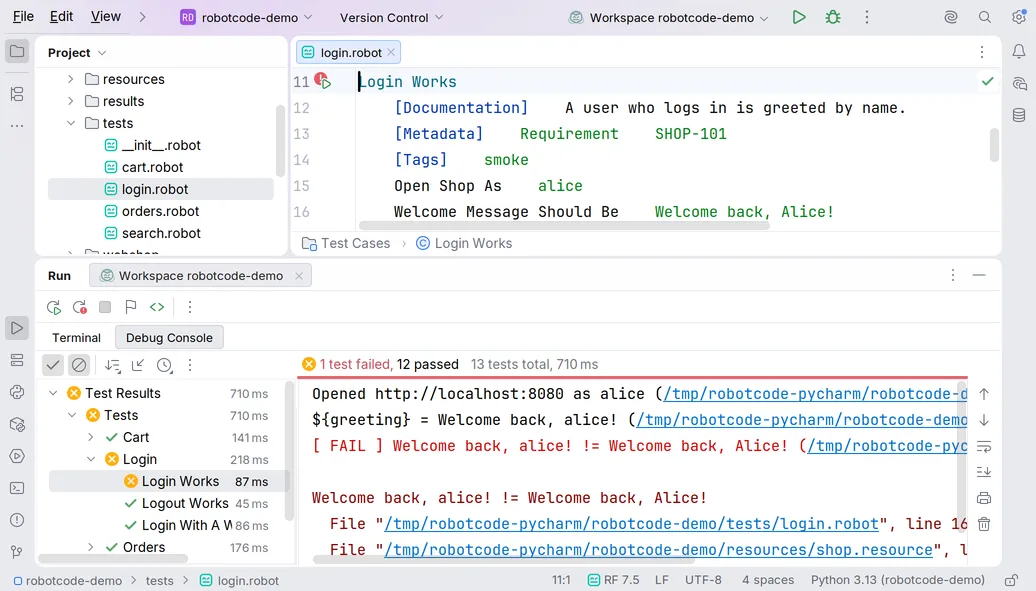](/_astro/overview-window-light.BRZvt1FA.png "Open in full size")
1. 1
2. 2
3. 3
4. 4
5. 5
[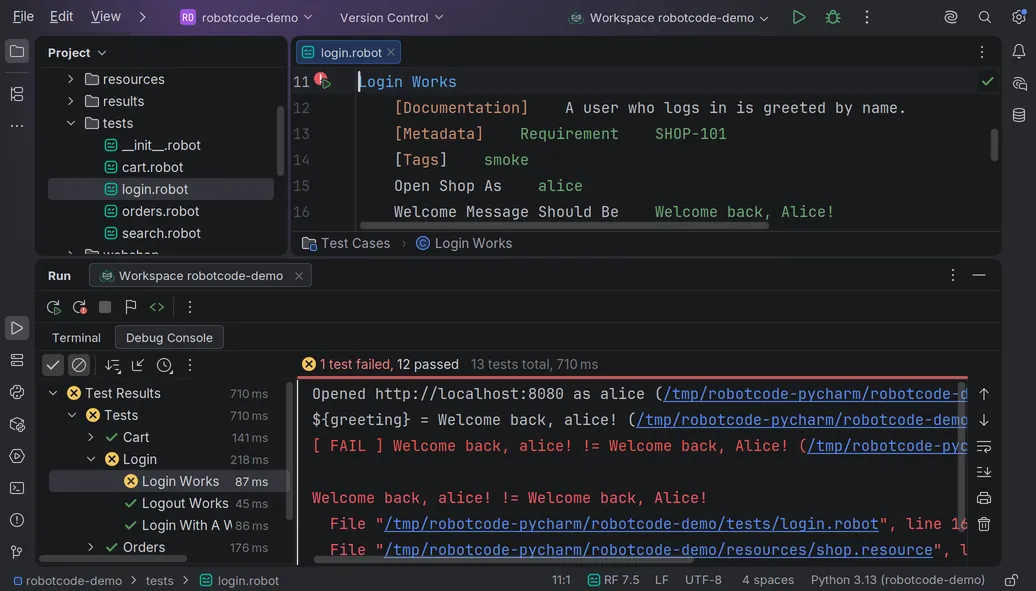](/_astro/overview-window-dark.CwRfG6-d.png "Open in full size")
1. 1
2. 2
3. 3
4. 4
5. 5
1) **The editor.** RobotCode completes keywords, variables and imports, shows the documentation of keywords, highlights the code by its meaning and marks problems while you type. See [Writing Code](/guides/pycharm/writing-code/) and [Finding Information](/guides/pycharm/finding-information/).
2) **The run markers** beside each test and task, and on the first line of a suite file, run or debug that test, task or suite; their icon shows the last result. See [Running Tests](/guides/pycharm/running-tests/).
3) **The Project view** runs files and folders from their context menu and creates new Robot Framework files with **New | Robot Framework File**.
4) **The Run tool window** shows a run: the output of the process in the **Terminal** tab, and the results tree with the log messages of each test in the **Debug Console** tab. See [Running Tests](/guides/pycharm/running-tests/#the-results-of-a-run).
5) **RobotCode's widget** in the status bar shows the Robot Framework version and the selected configuration profiles, see [below](#the-status-bar-widget).
## The status bar widget
[Section titled “The status bar widget”](#the-status-bar-widget)
In a project with Robot Framework files, a `robot.toml` or a `.robot.toml`, and in any project once you open a Robot Framework file, the status bar shows RobotCode's widget. It is listed as "Robot Framework" among the status bar widgets.
| Text | Meaning |
| --------------- | -------------------------------------------------------------------------------------------------------------------------------------------------------------------------------------------------------------------------------------------- |
| `RF 7.5` | RobotCode runs with Robot Framework 7.5. Selected configuration profiles follow, as in `RF 7.5 · dev`. |
| `RobotCode` | RobotCode checks the Python interpreter or waits for the language server. With an error icon, the interpreter cannot be used, and the tooltip says why, see [The Python interpreter](/guides/pycharm/configuration/#the-python-interpreter). |
| `RobotCode off` | RobotCode is switched off for the project. |
Its tooltip lists the versions of RobotCode, Robot Framework, Robocop (when it is installed) and Python, the path of the interpreter and the profiles. A click opens a menu with RobotCode's actions:
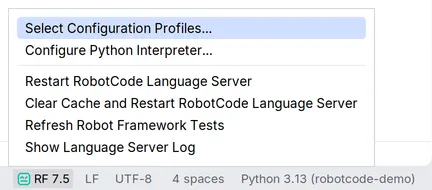
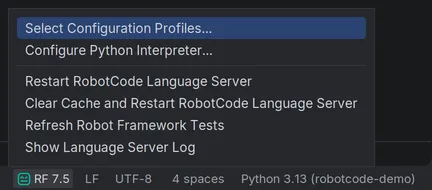
## Actions
[Section titled “Actions”](#actions)
RobotCode's actions are in the menu **Tools | RobotCode** and in the menu of the status bar widget:
| Action | What it does |
| ------------------------------------------------- | --------------------------------------------------------------------------------------------------------------------------------------------------------------------------------- |
| Enable RobotCode for This Project | Switches RobotCode on again; it is shown only while RobotCode is switched off for the project. |
| Select Configuration Profiles... | Chooses the `robot.toml` profiles that the language server, the test discovery and runs use, see [Configuration profiles](/guides/pycharm/configuration/#configuration-profiles). |
| Configure Python Interpreter... | Opens the settings of the Python interpreter of the project. |
| Restart RobotCode Language Server | Checks the Python interpreter again, restarts the language server and reads the tests again. |
| Clear Cache and Restart RobotCode Language Server | Also deletes RobotCode's [analysis cache](/guides/pycharm/diagnostics-and-linting/#the-analysis-cache), while the language server runs. |
| Refresh Robot Framework Tests | Reads the tests again, from which the run markers come. |
| Show Language Server Log | Opens the **Language Servers** tool window with the log of the language server, see [Troubleshooting](/guides/pycharm/troubleshooting/#output-and-logs). |
| Show What's New | Opens the news about the latest RobotCode release in the web browser, as the notification after an update does. |
More actions appear where they fit:
* **File | New\... | Robot Framework File**, also in the **New** menu of the Project view, creates a suite file, a resource file or a file from one of your own file templates with the extension `robot` or `resource`.
* **Run with Profile...** and **Debug with Profile...** in the context menus of the editor, the editor tab, the Project view and the run markers run once with a profile you choose, see [Running Tests](/guides/pycharm/running-tests/#running-with-a-profile).
**Find Action** (`Ctrl+Shift+A`, `Cmd+Shift+A` on macOS), also under **Help | Find Action...**, runs these actions by name: type `RobotCode` to list the actions of **Tools | RobotCode**. It finds settings as well, for example RobotCode's settings pages when you type `Robot Framework`.
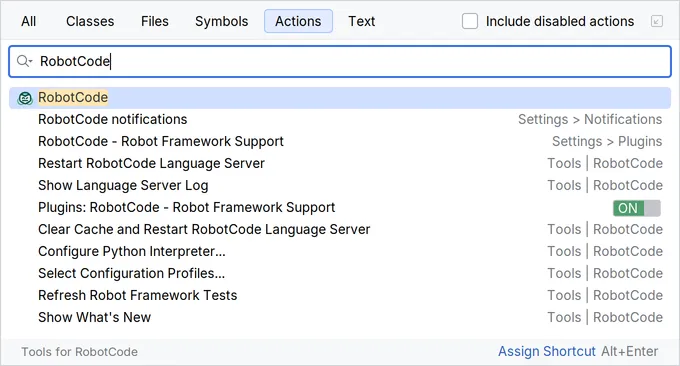
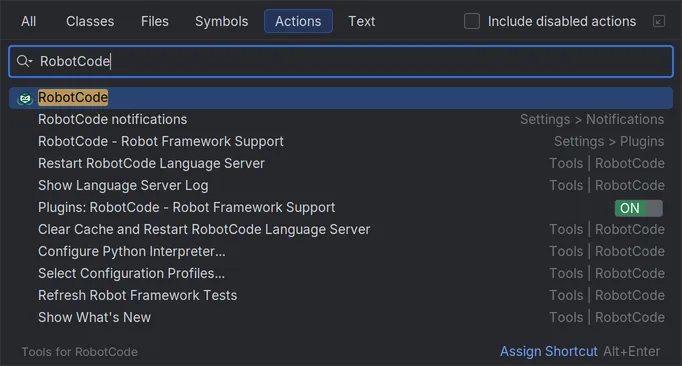
RobotCode defines no keyboard shortcuts of its own; PyCharm's shortcuts work, for example `Ctrl+Shift+F10` (`Ctrl+Shift+R` on macOS) to run the test or suite at the cursor. The shortcuts in this guide are those of PyCharm's default keymaps for Windows and macOS. On Linux, PyCharm uses a keymap for GNOME, KDE or other desktops, in which some shortcuts differ; **Settings | Keymap** shows yours.
## Output and logs
[Section titled “Output and logs”](#output-and-logs)
RobotCode has no tool window of its own. The log of its language server is in the **Language Servers** tool window of the LSP4IJ plugin, which RobotCode uses to talk to its language server; **Tools | RobotCode | Show Language Server Log** opens it. When RobotCode cannot read the tests of the project, a notification "RobotCode could not discover the tests" shows the error, with **Retry** and, if the project folder contains a `robot.toml`, **Open robot.toml**. When a selected configuration profile is the reason, because `robot.toml` does not define it, the notification "RobotCode cannot find the selected profile" appears instead, with **Remove from Selection** and **Select Configuration Profiles...**. See [Troubleshooting](/guides/pycharm/troubleshooting/).
## Pages of this guide
[Section titled “Pages of this guide”](#pages-of-this-guide)
[Writing Robot Framework Code in PyCharm](/guides/pycharm/writing-code/)Completion, parameter info, documentation, inlay hints, highlighting, quick fixes, rename, formatting and new files while you write Robot Framework code in PyCharm.
[Finding Information in PyCharm](/guides/pycharm/finding-information/)Go to declarations, find usages, use the structure view, breadcrumbs and Go to Symbol, and show references above keywords in PyCharm.
[Running Tests in PyCharm](/guides/pycharm/running-tests/)Run Robot Framework tests from the gutter, the editor and the Project view, edit Robot Framework run configurations, run with a profile, read the results tree and open the report in PyCharm.
[Debugging in PyCharm](/guides/pycharm/debugging/)Debug Robot Framework tests in PyCharm: breakpoints with conditions and logging, stopping at failures, stepping, variables, Evaluate, watches and the Robot Debug Console.
[Configuring RobotCode in PyCharm](/guides/pycharm/configuration/)Where a setting belongs in PyCharm: robot.toml or the Robot Framework settings pages, shared or personal; plus the Python interpreter, configuration profiles and switching RobotCode off.
[Diagnostics and Linting in PyCharm](/guides/pycharm/diagnostics-and-linting/)Where RobotCode reports problems in PyCharm, how severities map, how to use Robocop, change or hide diagnostics, find unused keywords and variables, and clear the analysis cache.
[Troubleshooting RobotCode in PyCharm](/guides/pycharm/troubleshooting/)Check the versions RobotCode uses in PyCharm, restart the language server, clear the cache, read the logs in the Language Servers tool window and report an issue.
[RobotCode in PyCharm and VS Code](/guides/pycharm/compared-with-vscode/)What RobotCode offers in PyCharm compared with VS Code: the same language features, but no Test Explorer, Documentation Viewer or REPL command yet, and what PyCharm does differently.
# RobotCode in PyCharm and VS Code
> What RobotCode offers in PyCharm compared with VS Code: the same language features, but no Test Explorer, Documentation Viewer or REPL command yet, and what PyCharm does differently.
PyCharm and VS Code use the same RobotCode language server, so the language features are the same in both: completion, documentation, navigation, quick fixes and diagnostics. Around them, each IDE does things its own way, and some tools of the VS Code extension do not exist in PyCharm yet.
## Feature by feature
[Section titled “Feature by feature”](#feature-by-feature)
| Area | VS Code | PyCharm |
| ------------------------------------------------------------------------------ | ------------------------------------------------------------------------------------------------------------ | ------------------------------------------------------------------------------------------------------------------------------------------ |
| Completion, signature help, hover, quick fixes, rename, formatting | Yes | Yes |
| Go to definition, references, outline, workspace symbols, references code lens | Yes | Yes |
| Highlighting by meaning | Colors from the theme, changeable in `settings.json` | **Settings \| Editor \| Color Scheme \| Robot Framework** |
| Robot Framework code blocks in Markdown | Highlighted when marked `robotframework` or `robot`, in the editor and the preview | Highlighted when marked `robotframework` or `robot`, in the editor and the preview |
| Inlay hints | On, shown while `Ctrl+Alt` (`Ctrl+Option` on macOS) is held | Off by default, shown all the time when switched on |
| Keywords view | In the Explorer | Not available |
| Documentation Viewer | Yes | Not available; the documentation shows on hover and with **Quick Documentation** |
| Test Explorer | A tree of all suites, tests and tasks of the workspace, with run and debug buttons, filters and run profiles | Not available; run markers in the editor, context menus, run configurations and the results tree of a run |
| Running with a profile | Run profiles of the Test Explorer, **Execute Using Profile...** | **Run with Profile...**, **Debug with Profile...**, the option **Configuration profiles** of a run configuration |
| Launch configurations | `launch.json` | Run configurations of the type Robot Framework |
| Results of a run | In the Test Explorer, with failure messages at the failing lines in the editor | In the results tree of the **Run** or **Debug** tool window, with the log messages and failures of each test |
| Report and log after a run | In VS Code's built-in browser or an external browser | In RobotCode's built-in preview or a browser |
| Breakpoints, conditions, hit counts, logpoints | Yes | Yes; a logpoint is a breakpoint with **Evaluate and log** and without **Suspend** |
| Stopping at failures | Exception breakpoints | Exception breakpoints |
| Evaluating while paused | **Debug Console** | **Robot Debug Console** and **Evaluate Expression...**; PyCharm's tab **Debug Console** shows the results tree |
| Variable values at the end of the lines while debugging | Yes | Not available |
| Debugging the Python code of libraries in the same session | Yes | Not available |
| Attaching to a run started elsewhere | **Remote-Attach** | Not available |
| REPL and notebooks | **Start Terminal REPL**, Robot Framework notebooks | Not available; `robotcode repl` works in PyCharm's terminal when RobotCode's command line tools are installed in the project's environment |
| The `robotcode` command in the terminal | The extension's own `robotcode` is on the `PATH` of the integrated terminal | Install RobotCode's command line tools into the project's environment |
| Plugin for AI agents in the chat | Bundled for GitHub Copilot Chat | Not available, see [Working with AI Agents](/guides/ai-agents/) |
| Status | Language status in the status bar | Status bar widget |
| Python environment | From the Python extension; RobotCode notices a new environment and a later install of Robot Framework | The Python interpreter of the project; after an install, **Retry** in the banner checks it again |
| Several projects in one window | Workspace folders, each with its own language server | Attached projects are modules of one project, which has one language server with the interpreter of the first module that has one |
| Settings | User, workspace and folder settings | Shared project settings and personal settings |
| Completion in `robot.toml` | With the extension Even Better TOML, from RobotCode's JSON schema | From RobotCode's JSON schema, without further setup |
| Switching Robocop, workspace diagnostics and debug logging on and off | Commands in the RobotCode menu | Robocop and workspace diagnostics on the settings pages, debug logging with **Extra args** on the page **Language Server** |
| Reporting an issue | **RobotCode: Report Issue...** | On [GitHub](https://github.com/robotcodedev/robotcode/issues) |
| New files | Suite file, resource file, `__init__.robot` | Suite file, resource file, your own file templates |
| Problems while finding the tests | In the Problems view | In the tooltip of the run marker on the first line of the file, or as an error marker there |
## Only in PyCharm
[Section titled “Only in PyCharm”](#only-in-pycharm)
* **Run configurations in a form**, with PyCharm's Python options, for example `.env` files for the environment variables of a run.
* **Run configurations that follow your files:** a run configuration with a **Files and folders** target changes with the files you rename or move.
# Configuring RobotCode in PyCharm
> Where a setting belongs in PyCharm: robot.toml or the Robot Framework settings pages, shared or personal; plus the Python interpreter, configuration profiles and switching RobotCode off.
RobotCode takes its configuration from two places: the `robot.toml` of your project and the Robot Framework settings pages of PyCharm. This page explains which belongs where, how to choose the Python interpreter and the configuration profiles, and how to switch RobotCode off for a project.
## `robot.toml` or a setting?
[Section titled “robot.toml or a setting?”](#robottoml-or-a-setting)
**`robot.toml`** describes how your project runs: the paths of the tests, the Python path, variables, the output directory and the profiles for different environments. RobotCode reads it in PyCharm, in VS Code and on the command line alike, so a run in the IDE and a run in CI see the same options. Put everything there that the project needs to run; see [Configuring Projects with robot.toml](/guides/robot-toml/). PyCharm completes the settings of `robot.toml` and `.robot.toml` from RobotCode's JSON schema, which it downloads the first time you open such a file.
**The settings pages of PyCharm** decide how RobotCode behaves in the IDE: the analysis and its cache, completion, inlay hints, the report after a run, the launch wrapper and the output of runs. Some of them also pass options to the runs and the analysis, but only in PyCharm.
When you create, change or delete a `robot.toml`, `.robot.toml`, `pyproject.toml`, `.gitignore` or `.robotignore` in the project, RobotCode restarts its language server and reads the tests again.
## The settings pages
[Section titled “The settings pages”](#the-settings-pages)
**Settings | Languages & Frameworks | Robot Framework** (`Ctrl+Alt+S`, `Cmd+,` on macOS) has these pages:
| Page | What it sets |
| --------------- | -------------------------------------------------------------------------------------------------------------------------------------------------------------------------------------------------------------------------------------------------------------------------------------------------------------------------------------------------------------------------------------------------------------------------- |
| General | **Disable extension**, **Extra args** for the `robotcode` commands RobotCode runs in the background, the selected configuration **Profiles**, and **Show whats new on update**, which shows a notification with a link to the news after RobotCode was updated. |
| Editing | The **Completion** of private and deprecated keywords, of English headers and settings in files that use another language, and the style of section headers; the **Inlay Hints**. |
| Robot | **Args**, **Paths**, **Python path**, **Env**, **Languages**, **Variables**, **Variable files**, **Output dir** and **Mode** for the runs, the test discovery and the analysis. **Add content roots to the Python path** and **Add source roots to the Python path**, both on, also put the content roots and the folders marked as Sources or Test Sources on the Python path, as PyCharm's Python run configurations do. |
| Run | **Open output after run** (nothing, the report or the log) and **Open output target**. |
| Debug | **Launch wrapper**, and **Output messages**, **Output log** and **Output timestamps** of runs and debug sessions. |
| Analysis | **Diagnostic mode**, **Progress mode**, **Find unused references**, **References code lens**, **File check interval**, and the groups **Cache**, **Robot**, **Diagnostic Modifiers**, **Workspace** and **Experimental**. |
| Robocop | **Enabled**, **Config file**, **Ignore Git dir** and **Ignore file config** for Robocop. |
| Language Server | **Extra args** for the language server, for example `--log --log-level DEBUG`. |
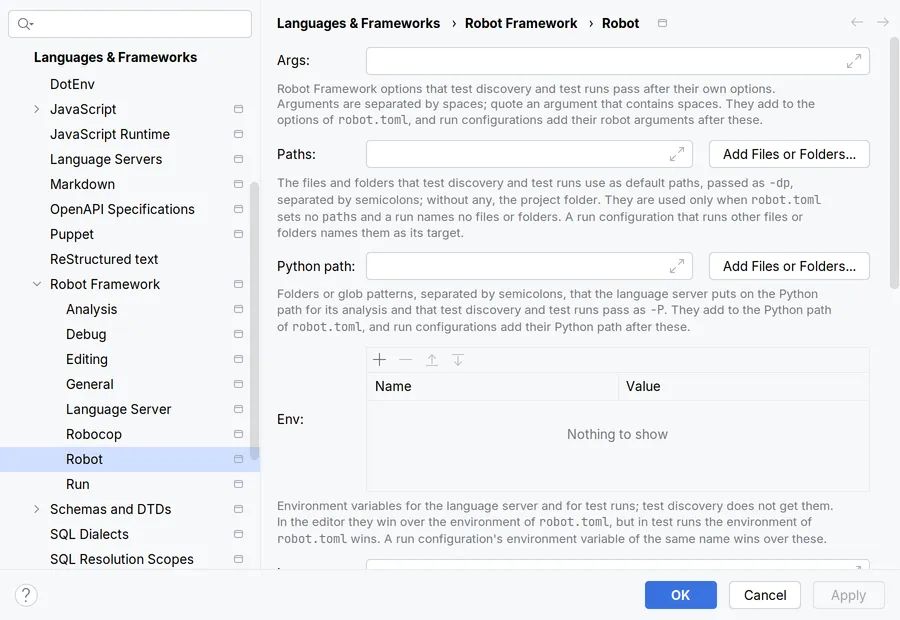
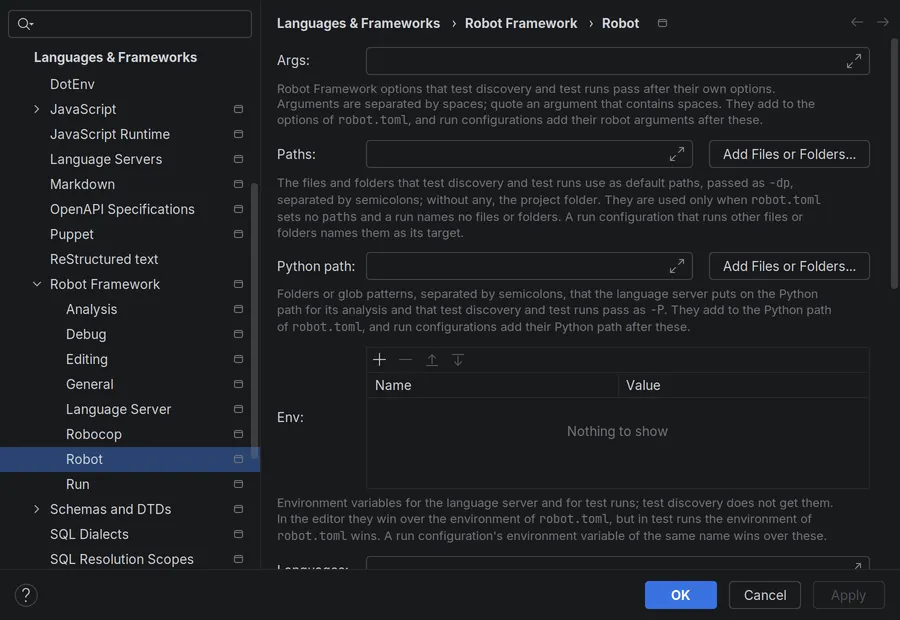
The settings search of the dialog finds every field. The pages correspond to the settings of the VS Code extension, so the [VS Code settings](/reference/vscode-settings/) describe most fields in more detail, although some defaults differ, for example those of the inlay hints. A list field on these pages takes its entries separated by `;`.
Most settings belong to the project. They are stored in `.idea/robotcodeSettings.xml`, only those that differ from their defaults, and you can share the file with your team through version control. The pages **General** and **Language Server** and the selected profiles are personal: they are stored in `.idea/workspace.xml`. The exception is **Show whats new on update** on the General page: it applies to all projects and is stored with the settings of PyCharm. **File | New Projects Setup | Settings for New Projects...** presets the shared pages for new projects.
Applying a change restarts the language server or reads the tests again only when the change needs it.
## The Python interpreter
[Section titled “The Python interpreter”](#the-python-interpreter)
RobotCode runs its language server and its tools with the Python interpreter of the project. In a project with several modules, that is the interpreter of the module with the Robot Framework project, which RobotCode recognizes by a `robot.toml`, a dependency on Robot Framework or RobotCode, or Robot Framework files; without such a module, the first module with an interpreter. When several modules have them, RobotCode asks in a notification and in the banner which one to use, and **Module for RobotCode** on the settings page **General** changes the choice later. Runs use the interpreter of their run configuration, by default the same one. Choose it under **Settings | Python | Interpreter**, or with **Tools | RobotCode | Configure Python Interpreter...**. RobotCode brings its own tools along, so the interpreter needs only Python 3.10 or newer with Robot Framework 5.0 or newer, and Robocop if you want to use it.
RobotCode checks the interpreter in the background when the project opens; the IDE stays usable meanwhile, and a run started before the result waits for it with a progress that you can cancel. When the interpreter does not fit, every open Robot Framework file shows a banner that names the problem: no interpreter is configured, it does not exist, Python is older than 3.10, Robot Framework is missing or older than 5.0, it is a remote interpreter, or the check itself failed.


The banner offers **Configure Python Interpreter...**, **Retry**, which checks the interpreter again after you installed Robot Framework, and **Disable RobotCode for This Project**. Until the interpreter fits, the status bar widget shows an error, no language server runs and no run markers appear. Choosing another interpreter for the project restarts RobotCode by itself.
Remote interpreters, such as WSL, Docker or SSH, are not supported yet; RobotCode needs a local interpreter for the project and for runs.
## Configuration profiles
[Section titled “Configuration profiles”](#configuration-profiles)
The profiles of `robot.toml` let one project run against different environments, for example a local shop and a staging server. **Tools | RobotCode | Select Configuration Profiles...**, or **Select...** at **Profiles** on the settings page **General**, chooses the profiles that the language server, the test discovery and runs use:
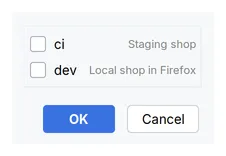
Without a selection, the `default-profiles` of `robot.toml` apply. The selection is personal, and the status bar widget shows it. A run configuration can choose its own profiles with the option **Configuration profiles**, and **Run with Profile...** runs once with another one, see [Running Tests](/guides/pycharm/running-tests/#running-with-a-profile).
When the selection names a profile that `robot.toml` does not define, for example after it was renamed, test discovery and runs stop. RobotCode reports it after the language server has started, with **Remove from Selection** and **Select Configuration Profiles...**.
## Switching RobotCode off
[Section titled “Switching RobotCode off”](#switching-robotcode-off)
**Disable extension** on the settings page **General**, or **Disable RobotCode for This Project** in the banner, switches RobotCode off for the project: no language server, no test discovery and no run markers. **Tools | RobotCode | Enable RobotCode for This Project** switches it on again.
RobotCode runs one language server per project, in the project folder.
# Debugging in PyCharm
> Debug Robot Framework tests in PyCharm: breakpoints with conditions and logging, stopping at failures, stepping, variables, Evaluate, watches and the Robot Debug Console.
You debug tests from the same places you run them: **Debug** at a run marker or in a context menu, **Debug with Profile...**, or a run configuration started with **Debug**, see [Running Tests](/guides/pycharm/running-tests/). The run opens in the **Debug** tool window, which shows the debugger next to the tabs of a run: **Terminal** with the output of the process, **Debug Console** with the results tree, and **Robot Debug Console**, where you evaluate; unlike VS Code, PyCharm's tab **Debug Console** does not evaluate.
[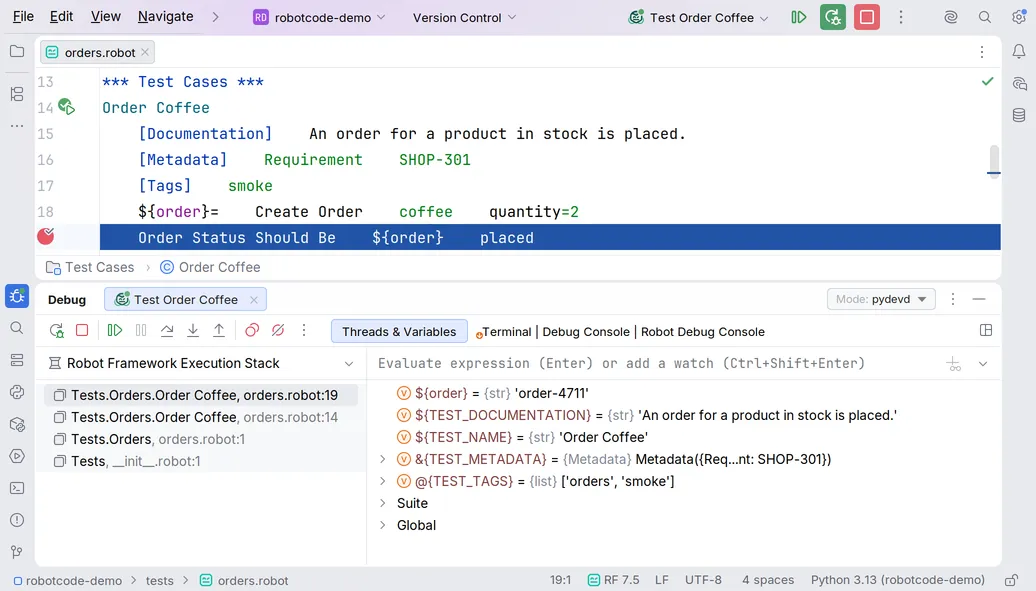](/_astro/debugging-session-light.BtXFx_5u.png "Open in full size")
[](/_astro/debugging-session-dark.DQI6hfQ0.png "Open in full size")
## Breakpoints
[Section titled “Breakpoints”](#breakpoints)
A click in the gutter of a `.robot` or `.resource` file, or **Run | Toggle Breakpoint | Line Breakpoint** (`Ctrl+F8`, `Cmd+F8` on macOS), sets a breakpoint on the line. A right-click on the breakpoint edits its condition, and **More** there, or **Run | View Breakpoints...**, shows all its options:
* **Condition:** a Python expression in which Robot Framework variables such as `${count}` are replaced by their values, for example `${count} > 2`. The run stops only when it is true.
* **Hit count:** stops only at certain hits: `3` at the third, `>= 3` from the third on, `% 3` at every third.
* **Evaluate and log:** with **Suspend** switched off, a text with Robot Framework variables, such as `count is ${count}`, that is written to the **Debug Console** tab at every hit while the run goes on. With **Suspend** on, it is evaluated like a watch when the run stops there, so enter a variable, an expression such as `${count} * 2`, or `! `and a keyword.
PyCharm's breakpoint options apply too, for example **Remove once hit** and breakpoints that are enabled only after another one was hit; they do not react to a breakpoint that only logs, without **Suspend**.
## Stopping at failures
[Section titled “Stopping at failures”](#stopping-at-failures)
**Run | View Breakpoints...** (`Ctrl+Shift+F8`, `Cmd+Shift+F8` on macOS) lists the group **Robot Framework Exception Breakpoints**. **Uncaught Failed Keywords** is on by default: the run stops at the first keyword that fails without being caught by `TRY`/`EXCEPT` or a keyword such as `Run Keyword And Expect Error`, before the failure ends the test. The add button of the group adds **Failed Keywords**, which stops at every failing keyword, also caught ones, **Failed Tests** and **Failed Suites**. When a run stops there, the debugger shows the failure message.
## Stepping
[Section titled “Stepping”](#stepping)
While the run is paused, **Resume Program** (`F9`, `Cmd+Option+R` on macOS), **Step Over** (`F8`), **Step Into** (`F7`) and **Step Out** (`Shift+F8`) move through the keywords, and **Run to Cursor** (`Alt+F9` on Windows, `Shift+Alt+9` on Linux, `Option+F9` on macOS) runs to the line of the cursor. **Stop** ends the run and lets Robot Framework write its output files.
The option **Stop on entry** of a run configuration pauses the run at the start of its top-level suite.
## Frames and variables
[Section titled “Frames and variables”](#frames-and-variables)
The frames show the keywords, tests and suites that run, with their file and line where they have one. The variables of the selected frame are grouped: the local variables first, then those of the test, the suite and the global ones. Each variable shows the name of its Python type, and lists and dictionaries can be expanded.
**Set Value...** changes a local variable of the innermost frame. The new value is a Python expression in which Robot Framework variables are replaced, so a string needs quotes: `'shipped'`, not `shipped`.
While the run is paused, hovering over a variable in the editor shows its value.
## Evaluate and watches
[Section titled “Evaluate and watches”](#evaluate-and-watches)
**Run | Debugging Actions | Evaluate Expression...** (`Alt+F8` on Windows, `Option+F8` on macOS) evaluates in the selected frame: a single variable such as `${order}` shows its value, anything else runs as a keyword call, such as `Log ${order}`. A watch is a variable or a Python expression in which Robot Framework variables are replaced, such as `${count} + 1`; to run a keyword in a watch, start it with `! `. An unknown variable shows ``.
While the run is paused, completion in these fields, in the fields of a breakpoint and in the Robot Debug Console offers the keywords, libraries, resource files and variables of the selected frame; it opens by itself after `${`, `@{`, `&{` and `%{`.
## The Robot Debug Console
[Section titled “The Robot Debug Console”](#the-robot-debug-console)
The tab **Robot Debug Console** evaluates the lines you type in the selected frame the same way, and keeps their history. While the run is not paused, it answers "The run is not paused."
RobotCode in PyCharm does not show variable values at the end of the lines while paused, cannot debug the Python code of libraries in the same session and cannot attach to a run started outside the IDE; see [PyCharm and VS Code](/guides/pycharm/compared-with-vscode/). On the command line, [`robotcode robot-debug`](/guides/cli/robot-debug/) debugs a run in the terminal.
# Diagnostics and Linting in PyCharm
> Where RobotCode reports problems in PyCharm, how severities map, how to use Robocop, change or hide diagnostics, find unused keywords and variables, and clear the analysis cache.
RobotCode checks your files while you type: keywords and variables it cannot find, wrong arguments, imports that fail, and more. With Robocop installed, Robocop's findings join them.
## Where problems appear
[Section titled “Where problems appear”](#where-problems-appear)
RobotCode marks problems in the editor; hover over a marked spot to read the message. The **Problems** tool window (`Alt+6`, `Cmd+6` on macOS) lists the problems of the file in the editor.
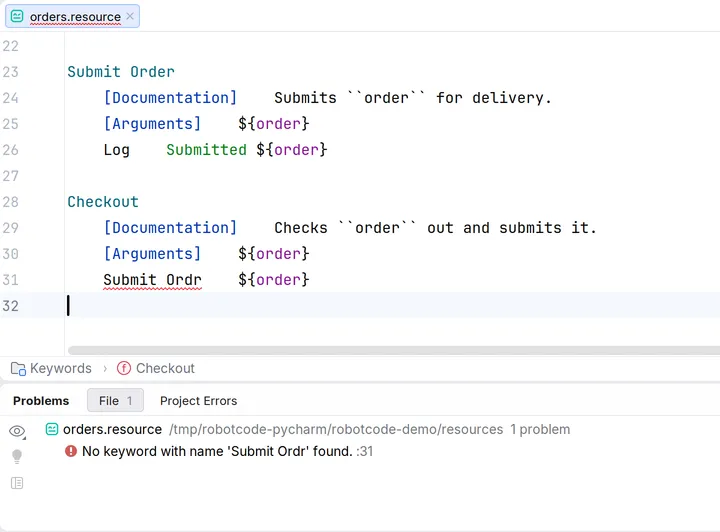
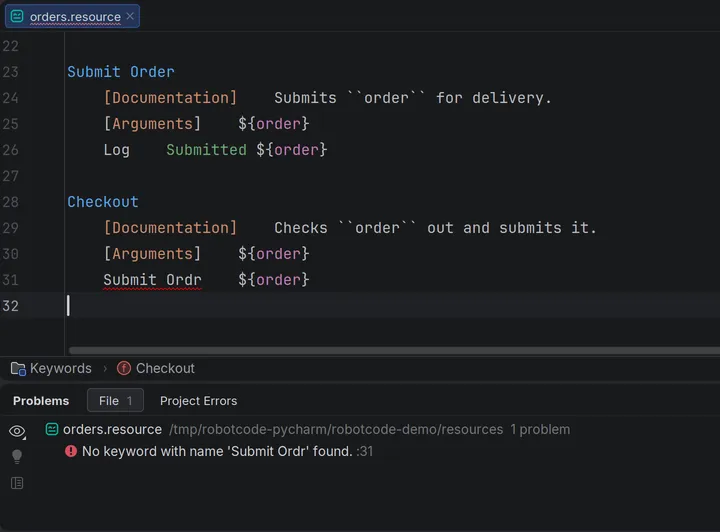
RobotCode's severities appear as PyCharm's levels:
| RobotCode | PyCharm |
| ----------- | -------------------------------------------------- |
| Error | Error |
| Warning | Warning |
| Information | Weak warning, listed in Problems |
| Hint | Not listed in Problems; the message shows on hover |
By default RobotCode checks the files you have open. With **Diagnostic mode** set to **Workspace** on the settings page **Analysis**, it checks all Robot Framework files of the project, and the Project view marks the files that contain errors.
## Robocop
[Section titled “Robocop”](#robocop)
When [Robocop](https://robocop.dev/) is installed in the Python interpreter of the project, RobotCode runs it on the files it analyzes and shows its findings next to its own; the tooltip of the status bar widget shows Robocop's version. The settings page **Robocop** switches it off with **Enabled**, and sets a **Config file**; switching it off does not switch off formatting with Robocop.
## Changing or hiding diagnostics
[Section titled “Changing or hiding diagnostics”](#changing-or-hiding-diagnostics)
A comment such as `# robotcode: ignore[variable-not-found]` hides a diagnostic or changes its severity: at the end of a line for that line, at the start of a line for the rest of the file, indented for the rest of the block; see [Controlling Diagnostics with Modifiers](/reference/diagnostics-modifiers/) for the syntax. To change a code for the whole project, list it in `[tool.robotcode-analyze.modifiers]` of `robot.toml`, which works in every editor and on the command line. The group **Diagnostic Modifiers** on the settings page **Analysis** adds codes for this IDE only: **Ignore**, **Error**, **Warning**, **Information** and **Hint**.
## Unused keywords and variables
[Section titled “Unused keywords and variables”](#unused-keywords-and-variables)
**Find unused references** on the settings page **Analysis** reports keywords, arguments and variables that nothing uses. It is off by default.
## The analysis cache
[Section titled “The analysis cache”](#the-analysis-cache)
RobotCode keeps what it learned about libraries and variable files, and its analysis of the project's files, in a cache, so that a start does not load and analyze everything again. **Save location** on the settings page **Analysis** keeps it in the IDE's system directory, which is the default, or in the project folder, as `.robotcode_cache`. **Ignored libraries** and **Ignored variables** leave libraries and variable files out of the cache, for example ones whose keywords depend on their arguments; **Ignore arguments for library** analyzes the listed libraries without their import arguments.
**Tools | RobotCode | Clear Cache and Restart RobotCode Language Server** deletes the cache while the language server runs, so that every library and file is loaded and analyzed again. Use it when diagnostics stay outdated although the files are right.
## Problems while finding the tests
[Section titled “Problems while finding the tests”](#problems-while-finding-the-tests)
When Robot Framework reports a problem while RobotCode reads the tests of a file, for example a file with both tests and tasks, the tooltip of the run marker on the first line of the file lists it, or the first line gets an error marker. These problems do not appear in the Problems tool window.
On the command line, [`robotcode analyze code`](/guides/cli/analyzing-code/) checks a whole project, for example in CI.
# Finding Information in PyCharm
> Go to declarations, find usages, use the structure view, breadcrumbs and Go to Symbol, and show references above keywords in PyCharm.
RobotCode knows where every keyword, variable, library and resource file of your project is defined and where it is used. PyCharm's navigation actions use that knowledge in Robot Framework files.
## Go to declaration
[Section titled “Go to declaration”](#go-to-declaration)
`Ctrl`+click (`Cmd`+click on macOS) on a keyword call, a variable or an import, or **Navigate | Declaration or Usages** (`Ctrl+B`, `Cmd+B` on macOS), opens where it is defined: the keyword in its resource file or library, the variable where it gets its value, the imported file.
On the name of a keyword definition, the same click or action lists the keyword's usages, as **Show Usages** does.
## Find usages
[Section titled “Find usages”](#find-usages)
**Edit | Find Usages | Show Usages** (`Ctrl+Alt+F7` on Windows, `Ctrl+Alt+7` on Linux, `Cmd+Option+F7` on macOS) lists every place that uses a keyword, a variable, a library or a resource file in a popup, **Edit | Find Usages | Find Usages** (`Alt+F7` on Windows, `Option+F7` on macOS) in the **Find** tool window.
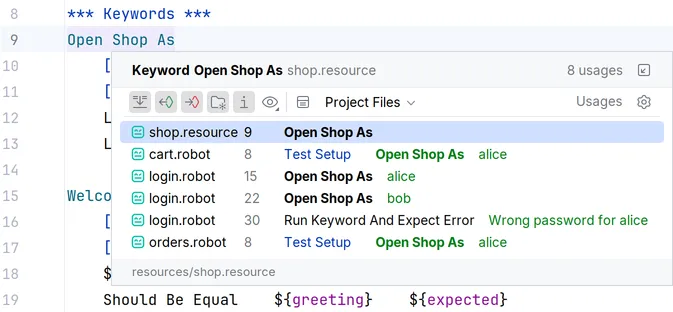
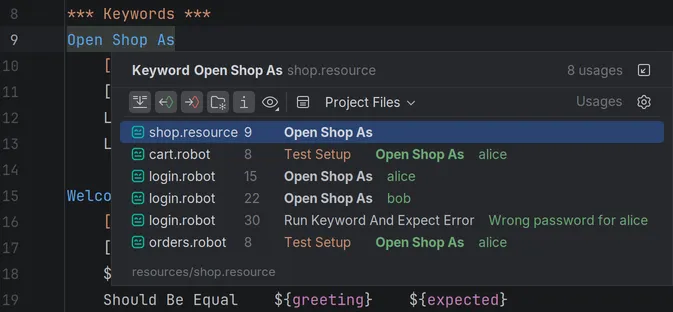
The usages of the element at the cursor are also highlighted in the editor.
### References code lens
[Section titled “References code lens”](#references-code-lens)
With **References code lens** on the settings page **Analysis**, the editor shows above each keyword how often it is used. It is off by default, see [Configuration](/guides/pycharm/configuration/#the-settings-pages).
## Structure and breadcrumbs
[Section titled “Structure and breadcrumbs”](#structure-and-breadcrumbs)
The **Structure** tool window (`Alt+7`, `Cmd+7` on macOS) and **Navigate | File Structure** (`Ctrl+F12`, `Cmd+F12` on macOS) list the sections, tests, tasks, keywords and variables of the file in the editor; a click goes there. The breadcrumbs below the editor show the section and the test or keyword the cursor is in.
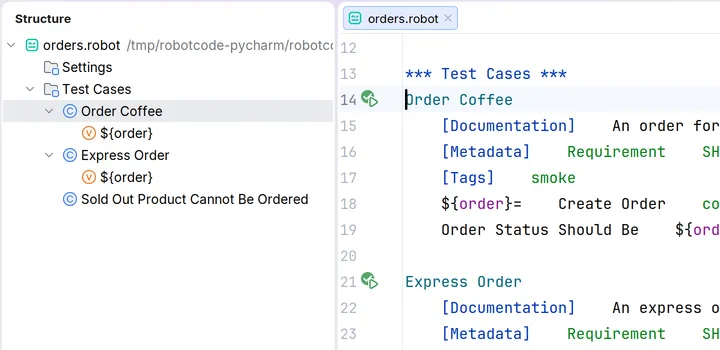
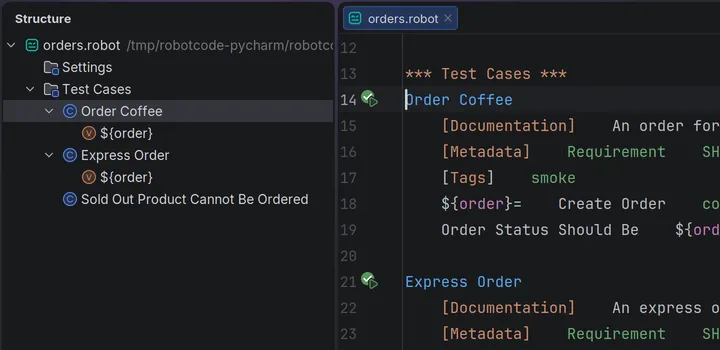
## Go to Symbol
[Section titled “Go to Symbol”](#go-to-symbol)
**Navigate | Symbol...** (`Ctrl+Alt+Shift+N`, `Cmd+Option+O` on macOS) finds keywords, tests and variables of the whole project by name.
## Keyword documentation
[Section titled “Keyword documentation”](#keyword-documentation)
The documentation of a keyword or library shows on hover and with **View | Quick Documentation**, see [Writing Code](/guides/pycharm/writing-code/#documentation). RobotCode in PyCharm has no Keywords view and no Documentation Viewer. With RobotCode's command line tools installed in the project's environment, [`robotcode doc`](/guides/cli/browsing-documentation/) shows the documentation of a library in PyCharm's terminal.
# Running Tests in PyCharm
> Run Robot Framework tests from the gutter, the editor and the Project view, edit Robot Framework run configurations, run with a profile, read the results tree and open the report in PyCharm.
PyCharm has no Test Explorer like VS Code. You run tests where they are: from the run markers in the editor, from the context menus of the editor and the Project view, and from run configurations. RobotCode reads the tests of the project in the background to place the run markers; **Tools | RobotCode | Refresh Robot Framework Tests** reads them again.
## Running from the editor
[Section titled “Running from the editor”](#running-from-the-editor)
A run marker in the gutter sits beside every test and task, and on the first line of a suite file for the whole suite. Its icon shows the result of the last run. A click on it offers **Run**, **Debug**, **Run with Profile...** and **Debug with Profile...**:
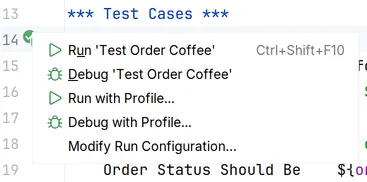
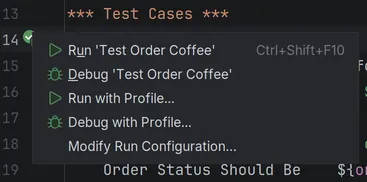
The context menu of the editor runs or debugs what is at the cursor: the test or task when the cursor is in its body, otherwise the suite of the file. `Ctrl+Shift+F10` (`Ctrl+Shift+R` on macOS) runs it directly. The context menu of the editor tab runs the suite of the file. In PyCharm Professional, **More Run/Debug** in the context menu also lists PyCharm's **Profile** and **Concurrency Diagram**; Robot Framework runs support neither, and both end with a message.
A file that Robot Framework cannot read as a suite, for example one with both tests and tasks, gets an error marker on its first line instead; its tooltip names the problem.
## Running from the Project view
[Section titled “Running from the Project view”](#running-from-the-project-view)
The context menu of a `.robot` file, or of a folder that contains `.robot` files at any depth, runs or debugs it. Several selected files and folders run together in one run. An `__init__.robot` file stands for its folder.
## Run configurations
[Section titled “Run configurations”](#run-configurations)
Every run uses a run configuration of the type **Robot Framework**. A run from the gutter or a context menu creates one, named after what it runs, such as "Test Order Coffee" or "Suite Orders", and reuses it the next time; **Run | Edit Configurations...** saves and changes them.
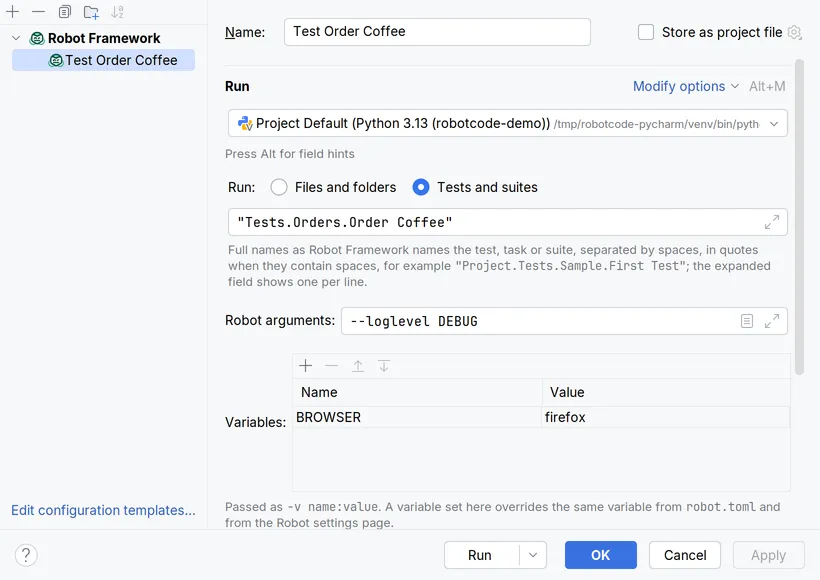
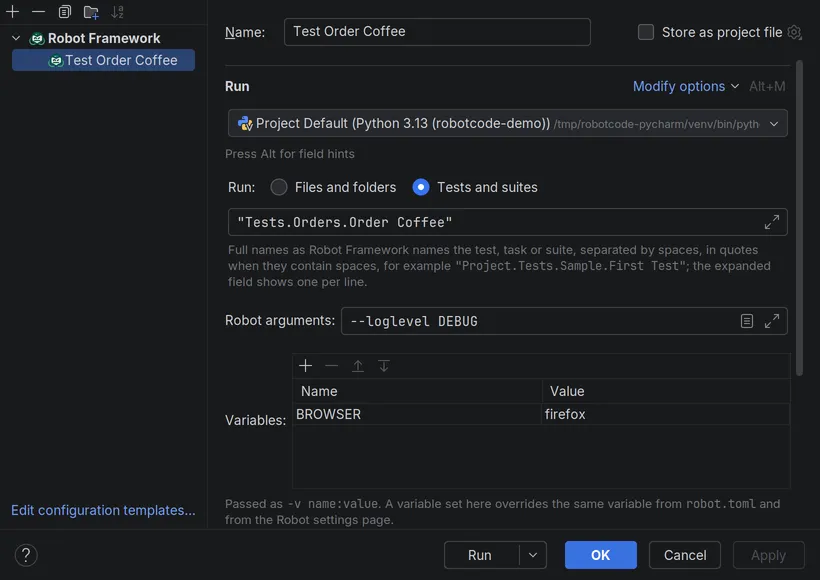
* **Run:** **Files and folders** runs paths, separated by spaces; **Add Files or Folders...** picks them. An empty list runs the `paths` of `robot.toml`; without them the **Paths** of the settings page **Robot**, or else the project folder. **Tests and suites** runs tests, tasks and suites by their full names, such as `"Project.Tests.Sample.First Test"`.
* **Robot arguments:** further options for Robot Framework, such as `--loglevel DEBUG`.
* **Modify options**, group **Robot Framework**, adds **Variables**, **Variable files**, **Python path**, **Languages**, **Include tags**, **Exclude tags**, **Output directory**, **Mode**, **Dry run** and **Configuration profiles**.
* **Modify options**, group **Run & Debug**, adds **Launch wrapper**, **robotcode arguments**, **Output messages**, **Output log**, **Output timestamps**, **Open output after run**, **Stop on entry**, which applies to debug runs, **Connection timeout** and **Debugger arguments**.
A Robot Framework run configuration is a Python run configuration of PyCharm, so it also has PyCharm's Python options: the interpreter, its options, the working directory, environment variables and `.env` files, adding the content and source roots to `PYTHONPATH`, which is off by default, and **Before launch** tasks.
The run configuration adds to the settings page **Robot**, see [Configuration](/guides/pycharm/configuration/#the-settings-pages): the Python path, the variable files and the Robot arguments of the page come first, then those of the configuration; a variable of the configuration wins over one of the page with the same name; languages, output directory and mode of the configuration replace those of the page. The run configuration template of the type Robot Framework, under **Edit configuration templates...**, sets the defaults of the configurations that runs from the gutter and the context menus create.
## Running with a profile
[Section titled “Running with a profile”](#running-with-a-profile)
**Run with Profile...** and **Debug with Profile...** in the menus of the run markers, the editor, the editor tab and the Project view ask for one of the profiles of `robot.toml` and run once with it, as a copy of the configuration named "… (profile)"; the saved configurations stay unchanged. For a profile that a configuration always uses, set the option **Configuration profiles** in it. Without either, a run uses the profiles selected for the project, see [Configuration profiles](/guides/pycharm/configuration/#configuration-profiles).
## The results of a run
[Section titled “The results of a run”](#the-results-of-a-run)
A run opens in the **Run** tool window, a debug run in the **Debug** tool window, with two tabs:
* **Terminal** shows the output of the process, as a run in a terminal shows it. The paths of the output files that Robot Framework names are links.
* **Debug Console** shows the results tree: the suites, tests and tasks as Robot Framework runs them, with their status and duration. A selected test shows its log messages, with a link to the source line of each, and for a failed test each of its failures with the calls that led to it, from the call in the test inward, as `File "", line , in .`, followed by failures the test caught before, marked `Caught:`.
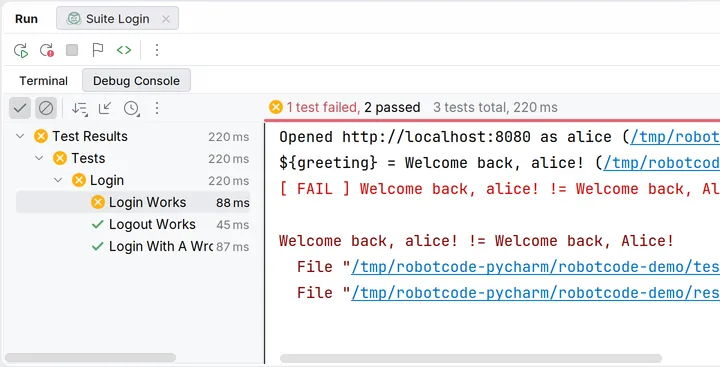
A double-click on a test goes to the test, and for a failed test to the call in the test that led to its first failure. **Rerun Failed Tests** in the tool window's toolbar runs exactly the failed tests again. **Stop** asks the RobotCode debugger to end the run as Ctrl+C in a terminal does: the running test fails, its teardowns run and Robot Framework writes its output files. Only if the debugger is not connected or does not confirm the request within five seconds does RobotCode interrupt the process. A second **Stop** while the run is ending ends the process at once.
To analyze the results of a run in a terminal, see [`robotcode results`](/guides/cli/analyzing-results/).
## Report and log
[Section titled “Report and log”](#report-and-log)
**Open Report** and **Open Log** in the toolbar of the tool window open the report and the log of the run. The settings page **Run** opens one of them after every run with **Open output after run**, and chooses where with **Open output target**: RobotCode's **Built-in preview**, which is the default, the default browser or another browser.
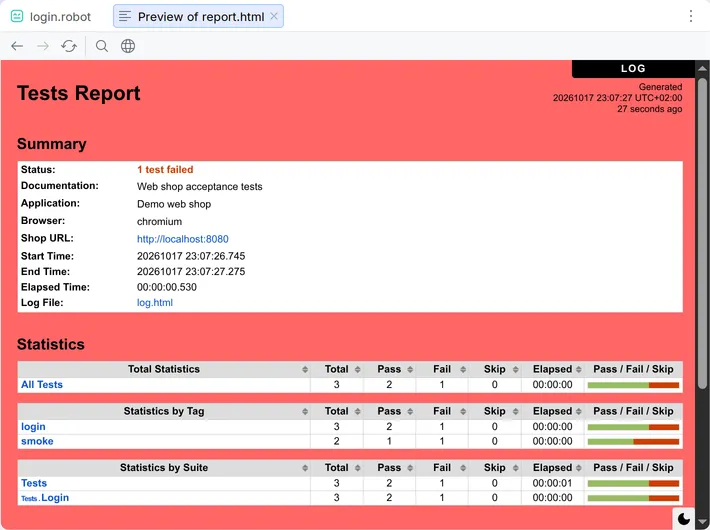
The preview opens in an editor tab with **Back**, **Forward**, **Reload**, **Find in Page** and **Open in Browser**. When a later run opens the report or log again, the open tab shows the new file; otherwise **Reload** shows it.
With Robot Framework 7.0 or later, the preview shows the report and the log in PyCharm's light or dark theme and follows a change of the theme. The theme switch of the report and the log still works: the page keeps the theme chosen with it until PyCharm's theme changes.
# Troubleshooting RobotCode in PyCharm
> Check the versions RobotCode uses in PyCharm, restart the language server, clear the cache, read the logs in the Language Servers tool window and report an issue.
When RobotCode does not behave as you expect, for example when keywords are not found that exist or the run markers are missing, start with the versions RobotCode uses and its logs.
## Check the versions in use
[Section titled “Check the versions in use”](#check-the-versions-in-use)
The tooltip of RobotCode's widget in the status bar lists the versions of RobotCode, Robot Framework, Robocop (when it is installed) and Python, the path of the Python interpreter and the selected profiles. When the widget shows an error, its tooltip says what is wrong with the interpreter, see [The Python interpreter](/guides/pycharm/configuration/#the-python-interpreter). Check the profiles too: a profile can change the paths, the Python path and the variables of a project.
## Restart and clear the cache
[Section titled “Restart and clear the cache”](#restart-and-clear-the-cache)
* **Tools | RobotCode | Restart RobotCode Language Server** checks the Python interpreter again, for example after you installed Robot Framework in a terminal, restarts the language server and reads the tests again. It also starts a language server again that was stopped in the **Language Servers** tool window.
* **Tools | RobotCode | Clear Cache and Restart RobotCode Language Server** also deletes RobotCode's [analysis cache](/guides/pycharm/diagnostics-and-linting/#the-analysis-cache) while the language server runs, so that every library and file is loaded and analyzed again. Use it when diagnostics stay outdated although the files are right.
* **Tools | RobotCode | Refresh Robot Framework Tests** reads the tests again when run markers are missing. When reading them fails, a notification "RobotCode could not discover the tests" shows the error, with **Retry** and, if the project folder contains a `robot.toml`, **Open robot.toml**. When a selected configuration profile is the reason, because `robot.toml` does not define it, the notification "RobotCode cannot find the selected profile" appears instead, with **Remove from Selection** and **Select Configuration Profiles...**.
## Output and logs
[Section titled “Output and logs”](#output-and-logs)
RobotCode talks to its language server through the LSP4IJ plugin. **Tools | RobotCode | Show Language Server Log** opens LSP4IJ's **Language Servers** tool window at the running server below **RobotCode Language Server**: its tab **Logs** shows what the language server writes, and **Traces** the messages between PyCharm and the server when its **Trace** setting is not off.
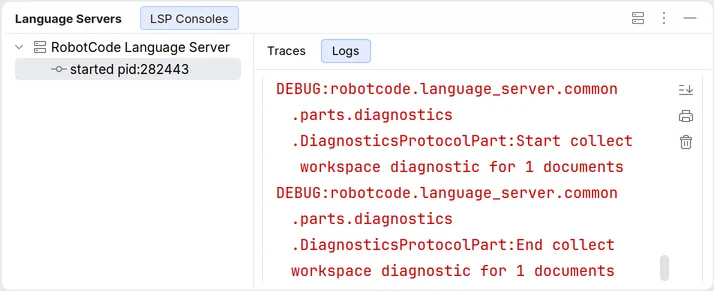
The tool window can also stop and restart the server and **Copy Start Command**, the command line that started it. PyCharm's own log, opened with **Help | Show Log in …**, contains the command line that started the language server, the checks of the Python interpreter, and the errors of reading the tests with their command lines.
**Extra args** on the settings page **Language Server**, for example `--log --log-level DEBUG`, makes the language server log in detail; applying it restarts the server. **Extra args** on the page **General** passes options to the `robotcode` commands that RobotCode runs in the background, such as reading the tests.
## Report an issue
[Section titled “Report an issue”](#report-an-issue)
Open an issue on [GitHub](https://github.com/robotcodedev/robotcode/issues). Describe what you did, what you expected and what happened, and add the versions from the tooltip of the status bar widget; a small example project and the logs from above help to find the cause.
# Writing Robot Framework Code in PyCharm
> Completion, parameter info, documentation, inlay hints, highlighting, quick fixes, rename, formatting and new files while you write Robot Framework code in PyCharm.
RobotCode analyzes your files the way Robot Framework reads them: it knows the libraries, resource files and variable files a file imports, and with them every keyword and variable the file can use. While you type, it uses that knowledge to complete, explain and check your code. RobotCode's language server does this work; PyCharm talks to it through the LSP4IJ plugin.
## Completion
[Section titled “Completion”](#completion)
Completion appears as you type, or with `Ctrl+Space`. It offers what fits at the cursor:
* **Keywords** of the file itself and of everything it imports, with the library or resource file each comes from.
* **Arguments** of the keyword being called, such as named arguments.
* **Variables** after `${`, `@{` and `&{`, and environment variables after `%{`.
* **Imports:** library names, the paths of resource and variable files, and the arguments of a library.
* **Section headers, settings and reserved tags** such as `robot:skip`.
* **Control structures** as templates: `FOR`, `IF`, `WHILE`, `TRY` with `EXCEPT` or `EXCEPT ... AS`, `VAR` (Robot Framework 7 or newer) and `GROUP` (Robot Framework 7.2 or newer).
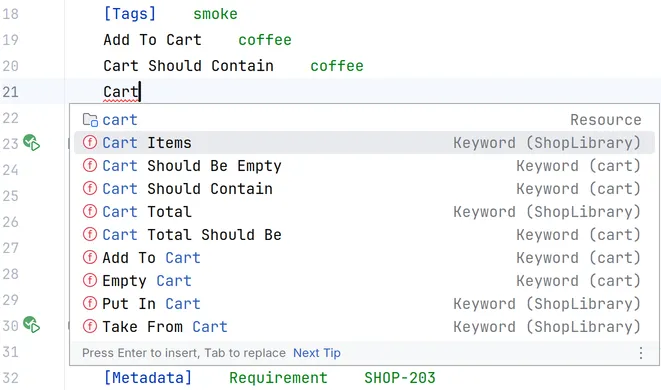
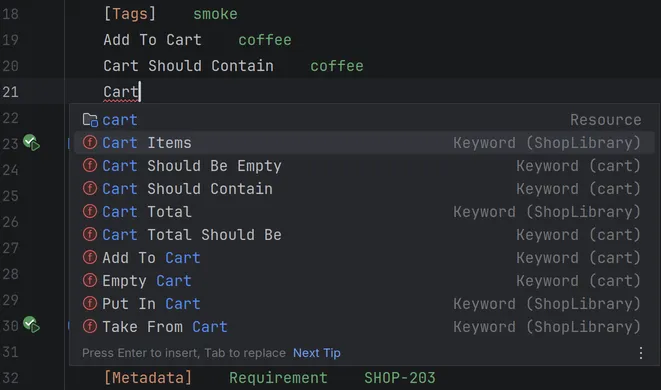
Keywords that are tagged `robot:private` and defined in another file are not offered. The group **Completion** of the settings page **Editing** changes that and more, see [Configuration](/guides/pycharm/configuration/#the-settings-pages).
## Parameter info
[Section titled “Parameter info”](#parameter-info)
While you type the arguments of a keyword call, **View | Parameter Info** (`Ctrl+P`, `Cmd+P` on macOS) shows the keyword's arguments and highlights the one at the cursor.
## Documentation
[Section titled “Documentation”](#documentation)
Hover over a keyword call to see the keyword's arguments and documentation, over a variable to see what kind of variable it is, and over the name of a library or resource file to see its documentation. **View | Quick Documentation** (`Ctrl+Q`, `F1` on macOS) shows the same for the element at the cursor.
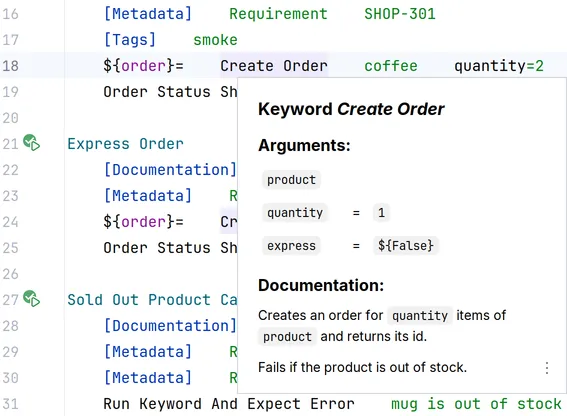
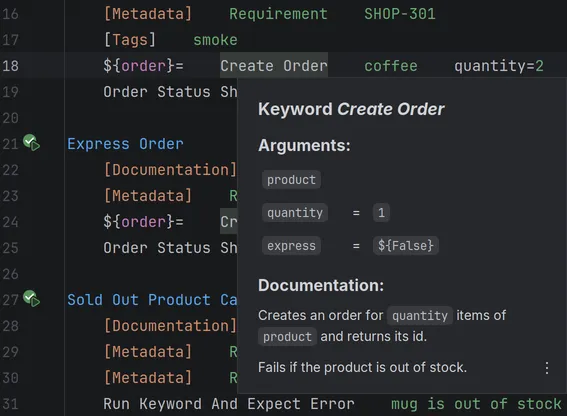
## Inlay hints
[Section titled “Inlay hints”](#inlay-hints)
Inlay hints show the names of the arguments of a keyword call and the library or resource file a keyword comes from. PyCharm shows inlay hints all the time, so RobotCode sends none by default: switch on **Parameter names** and **Namespaces** in the group **Inlay Hints** of the settings page **Editing**. You can also hide inlay hints again under **Settings | Editor | Inlay Hints**.
## Semantic highlighting
[Section titled “Semantic highlighting”](#semantic-highlighting)
RobotCode highlights the code by its meaning, also where the plain syntax cannot tell the elements apart. **Settings | Editor | Color Scheme | Robot Framework** has an entry for each kind of element, such as keyword calls, arguments, variables, settings and control structures, and sets their colors and font styles. By default they follow the language defaults of your color scheme.
## Quick fixes and refactorings
[Section titled “Quick fixes and refactorings”](#quick-fixes-and-refactorings)
A problem with a fix, such as a keyword that does not exist yet, offers its fixes with **Show Context Actions** (`Alt+Enter`, `Option+Enter` on macOS) at the problem:
* **Create Keyword** adds the keyword with the body `Fail Not Implemented` to the file, or to the resource file the call names, and selects that line.
* **Create local variable** and **Create suite variable** define a variable that is not found.
* **Add argument** adds a variable that is not found to the `[Arguments]` of the keyword.
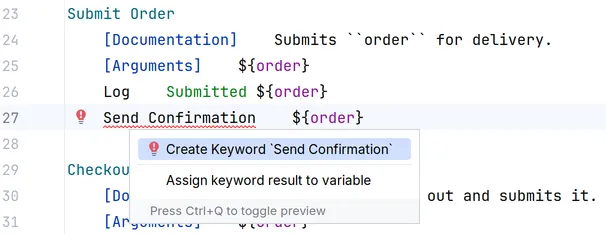
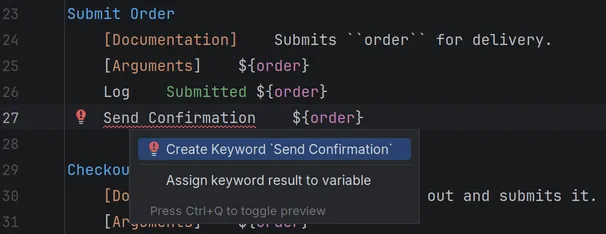
At a selection or a keyword call, `Alt+Enter` (`Option+Enter` on macOS) offers refactorings: **Surround with TRY...EXCEPT** and its variants, **Assign keyword result to variable** and **Extract keyword**, which moves the selected steps into a new keyword and starts **Rename...** on its name.
## Rename
[Section titled “Rename”](#rename)
**Refactor | Rename...** (`Shift+F6`) renames the keyword or variable at the cursor, at its definition and at every use RobotCode finds in the project. Keywords with embedded arguments cannot be renamed. For a keyword of a library and for built-in, imported, command-line and environment variables, RobotCode renames only the uses.
## Formatting
[Section titled “Formatting”](#formatting)
**Code | Reformat Code** (`Ctrl+Alt+L`, `Cmd+Option+L` on macOS) formats a file with Robocop's formatter. This needs Robocop 6 or newer in the Python interpreter of the project.
## New files and indentation
[Section titled “New files and indentation”](#new-files-and-indentation)
**File | New\... | Robot Framework File**, also in the **New** menu of the Project view, opens the dialog **New Robot Framework File**: choose **Suite file**, **Resource file** or one of your own file templates with the extension `robot` or `resource`, and give the file a name. RobotCode's templates are **Robot Suite File** and **Robot Resource File** under **Settings | Editor | File and Code Templates**.
In Robot Framework files, `Tab` inserts spaces. With **Use 4 spaces indentation**, which is on by default, under **Settings | Editor | Code Style | Robot Framework**, it inserts as many spaces as the indent of the code style, 4 by default; switched off, it inserts spaces up to the next tab stop. With **Use tab character** on, it inserts a tab. **Code | Comment with Line Comment** (`Ctrl+/`, `Cmd+/` on macOS) comments lines out with `#`.
# Configuring Projects with robot.toml
> What robot.toml is for, who reads it, an example project that the pages of this guide build on, and what the editors take from it.
Every run of a Robot Framework project needs options: where the tests are, where Robot Framework finds the libraries and resource files, variables such as the browser or the address of the system under test, and where the results go. On the command line, they make long commands. Kept in argument files and shell scripts, they get copied for every environment, and every editor needs them set up again.
`robot.toml` keeps these options in one file in the project, and profiles hold what differs between environments:
robot.toml
```toml
paths = ["tests"]
python-path = ["libraries", "resources"]
[variables]
BASE_URL = "http://localhost:8080"
[profiles.staging.extend-variables]
BASE_URL = "https://staging.shop.example"
```
`robotcode run` runs the tests in `tests` against the local server, and `robotcode -p staging run` runs them against the staging server. VS Code and PyCharm use the same file, so a run in the editor gets the same options as a run on the command line or on a CI server. To create a first `robot.toml`, see [Configure Your Project](/getting-started/configuration/); the [`robot.toml` reference](/reference/config/) lists every setting.
## Who reads `robot.toml`
[Section titled “Who reads robot.toml”](#who-reads-robottoml)
* **Every `robotcode` command**, from `robotcode run`, `discover` and `analyze code` to `repl`, `doc` and `results`: each finds the [project root](/guides/robot-toml/files/#the-project-root) and reads the configuration there, with the profiles you select.
* **RobotCode's language server** in VS Code, PyCharm and other editors, for the analysis of your files, the test discovery and runs.
Robot Framework's own `robot` command does not read `robot.toml`. Run your tests with `robotcode run`, or `robotcode robot`, which is the same command and passes the configuration on to Robot Framework. On the command line, `robotcode run` needs RobotCode's runner in the environment of your project, for example installed with `pip install "robotcode[runner]"`.
## An example project
[Section titled “An example project”](#an-example-project)
The pages on `robot.toml` build on a project that tests a web shop. Its `robot.toml` is committed with the project:
robot.toml
```toml
paths = ["tests"]
python-path = ["libraries", "resources"]
output-dir = "results"
[variables]
BROWSER = "chromium"
HEADLESS = "false"
BASE_URL = "http://localhost:8080"
[profiles.staging]
description = "Staging shop"
[profiles.staging.extend-variables]
BASE_URL = "https://staging.shop.example"
[profiles.ci]
description = "CI server"
inherits = ["staging"]
output-dir = "results/ci"
[profiles.ci.extend-variables]
HEADLESS = "true"
```
* The settings at the top are the options of every run: the tests in `tests`, libraries and resource files in `libraries` and `resources`, the results in `results`, and three variables.
* The profile `staging` runs the tests against the staging shop. `extend-variables` changes `BASE_URL` and keeps the other variables.
* The profile `ci` is meant for the CI server. It inherits everything from `staging`, writes its results to `results/ci` and runs the browser without a window.
One developer prefers Firefox and keeps that in a `.robot.toml` next to `robot.toml`, which is not committed:
.robot.toml
```toml
[extend-variables]
BROWSER = "firefox"
```
With these files:
| Command | Runs the tests |
| ------------------------------------------------------------- | ------------------------------------------------------------------------------ |
| `robotcode run` | Against `http://localhost:8080` in Firefox, results in `results` |
| `robotcode -p staging run` | Against the staging shop in Firefox |
| `robotcode -p ci run` on the CI server, without `.robot.toml` | Against the staging shop in Chromium without a window, results in `results/ci` |
## In the editors
[Section titled “In the editors”](#in-the-editors)
* **The analysis** takes `python-path`, `variables`, `variable-files`, `env` and `languages` from the configuration, so that imports and variables resolve as they do in a run.
* **The test discovery and runs** use all settings, as `robotcode run` does.
* **Profiles:** VS Code and PyCharm use the profiles you select there, and without a selection the [default profiles](/guides/robot-toml/profiles/#default-profiles). In VS Code, **RobotCode: Select Configuration Profiles** selects them, and the Test Explorer offers a run profile for each profile, named after the profile and its description, such as "Run ci - CI server"; see [Configuration profiles](/guides/vscode/configuration/#configuration-profiles). In PyCharm, **Tools | RobotCode | Select Configuration Profiles...** selects them, and **Run with Profile...** runs once with another one; see [Configuration profiles](/guides/pycharm/configuration/#configuration-profiles).
* **Changes** apply at once: the editors restart RobotCode's language server when you create, change or delete `robot.toml`, `.robot.toml` or `pyproject.toml`.
* **Writing the file:** in VS Code, the extension Even Better TOML completes the settings of `robot.toml` and `.robot.toml` and shows their documentation; see [Editing `robot.toml`](/guides/vscode/configuration/#editing-robottoml). PyCharm completes the settings of both files without further setup. Other editors with a TOML language server can use RobotCode's JSON schema at `https://www.robotcode.io/schemas/robot.toml.json`.
## The files RobotCode finds
[Section titled “The files RobotCode finds”](#the-files-robotcode-finds)
[Finding Robot Files](/guides/robot-toml/ignoring-files/) explains which `.robot` and `.resource` files RobotCode finds in the project, what it skips by default, and how `.gitignore` and `.robotignore` keep other folders out of discovery, analysis and runs.
## Pages of this guide
[Section titled “Pages of this guide”](#pages-of-this-guide)
[Configuration Files and the Project Root](/guides/robot-toml/files/)The files RobotCode reads, robot.toml, .robot.toml, pyproject.toml and the user configuration, what each one is for, their order, and how RobotCode finds the project root.
[How RobotCode Finds Robot Framework Files](/guides/robot-toml/ignoring-files/)Which files RobotCode walks for discovery, analysis, test runs and the language server, what it skips by default, and how .gitignore and a .robotignore with gitignore-style patterns keep other folders out.
[Settings](/guides/robot-toml/settings/)How the settings of robot.toml map to the options of Robot Framework, the forms their values take, the settings only RobotCode has, paths, variables and environment variables, expressions, and moving over from argument files.
[Profiles](/guides/robot-toml/profiles/)Profiles in robot.toml: defining and selecting them, default profiles, inheritance, their order and precedence, hiding and enabling them, detached profiles, and changing profiles in a later file.
[How Settings Combine](/guides/robot-toml/combining/)The rules by which RobotCode combines the configuration files, the selected profiles and the command line into the options of a run: replacing and extending, order, inheritance and detached profiles.
[robot.toml on the Command Line](/guides/robot-toml/command-line/)Running tests with robot.toml on the command line: where the options go, commands for everyday tasks, environment variables for CI servers, and checking what a run gets.
[Recipes](/guides/robot-toml/recipes/)Ready-made robot.toml configurations: the same command locally and on a CI server, browsers as profiles, smoke tests and dry runs, a results folder per run, secrets, settings per operating system, a debug profile and test files in another language.
[Troubleshooting robot.toml](/guides/robot-toml/troubleshooting/)What to check when a setting of robot.toml does not do what you expect: the commands that show the configuration, and the usual causes, from the wrong command to replaced settings.
# How Settings Combine
> The rules by which RobotCode combines the configuration files, the selected profiles and the command line into the options of a run: replacing and extending, order, inheritance and detached profiles.
The options of a run come from several places: the configuration files, the selected profiles and the command line. This page collects the rules by which RobotCode combines them.
## The steps
[Section titled “The steps”](#the-steps)
1. **The files.** RobotCode reads the user configuration, `pyproject.toml`, `robot.toml` and `.robot.toml`, in this order, and combines them into one configuration; see [The order](/guides/robot-toml/files/#the-order).
2. **The settings outside of profiles** of this configuration are the start.
3. **The selected profiles** apply one after the other: those of `-p`, of `ROBOTCODE_PROFILES` or of the editor, or else the [default profiles](/guides/robot-toml/profiles/#default-profiles). Each profile comes after the profiles it inherits from. Profiles with a lower `precedence` come first; with the same precedence, the order of the selection counts. Disabled profiles are skipped.
4. **The command line** comes last: `robotcode run` passes its options and paths to Robot Framework after those of the configuration.
`robotcode profiles show` prints the result of the first three steps, and `robotcode -v run` the options that Robot Framework gets.
## Replacing and extending
[Section titled “Replacing and extending”](#replacing-and-extending)
In every step, the same two rules apply:
* **A setting replaces** the value before it.
* **A setting with `extend-` before its name adds** to the value before it. Lists get the new entries at the end; tables get the new keys, and a key that exists already gets the new value.
robot.toml
```toml
python-path = ["libraries"]
includes = ["smoke"]
[variables]
BROWSER = "chromium"
TIMEOUT = "10s"
[profiles.replace]
python-path = ["other"]
[profiles.replace.variables]
BROWSER = "firefox"
[profiles.extend]
extend-python-path = ["other"]
extend-includes = ["api"]
[profiles.extend.extend-variables]
BROWSER = "firefox"
```
| Setting | `-p replace` | `-p extend` |
| ------------- | --------------------- | ---------------------------------------- |
| `python-path` | `["other"]` | `["libraries", "other"]` |
| `includes` | `["smoke"]` | `["smoke", "api"]` |
| `variables` | `BROWSER = "firefox"` | `BROWSER = "firefox"`, `TIMEOUT = "10s"` |
`extend-` exists for the settings that take a list or a table. A setting with a single value, such as `output-dir`, can only be replaced.
### A setting and its `extend-` setting in the same place
[Section titled “A setting and its extend- setting in the same place”](#a-setting-and-its-extend--setting-in-the-same-place)
A profile, or the settings outside of profiles in one file, can have both forms of a setting. Then the setting applies first and its `extend-` setting adds to it:
robot.toml
```toml
[variables]
BROWSER = "chromium"
[profiles.dev.variables]
BASE_URL = "http://localhost:8080"
[profiles.dev.extend-variables]
HEADLESS = "false"
```
With `-p dev`, the variables are `BASE_URL` and `HEADLESS`: `variables` replaces `BROWSER`, and `extend-variables` adds `HEADLESS`.
## Between the files
[Section titled “Between the files”](#between-the-files)
The rules above also apply between the files: a setting in `.robot.toml` replaces the one of `robot.toml`, and an `extend-` setting adds to it. For profiles, this means:
* `[profiles.]` in a later file replaces all profiles of the earlier files.
* `[extend-profiles.]` adds a profile, or changes the profile of that name: a setting replaces the one of the profile, and an `extend-` setting adds to it.
The tables `[rebot]`, `[libdoc]` and `[testdoc]` follow the same rule: a plain table in a later file replaces the whole table before it, and `[extend-rebot]`, `[extend-libdoc]` or `[extend-testdoc]` change it:
robot.toml
```toml
[rebot]
merge = true
```
.robot.toml
```toml
[extend-rebot]
log-title = "My log"
```
`robotcode rebot` merges and gets the log title of `.robot.toml`; with `[rebot]` instead of `[extend-rebot]` in `.robot.toml`, it would no longer merge.
See [Changing profiles in a later file](/guides/robot-toml/profiles/#changing-profiles-in-a-later-file) and [Settings of other commands](/guides/robot-toml/settings/#settings-of-other-commands).
## Inheritance and detached profiles
[Section titled “Inheritance and detached profiles”](#inheritance-and-detached-profiles)
* A profile that **inherits** from others applies after them, unless one of them has a higher `precedence`, so its settings replace or extend theirs; see [Inheritance](/guides/robot-toml/profiles/#inheritance).
* A **detached** profile throws away everything before it: the settings outside of profiles, from all files, and the profiles applied before it, including those it inherits from; only environment variables that an `env` before it has set stay set. Only the profiles after it add to it; see [Detached profiles](/guides/robot-toml/profiles/#detached-profiles).
## The command line
[Section titled “The command line”](#the-command-line)
`robotcode run` passes the options of the configuration to Robot Framework first and the options of the command line after them, so Robot Framework treats them as one command line:
* **An option with a single value**, such as `-d` or `-L`, replaces the one of the configuration: `robotcode run -d out` writes the results to `out`.
* **An option that can be given several times**, such as `-i` or `-e`, adds to the configuration: with `includes = ["smoke"]`, `robotcode run -i api` runs the tests tagged `smoke` or `api`.
* **A variable** given with `-v` replaces one of the same name: `robotcode run -v BROWSER:firefox` runs in Firefox.
* **Paths** on the command line replace `paths`: `robotcode run tests/login.robot` runs only that file.
## Expressions and environment variables
[Section titled “Expressions and environment variables”](#expressions-and-environment-variables)
RobotCode computes [expressions](/guides/robot-toml/settings/#expressions) after combining the settings, and sets the environment variables of `env` before, so an expression can read them with `environ`. Conditions in `enabled` are computed when a profile is about to apply.
## An example, step by step
[Section titled “An example, step by step”](#an-example-step-by-step)
With the files of the [example project](/guides/robot-toml/#an-example-project), `robotcode -p ci run` on a developer machine combines the settings like this:
| Step | `output-dir` | `BROWSER` | `HEADLESS` | `BASE_URL` |
| ------------------------------------ | ------------ | ---------- | ---------- | ------------------------------ |
| User configuration | `results` | | | |
| `robot.toml` | `results` | `chromium` | `false` | `http://localhost:8080` |
| `.robot.toml` | `results` | `firefox` | `false` | `http://localhost:8080` |
| Profile `staging`, inherited by `ci` | `results` | `firefox` | `false` | `https://staging.shop.example` |
| Profile `ci` | `results/ci` | `firefox` | `true` | `https://staging.shop.example` |
# robot.toml on the Command Line
> Running tests with robot.toml on the command line: where the options go, commands for everyday tasks, environment variables for CI servers, and checking what a run gets.
On the command line, `robotcode run` runs the tests with the configuration of `robot.toml`. It needs RobotCode's runner in the environment of your project, for example installed with `pip install "robotcode[runner]"`.
## Where the options go
[Section titled “Where the options go”](#where-the-options-go)
```text
robotcode [options of robotcode] run [options of Robot Framework] [paths]
```
* **Before `run`** come the options of `robotcode` itself: `-p` selects profiles, `-c` other configuration files, `-r` the project root, and `-v` makes RobotCode tell what it does.
* **After `run`** come the options of Robot Framework, as you would give them to `robot`, and the paths of the tests.
The place matters: `robotcode -v run` makes RobotCode verbose, `robotcode run -v BROWSER:firefox` sets a variable. `robotcode run -- --help` shows the options of Robot Framework, and `robotcode --help` and `robotcode run --help` those of RobotCode.
## Everyday tasks
[Section titled “Everyday tasks”](#everyday-tasks)
| Task | Command |
| ------------------------------------------------- | ---------------------------------------------------- |
| Run the tests of `paths` | `robotcode run` |
| Run with a profile | `robotcode -p staging run` |
| Run with several profiles | `robotcode -p staging -p firefox run` |
| Run with all profiles whose names match a pattern | `robotcode -p "browser-*" run` |
| Run only the tests with a tag | `robotcode run -i smoke` |
| Leave out the tests with a tag | `robotcode run -e slow` |
| Run one file or folder | `robotcode run tests/orders.robot` |
| Run one test | `robotcode run -t "Order Coffee"` |
| Run with another value of a variable | `robotcode run -v BROWSER:firefox` |
| Write the results somewhere else | `robotcode run -d results/try` |
| Check the tests without running them | `robotcode run --dryrun` |
| List the tests that a run would run | `robotcode -p staging discover tests` |
| Show the settings a run gets | `robotcode -p staging profiles show` |
| Show the options passed to Robot Framework | `robotcode -v -p staging run` |
| Use another configuration file | `robotcode -c release.toml run` |
| Run a project from outside its folder | `robotcode run web/tests`, or `robotcode -r web run` |
Options on the command line come on top of the configuration: one with a single value, such as `-d`, replaces the configured one, and one that can be given several times, such as `-i`, adds to the configured ones. Paths on the command line replace `paths`. See [The command line](/guides/robot-toml/combining/#the-command-line).
`robotcode robot` is the same command as `robotcode run`. Other commands read the configuration the same way, for example `robotcode -p staging discover tests`, `robotcode -p staging analyze code` or `robotcode -p staging repl`.
## On a CI server
[Section titled “On a CI server”](#on-a-ci-server)
On a CI server, select the profile on the command line, or with the environment variable `ROBOTCODE_PROFILES`, which the CI configuration can set for all steps:
```bash
robotcode -p ci run
```
```bash
export ROBOTCODE_PROFILES="ci"
robotcode run
```
The other options of `robotcode` have environment variables too: `ROBOTCODE_CONFIG_FILES` for `-c` and `ROBOTCODE_ROOT` for `-r`. With conditions on environment variables that the CI server sets, a profile can also switch itself on, without any option; see [The same command locally and on the CI server](/guides/robot-toml/recipes/#the-same-command-locally-and-on-the-ci-server).
## Checking what a run gets
[Section titled “Checking what a run gets”](#checking-what-a-run-gets)
| Command | What it shows |
| ------------------------------- | ---------------------------------------------------------------------------------------------------------------------------------- |
| `robotcode -p ci profiles show` | The settings that a run gets with the selected profiles, with the expressions computed. `-n` shows the expressions instead. |
| `robotcode profiles list` | The profiles, with their descriptions, which of them are selected and, of these, which are enabled. `-h` includes hidden profiles. |
| `robotcode config show` | The settings of all files together, before any profile applies. `-s` shows each file on its own. |
| `robotcode config files` | The configuration files that RobotCode reads, in order. |
| `robotcode config root` | The project root and what it was found by. |
| `robotcode -v -p ci run` | Which files RobotCode reads, which profiles it uses or skips, and the options it passes to Robot Framework. |
[Troubleshooting](/guides/robot-toml/troubleshooting/) explains what to look for when a setting does not do what you expect.
# Configuration Files and the Project Root
> The files RobotCode reads, robot.toml, .robot.toml, pyproject.toml and the user configuration, what each one is for, their order, and how RobotCode finds the project root.
RobotCode reads the configuration from up to four files. Each has its own purpose:
| File | Where | What it is for |
| ---------------------- | ------------------------- | --------------------------------------------------------------------------------------------------------------------------------------------------------------------------------------------------------------- |
| `robot.toml` | The project root | The configuration of the project, the same for everyone. Commit it. |
| `.robot.toml` | The project root | Your personal settings. Add it to `.gitignore`. |
| `pyproject.toml` | The project root | The standard project file of Python. Its table `[tool.robot]` can hold the configuration instead of `robot.toml`, but `robot.toml` is recommended, so that the Python and the Robot Framework world stay apart. |
| The user configuration | Your configuration folder | Your defaults for all projects. |
## The order
[Section titled “The order”](#the-order)
RobotCode reads the files in this order:
1. the user configuration,
2. `pyproject.toml`,
3. `robot.toml`,
4. `.robot.toml`.
A setting in a later file replaces the one of an earlier file, and with `extend-` before its name it adds to it. A `python-path` in `robot.toml` therefore replaces the one of the user configuration, while an `extend-python-path` in `.robot.toml` adds to the one of `robot.toml`. [How Settings Combine](/guides/robot-toml/combining/) explains the rules.
## Personal settings in `.robot.toml`
[Section titled “Personal settings in .robot.toml”](#personal-settings-in-robottoml)
`.robot.toml` holds what only you need, without changing the project's `robot.toml` for everyone else. RobotCode reads it after `robot.toml`, so its settings win. Some uses:
.robot.toml
```toml
# Run in another browser, with a window
[extend-variables]
BROWSER = "firefox"
HEADLESS = "false"
```
.robot.toml
```toml
# Test against a shop that runs on another port on your machine
[extend-variables]
BASE_URL = "http://localhost:9000"
```
.robot.toml
```toml
# Your own profile when you don't select one
default-profiles = ["staging"]
```
.robot.toml
```toml
# A library you work on in a checkout next to the project
extend-python-path = ["../shop-library/src"]
```
.robot.toml
```toml
# Credentials that must not be committed, read in the tests with %{SHOP_PASSWORD}
[extend-env]
SHOP_USER = "jane"
SHOP_PASSWORD = "secret"
```
Use the `extend-` form of a setting in `.robot.toml` when you want to add to the project's values: `[variables]` here would replace all variables of `robot.toml`, `[extend-variables]` changes only those it names. The same goes for profiles: `[profiles.local]` in `.robot.toml` replaces all profiles of `robot.toml`, while `[extend-profiles.local]` adds one; see [Changing profiles in a later file](/guides/robot-toml/profiles/#changing-profiles-in-a-later-file).
## `pyproject.toml`
[Section titled “pyproject.toml”](#pyprojecttoml)
`pyproject.toml` is the standard project file of Python, and RobotCode supports it. A project that wants to stick to this standard can keep its configuration there instead of in `robot.toml`. The recommendation, however, is to keep the Python world and the Robot Framework world apart: `pyproject.toml` for the Python side of the project, `robot.toml` for its tests and tasks.
In `pyproject.toml`, the settings go into the table `[tool.robot]` and its sub-tables:
pyproject.toml
```toml
[tool.robot]
paths = ["tests"]
python-path = ["libraries", "resources"]
[tool.robot.variables]
BROWSER = "chromium"
[tool.robot.profiles.ci]
output-dir = "results/ci"
```
The settings of RobotCode's analysis go into the table `[tool.robotcode-analyze]`, as in `robot.toml`. If a project has both files, `robot.toml` wins.
## The user configuration
[Section titled “The user configuration”](#the-user-configuration)
The user configuration is a `robot.toml` in your configuration folder:
* Linux: `~/.config/robotcode/robot.toml`, or `$XDG_CONFIG_HOME/robotcode/robot.toml`
* macOS: `~/Library/Application Support/robotcode/robot.toml`
* Windows: `%LOCALAPPDATA%\robotcode\robot.toml`
Its settings apply to every project you open, before those of the project. If the file does not exist, RobotCode creates it with these defaults:
```toml
output-dir = "results"
python-path = ["./lib", "./resources"]
```
A project that sets `output-dir` or `python-path` replaces these values, it does not add to them. Change the file or empty it to change the defaults. Keep in mind that the settings in this file apply to all projects, also to projects of other people that you open: a setting that a project needs belongs in its `robot.toml`.
## Other files with `--config`
[Section titled “Other files with --config”](#other-files-with---config)
`--config` (`-c`) before the command reads the given files instead of those of the project, after the user configuration, for example a configuration for a special run:
```bash
robotcode -c release.toml run
```
The environment variable `ROBOTCODE_CONFIG_FILES` does the same.
## The project root
[Section titled “The project root”](#the-project-root)
The project root is the folder of the configuration. Relative paths in the configuration count from there, wherever you start a command, because RobotCode runs Robot Framework in that folder; only paths of tests that you give on the command line count from the current folder.
RobotCode looks for the root from the paths of the tests on the command line, or else from the current folder; in the editors, from the workspace folder in VS Code and from the project folder in PyCharm. It goes up folder by folder and stops at the first one that contains a `.robot.toml`, `robot.toml` or `pyproject.toml`, or else a `.git` or `.hg`. If it finds none, the commands use the current folder as the root, and `robotcode config root` reports that it found no root.
* `robotcode config root` shows the root and what it was found by.
* `--root` (`-r`) before the command sets the root, and `--no-vcs` ignores `.git` and `.hg`.
### Several projects in one repository
[Section titled “Several projects in one repository”](#several-projects-in-one-repository)
In a repository with several projects, give each project folder its own `robot.toml`:
```text
shop-tests/
├── .git/
├── web/
│ ├── robot.toml
│ └── tests/
└── api/
├── robot.toml
└── tests/
```
`robotcode run` in `web`, or `robotcode run web/tests` in `shop-tests`, uses `web/robot.toml`. `robotcode run` in `shop-tests` itself finds no `robot.toml` on its way up and stops at `.git`, so it uses neither. In VS Code, add `web` and `api` as folders of a workspace, so that each gets its own language server with its own configuration; see [Several workspace folders](/guides/vscode/configuration/#several-workspace-folders).
# How RobotCode Finds Robot Framework Files
> Which files RobotCode walks for discovery, analysis, test runs and the language server, what it skips by default, and how .gitignore and a .robotignore with gitignore-style patterns keep other folders out.
When RobotCode looks at a project — discovering suites, running static analysis, or providing diagnostics and completion in the editor — it walks the source tree to find the `.robot` and `.resource` files it should care about. On a small project that is harmless, but real projects are rarely just Robot Framework. The same tree usually holds build output and dependencies (`dist/`, `build/`, `target/`, `node_modules/`, and the like), configuration folders, archived suites, vendored libraries, or the source of whatever application you are testing — none of which RobotCode needs to read. Walking and analysing them anyway costs time and memory for no benefit. A **`.robotignore`** file tells RobotCode which paths to skip.
By default RobotCode honours your `.gitignore`. But Robot Framework's own built-in exclusion (applied when it collects suites to run) only skips dotted, underscored, and `CVS/` names — far too little for a modern repository, where the directories that actually slow things down (`node_modules`, virtual environments, build output, large test-data folders) are none of those. A `.robotignore` fills that gap. Just as importantly, it lets you decide what RobotCode skips *independently* of what you keep out of version control — the two are rarely the same question, as explained [below](#robotignore-and-gitignore).
Works everywhere, no setup
`.robotignore` is honoured by the language server in the editor as well as by the `robotcode discover`, `robotcode analyze` and `robotcode robot` commands — the same ignore rules are applied wherever RobotCode walks your files. There is nothing to install or enable — drop the file in and it takes effect.
## Quick start
[Section titled “Quick start”](#quick-start)
1. Create a file named `.robotignore` in your **project root**, the folder that `robotcode` finds as described in [The project root](/guides/robot-toml/files/#the-project-root), usually the folder of your `robot.toml`. This is where discovery and analysis begin, so a `.robotignore` here governs the whole project.
2. Add one pattern per line. The syntax is identical to `.gitignore`, so most of what you already know carries over:
```gitignore
results/
node_modules/
**/generated/
```
3. Confirm the result. `robotcode discover files` prints exactly the set of files RobotCode loads *after* applying your ignore rules, so you can see at a glance whether a directory really dropped out. Run it in the project root with `.` (or without an argument when `robot.toml` sets `paths`):
```bash
robotcode discover files .
```
If a path you expected to disappear is still listed — or one you need has gone missing — tweak the pattern and run the command again. You are editing a plain text file, so there is no cache to clear: the next time you run the command, it walks with the new rules. (In the editor, saving a `.robotignore` reloads the language server automatically — see [Reloading](#reloading).)
## Syntax
[Section titled “Syntax”](#syntax)
`.robotignore` uses the exact same pattern language as `.gitignore`. If you have written a `.gitignore` before, there is nothing new to learn here:
```gitignore
# a comment starts with '#'
# match a directory anywhere in the tree (trailing slash = directories only)
results/
node_modules/
coverage/
# match by name at any depth (no slash)
*.bak
*.tmp
# anchor to this directory only (leading slash)
/legacy/
# match nested paths with '**'
**/generated/
tests/**/snapshots/
# exclude a folder's contents but keep one file
# (use '/*', not 'fixtures/' — '!' can't re-include inside a fully excluded folder)
fixtures/*
!fixtures/shared.resource
```
A few rules are worth keeping in mind. Patterns are matched relative to the directory the `.robotignore` lives in, not the current working directory. Order matters: a later rule overrides an earlier one, and a leading `!` re-includes a path that an earlier rule excluded. A trailing slash restricts a pattern to directories, and a leading slash anchors it to the file's own directory instead of matching at any depth. All of this is identical to Git.
### Pattern reference
[Section titled “Pattern reference”](#pattern-reference)
| Pattern | Matches |
| ---------------- | -------------------------------------------------------------------------- |
| `results/` | a directory named `results` anywhere in the tree, and everything inside it |
| `*.bak` | any file ending in `.bak`, at any depth |
| `/build/` | `build/` only in the same directory as the `.robotignore` |
| `**/generated/` | a `generated/` directory at any depth |
| `tests/**/data/` | a `data/` directory anywhere below `tests/` |
| `!keep.resource` | re-include a path excluded by an earlier rule |
You can't re-include inside a fully excluded folder
This is a standard Git behaviour, not a RobotCode quirk, but it trips everyone up at least once: once a whole directory is excluded (`legacy/`), a later `!legacy/common/` has no effect, because RobotCode never descends into an excluded directory in the first place — so there is nothing for the negation to re-include. Exclude the directory's *contents* instead, which leaves the directory itself walkable so the negation can apply:
```gitignore
legacy/*
!legacy/common/
```
## What's ignored by default
[Section titled “What's ignored by default”](#whats-ignored-by-default)
Even with no `.robotignore` at all, RobotCode never walks into `.git/`, `.svn/`, `CVS/`, or any file or directory whose name starts with a dot — `.venv/`, `.cache/`, `.tox/`, and so on. These are skipped in every context (discovery, analysis, and the editor), so listing them in a `.robotignore` is redundant and you can leave them out. On Windows, the language server, `robotcode analyze` and `robotcode discover files` also skip items with the hidden attribute or a leading `$`; the other `discover` commands, the Test Explorer and test runs don't.
Underscore-prefixed names are a partial exception, and the distinction is worth understanding so you are not surprised. Robot Framework's own *suite collector* ignores names that begin with `.` or `_`, which is why a `_drafts/` folder never turns into a runnable suite. That rule, however, only applies when Robot Framework is collecting suites to **run**. RobotCode's static side — the language server, `robotcode analyze`, and `robotcode discover files` — still walks `_`-prefixed files and analyses them. This is deliberate: a `_keywords.resource` that other files import should absolutely get completion and diagnostics in the editor. The consequence is simply that if you want a `_`-named folder kept out of analysis *as well*, you do have to list it in `.robotignore` — the underscore convention alone won't hide it from the editor.
## `.robotignore` and `.gitignore`
[Section titled “.robotignore and .gitignore”](#robotignore-and-gitignore)
RobotCode uses **one or the other — never both merged**:
* If a `.robotignore` is present at the project root, RobotCode uses `.robotignore` files throughout the project and **ignores every `.gitignore`**.
* If there is no `.robotignore` anywhere, RobotCode falls back to your `.gitignore` files.
The moment you add a `.robotignore`, you opt out of `.gitignore` for RobotCode entirely. That can feel surprising at first, but it is deliberate, and the reason is that the two files answer different questions. `.gitignore` describes what should not be committed to version control; that is rarely the same set as what RobotCode should skip. A build artifact may be git-ignored yet still worth nothing to analyse; a large folder of vendored test data may be committed on purpose yet pointless to walk. Trying to merge two rule sets with different intentions tends to produce confusing, hard-to-predict results. So once you reach for a `.robotignore`, RobotCode treats it as the single source of truth for "what RobotCode looks at" and leaves your Git configuration untouched — and unconsulted.
In practice this means a `.robotignore` is a small, self-contained file you can reason about on its own, without having to mentally diff it against everything in your `.gitignore`.
Define it at the project root
Discovery and analysis always start at the project root, so that is where a `.robotignore` belongs. Placed there, it puts the whole project into "`.robotignore` mode"; placed only deep in a subtree, it may never be reached if a `.gitignore` higher up has already taken over. When in doubt, keep one `.robotignore` at the root.
## Nested `.robotignore` files
[Section titled “Nested .robotignore files”](#nested-robotignore-files)
You are not limited to a single file. You can drop additional `.robotignore` files into subdirectories, and they cascade exactly like Git: a `.robotignore` applies to its own directory and everything beneath it, and a deeper file *adds to* the rules inherited from above. A deeper file can also re-include, with `!`, something a parent excluded — as long as the parent excluded its contents rather than the whole directory (see the warning above). Throughout this cascade you stay in `.robotignore` mode: `.gitignore` files are ignored at every level, not just at the root.
This is useful when a particular subtree needs extra exclusions that don't make sense for the rest of the project — for example a legacy area with its own generated junk:
```text
my-project/
├── .robotignore # project-wide excludes
├── tests/
│ └── …
└── legacy/
└── .robotignore # extra excludes that only apply under legacy/
```
## A realistic example
[Section titled “A realistic example”](#a-realistic-example)
To see how the pieces fit together, here is a `.robotignore` you might find at the root of a mixed project — a Robot Framework test suite living alongside a web front-end, some build tooling, and an archive of old suites:
```gitignore
# build output and dependencies
dist/
build/
target/
node_modules/
# Robot Framework run artifacts
results/
output.xml
log.html
report.html
# generated and vendored code
**/generated/
third_party/
# scratch files and backups
*.bak
**/tmp/
# a large archive of legacy suites we don't want analysed…
legacy/*
# …except for the shared resources the active suites still import
!legacy/common/
```
Read top to bottom, this keeps RobotCode focused on the suites and resources you actually work with: the front-end's dependencies and the project's build output are gone, run artifacts from previous executions don't get re-parsed, and the bulky legacy archive is excluded — except for the shared resource files the live suites still import, which the final `!legacy/common/` rule keeps visible.
## Where it applies
[Section titled “Where it applies”](#where-it-applies)
A `.robotignore` is honoured everywhere RobotCode walks the file system — the same ignore rules apply on the command line and in the editor alike:
* **Test and suite discovery** — [`robotcode discover`](/guides/cli/discovering-tests/) and the editor's Test Explorer. Excluded directories don't appear in the discovered tree, which keeps both the CLI output and the Test Explorer focused on real suites.
* **Static code analysis** — [`robotcode analyze`](/guides/cli/analyzing-code/). Excluded files are never analysed by `robotcode analyze`, so they produce no diagnostics in a lint run.
* **Test runs** — `robotcode robot`. Suites in excluded files and directories are left out of the run, which a plain `robot` run doesn't do.
* **The language server** — diagnostics, completion, and namespace resolution in the editor. Excluded files are not loaded, so they don't contribute keywords or variables and don't slow the editor down — unless a non-excluded file imports one: that file is loaded for the import, and its keywords and variables resolve as usual.
## Verifying what's ignored
[Section titled “Verifying what's ignored”](#verifying-whats-ignored)
When a pattern doesn't behave the way you expect, don't guess — ask RobotCode. The quickest way to see what your rules actually do is [`robotcode discover files`](/guides/cli/discovering-tests/#files--flat-list-of-source-files), which lists every `.robot` and `.resource` file that remains *after* applying `.robotignore`:
```bash
# every file RobotCode currently considers
robotcode discover files .
# narrow it down to one area while you tune patterns
robotcode discover files ./tests
```
If an excluded directory still appears in the list, your pattern isn't matching it — check the anchoring (`/foo` vs `foo`) and the trailing slash. If a file you need has vanished, an earlier rule is too broad, and you may need a `!` re-include to bring it back (remembering the fully-excluded-folder caveat above). Iterating against this command is far faster than restarting the editor to see what changed.
## Performance on large projects
[Section titled “Performance on large projects”](#performance-on-large-projects)
This is where `.robotignore` earns its keep. For every `.robot` and `.resource` file it loads, the language server builds a namespace and resolves that file's imports — and on a large workspace that work, repeated across thousands of files, is often the dominant cost. One of the most effective things you can do about it is reduce how many files there are to analyse in the first place.
Excluding directories you never actually work in — generated code, vendored libraries, build output, or a large archive of legacy suites — removes them from analysis entirely: no namespace is built and no imports are resolved for them, unless a non-excluded file imports them. On big projects this can reduce both analysis time and the language server's memory use, and because a `.robotignore` is trivial to add and easy to verify with `robotcode discover files`, it is usually the first thing to try — before reaching for finer-grained analysis settings such as `robotcode.analysis.diagnosticMode`, which controls whether diagnostics are reported only on the files you have open or across the whole workspace.
## Reloading
[Section titled “Reloading”](#reloading)
A `.robotignore` is read while RobotCode walks the workspace, so a change to it has to be applied project-wide. Editing a `.robotignore` (or a `.gitignore`) therefore restarts the language server, which re-walks the tree with the new rules and rebuilds its view of the project. You don't need to do anything beyond saving the file.
## See also
[Section titled “See also”](#see-also)
* [`robotcode discover files`](/guides/cli/discovering-tests/#files--flat-list-of-source-files) — verify exactly which files survive your ignore rules.
* [Analyzing Code](/guides/cli/analyzing-code/) — the static analysis that honours `.robotignore`.
* [Diagnostics Modifiers](/reference/diagnostics-modifiers/) — suppress individual diagnostics instead of whole files, when excluding a file is too coarse a tool.
# Profiles
> Profiles in robot.toml: defining and selecting them, default profiles, inheritance, their order and precedence, hiding and enabling them, detached profiles, and changing profiles in a later file.
A profile is a named set of settings that applies on top of the settings outside of profiles when you select it. Profiles let one project run in different ways without copies of the configuration:
* against different environments, such as a local server, a staging server and production;
* with different browsers or devices;
* as different kinds of runs, such as a quick smoke test or a dry run;
* with the settings of a particular machine, such as the CI server.
You can select several profiles at once, for example an environment and a browser, so each profile only needs to hold what makes it different.
## Defining a profile
[Section titled “Defining a profile”](#defining-a-profile)
A profile is a table `[profiles.]`. It takes the same settings as the top of the file, plus a few of its own:
robot.toml
```toml
[variables]
BROWSER = "chromium"
BASE_URL = "http://localhost:8080"
[profiles.staging]
description = "Staging shop"
output-dir = "results/staging"
[profiles.staging.extend-variables]
BASE_URL = "https://staging.shop.example"
```
The settings of a profile replace those outside of it, and with `extend-` before the name they add to them: `extend-variables` changes `BASE_URL` and keeps `BROWSER`, while `variables` would leave only `BASE_URL`.
| Setting of a profile | What it does |
| -------------------- | ------------------------------------------------------------------------------------------------------------------------------------------- |
| `description` | A text that `robotcode profiles list` and the profile lists of VS Code and PyCharm show; the Test Explorer names its run profiles after it. |
| `inherits` | Profiles that are selected along with this one, see [Inheritance](#inheritance). |
| `precedence` | The order in which the profile applies, see [Order and precedence](#order-and-precedence). |
| `hidden` | Hides the profile from the lists, see [Hiding profiles](#hiding-profiles). |
| `enabled` | Switches the profile on or off, see [Enabling profiles](#enabling-profiles). |
| `detached` | Starts the profile from scratch, see [Detached profiles](#detached-profiles). |
## Selecting profiles
[Section titled “Selecting profiles”](#selecting-profiles)
* **On the command line**, `-p` (`--profile`) before the command selects a profile:
```bash
robotcode -p staging run
robotcode -p staging -p firefox run
robotcode -p "browser-*" run
```
Give `-p` several times for several profiles. A name can be a pattern with `*` and `?`: `-p "browser-*"` selects all profiles whose names start with `browser-`.
* **The environment variable** `ROBOTCODE_PROFILES` selects profiles as well, separated by spaces, for example on a CI server: `ROBOTCODE_PROFILES="ci firefox"`.
* **In VS Code**, **RobotCode: Select Configuration Profiles** selects the profiles of a workspace folder, and the Test Explorer offers a run profile for each profile; see [Configuration profiles](/guides/vscode/configuration/#configuration-profiles).
* **In PyCharm**, **Tools | RobotCode | Select Configuration Profiles...** selects them, and **Run with Profile...** runs once with another profile; see [Configuration profiles](/guides/pycharm/configuration/#configuration-profiles).
`robotcode profiles list` lists the profiles with their descriptions and shows which of them are selected and, of these, which are enabled.
A name or pattern that selects no profile stops the command before it runs anything; see [Troubleshooting](/guides/robot-toml/troubleshooting/#no-profile-matches).
## Default profiles
[Section titled “Default profiles”](#default-profiles)
`default-profiles` names the profiles that apply when none is selected:
robot.toml
```toml
default-profiles = ["local"]
[profiles.local]
description = "Local shop"
[profiles.local.extend-variables]
BASE_URL = "http://localhost:8080"
[profiles.ci]
description = "CI server"
[profiles.ci.extend-variables]
BASE_URL = "https://staging.shop.example"
HEADLESS = "true"
```
`robotcode run` and a run in the editor without a selection use `local`. A selection replaces the default profiles completely: `robotcode -p ci run` uses only `ci`, not `local` and `ci`.
Default profiles help when every run needs one of several profiles, such as an environment, and they save typing `-p` for the profile that most runs use. Like `-p`, `default-profiles` takes patterns such as `"os-*"`. Each developer can set a default of their own in their [`.robot.toml`](/guides/robot-toml/files/#personal-settings-in-robottoml), which replaces the one of `robot.toml`:
.robot.toml
```toml
default-profiles = ["staging"]
```
With conditions, the same default profiles can do different things on different machines; see [The same command locally and on the CI server](/guides/robot-toml/recipes/#the-same-command-locally-and-on-the-ci-server).
## Inheritance
[Section titled “Inheritance”](#inheritance)
A profile can build on others with `inherits`. Selecting it selects the profiles it inherits from as well, and they apply before it, so it only needs to hold what is different:
robot.toml
```toml
[variables]
BROWSER = "chromium"
HEADLESS = "false"
BASE_URL = "http://localhost:8080"
[profiles.staging]
description = "Staging shop"
[profiles.staging.extend-variables]
BASE_URL = "https://staging.shop.example"
[profiles.headless.extend-variables]
HEADLESS = "true"
[profiles.ci]
description = "CI server"
inherits = ["staging", "headless"]
output-dir = "results/ci"
```
`robotcode -p ci run` applies `staging`, then `headless`, then `ci`: the tests run against the staging shop, without a window, and write their results to `results/ci`. Changes to `staging` reach `ci` without copying them.
How inheritance works in detail:
* **Inheritance selects, it does not copy.** `inherits` selects the other profiles along with this one; the settings apply one after the other, as if you had selected all of them. A setting in the inheriting profile replaces what its parents set, and `extend-` adds to it:
robot.toml
```toml
[profiles.base.variables]
BROWSER = "chromium"
TIMEOUT = "10s"
[profiles.slow]
inherits = ["base"]
[profiles.slow.extend-variables]
TIMEOUT = "60s"
```
With `-p slow`, `BROWSER` is `chromium` and `TIMEOUT` is `60s`. With `variables` instead of `extend-variables` in `slow`, only `TIMEOUT` would be left.
* **Several parents** apply in the order of the list. If two of them set the same variable, the later one wins: with `inherits = ["staging", "firefox"]`, a `BROWSER` from `firefox` wins over one from `staging`.
* **Several levels** work as well: if `ci` inherits from `staging` and `staging` from `base`, `-p ci` applies `base`, `staging` and `ci`, in this order.
* **A single parent** can also be given as text: `inherits = "staging"`.
* **A profile selected twice**, once directly and once through inheritance, applies once.
* **A disabled profile** brings no parents along, at any level: if `ci` is [disabled](#enabling-profiles), selecting it applies neither `ci` nor `staging` and `headless`, which it inherits from, nor the profiles they inherit from. A disabled parent is left out with its own parents, and the profile that inherits from it applies without them. A parent that another profile in use also inherits from still applies.
* **`precedence`** comes before inheritance: a parent with a higher precedence than the inheriting profile applies after it, and wins where both set the same setting.
* **`detached`** in the inheriting profile also drops its parents, because they apply before it; see [Detached profiles](#detached-profiles).
Profiles that only exist to be inherited from, such as `headless` above, are best [hidden](#hiding-profiles), so that nobody selects them by mistake.
## Order and precedence
[Section titled “Order and precedence”](#order-and-precedence)
When you select several profiles, the order decides which one wins where they set the same setting. Without `precedence`, the profiles apply in the order in which you selected them, each after the profiles it inherits from:
robot.toml
```toml
[profiles.ci]
log-level = "INFO"
[profiles.debug]
log-level = "TRACE"
```
`robotcode -p ci -p debug run` logs with `TRACE`, but `robotcode -p debug -p ci run` logs with `INFO`, because `ci` applies last. `precedence` fixes the order regardless of the selection:
robot.toml
```toml
[profiles.debug]
precedence = 100
log-level = "TRACE"
```
Profiles with a lower precedence apply first, and a profile without a precedence counts as 0. Now `debug` applies after `ci` in both commands and always logs with `TRACE`. Profiles with the same precedence keep the order of the selection. Give a profile a high precedence when it should win over the others, as `debug` here, and a negative one when it should only fill in what the others leave open.
`robotcode profiles list -sp` lists the profiles sorted by precedence.
## Hiding profiles
[Section titled “Hiding profiles”](#hiding-profiles)
Some profiles are not meant to be selected on their own: base profiles that others inherit from, or technical profiles that only make sense together with others. Hidden profiles do not appear in `robotcode profiles list` and in the profile lists of VS Code and PyCharm, which keeps these lists short:
robot.toml
```toml
[profiles.headless]
hidden = true
[profiles.headless.extend-variables]
HEADLESS = "true"
[profiles._browser-defaults.variables]
BROWSER = "chromium"
TIMEOUT = "10s"
```
* `hidden = true` hides a profile, and so does a name that starts with `_`, such as `_browser-defaults`.
* A condition hides a profile only sometimes, for example on the CI server: `hidden = { if = "environ.get('CI') == 'true'" }`.
* A hidden profile can still be selected by name, with `-p headless`, and inherited from.
* `robotcode profiles list -h` lists the hidden profiles as well.
## Enabling profiles
[Section titled “Enabling profiles”](#enabling-profiles)
`enabled` switches a profile on or off. A disabled profile is skipped, even when it is selected, through `-p`, a pattern, `default-profiles` or inheritance:
robot.toml
```toml
# switched off for now
[profiles.payment]
enabled = false
[profiles.windows]
enabled = { if = "platform.system() == 'Windows'" }
[profiles.windows.extend-variables]
DRIVER_PATH = "C:\\drivers"
[profiles.linux]
enabled = { if = "platform.system() == 'Linux'" }
[profiles.linux.extend-variables]
DRIVER_PATH = "/usr/local/bin"
```
With a condition in a table with `if`, a [Python expression](/guides/robot-toml/settings/#expressions) decides. Select `windows` and `linux` together, or put both into `default-profiles`, and only the one for the current system applies. `robotcode -v profiles show` shows which profiles RobotCode uses and which it skips.
## Detached profiles
[Section titled “Detached profiles”](#detached-profiles)
A profile with `detached = true` starts from scratch: the settings outside of profiles, from all configuration files including the user configuration, and the profiles applied before it do not count. Only environment variables that an `env` before it has set stay set. That suits a run that has nothing in common with the others, for example the performance tests of the project:
robot.toml
```toml
paths = ["tests"]
python-path = ["libraries", "resources"]
[variables]
BROWSER = "chromium"
[profiles.performance]
detached = true
paths = ["performance"]
python-path = ["performance/libraries"]
output-dir = "results/performance"
```
`robotcode -p performance run` runs only the tests in `performance`, without the variables and the Python path of the other tests. Profiles that `performance` inherits from are dropped as well, because they apply before it.
## Changing profiles in a later file
[Section titled “Changing profiles in a later file”](#changing-profiles-in-a-later-file)
A later configuration file, such as [`.robot.toml`](/guides/robot-toml/files/#personal-settings-in-robottoml), can add profiles and change those of `robot.toml`:
* `[profiles.]` in a later file replaces **all** profiles of the earlier files.
* `[extend-profiles.]` adds the profile, or, if an earlier file has a profile of that name, changes it: a setting replaces the one of the profile, and an `extend-` setting adds to it.
.robot.toml
```toml
[extend-profiles.local]
description = "My local settings"
[extend-profiles.local.extend-variables]
BASE_URL = "http://localhost:9000"
[extend-profiles.ci]
output-dir = "results/my-ci"
[extend-profiles.ci.extend-variables]
BROWSER = "firefox"
```
Here `local` is a new profile, and `ci` from the `robot.toml` of the [example project](/guides/robot-toml/#an-example-project) writes its results to `results/my-ci` and runs in Firefox, with its other settings as before.
Profiles change the tables `[rebot]`, `[libdoc]` and `[testdoc]` the same way: a `[profiles.ci.rebot]` replaces the whole `[rebot]` while `ci` applies, and a `[profiles.ci.extend-rebot]` changes it. In `.robot.toml`, `[extend-profiles.ci.extend-rebot]` adds to what `ci` sets for `rebot`.
robot.toml
```toml
[rebot]
merge = true
[profiles.ci.extend-rebot]
report-title = "CI run"
```
`robotcode -p ci rebot results/output.xml` merges and gets the report title `CI run`.
`extend-profiles` and `inherits` do different things: `extend-profiles` changes how a profile is defined, `inherits` selects other profiles along with it when it is used.
# Recipes
> Ready-made robot.toml configurations: the same command locally and on a CI server, browsers as profiles, smoke tests and dry runs, a results folder per run, secrets, settings per operating system, a debug profile and test files in another language.
## The same command locally and on the CI server
[Section titled “The same command locally and on the CI server”](#the-same-command-locally-and-on-the-ci-server)
Two profiles in `default-profiles`, each with a condition, let `robotcode run` do the right thing on a developer machine and on the CI server, without a `-p`. GitHub Actions and GitLab CI, for example, set the environment variable `CI`:
robot.toml
```toml
default-profiles = ["local", "ci"]
[profiles.local]
description = "Developer machine"
enabled = { if = "'CI' not in environ" }
[profiles.local.extend-variables]
BASE_URL = "http://localhost:8080"
[profiles.ci]
description = "CI server"
enabled = { if = "'CI' in environ" }
output-dir = "results/ci"
[profiles.ci.extend-variables]
BASE_URL = "https://staging.shop.example"
HEADLESS = "true"
```
On a developer machine, `ci` is disabled and only `local` applies; on the CI server, it is the other way round.
## Browsers as profiles
[Section titled “Browsers as profiles”](#browsers-as-profiles)
Profiles for the browsers combine with the profiles for the environments, so you don't need a profile for every pair:
robot.toml
```toml
[variables]
BROWSER = "chromium"
[profiles.staging.extend-variables]
BASE_URL = "https://staging.shop.example"
[profiles.firefox]
description = "Firefox"
[profiles.firefox.extend-variables]
BROWSER = "firefox"
[profiles.webkit]
description = "WebKit"
[profiles.webkit.extend-variables]
BROWSER = "webkit"
```
`robotcode -p staging -p firefox run` runs against the staging shop in Firefox. In VS Code and PyCharm, select both profiles in **Select Configuration Profiles**.
## Smoke tests and dry runs
[Section titled “Smoke tests and dry runs”](#smoke-tests-and-dry-runs)
robot.toml
```toml
[profiles.smoke]
description = "Only the smoke tests"
extend-includes = ["smoke"]
[profiles.check]
description = "Check the tests without running them"
dry-run = true
```
`robotcode -p smoke run` runs the tests tagged `smoke`, and `robotcode -p check run` checks all tests for syntax errors and missing keywords without running them. In the Test Explorer of VS Code, both are offered as run profiles, so a click runs the selected tests that way; in PyCharm, **Run with Profile...** does the same.
## A results folder per run
[Section titled “A results folder per run”](#a-results-folder-per-run)
robot.toml
```toml
output-dir = { expr = "f'results/{datetime.now():%Y-%m-%d_%H-%M-%S}'" }
```
Each run writes its results to a folder of its own, such as `results/2026-10-18_14-30-05`, and the results of earlier runs stay.
## Secrets
[Section titled “Secrets”](#secrets)
Passwords and tokens do not belong in a committed `robot.toml`. On a developer machine, keep them in your `.robot.toml`, which is not committed:
.robot.toml
```toml
[extend-env]
SHOP_USER = "jane"
SHOP_PASSWORD = "secret"
```
On the CI server, let the CI system set them as environment variables. The tests read them with `%{SHOP_USER}` and `%{SHOP_PASSWORD}` in both cases.
## Settings per operating system
[Section titled “Settings per operating system”](#settings-per-operating-system)
robot.toml
```toml
default-profiles = ["os-*"]
[profiles.os-windows]
enabled = { if = "platform.system() == 'Windows'" }
hidden = true
[profiles.os-windows.extend-variables]
DRIVER_PATH = "C:\\drivers"
[profiles.os-linux]
enabled = { if = "platform.system() == 'Linux'" }
hidden = true
[profiles.os-linux.extend-variables]
DRIVER_PATH = "/usr/local/bin"
[profiles.os-macos]
enabled = { if = "platform.system() == 'Darwin'" }
hidden = true
[profiles.os-macos.extend-variables]
DRIVER_PATH = "/opt/homebrew/bin"
```
`default-profiles` takes patterns, as `-p` does, so `os-*` selects all three profiles, and only the one of the current system applies. The profiles are hidden, because nobody needs to select them on their own. A selection with `-p` replaces the default profiles, so add the pattern when you select other profiles: `robotcode -p staging -p "os-*" run`.
## A profile for debugging
[Section titled “A profile for debugging”](#a-profile-for-debugging)
robot.toml
```toml
[profiles.debug]
description = "Detailed log"
precedence = 100
log-level = "TRACE"
console = "verbose"
```
`robotcode -p ci -p debug run` runs as on the CI server, but with a detailed log. The high precedence makes `debug` win, whatever order you select the profiles in.
## Test files in another language
[Section titled “Test files in another language”](#test-files-in-another-language)
robot.toml
```toml
languages = ["de"]
```
Robot Framework then reads section headers and settings in German, such as `*** Testfälle ***`, in all files, and RobotCode's analysis and completion do the same.
# Settings
> How the settings of robot.toml map to the options of Robot Framework, the forms their values take, the settings only RobotCode has, paths, variables and environment variables, expressions, and moving over from argument files.
A setting in `robot.toml` is a command line option of Robot Framework, written with its long name in words separated by hyphens: `--outputdir` is `output-dir`, `--pythonpath` is `python-path`, `--loglevel` is `log-level`. Many options that can be given several times take a plural name, such as `includes` for `--include` and `variable-files` for `--variablefile`; the table below and the [reference](/reference/config/) give the exact names.
## Values
[Section titled “Values”](#values)
The value of a setting takes the form that fits the option.
**Text**, for an option with one value:
```toml
output-dir = "results"
log-level = "DEBUG"
console = "dotted"
```
**Numbers**, for the few options that count something:
```toml
console-width = 120
max-error-lines = 20
```
**Lists**, for an option that can be given several times:
```toml
python-path = ["libraries", "resources"]
includes = ["smoke", "api"]
variable-files = ["config/common.py", "config/staging.yaml"]
```
**Tables**, for an option whose values have a name and a value, such as variables and metadata:
```toml
[variables]
BROWSER = "chromium"
RETRIES = "3"
[metadata]
Version = "1.2"
Team = "Shop"
```
The values of variables and metadata are text, numbers too: `RETRIES = "3"` sets `${RETRIES}` as `--variable RETRIES:3` does, and Robot Framework converts it where a number is needed. Listeners, pre-run modifiers and parsers take a table, too, with the name or path as key and a list of arguments as value:
```toml
[listeners]
"listeners/Timing.py" = ["slow=5"]
AnotherListener = []
```
**Switches**, for an option without a value, take `true` or `false`:
```toml
dry-run = true
exit-on-failure = true
```
`false` passes the opposite option to Robot Framework, `dry-run = false` for example `--nodryrun`. So a profile can switch off what the settings outside of it switch on.
## From the command line to `robot.toml`
[Section titled “From the command line to robot.toml”](#from-the-command-line-to-robottoml)
| On the command line | In `robot.toml` |
| ------------------------------------------ | ----------------------------------------------------- |
| `--outputdir results` | `output-dir = "results"` |
| `--loglevel DEBUG` | `log-level = "DEBUG"` |
| `--pythonpath libs --pythonpath resources` | `python-path = ["libs", "resources"]` |
| `--include smoke --include api` | `includes = ["smoke", "api"]` |
| `--exclude wip` | `excludes = ["wip"]` |
| `--test "Login*"` | `tests = ["Login*"]` |
| `--suite Orders` | `suites = ["Orders"]` |
| `--variable BROWSER:chromium` | `BROWSER = "chromium"` in the table `[variables]` |
| `--variablefile vars.py:staging` | `variable-files = ["vars.py:staging"]` |
| `--metadata Version:1.2` | `Version = "1.2"` in the table `[metadata]` |
| `--listener Timing.py:slow=5` | `"Timing.py" = ["slow=5"]` in the table `[listeners]` |
| `--language de` | `languages = ["de"]` |
| `--dryrun` | `dry-run = true` |
| `--exitonfailure` | `exit-on-failure = true` |
| The paths of the tests | `paths = ["tests"]` |
To find a setting:
* `robotcode config info list` lists all settings, and `robotcode config info desc ` describes one, for example `robotcode config info desc output-dir`.
* In VS Code, completion in `robot.toml` offers the settings and their values; see [In the editors](/guides/robot-toml/#in-the-editors).
* The [`robot.toml` reference](/reference/config/) lists every setting with its type and examples.
## Settings that only RobotCode has
[Section titled “Settings that only RobotCode has”](#settings-that-only-robotcode-has)
| Setting | What it does |
| ----------------------------------------------------------------------------------------------- | ----------------------------------------------------------------------------------------------------------------------- |
| `paths` | The files and folders with the tests, which Robot Framework takes as arguments. Paths on the command line replace them. |
| `env` | Environment variables that are set before Robot Framework starts. |
| `args` | Further arguments that are passed to Robot Framework as they are. |
| `wrapper` | A command that the run goes through, see [Running Tests Through a Wrapper](/guides/cli/wrapper/). |
| `profiles`, `extend-profiles`, `default-profiles` | Profiles, see [Profiles](/guides/robot-toml/profiles/). |
| `[rebot]`, `[libdoc]`, `[testdoc]`, and `[extend-rebot]`, `[extend-libdoc]`, `[extend-testdoc]` | The options of other commands, and changes to them, see [below](#settings-of-other-commands). |
| `[tool.robotcode-analyze]` | The settings of RobotCode's analysis, see [below](#settings-of-other-commands). |
## Paths, variables and environment variables
[Section titled “Paths, variables and environment variables”](#paths-variables-and-environment-variables)
robot.toml
```toml
paths = ["tests"]
python-path = ["libraries", "resources"]
variable-files = ["config/staging.py"]
[variables]
BROWSER = "chromium"
[env]
SHOP_USER = "tester"
```
* **`paths`** lists the files and folders with the tests. A run without paths on the command line runs them.
* **`python-path`** adds folders in which Robot Framework looks for libraries, and for resource and variable files that it does not find next to the file that imports them.
* **`variables`** and **`variable-files`** set variables, as `--variable` and `--variablefile` do.
* **`env`** sets environment variables before Robot Framework starts, here for `%{SHOP_USER}` in the tests. The language server sets them when it starts, too, so that the editor knows them.
Relative paths count from the [project root](/guides/robot-toml/files/#the-project-root), wherever you start a command.
Passwords and other secrets do not belong in a committed `robot.toml`. Keep them in your [`.robot.toml`](/guides/robot-toml/files/#personal-settings-in-robottoml), or let the CI server set them as environment variables and read them in the tests with `%{NAME}`.
## Expressions
[Section titled “Expressions”](#expressions)
A setting whose type in the [reference](/reference/config/) includes `StringExpression` also takes a table with `expr`, which computes the value with a Python expression when RobotCode uses the configuration:
robot.toml
```toml
# A results folder for each day
output-dir = { expr = "f'results/{date.today():%Y-%m-%d}'" }
[variables]
# The browser from the environment variable BROWSER, Chromium without it
BROWSER = { expr = "environ.get('BROWSER', 'chromium')" }
```
Besides basic built-in functions of Python such as `str`, `int` and `len`, an expression can use these names:
| Name | What it is |
| --------------------------------------------------- | ----------------------------------------------------------- |
| `environ` | The environment variables, as `os.environ` |
| `platform` | Python's module `platform`, for example `platform.system()` |
| `re` | Python's module `re` for regular expressions |
| `datetime`, `date`, `time`, `timedelta`, `timezone` | The classes of Python's module `datetime` |
| `Path` | `pathlib.Path` |
The conditions in `enabled` and `hidden` of a profile use the same kind of expression, in a table with `if`; see [Enabling profiles](/guides/robot-toml/profiles/#enabling-profiles). `robotcode profiles show -n` shows the expressions without computing them.
## Settings of other commands
[Section titled “Settings of other commands”](#settings-of-other-commands)
* **`[rebot]`, `[libdoc]` and `[testdoc]`** hold the options of `robotcode rebot`, `robotcode libdoc` and `robotcode testdoc`. A setting in the table wins over the same setting outside of it, and an `extend-` setting in the table adds to it. Of the settings outside of the tables, each command takes only some:
* **`rebot`** takes the ones that Robot Framework itself passes from `robot` to `rebot` after a run, such as `output-dir`, `python-path`, `log-title` and `report-title`. It does not take `includes`, `excludes`, `tests`, `suites`, `parse-include`, `name`, `doc`, `metadata`, `set-tag`, `output`, `log-level`, `timestamp-outputs`, `console` and `quiet`; put them into `[rebot]` when `rebot` needs them. As in Robot Framework, `run-empty-suite` becomes `process-empty-suite` for `rebot`.
* **`libdoc`** takes only `python-path`. Outside of the table, `name` and `quiet` are options of `robot`.
* **`testdoc`** takes the settings it shares with `robot`: `name`, `doc`, `metadata`, `set-tag`, `tests`, `suites`, `includes` and `excludes`.
robot.toml
```toml
output-dir = "results"
[rebot]
merge = true
output-dir = "merged"
report-title = "Nightly run"
```
Here the runs write their results to `results`, and `robotcode rebot` writes the merged results to `merged`.
A `[rebot]` in a profile or in a later file, such as `.robot.toml`, replaces the whole `[rebot]` before it. **`[extend-rebot]`** changes it instead: a setting in it replaces the one of `[rebot]`, and an `extend-` setting adds to it. `[extend-libdoc]` and `[extend-testdoc]` do the same for their tables:
.robot.toml
```toml
[extend-rebot]
report-title = "My nightly run"
```
With the `robot.toml` above, `robotcode rebot` still merges the results into `merged`, with your own report title.
* **`[tool.robotcode-analyze]`** configures the analysis in the editors and in `robotcode analyze code`, for example the severity of diagnostics and the cache; see [Analyzing Code](/guides/cli/analyzing-code/) and [Configuration via `robot.toml`](/reference/diagnostics-modifiers/#configuration-via-robottoml).
## Moving over from argument files
[Section titled “Moving over from argument files”](#moving-over-from-argument-files)
A project that runs its tests with an argument file and a script per environment:
arguments.txt
```text
--outputdir results
--pythonpath libraries
--pythonpath resources
--variable BROWSER:chromium
--variable BASE_URL:http://localhost:8080
--exclude wip
tests
```
run-staging.sh
```bash
robot --argumentfile arguments.txt --variable BASE_URL:https://staging.shop.example "$@"
```
The same as `robot.toml`, with the script as a profile:
robot.toml
```toml
paths = ["tests"]
output-dir = "results"
python-path = ["libraries", "resources"]
excludes = ["wip"]
[variables]
BROWSER = "chromium"
BASE_URL = "http://localhost:8080"
[profiles.staging.extend-variables]
BASE_URL = "https://staging.shop.example"
```
`robotcode run` replaces `robot --argumentfile arguments.txt`, and `robotcode -p staging run` replaces the script. Until all options have moved, `args` can pass the argument file on:
robot.toml
```toml
args = ["--argumentfile", "arguments.txt"]
```
# Troubleshooting robot.toml
> What to check when a setting of robot.toml does not do what you expect: the commands that show the configuration, and the usual causes, from the wrong command to replaced settings.
When a setting does not do what you expect, the commands in [Checking what a run gets](/guides/robot-toml/command-line/#checking-what-a-run-gets) show where the configuration comes from and what a run gets. The sections below say which of them to use for which problem. The editors show the errors of the configuration as error messages when RobotCode's language server starts.
## The tests run without the configuration
[Section titled “The tests run without the configuration”](#the-tests-run-without-the-configuration)
Robot Framework's own `robot` command does not read `robot.toml`. Run the tests with `robotcode run`.
## A setting has no effect
[Section titled “A setting has no effect”](#a-setting-has-no-effect)
Go through the steps in which RobotCode combines the settings:
1. **The right project?** `robotcode config root` shows which folder RobotCode takes as the project root. Started in a folder without a configuration further up, it may stop at the `.git` folder of the repository; see [The project root](/guides/robot-toml/files/#the-project-root).
2. **The right file?** `robotcode config files` lists the files RobotCode reads. A `robot.toml` in a subfolder of the project root is not read.
3. **The right profile?** `robotcode profiles list` shows which profiles are selected. Without `-p`, only the [default profiles](/guides/robot-toml/profiles/#default-profiles) apply. A profile with an `enabled` condition may be disabled on your machine: `robotcode -v -p profiles show` says whether RobotCode uses it or skips it.
4. **Replaced later?** `robotcode -v profiles show` and `robotcode config show -s` show whether a later file or profile replaces the setting, for example a `.robot.toml` or a profile with a higher `precedence`.
5. **Replaced on the command line?** An option on the command line with a single value, such as `-d`, replaces the one of the configuration.
## Variables or profiles are gone
[Section titled “Variables or profiles are gone”](#variables-or-profiles-are-gone)
A setting without `extend-` replaces the value before it:
* `[variables]` in a profile or in `.robot.toml` leaves only its own variables. Use `[extend-variables]` to change single variables and keep the others.
* `[profiles.]` in `.robot.toml` replaces all profiles of `robot.toml`. Use `[extend-profiles.]`.
* `python-path` or `output-dir` in `robot.toml` replace the defaults of the user configuration, `./lib` and `./resources` or `results`.
See [Replacing and extending](/guides/robot-toml/combining/#replacing-and-extending).
## A profile is missing from the list
[Section titled “A profile is missing from the list”](#a-profile-is-missing-from-the-list)
* **Hidden:** a profile with `hidden = true`, or with a name that starts with `_`, is left out of `robotcode profiles list` and of the profile lists of the editors. `robotcode profiles list -h` shows it, and `-p` selects it by name.
* **Replaced:** `[profiles.]` in a later file replaces the profiles of the earlier files, see above.
## "No profile matches"
[Section titled “"No profile matches"”](#no-profile-matches)
No profile has the name, or matches the pattern, that `-p`, `ROBOTCODE_PROFILES`, the editor's selection, `default-profiles` or `inherits` names. The message names it; check its spelling against the profiles that `robotcode profiles list -h` lists.
For a name of `-p`, `ROBOTCODE_PROFILES`, the editor's selection or `inherits`, the command stops before it runs anything, `robotcode run` with exit code 252, while `robotcode profiles list` still lists the profiles. A name of `default-profiles` is only reported, and the command runs without it: the `default-profiles` of your [user configuration](/guides/robot-toml/files/#the-user-configuration) can name a profile of that file, which the `[profiles]` of a project replace.
The language server starts anyway and shows the message for `ROBOTCODE_PROFILES`, `default-profiles` and `inherits` in the editor. A name of the editor's selection is reported by the editor itself, with **Remove from Selection** and **Select Configuration Profiles**; see [VS Code](/guides/vscode/configuration/#configuration-profiles) and [PyCharm](/guides/pycharm/configuration/#configuration-profiles).
## "The profile 'a' inherits itself"
[Section titled “"The profile 'a' inherits itself"”](#the-profile-a-inherits-itself)
A profile inherits itself, directly or through other profiles, for example `a` with `inherits = ["b"]` and `b` with `inherits = ["a"]`. The message shows the way, `a -> b -> a`. The command stops before it runs anything, `robotcode run` with exit code 252; the language server starts without the profiles and shows the message. A pattern in `inherits` never matches the profile that has it, so `ci-linux` with `inherits = ["ci-*"]` inherits the other `ci-` profiles.
## "Value '3' must be of type `str | StringExpression` but is `int`"
[Section titled “"Value '3' must be of type str | StringExpression but is int"”](#value-3-must-be-of-type-str--stringexpression-but-is-int)
The values of variables, metadata and environment variables are text. Put numbers in quotes: `RETRIES = "3"`. The message names the file and the setting, such as `variables.RETRIES`.
## A path is not found
[Section titled “A path is not found”](#a-path-is-not-found)
Relative paths in the configuration count from the project root, not from the folder in which you start the command, and not from the folder of the file that sets them; see [The project root](/guides/robot-toml/files/#the-project-root). `robotcode config root` shows the root.
## The editor does not pick up a change
[Section titled “The editor does not pick up a change”](#the-editor-does-not-pick-up-a-change)
The editors restart RobotCode's language server when `robot.toml`, `.robot.toml` or `pyproject.toml` change. In VS Code, each workspace folder has its own configuration: check that the file is in the folder of the files you work on. See also [Troubleshooting in VS Code](/guides/vscode/troubleshooting/) and [Troubleshooting in PyCharm](/guides/pycharm/troubleshooting/).
# Tips & Tricks
> Practices for structuring Robot Framework code so that RobotCode can follow it, and why some of its findings appear although the tests run.
RobotCode analyzes your Robot Framework code without running it. These pages explain how to structure resource files and variables so that the analysis can follow them, and why some findings appear although the tests run.
[Avoiding a Global Resource File](/guides/tips/avoid-global-resource-file/)Why one catch-all resource file causes circular imports, ambiguous keywords and slow analysis, how to modularize it, and how to suppress the warnings.
[Why is my variable shown as "not found"?](/guides/tips/variable-not-found/)Why RobotCode's static analysis flags VariableNotFound for variables that work at runtime, and how Variables sections, defaults and RETURN avoid it.
# Avoiding a Global Resource File
> Why one catch-all resource file causes circular imports, ambiguous keywords and slow analysis, how to modularize it, and how to suppress the warnings.
## Introduction
[Section titled “Introduction”](#introduction)
In many Robot Framework projects, there is a temptation to simplify setup by consolidating all resources and libraries into one global file—often named something like `Keywords.resource`—which is then usually the only resource imported into suites and other resource files.
**Executive Summary**: While global resource files might seem convenient initially, they lead to circular dependencies, keyword ambiguities, performance issues, and maintenance challenges. This guide explains the problems of this approach and offers a modular alternative that improves code organization, maintainability, and performance.
## Why This Approach is Problematic
[Section titled “Why This Approach is Problematic”](#why-this-approach-is-problematic)
* **Circular Dependencies:** Using one global file in multiple keyword resource files can create circular dependencies. While Robot Framework does not display warnings during execution, RobotCode flags these issues with information-level diagnostics about already imported files or circular references. These diagnostics highlight poor design practices that complicate dependency management, hinder refactoring, and reduce modularity. Tightly coupled components can lead to cascading errors when changes are made.
* **Ambiguities in Keyword Resolution and Variable Precedence:** In Robot Framework, keywords are not silently overwritten. Instead, if multiple keywords with the same name are present, test execution fails due to ambiguous matches. This forces test writers to explicitly decide which resource's keyword to use, thereby increasing the effort during test case creation. Additionally, variables behave differently: the first variable declaration takes precedence, and all subsequent declarations in other variable sections from different resource files are ignored. Consequently, when using a global resource file, you must carefully manage the order in which resources are imported to ensure the intended variable values are used—further adding to the overall complexity.
* **Performance Issues:** For every keyword call, Robot Framework looks the name up in the imported libraries and resource files—and code analysis tools like RobotCode must do the same. Within each of them, normal keywords are found by name through an index, but keywords with embedded arguments are checked one by one, which requires regular expressions rather than simple string comparisons. A large global file filled with rarely used elements, especially keywords with embedded arguments, can slow down keyword resolution, particularly in larger projects.
*Heuristic:* If a global resource file contains more than \~200 keywords or imports more than \~20 resource files, consider modularizing to improve performance and maintainability.
* **Decreased Maintainability:** While the number of resource files may be relatively small—perhaps 50 to 100—the combined global resource file can easily contain 500 or more keywords. This consolidation makes it difficult for test writers to quickly locate the relevant keyword or variable among hundreds of entries. The dense aggregation reduces clarity and increases the maintenance burden, as even a small change might affect multiple areas of the project. Refactoring becomes more challenging when the entire functionality is bundled into a single file, since updates or corrections must be made with care to avoid unintended side effects across the project.
* **Creation of Unnecessary References:** Relying on a centralized file forces all suites and resource files to reference the same global file, even if they only need a subset of its contents. This means that every suite is indirectly coupled to every keyword and variable in that file, regardless of whether they are used. Such an arrangement makes it difficult to determine which keywords are actually needed for a given suite. When updates or refactoring are required, developers may unintentionally modify or remove elements that other parts of the project still depend on. This extra layer of indirection complicates resource tracking, increases the likelihood of errors during maintenance, and can create confusion in larger teams where multiple developers modify the global file simultaneously.
### Example of Problematic Global Resource File
[Section titled “Example of Problematic Global Resource File”](#example-of-problematic-global-resource-file)
Consider this example of a typical global resource file that causes issues:
```robot
*** Settings ***
# Global.resource - tries to do everything
Library SeleniumLibrary
Library RequestsLibrary
Library DatabaseLibrary
Library OperatingSystem
Resource LoginKeywords.resource
Resource CustomerKeywords.resource
Resource OrderKeywords.resource
Resource ApiKeywords.resource
Resource ReportingKeywords.resource
# ...and 20+ more imports
*** Variables ***
${GLOBAL_URL} https://example.com
${DB_CONNECTION} connection_string
# ...hundreds of variables for different modules
*** Keywords ***
# 500+ keywords covering every aspect of the system
```
Note: importing the same library with different parameters in different places can lead to later imports being ignored—Robot Framework keeps the first one—causing surprising behavior. Robot Framework 7.4 and newer warn about such an import, and RobotCode then reports it as `LibraryImportIgnored`. Avoid parameterized duplicates and prefer small, purpose-specific imports.
When this file gets imported into multiple other resources and suite files, it creates a tangled web of dependencies.
## Documenting with Suite Settings
[Section titled “Documenting with Suite Settings”](#documenting-with-suite-settings)
Suite settings do more than just configure your test environment—they serve as essential documentation for your project. When you explicitly declare libraries, resources and also variables in your settings section, you're creating a clear record of which technical or functional areas of the application are being used in this file. This transparency helps team members, stakeholders, and testers quickly understand the suite's purpose.
For example:
```robot
*** Settings ***
Library LoginProcess
Resource CustomerManagement.resource
Resource DatabaseValidation.resource
```
This declaration immediately communicates that this suite deals with login processes, customer management, and database validation—improving maintainability and knowledge transfer within your team.
## Limitations in Import and Package Management
[Section titled “Limitations in Import and Package Management”](#limitations-in-import-and-package-management)
Robot Framework’s import mechanism is quite basic—it lacks namespaces or similar constructs found in other programming languages. Instead, it relies solely on a name alias for libraries or the resource file name. Although Robot Framework does not flag multiple imports as errors, this simplicity can lead to issues. For instance, importing the same library with different parameters may result in the later import being ignored, causing unpredictable behavior. This limitation is often discussed in roadmap conversations, with hopes that future versions of Robot Framework will include more robust support for modular imports and package management.
## Clean Code Considerations
[Section titled “Clean Code Considerations”](#clean-code-considerations)
Adhering to clean code principles is crucial for building maintainable, readable, and scalable projects. A modular approach offers several benefits:
* **Separation of Concerns:** Grouping resources into logically separated files ensures each file has a clear, focused purpose, making the codebase easier to understand and maintain.
* **Enhanced Readability:** Smaller, purpose-driven files improve readability, enabling developers to quickly locate and modify only the necessary parts of the code.
* **Simplified Dependency Management:** Reducing inter-file references decreases coupling. This separation limits the impact of changes and makes your project more resilient.
* **Ease of Refactoring:** When resources are organized into well-defined modules, refactoring becomes more straightforward. Developers can update or replace specific components without unintended side effects on unrelated parts.
## The Better Approach: Modularization
[Section titled “The Better Approach: Modularization”](#the-better-approach-modularization)
The recommended solution is to **modularize your resources**:
* **Keep the Global File Minimal:** Restrict the global resource file to only those libraries and resources that are truly needed across all test cases and keyword files.
* **Import Only What’s Needed:** Instead of centralizing everything, selectively import only the necessary resources into each test case or keyword file.
* **Organize Resources by Function:** Structure your project by grouping resources into files based on their function. For example, separate business-specific keywords from technical ones (such as those for database or API interactions).
This modular approach not only eliminates issues like circular dependencies and performance bottlenecks but also enhances maintainability and clarity. It ensures that suite settings clearly document which components are required for each test suite.
### Example
[Section titled “Example”](#example)
A well-organized Robot Framework project might have a structure like this:
```plaintext
project/
├── lib/
│ └── UserData.py
├── resources/
│ ├── api/
│ │ ├── authentication.resource # API auth keywords
│ │ ├── customers.resource # Customer API endpoints
│ │ └── orders.resource # Order API endpoints
│ ├── functional/
│ │ ├── users.resource # User domain keywords
│ │ └── customers.resource # Customer domain keywords
│ ├── ui/
│ │ ├── login.resource # Login page interactions
│ │ ├── customers.resource # Customer page interactions
│ │ └── common_elements.resource # Shared UI elements
│ └── common/
│ ├── test_data.resource # Test data generation
│ └── utility.resource # General helper keywords
└── tests/
├── api/
│ └── customer_api_tests.robot # Imports only api/customers.resource
├── business/
│ └── contracts.robot # Imports functional/* and common/test_data
└── ui_tests/
└── login_tests.robot # Imports ui/login, ui/customers and common/test_data
```
In this structure, each test file imports only the specific resources it needs, avoiding a global import file. Note: Robot Framework resolves Resource imports relative to the importing file (or via absolute paths). A resource it doesn't find there is searched in the module search path, so the imports below work once `resources/` is on the Python path (`--pythonpath resources`, or `python-path = ["resources"]` in `robot.toml`, which RobotCode's analysis uses too).
Your suite settings can look like this:
login_tests.robot
```robot
*** Settings ***
Resource ui/login.resource
Resource ui/customers.resource
Resource common/test_data.resource
```
and if you have a suite for functional tests, it can look like this:
contracts.robot
```robot
*** Settings ***
Resource functional/users.resource
Resource functional/customers.resource
Resource common/test_data.resource
```
### Migration Guide: From Global to Modular Structure
[Section titled “Migration Guide: From Global to Modular Structure”](#migration-guide-from-global-to-modular-structure)
If you have an existing project with a large global resource file, consider this incremental approach:
1. **Analyze usage patterns**:
* Identify which keywords/variables are actually used in each test suite
* Look for natural functional groupings (UI, API, data generation, etc.)
* Measure counts (keywords, variables, and resource imports) per file to prioritize refactoring; use a threshold (for example \~200 keywords) as a guide.
2. **Create specialized resource files**:
* Start with one functional area (e.g., login functionality)
* Extract relevant keywords into a new `login.resource` file
* Maintain the original global file temporarily
3. **Gradual transition**:
* Update one test suite at a time to use the specific resource
* Keep the global import during transition for backward compatibility
* Run tests after each change to verify functionality
4. **Progressive cleanup**:
* Once all suites using specific functionality import the correct resource file
* Remove those keywords from the global file
* Eventually phase out the global file completely
Here's a concrete example of refactoring from a global approach to a modular one:
**Before (Global.resource):**
* /tests/login_test.robot
```robot
*** Settings ***
# Anti-pattern: single global import
Resource resources/Global.resource
*** Test Cases ***
Valid Login
Login To Application valid_user valid_password
Get Customer Details 123
```
* /resources/Global.resource
```robot
*** Settings ***
Library SeleniumLibrary
Library RequestsLibrary
Library Collections
Resource common/test_data.resource
Resource common/utility.resource
*** Keywords ***
Login To Application
[Arguments] ${username} ${password}
Open Browser ${URL} ${BROWSER}
Input Text id=username ${username}
Input Password id=password ${password}
Click Button id=login-button
Get Customer Details
[Arguments] ${customer_id}
${response}= GET ${API_URL}/customers/${customer_id}
RETURN ${response.json()}
```
**After:**
* /tests/login_test.robot
```robot
*** Settings ***
# Only importing what is needed
Resource ui/login.resource
Resource api/customers.resource
*** Test Cases ***
Valid Login
Login To Application valid_user valid_password
Get Customer Details 123
```
* /resources/ui/login.resource
```robot
*** Settings ***
Library SeleniumLibrary
Resource common/utility.resource
*** Keywords ***
Login To Application
[Arguments] ${username} ${password}
Open Browser ${URL} ${BROWSER}
Input Text id=username ${username}
Input Password id=password ${password}
Click Button id=login-button
```
* /resources/api/customers.resource
```robot
*** Settings ***
Library RequestsLibrary
*** Keywords ***
Get Customer Details
[Arguments] ${customer_id}
${response}= GET ${API_URL}/customers/${customer_id}
RETURN ${response.json()}
```
## When Restructuring Isn't Possible
[Section titled “When Restructuring Isn't Possible”](#when-restructuring-isnt-possible)
If restructuring your project isn't an option, you can mitigate potential issues by managing diagnostics from your development environment. For example, you can suppress diagnostics related to circular dependencies and redundant imports on a per-file basis or globally.
It's important to understand that suppressing warnings doesn't fix the underlying issues—it merely acknowledges them. When you choose to ignore specific diagnostics, you're making a conscious decision that these particular issues are acceptable in your codebase. This explicit acknowledgment is different from simply ignoring random warnings in your IDE. By documenting suppressions in your code or configuration files, you're communicating to your team that you understand the potential problem but have determined that it's an acceptable compromise given your project's constraints.
This approach is particularly useful during transitional periods or when working with legacy codebases where perfect architectural solutions aren't immediately feasible. However, these suppressions should ideally be revisited periodically to determine if the underlying issues can eventually be resolved through refactoring.
### Suppress Diagnostics in Specific Files
[Section titled “Suppress Diagnostics in Specific Files”](#suppress-diagnostics-in-specific-files)
Use directives to disable diagnostics for circular dependencies and already-imported resources on a per-file basis.
```robot
# example for disabling of specific messages for the whole file
# robotcode: ignore[ResourceAlreadyImported, PossibleCircularImport]
*** Settings ***
Variables variables
# example for disabling of specific messages for a statement
Resource already_imported.resource # robotcode: ignore[ResourceAlreadyImported]
Resource circular_import.resource # robotcode: ignore[PossibleCircularImport]
```
### Suppress Diagnostics Globally
[Section titled “Suppress Diagnostics Globally”](#suppress-diagnostics-globally)
The preferred approach to suppress diagnostics globally is using a `robot.toml` configuration file. This method is IDE-independent and can be checked into version control to share with your team. Create a [`robot.toml`](/reference/config/) file in your project root with these contents:
```toml
[tool.robotcode-analyze.modifiers]
ignore = [
"PossibleCircularImport",
"CircularImport",
"ResourceAlreadyImported",
"VariablesAlreadyImported",
"LibraryAlreadyImported"
]
```
Alternatively, if you're working exclusively in VS Code, you can add the following to your `settings.json`, though this approach is not recommended for team environments as it only affects your local setup:
```json
"robotcode.analysis.diagnosticModifiers.ignore": [
"PossibleCircularImport",
"CircularImport",
"ResourceAlreadyImported",
"VariablesAlreadyImported",
"LibraryAlreadyImported"
]
```
## Conclusion
[Section titled “Conclusion”](#conclusion)
In summary, while a single global resource file might simplify the initial setup by reducing the number of imports, it ultimately creates more problems than it solves. Issues such as circular dependencies, naming collisions, performance degradation, and decreased maintainability quickly outweigh the initial convenience. A modular resource structure adheres to clean code principles and ensures that suite settings serve as clear, documented indicators of which parts of the application are under test. If a centralized file is unavoidable, selectively suppressing warnings can help manage the associated risks.
# Why is my variable shown as "not found"?
> Why RobotCode's static analysis flags VariableNotFound for variables that work at runtime, and how Variables sections, defaults and RETURN avoid it.
Does this sound familiar? Your Robot Framework tests are carefully written and run smoothly - but RobotCode persistently displays `VariableNotFound` errors, even though you're certain that all variables are defined and no errors are reported during runtime. In this guide, you'll learn what causes this problem, how the different handling of variables between RobotCode and Robot Framework leads to misunderstandings, and which best practices make your tests more reliable, maintainable, and transparent.
## Understanding Robot Framework Variables
[Section titled “Understanding Robot Framework Variables”](#understanding-robot-framework-variables)
Variables are a fundamental building block of any test automation with Robot Framework. They allow storing and reusing values, make tests more dynamic, and improve the maintainability of your code. However, to use variables effectively, understanding their scopes is crucial.
In Robot Framework, a variable's scope determines where it's available and how long it exists. Misunderstanding these scopes often leads to confusion, especially when RobotCode marks variables as "not found" even though they work at runtime.
### Variable Scopes
[Section titled “Variable Scopes”](#variable-scopes)
Robot Framework distinguishes four main scopes for variables, which are hierarchically arranged ([see also Robot Framework Documentation on Variable Scopes](https://robotframework.org/robotframework/latest/RobotFrameworkUserGuide.html#variable-scopes)):
* **Local**: The narrowest scope level. Local variables exist only within the keyword in which they were created, or within a test case if defined there. They disappear as soon as the keyword or test is completed.
* **Test/Task**: These variables are valid for the duration of a single test and are accessible in all keywords called by that test. Test scope variables persist across keyword calls within the same test, unlike local variables which are limited to their defining scope.
* **Suite**: Suite variables are available within an entire test suite - that is, in all tests of a `.robot` file as well as in all keywords called in these tests.
* **Global**: The widest scope level. Global variables are available in all test suites, tests, and keywords that run during a test execution.
This hierarchical structure is important to understand as it determines how Robot Framework searches for variables and how variable overrides work.
### The `*** Variables ***` Section
[Section titled “The \*\*\* Variables \*\*\* Section”](#the--variables--section)
The `*** Variables ***` section is a fundamental component of Robot files for defining variables:
* **Suite Scope:** All variables defined here automatically receive suite scope and are available throughout the file.
* **Own definitions first, then import order:** For variables with identical names:
* A definition in the suite's own `*** Variables ***` section takes precedence over one from an imported resource or variable file, regardless of the import order
* Among imported resource and variable files, the definition from the file imported first takes precedence
* For nested resource imports (when Resource A imports Resource B), the same rule applies: A's own `*** Variables ***` section wins over B's
* **Strategic overriding:** This property can be deliberately used, for example:
* To control test behavior in different environments
* To specifically adjust library settings This powerful technique should be used with caution.
* **Command line variables have the highest priority:** Variables defined via command line parameters (`--variable` or `-v`) always override all definitions in `*** Variables ***` sections.
**Example: Overriding browser settings**
In this test suite, we define default browser settings that can be overridden by command line parameters:
```robot
*** Settings ***
Library Browser
*** Variables ***
${BROWSER} chromium
${HEADLESS} FALSE
*** Test Cases ***
Open Browser Test
New Browser browser=${BROWSER} headless=${HEADLESS}
New Page https://example.com
# Further test steps...
Close Browser
```
**Execution with default values:**
```bash
robot tests/web_tests.robot
```
Uses Chromium in normal (non-headless) mode.
**Execution with Firefox in headless mode:**
```bash
robot --variable BROWSER:firefox --variable HEADLESS:True tests/web_tests.robot
```
This pattern is particularly useful for:
* CI/CD pipelines with different browser requirements
* Parallel testing on various browsers
* Local debugging (GUI mode) vs. server execution (headless)
**Tip:** RobotCode provides special hints when a variable definition might override another definition or be overridden by a global variable.
### Variable Resolution
[Section titled “Variable Resolution”](#variable-resolution)
When resolving variables, Robot Framework follows a strictly hierarchical search strategy:
1. **Local scope** (within the current keyword or test)
2. **Test scope** (within the current test case)
3. **Suite scope** (within the current test suite)
4. **Global scope** (valid for the entire test run)
The search stops as soon as a matching variable is found - even if there are further variables with the same name in outer scopes. A local variable named `${status}` always takes precedence over variables with the same name in wider scopes.
### Setting Variables
[Section titled “Setting Variables”](#setting-variables)
Robot Framework offers several methods to define variables and assign them a scope:
* **Set keywords**: The classic method with `Set Global Variable`, `Set Suite Variable`, `Set Test Variable`, and `Set Local Variable`
* **VAR syntax**: More readable syntax (available from Robot Framework 7.0) with an optional scope parameter
* **Return values**: Variables created by assigning a keyword return value are local by default
An important concept in Robot Framework is the **scope override mechanism**: If you define a variable with a name that already exists in a narrower scope and specify a wider scope, the variable in the narrower scope is automatically overwritten. This behavior ensures that the variable has the last assigned value, regardless of the scope specified.
Consider the following example:
```robot
*** Test Cases ***
test variable scopes
# 1. Create a local variable
VAR ${a_var} a local value
Log ${a_var} # Output: "a local value"
# 2. Create a suite variable with the same name
VAR ${a_var} a suite value scope=suite
# The local variable is automatically overwritten
Log ${a_var} # Output: "a suite value"
# 3. Create a global variable with the same name
VAR ${a_var} a global value scope=global
# The suite variable is automatically overwritten
Log ${a_var} # Output: "a global value"
```
To better understand this behavior, it is recommended to run the code in the debugger and observe the variables in the Variables view.
Pay special attention when variables are set in called keywords with a higher scope:
```robot
*** Test Cases ***
test variable scopes
VAR ${a_var} a local value
Log ${a_var} # Output: a local value
Do Something
Log ${a_var} # Output: a global value - the local variable was overridden
*** Keywords ***
Do Something
VAR ${a_var} a global value scope=global
```
Caution: By setting a variable with the same name but in a different scope in the `Do Something` keyword, the local variable in the calling test is overridden. This can lead to hard-to-understand effects if you do not explicitly account for this behavior.
## Why RobotCode Reports "Variable not found"
[Section titled “Why RobotCode Reports "Variable not found"”](#why-robotcode-reports-variable-not-found)
### Runtime vs. Static Analysis
[Section titled “Runtime vs. Static Analysis”](#runtime-vs-static-analysis)
**Robot Framework** is an interpreter that processes your `.robot` files **at runtime** sequentially:
* Variables are dynamically evaluated
* Scopes are created and destroyed during test execution
* Variable definitions through `Set Suite Variable`, `Set Global Variable`, or the `VAR` syntax with scope parameters only take effect when the corresponding code section is executed
* Only at this moment do the variables become known and usable in the specified scope
**RobotCode**, on the other hand, performs a **static analysis**:
* Your code is analyzed before execution
* Cannot predict dynamic assignments or conditional execution paths
* Must work with information available at analysis time
This fundamental discrepancy explains why RobotCode marks variables as `VariableNotFound` even when they would work at runtime.
### Technical Limitations
[Section titled “Technical Limitations”](#technical-limitations)
The following points explain why RobotCode sometimes does not recognize variables even though they would exist at runtime.
* **No call analysis:** RobotCode cannot track variable assignments across keyword calls. If a keyword sets a suite/global variable, RobotCode cannot trace this back to the calling code.
**Example:** A keyword `Setup Environment` sets `${CONFIG}`, but RobotCode cannot recognize that `${CONFIG}` would be defined by calling this keyword.
**Why can't RobotCode do this?**
* **Technically challenging:** A complete call analysis would require simulating all possible execution paths - including conditional branches and loops.
* **Dynamic language elements:** Robot Framework allows:
* Conditional execution paths that are not predictable
* Dynamically generated keyword calls (`Run Keyword ${dynamic_name}`)
* Imports at runtime ([`Import Library ${lib_name}`](https://robotframework.org/robotframework/latest/libraries/BuiltIn.html#Import%20Library), [`Import Resource ${resource_path}`](https://robotframework.org/robotframework/latest/libraries/BuiltIn.html#Import%20Resource))
* Dynamically generated variable names ([`${Home ${name}}`](https://robotframework.org/robotframework/latest/RobotFrameworkUserGuide.html#variables-inside-variables))
* **Performance:** Analyzing complex test suites with all possible execution paths would significantly slow down the IDE.
* **Unlimited search space:** Nested calls across multiple files and potentially recursive structures make a complete analysis impossible.
* **Unpredictable execution order:** The execution order in Robot Framework is not always statically predictable. RobotCode cannot know during analysis:
* Whether tests are filtered with **tags** (`--include`/`--exclude`/`--skip`)
* Whether the order is changed by **command line options** (`--randomize`)
* Whether tests are skipped by **conditional execution** (`Skip If`, `Run Keyword If`)
* Whether **dynamically generated tests** are used (test templates with variable data)
* Whether **parallel execution** (e.g., with Pabot) is used
* Whether **external listeners or prerunmodifiers** change the execution or execution order
**Example:** A suite contains two tests - the first defines `${CONFIG_VALUE}` as a suite variable, the second uses it:
```robot
*** Test Cases ***
Setup Configuration
[Tags] setup
Set Suite Variable $CONFIG_VALUE production
Use Configuration
[Tags] functional
Log ${CONFIG_VALUE} # Works only if the setup test was executed
```
If the test is run with `--include functional`, the variable is missing.
* **Conditional assignments and loops:** If variables are only set under certain conditions (e.g., in `IF` statements or loops) or in dynamic contexts, RobotCode cannot predict the actual execution path. Examples include:
* Variables defined only in an `IF` branch
* Variables created only within a `FOR` loop
* Variables whose assignment depends on dynamic conditions
```diff
*** Test Cases ***
test different environments
-IF '${ENV}' == 'production' # Error: VariableNotFound
Set Suite Variable $API_URL https://api.production.example.com
ELSE
Set Suite Variable $TEST_URL https://api.test.example.com
END
-Log ${API_URL} # Error: VariableNotFound
-Log ${TEST_URL} # Error: VariableNotFound
```
* **Suite order and `__init__.robot`:** Robot Framework uses a hierarchical execution model with folders and files as test suites. When executing a folder as a suite, Robot Framework first processes the `__init__.robot` file of that folder, if present. This file can define suite setup/teardown keywords as well as test/task setups that then apply to all tests within the entire folder structure.
This leads to an important peculiarity: Variables defined in these `__init__.robot` files or their suite setups are available at runtime in all subordinate tests. However, this only applies if you run the entire folder. When directly executing a single `.robot` file, parent `__init__.robot` files may not be considered at all - accordingly, the variables defined in them do not exist.
RobotCode cannot predict during its static analysis whether a single file or an entire folder will be executed.
### Summary of technical reasons:
[Section titled “Summary of technical reasons:”](#summary-of-technical-reasons)
| Problem | At runtime | During static analysis |
| ----------------------- | ------------------------------------------------- | -------------------------------------------- |
| Call analysis | Variable is defined by called keyword | No complete tracking of call chains |
| Execution order | Depends on CLI options and conditional executions | Cannot predict which tests will be executed |
| Conditional assignments | Only one path is actually executed | All possible paths would need to be analyzed |
| Suite folder | Available depending on execution context | Cannot know the exact execution context |
### RobotCode's Conservative Strategy
[Section titled “RobotCode's Conservative Strategy”](#robotcodes-conservative-strategy)
RobotCode deliberately follows a cautious approach to variable recognition, partly due to technical limitations regarding complexity and performance. It only marks a variable as valid if it is explicitly defined in one of the following ways:
* As a command line parameter
* In the `variables` or `variable-files` of `robot.toml`, or in the editor settings `robotcode.robot.variables` and `robotcode.robot.variableFiles`
* In a `*** Variables ***` section, of the file itself or of an imported resource file
* In an imported variable file
* In the currently analyzable scope (such as keyword arguments or local variables)
* As a built-in variable of Robot Framework, such as `${OUTPUT_DIR}` or `${TEST_NAME}`
All other variables are consistently marked as `VariableNotFound` - even if they might exist at runtime. This conservative strategy is not merely a technical limitation but a deliberate design principle that offers significant advantages for test quality and maintenance:
* **Error prevention:** The variable might actually be undefined, which would only lead to errors at runtime. Such runtime errors are particularly tricky as they may only occur under certain conditions and take a lot of time to debug. Tests could fail on CI/CD systems or in specific environments even though they work fine locally. RobotCode helps you identify and fix these potential issues early during development - long before they lead to hard-to-trace errors in production-like environments.
* **Code clarity:** Developers cannot immediately tell if a variable is correctly defined when its definition is hidden in other files or nested keywords. A particular risk arises when variables with identical names are set via `Set Global Variable` in different resource files. It can easily happen that a team member uses an already used variable name (`${CONFIG}`) for a completely different purpose - while you store server settings with it, someone else uses the same name for test data. Without explicit definitions, undetected conflicts and hard-to-trace errors arise.
* **Maintainability:** Implicit variable definitions scattered across multiple resource files or occurring only under certain execution conditions create unwanted dependencies and complicate long-term maintenance. When variables "magically" appear - defined somewhere deep in keywords or rarely executed code paths - every change becomes a risk. Teams spend unnecessary time figuring out where a variable was originally set and whether changing it might have unintended side effects. As test suites grow, this problem intensifies exponentially: What was obvious to the original developer becomes an opaque web of hidden dependencies for the team. RobotCode's conservative warnings enforce cleaner design with explicit dependencies.
* **Documentation:** Explicit variable definitions serve as integrated documentation of your code. They make it immediately clear which variables are used, what type they have, and what default values are intended. This significantly eases onboarding for new team members as they don't have to search the entire code to understand where a variable comes from or what purpose it serves. Especially in larger test projects, this kind of self-documentation becomes an important factor for the long-term maintainability and extensibility of the test suite.
The `VariableNotFound` messages should therefore not be seen as annoying warnings but as valuable development tools. They encourage critical reflection on your code and promote better design decisions: "Is a suite variable really necessary here, or is there a more elegant solution?" These diagnostic messages foster an architectural understanding of the test structure, improve code quality, and ultimately support the development of explicit, self-explanatory structures. This principle applies to all diagnostic messages in RobotCode - they are not mere error indications but valuable guardrails on the path to high-quality, robust test suites.
## Solutions and Best Practices
[Section titled “Solutions and Best Practices”](#solutions-and-best-practices)
### Explicit Variable Definitions
[Section titled “Explicit Variable Definitions”](#explicit-variable-definitions)
The most reliable way to avoid `VariableNotFound` errors is to explicitly define variables in the `*** Variables ***` section, especially when you plan to use `Set Suite Variable`, `Set Global Variable`, or the `VAR` statement with suite/global scope later in your tests.
**Key principle**: Always provide default values in `*** Variables ***` for variables that will be dynamically set with wider scopes during test execution. This ensures that RobotCode can statically recognize these variables, even before they are assigned their runtime values.
**Example: Variables that will be set dynamically**
```robot
*** Variables ***
# Define defaults for variables that will be set dynamically
${AUTH_TOKEN} ${EMPTY} # Will be set by login keyword
${CURRENT_USER_ID} ${NONE} # Will be set during user creation
${TEST_DATA_PATH} ${EMPTY} # Will be set based on environment
*** Keywords ***
Login User
[Arguments] ${username} ${password}
${token}= Get Auth Token ${username} ${password}
# RobotCode recognizes ${AUTH_TOKEN} because it's pre-defined
Set Suite Variable ${AUTH_TOKEN} ${token}
Create Test User
${user_id}= Generate User ID
# RobotCode recognizes ${CURRENT_USER_ID} because it's pre-defined
VAR ${CURRENT_USER_ID} ${user_id} scope=SUITE
*** Test Cases ***
User Management Test
Login User testuser password123
Create Test User
Log Using token: ${AUTH_TOKEN} # ✅ No VariableNotFound
Log Created user: ${CURRENT_USER_ID} # ✅ No VariableNotFound
```
**Best Practice: Use descriptive variable names with clear prefixes**
```robot
*** Variables ***
# Configuration variables - use CONFIG_ prefix
${CONFIG_BASE_URL} https://api.example.com
${CONFIG_TIMEOUT} 30 seconds
${CONFIG_RETRY_COUNT} 3
# Test data variables - use DATA_ prefix
${DATA_USER_EMAIL} test@example.com
${DATA_USER_PASSWORD} SecurePassword123
# Environment-specific variables with defaults
${ENV} test # Can be overridden via command line
${BROWSER} chrome # Default browser for web tests
```
**Pattern: Variable files for complex configurations**
For more complex scenarios, use Python variable files that RobotCode can analyze:
variables/config.py
```python
import os
# These variables will be recognized by RobotCode
BASE_URL = os.getenv("BASE_URL", "https://api.test.example.com")
API_KEY = os.getenv("API_KEY", "test-api-key")
# Dictionary variables for structured data
DATABASE_CONFIG = {
"host": os.getenv("DB_HOST", "localhost"),
"port": int(os.getenv("DB_PORT", "5432")),
"name": os.getenv("DB_NAME", "testdb"),
}
```
Usage in your robot file:
```robot
*** Settings ***
Variables variables/config.py
*** Test Cases ***
API Test
Log Using API at ${BASE_URL}
Log Database host: ${DATABASE_CONFIG}[host]
```
**Pattern: Resource files with shared variables**
Create resource files that define commonly used variables:
resources/common_variables.resource
```robot
*** Variables ***
${WAIT_TIMEOUT} 10 seconds
${SCREENSHOT_DIR} ${OUTPUT_DIR}/screenshots
${DEFAULT_LOG_LEVEL} INFO
# Complex data structures
&{DEFAULT_HEADERS} Content-Type=application/json Accept=application/json
@{SUPPORTED_BROWSERS} chrome firefox edge
```
Then import in your test files:
```robot
*** Settings ***
Resource resources/common_variables.resource
*** Test Cases ***
Use Shared Variables
Log Timeout is ${WAIT_TIMEOUT}
Log Supported browsers: @{SUPPORTED_BROWSERS}
```
This approach provides several benefits:
* RobotCode recognizes all variables immediately
* Variables are documented and centralized
* Easy to maintain and update
* Clear separation of concerns
### Default Value Handling
[Section titled “Default Value Handling”](#default-value-handling)
When working with variables that might not always be defined, it's crucial to implement proper default value handling. RobotCode can better understand your code when you explicitly handle potentially undefined variables.
**Pattern: Using Variable Should Exist with fallback**
```robot
*** Keywords ***
Get Configuration Value
[Arguments] ${key} ${default}=${EMPTY}
${exists}= Run Keyword And Return Status
... Variable Should Exist ${${key}}
IF ${exists}
${value}= Set Variable ${${key}}
ELSE
${value}= Set Variable ${default}
Log Variable ${key} not found, using default: ${default} WARN
END
RETURN ${value}
```
**Pattern: Safe variable access with Get Variable Value**
Robot Framework's BuiltIn keyword `Get Variable Value` gives safe variable access. Give the variable name in escaped form (`$API_URL` or `\${API_URL}`), as Robot Framework recommends: with the normal form `${API_URL}`, RobotCode reports `VariableNotFound` when the variable isn't defined.
```robot
*** Test Cases ***
Safe Variable Access
# Get variable with default if not exists
${url}= Get Variable Value $API_URL https://default.example.com
# Check nested variables safely
${timeout}= Get Variable Value $CONFIG.timeout 30
# Use None as default to check existence
${optional_var}= Get Variable Value $OPTIONAL_SETTING ${None}
IF $optional_var is not None
Log Optional setting is: ${optional_var}
END
```
**Pattern: Defensive programming with variable validation**
Create a keyword that validates required variables at the start of your test suite:
```robot
*** Keywords ***
Validate Required Variables
[Documentation] Ensures all required variables are defined
@{required_vars}= Create List
... BASE_URL
... API_KEY
... TEST_USER
FOR ${var} IN @{required_vars}
TRY
Variable Should Exist ${${var}}
Log ✓ Variable ${var} is defined
EXCEPT
Fail Required variable ${var} is not defined!
END
END
*** Test Cases ***
Setup Test Environment
[Setup] Validate Required Variables
Log All required variables are present
```
**RobotCode Quick Fix Integration**
When RobotCode shows a `VariableNotFound` error, you can use the built-in quick fixes:
1. **Create suite variable** - Adds the variable to `*** Variables ***` section
2. **Create local variable** - Creates a local variable with `Set Variable`
3. **Add argument** - Adds the variable as a keyword parameter
These quick fixes help maintain clean, analyzable code while resolving variable issues.
### Using RETURN Statements (RF 5.0+)
[Section titled “Using RETURN Statements (RF 5.0+)”](#using-return-statements-rf-50)
The `RETURN` statement (Robot Framework 5.0+) provides the cleanest way to pass data between keywords without relying on suite or global variables. This approach makes your code more maintainable and helps RobotCode understand the data flow.
In older Robot Framework versions there was a `[Return]` setting that allowed declaring a fixed return value for a keyword; it did not support conditional returns and was deprecated in Robot Framework 7.0. Use the more flexible `RETURN` statement (introduced in RF 5.0), which supports conditional returns and can be used inside IF/FOR constructs.
**RETURN statement**
```robot
*** Keywords ***
Calculate Total Price
[Arguments] ${base_price} ${tax_rate}=0.1 ${discount}=0
${tax_amount}= Evaluate ${base_price} * ${tax_rate}
${discounted_price}= Evaluate ${base_price} - ${discount}
${total}= Evaluate ${discounted_price} + ${tax_amount}
RETURN ${total}
Get User Details
[Arguments] ${user_id}
${name}= Query Database SELECT name FROM users WHERE id=${user_id}
${email}= Query Database SELECT email FROM users WHERE id=${user_id}
${role}= Query Database SELECT role FROM users WHERE id=${user_id}
RETURN ${name} ${email} ${role}
*** Test Cases ***
Test With Return Values
${price}= Calculate Total Price 100 0.2 10
Should Be Equal As Numbers ${price} 108
${name} ${email} ${role}= Get User Details 123
Log User: ${name} (${email}) has role: ${role}
```
**Pattern: Data transformation pipelines**
Chain keywords using return values instead of setting suite variables:
```robot
*** Keywords ***
Fetch Raw Data
[Arguments] ${source}
${data}= Get File ${source}
RETURN ${data}
Parse JSON Data
[Arguments] ${raw_data}
${parsed}= Evaluate json.loads('''${raw_data}''')
RETURN ${parsed}
Transform Data
[Arguments] ${data}
${transformed}= Create Dictionary
FOR ${key} ${value} IN &{data}
${new_value}= Convert To Upper Case ${value}
Set To Dictionary ${transformed} ${key}=${new_value}
END
RETURN ${transformed}
*** Test Cases ***
Data Pipeline Test
${raw}= Fetch Raw Data data.json
${parsed}= Parse JSON Data ${raw}
${result}= Transform Data ${parsed}
Log Transformed data: ${result}
```
**Pattern: Configuration builders**
Build complex configurations without polluting the variable scope:
```robot
*** Keywords ***
Create Test Configuration
[Arguments] ${environment}=test
${config}= Create Dictionary
IF "${environment}" == "production"
Set To Dictionary ${config}
... url=https://api.production.example.com
... timeout=60
... retry=5
ELSE IF "${environment}" == "staging"
Set To Dictionary ${config}
... url=https://api.staging.example.com
... timeout=30
... retry=3
ELSE
Set To Dictionary ${config}
... url=https://api.test.example.com
... timeout=10
... retry=1
END
RETURN ${config}
Initialize API Client
[Arguments] ${config}
${client}= Create API Client
... base_url=${config}[url]
... timeout=${config}[timeout]
RETURN ${client}
*** Test Cases ***
API Test With Configuration
${config}= Create Test Configuration staging
${client}= Initialize API Client ${config}
${response}= Call API ${client} /health
Should Be Equal ${response.status} 200
```
**Pattern: Error handling with optional returns**
Handle errors gracefully while maintaining clear data flow:
```robot
*** Keywords ***
Safe Database Query
[Arguments] ${query}
TRY
${result}= Execute SQL Query ${query}
${status}= Set Variable SUCCESS
EXCEPT AS ${error}
${result}= Set Variable ${None}
${status}= Set Variable ERROR: ${error}
Log Query failed: ${error} WARN
END
RETURN ${result} ${status}
*** Test Cases ***
Database Test With Error Handling
${data} ${status}= Safe Database Query SELECT * FROM users
IF "${status}" == "SUCCESS"
Log Retrieved ${data.rowcount} users
ELSE
Log Query failed: ${status} ERROR
END
```
**Benefits for RobotCode analysis:**
* Clear data flow that RobotCode can trace
* No hidden variable dependencies
* Explicit input/output contracts
* Better IntelliSense and autocomplete support
* Easier refactoring and testing
**Migration tip:** When refactoring old tests that use `Set Suite Variable`, replace them with keywords that RETURN values:
```robot
# Old approach - RobotCode can't trace this
*** Keywords ***
Setup Test Data
${user}= Create Test User
Set Suite Variable $TEST_USER ${user}
${token}= Get Auth Token ${user}
Set Suite Variable $AUTH_TOKEN ${token}
# New approach - Clear data flow
*** Keywords ***
Setup Test Data
${user}= Create Test User
${token}= Get Auth Token ${user}
RETURN ${user} ${token}
*** Test Cases ***
Test With Clear Data Flow
${user} ${token}= Setup Test Data
# Variables are explicit and traceable
```
### Quick Reference Guide
[Section titled “Quick Reference Guide”](#quick-reference-guide)
#### Checklist
[Section titled “Checklist”](#checklist)
✅ **DO:**
* Define shared variables in `*** Variables ***` sections
* Use RETURN statements for passing data between keywords
* Leverage variable files for complex configurations
* Use descriptive variable names with consistent prefixes
* Validate required variables at test setup
* Use `Get Variable Value` for optional variables
* Apply RobotCode's quick fixes when appropriate
❌ **DON'T:**
* Rely on `Set Suite/Global Variable` for data passing
* Create variables in deeply nested keywords
* Use dynamic variable names unnecessarily
* Ignore RobotCode's VariableNotFound errors
* Mix variable definition patterns within the same suite
#### RobotCode Features
[Section titled “RobotCode Features”](#robotcode-features)
1. **Quick Fixes (Ctrl+.):**
* Create suite variable
* Create local variable
* Add argument
* Disable 'VariableNotFound' for this line
2. **IntelliSense Support:**
* Autocomplete for defined variables
* Hover documentation for variables
* Go to definition (F12)
3. **Refactoring Support:**
* Rename variable (F2)
* Assign keyword result to variable
* Extract keyword
* Surround with TRY...EXCEPT
#### Common Patterns Reference
[Section titled “Common Patterns Reference”](#common-patterns-reference)
| Scenario | Recommended Approach | Avoid |
| -------------------- | --------------------------------------------- | --------------------------- |
| Configuration values | `*** Variables ***` section or variable files | Set Suite Variable in setup |
| Test data | Keyword arguments and RETURN | Global variables |
| Temporary values | Local variables with VAR | Suite-level variables |
| Cross-file sharing | Resource files with variables | Dynamic imports |
| Environment-specific | Command-line variables | Hardcoded conditionals |
## Conclusion
[Section titled “Conclusion”](#conclusion)
Understanding how RobotCode analyzes variables and following the best practices outlined in this guide will help you write more maintainable and reliable Robot Framework tests. While the `VariableNotFound` errors might seem frustrating at first, they are valuable indicators that guide you toward better code structure and clearer variable management.
Remember that RobotCode's conservative approach to variable recognition is designed to help you catch potential issues early in development rather than during test execution. By embracing explicit variable definitions and clear data flow patterns, you'll create test suites that are not only free from variable warnings but also easier to understand, maintain, and scale.
The key takeaway: Make your variables visible to both RobotCode and your team members through explicit definitions and clear scoping. Your future self and your colleagues will thank you for it.
# Working in VS Code
> Where RobotCode shows up in the VS Code window, the commands it adds, and where to read more about each task.
RobotCode adds Robot Framework support to VS Code: it helps you write and navigate code, shows the documentation of keywords and libraries, finds and runs your tests and reports problems while you type. This page shows where these things appear in the window and lists the commands RobotCode adds. The pages of this guide explain each task in detail; to install RobotCode and set up a project first, see [Get Started with VS Code](/getting-started/vscode/).
[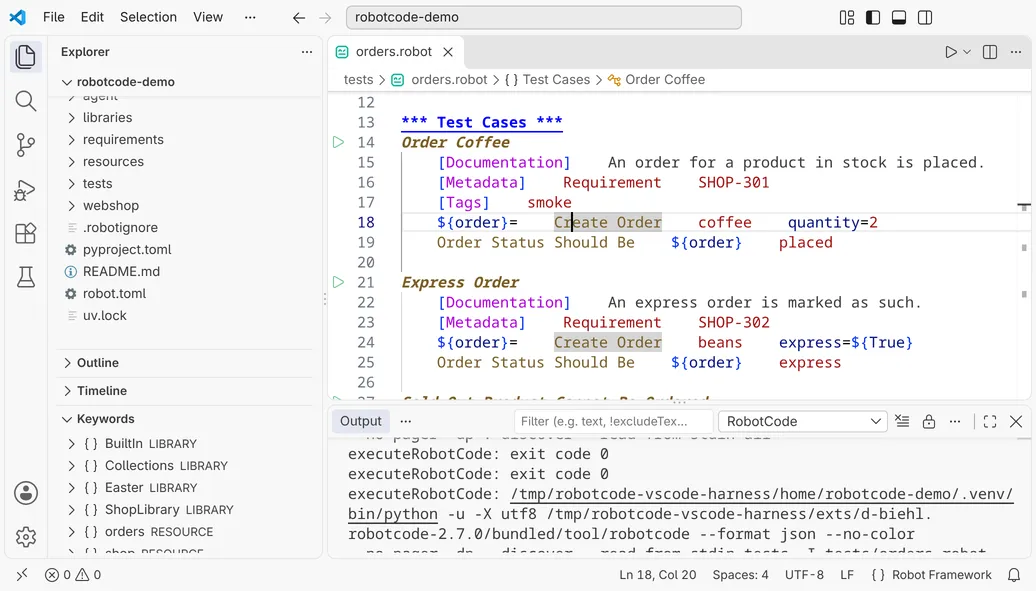](/_astro/overview-window-light.C2LTKBup.png "Open in full size")
1. 1
2. 2
3. 3
4. 4
5. 5
6. 6
[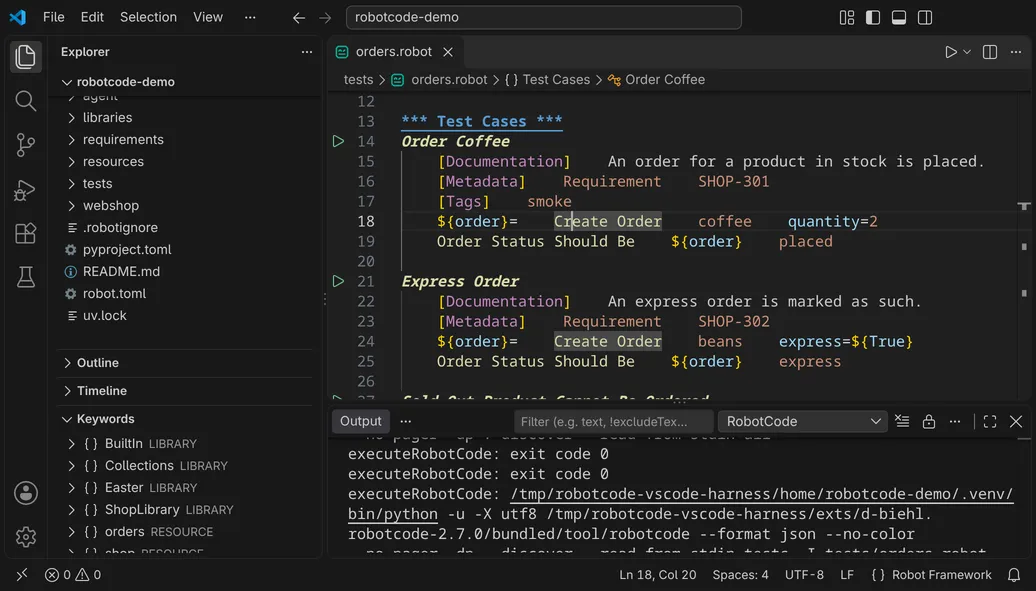](/_astro/overview-window-dark.C_x3XXsZ.png "Open in full size")
1. 1
2. 2
3. 3
4. 4
5. 5
6. 6
1) **The editor.** RobotCode completes keywords, variables and imports, shows the documentation of keywords on hover, highlights the code by its meaning and marks problems while you type. The icons beside the tests run or debug them. See [Writing Code](/guides/vscode/writing-code/) and [Finding Information](/guides/vscode/finding-information/).
2) **The Keywords view** in the Explorer lists the libraries and resource files whose keywords the file in the active editor can call, with their keywords. See [Finding Information](/guides/vscode/finding-information/#the-keywords-view).
3) **The Test Explorer** opens with the Testing icon of the activity bar. It lists the suites, tests and tasks of the workspace and runs or debugs them. See [Test Explorer](/guides/vscode/test-explorer/).
4) **The language status.** The braces next to "Robot Framework" in the status bar show RobotCode's status items when you hover over them, see [below](#the-language-status).
5) **The output channels** of RobotCode in the Output panel, see [Output and logs](#output-and-logs).
6) **The Command Palette** opens with `Ctrl+Shift+P` (`Cmd+Shift+P` on macOS) or a click on the search field in the title bar and then on **Show and Run Commands**. Type `RobotCode` to see RobotCode's [commands](#commands).
## The language status
[Section titled “The language status”](#the-language-status)
When a Robot Framework file is active, the status bar shows `{ }` next to the language name "Robot Framework". Hover over it to see RobotCode's status items for the workspace folder of the file:
| Item | Shows | Action |
| ----------------------- | ------------------------------------------------------------------------------------------------------------------------------ | ---------------------------------------------------------------------------- |
| RobotCode Version | The version of the RobotCode extension. | **Show Tool Menu** opens the RobotCode menu. |
| Robot Framework Version | The Robot Framework version of the Python environment, or "not installed"; a version older than 5.0 is marked "not supported". | — |
| Python Version | The version and name of the Python environment RobotCode uses, or "no interpreter selected". | **Select Environment** opens the environment picker of the Python extension. |
| Robocop Version | The Robocop version of the Python environment, or "not installed". | **Enable** or **Disable** switches Robocop's diagnostics on or off. |
| Configuration Profiles | The `robot.toml` profiles in use, or "None". | **Select** chooses other profiles. |
If the Robot Framework and Python items are marked as errors, the workspace folder has no usable Python environment, or RobotCode could not read the versions from it; the items name the problem, see [The Python environment](/guides/vscode/configuration/#the-python-environment) and [Troubleshooting](/guides/vscode/troubleshooting/).
## Output and logs
[Section titled “Output and logs”](#output-and-logs)
RobotCode writes to two channels of the Output panel (**View: Toggle Output**, then choose the channel on the right of the panel's toolbar):
* **RobotCode** logs what the extension does, for example the `robotcode` commands it runs to discover tests.
* **RobotCode Language Server for folder …** is the log of the language server of each workspace folder.
[Troubleshooting](/guides/vscode/troubleshooting/) explains how to make these logs more detailed.
## Menus and shortcuts
[Section titled “Menus and shortcuts”](#menus-and-shortcuts)
Many actions are in a menu too, not only behind a keyboard shortcut. A right-click in the editor opens its context menu: it goes to definitions and references, renames, formats and refactors, and in a suite file it offers RobotCode's **Run Current File** and **Debug Current File** and VS Code's commands to run or debug the test at the cursor or all tests of the file. Its last entry opens the Command Palette.
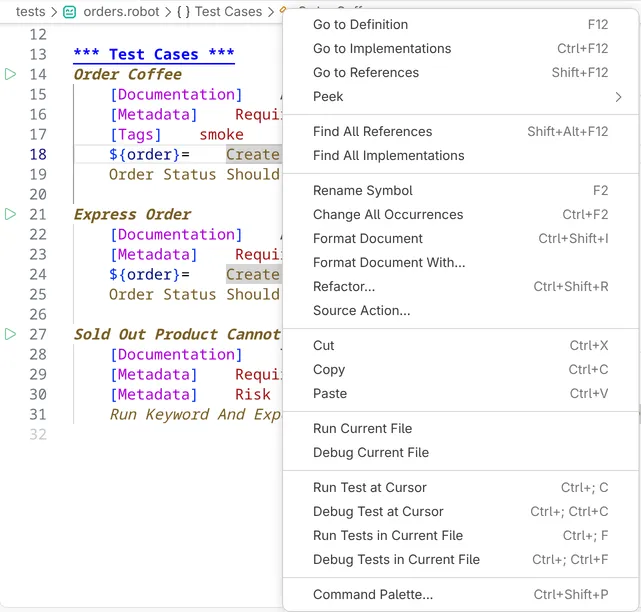
The pages of this guide name an action's keyboard shortcut and, where VS Code offers one, its menu entry or button.
## Commands
[Section titled “Commands”](#commands)
All of RobotCode's commands start with `RobotCode:` in the Command Palette. **RobotCode: Show Tool Menu**, or a click on the RobotCode version in the language status, opens a menu with the most important of them.
| Command | What it does |
| ---------------------------------------------------- | ------------------------------------------------------------------------------------------------------------------------------------------------------------------------------------------ |
| RobotCode: Run Current File | Runs the tests and tasks of the file in the active editor. |
| RobotCode: Debug Current File | Debugs the tests and tasks of the file in the active editor. |
| RobotCode: Select Configuration Profiles | Chooses the `robot.toml` profiles that test discovery, runs and the language server use. |
| RobotCode: Select Python Environment | Opens the environment picker of the Python extension for a workspace folder, see [The Python environment](/guides/vscode/configuration/#the-python-environment). |
| RobotCode: Start Terminal REPL | Starts the interactive Robot Framework REPL in a terminal, see [REPL](/guides/vscode/repl/). |
| RobotCode: Show Documentation Viewer | Brings the viewer that the actions use to the front, or opens one, see [Documentation Viewer](/guides/vscode/documentation-viewer/). |
| RobotCode: New Documentation Viewer | Opens a new viewer on `BuiltIn`, ready for the target you type, see [Documentation Viewer](/guides/vscode/documentation-viewer/). |
| RobotCode: Copy Documentation Viewer into New Window | Opens a viewer in a new window, with the target of the active or last-used viewer. |
| RobotCode: Reset Documentation Bookmarks | Removes the bookmarks and bookmarks the standard libraries again, see [Bookmarks](/guides/vscode/documentation-viewer/#bookmarks). |
| RobotCode: New Robot Framework File | Creates a suite file, a resource file or an `__init__.robot` file. |
| RobotCode: Enable RoboCop | Switches Robocop's diagnostics on, see [Diagnostics and Linting](/guides/vscode/diagnostics-and-linting/). |
| RobotCode: Disable RoboCop | Switches Robocop's diagnostics off. |
| RobotCode: Restart Language Servers | Restarts the language servers. |
| RobotCode: Clear Cache and Restart Language Servers | Deletes the analysis cache and restarts the language servers. |
| RobotCode: Show Tool Menu | Opens the RobotCode menu. |
| RobotCode: Show What's New | Shows the release notes of the newest RobotCode version. |
| RobotCode: Copy Environment Info | Copies the versions of a workspace folder for a report, see [Troubleshooting](/guides/vscode/troubleshooting/#report-an-issue). |
| RobotCode: Report Issue... | Opens VS Code's issue reporter for RobotCode. |
| RobotCode: Add Chat Plugins Marketplace | Adds the marketplace of RobotCode's plugin for AI agents to the `chat.plugins.marketplaces` setting, see [Working with AI Agents](/guides/ai-agents/#adding-the-marketplace-from-vs-code). |
| RobotCode: Remove Chat Plugins Marketplace | Removes the marketplace from that setting. |
## Pages of this guide
[Section titled “Pages of this guide”](#pages-of-this-guide)
[Writing Robot Framework Code in VS Code](/guides/vscode/writing-code/)Completion, signature help, hover, inlay hints, quick fixes, rename and formatting while you write Robot Framework code in VS Code.
[Finding Information in VS Code](/guides/vscode/finding-information/)Go to definitions, find references, use the outline and the workspace symbols, and look up keywords in the Keywords view.
[The Documentation Viewer](/guides/vscode/documentation-viewer/)Read the documentation of libraries, resource files and keywords in VS Code, in an editor tab with an outline, links, search, bookmarks and history.
[The Test Explorer](/guides/vscode/test-explorer/)How RobotCode fills the Test Explorer with your suites, tests and tasks, how to filter, run and debug them, and how results and errors appear.
[Running and Debugging in VS Code](/guides/vscode/running-and-debugging/)Run and debug tests from the editor, set breakpoints, use the Debug Console and inline values, configure launch.json and open the log after a run.
[Configuring RobotCode in VS Code](/guides/vscode/configuration/)Where a setting belongs in VS Code: robot.toml, user or workspace settings, or folder settings; plus the Python environment, profiles and multi-root workspaces.
[Customizing Robot Framework Highlighting in VS Code](/guides/vscode/highlighting/)RobotCode sets font styles for Robot Framework keywords, test case names, section headers and documentation in VS Code; change them with token color rules in settings.json.
[Diagnostics and Linting in VS Code](/guides/vscode/diagnostics-and-linting/)Where RobotCode reports problems in VS Code, how to use Robocop, change or hide diagnostics, find unused keywords and variables, and clear the cache.
[The REPL in VS Code](/guides/vscode/repl/)Start the interactive Robot Framework REPL of RobotCode in the terminal of VS Code.
[Troubleshooting RobotCode in VS Code](/guides/vscode/troubleshooting/)Find RobotCode's output and logs in VS Code, check and copy the versions in use, restart the language servers, clear the cache and report an issue.
# Configuring RobotCode in VS Code
> Where a setting belongs in VS Code: robot.toml, user or workspace settings, or folder settings; plus the Python environment, profiles and multi-root workspaces.
RobotCode takes its configuration from two places: the `robot.toml` of your project and the settings of VS Code. This page explains which belongs where, and how to choose the Python environment and the profiles.
## `robot.toml` or a VS Code setting?
[Section titled “robot.toml or a VS Code setting?”](#robottoml-or-a-vs-code-setting)
**`robot.toml`** holds the options of your Robot Framework project: the paths of the tests, the Python path for libraries, variables, the output directory, profiles for different environments and RobotCode's analysis options. RobotCode reads it everywhere it runs: in VS Code, in PyCharm, on the command line and in CI. Keep it in your repository, so that everyone who works on the project runs the tests the same way. See [Configuring Projects with robot.toml](/guides/robot-toml/) and the [`robot.toml` reference](/reference/config/).
**The settings of VS Code** decide how the extension behaves in the editor: the analysis and its cache, completion, inlay hints, the Test Explorer, the output of a debug session, the Documentation Viewer. They are listed in the [VS Code settings](/reference/vscode-settings/).
The settings `robotcode.robot.args`, `robotcode.robot.paths`, `robotcode.robot.pythonPath`, `robotcode.robot.variables`, `robotcode.robot.variableFiles`, `robotcode.robot.env`, `robotcode.robot.languages`, `robotcode.robot.mode` and `robotcode.robot.outputDir` pass options to the runs as well, but only in VS Code. Of these, the test discovery gets `args`, `paths`, `pythonPath`, `languages` and `mode`, and the analysis `pythonPath`, `variables`, `variableFiles`, `env` and `languages`. Put options that the command line and other editors need too into `robot.toml` instead.
### Editing `robot.toml`
[Section titled “Editing robot.toml”](#editing-robottoml)
With the extension [Even Better TOML](https://marketplace.visualstudio.com/items?itemName=tamasfe.even-better-toml) installed, VS Code completes the settings and values of `robot.toml` and shows their documentation on hover, from RobotCode's JSON schema:


[]()[]()[](/_astro/config-robot-toml-editing-dark.CjfXRGT3.mp4)
## User, workspace and folder settings
[Section titled “User, workspace and folder settings”](#user-workspace-and-folder-settings)
**Preferences: Open Settings (UI)** (`Ctrl+,`, `Cmd+,` on macOS, or **Settings** in the menu of the gear at the bottom left) shows the settings; the filter `@ext:d-biehl.robotcode` lists RobotCode's, grouped by their categories:
[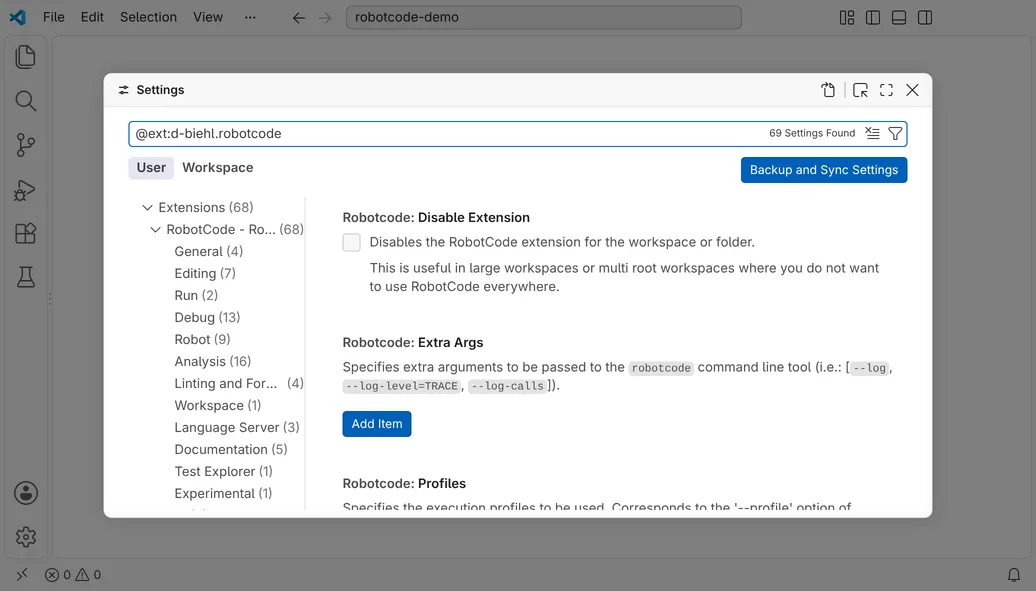](/_astro/config-settings-editor-light.0qFO2xsb.png "Open in full size")
[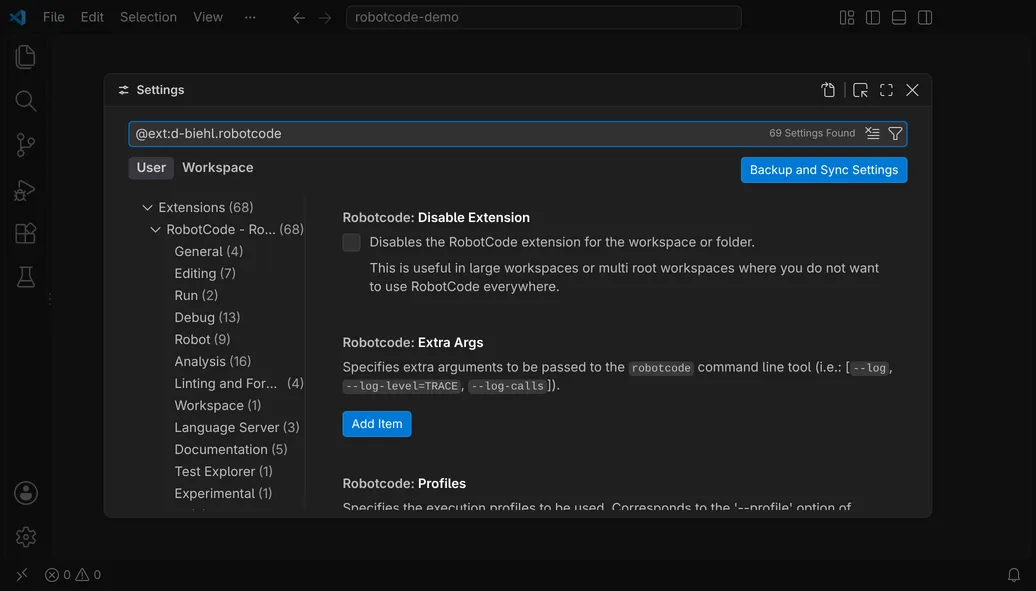](/_astro/config-settings-editor-dark.C7P01lMJ.png "Open in full size")
VS Code keeps settings on several levels:
* **User** settings apply to every project you open.
* **Workspace** settings, in `.vscode/settings.json` of the project, apply to this project and override the user settings. Keep the settings the whole team should use there.
* **Folder** settings apply to one folder of a workspace with [several folders](#several-workspace-folders) and override both.
Most of RobotCode's settings can be set on every level; the [VS Code settings](/reference/vscode-settings/) say for each setting where it can be set.
## The Python environment
[Section titled “The Python environment”](#the-python-environment)
RobotCode runs Robot Framework, its language server and its tools in the Python environment that VS Code's Python extension uses for the workspace folder. With the Python Environments extension, that is the environment it selects for the folder, the one its Python view and the status bar show. To choose another one, use **RobotCode: Select Python Environment**, or **Select Environment** at the Python item of the [language status](/guides/vscode/#the-language-status); both open the environment picker of the Python extension.
RobotCode looks at the Python environment only in workspace folders that are Robot Framework projects. A folder is one when it has a `robot.toml` or `.robot.toml`, a `pyproject.toml` or `requirements.txt` that depends on Robot Framework or RobotCode, or Robot Framework files outside folders whose names start with `.` or `_` and outside `CVS`, `node_modules`, `target`, `build`, `dist` and `venv`. RobotCode decides this from the files alone, without starting Python. A folder in which you open a Robot Framework document counts too, also when the document lies in one of those folders. Other folders get no check of their Python environment, no message and no language server, also while RobotCode is active in the window because you opened a Markdown file or started a debug session. When a folder becomes a project, for example because you add a `robot.toml` or a first `.robot` file, RobotCode notices it and starts all this without a restart.
RobotCode needs Python 3.10 or newer with Robot Framework 5.0 or newer. When the environment of one of these folders does not fit, a message names the problem: no interpreter is selected, the interpreter no longer exists, Python is older than 3.10, or Robot Framework is missing or older than 5.0. In the first 15 seconds after VS Code starts or a folder is added, while the Python extension may still be selecting the folder's environment, RobotCode reports a problem only if it remains; until then the language status shows that RobotCode is still checking. The message stays until the folder has a usable environment, then it closes by itself and a short message confirms the environment: RobotCode notices a new virtual environment in the folder, for example from `uv sync`, a changed selection, and a Robot Framework installed into the selected environment with `pip` or `uv`. RobotCode does not install Robot Framework itself and does not suggest how, because which tool and which version your project wants is your decision. The message offers **Select Environment**, **Create Environment**, which opens the Python extension's dialog for a new virtual environment, **Retry**, and without the Python Environments extension **Use .venv** for a virtual environment in the folder that is not selected yet. **Cancel** closes the message and asks whether to switch RobotCode off for the folder: for this session, or for this project with the folder setting `robotcode.disableExtension`.
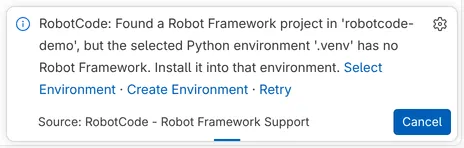
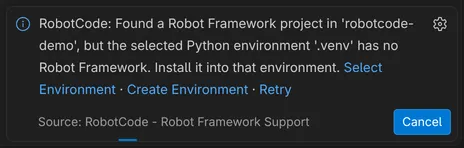
Nothing waits for the message: the Testing view and the language status show the state of the environment too, and the language server starts on its own as soon as the environment is usable. The setting `robotcode.python` still works but is deprecated in favor of the Python extension's interpreter; when it is set, it wins, and the message offers **Open Settings** instead of the environment actions.
## Configuration profiles
[Section titled “Configuration profiles”](#configuration-profiles)
The profiles of `robot.toml` let one project run against different environments, for example a local shop and a staging server. **RobotCode: Select Configuration Profiles** chooses the profiles that runs, test discovery and the language server use in a workspace folder; see [Choosing the configuration profiles](/guides/vscode/running-and-debugging/#choosing-the-configuration-profiles). The Test Explorer also offers each profile as a run profile, see [Run profiles](/guides/vscode/test-explorer/#run-profiles).
[]()[]()[](/_astro/config-profile-debug-dark.DTg_SjyZ.mp4)
The selection is the setting `robotcode.profiles` of the folder, which the user settings can also set for every folder. A name in it that the folder's configuration does not define stops the folder's test discovery, runs, REPL, notebooks and Documentation Viewer. RobotCode reports such a name when the folder's language server starts, with **Remove from Selection**, which removes it for this folder, and **Select Configuration Profiles**. The REPL shows the error in its terminal, which stays open until you press a key. The folder leaves the Testing view, which shows a hint instead while no other folder has tests.
## Several workspace folders
[Section titled “Several workspace folders”](#several-workspace-folders)
In a workspace with several folders, RobotCode treats each folder as a project of its own: each has its own language server, with its own output channel, its own Python environment, `robot.toml`, profiles and folder settings. The Test Explorer shows each folder as an entry of its own, and the run profiles carry the folder's name. To leave a folder out, set [`robotcode.disableExtension`](/reference/vscode-settings/#robotcode.disableExtension) in its folder settings.
# Diagnostics and Linting in VS Code
> Where RobotCode reports problems in VS Code, how to use Robocop, change or hide diagnostics, find unused keywords and variables, and clear the cache.
RobotCode analyzes your Robot Framework files the way Robot Framework reads them and reports what would fail or is likely wrong: keywords and variables that do not exist, imports that cannot be loaded, wrong numbers of arguments, deprecated syntax and more. With [Robocop](https://robocop.dev/) installed, its findings appear too.
## Where problems appear
[Section titled “Where problems appear”](#where-problems-appear)
Problems are underlined in the editor and listed in the **Problems** view (`Ctrl+Shift+M`, `Cmd+Shift+M` on macOS, or a click on the error and warning counts in the status bar). Each entry names its source and code, such as `robotcode(KeywordNotFound)` or `robocop(VAR02-unused-variable)`; a click goes to the place.
[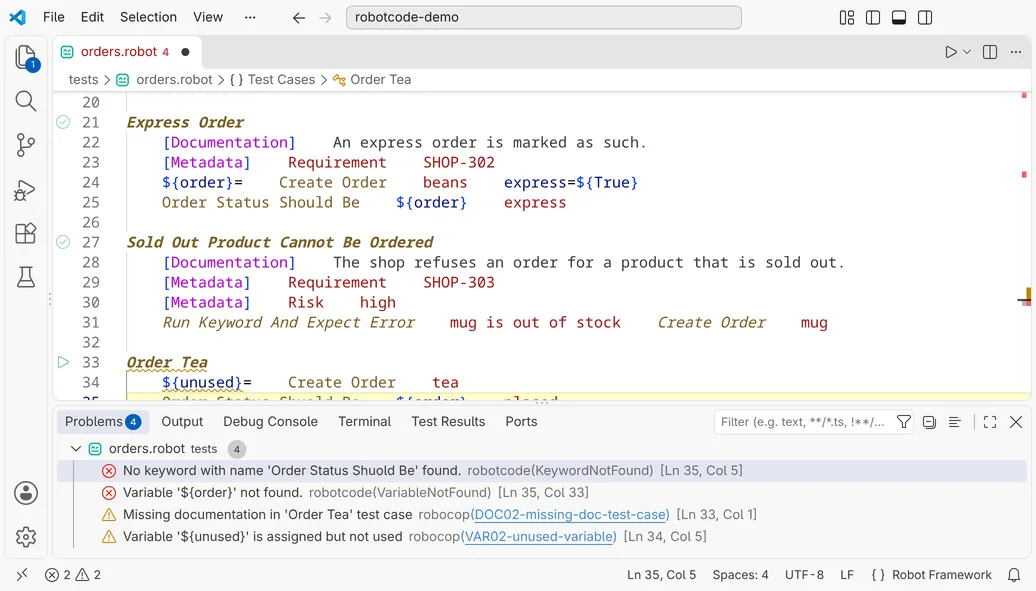](/_astro/diagnostics-problems-light.8wShwlao.png "Open in full size")
[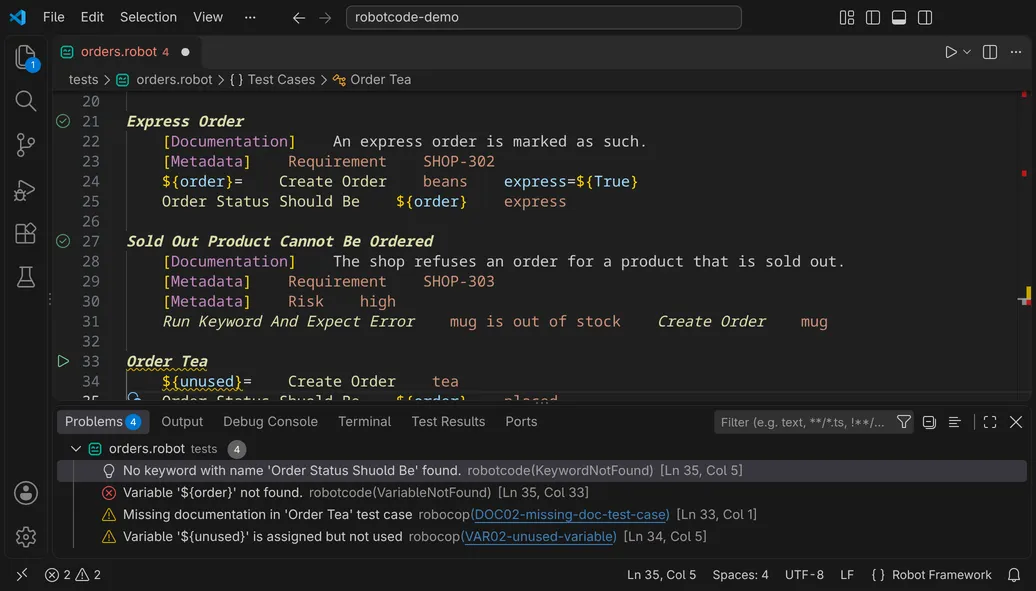](/_astro/diagnostics-problems-dark.BydJOffA.png "Open in full size")
Hover over an underlined place to read the message; **Quick Fix...** offers the [quick fixes](/guides/vscode/writing-code/#quick-fixes-and-refactorings) for it:


By default, RobotCode reports the problems of the files open in the editor. With [`robotcode.analysis.diagnosticMode`](/reference/vscode-settings/#robotcode.analysis.diagnosticMode) set to `workspace`, or **Enable Workspace Wide Diagnostics** in the RobotCode menu (**RobotCode: Show Tool Menu**), it analyzes every file of the workspace. To check a project on the command line or in CI, use [`robotcode analyze code`](/guides/cli/analyzing-code/).
## Robocop
[Section titled “Robocop”](#robocop)
When `robotframework-robocop` is installed in the Python environment of the workspace folder, RobotCode runs Robocop on the files it analyzes and shows Robocop's findings next to its own. The code of a finding links to the description of its rule. Robocop reads its usual configuration files; the [`robotcode.robocop.*`](/reference/vscode-settings/#linting-and-formatting---robocop) settings choose another configuration file or ignore them.
**RobotCode: Disable RoboCop** and **RobotCode: Enable RoboCop**, or the action at the Robocop item of the [language status](/guides/vscode/#the-language-status), switch Robocop's findings off and on; the item also shows which Robocop version is installed. Robocop also formats your files, see [Formatting](/guides/vscode/writing-code/#formatting).
## Changing or hiding diagnostics
[Section titled “Changing or hiding diagnostics”](#changing-or-hiding-diagnostics)
A comment changes the severity of RobotCode's diagnostics or hides them, for a line, a block or a whole file:
```robotframework
*** Test Cases ***
Order Coffee
Keyword Only Known At Run Time # robotcode: warn[KeywordNotFound]
```
See [Controlling Diagnostics with Modifiers](/reference/diagnostics-modifiers/) for the syntax. To change a code for the whole project, use the settings `robotcode.analysis.diagnosticModifiers.ignore`, `.error`, `.warning`, `.information` and `.hint`, or the `[tool.robotcode-analyze.modifiers]` section of `robot.toml`, which the command line uses as well. Robocop's findings are configured in Robocop's own configuration.
## Unused keywords and variables
[Section titled “Unused keywords and variables”](#unused-keywords-and-variables)
With [`robotcode.analysis.findUnusedReferences`](/reference/vscode-settings/#robotcode.analysis.findUnusedReferences) switched on, RobotCode also reports keywords that are never called and variables and arguments that are never read, as warnings with the codes `KeywordNotUsed` and `VariableNotUsed`, and shows their names faded. Variables whose names start with an underscore, such as `${_}`, are left out.
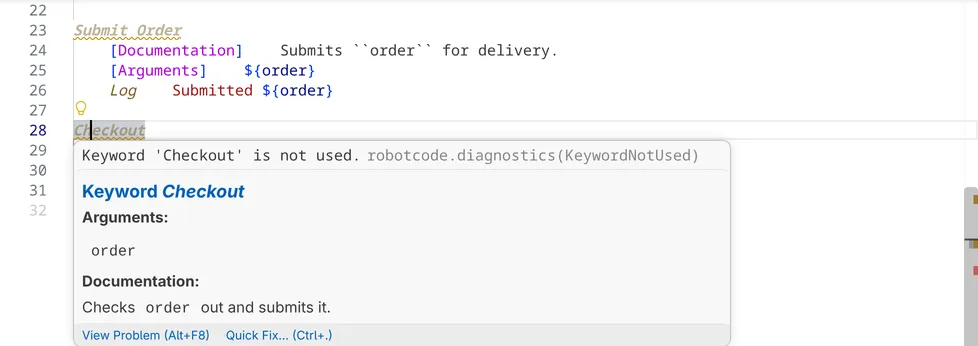
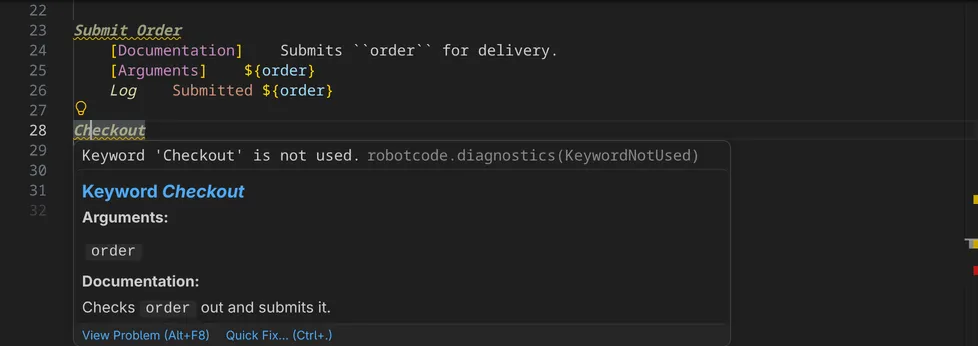
## The analysis cache
[Section titled “The analysis cache”](#the-analysis-cache)
RobotCode keeps what it learned about libraries, variable files and analyzed files in a cache, so that it does not have to load them again on every start. By default the cache lies in VS Code's storage for the workspace; [`robotcode.analysis.cache.saveLocation`](/reference/vscode-settings/#robotcode.analysis.cache.saveLocation) moves it into the workspace folder. [`cache-dir`](/reference/config/#tool-robotcode-analyze-cache-cache-dir) in the `[tool.robotcode-analyze.cache]` section of `robot.toml` takes precedence over both. A library whose keywords depend on its arguments can be left out of the cache with [`robotcode.analysis.cache.ignoredLibraries`](/reference/vscode-settings/#robotcode.analysis.cache.ignoredLibraries).
If diagnostics stay outdated although the files are right, **RobotCode: Clear Cache and Restart Language Servers** deletes the cache and analyzes everything anew. See also [Troubleshooting](/guides/vscode/troubleshooting/).
# The Documentation Viewer
> Read the documentation of libraries, resource files and keywords in VS Code, in an editor tab with an outline, links, search, bookmarks and history.
The **Documentation Viewer** shows the documentation of a library, a resource file or a suite file in an editor tab. It shows the same documentation as [`robotcode doc`](/guides/cli/browsing-documentation/): the viewer runs `robotcode doc lib` for you and renders the page with VS Code's built-in Markdown support, styled like VS Code's Markdown preview. Code blocks marked `robotframework` or `robot` are highlighted as Robot Framework code, in the viewer and in the Markdown preview of any Markdown file.
[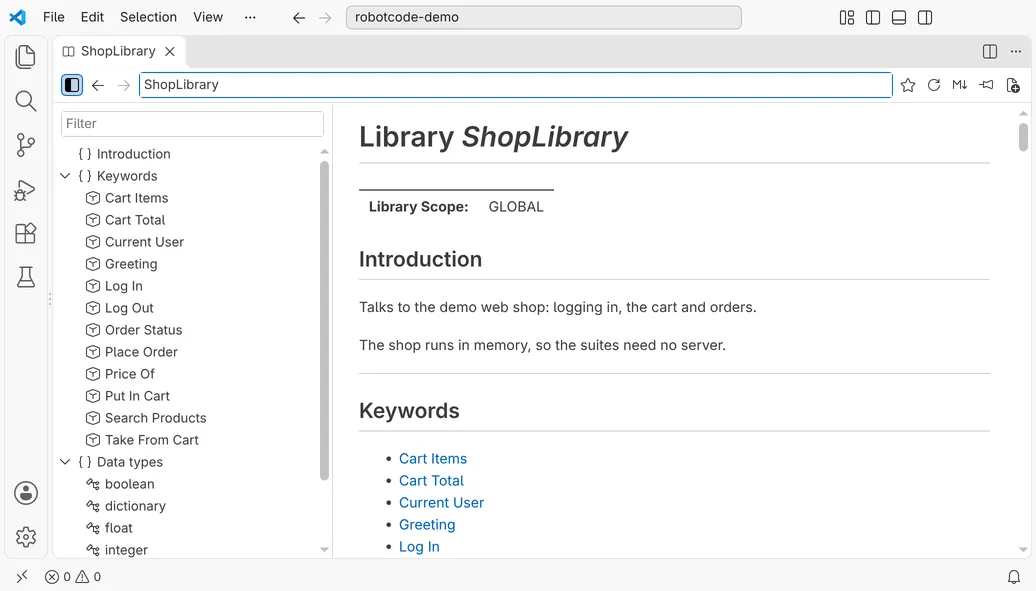](/_astro/viewer-window-light.BkEEbR1-.png "Open in full size")
[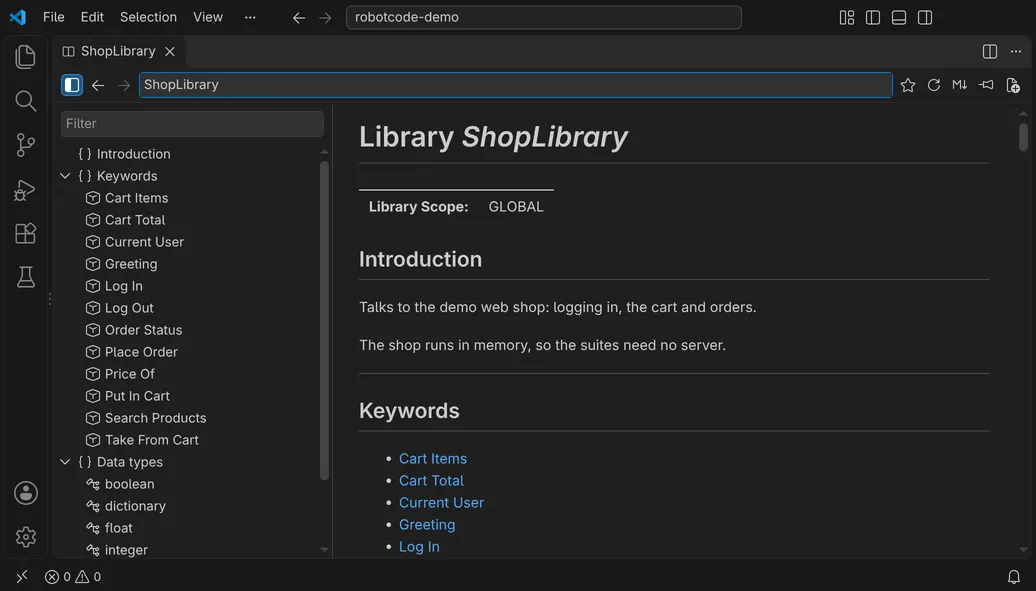](/_astro/viewer-window-dark.BuLiHOmq.png "Open in full size")
[]()[]()[](/_astro/viewer-browsing-dark.DLB2tmrS.mp4)
## Opening a viewer
[Section titled “Opening a viewer”](#opening-a-viewer)
* **RobotCode: New Documentation Viewer** in the command palette opens a new viewer on `BuiltIn`. Its target field has the focus, so you can type the target you want. *New Documentation Viewer*, the last button in a viewer's toolbar, opens one the same way, in the workspace folder of that viewer.
* **RobotCode: Show Documentation Viewer** in the command palette brings the viewer that the actions use to the front, the pinned viewer or else the one you used last, also in another window, and gives it the focus; the viewer stays at its place. Without a viewer, it opens a new one as *New Documentation Viewer* does.
* **Show in Documentation Viewer** is the first source action (right-click → *Source Action…*). It is offered on the name of a `Library` or `Resource` import, on a keyword in a keyword call, setup, teardown or template, and on the name of a keyword definition. It shows the library, resource file or suite file and scrolls to the keyword. It is the preferred source action, so a key of your own can run it without the menu, see [A key for the source actions](#a-key-for-the-source-actions).
* **Show in New Documentation Viewer**, offered next to it, shows the same in a new viewer, for example to keep two libraries side by side.
* In the **Keywords** view, the book button of an import or keyword shows it in the Documentation Viewer, and its context menu has both actions, also for the keywords of the current file.
* In the **Documentation Bookmarks** view, a click on a bookmark shows it, and the buttons in its title show the viewer or open a new one, see [Bookmarks](#bookmarks).
* The **links in documentation** that RobotCode shows in a hover, in the details of a completion item, in signature help and in the tooltips of the Keywords view open the viewer, see [Links in hovers and tooltips](#links-in-hovers-and-tooltips).
* **RobotCode: Copy Documentation Viewer into New Window**, in the command palette and in the context menu of a viewer's tab, opens a second viewer in a new window, with the target of the active viewer, or else of the viewer you used last, or `BuiltIn` without any viewer. From a tab's context menu it also copies the active viewer, which need not be the viewer whose tab you clicked.
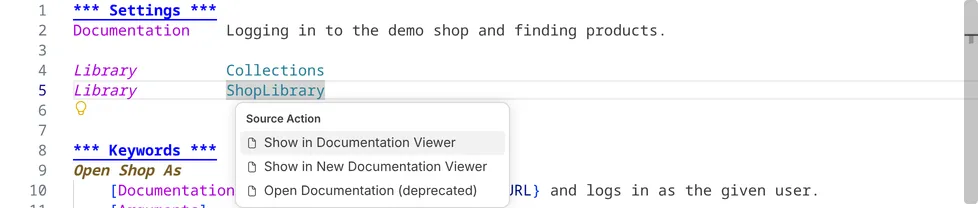
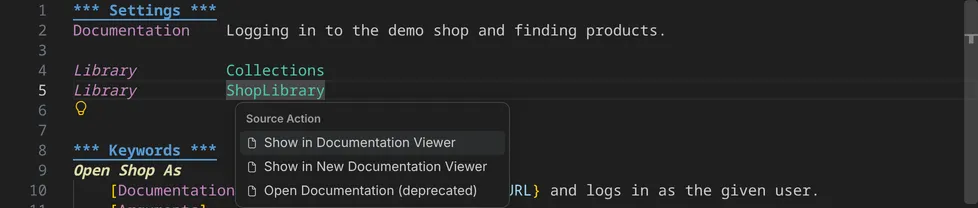
## A key for the source actions
[Section titled “A key for the source actions”](#a-key-for-the-source-actions)
VS Code has no key for its *Source Action…* menu, and RobotCode does not define one. You can bind VS Code's command `editor.action.sourceAction` to a key in your keyboard shortcuts (*Preferences: Open Keyboard Shortcuts (JSON)*). This binding shows the menu with `Ctrl+Shift+.`, one key more than `Ctrl+.` for *Quick Fix*:
```json
{
"key": "ctrl+shift+[Period]",
"command": "editor.action.sourceAction",
"when": "editorTextFocus"
}
```
VS Code also uses `Ctrl+Shift+.`, for example for *Focus and Select Breadcrumbs* and, in an editor, for *Replace with Next Value*; while an editor has the focus, your binding takes their place.
To run *Show in Documentation Viewer* at once, without the menu, give the binding these arguments. *Show in Documentation Viewer* is the preferred source action, and the menu then shows your key next to it:
```json
"args": { "kind": "source", "preferred": true, "apply": "first" }
```
Where the cursor offers no documentation, for example in a comment, VS Code then reports that no preferred source action is available.
## Links in hovers and tooltips
[Section titled “Links in hovers and tooltips”](#links-in-hovers-and-tooltips)
In a hover, in the details of a completion item, in signature help and in the tooltips of the Keywords view, the documentation links into the viewer:
* The heading, such as `Keyword Log` or `Library Collections`, shows the library, resource file or suite file, at the keyword for a keyword. On the alias of an import and on the prefix of a keyword call, such as `Collections` in `Collections.Append To List`, it shows the page of that import from its start.
* The names of keywords, data types and sections of the same library or file, the types in the argument table and the return type show the page at that keyword, data type or section. Names of other libraries and private keywords stay inline code, as on the page.
* Links to a place in the documentation itself, such as the entries of a table of contents, show the page at that place.
The links show the documentation of the import that the analysis used, also for the second import of a library with other arguments, and in the viewer that [*Show in Documentation Viewer*](#which-viewer-an-action-uses) uses. When the arguments of an import fail and RobotCode loads the library without them (`LibraryLoadedWithoutArguments`), the links and *Show in Documentation Viewer* on that import show the library without arguments, as the hover does. The hovers of a Variables import, of a call that matches several keywords, of a variable and of a test case have no links, and links to a place in their documentation are text. When the links would make documentation longer than VS Code shows, only its heading is a link.
`command:` links written in the documentation of a library do nothing; only the links to the viewer run.
## The target field
[Section titled “The target field”](#the-target-field)
The field in the toolbar shows what the viewer documents and takes a new target, as the [targets](/guides/cli/browsing-documentation/#targets) of `robotcode doc`: `Name`, `Name::arg1::arg2`, or the path of a library, resource or suite file, relative to the workspace folder or absolute. `Enter` shows it in the same tab, which takes the name of the library or file as its title.
As a browser's address bar shows the part of a page, the field shows after a `#` the place at the top of the view, the id of its heading, such as `Collections#get-from-dictionary`; at the top of the page it shows the target alone. A text with a `#` opens the target at that place: the text after the last `#` is the id of a heading or the name of a keyword or data type, such as `BuiltIn#Should Be Equal`. Entering the target and place that are shown generates the page again; another place of the same target moves there, and back returns. A target with a `#` of its own, such as the path `issue#1/shop.resource`, ends with a `#`: `issue#1/shop.resource#`. So that also the last headings of a page can come to the top, the page scrolls past its end, as VS Code's editor does.
While you type, a list under the field offers the [bookmarks](#bookmarks) whose name contains what you typed, and below them the completion of the name before `::`, as the editor completes the names of `Library` and `Resource` imports: modules on the Python path, the standard libraries, and library, resource and suite files and directories, relative to the workspace folder or absolute, one level at a time. `Ctrl+Space` and `↓` open the list too, and in an empty field it offers all bookmarks; on macOS, where `Ctrl+Space` usually switches the input source, `Option+Esc` opens it as well. As in the editor, the completions in the case you typed come first, and the first suggestion is selected. `↑` and `↓` select another, `Enter` or a click shows it, and `Tab` only puts it into the field, a bookmark with its place after a `#`. A directory is put in with a `/`, and the list then offers its content. `Esc` closes the list, and `Enter` then shows the text as you typed it. The completion needs a running language server for the folder: while RobotCode waits for the folder's Python environment, and when RobotCode is switched off for the folder, the list offers only the bookmarks.
## Bookmarks
[Section titled “Bookmarks”](#bookmarks)
The star after the target field bookmarks the place the viewer shows, in the workspace folder of the viewer: the target as the field shows it before the `#`, with its arguments, and the heading at the top of the view, such as the keyword `Get From Dictionary` of `Collections`. At the top of the page, the bookmark holds the target alone. The star is filled while the viewer shows a bookmarked place, and a click on the filled star removes the bookmark. A target can have several bookmarks, one for each place. *Add Bookmark* in the context menu of the [outline](#outline-and-filter) bookmarks an entry without going to it.
A bookmark shows as `Collections › Get From Dictionary` and opens its target at its place. At first it holds only for its workspace folder. Whether it fits your other workspaces, such as a library of your project or a path relative to the folder, is yours to decide: moved to *All Workspaces* in the Documentation Bookmarks view, it holds in all your workspaces. VS Code's Settings Sync takes the bookmarks of *All Workspaces* to your other machines while it syncs extensions, between machines with the same version of RobotCode.
In the list under the target field, a bookmark has a ✕ while the mouse rests on it and while it is selected, which removes the bookmark and keeps the list open. A bookmark of *All Workspaces* that you remove in a viewer, with the ✕, with the star or with *Remove Bookmark* of the outline, is gone in all workspaces. With the keyboard, open the bookmark and switch its star off, or remove it in the view.
The **Documentation Bookmarks** view in the Explorer lists the bookmarks while a Robot Framework file or a Documentation Viewer is the active editor, in the group *All Workspaces* and in a group for each workspace folder. A click on a bookmark shows it in the viewer that [an action from the editor uses](#which-viewer-an-action-uses); a bookmark of *All Workspaces* opens in the workspace folder of that viewer. *Move to All Workspaces* and *Move to Workspace Folder* in the context menu of a bookmark move it to the other group; in a workspace with several folders, *Move to Workspace Folder* asks for the folder. You can also drag a bookmark onto another group. The ✕ of a bookmark, also *Remove Bookmark* in its context menu, removes it from its group. The buttons *Show Documentation Viewer* and *New Documentation Viewer* in the title of the view do what the commands of the same name do, see [Opening a viewer](#opening-a-viewer).
[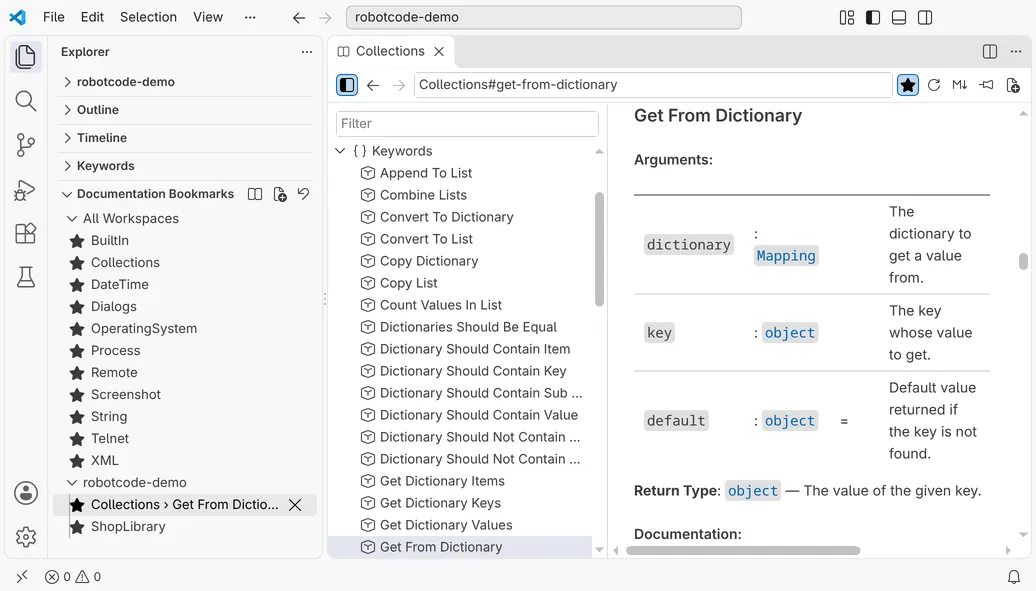](/_astro/viewer-bookmarks-light.B4lik-JE.png "Open in full size")
[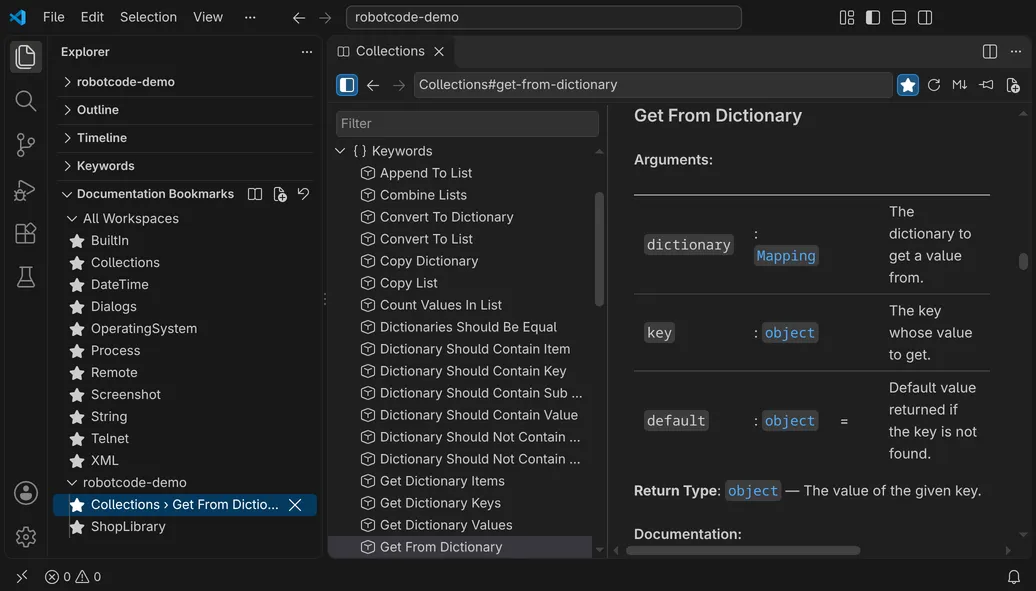](/_astro/viewer-bookmarks-dark.BGIZ7yiF.png "Open in full size")
The first start of RobotCode bookmarks the standard libraries of Robot Framework in *All Workspaces*: `BuiltIn`, `Collections`, `DateTime`, `Dialogs`, `OperatingSystem`, `Process`, `Remote`, `Screenshot`, `String`, `Telnet` and `XML`. They are bookmarks like your own, so one that you remove stays removed. **RobotCode: Reset Documentation Bookmarks**, in the command palette and in the title of the view, asks for a confirmation, removes the bookmarks of all workspaces and of the open workspace folders, and bookmarks the standard libraries again.
## Workspace folders
[Section titled “Workspace folders”](#workspace-folders)
Each viewer belongs to a workspace folder: its pages are generated with the Python environment, the profiles and the settings of that folder. A viewer that shows documentation for an action from the editor or the Keywords view belongs to the folder of the file the action came from, also when the documented file lies in another folder. Typing an absolute path that lies in another folder switches the viewer to that folder.
In a workspace with more than one folder, the toolbar shows the name of the viewer's folder before the pin button. Click it to pick another folder; the viewer then shows its target for that folder, and back returns to the folder before.
## Outline and filter
[Section titled “Outline and filter”](#outline-and-filter)
The outline on the left lists the sections of the page as a tree: below `Introduction` its sections and their subsections, below `Importing`, `Keywords` and `Data types` their entries. Clicking an entry or pressing `Enter` shows its heading.
* `↑` and `↓` move through the entries, `→` opens an entry or moves to the first entry below it, `←` closes an entry or moves to the entry it belongs to, `Home`, `End`, `Page Up` and `Page Down` move by more, and typing jumps to the next entry whose title starts with what you typed.
* The filter field above the outline keeps the entries whose titles match, with the rules of the [`keywords` patterns](/guides/cli/browsing-documentation/#keywords-an-overview-of-the-keywords): contains, `*`, `?` and `[…]`, ignoring case, spaces and underscores. An entry stays while it or one of the entries below it matches.
* The button at the start of the toolbar hides the outline with its filter field, so that the page gets the full width of the viewer, and shows them again. Each viewer keeps this, also after a reload of the window. The setting `robotcode.documentationViewer.showOutline` decides whether a new viewer starts with its outline.
The context menu of an entry, opened with a right-click, with the context menu key or with `Shift+F10`, offers:
* *Open*, which shows the entry as a click does.
* *Open in New Documentation Viewer*, which shows the same target at the entry in a new viewer.
* *Add Bookmark*, which bookmarks the place of the entry in the workspace folder of the viewer, as the star does while the entry is at the top of the view; the page stays where it is. While the place is bookmarked, *Remove Bookmark* takes its place and removes the bookmark, as the star does.
* *Go to Source*, for a keyword whose file and line are known, which opens the file at the keyword: a resource or suite file, a library of your project, or a library of the Python environment, such as `Collections.py`. The file opens in the editor group of the text editor you used last, otherwise beside the viewer.
## Links, back and forward
[Section titled “Links, back and forward”](#links-back-and-forward)
Links to sections, keywords and data types move within the page. `http`, `https` and `mailto` links open outside VS Code.
Back and forward work as in a browser: with the buttons in the toolbar, with `Alt+←` and `Alt+→` (`Cmd+[` and `Cmd+]` on macOS) while the viewer has the focus, and with the back and forward buttons of the mouse. On Windows, `Alt+←` and `Alt+→` in a viewer navigate the viewer instead of VS Code's editor history.
## Find
[Section titled “Find”](#find)
`Ctrl+F` (`Cmd+F` on macOS) opens a find bar for the page, which shows the number of matches and the current one. `Enter` or `F3` goes to the next match, `Shift+Enter` or `Shift+F3` to the previous one, and `Esc` closes the bar. The outline is not searched.
A space in the search text matches any white space, also where the documentation breaks a line within a paragraph. While the bar is open, a page you go to opens where it would without it, and the first match in view becomes the current one.
## Arranging viewers
[Section titled “Arranging viewers”](#arranging-viewers)
Several viewers can be open at the same time. You arrange them like editors: drag them into other editor groups or side by side, pin their tabs, or move one into a window of its own with VS Code's *Move Editor into New Window*. A viewer keeps its target, position, history and filter when its tab is hidden, when it is moved, and after a reload of the window. VS Code's *Split Editor* and *Copy Editor into New Window* cannot split or copy a viewer; *RobotCode: Copy Documentation Viewer into New Window* opens a second one in a new window instead, see [Opening a viewer](#opening-a-viewer). *Reopen Closed Editor* does not bring a closed viewer back.
## Which viewer an action uses
[Section titled “Which viewer an action uses”](#which-viewer-an-action-uses)
*Show in Documentation Viewer*, the links in hovers and tooltips, the book button of the Keywords view and the bookmarks of the Documentation Bookmarks view use:
1. the viewer you pinned with the pin button in its toolbar;
2. otherwise the viewer you used last;
3. otherwise a new viewer, beside the active editor, so that the focus stays in the editor.
*Show in New Documentation Viewer*, and *Open in New Documentation Viewer* in the context menu of the outline, always open a new viewer, also when a viewer is pinned; the new viewer is then the viewer used last. Only one viewer can be pinned at a time. With the setting `robotcode.documentationViewer.openLocation` set to `active`, a new viewer opens in the active editor group instead. Links, the target field, back and forward, and the outline apart from *Open in New Documentation Viewer*, always stay in their own viewer.
## What a page is generated with
[Section titled “What a page is generated with”](#what-a-page-is-generated-with)
The viewer runs `robotcode --format json doc lib TARGET` in the Python environment that RobotCode uses for the workspace folder, with:
* the profiles of `robotcode.profiles`;
* `robotcode.robot.pythonPath`, `robotcode.robot.languages`, `robotcode.robot.variables` and `robotcode.robot.variableFiles`, passed as `-P`, `--language`, `-v` and `-V`;
* the environment variables of `robotcode.robot.env`.
For an import of another file, such as a resource file that imports a resource file of its own, *Show in Documentation Viewer*, the links and the book button resolve the import against the directory of the file that contains it, as Robot Framework does.
The last page of each target is kept in VS Code's storage for the workspace, per workspace folder, Python environment, profiles and the settings above, also across restarts; the pages of the 50 most recently generated targets are kept. So a target that you show after you selected another profile or changed one of these settings is generated again. Showing a target shows its kept page at once and generates it again in the background, once per session. The refresh button in the toolbar generates it again whenever you want. When an action or a link shows a keyword, a data type or a place that the page does not have yet, such as a keyword you just added, the viewer generates the page again, and shows it from its start if the new page does not have it either. When the generation fails, the viewer shows the error, above the kept page if there is one, or with a *Retry* button.
The viewer generates pages only when the Python environment of the workspace folder can run Robot Framework; RobotCode checks this as it does for the language server, see [The Python environment](/guides/vscode/configuration/#the-python-environment). Until then, for example while VS Code starts and the Python extension has not selected the folder's environment yet, a viewer shows the page it showed last with its progress bar, and says that it waits for the Python environment. If the environment still cannot run Robot Framework after 30 seconds, the viewer shows the problem as an error, without a *Retry* button; when RobotCode is switched off for the folder, it shows that at once. As soon as the environment is usable, or when you select another environment for the folder, the viewer loads its page again by itself. The refresh button checks the environment again at once.
## Open as Markdown
[Section titled “Open as Markdown”](#open-as-markdown)
*Open as Markdown*, the button after the refresh button in the toolbar, opens the Markdown of the page the viewer shows, as `robotcode doc lib` writes it, as a new untitled document in the viewer's editor group. You can copy from it, or save it; saving asks for a file name. The viewer keeps its target, position and history. While the viewer shows no page, for example while the first page of a target is generated, the button is disabled.
## Limits
[Section titled “Limits”](#limits)
* Import arguments are passed to `robotcode doc` as text, so typed values such as `${True}` or lists arrive in their string form.
* The completion in the target field lists every module on the Python path, as the editor's import completion does, also modules that are no libraries, such as Python's `collections` next to the standard library `Collections`.
* Python 3.13 and newer have no `telnetlib`, so the standard library `Telnet` cannot be imported there; its bookmark then shows the import error, and you can remove it.
* Pages are generated from the saved files; unsaved changes in an editor are not shown.
* Libraries whose keywords exist only while a test runs cannot be documented; see [Libraries that need a running test](/guides/cli/browsing-documentation/#libraries-that-need-a-running-test).
* The page needs VS Code's built-in extension *Markdown Language Features*. Without it, the viewer shows a notice and the page as plain Markdown text.
* Your Markdown settings, such as `markdown.preview.breaks`, and the Markdown plugins of other extensions apply to the page. Mathematical formulas are not laid out as in the Markdown preview, and mermaid diagrams stay source text.
## Open Documentation (deprecated)
[Section titled “Open Documentation (deprecated)”](#open-documentation-deprecated)
The source action *Open Documentation (deprecated)* and *Show Documentation (deprecated)* in the context menu of the Keywords view are deprecated in favour of the Documentation Viewer. They still show Robot Framework's Libdoc HTML, served by the language server. In desktop VS Code these pages open beside the editor in VS Code's integrated browser, which reuses one tab for them. In VS Code for the Web, which has no integrated browser, they open in the Simple Browser.
# Finding Information in VS Code
> Go to definitions, find references, use the outline and the workspace symbols, and look up keywords in the Keywords view.
RobotCode resolves every keyword call, variable and import the way Robot Framework does, so VS Code's navigation works for Robot Framework code too: you can jump from a call to the keyword, find every place a keyword is used and search the whole workspace. To read the documentation of a library or keyword, see [Documentation Viewer](/guides/vscode/documentation-viewer/).
## Go to Definition
[Section titled “Go to Definition”](#go-to-definition)
**Go to Definition** (`F12`, `Ctrl`+click, `Cmd`+click on macOS, or the context menu of the editor) on a keyword call opens the keyword: a user keyword in its suite or resource file, and a library keyword in the Python code that implements it. The same works for variables and for the names in imports.
[]()[]()[](/_astro/finding-go-to-definition-dark.DA-z5z0d.mp4)
**Peek Definition** (`Alt+F12` on Windows, `Ctrl+Shift+F10` on Linux, `Option+F12` on macOS, or **Peek → Peek Definition** in the context menu) shows the definition inside the editor instead:
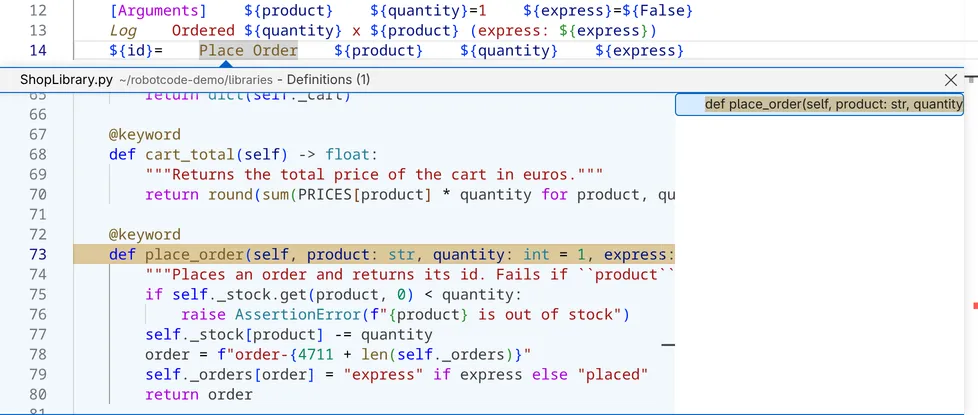
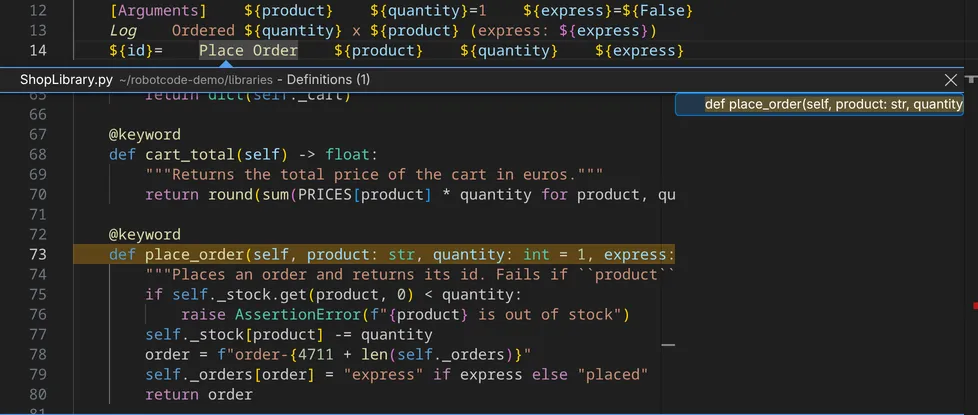
## Find references
[Section titled “Find references”](#find-references)
**Find All References** (`Shift+Alt+F12`, `Shift+Option+F12` on macOS) lists every use of the keyword, variable or tag at the cursor in the workspace. On an import, or on the library or resource name in front of a keyword such as `BuiltIn` in `BuiltIn.Log`, it lists where that library, resource or variable file is imported and where a keyword is called with its name in front. **Go to References** (`Shift+F12`) shows them inside the editor instead, in a peek view with a preview of each place. Both are in the context menu of the editor too.
In the peek view, a click on an entry of the list, or the arrow keys, select a place, and the preview beside the list shows it:
[]()[]()[](/_astro/finding-peek-references-dark.DyBLSxnr.mp4)
When the cursor is on a keyword call or a variable, RobotCode also highlights its other occurrences in the file.
### References CodeLens
[Section titled “References CodeLens”](#references-codelens)
With [`robotcode.analysis.referencesCodeLens`](/reference/vscode-settings/#robotcode.analysis.referencesCodeLens) switched on, RobotCode shows above each keyword of a file how often it is used. A click on the number peeks the references.
## Outline and breadcrumbs
[Section titled “Outline and breadcrumbs”](#outline-and-breadcrumbs)
The **Outline** view of the Explorer shows the structure of the file in the active editor: its sections, tests, tasks and keywords, and the variables they assign. Click an entry to go there. The breadcrumbs above the editor show where the cursor is; a click on one of their parts opens a list of the file's entries to jump to. **Go to Symbol in Editor** (`Ctrl+Shift+O`, `Cmd+Shift+O` on macOS, or the **Go** menu) searches the same entries.
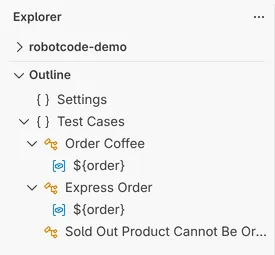
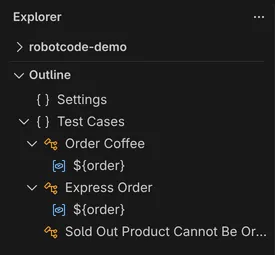
## Workspace symbols
[Section titled “Workspace symbols”](#workspace-symbols)
**Go to Symbol in Workspace** (`Ctrl+T`, `Cmd+T` on macOS, or the **Go** menu) searches the tests, tasks, keywords and variables of all files in the workspace:
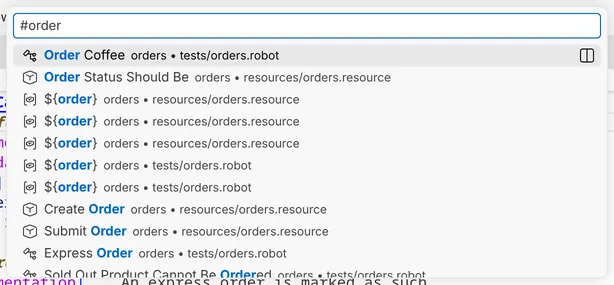
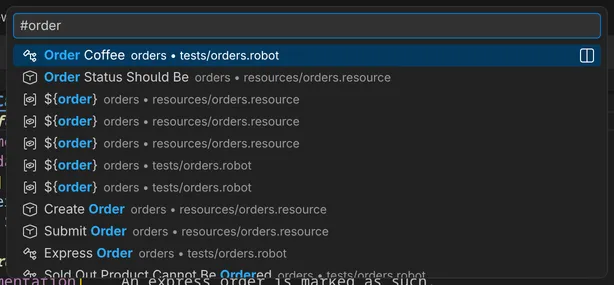
## The Keywords view
[Section titled “The Keywords view”](#the-keywords-view)
The **Keywords** view of the Explorer appears while a Robot Framework file is active. It lists the libraries and resource files whose keywords the file can call; expand one to see its keywords with their arguments, and hover over a keyword to see its documentation. The actions of an entry:
* **Insert Keyword** inserts the keyword's name at the cursor in the editor and opens the completion and signature help for its arguments.
* **Show in Documentation Viewer** opens the documentation of the library, resource file or keyword in the [Documentation Viewer](/guides/vscode/documentation-viewer/); **Show in New Documentation Viewer** in the context menu opens it in a new viewer.
* **Refresh** in the view's title bar reads the keywords again.
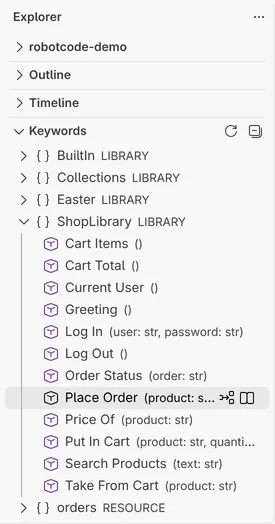
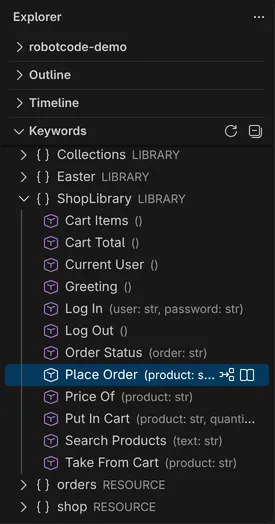
# Customizing Robot Framework Highlighting in VS Code
> RobotCode sets font styles for Robot Framework keywords, test case names, section headers and documentation in VS Code; change them with token color rules in settings.json.
This guide shows how to change the font styles RobotCode uses for Robot Framework files in VS Code.
## Editor Style
[Section titled “Editor Style”](#editor-style)
RobotCode sets font styles for Robot Framework files, independently of your current theme: for example, test case and keyword names are bold and italic, section headers bold and underlined, and imports, embedded arguments, keyword calls inside the arguments of other keywords and documentation italic. You can change these styles or add colors.
### How to Change the Styles
[Section titled “How to Change the Styles”](#how-to-change-the-styles)
1. Open your VS Code user settings:
* Press `Ctrl` + `Shift` + `P` (Windows/Linux) or `CMD` + `Shift` + `P` (Mac)
* Type: `Preferences: Open User Settings (JSON)`
2. Add the following code to your `settings.json` file. It contains RobotCode's default rules; change the `fontStyle` values or add a `foreground` color where you like.
Your `textMateRules` list replaces RobotCode's list, so keep the rules you don't change in it. The `rules` of `editor.semanticTokenColorCustomizations` are combined with RobotCode's rules, so there the rules you change are enough.
```jsonc
"editor.tokenColorCustomizations": {
"textMateRules": [
{
"scope": "comment.line.configuration.robotframework",
"settings": {
"fontStyle": "bold"
}
},
{
"scope": "entity.name.function.keyword-call.inner.robotframework",
"settings": {
"fontStyle": "italic"
}
},
{
"scope": "string.unquoted.embeddedArgument.robotframework",
"settings": {
"fontStyle": "italic"
}
},
{
"scope": "entity.name.function.keyword-call.robotframework",
"settings": {}
},
{
"scope": "entity.name.function.testcase.name.robotframework",
"settings": {
"fontStyle": "bold italic"
}
},
{
"scope": "entity.name.function.keyword.name.robotframework",
"settings": {
"fontStyle": "bold italic"
}
},
{
"scope": "variable.name.readwrite.robotframework",
"settings": {}
},
{
"scope": "keyword.control.import.robotframework",
"settings": {
"fontStyle": "italic"
}
},
{
"scope": "keyword.other.header.settings.robotframework",
"settings": {
"fontStyle": "bold underline"
}
},
{
"scope": "keyword.other.header.variable.robotframework",
"settings": {
"fontStyle": "bold underline"
}
},
{
"scope": "keyword.other.header.testcase.robotframework",
"settings": {
"fontStyle": "bold underline"
}
},
{
"scope": "keyword.other.header.task.robotframework",
"settings": {
"fontStyle": "bold underline"
}
},
{
"scope": "keyword.other.header.keyword.robotframework",
"settings": {
"fontStyle": "bold underline"
}
},
{
"scope": "keyword.other.header.comment.robotframework",
"settings": {
"fontStyle": "bold italic underline"
}
},
{
"scope": "string.unquoted.character.escape.robotframework",
"settings": {}
}
]
},
"editor.semanticTokenColorCustomizations": {
"rules": {
"*.documentation:robotframework": {
"italic": true
//"foreground": "#aaaaaa"
},
"*.embedded:robotframework": {
"italic": true
},
"*.builtin:robotframework": {
"italic": true
}
}
}
```
# The REPL in VS Code
> Start the interactive Robot Framework REPL of RobotCode in the terminal of VS Code.
RobotCode's REPL runs Robot Framework statements one by one: import a library, call a keyword and see its result at once, without writing a test. It is a good place to try out a library or to find the right arguments for a keyword.
**RobotCode: Start Terminal REPL**, also in the RobotCode menu (**RobotCode: Show Tool Menu**), opens a terminal named "Robot REPL" in the workspace folder of the active file and starts the REPL in it. The REPL runs in the [Python environment](/guides/vscode/configuration/#the-python-environment) that RobotCode uses for the folder, the same as the language server, with the [configuration profiles](/guides/vscode/configuration/#configuration-profiles) you selected and with the settings that runs use, such as [`robotcode.robot.variables`](/reference/vscode-settings/#robotcode.robot.variables) and [`robotcode.robot.pythonPath`](/reference/vscode-settings/#robotcode.robot.pythonPath):
![The terminal Robot REPL: robotcode repl at the prompt robotcode-demo $, the banner RobotCode REPL 2.7.0 (Robot Framework 7.5, Python 3.13.12 on linux) with its hint to type .help for commands and .exit to quit, the inputs Import Library ShopLibrary and ${price}= Price Of coffee, the output \[ INFO \] ${price} = 4.5, and the next >>> prompt.](/_astro/repl-terminal-light.VS9jXEFv_Z20uqL9.webp)
![The terminal Robot REPL: robotcode repl at the prompt robotcode-demo $, the banner RobotCode REPL 2.7.0 (Robot Framework 7.5, Python 3.13.12 on linux) with its hint to type .help for commands and .exit to quit, the inputs Import Library ShopLibrary and ${price}= Price Of coffee, the output \[ INFO \] ${price} = 4.5, and the next >>> prompt.](/_astro/repl-terminal-dark.CKHOUKKk_ZCq6mW.webp)
Type statements as you would write them in a test, with at least two spaces between the keyword and its arguments. In a workspace with several folders, the terminal carries the folder's name. `.exit` ends the REPL and closes the terminal; VS Code does not restore it after a restart. If the folder's Python environment cannot run the REPL, for example because Robot Framework is missing in it, an error message names the problem and no terminal opens. An error that ends the REPL, such as a selected configuration profile that the folder's configuration does not define, stays in its terminal until you press a key.
[]()[]()[](/_astro/repl-start-dark.H9fwaLra.mp4)
What the REPL can do, from history and completion to saving a session as a test and debugging at the prompt, is described in [Interactive Robot Framework with robotcode repl](/guides/cli/repl/).
# Running and Debugging in VS Code
> Run and debug tests from the editor, set breakpoints, use the Debug Console and inline values, configure launch.json and open the log after a run.
RobotCode runs and debugs your tests and tasks with Robot Framework in the Python environment of the workspace folder. This page covers runs started from the editor and debugging; the [Test Explorer](/guides/vscode/test-explorer/) runs and debugs them from its tree, with run profiles.
## Running from the editor
[Section titled “Running from the editor”](#running-from-the-editor)
An icon beside each suite, test and task in the editor shows its last result; click it to run the test. Its context menu also debugs the test, runs it with another run profile (**Execute Using Profile...**), shows it in the Test Explorer and adds breakpoints:
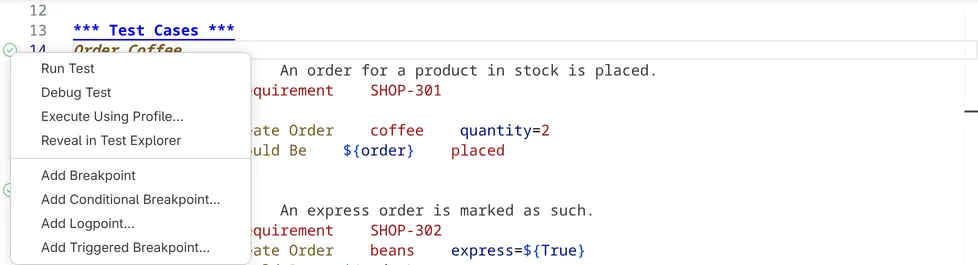
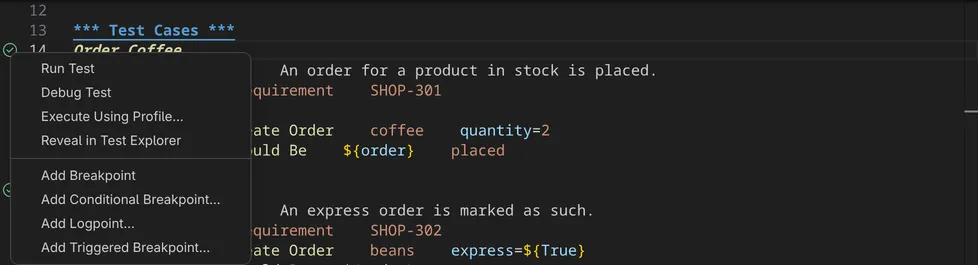
After a run, the editor shows each failure of a failed test at the step of the test that led to it, at the line that failed and at the calls in between, see [Running and debugging in the Test Explorer](/guides/vscode/test-explorer/#running-and-debugging).
**RobotCode: Run Current File** and **RobotCode: Debug Current File** run or debug all tests and tasks of the file in the active editor. Both are also in the context menu of the editor and at the run button at the top right of the editor: a click on it runs the file, the arrow beside it offers **Debug Current File**. The context menu of the editor also has VS Code's **Run Test at Cursor** and **Debug Test at Cursor** for the test the cursor is in, and **Run Tests in Current File** and **Debug Tests in Current File** for all tests and tasks of the file.
## Choosing the configuration profiles
[Section titled “Choosing the configuration profiles”](#choosing-the-configuration-profiles)
**RobotCode: Select Configuration Profiles**, or **Select** at the profiles item of the [language status](/guides/vscode/#the-language-status), chooses the profiles of `robot.toml` that runs, test discovery and the language server use, for each workspace folder. The choice is stored in the setting [`robotcode.profiles`](/reference/vscode-settings/#robotcode.profiles) of the workspace folder.
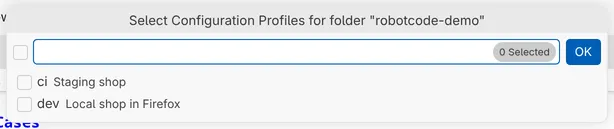
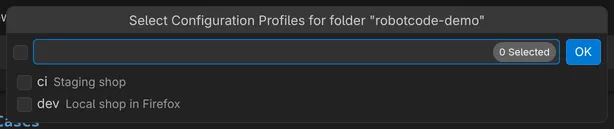
## Debugging
[Section titled “Debugging”](#debugging)
Click left of the line numbers to set a breakpoint in a test, a keyword or a resource file, then debug the test. The context menu of the breakpoint margin also adds conditional breakpoints, breakpoints with a hit count and logpoints, which log a message instead of stopping. A hit count of `3` stops at the third hit, `>= 3` from the third hit on and `% 3` at every third hit; `>`, `<` and `<=` work as well. While the test is stopped:
* the **Run and Debug** view shows the variables of each scope (local, test, suite and global) and the call stack of keywords, tests and suites;
* RobotCode shows the values of the variables at the end of the lines in the editor, and hovering over a variable shows its value;
* the debug toolbar continues (`F5`), steps over (`F10`), into (`F11`) and out of (`Shift+F11`) a keyword, and stops the run.
[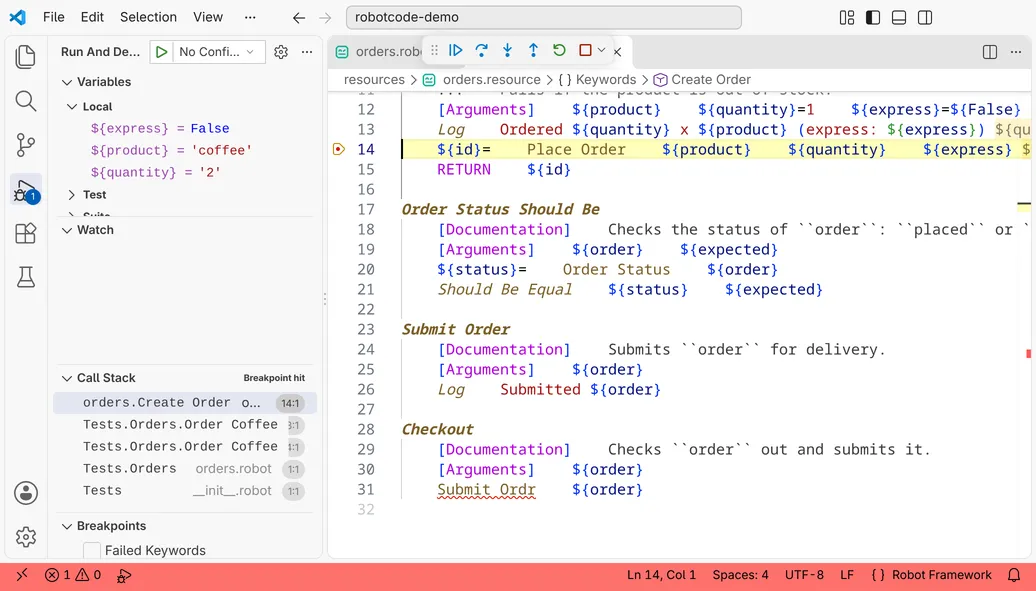](/_astro/running-debug-light.DD4ho7bl.png "Open in full size")
[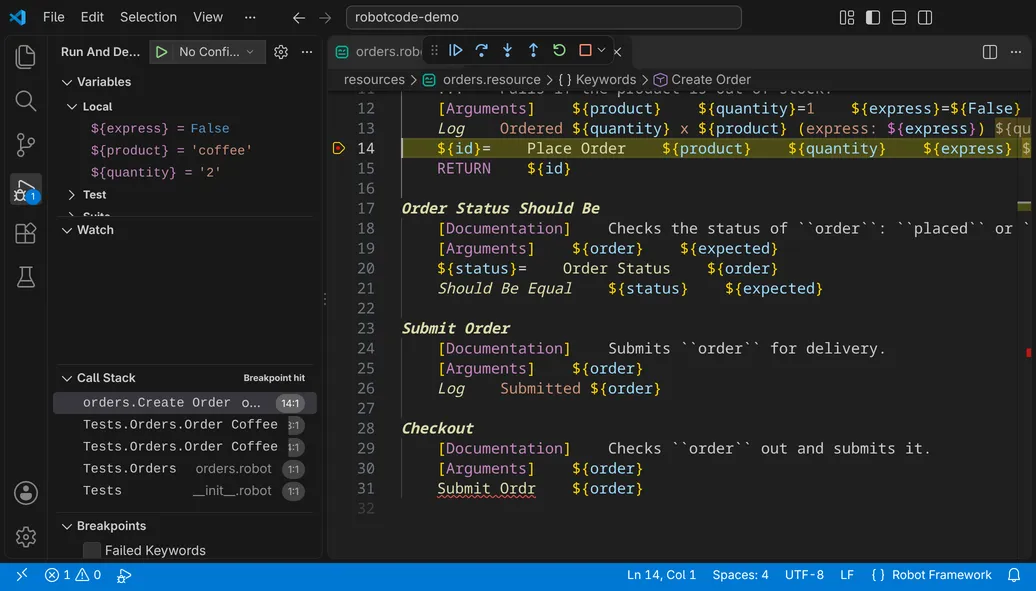](/_astro/running-debug-dark.BljeWygz.png "Open in full size")
[]()[]()[](/_astro/running-stepping-dark.B3L1TqVj.mp4)
### Stopping at failures
[Section titled “Stopping at failures”](#stopping-at-failures)
The **Breakpoints** section of the Run and Debug view also stops at failures: **Uncaught Failed Keywords** is on by default and stops where a keyword fails unless the failure is handled, by a matching `EXCEPT` branch of a surrounding `TRY` or by a BuiltIn keyword that handles failures, such as `Run Keyword And Expect Error`, `Run Keyword And Ignore Error` or `Wait Until Keyword Succeeds`. **Failed Keywords**, **Failed Tests** and **Failed Suites** stop at every failed keyword, test or suite. Each of them takes a condition, with **Edit Condition** in its context menu.
When the run stops at a failure, the editor shows the failed keyword and its message below the line; for **Failed Tests** and **Failed Suites**, it names the test or suite instead. Under the message, it lists the calls that led there, from the test down to the failed keyword, each with a link to its file and line, and then, for an error from the Python code of a library, its Python traceback, at every log level, even though Robot Framework writes it to the log only at the level `DEBUG`. The links open with `Ctrl`+click (`Cmd`+click on macOS); a plain click does nothing.
[]()[]()[](/_astro/running-stop-at-failure-dark.wF9V66nI.mp4)
### The Debug Console
[Section titled “The Debug Console”](#the-debug-console)
While a test is stopped, the **Debug Console** (`Ctrl+Shift+Y`, `Cmd+Shift+Y` on macOS, or its tab in the panel) evaluates what you type in the context of the current keyword: a variable such as `${product}` shows its value, and a keyword call, written as in a test with its arguments, runs the keyword and shows what it returns.
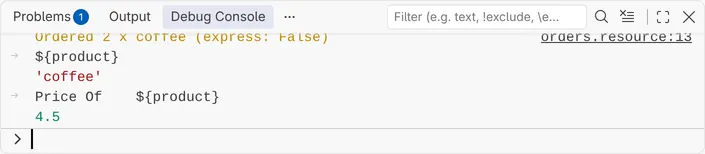
[]()[]()[](/_astro/running-evaluate-in-console-dark.CzSkNG4P.mp4)
To debug in the terminal instead, see [Command-line debugging with robotcode robot-debug](/guides/cli/robot-debug/).
## Launch configurations
[Section titled “Launch configurations”](#launch-configurations)
The launch configurations of type `robotcode` in `.vscode/launch.json` start runs from the Run and Debug view and change how the Test Explorer and the editor run tests. **Add Configuration...** in `launch.json` offers these templates:
| Template | Purpose |
| ------------------------ | --------------------------------------------------------------------------------------------------------------------------------------------- |
| RobotCode: Run Current | Runs the file in the active editor (`"target": "${file}"`). |
| RobotCode: Run All | Runs all tests of the workspace folder (`"target": "."`). |
| RobotCode: Test | With `"purpose": "test"`: its settings apply to the runs of the Test Explorer and the editor. |
| RobotCode: Test Profile | With `"purpose": "test-profile"`: becomes a run profile of the Test Explorer, see [Run profiles](/guides/vscode/test-explorer/#run-profiles). |
| RobotCode: Default | With `"purpose": "default"`: its settings apply to all other RobotCode launch configurations. |
| RobotCode: Remote-Attach | Attaches to a run that waits for a debugger, by default on `localhost:6612`. |
A configuration takes the options of a run, such as `profiles`, `variables`, `include`, `exclude`, `args` and `env`; VS Code completes and explains them while you edit `launch.json`. The settings `robotcode.robot.args`, `robotcode.robot.variables` and `robotcode.robot.env` are combined with these options, `profiles` falls back to `robotcode.profiles`, and options such as `console` and `attachPython` fall back to the `robotcode.debug.*` settings, see the [VS Code settings](/reference/vscode-settings/#debug).
## The output of a run
[Section titled “The output of a run”](#the-output-of-a-run)
A run writes its output to RobotCode's run terminal, named after the run, such as **RobotCode: Run Tests robotcode-demo**. Before each run, the terminal shows the run's command line after `* Executing:` as you would type it, starting with `robotcode`, with the configuration profiles and the other options of the run, so that you can check them; **Copy Command** copies it in full, with the interpreter. Robot Framework runs there without a shell, with the terminal as its input and output: its colors and its progress line work, and `Ctrl+C` stops the run as in a shell. Every run uses the interpreter of the workspace folder; the Python extensions do not activate an environment in this terminal.
VS Code marks the command line of each run with its command decoration, blue when the run passed and red when it failed. A click on it offers **Copy Command**, **Copy Output** and the other entries of VS Code's menu for commands; **Rerun Command** does nothing here. `Ctrl+↑` and `Ctrl+↓` (`Cmd+↑` and `Cmd+↓` on macOS) jump between the runs, and while you scroll through the output of a run, its command line stays at the top of the terminal.
After the run, the terminal keeps the output and says that RobotCode will reuse it: the next run with the same name runs in it, below the earlier output, and any key closes it. A run that starts while the terminal is still busy gets a terminal of its own.
The setting [`robotcode.debug.defaultConsole`](/reference/vscode-settings/#robotcode.debug.defaultConsole), or `console` in a launch configuration, chooses where a run writes its output:
| Value | Output |
| -------------------- | -------------------------------------------------------------------------------------- |
| `robotcodeTerminal` | RobotCode's run terminal, the default. |
| `integratedTerminal` | A shell in VS Code's integrated terminal, which stays open after the run. |
| `internalConsole` | The Debug Console, without a terminal. |
| `externalTerminal` | A terminal window outside VS Code, as set in VS Code's `terminal.external.*` settings. |
When a run writes its output to a terminal, VS Code does not open the Debug Console by itself; `Ctrl+Shift+Y` (`Cmd+Shift+Y` on macOS) opens it. If you set VS Code's setting `debug.internalConsoleOptions`, or `internalConsoleOptions` in a launch configuration, that value decides when it opens.
## The log after a run
[Section titled “The log after a run”](#the-log-after-a-run)
With [`robotcode.run.openOutputAfterRun`](/reference/vscode-settings/#robotcode.run.openOutputAfterRun) set to `log` or `report`, RobotCode opens the log or report of a run when it ends, by default in VS Code's browser beside the editor; [`robotcode.run.openOutputTarget`](/reference/vscode-settings/#robotcode.run.openOutputTarget) opens it in your web browser instead.
[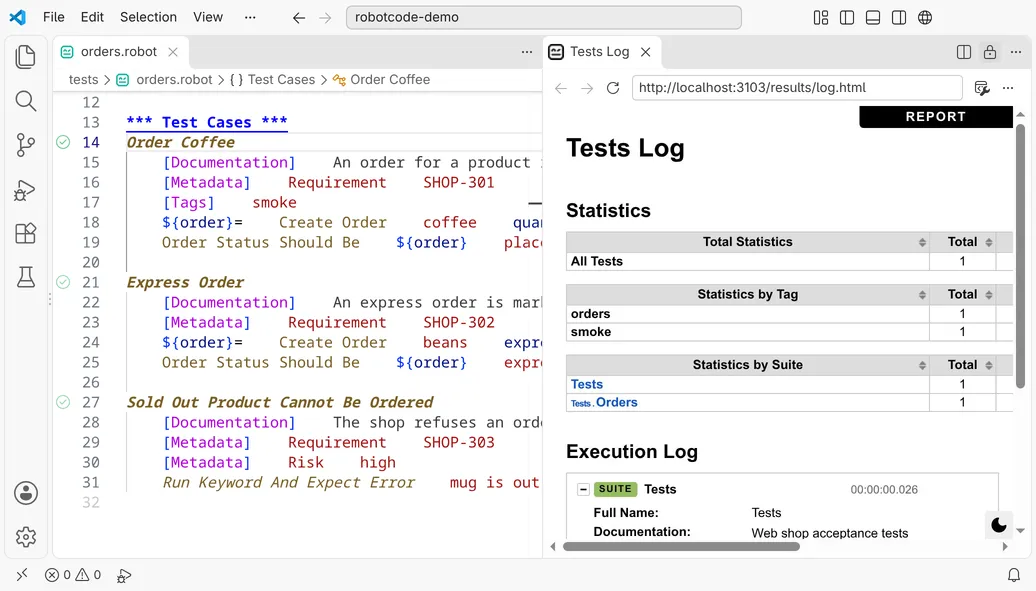](/_astro/running-log-light.B-n50qFE.png "Open in full size")
[](/_astro/running-log-dark.CMz4-mB3.png "Open in full size")
# The Test Explorer
> How RobotCode fills the Test Explorer with your suites, tests and tasks, how to filter, run and debug them, and how results and errors appear.
The **Test Explorer** is VS Code's **Testing** view; open it with the flask icon in the activity bar. RobotCode lists the suites, tests and tasks of every workspace folder there, as "Robot Framework Tests/Tasks", and runs or debugs them. To run and debug from the editor, see [Running and Debugging](/guides/vscode/running-and-debugging/).
[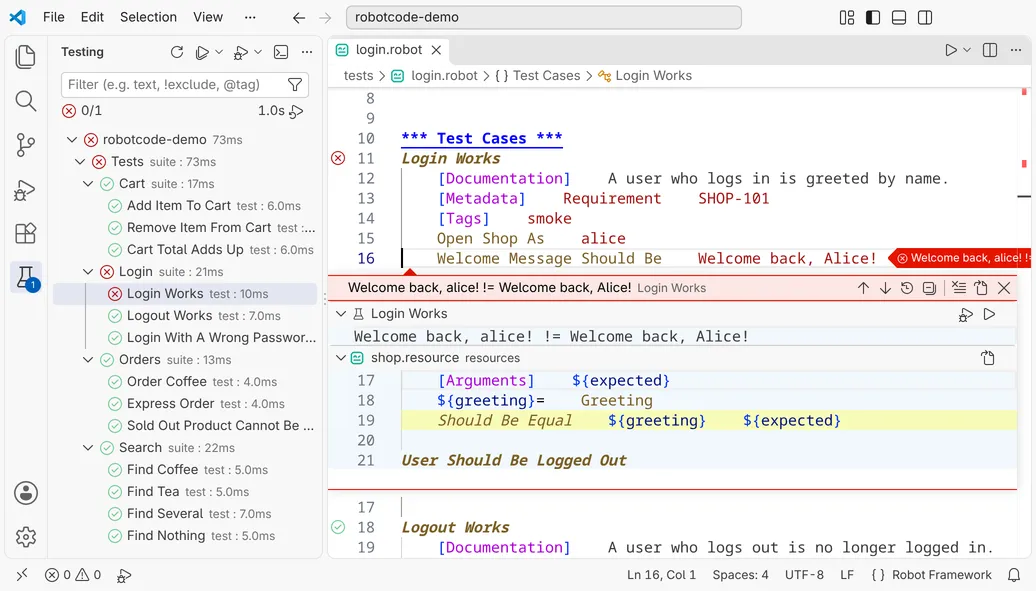](/_astro/test-explorer-window-light.CvzJcyuN.png "Open in full size")
[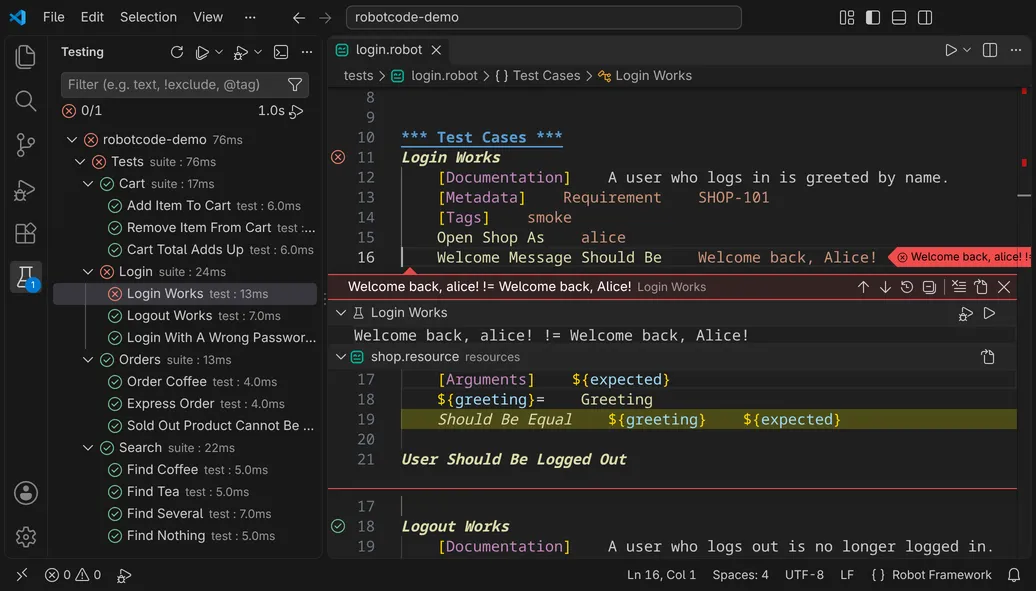](/_astro/test-explorer-window-dark.BxbRMfrV.png "Open in full size")
## Where the tests come from
[Section titled “Where the tests come from”](#where-the-tests-come-from)
RobotCode finds the tests the way [`robotcode discover`](/guides/cli/discovering-tests/) does, in each workspace folder: with the paths, profiles and other options of the folder's `robot.toml`, and without the files that [`.robotignore`](/guides/robot-toml/ignoring-files/) excludes. The tree follows Robot Framework's suite structure: the workspace folder, the suites made from directories and files, and the tests and tasks in them.
The tree updates when you change, save, create or delete a Robot Framework file, also an `__init__.robot`, and when you create, copy, rename, move or delete a folder; it also takes unsaved changes into account. Files and folders that are changed, created, copied, renamed, moved or deleted outside VS Code, for example by `git` or in a terminal, update the tree as well. A change to a resource file leaves the tree as it is, since a resource file holds no tests or tasks. A change to a `robot.toml`, `.robot.toml`, `pyproject.toml`, `.robotignore` or `.gitignore` in the workspace folder restarts the folder's language server and updates the tree too. After other changes, for example to a `robot.toml` outside the workspace folder, **Refresh Tests** in the view's title bar reads the tests of every workspace folder again and rebuilds the tree.
## Running and debugging
[Section titled “Running and debugging”](#running-and-debugging)
Hover over a suite, test or task to run or debug it with the buttons beside it; **Run Tests** and **Debug Tests** in the view's title bar run all of them. A run shows its result at each entry: passed, failed or skipped, with the time it took. **Show Output** in the title bar opens the output of the run, with the messages Robot Framework logged.
For a failed test, each failure appears in the editor with its message: at the step of the test that led to it, at the line that failed, and at the calls in between. A click on a failure's marker opens a peek below the step, with the whole message and the calls that led to the failure, from the step inward to the line that failed, each with a few lines of its code. When a file has more than one of these calls, VS Code marks the first of them; at the others, the message appears as VS Code's inline test output, which **Test: Toggle Inline Test Output** switches off and on.
A keyword such as `Wait Until Keyword Succeeds` or `Run Keyword And Expect Error` that ends with an error of its own after failures inside it is one failure, with its own message, and its peek lists the calls of the last failure inside it. A failed test also shows the failures it caught, with `TRY`/`EXCEPT` or a keyword such as `Run Keyword And Ignore Error`: after the others and with `Caught:` before their message.
[]()[]()[](/_astro/test-explorer-run-dark.5sqHNzRm.mp4)
## Run profiles
[Section titled “Run profiles”](#run-profiles)
A run uses a run profile. RobotCode creates these:
* **Run** and **Debug** for each workspace folder, with the folder's name added in a workspace with several folders. They run with the configuration profiles you selected with **RobotCode: Select Configuration Profiles**; **Configure Test Profiles** in VS Code opens that command for them.
* A **Run** and a **Debug** profile for each profile of the folder's `robot.toml`, named after the profile and its description, such as "Run ci - Staging shop".
* A **Run** and a **Debug** profile for each configuration in `launch.json` with the purpose `test-profile`, named after the configuration.
The arrow beside **Run Tests** and **Debug Tests** lists the profiles to run with and offers **Select Default Profile**, which decides the profile a click on the button uses. **Execute Using Profile...** in the context menu of an entry runs it once with another profile.
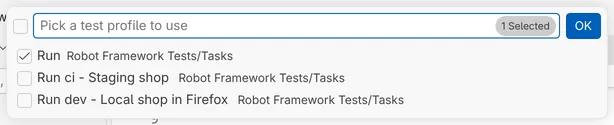
A test profile in `launch.json` combines the settings of a launch configuration; the snippet **RobotCode: Test Profile** creates one. For example, this profile runs the selected tests with the `ci` profile of `robot.toml`, and only those tagged `smoke`:
.vscode/launch.json
```json
{
"name": "Smoke on staging",
"type": "robotcode",
"request": "launch",
"purpose": "test-profile",
"presentation": { "hidden": true },
"profiles": ["ci"],
"include": ["smoke"]
}
```
## Filtering
[Section titled “Filtering”](#filtering)
The filter field above the tree takes text and `!text` to exclude, and tags with `@`: the tags of your tests are offered as `@robotCode.RobotFramework:`. VS Code adds filters such as `@failed`, `@executed` and `@openedFiles`, and the funnel button beside the field.
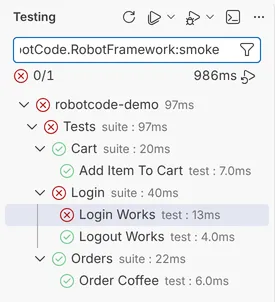
## Problems while finding the tests
[Section titled “Problems while finding the tests”](#problems-while-finding-the-tests)
When Robot Framework reports a problem while RobotCode reads the tests, the problem appears in the **Problems** view at the file, with the source `robotcode.discover`, for example "'Test Cases' section is not allowed in suite initialization file." or "One file cannot have both tests and tasks." Until you fix it, the suite of that file, or its tests, may be missing from the tree.
RobotCode shows nothing in the Testing view until a workspace folder is a [Robot Framework project](/guides/vscode/configuration/#the-python-environment), and its hints count only such folders: a folder without Robot Framework files or configuration gets none.
When RobotCode finds no tests or tasks at all and reports no problem, the Testing view shows a hint from RobotCode below VS Code's own text: where tests are looked for, with **Refresh Tests** and a link to the [troubleshooting page](/guides/vscode/troubleshooting/). Without a Python environment with Robot Framework, the hint says so instead and offers **Select Python Environment**. When the [configuration profiles](/guides/vscode/configuration/#configuration-profiles) selected for a folder name a profile that its configuration does not define, the folder leaves the tree, and the hint says so, with **Select Configuration Profiles**. VS Code shows these hints only while the tree is empty: next to another folder with tests, such a folder just leaves the tree.
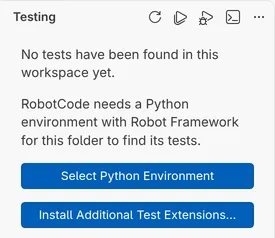
## Switching the Test Explorer off
[Section titled “Switching the Test Explorer off”](#switching-the-test-explorer-off)
The setting [`robotcode.testExplorer.enabled`](/reference/vscode-settings/#robotcode.testExplorer.enabled) switches the Test Explorer integration off, also for single workspace folders. While it is off for every workspace folder that is a Robot Framework project, the Testing view says so and offers to open the setting.
# Troubleshooting RobotCode in VS Code
> Find RobotCode's output and logs in VS Code, check and copy the versions in use, restart the language servers, clear the cache and report an issue.
When RobotCode does not behave as you expect, for example when keywords are not found that exist or the Test Explorer stays empty, start with the versions RobotCode uses and its logs.
## Check the versions in use
[Section titled “Check the versions in use”](#check-the-versions-in-use)
Hover over the braces next to "Robot Framework" in the status bar to see the [language status](/guides/vscode/#the-language-status) of the workspace folder of the active file:
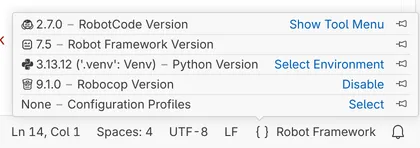
If Robot Framework shows "not installed", or the Python environment is not the one you expect, choose the right environment with **Select Environment**, or install Robot Framework into the environment; RobotCode notices the install and starts the language server by itself, see [The Python environment](/guides/vscode/configuration/#the-python-environment). The item says what is wrong with the environment: Robot Framework missing or too old, no interpreter selected, or Python too old. Check the profiles too: a profile can change the paths, the Python path and the variables of a project.
## The RobotCode menu
[Section titled “The RobotCode menu”](#the-robotcode-menu)
**RobotCode: Show Tool Menu**, or **Show Tool Menu** at the RobotCode version of the language status, opens a menu with RobotCode's tools:
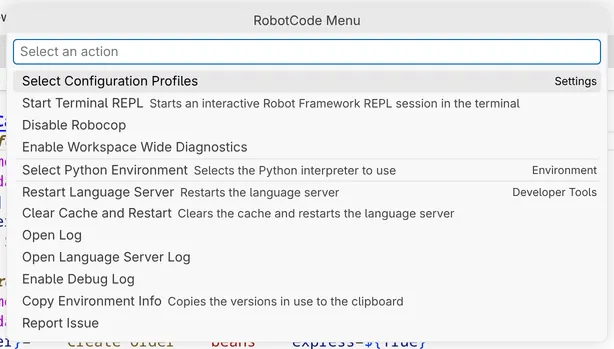
## Output and logs
[Section titled “Output and logs”](#output-and-logs)
RobotCode writes to two channels of the Output panel:
* **RobotCode** (**Open Log** in the menu) logs what the extension does, for example the `robotcode` commands it runs to discover tests, and errors of the extension.
* **RobotCode Language Server for folder …** (**Open Language Server Log**) is the log of the language server of the workspace folder.
**Enable Debug Log** in the menu makes the language server log in detail: it sets [`robotcode.languageServer.extraArgs`](/reference/vscode-settings/#robotcode.languageServer.extraArgs) to `--verbose --log --log-level DEBUG`, which restarts the language server. **Disable Debug Log** removes the setting again.
## Restart and clear the cache
[Section titled “Restart and clear the cache”](#restart-and-clear-the-cache)
* **RobotCode: Restart Language Servers** stops the language servers and starts them again. It also checks the Python environment again and switches a folder back on that you switched off for the session from the environment message; RobotCode normally notices a changed environment or a later install of Robot Framework by itself, so this is for the cases it missed.
* **RobotCode: Clear Cache and Restart Language Servers** also deletes RobotCode's [analysis cache](/guides/vscode/diagnostics-and-linting/#the-analysis-cache), so that every library and file is loaded and analyzed again. Use it when diagnostics stay outdated although the files are right.
The RobotCode menu offers both for the workspace folder of the active file.
## Report an issue
[Section titled “Report an issue”](#report-an-issue)
**RobotCode: Report Issue...**, also in the RobotCode menu, opens VS Code's issue reporter for RobotCode, with the versions of Python, Robot Framework and Robocop of your workspace filled in. Describe what you did, what you expected and what happened; a small example project and the logs from above help to find the cause. You can also open an issue directly on [GitHub](https://github.com/robotcodedev/robotcode/issues).
**RobotCode: Copy Environment Info**, also in the RobotCode menu, copies the versions of the workspace folder of the active file to the clipboard: VS Code, RobotCode, the operating system, Python, Robot Framework and Robocop, as a list with the fields of RobotCode's bug report template. Paste it into an issue, a forum post or a chat. An extra line names the editor when it isn't VS Code, the remote, for example WSL, and the language server's RobotCode version when it differs from the extension's. The command also works while the language server doesn't run, for example because Robot Framework is missing in the environment, and the list contains no paths.
# Writing Robot Framework Code in VS Code
> Completion, signature help, hover, inlay hints, quick fixes, rename and formatting while you write Robot Framework code in VS Code.
RobotCode analyzes your files the way Robot Framework reads them: it knows the libraries, resource files and variable files a file imports, and with them every keyword and variable the file can use. While you type, it uses that knowledge to complete, explain and check your code.
[]()[]()[](/_astro/writing-new-test-dark.DXtGf-93.mp4)
## Completion
[Section titled “Completion”](#completion)
Completion appears as you type, or with `Ctrl+Space`. It offers what fits at the cursor:
* **Keywords** of the file itself and of everything it imports, with the keyword's arguments and documentation beside the list.
* **Arguments** of the keyword being called, such as named arguments like `express=`.
* **Variables** after `${`, `@{` and `&{`, and environment variables after `%{`.
* **Imports:** library names, the paths of resource and variable files, and the arguments of a library.
* **Section headers, settings and reserved tags** such as `robot:skip`.
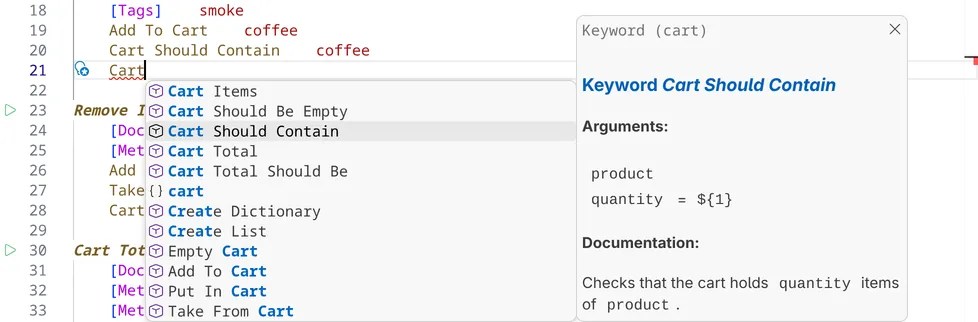
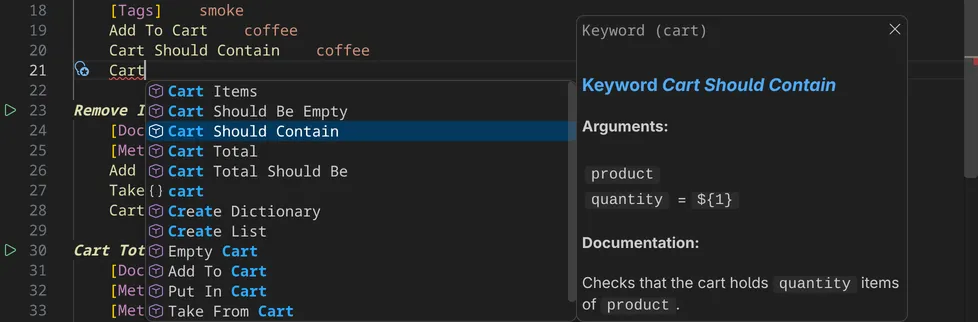
Keywords that are tagged `robot:private` and defined in another file are not offered, and deprecated keywords are offered struck through. The settings [`robotcode.completion.hidePrivateKeywords`](/reference/vscode-settings/#robotcode.completion.hidePrivateKeywords) and [`robotcode.completion.hideDeprecatedKeywords`](/reference/vscode-settings/#robotcode.completion.hideDeprecatedKeywords) change that.
## Signature help
[Section titled “Signature help”](#signature-help)
While you type the arguments of a keyword call, the signature help shows the keyword's arguments and its documentation, and highlights the argument at the cursor. `Ctrl+Shift+Space` (`Shift+Cmd+Space` on macOS) opens it at any argument.
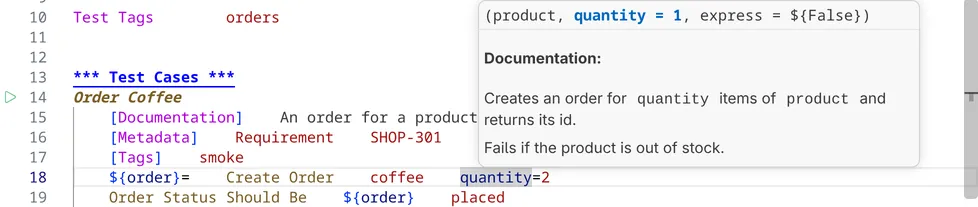
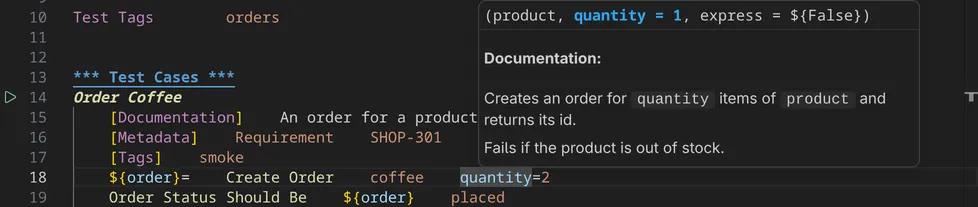
## Hover
[Section titled “Hover”](#hover)
Hover over a keyword call to see the keyword's arguments and documentation, over a variable to see what kind of variable it is and, where RobotCode can resolve it, its value, and over the name of a library or resource file, for example in its import, to see its documentation.
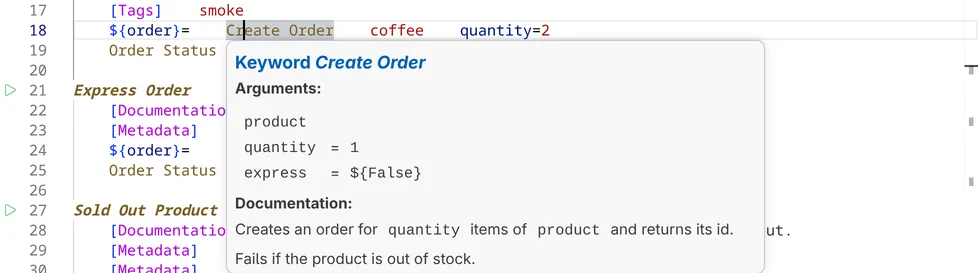
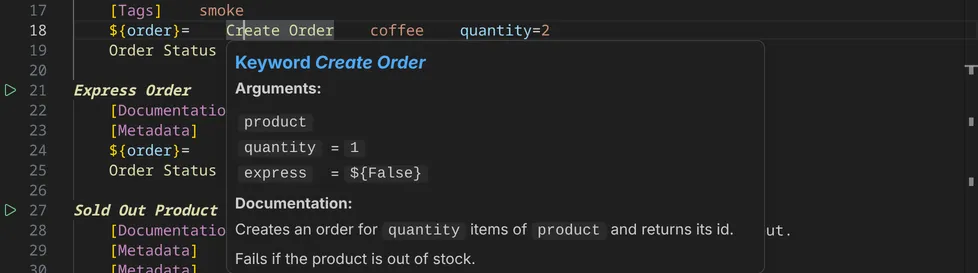
A link in the hover opens the documentation in the [Documentation Viewer](/guides/vscode/documentation-viewer/).
## Inlay hints
[Section titled “Inlay hints”](#inlay-hints)
Inlay hints show what the code leaves unsaid: the names of the arguments of a keyword call and the library or resource file a keyword comes from. By default, VS Code shows them only while you hold `Ctrl+Alt` (`Ctrl+Option` on macOS). To see them all the time, set `editor.inlayHints.enabled` to `on` for Robot Framework files:
settings.json
```json
"[robotframework]": {
"editor.inlayHints.enabled": "on"
}
```
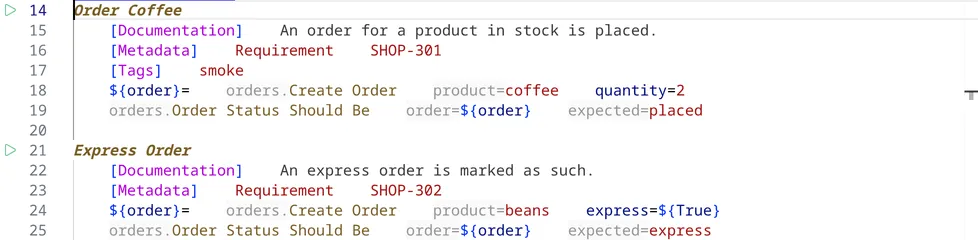
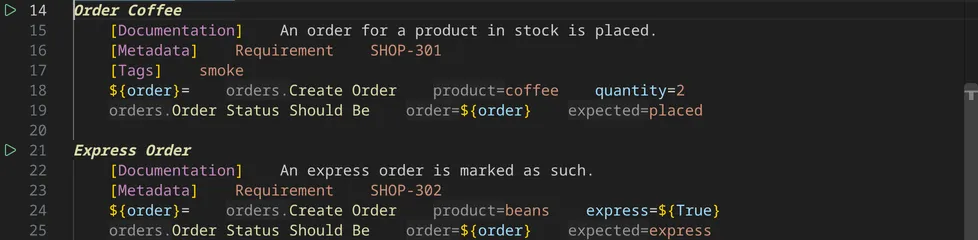
[`robotcode.inlayHints.parameterNames`](/reference/vscode-settings/#robotcode.inlayHints.parameterNames) and [`robotcode.inlayHints.namespaces`](/reference/vscode-settings/#robotcode.inlayHints.namespaces) switch the two kinds of hints off separately.
## Semantic highlighting
[Section titled “Semantic highlighting”](#semantic-highlighting)
RobotCode colors the code by its meaning: keyword calls, their arguments, variables, settings and comments each get their own color, and the namespace part of `orders.Create Order` differs from the keyword name. The colors come from your color theme. To change them, see [Customizing Robot Framework Highlighting in VS Code](/guides/vscode/highlighting/).
## Quick fixes and refactorings
[Section titled “Quick fixes and refactorings”](#quick-fixes-and-refactorings)
A light bulb, or `Ctrl+.` (`Cmd+.` on macOS), offers quick fixes and refactorings at the cursor:
* **Create Keyword** for a call of a keyword that does not exist: adds the keyword to the file.
* **Create local variable**, **Create suite variable** and **Add argument** for a variable that is not found.
* **Assign keyword result to variable** for a keyword call whose result is not assigned yet.
* **Extract keyword** moves the lines selected in a test or keyword into a new keyword and calls it.
* **Surround with TRY...EXCEPT**, **TRY...FINALLY** or **TRY...EXCEPT..FINALLY** wraps the lines selected in a test or keyword.


**Refactor...** in the context menu of the editor lists only the refactorings, for example **Extract keyword** and the **Surround with** entries for the selected lines.
## Rename
[Section titled “Rename”](#rename)
**Rename Symbol** in the context menu of the editor, or `F2`, renames the keyword or variable at the cursor, at its definition and at every use RobotCode finds in the workspace. Keywords with embedded arguments cannot be renamed. For a keyword of a library and for built-in, imported, command-line and environment variables, RobotCode renames only the uses and tells you so.
## Formatting
[Section titled “Formatting”](#formatting)
**Format Document** (`Shift+Alt+F` on Windows, `Ctrl+Shift+I` on Linux, `Shift+Option+F` on macOS) and **Format Selection**, both also in the context menu of the editor, use the formatter of [Robocop](https://robocop.dev/), with the Robocop configuration of your project. Install `robotframework-robocop` 6.0 or later into the Python environment of the project; without it, RobotCode reports that no formatter is available.
## New files and indentation
[Section titled “New files and indentation”](#new-files-and-indentation)
**RobotCode: New Robot Framework File**, also **New Robot Framework File** in the context menu of a folder in the Explorer and **Robot Framework File** under **File → New File...**, creates a suite file, a resource file or an `__init__.robot` file. In Robot Framework files, `Tab` inserts four spaces; [`robotcode.editor.4SpacesTab`](/reference/vscode-settings/#robotcode.editor.4SpacesTab) switches that off.
# What's New in v2.5.0
> RobotCode 2.5.0 adds a persistent analysis cache and faster keyword matching, plus Literal completion, CLI unused keyword checks and cache commands.
If you've ever opened a large Robot Framework project and gone for coffee while **RobotCode** was still thinking — this release is for you. Version 2.5.0 is all about **speed**: faster startup, faster analysis, faster code completion. And a few new tricks on top.
## Instant Startup with Analysis Caching
[Section titled “Instant Startup with Analysis Caching”](#instant-startup-with-analysis-caching)
The biggest change you'll notice: **RobotCode remembers**. When you open a project for the second time, all the analysis work from your last session is still there — diagnostics, code completion, navigation, everything loads almost instantly.
Behind the scenes, **RobotCode** now stores fully resolved analysis data in a local SQLite database. Instead of re-analyzing every file on every IDE start, it loads cached results and only re-processes files that actually changed. For projects with hundreds of Robot files, this can cut startup from minutes down to seconds.
This is **enabled by default** — there's nothing to configure. The cache is automatically invalidated when your source files change, when library dependencies are updated, when environment variables or command-line variables differ, or when you update **RobotCode** itself. If something changes, the affected parts are re-analyzed — everything else comes straight from cache.
Since this is a new feature, you can disable it if you run into any issues:
robot.toml
```toml
[tool.robotcode-analyze.cache]
cache-namespaces = false
```
or via the CLI:
```bash
robotcode analyze --no-cache-namespaces
```
Multiple processes (the language server, CLI commands, parallel analyze runs) can safely access the cache at the same time thanks to file-level locking. No corruption, no conflicts.
## Performance: The Numbers
[Section titled “Performance: The Numbers”](#performance-the-numbers)
Even without the cache, this release is noticeably faster. Here's what changed:
* **No more 30-minute hangs on large projects.** Robot Framework's `variable_not_found` runs a fuzzy "Did you mean…?" search on every unresolved variable — a nice idea, but O(n×m) over all variable candidates. For big projects (375+ files), this could freeze the analysis for over 30 minutes. **RobotCode** now skips that search entirely since it never uses the suggestion text. Problem solved. ([#587](https://github.com/robotcodedev/robotcode/issues/587))
* **Keyword matching is 94% faster.** The `KeywordMatcher` used to be instantiated from scratch on every lookup — about 7.5 million times per analysis run. It's now cached on the `KeywordDoc` itself. Combined with a new dict-based index in `KeywordStore`, keyword lookups went from linear scan to O(1) for non-embedded keywords. Overall analysis time dropped by **22%** with **31% fewer function calls**.
* **File resolution is 28% faster.** Swapping `pathlib.Path` for `os.path` string operations in the hot path of file resolution plus lazy-caching of valid `sys.path` entries cut warm-start wall time by nearly a third.
* **Less memory per document.** Each document used to keep two cached AST models. Now there's just one, saving around 200–500 KB per file. That adds up quickly in a big workspace.
* **Faster cache loading.** Cached namespace data now includes source hints that let **RobotCode** skip expensive filesystem lookups (`find_resource`) when the cached paths still exist on disk. Cache entries use lazy deserialization — data blobs are only unpickled on actual cache hits, not on every lookup.
* **`ArgumentSpec.resolve()` actually caches now.** A subtle bug caused `RobotArgumentSpec` to be recreated on every call (100K times per run) instead of being cached. Fixed — instantiation calls dropped by **98.7%**.
## Smarter Code Completion for Type Hints
[Section titled “Smarter Code Completion for Type Hints”](#smarter-code-completion-for-type-hints)
If you write Python libraries with type hints like `Literal["fast", "slow", "auto"]`, **RobotCode** now picks up on those and shows the allowed values directly in the completion list. This works for `Union` types containing `Literal` too, so `Literal["x", "y"] | int` will offer `x` and `y` as suggestions.
No more switching to the library docs just to look up which string values a keyword accepts — the editor tells you right there.
## Find Unused Keywords & Variables from the CLI
[Section titled “Find Unused Keywords & Variables from the CLI”](#find-unused-keywords--variables-from-the-cli)
Unused keywords and variables are the kind of thing that quietly accumulates in any project. **RobotCode** can now detect them when running `robotcode analyze code` from the command line — great for CI pipelines or periodic cleanup sessions.
Enable it in your `robot.toml`:
```toml
[tool.robotcode-analyze.code]
collect-unused = true
```
Or toggle it per invocation:
```bash
robotcode analyze code --collect-unused
robotcode analyze code --no-collect-unused
```
## Full Control over the Analysis Cache
[Section titled “Full Control over the Analysis Cache”](#full-control-over-the-analysis-cache)
A new `robotcode analyze cache` command group gives you visibility into what's cached and lets you manage it when needed:
```bash
robotcode analyze cache path # where is the cache stored?
robotcode analyze cache info # cache statistics, per-section breakdown
robotcode analyze cache list # list cached entries (supports glob filtering with -p)
robotcode analyze cache clear # remove cached entries by section
robotcode analyze cache prune # wipe the entire cache
```
All output respects `--format` (text/json/toml) and `--no-color`, so it plays nicely with scripts and CI.
You can also point the cache to a custom directory via the `ROBOTCODE_CACHE_DIR` environment variable. The VS Code extension automatically sets this in the integrated terminal, so your CLI commands and the language server always share the same cache without any manual setup.
## Bug Fixes
[Section titled “Bug Fixes”](#bug-fixes)
* Fixed cache validation for libraries imported via relative paths — no longer triggers unnecessary full rebuilds on warm start.
* Variable names with trailing `=` are now stripped correctly by the resource builder ([#546](https://github.com/robotcodedev/robotcode/issues/546)).
* **RobotCode** no longer overrides the `source` field on AST blocks when Robot Framework itself already sets it ([#588](https://github.com/robotcodedev/robotcode/issues/588)).
* Fixed a race condition when accessing workspace language settings in multi-workspace setups.
## Under the Hood
[Section titled “Under the Hood”](#under-the-hood)
A lot of internal work went into this release to prepare for future features:
* **Workspace-wide reference index (ProjectIndex)** — **RobotCode** now maintains an incrementally updated inverse index across your entire workspace. When a file changes, only its references are updated instead of scanning everything. This covers keywords, variables, namespace entries, keyword tags, testcase tags, and metadata. This is the foundation for upcoming features like unused import detection, import dependency visualization, and call hierarchy — stay tuned.
* **Namespace refactoring** — The old monolithic `Namespace` class has been split into a clean data container (`Namespace` DTO) built by a dedicated `NamespaceBuilder`, with separate modules for import resolution, AST analysis, variable scoping, and scope trees. This makes the codebase more maintainable and easier to extend.
* **`RF_VERSION` constant** — All \~134 scattered `get_robot_version()` call sites have been replaced with a single module-level constant. All dead code for Robot Framework < 5.0 (which is no longer supported) has been removed.
* **JSON file watching** — `.json` files are now included in the watched file extensions, so changes to JSON-based configuration are picked up automatically.
* **Deprecated Robocop options removed** — Legacy robocop configuration options that were deprecated in earlier releases have been cleaned up.
***
## Thank You
[Section titled “Thank You”](#thank-you)
Thanks to everyone who reported issues, contributed ideas, and tested pre-release builds. Your feedback drives every release.
For the full list of changes, see the [Changelog](https://github.com/robotcodedev/robotcode/blob/main/CHANGELOG.md).
* [Report issues](https://github.com/robotcodedev/robotcode/issues)
* [Discussions & Q\&A](https://github.com/robotcodedev/robotcode/discussions)
* [Sponsor RobotCode](https://opencollective.com/robotcode)
# What's New in v2.5.0 (April 1st Edition)
> April Fools version of the 2.5.0 notes with made-up features like predictive caching and emotional code completion, plus a link to the real release.
April Fools' joke
This post is an April Fools' joke: none of the features it describes exist. The real release notes are in [What's New in v2.5.0](/news/v2-5-0/).
Hello everyone,
we're excited to share a big **RobotCode** release with you today. As many of you know, the main focus of v2.5.0 has been on performance — analysis caching, faster keyword resolution, smarter code completion. But while working on those features, we discovered some surprising opportunities that we just couldn't leave on the table. Here's the full picture.
## Predictive Analysis Caching
[Section titled “Predictive Analysis Caching”](#predictive-analysis-caching)
You already know that **RobotCode** now caches analysis results in a local SQLite database for instant startup. But we didn't stop there.
The new **Predictive Caching** engine uses your git history, file modification patterns, and time-of-day statistics to pre-analyze files you're *likely* to open next. If you usually start your Monday mornings in the login test suite, **RobotCode** has those results ready before you even open the file.
It also watches your keyboard idle patterns. Extended pauses after writing a `FOR` loop typically mean you're about to switch to a different file for reference — so **RobotCode** pre-caches the top 5 most probable navigation targets during those pauses.
Configure prediction depth in `robot.toml`:
```toml
[tool.robotcode-analyze.cache]
prediction-depth = "clairvoyant" # options: "conservative", "optimistic", "clairvoyant"
```
## Proactive Performance Mode
[Section titled “Proactive Performance Mode”](#proactive-performance-mode)
The performance improvements in v2.5.0 (94% faster keyword matching, 28% faster file resolution) were so effective that we ran into an unexpected problem: **RobotCode** now finishes analysis before some editors are ready to receive the results.
To address this, we've added **Proactive Performance Mode**. When enabled, **RobotCode** uses the leftover time between analysis completion and editor readiness to perform speculative work:
* pre-resolving keywords from libraries you haven't imported yet but statistically might
* warming up code completion for keyword arguments you're likely to type based on cursor position history
* pre-computing diagnostics for code you haven't written yet, based on how similar keyword calls usually end
This occasionally leads to diagnostic warnings appearing for lines that don't exist yet. This is expected behavior and usually means you were going to make that mistake anyway.
## Emotional Code Completion
[Section titled “Emotional Code Completion”](#emotional-code-completion)
The new type hint-based completion for `Literal` values turned out to be just the beginning. Our analysis of completion acceptance rates revealed that keyword suggestions are significantly more effective when they match the developer's current *emotional context*.
**RobotCode** now analyzes several signals to determine your coding mood:
* typing speed and error correction frequency
* time since last successful test run
* number of times you've hovered over the same unresolved keyword
* current scroll velocity (fast scrolling = frustration, slow scrolling = contemplation)
Based on this, code completion now adjusts its suggestions:
* **Confident mode**: shows advanced keywords, complex argument patterns, embedded arguments
* **Cautious mode**: prioritizes well-tested keywords with high call frequency in your workspace
* **Frustrated mode**: moves `Sleep` and `Log To Console` to the top of every completion list
* **Resignation mode**: suggests `[Tags] known-issue` and `Skip Not today`
## Keyword Adoption Program
[Section titled “Keyword Adoption Program”](#keyword-adoption-program)
Finding unused keywords with `robotcode analyze code --collect-unused` was a much-requested feature. But simply *listing* unused keywords felt incomplete. These keywords were written by someone, probably with good intentions, possibly on a Friday afternoon. They deserve better than a cold diagnostic message.
**RobotCode** now offers the **Keyword Adoption Program**. When an unused keyword is detected, instead of just flagging it, **RobotCode**:
* checks if any other workspace in your organization could use it (via the new optional Keyword Sharing Protocol)
* generates a short "keyword biography" describing when it was written, how many times it was called in happier times, and what it probably hoped to achieve
* suggests test cases where it *could* be useful, even if nobody asked
Keywords that remain unadopted for more than 30 days receive a farewell message in the Problems panel before being eligible for cleanup.
You can sponsor a keyword to prevent its removal:
```toml
[tool.robotcode-analyze.code]
sponsored-keywords = ["Click All The Things", "Verify Everything Is Fine"]
```
## Cache Mood Indicators
[Section titled “Cache Mood Indicators”](#cache-mood-indicators)
The new `robotcode analyze cache` CLI commands give you full control over your analysis cache. But raw statistics felt impersonal, so we've added a **Cache Mood** indicator.
Your cache now has feelings:
```bash
$ robotcode analyze cache info
Cache status: 😊 Content (2,847 entries, 98.2% hit rate)
```
Possible moods:
* 😊 **Content** — high hit rate, low invalidation, everything is in harmony
* 😐 **Indifferent** — moderate hit rate, cache is doing its job but doesn't feel appreciated
* 😟 **Anxious** — frequent invalidations, the cache is worried it might not be needed anymore
* 😤 **Frustrated** — constant cache misses, usually caused by rapidly changing files, the cache would like you to please make up your mind
* 💔 **Heartbroken** — you ran `cache prune`, the cache remembers everything that was lost
Running `cache prune` followed by `cache info` now shows a brief memorial of what was deleted, including the oldest entry's creation date and a message like "It had been with you since Tuesday."
## ProjectIndex: The Keyword Social Network
[Section titled “ProjectIndex: The Keyword Social Network”](#projectindex-the-keyword-social-network)
The new workspace-wide `ProjectIndex` tracks references between keywords, variables, and namespaces. Internally, this is a straightforward inverse index. But we realized the data maps surprisingly well to social network concepts.
The new **Keyword Social Graph** (available via `robotcode analyze social`) shows:
* **Popularity**: which keywords are called by the most test cases
* **Influence**: keywords whose failure would cascade to the most other tests
* **Cliques**: groups of keywords that are always used together and never separately
* **Loners**: keywords with zero incoming references (see: Keyword Adoption Program above)
* **Frenemies**: keyword pairs that are frequently used in the same test but never in the same keyword call — suggesting an unresolved tension
Keywords with high influence automatically receive a **\[Critical]** badge in code completion. Keywords in the "Loners" category get a 💬 icon suggesting they "reach out" to nearby test cases.
## Known Limitations
[Section titled “Known Limitations”](#known-limitations)
* Predictive caching defaults to `"clairvoyant"` on Fridays, which can cause unexpected cache entries for files in branches you haven't checked out yet
* Emotional code completion cannot detect sarcasm in keyword names
* The Keyword Adoption Program does not yet support cross-company adoption due to GDPR concerns
* Cache mood indicators are not yet configurable and may not reflect your own feelings about the cache
* `robotcode analyze social --include-drama` is available but not recommended in production environments
* The keyword social graph may reveal uncomfortable truths about your project's architecture
## Breaking Changes
[Section titled “Breaking Changes”](#breaking-changes)
* Cache entries now have feelings and may resist deletion if recently populated
* Keyword completion order may vary depending on your emotional state
* Running `cache prune` now prompts "Are you sure?" followed by "Are you really sure?" followed by a 5-second countdown
## Migration Guide
[Section titled “Migration Guide”](#migration-guide)
No manual migration is required. However, we recommend:
* giving your team a heads-up about the keyword biographies before someone gets emotional
* reviewing your CI pipeline expectations around cache mood
* not running `robotcode analyze social --include-drama` during sprint reviews
* checking the date before filing issues about any of the above
***
## What Actually Changed
[Section titled “What Actually Changed”](#what-actually-changed)
Happy April 1st! 😄
None of the above features exist. Probably for the best. But there *is* a real v2.5.0 release — and it's actually worth reading.
👉 **[Read the real release notes here](/news/v2-5-0/)** 👈
# What's New in v2.5.1
> RobotCode 2.5.1 fixes false VariableNotFound diagnostics for templates with embedded arguments, multi-word BDD prefix matching, and CURDIR on Windows.
A quick follow-up to v2.5.0 with three bugfixes that came in from your reports — thanks for filing them.
## Template Keywords No Longer Flag Embedded Arguments as Unresolved
[Section titled “Template Keywords No Longer Flag Embedded Arguments as Unresolved”](#template-keywords-no-longer-flag-embedded-arguments-as-unresolved)
If you use `[Template]` or `Test Template` with a keyword that has embedded arguments — something like `The result of ${calculation} should be ${expected}` — **RobotCode** was treating the embedded argument placeholders as unresolved variables and showing false `VariableNotFound` diagnostics.
This happened because the analyzer didn't distinguish between regular variable references and embedded argument placeholders when the keyword call came from a template declaration. Fixed: embedded argument tokens in template contexts are now skipped during variable analysis. ([#542](https://github.com/robotcodedev/robotcode/issues/542))
## Multi-Word BDD Prefixes Now Match Correctly
[Section titled “Multi-Word BDD Prefixes Now Match Correctly”](#multi-word-bdd-prefixes-now-match-correctly)
Languages with multi-word BDD prefixes — most notably French with prefixes like *Étant donné que*, *Et que*, and *Mais que* — weren't always recognized correctly. The problem: shorter prefixes (e.g. *Et*) matched before longer ones (e.g. *Et que*), consuming the prefix too early and leaving the keyword name garbled.
**RobotCode** now sorts prefixes by length (longest first) and uses a single compiled regex for matching, which is the same strategy Robot Framework itself uses internally. This applies to keyword resolution, BDD prefix stripping, and semantic token highlighting. ([#560](https://github.com/robotcodedev/robotcode/issues/560))
## `${CURDIR}` Works Correctly in Variable Values on Windows
[Section titled “${CURDIR} Works Correctly in Variable Values on Windows”](#curdir-works-correctly-in-variable-values-on-windows)
The `${CURDIR}` variable in resource file variable tables was broken on Windows due to inconsistent backslash escaping. The resource builder used quadruple backslashes (`\\\\`) while the namespace analyzer used double backslashes (`\\`), and neither was correct for all cases.
Both code paths now share a single `replace_curdir_in_variable_values()` helper with consistent escaping. ([#589](https://github.com/robotcodedev/robotcode/issues/589))
***
## Thank You
[Section titled “Thank You”](#thank-you)
Thanks to everyone who reported these issues — your bug reports make **RobotCode** better for the whole community.
For the full list of changes, see the [Changelog](https://github.com/robotcodedev/robotcode/blob/main/CHANGELOG.md).
* [Report issues](https://github.com/robotcodedev/robotcode/issues)
* [Discussions & Q\&A](https://github.com/robotcodedev/robotcode/discussions)
* [Sponsor RobotCode](https://opencollective.com/robotcode)
# What's New in v2.6.0
> RobotCode 2.6.0 adds the results command, CI-ready analysis reports, a CLI debugger, chat plugins for AI agents, and an experimental SemanticModel preview.
**RobotCode** v2.6.0 builds out a Robot Framework project's command line — new commands alongside sharper versions of the ones you already use — so working with a project means asking focused, structured questions instead of wading through raw `.robot` and `.resource` files, `output.xml`, or `log.html`. These project-aware commands discover tests, inspect finished runs, check code, explore keyword documentation, and debug a run. The work was driven by what AI agents need to operate a project without guessing, and a **first version** of chat plugins lets an agent drive the `robotcode` CLI directly — honoring your `robot.toml`, profiles, and Python environment, with more to come. It turns out a clean command line is exactly what developers and CI pipelines wanted too: readable Markdown at the prompt, and machine-readable JSON, SARIF, or GitHub and GitLab reports for pipelines. Separately, this release introduces the first experimental SemanticModel preview, a new foundation for deeper, more consistent Robot Framework analysis across RobotCode. A documentation refresh ties it together, explaining these workflows so agents and humans share the same resolved view of a project.
## Inspect Robot Framework Runs from the Terminal
[Section titled “Inspect Robot Framework Runs from the Terminal”](#inspect-robot-framework-runs-from-the-terminal)
The new `robotcode results` command group lets you inspect finished Robot Framework runs straight from the terminal — the answers you'd normally hunt for in `report.html` or `log.html`, delivered as plain text instead. It is designed for quick local triage, CI logs, shell scripts, and AI-driven failure analysis, where compact summaries and structured output matter more than handing a whole result file to a chat session.
The command group covers the common result questions: `summary` gives a compact overview, `show` lists matching tests, `log` prints the execution tree, `stats` aggregates larger runs, and `diff` compares two result files. The active `robot.toml` profile is used to find the output file automatically, while `-o/--output` can point to a specific one.
Results can be filtered by status, tags, suites, tests, and long names, and `--failed`, `--passed`, and `--skipped` are available as quick additive shortcuts for common status filters. `--search` / `--search-regex` can narrow large runs by names, failures, keyword calls, arguments, log messages, and metadata.
Human text output is now Markdown. In an interactive colored terminal, **RobotCode** renders that Markdown with themed tables, headings, lists, status markers, highlighted matches, and terminal-friendly links. In a pipe, redirected output, or `--no-color` session, the raw Markdown is emitted as-is, which makes it useful for CI logs, pull requests, chat tools, and AI-agent workflows. `--format json` remains the stable payload for scripts, CI, editor integrations, and agents.
For deeper inspection, `results log` can include keyword or suite information with `--keyword-info` and `--suite-info`, and it can extract embedded artifacts such as screenshots into a directory.
```bash
robotcode results summary
robotcode results show --failed --search login
robotcode results log --failed --keyword-info
```
For the full guide and more recipes, see [Analyzing Run Results](/guides/cli/analyzing-results/).
## Searchable Project Discovery
[Section titled “Searchable Project Discovery”](#searchable-project-discovery)
Human `discover` output now follows the same Markdown-first approach as `results`: project trees, file lists, suite lists, test lists, task lists, tag summaries, and statistics render nicely in terminals while staying pasteable as plain Markdown when output is captured. JSON output is unchanged and records the applied search filter for scripts and agents.
`robotcode discover` also gains `--search` and `--search-regex` across `all`, `files`, `suites`, `tags`, `tasks`, and `tests`. That makes it easier for humans and agents to answer project-inventory questions without dumping the whole tree first: search can match names, long names, source paths, documentation, templates, timeouts, tags, suite documentation or metadata, and test body content such as keyword calls, arguments, assignments, control-flow conditions, and setup or teardown steps.
Parsing errors and warnings no longer clutter the default output. When a suite has parse issues, `discover` now prints a compact `Diagnostics` summary with the error and warning counts after the statistics, and `--diagnostics` lists the full messages on demand. JSON output still carries the complete diagnostics, so editors and agents are unaffected.
For the full discovery guide, including JSON output shapes and CI recipes, see [Discovering Tests, Tasks and Suites](/guides/cli/discovering-tests/).
## CI-Ready Static Analysis Output
[Section titled “CI-Ready Static Analysis Output”](#ci-ready-static-analysis-output)
`robotcode analyze code` is now easier to use locally, in CI, and as an agent preflight check before running a suite. The default concise output prints diagnostics in source order, uses full severity names such as `[ERROR]` and `[WARNING]`, and formats multi-line messages and related locations more clearly. Robot Framework tracebacks and long `PYTHONPATH` dumps are hidden by default so routine CLI output stays focused; use `--show-tracebacks` when you need the full diagnostic body.
For automation, the command now has structured output formats for JSON, SARIF, GitHub Actions annotations, and GitLab Code Quality reports. `--output-file` writes machine-readable reports directly to disk, and `--full-paths` switches between project-relative and absolute paths. The new `--severity` and `--code` filters let you narrow the reported diagnostics without remapping their severities, so the output, summary, and exit code stay aligned.
```bash
robotcode analyze code
robotcode analyze code --severity error,warning
robotcode analyze code --output-format sarif --output-file robotcode.sarif
```
Path filtering is also stricter: passing a path such as `tests/api` no longer accidentally includes sibling folders like `tests/api_v2`. Workspace-level diagnostics now get an explicit `.:` source marker instead of appearing without any location context. Unused keyword and variable diagnostics now go through the same diagnostic modifiers as every other diagnostic, so `-mi`, `-mX`, and inline `# robotcode:` comments apply consistently.
For the full guide, including SARIF and CI recipes, see [Analyzing Code](/guides/cli/analyzing-code/).
## A Command-Line Debugger, and a More Capable REPL
[Section titled “A Command-Line Debugger, and a More Capable REPL”](#a-command-line-debugger-and-a-more-capable-repl)
The headline here is a new command-line debugger for Robot Framework. `robotcode robot-debug` (alias `run-debug`) runs a real suite through the normal runner and pauses where you tell it to — a file and line, a keyword name, an embedded `Breakpoint` keyword, the first failure, or right at entry. Once it stops, you get a `pdb`-style prompt with the live call stack and variables, where you can step through execution, inspect and set variables, evaluate expressions, manage breakpoints, and run keywords in the paused context. It works on every supported Robot Framework version and runs in terminals, over SSH, and in containers where the VS Code debugger isn't an option — and an AI agent can drive it non-interactively to capture the exact state at the moment of failure.
```bash
robotcode robot-debug --break login.robot:42 tests/
robotcode robot-debug --stop-on-entry tests/login.robot
```
The same debugger is available inside `robotcode repl`, but there it starts detached and the shell stays a shell: a failing keyword just prints its error and leaves you at the prompt. Attach it (`.debug on`, or start with `--break`) when you actually want to stop on a breakpoint, and the breakpoints you set survive toggling it back off.
Alongside the debugger, `robotcode repl` itself has grown into a far more comfortable scratchpad. It keeps command history across sessions, completes keywords, variables, and imports as you type, and handles multi-line blocks. `.kw` and `.doc` show the same keyword and library documentation the editor surfaces on hover, right in the terminal, in a scrollable viewer with search and clickable links. Imports work just like in a suite — type `Library`, `Resource`, or `Variables` at the prompt — `${_}` holds the last keyword result, and `.save` exports a session as a runnable `.robot` file. A `--plain` mode keeps the output clean for scripts and AI-agent workflows.
For the full guide — every dot-command, the complete debugger command set, and installation extras — see the [REPL](/guides/cli/repl/) and [command-line debugger](/guides/cli/robot-debug/) references.
## AI and Agent Workflows
[Section titled “AI and Agent Workflows”](#ai-and-agent-workflows)
The commands in the sections above weren't built only for people at a keyboard — a big motivation was letting AI agents operate a Robot Framework project from the same structured, project-resolved output.
### Chat Plugins for AI Agents
[Section titled “Chat Plugins for AI Agents”](#chat-plugins-for-ai-agents)
**RobotCode** now ships a set of **chat plugins** that teach an AI agent to operate a Robot Framework project through the project's own `robotcode` CLI, the way an experienced Robot Framework engineer would. The agent honors your `robot.toml`, profiles, and Python environment, so it works with the same resolved view of your project that the rest of **RobotCode** uses. The plugins are published as a marketplace, [robotframework-agent-plugins](https://github.com/robotcodedev/robotframework-agent-plugins), so any Open-Plugins-compatible agent — Claude Code, Codex, GitHub Copilot, and others — can install them once and reuse them anywhere. For example, you can ask it to:
* *"run the smoke tests with the ci profile"* — runs them through the selected profile and reports pass/fail counts
* *"why did Login Works fail?"* — inspects the existing run results with `robotcode results`
* *"what tests and tags exist?"* — uses `robotcode discover` to resolve the real set (paths, profiles, variables, pre-run modifiers)
* *"what arguments does this keyword take?"* — looks it up with `libdoc` against the installed libraries and local resources
* *"try this keyword"* — runs it in the REPL
For agents running outside VS Code, the plugins call the `robotcode` CLI directly, so it needs to be installed in the project's Python environment.
Inside VS Code there's nothing to install: the extension bundles both the chat plugins — for GitHub Copilot Chat — and `robotcode` itself, making the bundled CLI available in the integrated terminal through VS Code's terminal shell integration, so the plugins work out of the box. They are enabled by default and can be toggled with `robotcode.ai.enableChatPlugins`.
If you would rather install the plugins from the marketplace inside VS Code, two new Command Palette commands — **RobotCode: Add Chat Plugins Marketplace** and **RobotCode: Remove Chat Plugins Marketplace** — register or remove the marketplace in your user-level `chat.plugins.marketplaces` setting without editing JSON by hand. Only the applicable command is shown depending on whether the marketplace is already registered. When you install the plugins this way, turn off `robotcode.ai.enableChatPlugins` so you do not run the bundled and marketplace copies at the same time.
For installation, marketplace setup, and troubleshooting, see [Working with AI Agents](/guides/ai-agents/).
### VS Code Chat Tools Are Deprecated
[Section titled “VS Code Chat Tools Are Deprecated”](#vs-code-chat-tools-are-deprecated)
The existing VS Code chat language model tools for Robot Framework keyword documentation, library documentation, imports, and environment details are now deprecated and disabled by default in favor of the CLI-based chat plugins described above. If you still rely on them during the transition, enable `robotcode.ai.enableLanguageModelTools`; the setting remains visible for now.
### Cleaner Output in AI-Agent Sessions
[Section titled “Cleaner Output in AI-Agent Sessions”](#cleaner-output-in-ai-agent-sessions)
**RobotCode** now recognizes common AI-agent environments and keeps terminal output easier to capture. Colors, paging, and REPL prompt enhancements are toned down by default in those sessions, so chat tools get clean text instead of terminal control sequences. Explicit CLI flags and environment variables still override the defaults; see [AI-agent detection](/guides/ai-agents/#ai-agent-detection).
## Experimental SemanticModel Preview
[Section titled “Experimental SemanticModel Preview”](#experimental-semanticmodel-preview)
This release introduces the first experimental version of the SemanticModel, a new analysis foundation that **RobotCode** will use to understand Robot Framework files more deeply and more consistently.
This is the analysis-foundation part of the release, and it is intentionally not finished yet. The long-term plan is to replace the old analysis path with a single pre-computed model of the file: keyword calls, variables, imports, control flow, settings, references, and token meaning all resolved once, then reused by editor features. That should eventually mean less duplicated AST walking, fewer subtle differences between features, and better building blocks for things like completions, hover, rename, and future navigation features.
For v2.6.0, the SemanticModel is a preview behind an opt-in flag. Parts of the migration are already in place, and the migrated features are designed to behave the same as the default analyzer. This is still early in the migration, so the default analyzer remains the recommended path while the new model gets more real-world mileage.
Enable it in `robot.toml`:
```toml
[tool.robotcode-analyze]
semantic-model = true
```
or in VS Code:
```json
"robotcode.experimental.semanticModel": true
```
With the SemanticModel enabled, **RobotCode** can already statically resolve more nested variables such as `${DICT_${key}}` and handle RF 7.4 `KeywordName` and `KeywordArgument` type hints for run-keyword detection.
Some editor features now have SemanticModel-backed paths:
* Inlay hints read pre-resolved data instead of doing a second analysis pass.
* Signature help can use already-resolved keyword data.
* The "Open Documentation" code action can read keyword and token information from the model.
* The "Create Keyword" quick fix and "Assign Result to Variable" refactor can use the keyword call's resolved namespace, library entry, and assignment state.
The intended result is that normal editor output stays the same while the internals get stronger. Dedicated equivalence tests already compare old and new paths across supported Robot Framework versions, but this is still a work in progress, not a stability promise.
The feature is disabled by default while it matures. If you are curious and enable it on your project, we would love to hear how it behaves for you, especially if you notice differences from the default analyzer. Real project feedback is exactly what will help turn this new foundation into the normal path later. The full `robot.toml` setting is documented in the [configuration reference](/reference/config/).
## Documentation for Agent-Friendly Workflows
[Section titled “Documentation for Agent-Friendly Workflows”](#documentation-for-agent-friendly-workflows)
A lot of the release work went into documentation for those agent-friendly workflows too. There are new or heavily expanded guides for [AI-agent workflows](/guides/ai-agents/), [run-result inspection](/guides/cli/analyzing-results/), [project discovery](/guides/cli/discovering-tests/), [static analysis](/guides/cli/analyzing-code/), the [REPL](/guides/cli/repl/) and [command-line debugger](/guides/cli/robot-debug/), plus refreshed [CLI](/reference/cli/) and [`robot.toml`](/reference/config/) references. The goal is the same as the tooling work: make the real project behavior easier to inspect, follow, and automate.
## CLI and VS Code Polish
[Section titled “CLI and VS Code Polish”](#cli-and-vs-code-polish)
### Smoother Test Explorer Refreshes
[Section titled “Smoother Test Explorer Refreshes”](#smoother-test-explorer-refreshes)
The VS Code Test Explorer is calmer and more responsive during active editing. It now avoids re-rendering the tree when discovered tests have not actually changed, batches bursts of file edits into a single workspace refresh, cancels in-flight discovery when newer edits arrive, and keeps expanded tree nodes open when external file changes are detected.
Newly added or removed tests in saved files now appear or disappear immediately without needing the refresh button. The same work also removes a startup edge case where `AbortError` could briefly show up as a workspace entry.
### Cleaner Terminal Colors
[Section titled “Cleaner Terminal Colors”](#cleaner-terminal-colors)
CLI coloring now follows terminal conventions more closely. ANSI colors are auto-disabled when output is redirected to a pipe, file, log capture, or CI artifact, while [`NO_COLOR`](https://no-color.org/) and `FORCE_COLOR` are respected. stdout and stderr are decided independently, so warnings can still stay colored when stdout is piped but stderr is still attached to a terminal. Explicit `--color` and `--no-color` still override auto-detection. This stream-based handling is separate from the [AI-agent output tuning](#cleaner-output-in-ai-agent-sessions) above: one reacts to *where* output goes, the other to *who* is reading it.
### Control the What's New Notification
[Section titled “Control the What's New Notification”](#control-the-whats-new-notification)
VS Code users can now turn off the update notification shown after **RobotCode** updates. The setting is available as `robotcode.showWhatsNewOnUpdate` under RobotCode > General. The What's New post is still there when you want it; the notification just no longer has to appear after every update.
### Real `robot.toml` Examples in the Schema
[Section titled “Real robot.toml Examples in the Schema”](#real-robottoml-examples-in-the-schema)
The [`robot.toml` reference](/reference/config/) and JSON schema now include real TOML examples and clearer inline documentation. The schema is also available from its new public URL, `https://www.robotcode.io/schemas/robot.toml.json`, so editor tooling can show more useful examples while you configure profiles, paths, variables, analysis settings, and runner options.
## Bug Fixes
[Section titled “Bug Fixes”](#bug-fixes)
There are also a few focused fixes in this release:
* CLI unused-variable diagnostics now treat variables starting with `_` as intentionally unused, matching the language server behavior. ([#593](https://github.com/robotcodedev/robotcode/issues/593))
* The environment-validation quick pick in VS Code now mentions the correct minimum Robot Framework version, 5.0 instead of the stale 4.1 text. Thanks to Danilo for the PR! ([#603](https://github.com/robotcodedev/robotcode/issues/603))
* When VS Code's "4 Spaces Tab" setting is enabled, `Tab` now still accepts Copilot inline edit suggestions instead of always inserting spaces. ([#566](https://github.com/robotcodedev/robotcode/issues/566))
* `robot.toml` now accepts `max-error-lines = "NONE"`, matching Robot Framework's `--maxerrorlines NONE` spelling for showing the full error message. ([#606](https://github.com/robotcodedev/robotcode/issues/606))
***
## Thank You
[Section titled “Thank You”](#thank-you)
Thanks to everyone who reported issues and contributed ideas — and to everyone who uses **RobotCode** in their daily work. Your feedback drives every release.
For the full list of changes, see the [Changelog](https://github.com/robotcodedev/robotcode/blob/main/CHANGELOG.md).
* [Report issues](https://github.com/robotcodedev/robotcode/issues)
* [Discussions & Q\&A](https://github.com/robotcodedev/robotcode/discussions)
* [Sponsor RobotCode](https://opencollective.com/robotcode)
# What's New in v2.6.2
> Bug fixes in 2.6.1 and 2.6.2: the Test Explorer recovers after server restarts, corrupt caches rebuild, and stale profiles no longer block test runs.
Two patch releases landed today on top of [v2.6.0](/news/v2-6-0/) — **v2.6.1** and **v2.6.2** — all bug fixes from your reports. Thanks for filing them.
## v2.6.2
[Section titled “v2.6.2”](#v262)
* **The Test Explorer recovers after a language server restart.** After restarting the language servers — for example via **Clear Cache and Restart Language Servers** — test items and the run/debug buttons no longer disappear until you reload the window. **RobotCode** now re-discovers each folder's tests and rebuilds its run profiles automatically when its language server comes back, and each workspace folder refreshes on its own without interfering with the others. ([#618](https://github.com/robotcodedev/robotcode/issues/618))
* **More reliable test runs.** A run no longer hangs with a spinning indicator when a debug session fails to start, cancelling a run now stops only that run (and works even while it is still starting), and a test's error decoration clears as soon as the underlying problem is fixed. ([#618](https://github.com/robotcodedev/robotcode/issues/618))
## v2.6.1
[Section titled “v2.6.1”](#v261)
* **Automatic recovery from a corrupt cache database.** When the workspace cache became corrupt (`database disk image is malformed`), the keyword view, test discovery, and even **Clear Cache and Restart Language Servers** stopped working. **RobotCode** now detects the corruption and rebuilds the cache automatically — or falls back to an in-memory cache if the file is still locked by another window. ([#614](https://github.com/robotcodedev/robotcode/issues/614))
* **Stale configuration profiles no longer block test runs.** If a selected profile was removed from `robot.toml` — for example after switching git branches — every test run failed with a *profile not found* error. **Select Configuration Profiles** now drops profiles that no longer exist and lists which ones were removed. ([#498](https://github.com/robotcodedev/robotcode/issues/498))
* **Stable Robocop formatting.** Formatting a file with Robocop repeatedly no longer flips between two results — for example a blank line being added and removed before a section header on every other run. ([#612](https://github.com/robotcodedev/robotcode/issues/612))
* **`pip install robotcode[all]` works on more platforms.** On targets without a prebuilt `html-to-markdown` wheel (such as armv7l or Alpine/musllinux), the install used to fail during a source build. `html-to-markdown` is now opt-in instead of part of `all` — install it with `pip install robotcode-runner[html]` for nicer HTML log conversion in the `results` command. ([#613](https://github.com/robotcodedev/robotcode/issues/613))
There is also a new reference page on [excluding files with `.robotignore`](/guides/robot-toml/ignoring-files/).
***
## Thank You
[Section titled “Thank You”](#thank-you)
Thanks to everyone who reported issues, contributed ideas, and tested pre-release builds. Your feedback drives every release.
For the full list of changes, see the [Changelog](https://github.com/robotcodedev/robotcode/blob/main/CHANGELOG.md).
* [Report issues](https://github.com/robotcodedev/robotcode/issues)
* [Discussions & Q\&A](https://github.com/robotcodedev/robotcode/discussions)
* [Sponsor RobotCode](https://opencollective.com/robotcode)
# What's New in v2.7.0
> RobotCode 2.7.0 adds a wrapper option to run tests inside a prepared environment, makes the analysis cache reliable, and fixes Test Explorer subset runs.
**RobotCode** v2.7.0 is about running tests in the environment they actually need. The new `wrapper` option lets a command of your choosing bring up that environment — services, mocks, a graphical session — run the tests inside it, and tear it down again, from the command line and from your editor alike. Alongside it, the analysis cache is now trustworthy under rapid file changes, so stale errors no longer stick around in the editor or the CLI. And running a subset of tests from the VS Code Test Explorer works cleanly again on Robot Framework 6.1+.
## Run Tests Through a Wrapper
[Section titled “Run Tests Through a Wrapper”](#run-tests-through-a-wrapper)
Some test runs need more than the tests themselves: a database, a mock server, a `docker compose` stack, or a virtual display for UI tests. The new `wrapper` option tells **RobotCode** to run its actual command *through* a command of your choosing — the wrapper prepares the environment, runs the appended `robotcode` command in it, and cleans up afterwards.
Configure it per profile in `robot.toml`:
```toml
# A ready-made tool — here a virtual X server for headless UI tests
[profiles.headless]
wrapper = ["xvfb-run", "-a"]
# Your own script — bring the test environment up, then tear it down again
[profiles.integration]
wrapper = ["./with-test-services.sh"]
```
Or set it ad hoc for a single run:
```bash
robotcode --wrapper "xvfb-run -a" run tests/
robotcode -p integration --no-wrapper run tests/ # ignore the profile's wrapper
```
The wrapper applies to every command that executes Robot Framework — `run`, `robot`, `debug`, `repl`, `run-debug` and `repl-server` — and never to commands that don't run tests, like the language server, `discover`, or `libdoc`. It can also be set through the `ROBOTCODE_WRAPPER` environment variable.
Editors pick it up automatically, because they run `robotcode` for you: a `wrapper` in your selected profile already wraps the tests you run or debug from the VS Code Test Explorer. If you want an editor-only override without touching `robot.toml`, set `robotcode.debug.launchWrapper` — it takes precedence over the profile's `wrapper` and has no effect on the command line.
If your run only needs environment variables, you still don't need a wrapper — keep using `[env]` in `robot.toml`. Reach for a `wrapper` when something has to *run* around the tests.
The wrapper works on Linux, macOS, and Windows — on POSIX systems **RobotCode** replaces itself with the wrapper command, on Windows it spawns it and forwards the exit code, and the contract for your script is the same everywhere. The new [Running Tests Through a Wrapper](/guides/cli/wrapper/) reference explains the details and includes complete, copy-ready Bash and PowerShell wrapper scripts.
## A Trustworthy Analysis Cache
[Section titled “A Trustworthy Analysis Cache”](#a-trustworthy-analysis-cache)
Fast consecutive changes to several files could previously poison the analysis cache: the editor and the CLI then reported errors that did not exist — missing keywords, unresolvable variables — until the affected files were touched again.
In v2.7.0, cached analysis results are bound to exactly the file state they were computed from, and unsaved editor content is analyzed but never cached. Stale results can no longer stick, so what the editor and `robotcode analyze code` report reflects your files as they actually are — even while you are editing quickly across resource files, branches, or generated code.
## Bug Fixes
[Section titled “Bug Fixes”](#bug-fixes)
* **Running a subset of tests from the Test Explorer works again on Robot Framework 6.1+.** Since 2.6.0, running a single test, a file, or any subset from the VS Code Test Explorer no longer passed Robot Framework's parse-include (`-I`) and top-level suite name (`-N`) options, so the run parsed the whole workspace and surfaced parse errors from unrelated files. Both options are passed again. For scripts and agents consuming `robotcode discover -f json`: Robot Framework's `--parseinclude` support is now reported once as a `supportsParseInclude` key on the result, replacing the previous per-item `needsParseInclude` key. ([#624](https://github.com/robotcodedev/robotcode/issues/624))
There is also a small fix for JSON output: the compact JSON mode now actually emits compact separators instead of the pretty-printed spacing.
***
## Thank You
[Section titled “Thank You”](#thank-you)
Thanks to everyone who reported issues, contributed ideas, and tested pre-release builds. Your feedback drives every release.
For the full list of changes, see the [Changelog](https://github.com/robotcodedev/robotcode/blob/main/CHANGELOG.md).
* [Report issues](https://github.com/robotcodedev/robotcode/issues)
* [Discussions & Q\&A](https://github.com/robotcodedev/robotcode/discussions)
* [Sponsor RobotCode](https://opencollective.com/robotcode)
# What's New in v2.8.0
> RobotCode v2.8.0 is a big release. It supports Robot Framework 7.5, gives the PyCharm plugin its biggest update yet, with nearly everything the VS Code extension offers, adds a Documentation Viewer to VS Code, and moves the website to a new platform with a new structure, a polished design and new guides, along with much more.
**RobotCode** v2.8.0 is a big release. It supports Robot Framework 7.5 and is the biggest update yet for PyCharm, where **RobotCode** now offers nearly everything it offers in VS Code, from run configurations and debugging to test results and settings. VS Code gets a Documentation Viewer and follows your Python environment by itself, and the website has moved to a new platform with a new structure, a polished design and new guides, along with much more.
Not everything is perfect yet, and there is still quite a bit of work ahead, but we are working on it. I look forward to feedback, reviews and suggestions for improvement from the community.
## Highlights
[Section titled “Highlights”](#highlights)
* [Robot Framework 7.5 support](#robot-framework-75-support): See the argument descriptions that libraries document while you type, and run, list or inspect only the tests with certain metadata.
* [Documentation Viewer](#documentation-viewer): Read the documentation of any library or resource file in a VS Code editor tab, right next to your code, one click away from a hover, and bookmark what you look up often.
* [PyCharm](#pycharm): The plugin's biggest update yet brings nearly everything the VS Code extension offers: run and debug your tests with run configurations and `robot.toml` profiles, see in the results where a test failed, use breakpoints with conditions and hit counts and the new Robot Debug Console, and set almost everything you can set in VS Code.
* [Python environments in VS Code](#the-python-environment): **RobotCode** uses the environment of the new Python Environments extension and picks up another environment or a fresh Robot Framework installation by itself, without restarting VS Code.
* [A new website](#a-new-website): robotcode.io has moved to Astro with Starlight, is reorganized, has a polished design and new guides for VS Code, PyCharm and `robot.toml`.
## Breaking Changes
[Section titled “Breaking Changes”](#breaking-changes)
* **The VS Code extension needs VS Code 1.127 or newer.** Older VS Code versions keep the newest **RobotCode** release they can install.
* **The PyCharm plugin needs PyCharm or IntelliJ IDEA 2026.1 or newer.** Older IDE versions no longer receive plugin updates.
* **`--tags` is now `--show-tags`.** In `robotcode discover` and `robotcode results show`, the switch that prints the tags of each test is renamed to `--show-tags / --no-show-tags`, to match the new `--show-metadata`. The old name is no longer accepted, so update any scripts that use it.
* **A profile name that selects no profile now stops the command.** If a name or pattern from `-p`, `ROBOTCODE_PROFILES`, the editor's selection or `inherits` matches no profile, the command ends with exit code 252 before anything runs, instead of running with a different configuration. ["No profile matches"](/guides/robot-toml/troubleshooting/#no-profile-matches) explains what to do.
## Robot Framework 7.5 Support
[Section titled “Robot Framework 7.5 Support”](#robot-framework-75-support)
**RobotCode** now supports Robot Framework 7.5 and brings its new features into your editor and onto the command line. What is new in Robot Framework 7.5 itself is described in the Robot Framework documentation; here is what you get in **RobotCode**.
### Richer Keyword Documentation
[Section titled “Richer Keyword Documentation”](#richer-keyword-documentation)
With Robot Framework 7.5, keywords can describe their arguments, return values and exceptions in Google style, with `Args:`, `Returns:` and `Raises:` sections. **RobotCode** shows these descriptions where you need them. The hover of a keyword lists its arguments with their descriptions, followed by the return value and the exceptions:
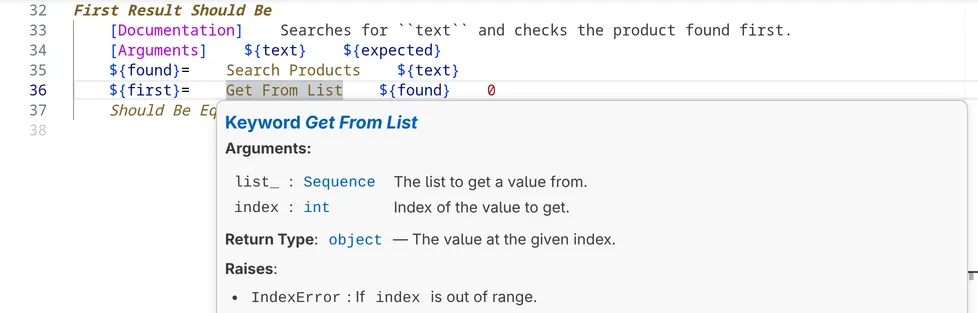
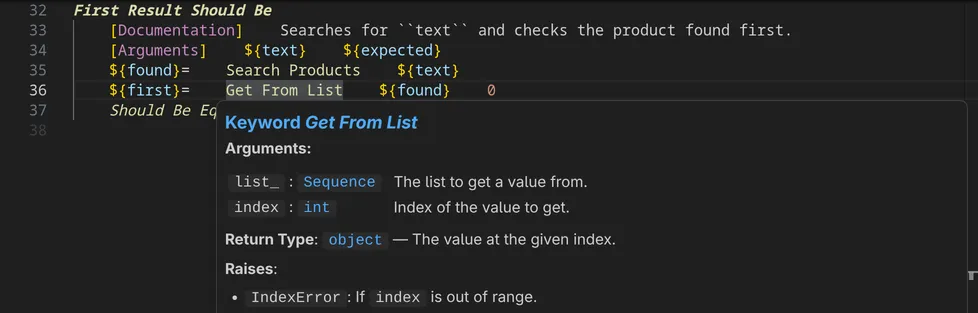
While you type the arguments of a keyword call, the signature help now also shows the description of the argument at the cursor, right below the signature:


Libraries can now also write their documentation in Markdown, as the standard libraries do, and **RobotCode** renders it.
Libdoc HTML needs the `markdown` package
Because the standard libraries are now documented in Markdown, the deprecated *Open Documentation* and `robotcode libdoc` need the optional Python package [`markdown`](https://pypi.org/project/Markdown/), which **RobotCode** does not ship. Install it into your project's Python environment if you use them. Hover, completion, the [Documentation Viewer](#documentation-viewer) and `robotcode doc` work without it; [Optional Python Packages](/getting-started/#optional-python-packages) has the details.
### Test and Task Metadata
[Section titled “Test and Task Metadata”](#test-and-task-metadata)
Robot Framework 7.5 lets tests and tasks carry their own `[Metadata]`:
```robot
*** Test Cases ***
Login Works
[Metadata] Issue 4409
Open Login Page
```
**RobotCode** shows this metadata in the hover of a test and offers the new `${TEST_METADATA}` variable in completion.
You can also run, list and inspect only the tests with certain metadata. `-btm/--by-test-metadata` and `-ebtm/--exclude-by-test-metadata` take patterns like tag patterns and work with `robotcode robot`, `discover` and `results`. `robotcode discover metadata` lists the metadata in use.
```bash
robotcode robot -i smoke -btm Issue:4409 # run the smoke tests for issue 4409
robotcode discover metadata --values # the metadata names and values in use
```
With the pre-run modifiers of the `robotcode-modifiers` package, the selection also works with plain `robot` and in `robot.toml` profiles. [Selecting by test metadata](/guides/cli/discovering-tests/#selecting-by-test-metadata) describes the patterns and how to use them.
### Also on Robot Framework 7.5
[Section titled “Also on Robot Framework 7.5”](#also-on-robot-framework-75)
* **Markdown files:** `Resource` imports accept Markdown files (`.md`, `.markdown`, `.robot.md`). **RobotCode** also finds the tests in `.robot.md` files, but Robot Framework 7.5 reports their line numbers relative to the code blocks instead of the file, so their run buttons appear at the wrong lines. The bug is reported ([robotframework#5801](https://github.com/robotframework/robotframework/issues/5801)) and its fix is planned for Robot Framework 7.5.1; once that release includes it, the buttons will appear in the right place.
* **`robot.toml`:** `console` takes a custom console class or module, the `libdoc` formats accept `MARKDOWN`, and the `[rebot]` section takes the new `console` and `quiet` options.
* **Deprecation:** A `Tags:` section in keyword documentation without an empty row before it gets a warning, as Robot Framework 7.5 deprecates the missing empty row.
## VS Code
[Section titled “VS Code”](#vs-code)
### Documentation Viewer
[Section titled “Documentation Viewer”](#documentation-viewer)
The VS Code extension has a new **Documentation Viewer**. It shows the documentation of any library, resource file or suite file in an editor tab, and it matches your project, because it is generated with the installed library versions and your project's settings. You open it with:
* A click on a link in a **hover**.
* **Show in Documentation Viewer** in the *Source Action…* menu of a `Library` or `Resource` import, a keyword call or a keyword definition.
* The book button in the **Keywords** view.
* **RobotCode: New Documentation Viewer** in the command palette or the button at the end of a viewer's toolbar, for any library or file.
[](/_astro/viewer-window-light.BkEEbR1-.png "Open in full size")
[](/_astro/viewer-window-dark.BuLiHOmq.png "Open in full size")
You can open several viewers at the same time, each with its own library or file, and arrange them like any other editor: side by side, in other editor groups or in a window of their own. *Show in New Documentation Viewer*, offered next to *Show in Documentation Viewer*, opens another one, and the pin in a viewer's toolbar decides which viewer the next action uses.
[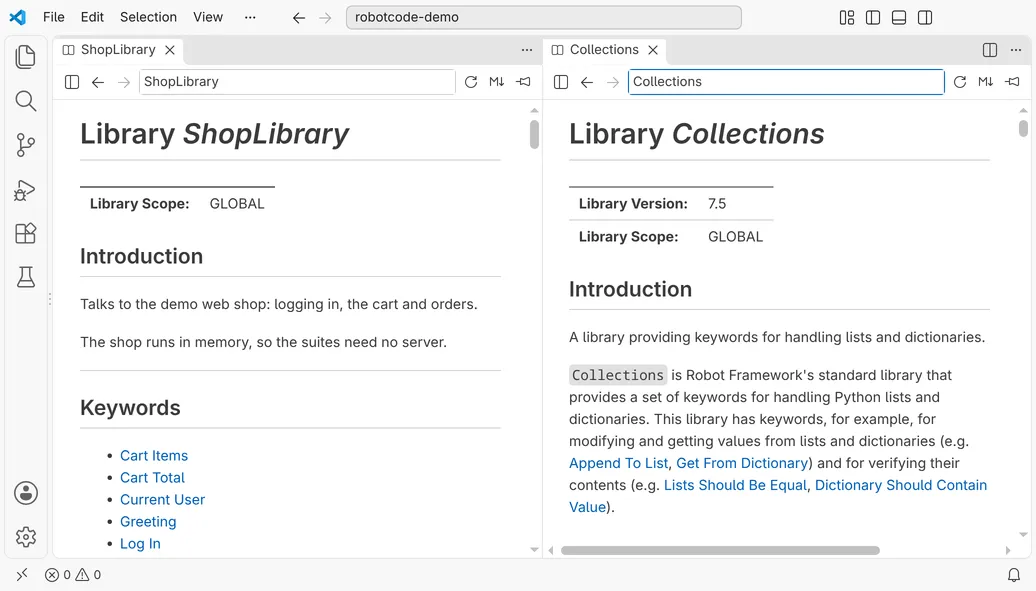](/_astro/viewer-side-by-side-light.Crb5ppMk.png "Open in full size")
[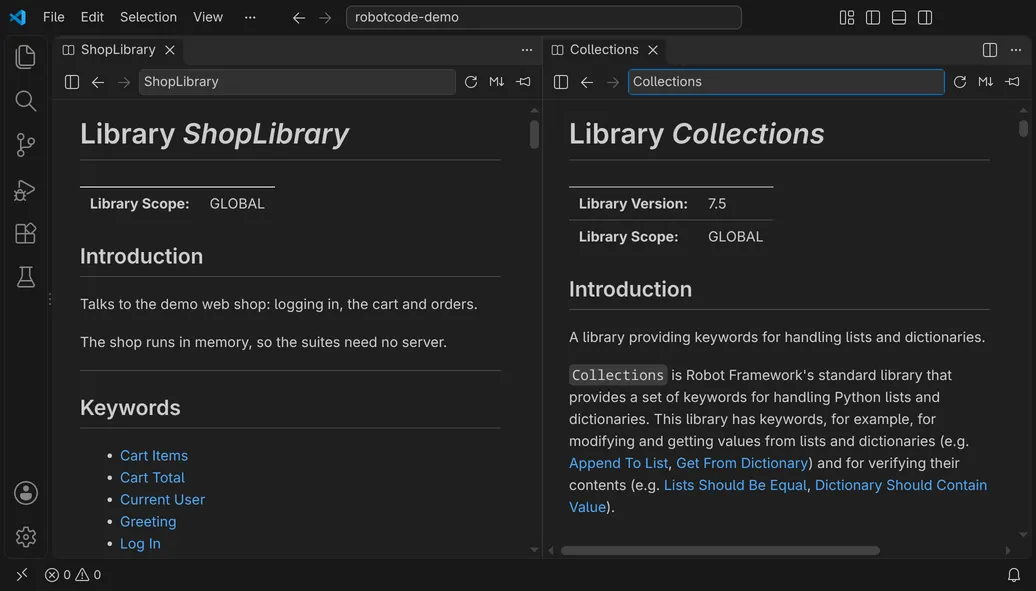](/_astro/viewer-side-by-side-dark.DyqkJ-U0.png "Open in full size")
Bookmarks take you back to the documentation you look up often. The star after the target field bookmarks the place a viewer shows, such as a library or a keyword in it, and the new **Documentation Bookmarks** view in the Explorer lists your bookmarks: a click shows one in the viewer, and buttons in its title bring the viewer to the front or open a new one. A bookmark holds for its workspace folder until you move it to *All Workspaces*, where it holds in all your workspaces and reaches your other machines with Settings Sync. On its first start, **RobotCode** bookmarks the standard libraries in *All Workspaces*.
[](/_astro/viewer-bookmarks-light.B4lik-JE.png "Open in full size")
[](/_astro/viewer-bookmarks-dark.BGIZ7yiF.png "Open in full size")
While you type a target, the field offers your bookmarks and completes the names of libraries, resource files and suite files, and the context menu of the outline opens the file that defines a keyword, also the Python file of a library such as `Collections.py`. [Documentation Viewer](/guides/vscode/documentation-viewer/) in the VS Code guide has the details.
*Open Documentation*, which shows Robot Framework's Libdoc HTML, is now marked as deprecated in favor of the viewer, as is *Show Documentation* in the context menu of the **Keywords** view. Both keep working.
### The Python Environment
[Section titled “The Python Environment”](#the-python-environment)
**RobotCode** now works with the new Python Environments extension and uses the environment it selects for a folder. Select another environment or install Robot Framework, and **RobotCode** picks up the change by itself: it restarts the language server, without a restart of VS Code. If something is missing, a message tells you what, instead of a dialog that waits for an answer. [The Python environment](/guides/vscode/configuration/#the-python-environment) has the details.
### Test Runs in RobotCode's Own Terminal
[Section titled “Test Runs in RobotCode's Own Terminal”](#test-runs-in-robotcodes-own-terminal)
Tests now run in a terminal of RobotCode's own, whether you start them from the Test Explorer, the editor or a launch configuration. Robot Framework runs there without a shell, so every run gets the same environment, the interpreter of its workspace folder, and no activation command of the Python extensions lands in the middle of a run. Before each run, the terminal shows the run's command line as you would type it, with its profiles and options; VS Code's command decoration copies the command or the output, and the terminal is reused for the next run. [The output of a run](/guides/vscode/running-and-debugging/#the-output-of-a-run) has the details. Set [`robotcode.debug.defaultConsole`](/reference/vscode-settings/#robotcode.debug.defaultConsole) to `integratedTerminal` to run in a shell of VS Code's integrated terminal as before.
### See Where a Test Failed
[Section titled “See Where a Test Failed”](#see-where-a-test-failed)
A failed test now shows each of its failures in the editor, at the step of the test that led to it. A click on its marker opens a peek below the step with the whole message and the calls from the step to the line that failed, each with a few lines of its code, so you see at once where the test went wrong. Failures that the test caught, for example with `TRY`/`EXCEPT`, are listed too, marked as caught.
[](/_astro/test-explorer-window-light.CvzJcyuN.png "Open in full size")
[](/_astro/test-explorer-window-dark.BxbRMfrV.png "Open in full size")
When a debug run stops at a failure, the editor shows the failed keyword and its message below the line and lists the same calls, with links to their lines. [Running and debugging](/guides/vscode/test-explorer/#running-and-debugging) in the Test Explorer guide and [Stopping at failures](/guides/vscode/running-and-debugging/#stopping-at-failures) have the details.
### Also in VS Code
[Section titled “Also in VS Code”](#also-in-vs-code)
* The language server starts as soon as you open a folder with Robot Framework files, not only when you open one of them.
* When VS Code restores an open Robot Framework file at startup, the Keywords view shows its keywords as soon as the language server runs, and canceled requests of the view no longer show up as errors in the output. ([#644](https://github.com/robotcodedev/robotcode/issues/644))
* The Test Explorer follows every change of suite files and folders, also changes made outside VS Code, for example by `git` or in a terminal, keeps its results in projects with several paths in `robot.toml`, and *Run Tests* runs every workspace folder. [Where the tests come from](/guides/vscode/test-explorer/#where-the-tests-come-from) describes when it updates.
* An empty Test Explorer says why and offers what helps: without a Python environment with Robot Framework, for example, it offers *Select Python Environment*; see [Problems while finding the tests](/guides/vscode/test-explorer/#problems-while-finding-the-tests). A failed discovery no longer leaves the suites of the last discovery next to its error.
* The language status marks only the item with the problem: when the environment has no Robot Framework, only the Robot Framework item shows an error, not the Python item.
* *RobotCode: Copy Environment Info*, also in the RobotCode menu of the language status, copies the versions of VS Code, **RobotCode**, the operating system, Python, Robot Framework and Robocop for an issue, a forum post or a chat. ([#260](https://github.com/robotcodedev/robotcode/issues/260))
* *RobotCode: Start Terminal REPL* runs the [REPL](/guides/vscode/repl/) with the folder's Python environment, not with the first `robotcode` on the `PATH`.
* Code blocks marked `robotframework` or `robot` in Markdown get Robot Framework colors in the Markdown preview and in the Documentation Viewer.
* Breakpoints with a hit count stop at that hit, and hit counts such as `>= 3` or `% 2` work; [Debugging](/guides/vscode/running-and-debugging/#debugging) lists the forms.
* After Stop, a breakpoint in a teardown no longer pauses the run again.
* The `robotcode` command in VS Code's terminals also works on systems without bash and when the extension's path contains a space, for example from a Windows user name.
## PyCharm
[Section titled “PyCharm”](#pycharm)
For PyCharm and IntelliJ IDEA, this release is the biggest step since the plugin's first version. Up to v2.7.0, the plugin brought the language features of **RobotCode**, such as completion, hover, diagnostics and navigation, while running, debugging and the settings offered much less than in VS Code. Now it offers nearly everything the VS Code extension does: you configure **RobotCode** on settings pages with the names you know from VS Code, run and debug your tests with run configurations and profiles, and see right in the results where a test failed. That makes it one of the most complete Robot Framework plugins for PyCharm. A few things are still missing, such as the Test Explorer and the Documentation Viewer, and we are working on them; [RobotCode in PyCharm and VS Code](/guides/pycharm/compared-with-vscode/) compares both, and the new [PyCharm guide](/guides/pycharm/) shows how to work with the plugin.
* **Run configurations as in VS Code.** Robot Framework run configurations now keep what they run, files and folders or tests and suites, across restarts, can be stored with the project and are edited in the IDE's run configuration editor, with the interpreter, environment variables, the Robot Framework options and the run and debug options of VS Code's launch configurations, such as a launch wrapper like `xvfb-run`. A run configuration can use the `robot.toml` profiles selected for the project or its own, and *Run with Profile…* in the gutter runs a test or suite once with another profile. Runs from the gutter reuse their configuration instead of creating copies, and the editor of a run configuration shows when its interpreter lacks Robot Framework, a target path is missing or a selected test is gone. ([#418](https://github.com/robotcodedev/robotcode/issues/418))
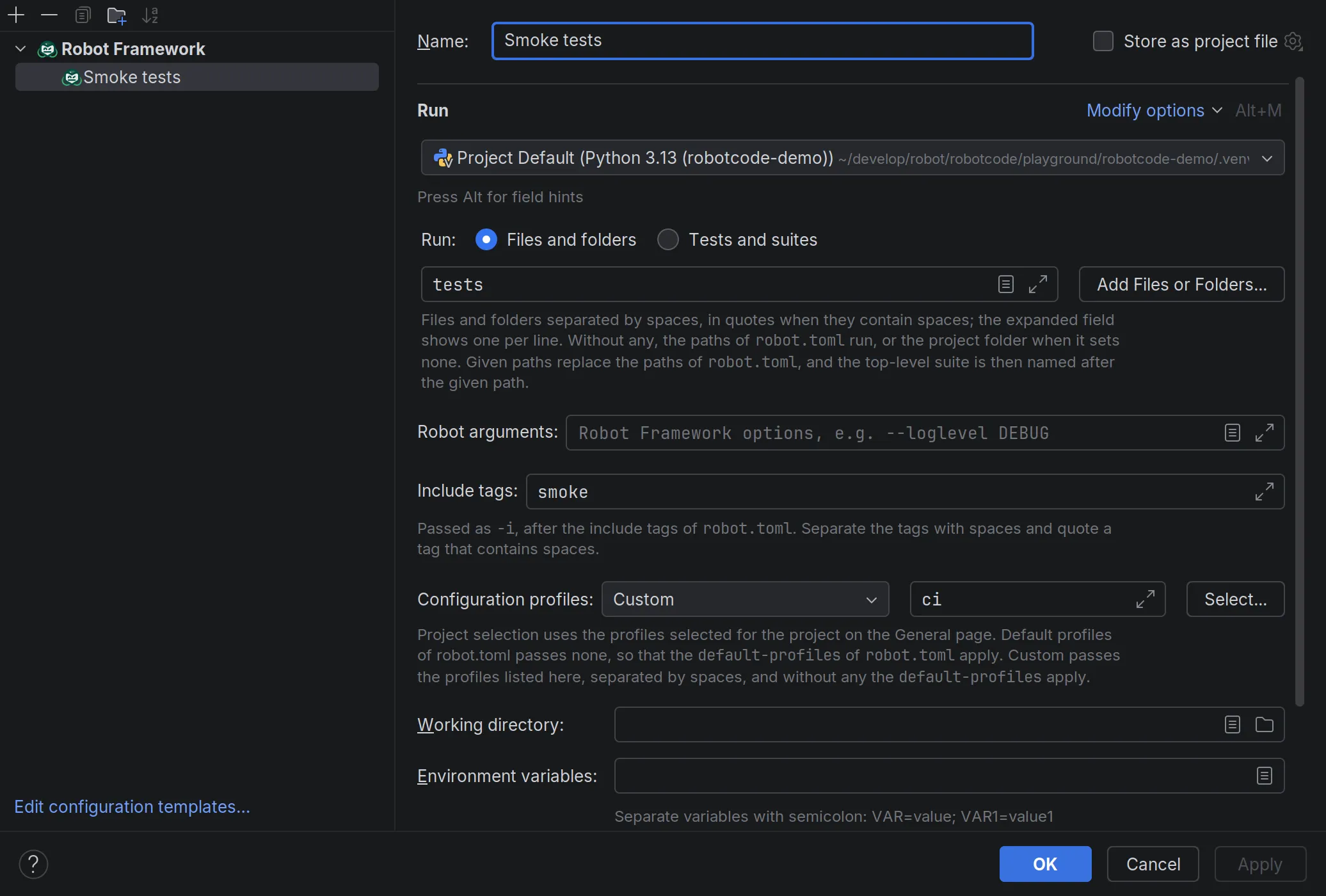
* **Run tests from every context.** Ctrl+Shift+F10 (Ctrl+Shift+R on macOS) runs the test at the cursor or the suite of the file, several selected files or folders run together, and suites in the results tree can be run again. With Robot Framework 6.1 and newer, a run of a single test or suite parses only the files it needs, and the tasks of RPA suites get run markers too. ([#631](https://github.com/robotcodedev/robotcode/issues/631))
* **Test results that show where a test failed.** A failed test lists each of its failures with the calls that led to it, from the call in the test inward, with links to their lines, and a double-click opens the call in the test that led to the first failure. Selecting a test shows the log messages it wrote, and the output of the run has a *Terminal* tab of its own. *Rerun Failed Tests* runs exactly the tests that failed, and report and log open in a preview tab whose toolbar switches between them. ([#528](https://github.com/robotcodedev/robotcode/issues/528))
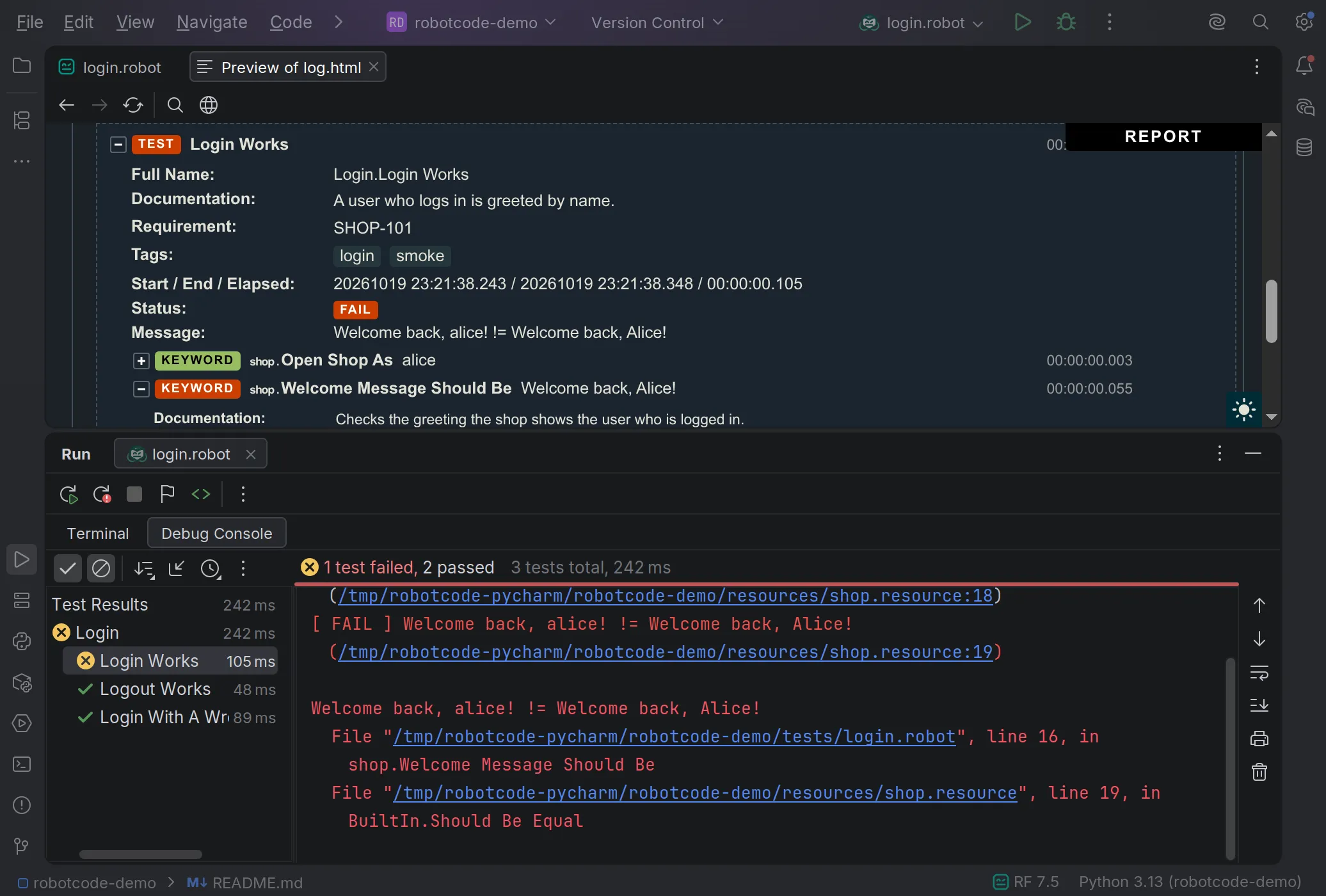
* **Almost everything you can set in VS Code, you can now set here too.** Settings pages under *Languages & Frameworks › Robot Framework* cover Robot Framework options such as the Python path and variables, editing and completion, analysis and diagnostics, Robocop, running and debugging, the language server and the command line, with the names VS Code uses. You can select the configuration profiles of your `robot.toml` and switch RobotCode off for a project, and the status bar shows the Robot Framework version and the selected profiles. The analysis cache no longer lands in the project folder, where the IDE indexed it.
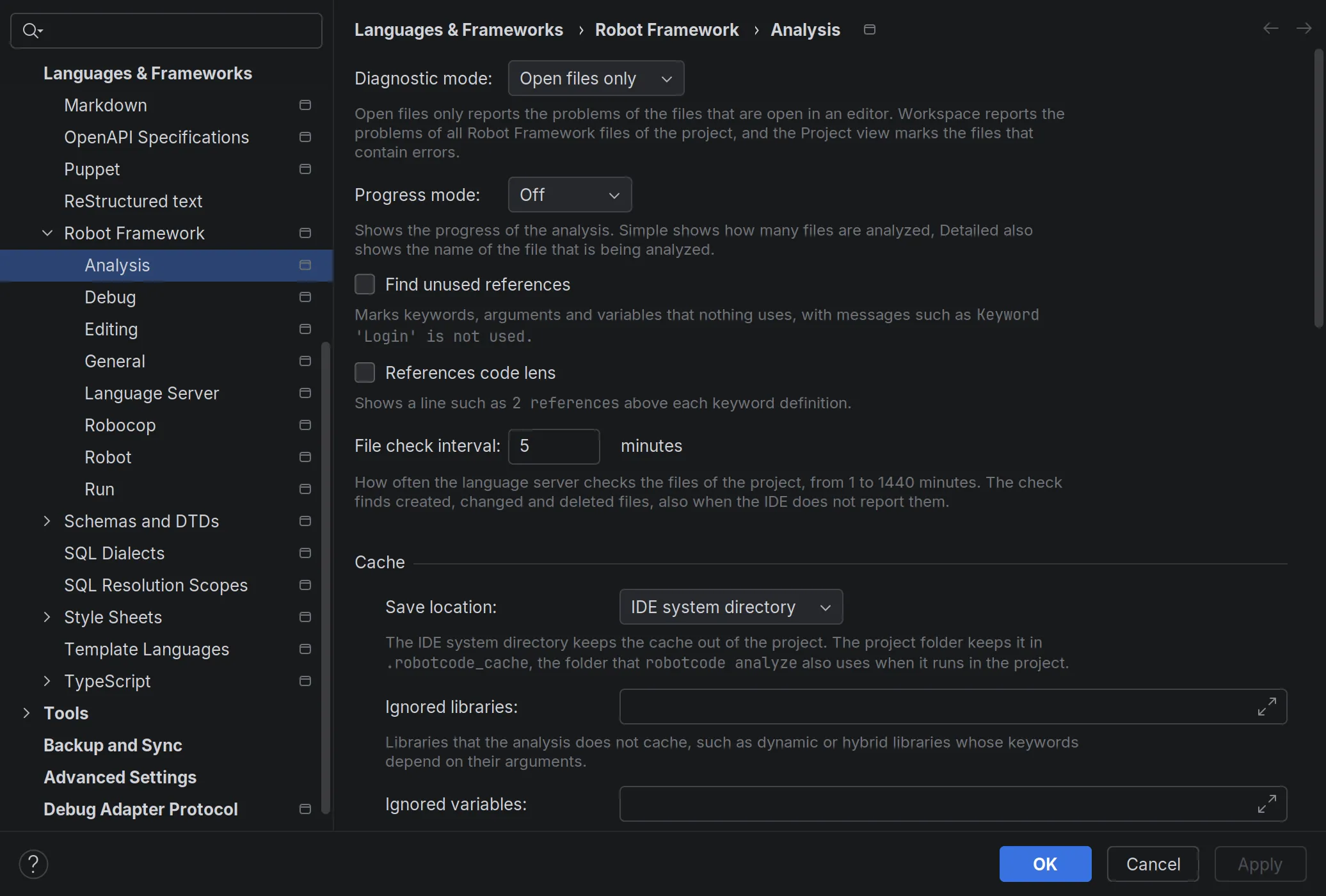
* **Content and source roots are on the Python path.** The analysis, test discovery and runs find libraries and resource files in the project's content roots and in folders marked as Sources or Test Sources, as PyCharm's Python run configurations do; two switches on the Robot settings page turn this off. ([#430](https://github.com/robotcodedev/robotcode/issues/430))
* **Completion in `robot.toml`.** PyCharm completes the settings of `robot.toml` and `.robot.toml` from **RobotCode**'s schema, without a schema mapping by hand, and Markdown code blocks marked `robot` are highlighted as Robot Framework code, like those marked `robotframework`.
* **Breakpoints with conditions, log messages and hit counts.** Line breakpoints get a condition, a log message and a hit count, and the IDE applies their suspend policy and options such as *Remove once hit*. Changes to breakpoints take effect at once in a running debug session, Run to Cursor always reaches its line, and the *Any Exception* breakpoint, which never reached the debugger, is replaced by Robot Framework exception breakpoints for failed keywords, tests and suites.
* **A Robot Debug Console and values on hover.** While a run is paused, the new Robot Debug Console, Evaluate Expression and watches complete the keywords and variables of the paused run, hovering a variable shows its value, lists expand into their items, and Set Value changes variables. Watches work as in VS Code, and running, stepping and evaluating no longer freeze the IDE. Stop ends a run gracefully, also while it is paused, so the run still writes its output, log and report.
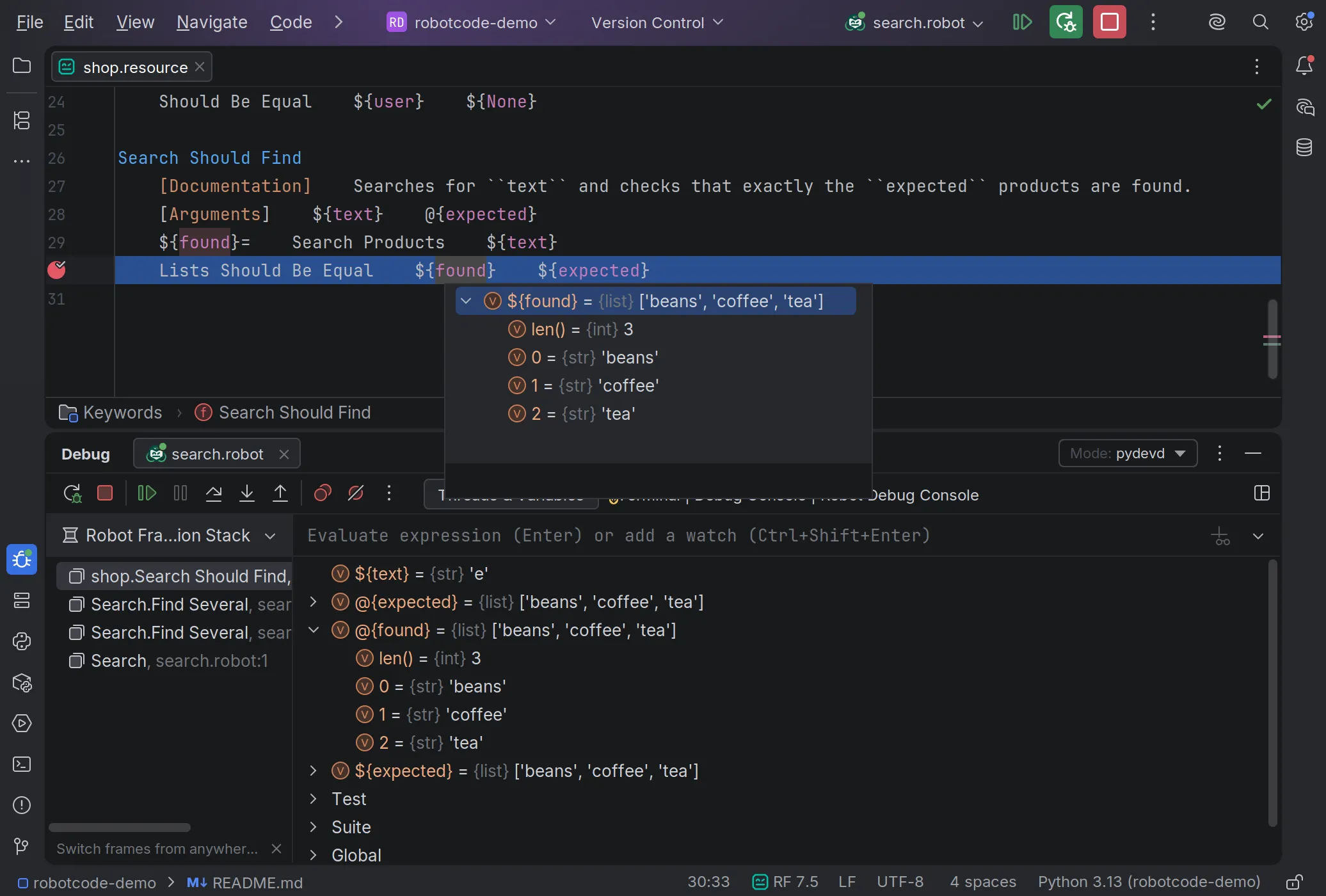
* **Colors come from the active color scheme.** Variables, keyword calls, operators and numbers get colors from your scheme instead of plain text, and the plugin no longer ships its own colors for Darcula, Dark and Light. Colors you set on the Robot Framework color settings page are kept, and type hints and parameters have color settings of their own. ([#655](https://github.com/robotcodedev/robotcode/issues/655))
* **Test case and keyword names are highlighted right away.** Their colors no longer wait for the language server.
* **Show Usages finds more and names what it searches for.** In Robot Framework files, Show Usages and Find Usages search for the name at the cursor, as VS Code does, and name its kind and name, such as "Keyword Open Shop As", instead of "LSP Usage Triggered Psi Element". They find the usages of a keyword called with a library prefix, such as `BuiltIn.Log`, and on a resource import they list where the file is imported and where its keywords are called with its name in front. LSP Reference(s) now also works on library keywords and on variables from Python variable files.
* **The Python environment is checked in the background.** The check no longer blocks the editor and says what is wrong, such as an old Python or Robot Framework version or a missing Robot Framework; a banner offers to choose another interpreter, to check again or to switch RobotCode off for the project. RobotCode starts only in projects with Robot Framework files or a `robot.toml`.
* **A sturdier language server.** Its output no longer shows up as IDE errors, a start that fails ends with a message instead of hanging, and the IDE no longer freezes when Robot Framework files are deleted, created or renamed. It restarts only when its settings change, and Restart picks up an interpreter you fixed outside the IDE.
* **Updates ask for a restart and say what's new.** Installing or updating the plugin asks for a restart of the IDE instead of leaving it without RobotCode's features, and after an update a notification offers *What's New?*, which opens these news, as in VS Code.
* **Your own templates for `.resource` files appear in the New Robot Framework File dialog.** Thanks to Pāvels Koržs.
## Language Server and Analysis
[Section titled “Language Server and Analysis”](#language-server-and-analysis)
### More Robust Library Loading
[Section titled “More Robust Library Loading”](#more-robust-library-loading)
A library that hangs or exits while it loads no longer holds up the editor or `robotcode analyze code`: **RobotCode** stops it after the load timeout and shows the problem at the import. Changed arguments of a library import now take effect right away, and if a library can't be set up with the given arguments, the import tells you so.
### Cleaner Keyword Completion
[Section titled “Cleaner Keyword Completion”](#cleaner-keyword-completion)
Keyword completion no longer offers keywords tagged `robot:private` from other files; the setting `robotcode.completion.hidePrivateKeywords` brings them back. Calls of private library keywords are now reported too, and the new setting `robotcode.completion.hideDeprecatedKeywords` leaves deprecated keywords out of the list. ([#495](https://github.com/robotcodedev/robotcode/issues/495), [#652](https://github.com/robotcodedev/robotcode/issues/652))
### Also in the language server and analysis
[Section titled “Also in the language server and analysis”](#also-in-the-language-server-and-analysis)
* Find References, Rename and the unused hints keep up with the files on disk, also with files created, changed or deleted outside the editor and with all files that import a changed resource file; a check every five minutes, set by `robotcode.analysis.fileCheckInterval`, finds the changes the editor doesn't report.
* Find References also works on the library or resource name in front of a keyword call, such as `BuiltIn` in `BuiltIn.Log`, and lists `EXCEPT AS` and item assignments such as `${items}[0]=` with the variable they set, so Rename renames them too.
* The language server now also starts when `robot.toml` can't be loaded or a profile name selects no profile, and reports the problem as an error message instead of only in its log. VS Code and PyCharm report a selected profile that `robot.toml` doesn't define and offer to remove it from the selection.
* A library import that Robot Framework 7.4 and newer ignores, because an earlier import already uses its name, is now reported.
* A file that you edited, saved and closed is no longer analyzed with the text from before your edit.
* After a change of the Python path or of an environment variable, files whose imports or variables it affects are analyzed again instead of keeping their old diagnostics, also closed ones.
* After the `languages` setting changed, files from the analysis cache are read again, so a resource file with section headers in another language no longer stays empty.
* `# robotcode:` comments that change diagnostics work as documented: `warning[…]` and `information[…]` change only the listed codes, a comment after a nested block takes effect, and the nearest comment wins.
## AI Agents
[Section titled “AI Agents”](#ai-agents)
**RobotCode** comes with a chat plugin for AI agents: the VS Code extension ships it for GitHub Copilot Chat, switched on by default, and Claude Code, Codex, GitHub Copilot CLI and other agents install the same plugin from its marketplace. Its skill tells the agent how to use `robotcode` on your project and is up to date with this release: the agent now looks up keywords and libraries with `robotcode doc`, so it sees the keywords of the libraries you actually have installed, and it knows the other new commands and options, such as the selection by test metadata and the exit codes of the REPL.
The plugin now carries the version of the **RobotCode** release it belongs to. The copy in the VS Code extension always matches the extension, and every release is now tagged in the marketplace, so other agents can pin the plugin to the version of **RobotCode** that a project uses. [Working with AI Agents](/guides/ai-agents/) shows how to set it up and [how to pin it](/guides/ai-agents/#matching-your-robotcode-version).
The language model tools of the VS Code extension are now deprecated: the chat plugin replaces them, and VS Code marks the setting `robotcode.ai.enableLanguageModelTools` as deprecated. The tools keep working until a later release removes them.
## Command Line and REPL
[Section titled “Command Line and REPL”](#command-line-and-repl)
### `robotcode doc`
[Section titled “robotcode doc”](#robotcode-doc)
The Documentation Viewer is built on the new `robotcode doc` command, which you can also use on its own in the terminal. It shows the documentation of a library, resource file or suite file the way your project sees it, with the installed library versions and your `robot.toml` profiles.
```bash
robotcode doc keywords Collections dictionary # the keywords of Collections that match "dictionary"
```
`robotcode doc` comes with the optional `repl` package (`pip install "robotcode[repl]"`); [Browsing Library Documentation](/guides/cli/browsing-documentation/) has the details.
### A More Dependable REPL
[Section titled “A More Dependable REPL”](#a-more-dependable-repl)
A statement that fails without being handled now fails the REPL session, and a non-interactive session exits with 1, so scripts, CI and agents can tell success from failure. You can also choose the exit code yourself; see the [REPL reference](/guides/cli/repl/#exit-code-and-session-status). Several fixes make `robotcode repl` and the notebook kernel more reliable: `.save` leaves out inputs that failed, so the saved file runs, and settings such as `[Tags]` typed at the prompt are reported instead of silently ignored. ([#663](https://github.com/robotcodedev/robotcode/issues/663), [#667](https://github.com/robotcodedev/robotcode/issues/667))
Ctrl-C now works as in Python's REPL and in pdb: at the prompts of `repl` and `robot-debug` it drops what you typed instead of ending the session or resuming the run, and while a run executes under the debugger it pauses at the next keyword.
### Also on the command line
[Section titled “Also on the command line”](#also-on-the-command-line)
* On Windows, `robotcode` commands no longer fail when a given path is on another drive than the working directory.
* `robotcode discover` no longer fails when a custom parser or a pre-run modifier creates a test without a line number, so VS Code and PyCharm show the tests of such a project too.
* `robotcode results log --extract` finds screenshots whose names are URL-encoded, follows the `file:` links of the OperatingSystem library and extracts the videos the Browser library records.
* Keyword breakpoints of `robot-debug` and `.break` match names like Robot Framework, also with glob patterns such as `BuiltIn.*`.
* `robotcode analyze code` keeps its cache in the `cache-dir` set in `robot.toml`, and `discover files` takes relative paths from the folder it is started in.
* In `robot.toml`, an `extend-` setting such as `extend-variables` now adds to its setting also when both are in the same profile or file, and in `[extend-profiles.]`.
* In `robot.toml`, a setting in `[rebot]`, `[libdoc]` or `[testdoc]` now wins over the same setting outside the table, and `[extend-rebot]`, `[extend-libdoc]` and `[extend-testdoc]` change these tables from a later file or a profile.
* In `robot.toml`, selecting a disabled profile no longer applies the profiles two or more levels up its inheritance chain.
* `repl`, `repl-server` and `robot-debug` end on SIGTERM, as sent by `kill` or a process manager, also while they wait for input.
* Colored output of `discover` and `results` paged through bat no longer shows an empty line after each line.
## A New Website
[Section titled “A New Website”](#a-new-website)
robotcode.io has moved from VitePress to [Astro](https://astro.build/) with [Starlight](https://starlight.astro.build/). Its pages were carried over, the design is polished, and the documentation is reorganized by what you come to do: **Getting Started** helps you install and configure **RobotCode**, **Guides** show how to work with it, and **Reference** lists the commands, the `robot.toml` and VS Code settings and the diagnostics modifiers. New guides to [VS Code](/guides/vscode/) and [PyCharm](/guides/pycharm/) show how to write, navigate, run, debug and configure Robot Framework projects there, and [Configuring Projects with robot.toml](/guides/robot-toml/) explains what `robot.toml` can do. The new [home page](/) shows **RobotCode** at work in short demos: editing in VS Code, PyCharm and Neovim, running and debugging tests, the configuration, the command line and the REPL, and an AI agent that writes, finds and fixes tests with the **RobotCode** skill. The [news](/news/) section has tags and an [RSS feed](/news/rss.xml), and after an update the What's New notification of the VS Code extension opens the newest release notes.
The reason for the move: VitePress 1 gets no further releases, and VitePress 2 has been in alpha since January 2025, without a guide for moving from version 1. VitePress 1 also depends on old versions of Vite and esbuild with known security vulnerabilities, one of them rated high, which get no fix on the 1.x line. They affected only the tools that build the site, not the published pages. Starlight, in contrast, is actively developed.
All pages have new addresses, and the old addresses are not redirected, so update your bookmarks.
## Python 3.15
[Section titled “Python 3.15”](#python-315)
**RobotCode** now also runs on Python 3.15, which Robot Framework supports from version 7.5. The CI no longer tests every Robot Framework version with every Python version, only with the Python versions that Robot Framework itself officially supports, because there would be too many combinations otherwise. This changes only what the CI tests, not which combinations **RobotCode** runs with.
## Nightly Builds
[Section titled “Nightly Builds”](#nightly-builds)
Every night, the newest build of `main` is published as a pre-release, so you can try new features and fixes before the next release. In VS Code, choose *Switch to Pre-Release Version* on the page of the RobotCode extension. In PyCharm, add `https://plugins.jetbrains.com/plugins/dev/26216` as a custom plugin repository. The Python packages are on PyPI as dev versions such as `2.8.0.dev527`: `pip install robotcode` keeps installing the latest release, and a dev version is installed only when you pin it. [Try the Dev Builds](/getting-started/dev-builds/) shows how to switch to them and how to go back to a release.
## Bug Fixes
[Section titled “Bug Fixes”](#bug-fixes)
* In VS Code, a run from the Test Explorer now ends as Robot Framework ends it: it keeps Robot Framework's exit code, and the Browser library closes its Playwright process and its browsers at the end. ([#635](https://github.com/robotcodedev/robotcode/issues/635))
* An environment variable with an empty default, such as `%{NAME=}`, is no longer reported as not found when `NAME` is not set. ([#653](https://github.com/robotcodedev/robotcode/issues/653))
* In VS Code, the exception breakpoint for failed tests stops again, and keywords you run at such a stop work, also at a failed-test stop of `robot-debug`. The exception breakpoints are now called *Failed Tests* and *Failed Suites*; if you had switched one of them on, switch it on again once after the update. ([#664](https://github.com/robotcodedev/robotcode/issues/664))
* A breakpoint condition that raises an error now shows the error, in VS Code's Debug Console and in `robot-debug`, instead of counting as true or false. ([#669](https://github.com/robotcodedev/robotcode/issues/669))
* In JetBrains IDEs, breakpoints in files of other languages, such as C# in Rider, are no longer turned into Robot Framework breakpoints. ([#658](https://github.com/robotcodedev/robotcode/issues/658))
* In a PyCharm project with several modules, **RobotCode** uses the interpreter and the roots of the module that holds the Robot Framework project, not the first module with an interpreter, and asks when several modules qualify; the General settings page can change the module. ([#489](https://github.com/robotcodedev/robotcode/issues/489))
* In PyCharm, Go to Declaration on a variable jumps to its definition again. ([#660](https://github.com/robotcodedev/robotcode/issues/660))
* In PyCharm, Go to Declaration on a keyword called with a library or resource prefix lands on the keyword every time, not only the first time. ([#464](https://github.com/robotcodedev/robotcode/issues/464))
* Closing a project or quitting PyCharm while the language server is still starting no longer reports an error. ([#630](https://github.com/robotcodedev/robotcode/issues/630))
* In PyCharm, tests whose suite teardown fails show as failed, and the run console keeps the output in the order Robot Framework wrote it. ([#458](https://github.com/robotcodedev/robotcode/issues/458))
* `--dry` no longer starts the `wrapper` configured in `robot.toml`, and `debug` and `repl-server` no longer hang with `--dry`. ([#665](https://github.com/robotcodedev/robotcode/issues/665))
* Commands that run Robot Framework exit with 252 when **RobotCode** itself reports an error, such as an invalid `robot.toml` or a wrapper that doesn't start, so a CI job can tell a broken setup from failed tests. ([#666](https://github.com/robotcodedev/robotcode/issues/666))
* The help of the REPL's `.set` and the command-line debugging guide now say that `.set` only changes existing variables and always stores a string. ([#670](https://github.com/robotcodedev/robotcode/issues/670))
* The configuration guide now names the correct location of the global user configuration: a `robot.toml` in the platform's user configuration directory (for example `~/.config/robotcode/robot.toml` on Linux), not `~/.robot.toml`. ([#637](https://github.com/robotcodedev/robotcode/issues/637))
## Under the Hood
[Section titled “Under the Hood”](#under-the-hood)
The experimental SemanticModel introduced in v2.6.0 has made good progress: with `semantic-model = true`, semantic highlighting, selection ranges and the debugger's inline values now run on the model and behave as without it. It is still off by default; the [v2.6.0 post](/news/v2-6-0/#experimental-semanticmodel-preview) shows how to try it.
***
## Thank You
[Section titled “Thank You”](#thank-you)
Thanks to everyone who reported issues, contributed ideas and code, and tested pre-release builds. Your feedback drives every release.
If you like **RobotCode**, please help others find it: we need more reviews in the [VS Code Marketplace](https://marketplace.visualstudio.com/items?itemName=d-biehl.robotcode) and the [JetBrains Marketplace](https://plugins.jetbrains.com/plugin/26216), and more stars on [GitHub](https://github.com/robotcodedev/robotcode). Donations through [GitHub Sponsors](https://github.com/sponsors/robotcodedev) or [Open Collective](https://opencollective.com/robotcode) are very welcome too and help keep the project sustainable.
For the full list of changes, see the [Changelog](https://github.com/robotcodedev/robotcode/blob/main/CHANGELOG.md).
* [Report issues](https://github.com/robotcodedev/robotcode/issues)
* [Discussions & Q\&A](https://github.com/robotcodedev/robotcode/discussions)
# Reference
> Look up every robotcode command and option, every robot.toml setting, and the syntax of robotcode: diagnostic modifier comments.
The reference lists every `robotcode` command and option, every `robot.toml` setting, and the syntax of the `# robotcode:` comments that change diagnostics. For step-by-step explanations of the commands, see the [Guides](/guides/).
[Command Line Interface (CLI)](/reference/cli/)All robotcode commands and options, from robot, rebot and discover to analyze, debug, repl and results, and which package to install for each.
[robot.toml configuration settings](/reference/config/)Every robot.toml setting with its type and examples: profiles, robot, rebot, libdoc and testdoc options, and the tool.robotcode-analyze settings.
[Controlling Diagnostics with Modifiers](/reference/diagnostics-modifiers/)Use robotcode: comments to ignore diagnostics or change their severity per line, block or file, or set the same rules project-wide in robot.toml.
[VS Code Settings](/reference/vscode-settings/)Every setting of the RobotCode extension for VS Code, with its description, type, default, allowed values and where it can be set.
# Command Line Interface (CLI)
> All robotcode commands and options, from robot, rebot and discover to analyze, debug, repl and results, and which package to install for each.
The `robotcode` CLI tool enables seamless interaction with Robot Framework through the command line, offering a comprehensive set of features for project analysis, debugging, and configuration management.
The CLI tool is designed to be straightforward and user-friendly, with a broad range of commands to support various use cases, including test execution, documentation generation, and code analysis. It also supports configuration profiles, allowing users to define and quickly switch between different project setups as needed.
In most cases, not all CLI components are required within a single project. For example, in a CI (Continuous Integration) environment, only the `runner` package is typically necessary to execute tests, while the `language-server` package is generally not needed. The `analyze` package is mainly useful in a development environment to detect syntax errors and validate code, but it may be unnecessary in production or deployment environments. Similarly, the `debugger` package is essential for local development when troubleshooting test cases but isn’t usually required in production or CI pipelines.
To accommodate these varied needs, `robotcode` is organized into separate packages that each focus on specific functions. The core package, `robotcode`, provides foundational support for working with `robot.toml` configuration files and profile management. Here’s a more detailed breakdown of each package and its capabilities:
* **`robotcode` Core Package**: Always installed, the core package provides the top-level `robotcode` command together with the global options (config files, profiles, output format, paging, …) shared by every other command. It also includes commands to inspect the resolved configuration and the profiles defined for a project.
* **Commands**:
* `config`: Shows the merged `robot.toml` configuration and which files contributed to it, making it easy to understand how settings are resolved.
* `profiles`: Lists the profiles defined for the project and shows their resulting configuration, helping verify which profile applies in a given context.
* **`runner` Package**: This package is essential for users who need to run and manage tests within Robot Framework projects. It includes commands for executing tests, generating documentation, and discovering test elements. This package is especially important in CI/CD pipelines, where automation of test execution is a primary focus.
* **Commands**:
* `robot`, `rebot`, `libdoc`, `testdoc`: Enhanced versions of the standard Robot Framework tools, with support for `robot.toml` configuration files and profiles, allowing customized setups for different environments or testing requirements.
* `discover`: Searches the project for tests, suites, tags, tasks, and other elements, providing a quick overview of available test cases and project structure.
* `results`: Inspects a finished run's `output.xml`/`output.json` — summaries, failures, the per-test execution log, and diffs between two runs — without re-executing the tests.
* **`analyze` Package**: This package provides tools for detailed inspection and validation of Robot Framework code, helping users identify errors and improve code quality. The `analyze` package is typically more useful in development environments where code quality checks and error detection are needed before moving tests to a CI or production environment.
* **Commands**:
* `analyze`: Analyzes Robot Framework scripts for syntax errors, undefined keywords, and other potential issues, allowing early detection of problems and ensuring adherence to best practices.
* **`debugger` Package**: The debugger package enables powerful debugging capabilities for Robot Framework tests by providing a Debug Adapter Protocol (DAP)-compatible debugger. This package is most beneficial in development or local testing environments where developers need to diagnose and troubleshoot test issues. A DAP client, such as Visual Studio Code, can be connected to initiate and control debug sessions, enabling features like setting breakpoints, stepping through code, and inspecting variables.
* **Commands**:
* `debug`: Starts a DAP-compatible debug session for Robot Framework tests. This tool requires a DAP client to connect to the debug session, such as Visual Studio Code, which can then interface with the debugger and provide interactive debugging tools to analyze code behavior and troubleshoot issues effectively.
* **`repl` Package**: The REPL (Read-Eval-Print Loop) package provides an interactive, real-time environment for executing Robot Framework commands. It’s ideal for experimenting with keywords, testing ideas, and performing quick debugging without needing to create full test files. It also ships a command-line debugger for Robot Framework runs. This package is mainly used in local development or testing environments where users can quickly prototype or troubleshoot commands.
* **Commands**:
* `repl`: Launches an interactive Robot Framework shell where users can execute commands line-by-line, ideal for quick testing and experimentation.
* `robot-debug`: Runs a real `.robot` suite with the command-line debugger attached, pausing at breakpoints to step through execution, inspect the call stack and variables, and run keywords in the paused context.
* `doc`: Shows the documentation of a library, resource file or suite file with the project's configuration, as Markdown in the terminal, in a file or as JSON, or in a terminal viewer. See [Browsing Library Documentation](/guides/cli/browsing-documentation/).
* **`language-server` Package**: This package provides language server capabilities, supporting IDE integration for Robot Framework with real-time code insights. Compatible with editors that support the Language Server Protocol (LSP), such as Visual Studio Code, it enables enhanced productivity and convenience. It is most useful in local development environments where interactive IDE support aids in code writing and refactoring but is generally not needed in CI or production environments.
* **Commands**:
* `language-server`: Starts the RobotCode Language Server, which provides features like syntax highlighting, auto-completion, and code analysis, designed to improve the Robot Framework development experience within IDEs.
## Installation
[Section titled “Installation”](#installation)
To install the core `robotcode` CLI tool, use `pip`:
```bash
pip install robotcode
```
This command installs only the main package. For specific functionality, additional packages can be installed as needed:
```bash
pip install "robotcode[runner]"
pip install "robotcode[analyze]"
pip install "robotcode[debugger]"
pip install "robotcode[repl]"
pip install "robotcode[languageserver]"
```
To install all packages, including optional dependencies, use:
```bash
pip install "robotcode[all]"
```
This includes additional tools, such as [`robocop`](https://robocop.readthedocs.io) for linting and formatting, which further enhance the development experience with Robot Framework.
## Commands
[Section titled “Commands”](#commands)
The following sections outline all available commands, their usage, and the corresponding options. Options with and asterisk (\*) can be specified multiple times.
### robotcode
[Section titled “robotcode”](#robotcode)
A CLI tool for Robot Framework.
**Usage:**
```text
robotcode [OPTIONS] COMMAND [ARGS]...
```
**Options:**
* `-c, --config PATH *`
Config file to use. If not specified, the default config file is used. \[env var: ROBOTCODE_CONFIG_FILES]
* `-p, --profile TEXT *`
The Execution Profile to use. If not specified, the default profile is used. \[env var: ROBOTCODE_PROFILES]
* `-r, --root DIRECTORY`
Specifies the root path to be used for the project. It will be automatically detected if not provided. \[env var: ROBOTCODE_ROOT]
* `--no-vcs`
Ignore version control system directories (e.g., .git, .hg) when detecting the project root. \[env var: ROBOTCODE_NO_VCS]
* `-f, --format [toml|json|json_indent|text]`
Set the output format.
* `-d, --dry`
Dry run, do not execute any commands. \[env var: ROBOTCODE_DRY]
* `--color / --no-color`
Enable or disable colored output. Color codes are written only to a terminal; set `FORCE_COLOR` to get them in a pipe. Default (no flag): auto-detect — colors only when stdout is a TTY, disabled if `NO_COLOR` is set, forced if `FORCE_COLOR` is set. \[env var: ROBOTCODE_COLOR]
* `--pager / --no-pager`
Force or disable the pager on a terminal; no pager starts when stdout isn't a TTY. Default (no flag): auto-page when the rendered output exceeds the terminal height. \[env var: ROBOTCODE_PAGER]
* `-v, --verbose`
Enables verbose mode. \[env var: ROBOTCODE_VERBOSE]
* `--wrapper TEXT`
Command prefix to run the test execution through, e.g. `--wrapper "xvfb-run -a"`. Split like a shell command. Applies only to commands that execute Robot Framework (run/debug/repl). Overrides the profile's `wrapper`. \[env var: ROBOTCODE_WRAPPER]
* `--no-wrapper`
Disable any configured `wrapper` (profile or --wrapper) for this run.
* `--log`
Enables logging. \[env var: ROBOTCODE_LOG]
* `--log-level [TRACE|DEBUG|INFO|WARNING|ERROR|CRITICAL]`
Sets the log level. \[env var: ROBOTCODE_LOG_LEVEL; default: CRITICAL]
* `--log-format TEXT`
Sets the log format. See python logging documentation for more information. \[env var: ROBOTCODE_LOG_FORMAT; default: %(levelname)s:%(name)s:%(message)s]
* `--log-style [%|{|$]`
Sets the log style. See python logging documentation for more information. \[env var: ROBOTCODE_LOG_STYLE; default: %]
* `--log-filename FILE`
Write log output to a file instead to console. \[env var: ROBOTCODE_LOG_FILENAME]
* `--log-calls`
Enables logging of method/function calls. \[env var: ROBOTCODE_LOG_CALLS]
* `--log-config FILE`
Path to a logging configuration file. This must be a valid Python logging configuration file in JSON format. If this option is set, the other logging options are ignored. \[env var: ROBOTCODE_LOG_CONFIG]
* `--version`
Show the version and exit.
* `--help`
Show this message and exit.
**Commands:**
* [`analyze`](#analyze)
The analyze command provides various subcommands for analyzing Robot Framework code.
* [`config`](#config)
Shows information about the configuration.
* [`debug`](#debug)
Starts a Robot Framework debug session and waits for incomming connections.
* [`discover`](#discover)
Commands to discover informations about the current project.
* [`doc`](#doc)
Show the documentation of a library, resource file or suite file.
* [`language-server`](#language-server)
Run Robot Framework Language Server.
* [`libdoc`](#libdoc)
Runs `libdoc` with the selected configuration, profiles, options and arguments.
* [`profiles`](#profiles)
Shows information on defined profiles.
* [`rebot`](#rebot)
Runs `rebot` with the selected configuration, profiles, options and arguments.
* [`repl`](#repl)
Run Robot Framework interactively (alias `shell`).
* [`repl-server`](#repl-server)
Start a REPL server, client can connect to the server and run the REPL scripts.
* [`results`](#results)
Inspect a finished run's `output.xml` / `output.json` — counts, failures, and per-test execution tree, without re-running.
* [`robot`](#robot)
Runs `robot` with the selected configuration, profiles, options and arguments.
* [`robot-debug`](#robot-debug)
Run a real Robot Framework suite with the debugger attached (alias `run-debug`).
* [`testdoc`](#testdoc)
Runs `testdoc` with the selected configuration, profiles, options and arguments.
**Aliases:**
* [`shell`](#repl)
Run Robot Framework interactively (alias `shell`).
* [`run`](#robot)
Runs `robot` with the selected configuration, profiles, options and arguments.
* [`run-debug`](#robot-debug)
Run a real Robot Framework suite with the debugger attached (alias `run-debug`).
#### analyze
[Section titled “analyze”](#analyze)
The analyze command provides various subcommands for analyzing Robot Framework code. These subcommands support specialized tasks, such as code analysis, style checking or dependency graphs.
**Usage:**
```text
robotcode analyze [OPTIONS] COMMAND [ARGS]...
```
**Options:**
* `--version`
Show the version and exit.
* `--help`
Show this message and exit.
**Commands:**
* [`cache`](#cache)
Manage the RobotCode analysis cache.
* [`code`](#code)
Performs static code analysis to identify potential issues in the specified *PATHS*.
##### cache
[Section titled “cache”](#cache)
Manage the RobotCode analysis cache.
Provides subcommands to inspect, list, and clear cached data (library docs, variables, resources, namespaces).
**Usage:**
```text
robotcode analyze cache [OPTIONS] COMMAND [ARGS]...
```
**Options:**
* `--help`
Show this message and exit.
**Commands:**
* [`clear`](#clear)
Clear the analysis cache.
* [`info`](#info)
Show cache statistics.
* [`list`](#list)
List cached entries.
* [`path`](#path)
Print the cache directory path.
* [`prune`](#prune)
Remove the entire cache directory.
###### clear
[Section titled “clear”](#clear)
Clear the analysis cache.
Removes cached entries from the database. By default clears all sections. Use --section to clear specific sections only.
**Usage:**
```text
robotcode analyze cache clear [OPTIONS] [PATHS]...
```
**Options:**
* `-s, --section SECTION *`
Clear only specific sections (library, variables, resource, namespace). Can be specified multiple times.
* `--help`
Show this message and exit.
###### info
[Section titled “info”](#info)
Show cache statistics.
Displays the cache directory, database size, app version, and per-section entry counts with timestamps.
**Usage:**
```text
robotcode analyze cache info [OPTIONS] [PATHS]...
```
**Options:**
* `--help`
Show this message and exit.
###### list
[Section titled “list”](#list)
List cached entries.
Shows all entries in the cache with their timestamps and sizes. Use --section to filter by specific cache sections. Use --pattern to filter entries by glob pattern.
**Usage:**
```text
robotcode analyze cache list [OPTIONS] [PATHS]...
```
**Options:**
* `-s, --section SECTION *`
Filter by section (library, variables, resource, namespace). Can be specified multiple times.
* `-p, --pattern PATTERN *`
Filter entries by glob pattern (e.g. 'robot.\*', '*BuiltIn*'). Can be specified multiple times.
* `--help`
Show this message and exit.
###### path
[Section titled “path”](#path)
Print the cache directory path.
Outputs the resolved cache directory for the current project and Python/Robot Framework version combination.
**Usage:**
```text
robotcode analyze cache path [OPTIONS] [PATHS]...
```
**Options:**
* `--help`
Show this message and exit.
###### prune
[Section titled “prune”](#prune)
Remove the entire cache directory.
Deletes the .robotcode_cache directory and all its contents, including caches for all Python and Robot Framework versions.
**Usage:**
```text
robotcode analyze cache prune [OPTIONS] [PATHS]...
```
**Options:**
* `--force`
Force prune even if cache is in use by another process.
* `--help`
Show this message and exit.
##### code
[Section titled “code”](#code)
Performs static code analysis to identify potential issues in the specified *PATHS*. The analysis detects syntax errors, missing keywords or variables, missing arguments, and other problems.
* **PATHS**: Can be individual files or directories. If no *PATHS* are provided, the whole project is analyzed.
The return code is a bitwise combination of the following values:
* `0`: **SUCCESS** - No issues detected. - `1`: **ERRORS** - Critical issues found. - `2`: **WARNINGS** - Non-critical issues detected. - `4`: **INFORMATIONS** - General information messages. - `8`: **HINTS** - Suggestions or improvements.
*Examples*:
```plaintext
robotcode analyze code
robotcode analyze code --filter **/*.robot
robotcode analyze code tests/acceptance/first.robot
robotcode analyze code -mi DuplicateKeyword tests/acceptance/first.robot
robotcode --format json analyze code
```
**Usage:**
```text
robotcode analyze code [OPTIONS] [PATHS]...
```
**Options:**
* `--version`
Show the version and exit.
* `-f, --filter PATTERN *`
Glob pattern to filter files to analyze. Can be specified multiple times.
* `-v, --variable name:value *`
Set variables in the test data. see `robot --variable` option.
* `-V, --variablefile PATH *`
Python or YAML file file to read variables from. see `robot --variablefile` option.
* `-P, --pythonpath PATH *`
Additional locations where to search test libraries and other extensions when they are imported. see `robot --pythonpath` option.
* `-mi, --modifiers-ignore CODE *`
Specifies the diagnostics codes to ignore.
* `-me, --modifiers-error CODE *`
Specifies the diagnostics codes to treat as errors.
* `-mw, --modifiers-warning CODE *`
Specifies the diagnostics codes to treat as warning.
* `-mI, --modifiers-information CODE *`
Specifies the diagnostics codes to treat as information.
* `-mh, --modifiers-hint CODE *`
Specifies the diagnostics codes to treat as hint.
* `-xm, --exit-code-mask [error|warn|info|hint|all] *`
Specifies which diagnostic severities should not affect the exit code. For example, with 'warn' in the mask, warnings won't cause a non-zero exit code.
* `-xe, --extend-exit-code-mask [error|warn|info|hint|all] *`
Extend the exit code mask with the specified values. This appends to the default mask, defined in the config file.
* `--severity [error|warn|warning|info|information|hint] *`
Only report diagnostics of these severities. Repeatable and comma-separated. Filtered-out severities are ignored entirely — they don't appear in the output, the summary or the exit code. When omitted, all severities are reported.
* `--code CODE *`
Only report diagnostics with these codes (e.g. `KeywordNotFound`). Repeatable and comma-separated; matching is case-insensitive. Unlike the modifiers, this filters without changing severity. Combined with --severity, both must match. When omitted, all codes are reported.
* `--load-library-timeout SECONDS`
Timeout (in seconds) for loading libraries and variable files during analysis. Must be > 0. Overrides config file and environment variable when set. \[env var: ROBOTCODE_LOAD_LIBRARY_TIMEOUT]
* `--collect-unused / --no-collect-unused`
Enable or disable collection of unused keyword and unused variable diagnostics. Overrides the config file setting when specified.
* `--cache-namespaces / --no-cache-namespaces`
Enable or disable caching of fully analyzed namespace data to disk. Can speed up startup for large projects by skipping re-analysis of unchanged files.
* `--show-tracebacks / --no-show-tracebacks`
Include the full diagnostic message in the text output, including Python tracebacks and PYTHONPATH listings that Robot Framework appends to import errors. Off by default to keep output concise. Has no effect on JSON output, which always carries the full message.
* `--full-paths / --no-full-paths`
Show full paths instead of paths relative to the project root. Applies to both text and JSON output. \[default: no-full-paths]
* `--output-format [concise|json|json-indent|sarif|github|gitlab]`
Output format for the analysis result. Overrides the global `--format` for this command. `concise` (default) is the human-readable text output; `sarif` emits a SARIF 2.1.0 log; `github` emits GitHub Actions workflow annotations; `gitlab` emits a GitLab Code Quality report.
* `--output-file FILE`
Write the report to FILE instead of stdout. Useful with `--output-format sarif`/`gitlab` to produce an artifact for CI upload.
* `--help`
Show this message and exit.
#### config
[Section titled “config”](#config)
Shows information about the configuration.
**Usage:**
```text
robotcode config [OPTIONS] COMMAND [ARGS]...
```
**Options:**
* `--help`
Show this message and exit.
**Commands:**
* [`files`](#files)
Search for configuration files and list them.
* [`info`](#info)
Shows informations about possible configuration settings.
* [`root`](#root)
Searches for the root folder of the project and prints them.
* [`show`](#show)
Shows the current configuration.
##### files
[Section titled “files”](#files)
Search for configuration files and list them.
Takes a list of PATHS or if no PATHS are given, takes the current working directory, to search for configuration files and prints them.
Examples:
```plaintext
robotcode config files
robotcode config files tests/acceptance/first.robot
```
**Usage:**
```text
robotcode config files [OPTIONS] [PATHS]... [USER]
```
**Options:**
* `--help`
Show this message and exit.
##### info
[Section titled “info”](#info-1)
Shows informations about possible configuration settings.
**Usage:**
```text
robotcode config info [OPTIONS] COMMAND [ARGS]...
```
**Options:**
* `--help`
Show this message and exit.
**Commands:**
* [`desc`](#desc)
Shows the description of the specified configuration settings.
* [`list`](#list)
Lists all possible configuration settings.
###### desc
[Section titled “desc”](#desc)
Shows the description of the specified configuration settings.
If no NAME is given shows the description of all possible configuration settings. Wildcards are supported.
Examples:
```plaintext
robotcode config info desc
robotcode config info desc python-path
robotcode config info desc rebot.*
robotcode config info desc *tag*
```
**Usage:**
```text
robotcode config info desc [OPTIONS] [NAME]...
```
**Options:**
* `--help`
Show this message and exit.
###### list
[Section titled “list”](#list-1)
Lists all possible configuration settings.
If NAME is given searches for given name. Wildcards are supported.
Examples:
```plaintext
robotcode config info list
robotcode config info list rebot.*
robotcode config info list *tag*
```
**Usage:**
```text
robotcode config info list [OPTIONS] [NAME]...
```
**Options:**
* `--help`
Show this message and exit.
##### root
[Section titled “root”](#root)
Searches for the root folder of the project and prints them.
Takes a list of PATHS or if no PATHS are given, takes the current working directory, to search for the root of the project and prints this.
Examples:
```plaintext
robotcode config root
robotcode config root tests/acceptance/first.robot
```
**Usage:**
```text
robotcode config root [OPTIONS] [PATHS]...
```
**Options:**
* `--help`
Show this message and exit.
##### show
[Section titled “show”](#show)
Shows the current configuration.
Takes a list of PATHS or if no PATHS are given, takes the current working directory, to search for configuration files and prints the current configuration.
Examples:
```plaintext
robotcode config show
robotcode config show tests/acceptance/first.robot
robotcode --format json config show
```
**Usage:**
```text
robotcode config show [OPTIONS] [PATHS]...
```
**Options:**
* `-s, --single`
Shows single files, not the combined config.
* `--help`
Show this message and exit.
#### debug
[Section titled “debug”](#debug)
Starts a Robot Framework debug session and waits for incomming connections.
**Usage:**
```text
robotcode debug [OPTIONS] [ROBOT_OPTIONS_AND_ARGS]...
```
**Options:**
* `--debug / --no-debug`
Enable/disable debug mode \[default: debug]
* `--stop-on-entry / --no-stop-on-entry`
Breaks into debugger when a robot framework run starts. \[default: no-stop-on-entry]
* `--wait-for-client / --no-wait-for-client`
Waits until a debug client is connected. \[env var: ROBOTCODE_WAIT_FOR_CLIENT; default: wait-for-client]
* `--wait-for-client-timeout FLOAT`
Timeout in seconds for waiting for a connection with a debug client. \[env var: ROBOTCODE_WAIT_FOR_CLIENT_TIMEOUT; default: 15]
* `--configuration-done-timeout FLOAT`
Timeout to wait for a configuration from client. \[env var: ROBOTCODE_CONFIGURATION_DONE_TIMEOUT; default: 15]
* `--debugpy / --no-debugpy`
Enable/disable python debugging. \[env var: ROBOTCODE_DEBUGPY; default: no-debugpy]
* `--debugpy-wait-for-client / --no-debugpy-wait-for-client`
Waits for a debugpy client to connect. \[env var: ROBOTCODE_DEBUGPY_WAIT_FOR_CLIENT]
* `--debugpy-port INTEGER`
The port for the debugpy session. \[default: 5678]
* `--output-messages / --no-output-messages`
Send output messages from robot framework to client. \[default: no-output-messages]
* `--output-log / --no-output-log`
Send log messages from robotframework to client. \[default: output-log]
* `--output-timestamps / --no-output-timestamps`
Include timestamps in log and output messages. \[default: no-output-timestamps]
* `--group-output / --no-group-output`
Fold/group messages or log messages. \[default: no-group-output]
* `--tcp [:]`
Run in `tcp` server mode and listen at the given port. (Equivalent to `--mode tcp --port `) *NOTE:* This option is mutually exclusive with options: mode, pipe-name, pipe-server, port.
* `--pipe-server NAME`
Run in `pipe-server` mode and listen at the given pipe name. (Equivalent to `--mode pipe-server --pipe-name `) *NOTE:* This option is mutually exclusive with options: bind, mode, pipe-name, port, tcp.
* `--mode [tcp|pipe_server]`
The mode to use for the debug launch server. *NOTE:* This option is mutually exclusive with options: pipe-server, tcp. \[env var: ROBOTCODE_MODE; default: TCP]
* `--port PORT`
The port to listen on or connect to. (Only valid for `tcp` and `socket mode`) *NOTE:* This option is mutually exclusive with options: pipe-name, pipe-server. \[env var: ROBOTCODE_PORT; default: 6612; 1<=x<=65535]
* `--bind ADDRESS *`
Specify alternate bind address. If no address is specified `localhost` is used. (Only valid for tcp and socket mode) *NOTE:* This option is mutually exclusive with options: pipe-name, pipe-server. \[env var: ROBOTCODE_BIND; default: 127.0.0.1]
* `--pipe-name NAME`
The pipe to listen on or connect to. (Only valid in `pipe` and `pipe-server` mode) *NOTE:* This option is mutually exclusive with options: bind, pipe-server, port, tcp. \[env var: ROBOTCODE_PIPE_NAME]
* `--version`
Show the version and exit.
* `--help`
Show this message and exit.
#### discover
[Section titled “discover”](#discover)
Commands to discover informations about the current project.
Examples:
```plaintext
robotcode discover tests
robotcode --profile regression discover tests
```
**Usage:**
```text
robotcode discover [OPTIONS] COMMAND [ARGS]...
```
**Options:**
* `--diagnostics / --no-diagnostics`
List the full `robot` parsing errors and warnings before the results. \[default: no-diagnostics]
* `--version`
Show the version and exit.
* `--help`
Show this message and exit.
**Commands:**
* [`all`](#all)
Discover suites, tests, tasks with the selected configuration, profiles, options and arguments.
* [`files`](#files)
Shows all files that are used to discover the tests.
* [`info`](#info)
Shows some informations about the current *robot* environment.
* [`metadata`](#metadata)
Discover the metadata of tests, tasks and suites with the selected configuration, profiles, options and arguments. *(Robot Framework 7.5+)*
* [`suites`](#suites)
Discover suites with the selected configuration, profiles, options and arguments.
* [`tags`](#tags)
Discover tags with the selected configuration, profiles, options and arguments.
* [`tasks`](#tasks)
Discover tasks with the selected configuration, profiles, options and arguments.
* [`tests`](#tests)
Discover tests with the selected configuration, profiles, options and arguments.
##### all
[Section titled “all”](#all)
Discover suites, tests, tasks with the selected configuration, profiles, options and arguments.
You can use all known `robot` arguments to filter for example by tags or to use pre-run-modifier.
Examples:
```plaintext
robotcode discover all
robotcode --profile regression discover all
robotcode --profile regression discover all --include regression --exclude wipANDnotready
```
**Usage:**
```text
robotcode discover all [OPTIONS] [ROBOT_OPTIONS_AND_ARGS]...
```
**Options:**
* `--show-tags / --no-show-tags`
Show the tags that are present. \[default: show-tags]
* `--show-metadata / --no-show-metadata`
Show the metadata of tests and tasks. *(Robot Framework 7.5+)* \[default: show-metadata]
* `-bl, --by-longname TEXT *`
Select tests/tasks or suites by longname.
* `-ebl, --exclude-by-longname TEXT *`
Excludes tests/tasks or suites by longname.
* `-btm, --by-test-metadata PATTERN *`
Select tests/tasks by their metadata, for example `Issue:4409 AND Author:Hans*`. *(Robot Framework 7.5+)*
* `-ebtm, --exclude-by-test-metadata PATTERN *`
Excludes tests/tasks by their metadata. Same patterns as `--by-test-metadata`. *(Robot Framework 7.5+)*
* `--version`
Show the version and exit.
* `--search TEXT`
Only include items where TEXT case-insensitively matches the name, full name, source path, documentation, template name, timeout, any tag (normalisation-aware), test metadata names and values, the parent suite's Documentation / Metadata, or anything inside the test body — keyword names, keyword arguments, assigned variables, FOR/WHILE/IF conditions, VAR/RETURN values, EXCEPT patterns, GROUP names. Mutually exclusive with `--search-regex`.
* `--search-regex PATTERN`
Only include items where PATTERN (Python regex, case-sensitive — prefix with `(?i)` for case-insensitive) matches any of the same targets as `--search`. Mutually exclusive with `--search`.
* `--full-paths / --no-full-paths`
Show full paths instead of relative. \[default: no-full-paths]
* `--help`
Show this message and exit.
Use `-- --help` to see `robot` help.
##### files
[Section titled “files”](#files-1)
Shows all files that are used to discover the tests.
Note: At the moment only `.robot` and `.resource` files are shown. � Examples: `robotcode discover files .`
**Usage:**
```text
robotcode discover files [OPTIONS] [PATHS]...
```
**Options:**
* `--full-paths / --no-full-paths`
Show full paths instead of relative. \[default: no-full-paths]
* `--search TEXT`
Only include items where TEXT case-insensitively matches the name, full name, source path, documentation, template name, timeout, any tag (normalisation-aware), test metadata names and values, the parent suite's Documentation / Metadata, or anything inside the test body — keyword names, keyword arguments, assigned variables, FOR/WHILE/IF conditions, VAR/RETURN values, EXCEPT patterns, GROUP names. Mutually exclusive with `--search-regex`.
* `--search-regex PATTERN`
Only include items where PATTERN (Python regex, case-sensitive — prefix with `(?i)` for case-insensitive) matches any of the same targets as `--search`. Mutually exclusive with `--search`.
* `--help`
Show this message and exit.
##### info
[Section titled “info”](#info-2)
Shows some informations about the current *robot* environment.
Examples:
```plaintext
robotcode discover info
```
**Usage:**
```text
robotcode discover info [OPTIONS]
```
**Options:**
* `--help`
Show this message and exit.
##### metadata
[Section titled “metadata”](#metadata)
*(Robot Framework 7.5+)*
Discover the metadata of tests, tasks and suites with the selected configuration, profiles, options and arguments.
Test and task metadata is what `--by-test-metadata` selects by; suite metadata, including `--metadata` given to Robot, is listed in its own section.
Examples:
```plaintext
robotcode discover metadata
robotcode discover metadata --values --tests
robotcode --format json discover metadata
```
**Usage:**
```text
robotcode discover metadata [OPTIONS] [ROBOT_OPTIONS_AND_ARGS]...
```
**Options:**
* `--values / --no-values`
Show the values of each metadata name. \[default: no-values]
* `--tests / --no-tests`
Show the tests that have the metadata. \[default: no-tests]
* `--tasks / --no-tasks`
Show the tasks that have the metadata. \[default: no-tasks]
* `--suites / --no-suites`
Show the suites that have the metadata. \[default: no-suites]
* `--full-paths / --no-full-paths`
Show full paths instead of relative. \[default: no-full-paths]
* `-bl, --by-longname TEXT *`
Select tests/tasks or suites by longname.
* `-ebl, --exclude-by-longname TEXT *`
Excludes tests/tasks or suites by longname.
* `-btm, --by-test-metadata PATTERN *`
Select tests/tasks by their metadata, for example `Issue:4409 AND Author:Hans*`. *(Robot Framework 7.5+)*
* `-ebtm, --exclude-by-test-metadata PATTERN *`
Excludes tests/tasks by their metadata. Same patterns as `--by-test-metadata`. *(Robot Framework 7.5+)*
* `--version`
Show the version and exit.
* `--search TEXT`
Only include items where TEXT case-insensitively matches the name, full name, source path, documentation, template name, timeout, any tag (normalisation-aware), test metadata names and values, the parent suite's Documentation / Metadata, or anything inside the test body — keyword names, keyword arguments, assigned variables, FOR/WHILE/IF conditions, VAR/RETURN values, EXCEPT patterns, GROUP names. Mutually exclusive with `--search-regex`.
* `--search-regex PATTERN`
Only include items where PATTERN (Python regex, case-sensitive — prefix with `(?i)` for case-insensitive) matches any of the same targets as `--search`. Mutually exclusive with `--search`.
* `--help`
Show this message and exit.
Use `-- --help` to see `robot` help.
##### suites
[Section titled “suites”](#suites)
Discover suites with the selected configuration, profiles, options and arguments.
You can use all known `robot` arguments to filter for example by tags or to use pre-run-modifier.
Examples:
```plaintext
robotcode discover suites
robotcode --profile regression discover suites
robotcode --profile regression discover suites --include regression --exclude wipANDnotready
```
**Usage:**
```text
robotcode discover suites [OPTIONS] [ROBOT_OPTIONS_AND_ARGS]...
```
**Options:**
* `-bl, --by-longname TEXT *`
Select tests/tasks or suites by longname.
* `-ebl, --exclude-by-longname TEXT *`
Excludes tests/tasks or suites by longname.
* `-btm, --by-test-metadata PATTERN *`
Select tests/tasks by their metadata, for example `Issue:4409 AND Author:Hans*`. *(Robot Framework 7.5+)*
* `-ebtm, --exclude-by-test-metadata PATTERN *`
Excludes tests/tasks by their metadata. Same patterns as `--by-test-metadata`. *(Robot Framework 7.5+)*
* `--version`
Show the version and exit.
* `--search TEXT`
Only include items where TEXT case-insensitively matches the name, full name, source path, documentation, template name, timeout, any tag (normalisation-aware), test metadata names and values, the parent suite's Documentation / Metadata, or anything inside the test body — keyword names, keyword arguments, assigned variables, FOR/WHILE/IF conditions, VAR/RETURN values, EXCEPT patterns, GROUP names. Mutually exclusive with `--search-regex`.
* `--search-regex PATTERN`
Only include items where PATTERN (Python regex, case-sensitive — prefix with `(?i)` for case-insensitive) matches any of the same targets as `--search`. Mutually exclusive with `--search`.
* `--full-paths / --no-full-paths`
Show full paths instead of relative. \[default: no-full-paths]
* `--help`
Show this message and exit.
Use `-- --help` to see `robot` help.
##### tags
[Section titled “tags”](#tags)
Discover tags with the selected configuration, profiles, options and arguments.
You can use all known `robot` arguments to filter for example by tags or to use pre-run-modifier.
Examples:
````plaintext
robotcode discover tags
robotcode --profile regression discover tags
robotcode --profile regression discover tags --tests -i wip ```
**Usage:**
```text
robotcode discover tags [OPTIONS] [ROBOT_OPTIONS_AND_ARGS]...
````
**Options:**
* `--normalized / --not-normalized`
Whether or not normalized tags are shown. \[default: normalized]
* `--tests / --no-tests`
Show tests where the tag is present. \[default: no-tests]
* `--tasks / --no-tasks`
Show tasks where the tag is present. \[default: no-tasks]
* `--full-paths / --no-full-paths`
Show full paths instead of relative. \[default: no-full-paths]
* `-bl, --by-longname TEXT *`
Select tests/tasks or suites by longname.
* `-ebl, --exclude-by-longname TEXT *`
Excludes tests/tasks or suites by longname.
* `-btm, --by-test-metadata PATTERN *`
Select tests/tasks by their metadata, for example `Issue:4409 AND Author:Hans*`. *(Robot Framework 7.5+)*
* `-ebtm, --exclude-by-test-metadata PATTERN *`
Excludes tests/tasks by their metadata. Same patterns as `--by-test-metadata`. *(Robot Framework 7.5+)*
* `--version`
Show the version and exit.
* `--search TEXT`
Only include items where TEXT case-insensitively matches the name, full name, source path, documentation, template name, timeout, any tag (normalisation-aware), test metadata names and values, the parent suite's Documentation / Metadata, or anything inside the test body — keyword names, keyword arguments, assigned variables, FOR/WHILE/IF conditions, VAR/RETURN values, EXCEPT patterns, GROUP names. Mutually exclusive with `--search-regex`.
* `--search-regex PATTERN`
Only include items where PATTERN (Python regex, case-sensitive — prefix with `(?i)` for case-insensitive) matches any of the same targets as `--search`. Mutually exclusive with `--search`.
* `--help`
Show this message and exit.
Use `-- --help` to see `robot` help.
##### tasks
[Section titled “tasks”](#tasks)
Discover tasks with the selected configuration, profiles, options and arguments.
You can use all known `robot` arguments to filter for example by tags or to use pre-run-modifier.
Examples:
```plaintext
robotcode discover tasks
robotcode --profile regression discover tasks
robotcode --profile regression discover tasks --include regression --exclude wipANDnotready
```
**Usage:**
```text
robotcode discover tasks [OPTIONS] [ROBOT_OPTIONS_AND_ARGS]...
```
**Options:**
* `--show-tags / --no-show-tags`
Show the tags that are present. \[default: no-show-tags]
* `--show-metadata / --no-show-metadata`
Show the metadata of tests and tasks. *(Robot Framework 7.5+)* \[default: no-show-metadata]
* `--full-paths / --no-full-paths`
Show full paths instead of relative. \[default: no-full-paths]
* `-bl, --by-longname TEXT *`
Select tests/tasks or suites by longname.
* `-ebl, --exclude-by-longname TEXT *`
Excludes tests/tasks or suites by longname.
* `-btm, --by-test-metadata PATTERN *`
Select tests/tasks by their metadata, for example `Issue:4409 AND Author:Hans*`. *(Robot Framework 7.5+)*
* `-ebtm, --exclude-by-test-metadata PATTERN *`
Excludes tests/tasks by their metadata. Same patterns as `--by-test-metadata`. *(Robot Framework 7.5+)*
* `--version`
Show the version and exit.
* `--search TEXT`
Only include items where TEXT case-insensitively matches the name, full name, source path, documentation, template name, timeout, any tag (normalisation-aware), test metadata names and values, the parent suite's Documentation / Metadata, or anything inside the test body — keyword names, keyword arguments, assigned variables, FOR/WHILE/IF conditions, VAR/RETURN values, EXCEPT patterns, GROUP names. Mutually exclusive with `--search-regex`.
* `--search-regex PATTERN`
Only include items where PATTERN (Python regex, case-sensitive — prefix with `(?i)` for case-insensitive) matches any of the same targets as `--search`. Mutually exclusive with `--search`.
* `--help`
Show this message and exit.
Use `-- --help` to see `robot` help.
##### tests
[Section titled “tests”](#tests)
Discover tests with the selected configuration, profiles, options and arguments.
You can use all known `robot` arguments to filter for example by tags or to use pre-run-modifier.
Examples:
```plaintext
robotcode discover tests
robotcode --profile regression discover tests
robotcode --profile regression discover tests --include regression --exclude wipANDnotready
```
**Usage:**
```text
robotcode discover tests [OPTIONS] [ROBOT_OPTIONS_AND_ARGS]...
```
**Options:**
* `--show-tags / --no-show-tags`
Show the tags that are present. \[default: no-show-tags]
* `--show-metadata / --no-show-metadata`
Show the metadata of tests and tasks. *(Robot Framework 7.5+)* \[default: no-show-metadata]
* `--full-paths / --no-full-paths`
Show full paths instead of relative. \[default: no-full-paths]
* `-bl, --by-longname TEXT *`
Select tests/tasks or suites by longname.
* `-ebl, --exclude-by-longname TEXT *`
Excludes tests/tasks or suites by longname.
* `-btm, --by-test-metadata PATTERN *`
Select tests/tasks by their metadata, for example `Issue:4409 AND Author:Hans*`. *(Robot Framework 7.5+)*
* `-ebtm, --exclude-by-test-metadata PATTERN *`
Excludes tests/tasks by their metadata. Same patterns as `--by-test-metadata`. *(Robot Framework 7.5+)*
* `--version`
Show the version and exit.
* `--search TEXT`
Only include items where TEXT case-insensitively matches the name, full name, source path, documentation, template name, timeout, any tag (normalisation-aware), test metadata names and values, the parent suite's Documentation / Metadata, or anything inside the test body — keyword names, keyword arguments, assigned variables, FOR/WHILE/IF conditions, VAR/RETURN values, EXCEPT patterns, GROUP names. Mutually exclusive with `--search-regex`.
* `--search-regex PATTERN`
Only include items where PATTERN (Python regex, case-sensitive — prefix with `(?i)` for case-insensitive) matches any of the same targets as `--search`. Mutually exclusive with `--search`.
* `--help`
Show this message and exit.
Use `-- --help` to see `robot` help.
#### doc
[Section titled “doc”](#doc)
Show the documentation of a library, resource file or suite file.
TARGET is a library name, the path of a library, resource or suite file, with import arguments appended as in Libdoc: `Name::arg1::arg2`. It is loaded anew on every call, with the `robot.toml` configuration and the selected profiles.
Examples:
```plaintext
robotcode doc lib Collections
robotcode doc keywords Collections dictionary
robotcode doc keyword BuiltIn "Should Be*"
robotcode doc browse resources/common.resource
robotcode --format json doc lib 'Remote::http://${HOST}:8270'
```
**Usage:**
```text
robotcode doc [OPTIONS] COMMAND [ARGS]...
```
**Options:**
* `--help`
Show this message and exit.
**Commands:**
* [`browse`](#browse)
Browse the full documentation of TARGET in the terminal.
* [`keyword`](#keyword)
Show the full documentation of keywords of TARGET.
* [`keywords`](#keywords)
List the keywords of TARGET with their arguments and short documentation.
* [`lib`](#lib)
Show the full documentation of TARGET.
##### browse
[Section titled “browse”](#browse)
Browse the full documentation of TARGET in the terminal.
Opens the documentation viewer of the REPL, with links, search and back/forward navigation. In AI-agent sessions, in pipes and without a terminal, the Markdown is printed instead, as `robotcode doc lib` prints it.
Examples:
```plaintext
robotcode doc browse Collections
robotcode doc browse resources/common.resource
```
**Usage:**
```text
robotcode doc browse [OPTIONS] TARGET
```
**Options:**
* `-v, --variable name:value *`
Set variables in the test data. See `robot --variable` option.
* `-V, --variablefile PATH *`
Python or YAML file to read variables from. See `robot --variablefile` option.
* `-P, --pythonpath PATH *`
Additional locations where to search test libraries and other extensions when they are imported. See `robot --pythonpath` option.
* `--language LANG *`
Activate localization in addition to the languages of the configuration. See `robot --language` option.
* `--base-dir DIRECTORY`
The directory for `${CURDIR}` and relative paths in TARGET. Default: the current directory.
* `--help`
Show this message and exit.
##### keyword
[Section titled “keyword”](#keyword)
Show the full documentation of keywords of TARGET.
A NAME selects the keywords whose name matches it exactly or as a pattern with `*` and `?`, and the keywords with embedded arguments that match it. Case, spaces and underscores are ignored. The data types that the arguments use follow the keywords.
Examples:
```plaintext
robotcode doc keyword Collections "Get Match Count"
robotcode doc keyword BuiltIn "Should Be*"
robotcode doc keyword resources/common.resource "Open Chrome Browser"
```
**Usage:**
```text
robotcode doc keyword [OPTIONS] TARGET NAME...
```
**Options:**
* `-v, --variable name:value *`
Set variables in the test data. See `robot --variable` option.
* `-V, --variablefile PATH *`
Python or YAML file to read variables from. See `robot --variablefile` option.
* `-P, --pythonpath PATH *`
Additional locations where to search test libraries and other extensions when they are imported. See `robot --pythonpath` option.
* `--language LANG *`
Activate localization in addition to the languages of the configuration. See `robot --language` option.
* `--base-dir DIRECTORY`
The directory for `${CURDIR}` and relative paths in TARGET. Default: the current directory.
* `-o, --output FILE`
Write the Markdown to this file instead of the terminal.
* `--help`
Show this message and exit.
##### keywords
[Section titled “keywords”](#keywords)
List the keywords of TARGET with their arguments and short documentation.
A PATTERN selects the keywords whose name contains it. `*` and `?` are wildcards; case, spaces and underscores are ignored. Several patterns select the keywords that match any of them.
Examples:
```plaintext
robotcode doc keywords Collections
robotcode doc keywords Collections dictionary
robotcode doc keywords Collections "get*list"
robotcode doc keywords Collections append insert
robotcode doc keywords resources/common.resource --tag smoke
```
**Usage:**
```text
robotcode doc keywords [OPTIONS] TARGET [PATTERN]...
```
**Options:**
* `--tag TAG *`
Only keywords with a tag that matches TAG. `*` and `?` are wildcards. Can be given more than once.
* `-v, --variable name:value *`
Set variables in the test data. See `robot --variable` option.
* `-V, --variablefile PATH *`
Python or YAML file to read variables from. See `robot --variablefile` option.
* `-P, --pythonpath PATH *`
Additional locations where to search test libraries and other extensions when they are imported. See `robot --pythonpath` option.
* `--language LANG *`
Activate localization in addition to the languages of the configuration. See `robot --language` option.
* `--base-dir DIRECTORY`
The directory for `${CURDIR}` and relative paths in TARGET. Default: the current directory.
* `-o, --output FILE`
Write the Markdown to this file instead of the terminal.
* `--help`
Show this message and exit.
##### lib
[Section titled “lib”](#lib)
Show the full documentation of TARGET.
The page has the introduction, the importing arguments, an index and the documentation of every keyword, and the data types the keywords use.
Examples:
```plaintext
robotcode doc lib Collections
robotcode doc lib -o common.md resources/common.resource
robotcode --format json doc lib 'MyLibrary::arg1'
```
**Usage:**
```text
robotcode doc lib [OPTIONS] TARGET
```
**Options:**
* `-v, --variable name:value *`
Set variables in the test data. See `robot --variable` option.
* `-V, --variablefile PATH *`
Python or YAML file to read variables from. See `robot --variablefile` option.
* `-P, --pythonpath PATH *`
Additional locations where to search test libraries and other extensions when they are imported. See `robot --pythonpath` option.
* `--language LANG *`
Activate localization in addition to the languages of the configuration. See `robot --language` option.
* `--base-dir DIRECTORY`
The directory for `${CURDIR}` and relative paths in TARGET. Default: the current directory.
* `-o, --output FILE`
Write the Markdown to this file instead of the terminal.
* `--help`
Show this message and exit.
#### language-server
[Section titled “language-server”](#language-server)
Run Robot Framework Language Server.
**Usage:**
```text
robotcode language-server [OPTIONS] [PATHS]...
```
**Options:**
* `--stdio`
Run in `stdio` mode. (Equivalent to `--mode stdio`) *NOTE:* This option is mutually exclusive with options: bind, mode, pipe, pipe-name, port, socket, tcp. \[env var: ROBOTCODE_STDIO]
* `--tcp [:]`
Run in `tcp` server mode and listen at the given port. (Equivalent to `--mode tcp --port `) *NOTE:* This option is mutually exclusive with options: mode, pipe, pipe-name, port, socket, stdio.
* `--socket [:]`
Run in `socket` mode and connect to the given port. (Equivalent to `--mode socket --port `) *NOTE:* This option is mutually exclusive with options: mode, pipe, pipe-name, port, stdio, tcp.
* `--pipe NAME`
Run in `pipe` mode and connect to the given pipe name. (Equivalent to `--mode pipe --pipe-name `) *NOTE:* This option is mutually exclusive with options: bind, mode, pipe-name, port, socket, stdio, tcp.
* `--mode [stdio|tcp|socket|pipe]`
The mode to use for the debug launch server. *NOTE:* This option is mutually exclusive with options: pipe, socket, stdio, tcp. \[env var: ROBOTCODE_MODE; default: STDIO]
* `--port PORT`
The port to listen on or connect to. (Only valid for `tcp` and `socket mode`) *NOTE:* This option is mutually exclusive with options: pipe, pipe-name. \[env var: ROBOTCODE_PORT; default: 6610; 1<=x<=65535]
* `--bind ADDRESS *`
Specify alternate bind address. If no address is specified `localhost` is used. (Only valid for tcp and socket mode) *NOTE:* This option is mutually exclusive with options: pipe, pipe-name. \[env var: ROBOTCODE_BIND; default: 127.0.0.1]
* `--pipe-name NAME`
The pipe to listen on or connect to. (Only valid in `pipe` and `pipe-server` mode) *NOTE:* This option is mutually exclusive with options: bind, pipe, port, socket, stdio, tcp. \[env var: ROBOTCODE_PIPE_NAME]
* `--version`
Show the version and exit.
* `--help`
Show this message and exit.
#### libdoc
[Section titled “libdoc”](#libdoc)
Runs `libdoc` with the selected configuration, profiles, options and arguments.
The options and arguments are passed to `libdoc` as is.
**Usage:**
```text
robotcode libdoc [OPTIONS] [ROBOT_OPTIONS_AND_ARGS]...
```
**Options:**
* `--version`
Show the version and exit.
* `--help`
Show this message and exit.
Use `-- --help` to see the `libdoc` help.
#### profiles
[Section titled “profiles”](#profiles)
Shows information on defined profiles.
**Usage:**
```text
robotcode profiles [OPTIONS] COMMAND [ARGS]...
```
**Options:**
* `--help`
Show this message and exit.
**Commands:**
* [`list`](#list)
Lists the defined profiles in the current configuration.
* [`show`](#show)
Shows the given profile configuration.
##### list
[Section titled “list”](#list-2)
Lists the defined profiles in the current configuration.
**Usage:**
```text
robotcode profiles list [OPTIONS] [PATHS]...
```
**Options:**
* `-h, --show-hidden`
Show hidden profiles.
* `-sp, --sort-by-precedence`
Sort by precedence.
* `--help`
Show this message and exit.
##### show
[Section titled “show”](#show-1)
Shows the given profile configuration.
**Usage:**
```text
robotcode profiles show [OPTIONS] [PATHS]...
```
**Options:**
* `-n, --no-evaluate`
Don't evaluate expressions in the profile.
* `--help`
Show this message and exit.
#### rebot
[Section titled “rebot”](#rebot)
Runs `rebot` with the selected configuration, profiles, options and arguments.
The options and arguments are passed to `rebot` as is.
**Usage:**
```text
robotcode rebot [OPTIONS] [ROBOT_OPTIONS_AND_ARGS]...
```
**Options:**
* `--version`
Show the version and exit.
* `--help`
Show this message and exit.
Use `-- --help` to see `rebot` help.
#### repl
[Section titled “repl”](#repl)
Run Robot Framework interactively (alias `shell`).
Starts an interactive session where you enter Robot Framework keywords and run them immediately. Pass FILES to execute them in the session.
**Usage:**
```text
robotcode repl [OPTIONS] [FILES]...
```
**Options:**
* `--no-history`
Don't load or save the persistent history file. In-session arrow-up recall still works, but nothing crosses session boundaries. Useful for AI-agent invocations or quick spike sessions you don't want polluting your shell's REPL history.
* `--backend [auto|prompt-toolkit|plain]`
Force a specific input backend instead of auto-picking. `auto` and `prompt-toolkit` both pick the prompt-toolkit-driven interpreter (completion, syntax highlighting, history, doc viewer). `plain` drops to a bare `input()` prompt — useful when ANSI escapes or popups would interfere with the surrounding capture. \[default: auto]
* `--plain`
Shorthand for `--backend=plain`. Disables all prompt enhancements — completion, syntax highlighting, candidate popup, auto-suggest, history file. The prompt becomes a bare `input()` call. Recommended for AI-agent invocations, automation pipelines, and any context where ANSI escapes or completion popups would interfere with stdin/stdout capture. Conflicts with `--backend=`.
* `-v, --variable name:value *`
Set variables in the test data. See `robot --variable` option.
* `-V, --variablefile PATH *`
Python or YAML file to read variables from. See `robot --variablefile` option.
* `-P, --pythonpath PATH *`
Additional locations where to search test libraries and other extensions when they are imported. See `robot --pythonpath` option.
* `-k, --show-keywords`
Executed keywords will be shown in the output.
* `-i, --inspect`
Activate inspection mode. This forces a prompt to appear after the REPL script is executed.
* `-d, --outputdir DIR`
Where to create output files. See `robot --outputdir` option.
* `-o, --output FILE`
XML output file. See `robot --output` option.
* `-r, --report FILE`
HTML output file. See `robot --report` option.
* `-l, --log FILE`
HTML log file. See `robot --log` option.
* `-x, --xunit FILE`
xUnit output file. See `robot --xunit` option.
* `-s, --source FILE`
Run the session as if its keywords were written in FILE: `${CURDIR}` is the directory of FILE, `${SUITE SOURCE}` is FILE and, on Robot Framework 7.4 and newer, relative paths in `Import Resource`, `Import Library`, and `Import Variables` resolve against that directory. A relative FILE is resolved against the directory the command is started from. The file itself is never read or written, so the path doesn't need to exist.
* `--statusrc / --nostatusrc`
Exit with 1 if a statement failed without being handled, otherwise 0, in any session (`--statusrc`), or exit with 0 regardless of failures (`--nostatusrc`). Both override `no-status-rc` from the configuration. Without either option only non-interactive sessions (piped input, or FILES without `--inspect`) exit with 1 after such a failure, unless the configuration switches this off. A code given to `.exit` takes precedence.
* `--debugger-attached / --no-debugger-attached`
Whether the debugger is active. While detached nothing pauses — a failing keyword just prints its error and you stay at the prompt — but breakpoints and exception filters stay configured. Default: attached for `robot-debug`; for `repl` detached, unless a pause trigger (`--break`, a `--break-on-*` flag) is given. Toggle at runtime with `.debug on` / `.debug off`.
* `--break LOCATION *`
Break at LOCATION — a `file:line`, or a keyword name or glob pattern matched like Robot Framework. Repeatable.
* `--break-on-exception / --no-break-on-exception`
Break at an uncaught failing keyword (not caught by TRY/EXCEPT or `Run Keyword And …`), before the failure unwinds. Armed by default; it only pauses while the debugger is attached (see `--debugger-attached`).
* `--break-on-all-exceptions / --no-break-on-all-exceptions`
Break at EVERY failing keyword, even ones caught by TRY/EXCEPT or `Run Keyword And …`. \[default: no-break-on-all-exceptions]
* `--break-on-failed-test / --no-break-on-failed-test`
Break at the end of a failing test. \[default: no-break-on-failed-test]
* `--break-on-failed-suite / --no-break-on-failed-suite`
Break at the end of a failing suite. \[default: no-break-on-failed-suite]
* `--version`
Show the version and exit.
* `--help`
Show this message and exit.
#### repl-server
[Section titled “repl-server”](#repl-server)
Start a REPL server, client can connect to the server and run the REPL scripts.
**Usage:**
```text
robotcode repl-server [OPTIONS] [FILES]...
```
**Options:**
* `--stdio`
Run in `stdio` mode. (Equivalent to `--mode stdio`) *NOTE:* This option is mutually exclusive with options: bind, mode, pipe, pipe-name, pipe-server, port, socket, tcp. \[env var: ROBOTCODE_STDIO]
* `--tcp [:]`
Run in `tcp` server mode and listen at the given port. (Equivalent to `--mode tcp --port `) *NOTE:* This option is mutually exclusive with options: mode, pipe, pipe-name, pipe-server, port, socket, stdio.
* `--socket [:]`
Run in `socket` mode and connect to the given port. (Equivalent to `--mode socket --port `) *NOTE:* This option is mutually exclusive with options: mode, pipe, pipe-name, pipe-server, port, stdio, tcp.
* `--pipe NAME`
Run in `pipe` mode and connect to the given pipe name. (Equivalent to `--mode pipe --pipe-name `) *NOTE:* This option is mutually exclusive with options: bind, mode, pipe-name, pipe-server, port, socket, stdio, tcp.
* `--pipe-server NAME`
Run in `pipe-server` mode and listen at the given pipe name. (Equivalent to `--mode pipe-server --pipe-name `) *NOTE:* This option is mutually exclusive with options: bind, mode, pipe, pipe-name, port, socket, stdio, tcp.
* `--mode [stdio|tcp|socket|pipe|pipe_server]`
The mode to use for the debug launch server. *NOTE:* This option is mutually exclusive with options: pipe, pipe-server, socket, stdio, tcp. \[env var: ROBOTCODE_MODE; default: STDIO]
* `--port PORT`
The port to listen on or connect to. (Only valid for `tcp` and `socket mode`) *NOTE:* This option is mutually exclusive with options: pipe, pipe-name, pipe-server. \[env var: ROBOTCODE_PORT; default: 6601; 1<=x<=65535]
* `--bind ADDRESS *`
Specify alternate bind address. If no address is specified `localhost` is used. (Only valid for tcp and socket mode) *NOTE:* This option is mutually exclusive with options: pipe, pipe-name, pipe-server. \[env var: ROBOTCODE_BIND; default: 127.0.0.1]
* `--pipe-name NAME`
The pipe to listen on or connect to. (Only valid in `pipe` and `pipe-server` mode) *NOTE:* This option is mutually exclusive with options: bind, pipe, pipe-server, port, socket, stdio, tcp. \[env var: ROBOTCODE_PIPE_NAME]
* `-v, --variable name:value *`
Set variables in the test data. see `robot --variable` option.
* `-V, --variablefile PATH *`
Python or YAML file file to read variables from. see `robot --variablefile` option.
* `-P, --pythonpath PATH *`
Additional locations where to search test libraries and other extensions when they are imported. see `robot --pythonpath` option.
* `-d, --outputdir DIR`
Where to create output files. see `robot --outputdir` option.
* `-o, --output FILE`
XML output file. see `robot --output` option.
* `-r, --report FILE`
HTML output file. see `robot --report` option.
* `-l, --log FILE`
HTML log file. see `robot --log` option.
* `-x, --xunit FILE`
xUnit output file. see `robot --xunit` option.
* `--version`
Show the version and exit.
* `-s, --source FILE`
Run the session as if its keywords were written in FILE: `${CURDIR}` is the directory of FILE, `${SUITE SOURCE}` is FILE and, on Robot Framework 7.4 and newer, relative paths in `Import Resource`, `Import Library`, and `Import Variables` resolve against that directory. A relative FILE is resolved against the directory the command is started from. The file itself is never read or written, so the path doesn't need to exist.
* `--help`
Show this message and exit.
#### results
[Section titled “results”](#results)
Inspect a finished run's `output.xml` / `output.json` — counts, failures, and per-test execution tree, without re-running.
The result file is auto-discovered from the active profile's `output_dir` / `output` settings; override with `-o/--output PATH`. Use `-f json` (or `toml`) for a structured payload.
Examples:
```plaintext
robotcode results summary
robotcode results summary --failed
robotcode results show --failed
robotcode results log "*Login*"
robotcode --format json results summary
```
**Usage:**
```text
robotcode results [OPTIONS] COMMAND [ARGS]...
```
**Options:**
* `--help`
Show this message and exit.
**Commands:**
* [`diff`](#diff)
Compare two output files: status changes plus added/removed tests.
* [`log`](#log)
Show the execution log of each test: keywords, control flow and messages.
* [`show`](#show)
List individual tests with status, source and failure message.
* [`stats`](#stats)
Aggregate results by tag, suite, or status.
* [`summary`](#summary)
Print headline counts and overall status for a finished run.
##### diff
[Section titled “diff”](#diff)
Compare two output files: status changes plus added/removed tests.
If `CURRENT` is omitted, it is auto-discovered from the active profile so you can diff a saved baseline against the latest run.
Examples:
```plaintext
robotcode results diff baseline.xml
robotcode results diff prev/output.xml curr/output.xml
robotcode results diff baseline.xml --only new-failures
robotcode results diff baseline.xml -i smoke
robotcode results diff baseline.xml --search TimeoutError
robotcode --format json results diff baseline.xml
```
**Usage:**
```text
robotcode results diff [OPTIONS] BASELINE [CURRENT]
```
**Options:**
* `--status [pass|fail|skip|not-run] *`
Only include tests with one of these statuses.
* `-i, --include TAG_PATTERN *`
Include tests matching the tag pattern. Supports Robot's tag pattern syntax (AND, OR, NOT, \*, ?).
* `-e, --exclude TAG_PATTERN *`
Exclude tests matching the tag pattern. Same syntax as --include.
* `-s, --suite NAME *`
Only include tests inside the named suite (glob against full suite name).
* `-t, --test, --task NAME *`
Only include tests whose name matches (glob against full test name). `--task` is an alias for `--test` (Robot's RPA terminology).
* `-bl, --by-longname NAME *`
Select tests/tasks or suites by long name (exact match).
* `-ebl, --exclude-by-longname NAME *`
Exclude tests/tasks or suites by long name (exact match).
* `-btm, --by-test-metadata PATTERN *`
Select tests/tasks by their metadata, for example `Issue:4409 AND Author:Hans*`. *(Robot Framework 7.5+)*
* `-ebtm, --exclude-by-test-metadata PATTERN *`
Exclude tests/tasks by their metadata. Same patterns as `--by-test-metadata`. *(Robot Framework 7.5+)*
* `--search TEXT`
Only include tests with at least one case-insensitive substring match against TEXT. Searches test name, full name, failure message, documentation, template name, timeout, tags, test metadata names and values, the parent suite's Documentation / Metadata, every executed keyword's name / arguments / \[Documentation] / \[Tags] / \[Timeout] / failure message, and log messages. Mutually exclusive with `--search-regex`.
* `--search-regex PATTERN`
Only include tests with at least one match against PATTERN (Python regular expression, case-sensitive — prefix with `(?i)` for case-insensitive). Same target fields as `--search`. Mutually exclusive with `--search`.
* `--full-paths / --no-full-paths`
Show absolute source paths instead of paths relative to cwd. \[default: no-full-paths]
* `--message-chars INTEGER RANGE`
Truncate failure messages to N characters (0 = no truncation). \[default: 120; x>=0]
* `--only [new-failures|new-passes|status-changes|added|removed] *`
Restrict output to these categories. Default: all.
* `--help`
Show this message and exit.
##### log
[Section titled “log”](#log)
Show the execution log of each test: keywords, control flow and messages.
Filter the same way as `show` — by status, tag, suite, or test name. Without filters, all tests are included. Use `--max-depth` to collapse deeply nested keyword calls.
Examples:
```plaintext
robotcode results log
robotcode results log --failed
robotcode results log -t "*Login*"
robotcode results log --level WARN
robotcode results log --max-depth 2
robotcode results log -i smoke --extract /tmp/artefacts
robotcode results log --search "TimeoutError"
robotcode results log --execution-messages
```
**Usage:**
```text
robotcode results log [OPTIONS]
```
**Options:**
* `--status [pass|fail|skip|not-run] *`
Only include tests with one of these statuses.
* `-i, --include TAG_PATTERN *`
Include tests matching the tag pattern. Supports Robot's tag pattern syntax (AND, OR, NOT, \*, ?).
* `-e, --exclude TAG_PATTERN *`
Exclude tests matching the tag pattern. Same syntax as --include.
* `-s, --suite NAME *`
Only include tests inside the named suite (glob against full suite name).
* `-t, --test, --task NAME *`
Only include tests whose name matches (glob against full test name). `--task` is an alias for `--test` (Robot's RPA terminology).
* `-bl, --by-longname NAME *`
Select tests/tasks or suites by long name (exact match).
* `-ebl, --exclude-by-longname NAME *`
Exclude tests/tasks or suites by long name (exact match).
* `-btm, --by-test-metadata PATTERN *`
Select tests/tasks by their metadata, for example `Issue:4409 AND Author:Hans*`. *(Robot Framework 7.5+)*
* `-ebtm, --exclude-by-test-metadata PATTERN *`
Exclude tests/tasks by their metadata. Same patterns as `--by-test-metadata`. *(Robot Framework 7.5+)*
* `--failed`
Shortcut for `--status fail`. Additive with `--status` / `--passed` / `--skipped`.
* `--passed`
Shortcut for `--status pass`. Additive with `--status` / `--failed` / `--skipped`.
* `--skipped`
Shortcut for `--status skip`. Additive with `--status` / `--failed` / `--passed`.
* `--search TEXT`
Only include tests with at least one case-insensitive substring match against TEXT. Searches test name, full name, failure message, documentation, template name, timeout, tags, test metadata names and values, the parent suite's Documentation / Metadata, every executed keyword's name / arguments / \[Documentation] / \[Tags] / \[Timeout] / failure message, and log messages. Mutually exclusive with `--search-regex`.
* `--search-regex PATTERN`
Only include tests with at least one match against PATTERN (Python regular expression, case-sensitive — prefix with `(?i)` for case-insensitive). Same target fields as `--search`. Mutually exclusive with `--search`.
* `-o, --output PATH`
Path to output.xml/output.json (Robot's `--output`). If omitted, auto-discovered from the active profile's `output_dir` + `output` settings (with timestamp glob fallback and ./output.xml as last resort). A directory may also be passed — then auto-discovery happens inside it.
* `--level [trace|debug|info|warn|error|fail]`
Minimum message level to include. \[default: INFO]
* `--max-depth N`
Limit nested keyword calls to N levels (0 = unlimited). When a keyword sits below the limit, its body is collapsed and the hidden child count is shown instead. \[default: 0; x>=0]
* `--extract DIRECTORY`
Copy/decode referenced artefacts into this directory. Each test's artefacts go into a per-test subdirectory.
* `--full-paths / --no-full-paths`
\[default: no-full-paths]
* `--timestamps / --no-timestamps`
Show timestamps next to log messages. \[default: no-timestamps]
* `--timing / --no-timing`
Show start time per test/keyword and append start / end / elapsed of the run as a footer. Use `--no-timing` to suppress. \[default: timing]
* `--raw-html / --no-raw-html`
Emit HTML messages as raw markup instead of converting them to plain text. Useful when the HTML is the payload of interest. Embedded base64 images and external file refs are NOT extracted in raw mode. \[default: no-raw-html]
* `--execution-messages / --no-execution-messages`
Also show the messages of output.xml's `` section that come from outside the tests, such as parsing and import errors. \[default: no-execution-messages]
* `--keyword-info / --no-keyword-info`
Include each executed keyword's \[Documentation], \[Tags] and \[Timeout] from the keyword definition. Off by default to keep the log compact. \[default: no-keyword-info]
* `--suite-info / --no-suite-info`
Group tests under suite headers (name, source, Documentation, Metadata, status). In JSON, populates `suites` and a per-test `suite` reference. Off by default to keep the log compact. \[default: no-suite-info]
* `--help`
Show this message and exit.
##### show
[Section titled “show”](#show-2)
List individual tests with status, source and failure message.
One line per test: status badge, full name, `(path:line)` link, and the first line of any failure/skip message.
Examples:
```plaintext
robotcode results show
robotcode results show --failed
robotcode results show --failed --skipped --show-tags
robotcode results show -i smoke -e wipANDnotready
robotcode results show -s "MyProject.Login.*"
robotcode results show --top 20
robotcode results show --search "AssertionError"
```
**Usage:**
```text
robotcode results show [OPTIONS]
```
**Options:**
* `--status [pass|fail|skip|not-run] *`
Only include tests with one of these statuses.
* `-i, --include TAG_PATTERN *`
Include tests matching the tag pattern. Supports Robot's tag pattern syntax (AND, OR, NOT, \*, ?).
* `-e, --exclude TAG_PATTERN *`
Exclude tests matching the tag pattern. Same syntax as --include.
* `-s, --suite NAME *`
Only include tests inside the named suite (glob against full suite name).
* `-t, --test, --task NAME *`
Only include tests whose name matches (glob against full test name). `--task` is an alias for `--test` (Robot's RPA terminology).
* `-bl, --by-longname NAME *`
Select tests/tasks or suites by long name (exact match).
* `-ebl, --exclude-by-longname NAME *`
Exclude tests/tasks or suites by long name (exact match).
* `-btm, --by-test-metadata PATTERN *`
Select tests/tasks by their metadata, for example `Issue:4409 AND Author:Hans*`. *(Robot Framework 7.5+)*
* `-ebtm, --exclude-by-test-metadata PATTERN *`
Exclude tests/tasks by their metadata. Same patterns as `--by-test-metadata`. *(Robot Framework 7.5+)*
* `--failed`
Shortcut for `--status fail`. Additive with `--status` / `--passed` / `--skipped`.
* `--passed`
Shortcut for `--status pass`. Additive with `--status` / `--failed` / `--skipped`.
* `--skipped`
Shortcut for `--status skip`. Additive with `--status` / `--failed` / `--passed`.
* `--search TEXT`
Only include tests with at least one case-insensitive substring match against TEXT. Searches test name, full name, failure message, documentation, template name, timeout, tags, test metadata names and values, the parent suite's Documentation / Metadata, every executed keyword's name / arguments / \[Documentation] / \[Tags] / \[Timeout] / failure message, and log messages. Mutually exclusive with `--search-regex`.
* `--search-regex PATTERN`
Only include tests with at least one match against PATTERN (Python regular expression, case-sensitive — prefix with `(?i)` for case-insensitive). Same target fields as `--search`. Mutually exclusive with `--search`.
* `-o, --output PATH`
Path to output.xml/output.json (Robot's `--output`). If omitted, auto-discovered from the active profile's `output_dir` + `output` settings (with timestamp glob fallback and ./output.xml as last resort). A directory may also be passed — then auto-discovery happens inside it.
* `--top INTEGER RANGE`
Show at most N tests (0 = no limit, default). \[default: 0; x>=0]
* `--message-chars INTEGER RANGE`
Truncate each message to N characters (0 = no truncation). \[default: 120; x>=0]
* `--full-paths / --no-full-paths`
Show absolute source paths instead of paths relative to cwd. \[default: no-full-paths]
* `--show-tags / --no-show-tags`
Append the tag list after each test. \[default: no-show-tags]
* `--show-metadata / --no-show-metadata`
Append the metadata after each test. *(Robot Framework 7.5+)* \[default: no-show-metadata]
* `--timing / --no-timing`
Show start time per test and append start / end / elapsed of the run to the statistics block. Use `--no-timing` to suppress. \[default: timing]
* `--sort FIELD`
Sort tests before display. `name`/`suite` = lexicographic full-name/suite. `status` = FAIL → SKIP → PASS → NOT RUN. `elapsed` = duration (longest first). `start` = start time. Default: execution order from the output file.
* `--reverse / --no-reverse`
Reverse the sort order (only applies with `--sort`). \[default: no-reverse]
* `--help`
Show this message and exit.
##### stats
[Section titled “stats”](#stats)
Aggregate results by tag, suite, or status.
Each section is a table with pass/fail/skip counts and total elapsed per group. Repeat `--by` to render multiple sections in one go.
Examples:
```plaintext
robotcode results stats
robotcode results stats --by tag
robotcode results stats --by tag --by suite
robotcode results stats --by tag --sort elapsed --top 20
robotcode results stats --by tag --search Browser
robotcode --format json results stats --by tag
```
**Usage:**
```text
robotcode results stats [OPTIONS]
```
**Options:**
* `--status [pass|fail|skip|not-run] *`
Only include tests with one of these statuses.
* `-i, --include TAG_PATTERN *`
Include tests matching the tag pattern. Supports Robot's tag pattern syntax (AND, OR, NOT, \*, ?).
* `-e, --exclude TAG_PATTERN *`
Exclude tests matching the tag pattern. Same syntax as --include.
* `-s, --suite NAME *`
Only include tests inside the named suite (glob against full suite name).
* `-t, --test, --task NAME *`
Only include tests whose name matches (glob against full test name). `--task` is an alias for `--test` (Robot's RPA terminology).
* `-bl, --by-longname NAME *`
Select tests/tasks or suites by long name (exact match).
* `-ebl, --exclude-by-longname NAME *`
Exclude tests/tasks or suites by long name (exact match).
* `-btm, --by-test-metadata PATTERN *`
Select tests/tasks by their metadata, for example `Issue:4409 AND Author:Hans*`. *(Robot Framework 7.5+)*
* `-ebtm, --exclude-by-test-metadata PATTERN *`
Exclude tests/tasks by their metadata. Same patterns as `--by-test-metadata`. *(Robot Framework 7.5+)*
* `--failed`
Shortcut for `--status fail`. Additive with `--status` / `--passed` / `--skipped`.
* `--passed`
Shortcut for `--status pass`. Additive with `--status` / `--failed` / `--skipped`.
* `--skipped`
Shortcut for `--status skip`. Additive with `--status` / `--failed` / `--passed`.
* `--search TEXT`
Only include tests with at least one case-insensitive substring match against TEXT. Searches test name, full name, failure message, documentation, template name, timeout, tags, test metadata names and values, the parent suite's Documentation / Metadata, every executed keyword's name / arguments / \[Documentation] / \[Tags] / \[Timeout] / failure message, and log messages. Mutually exclusive with `--search-regex`.
* `--search-regex PATTERN`
Only include tests with at least one match against PATTERN (Python regular expression, case-sensitive — prefix with `(?i)` for case-insensitive). Same target fields as `--search`. Mutually exclusive with `--search`.
* `-o, --output PATH`
Path to output.xml/output.json (Robot's `--output`). If omitted, auto-discovered from the active profile's `output_dir` + `output` settings (with timestamp glob fallback and ./output.xml as last resort). A directory may also be passed — then auto-discovery happens inside it.
* `--by [tag|suite|status] *`
Group tests by this attribute (one section per value). \[default: status]
* `--sort [name|total|failed|elapsed]`
Within each section: sort groups by this metric (descending). \[default: failed]
* `--top INTEGER RANGE`
Show at most N groups per section (0 = all). \[default: 0; x>=0]
* `--help`
Show this message and exit.
##### summary
[Section titled “summary”](#summary)
Print headline counts and overall status for a finished run.
Pass `--failed` to also list failed tests below the counts. Filter options narrow what is counted.
Examples:
```plaintext
robotcode results summary
robotcode results summary --failed
robotcode results summary -i smoke --status fail
robotcode results summary --search TimeoutError
robotcode --format json results summary
```
**Usage:**
```text
robotcode results summary [OPTIONS]
```
**Options:**
* `--status [pass|fail|skip|not-run] *`
Only include tests with one of these statuses.
* `-i, --include TAG_PATTERN *`
Include tests matching the tag pattern. Supports Robot's tag pattern syntax (AND, OR, NOT, \*, ?).
* `-e, --exclude TAG_PATTERN *`
Exclude tests matching the tag pattern. Same syntax as --include.
* `-s, --suite NAME *`
Only include tests inside the named suite (glob against full suite name).
* `-t, --test, --task NAME *`
Only include tests whose name matches (glob against full test name). `--task` is an alias for `--test` (Robot's RPA terminology).
* `-bl, --by-longname NAME *`
Select tests/tasks or suites by long name (exact match).
* `-ebl, --exclude-by-longname NAME *`
Exclude tests/tasks or suites by long name (exact match).
* `-btm, --by-test-metadata PATTERN *`
Select tests/tasks by their metadata, for example `Issue:4409 AND Author:Hans*`. *(Robot Framework 7.5+)*
* `-ebtm, --exclude-by-test-metadata PATTERN *`
Exclude tests/tasks by their metadata. Same patterns as `--by-test-metadata`. *(Robot Framework 7.5+)*
* `--search TEXT`
Only include tests with at least one case-insensitive substring match against TEXT. Searches test name, full name, failure message, documentation, template name, timeout, tags, test metadata names and values, the parent suite's Documentation / Metadata, every executed keyword's name / arguments / \[Documentation] / \[Tags] / \[Timeout] / failure message, and log messages. Mutually exclusive with `--search-regex`.
* `--search-regex PATTERN`
Only include tests with at least one match against PATTERN (Python regular expression, case-sensitive — prefix with `(?i)` for case-insensitive). Same target fields as `--search`. Mutually exclusive with `--search`.
* `-o, --output PATH`
Path to output.xml/output.json (Robot's `--output`). If omitted, auto-discovered from the active profile's `output_dir` + `output` settings (with timestamp glob fallback and ./output.xml as last resort). A directory may also be passed — then auto-discovery happens inside it.
* `--failed / --no-failed`
Include the list of failed tests (with messages) below the counts table. \[default: no-failed]
* `--full-paths / --no-full-paths`
Show absolute source paths instead of paths relative to cwd. \[default: no-full-paths]
* `--help`
Show this message and exit.
#### robot
[Section titled “robot”](#robot)
Runs `robot` with the selected configuration, profiles, options and arguments.
The options and arguments are passed to `robot` as is.
Examples:
```plaintext
robotcode robot
robotcode robot tests
robotcode robot -i regression -e wip tests
robotcode --profile ci robot -i regression -e wip tests
```
**Usage:**
```text
robotcode robot [OPTIONS] [ROBOT_OPTIONS_AND_ARGS]...
```
**Options:**
* `-bl, --by-longname TEXT *`
Select tests/tasks or suites by longname.
* `-ebl, --exclude-by-longname TEXT *`
Excludes tests/tasks or suites by longname.
* `-btm, --by-test-metadata PATTERN *`
Select tests/tasks by their metadata, for example `Issue:4409 AND Author:Hans*`. *(Robot Framework 7.5+)*
* `-ebtm, --exclude-by-test-metadata PATTERN *`
Excludes tests/tasks by their metadata. Same patterns as `--by-test-metadata`. *(Robot Framework 7.5+)*
* `--version`
Show the version and exit.
* `--help`
Show this message and exit.
Use `-- --help` to see `robot` help.
#### robot-debug
[Section titled “robot-debug”](#robot-debug)
Run a real Robot Framework suite with the debugger attached (alias `run- debug`).
Takes the same arguments as `robotcode robot`, but pauses at breakpoints so you can inspect and step through the run at a debug prompt.
**Usage:**
```text
robotcode robot-debug [OPTIONS] [ROBOT_OPTIONS_AND_ARGS]...
```
**Options:**
* `--no-history`
Don't load or save the persistent history file. In-session arrow-up recall still works, but nothing crosses session boundaries. Useful for AI-agent invocations or quick spike sessions you don't want polluting your shell's REPL history.
* `--backend [auto|prompt-toolkit|plain]`
Force a specific input backend instead of auto-picking. `auto` and `prompt-toolkit` both pick the prompt-toolkit-driven interpreter (completion, syntax highlighting, history, doc viewer). `plain` drops to a bare `input()` prompt — useful when ANSI escapes or popups would interfere with the surrounding capture. \[default: auto]
* `--plain`
Shorthand for `--backend=plain`. Disables all prompt enhancements — completion, syntax highlighting, candidate popup, auto-suggest, history file. The prompt becomes a bare `input()` call. Recommended for AI-agent invocations, automation pipelines, and any context where ANSI escapes or completion popups would interfere with stdin/stdout capture. Conflicts with `--backend=`.
* `-bl, --by-longname TEXT *`
Select tests/tasks or suites by longname.
* `-ebl, --exclude-by-longname TEXT *`
Excludes tests/tasks or suites by longname.
* `-btm, --by-test-metadata PATTERN *`
Select tests/tasks by their metadata, for example `Issue:4409 AND Author:Hans*`. *(Robot Framework 7.5+)*
* `-ebtm, --exclude-by-test-metadata PATTERN *`
Excludes tests/tasks by their metadata. Same patterns as `--by-test-metadata`. *(Robot Framework 7.5+)*
* `--debugger-attached / --no-debugger-attached`
Whether the debugger is active. While detached nothing pauses — a failing keyword just prints its error and you stay at the prompt — but breakpoints and exception filters stay configured. Default: attached for `robot-debug`; for `repl` detached, unless a pause trigger (`--break`, a `--break-on-*` flag) is given. Toggle at runtime with `.debug on` / `.debug off`.
* `--break LOCATION *`
Break at LOCATION — a `file:line`, or a keyword name or glob pattern matched like Robot Framework. Repeatable.
* `--break-on-exception / --no-break-on-exception`
Break at an uncaught failing keyword (not caught by TRY/EXCEPT or `Run Keyword And …`), before the failure unwinds. Armed by default; it only pauses while the debugger is attached (see `--debugger-attached`).
* `--break-on-all-exceptions / --no-break-on-all-exceptions`
Break at EVERY failing keyword, even ones caught by TRY/EXCEPT or `Run Keyword And …`. \[default: no-break-on-all-exceptions]
* `--break-on-failed-test / --no-break-on-failed-test`
Break at the end of a failing test. \[default: no-break-on-failed-test]
* `--break-on-failed-suite / --no-break-on-failed-suite`
Break at the end of a failing suite. \[default: no-break-on-failed-suite]
* `--stop-on-entry`
Break at the very first step.
* `--version`
Show the version and exit.
* `--help`
Show this message and exit.
Use `-- --help` to see `robot` help.
#### testdoc
[Section titled “testdoc”](#testdoc)
Runs `testdoc` with the selected configuration, profiles, options and arguments.
The options and arguments are passed to `testdoc` as is.
**Usage:**
```text
robotcode testdoc [OPTIONS] [ROBOT_OPTIONS_AND_ARGS]...
```
**Options:**
* `--version`
Show the version and exit.
* `--help`
Show this message and exit.
Use `-- --help` to see `testdoc` help.
## Exit codes
[Section titled “Exit codes”](#exit-codes)
The commands that run Robot Framework answer with Robot Framework's exit codes. These are the commands that wrap a standard Robot Framework tool (`robot`, `rebot`, `libdoc`, `testdoc`) and the commands that run Robot Framework themselves (`debug`, `robot-debug`, `repl`, `repl-server`).
| Exit code | Meaning |
| --------- | ------------------------------------------------------------------------------------------------------------------------------------------------------------------------------------------------------- |
| `0` | All tests passed, or the command succeeded. |
| `1`–`249` | The number of failed tests. |
| `250` | 250 or more tests failed. |
| `251` | Help, version information or a dry run (`robotcode --dry …`) was printed. |
| `252` | Invalid data or command line options. This includes the errors RobotCode reports itself, such as an invalid `robot.toml`, an unknown option or a [wrapper](/guides/cli/wrapper/) that can't be started. |
| `253` | The run was stopped by the user. |
| `255` | An unexpected internal error. |
`libdoc` and `testdoc` don't count tests; they exit with `0` when the documentation was written. `repl` sets its exit code from the session status, see [Exit code and session status](/guides/cli/repl/#exit-code-and-session-status).
The other commands use exit codes of their own: `analyze code` reports the severities it found as a bitmask (see [Exit codes](/guides/cli/analyzing-code/#exit-codes)), and `doc` lists its codes under [When a target cannot be loaded](/guides/cli/browsing-documentation/#when-a-target-cannot-be-loaded). All other commands exit with `0` on success and with another code on errors.
## Getting Help
[Section titled “Getting Help”](#getting-help)
The command reference above is generated directly from the CLI, so it always matches the installed version. To get the same information on the command line, append `--help` to any command or sub-command, for example `robotcode analyze --help` or `robotcode results summary --help`.
For the commands that wrap a standard Robot Framework tool (`robot`, `rebot`, `libdoc`, `testdoc`), use `-- --help` to see the help of the underlying tool, e.g. `robotcode robot -- --help`.
## See Also
[Section titled “See Also”](#see-also)
* [Configuration](/reference/config/) — how `robot.toml` and profiles work, the foundation for the `config` and `profiles` commands.
* [Discovering Tests](/guides/cli/discovering-tests/) — details on the `discover` command.
* [Analyzing Results](/guides/cli/analyzing-results/) — working with the `analyze` and `results` commands.
* [REPL](/guides/cli/repl/) — using the interactive `repl` shell.
# robot.toml configuration settings
> Every robot.toml setting with its type and examples: profiles, robot, rebot, libdoc and testdoc options, and the tool.robotcode-analyze settings.
## \[profile].description
[Section titled “\[profile\].description”](#profile-description)
Type: `str | None`
Description of the profile.
## \[profile].detached
[Section titled “\[profile\].detached”](#profile-detached)
Type: `bool | None`
Starts the profile from scratch: the settings outside of profiles, from all configuration files, and the profiles applied before it are not used.
Examples:
```toml
[profiles.clean]
detached = true
paths = ["tests"]
```
## \[profile].enabled
[Section titled “\[profile\].enabled”](#profile-enabled)
Type: `bool | Condition | None`
Whether the profile is used when it is selected; a disabled profile is skipped. An `if` condition computes the value.
Examples:
```toml
# always disabled
enabled = false
```
```toml
# enabled if the environment variable CI is "true"
enabled = { if = 'environ.get("CI") == "true"' }
```
## \[profile].hidden
[Section titled “\[profile\].hidden”](#profile-hidden)
Type: `bool | Condition | None`
Hides the profile from `robotcode profiles list` and from the profile lists of the editors; it can still be selected by name. Profiles whose names start with `_` are hidden too.
Examples:
```toml
hidden = true
```
```toml
hidden = { if = 'environ.get("CI") == "true"' }
```
## \[profile].inherits
[Section titled “\[profile\].inherits”](#profile-inherits)
Type: `str | StringExpression | list[str | StringExpression] | None`
Profiles to inherit from. Selecting this profile selects them too; they are applied before it unless they have a higher `precedence`.
Examples:
```toml
inherits = ["default", "Firefox"]
```
## \[profile].precedence
[Section titled “\[profile\].precedence”](#profile-precedence)
Type: `int | None`
Precedence of the profile. Lower values are executed first. A profile without a precedence counts as 0; profiles with the same precedence are applied in the order they are selected, for example on the command line.
## args
[Section titled “args”](#args)
Type: `list[str] | None`
Arguments to be passed to *robot*.
Examples:
```toml
args = ["-t", "abc"]
```
## console
[Section titled “console”](#console)
Type: `str | Literal['verbose', 'dotted', 'quiet', 'none'] | None`
How to report execution on the console. Built-in consoles:
**verbose:** report every suite and test (default)
**dotted:** only show `.` for passed test, `s` for skipped and `F` for failed tests
**quiet:** no output except for errors/warnings
**none:** no output whatsoever Other values are interpreted as a custom console class or module. Argument format is the same as with --listener.
Examples:
```toml
console = "dotted"
```
```toml
# custom console logger class or module (Robot Framework 7.5 or newer)
console = "path/to/MyConsole.py:arg"
```
corresponds to the `--console console` option of *robot*
## console-colors
[Section titled “console-colors”](#console-colors)
Type: `Literal['auto', 'on', 'ansi', 'off'] | None`
Use colors on console output or not.
**auto:** use colors when output not redirected (default)
**on:** always use colors
**ansi:** like `on` but use ANSI colors also on Windows
**off:** disable colors altogether
Examples:
```toml
console-colors = "on"
```
corresponds to the `-C --consolecolors auto|on|ansi|off` option of *robot*
## console-links
[Section titled “console-links”](#console-links)
Type: `Literal['auto', 'off'] | None`
Control making paths to results files hyperlinks.
**auto:** use links when colors are enabled (default)
**off:** disable links unconditionally
Examples:
```toml
console-links = "off"
```
corresponds to the `--consolelinks auto|off` option of *robot*
## console-markers
[Section titled “console-markers”](#console-markers)
Type: `Literal['auto', 'on', 'off'] | None`
Show markers on the console when top level keywords in a test case end. Values have same semantics as with --consolecolors.
Examples:
```toml
console-markers = "off"
```
corresponds to the `-K --consolemarkers auto|on|off` option of *robot*
## console-width
[Section titled “console-width”](#console-width)
Type: `int | None`
Width of the console output. Default is 78.
Examples:
```toml
console-width = 100
```
corresponds to the `-W --consolewidth chars` option of *robot*
## debug-file
[Section titled “debug-file”](#debug-file)
Type: `str | StringExpression | None`
Debug file written during execution. Not created unless this option is specified.
Examples:
```toml
debug-file = "debug.log"
```
corresponds to the `-b --debugfile file` option of *robot*
## default-profiles
[Section titled “default-profiles”](#default-profiles)
Type: `str | list[str] | None`
The profiles to use when no profile is selected, for example with `-p` on the command line or in the editor.
Examples:
```toml
default-profiles = "default"
```
```toml
default-profiles = ["default", "Firefox"]
```
## doc
[Section titled “doc”](#doc)
Type: `str | StringExpression | None`
Set the documentation of the top level suite. Simple formatting is supported (e.g. *bold*). If the documentation contains spaces, it must be quoted. If the value is path to an existing file, actual documentation is read from that file.
Examples:
```toml
doc = "Very *good* example"
```
```toml
# read documentation from a file
doc = "doc_from_file.txt"
```
corresponds to the `-D --doc documentation` option of *robot*
## dotted
[Section titled “dotted”](#dotted)
Type: `bool | Flag | None`
Shortcut for `--console dotted`.
Examples:
```toml
dotted = true
```
corresponds to the `-. --dotted` option of *robot*
## dry-run
[Section titled “dry-run”](#dry-run)
Type: `bool | Flag | None`
Verifies test data and runs tests so that library keywords are not executed.
Examples:
```toml
dry-run = true
```
corresponds to the `--dryrun` option of *robot*
## env
[Section titled “env”](#env)
Type: `dict[str, str | StringExpression] | None`
Define environment variables to be set before running tests.
Examples:
```toml
[env]
TEST_VAR = "test"
SECRET = "password"
```
## excludes
[Section titled “excludes”](#excludes)
Type: `list[str | StringExpression] | None`
Select test cases not to run by tag. These tests are not run even if included with --include. Tags are matched using same rules as with --include.
Examples:
```toml
excludes = ["smoke", "wip*"]
```
corresponds to the `-e --exclude tag *` option of *robot*
## exit-on-error
[Section titled “exit-on-error”](#exit-on-error)
Type: `bool | Flag | None`
Stops test execution if any error occurs when parsing test data, importing libraries, and so on.
Examples:
```toml
exit-on-error = true
```
corresponds to the `--exitonerror` option of *robot*
## exit-on-failure
[Section titled “exit-on-failure”](#exit-on-failure)
Type: `bool | Flag | None`
Stops test execution if any test fails.
Examples:
```toml
exit-on-failure = true
```
corresponds to the `-X --exitonfailure` option of *robot*
## expand-keywords
[Section titled “expand-keywords”](#expand-keywords)
Type: `list[str | NamePattern | TagPattern] | None`
Matching keywords will be automatically expanded in the log file. Matching against keyword name or tags work using same rules as with --removekeywords.
Examples:
```toml
expand-keywords = ["name:BuiltIn.Log", "tag:expand"]
```
corresponds to the `--expandkeywords name:|tag: *` option of *robot*
## extend-args
[Section titled “extend-args”](#extend-args)
Type: `list[str] | None`
Append extra arguments to be passed to *robot*.
Examples:
```toml
extend-args = ["-t", "abc"]
```
## extend-env
[Section titled “extend-env”](#extend-env)
Type: `dict[str, str | StringExpression] | None`
Append extra environment variables to be set before run.
Examples:
```toml
[extend-env]
EXTRA_VAR = "value"
```
## extend-excludes
[Section titled “extend-excludes”](#extend-excludes)
Type: `list[str | StringExpression] | None`
Appends entries to the --exclude option.
Select test cases not to run by tag. These tests are not run even if included with --include. Tags are matched using same rules as with --include.
Examples:
```toml
extend-excludes = ["smoke", "wip*"]
```
corresponds to the `-e --exclude tag *` option of *robot*
## extend-expand-keywords
[Section titled “extend-expand-keywords”](#extend-expand-keywords)
Type: `list[str | NamePattern | TagPattern] | None`
Appends entries to the --expandkeywords option.
Matching keywords will be automatically expanded in the log file. Matching against keyword name or tags work using same rules as with --removekeywords.
Examples:
```toml
extend-expand-keywords = ["name:BuiltIn.Log", "tag:expand"]
```
corresponds to the `--expandkeywords name:|tag: *` option of *robot*
## extend-flatten-keywords
[Section titled “extend-flatten-keywords”](#extend-flatten-keywords)
Type: `list[str | Literal['for', 'while', 'iteration'] | NamePattern | TagPattern] | None`
Appends entries to the --flattenkeywords option.
Flattens matching keywords in the generated log file. Matching keywords get all log messages from their child keywords and children are discarded otherwise.
**for:** flatten FOR loops fully
**while:** flatten WHILE loops fully
**iteration:** flatten FOR/WHILE loop iterations
**foritem:** deprecated alias for `iteration`
**name:\:** flatten matched keywords using same matching rules as with `--removekeywords name:`
**tag:\:** flatten matched keywords using same matching rules as with `--removekeywords tag:`
Examples:
```toml
extend-flatten-keywords = ["for", "name:Lib.HugeKw", "tag:flatten"]
```
corresponds to the `--flattenkeywords for|while|iteration|name:|tag: *` option of *robot*
## extend-includes
[Section titled “extend-includes”](#extend-includes)
Type: `list[str | StringExpression] | None`
Appends entries to the --include option.
Select tests by tag. Similarly as name with --test, tag is case and space insensitive and it is possible to use patterns with `*`, `?` and `[]` as wildcards. Tags and patterns can also be combined together with `AND`, `OR`, and `NOT` operators.
Examples:
```toml
# match tests tagged "foo" or "bar*"
extend-includes = ["foo", "bar*"]
```
```toml
# tests with both "foo" and "bar*" tags
extend-includes = ["foo AND bar*"]
```
corresponds to the `-i --include tag *` option of *robot*
## extend-languages
[Section titled “extend-languages”](#extend-languages)
Type: `list[str | StringExpression] | None`
Appends entries to the --language option.
Activate localization. `lang` can be a name or a code of a built-in language, or a path or a module name of a custom language file.
Examples:
```toml
extend-languages = ["German", "Finnish"]
```
corresponds to the `--language lang *` option of *robot*
## extend-libdoc
[Section titled “extend-libdoc”](#extend-libdoc)
Type: `LibDocProfile | None`
Changes the `[libdoc]` options that come before it, from an earlier configuration file or before a profile: a setting given here replaces the one of `[libdoc]`, and an `extend-` setting adds to it.
Examples:
```toml
[extend-libdoc]
theme = "DARK"
```
## extend-libdoc.doc-format
[Section titled “extend-libdoc.doc-format”](#extend-libdoc-doc-format)
Type: `Literal['ROBOT', 'MARKDOWN', 'HTML', 'TEXT', 'REST'] | None`
Specifies the source documentation format. Possible values are Robot Framework's documentation format, Markdown, HTML, plain text and reStructuredText. The default value can be specified in library source code and the initial default value is ROBOT. Markdown support is new in RF 7.5.
Examples:
```toml
doc-format = "REST"
```
corresponds to the `-F --docformat ROBOT|MARKDOWN|HTML|TEXT|REST` option of *libdoc*
## extend-libdoc.extend-python-path
[Section titled “extend-libdoc.extend-python-path”](#extend-libdoc-extend-python-path)
Type: `list[str | StringExpression] | None`
Appends entries to the --pythonpath option.
Additional locations where to search for libraries and resources.
Examples:
```toml
extend-python-path = ["libs/", "/opt/libs", "libraries.zip"]
```
corresponds to the `-P --pythonpath path *` option of *libdoc*
## extend-libdoc.format
[Section titled “extend-libdoc.format”](#extend-libdoc-format)
Type: `Literal['HTML', 'XML', 'JSON', 'LIBSPEC', 'MARKDOWN'] | None`
Specifies whether to generate an HTML output for humans, a machine readable spec file in XML or JSON format, or a Markdown file. The LIBSPEC format means XML spec with documentations converted to HTML. The default format is got from the output file extension. MARKDOWN is new in RF 7.5.
Examples:
```toml
format = "HTML"
```
corresponds to the `-f --format HTML|XML|JSON|LIBSPEC|MARKDOWN` option of *libdoc*
## extend-libdoc.name
[Section titled “extend-libdoc.name”](#extend-libdoc-name)
Type: `str | StringExpression | None`
Sets the name of the documented library or resource.
Examples:
```toml
name = "My Project"
```
corresponds to the `-n --name name` option of *libdoc*
## extend-libdoc.python-path
[Section titled “extend-libdoc.python-path”](#extend-libdoc-python-path)
Type: `list[str | StringExpression] | None`
Additional locations where to search for libraries and resources.
Examples:
```toml
python-path = ["libs/", "/opt/libs", "libraries.zip"]
```
corresponds to the `-P --pythonpath path *` option of *libdoc*
## extend-libdoc.quiet
[Section titled “extend-libdoc.quiet”](#extend-libdoc-quiet)
Type: `bool | Flag | None`
Do not print the path of the generated output file to the console.
Examples:
```toml
quiet = true
```
corresponds to the `--quiet` option of *libdoc*
## extend-libdoc.spec-doc-format
[Section titled “extend-libdoc.spec-doc-format”](#extend-libdoc-spec-doc-format)
Type: `Literal['RAW', 'HTML'] | None`
Specifies the documentation format used with XML and JSON spec files. RAW means preserving the original documentation format and HTML means converting documentation to HTML. The default is RAW with XML spec files and HTML with JSON specs and when using the special LIBSPEC format. Not applicable with HTML or MARKDOWN outputs.
Examples:
```toml
spec-doc-format = "HTML"
```
corresponds to the `-s --specdocformat RAW|HTML` option of *libdoc*
## extend-libdoc.theme
[Section titled “extend-libdoc.theme”](#extend-libdoc-theme)
Type: `Literal['DARK', 'LIGHT', 'NONE'] | None`
Use dark or light HTML theme. If this option is not used, or the value is NONE, the theme is selected based on the browser color scheme. New in RF 6.0.
Examples:
```toml
theme = "DARK"
```
corresponds to the `--theme DARK|LIGHT|NONE` option of *libdoc*
## extend-listeners
[Section titled “extend-listeners”](#extend-listeners)
Type: `dict[str, list[str | StringExpression]] | None`
Appends entries to the --listener option.
Class or module for monitoring test execution. Gets notifications e.g. when tests start and end. Arguments to the listener class can be given after the name using a colon or a semicolon as a separator.
Examples:
```toml
[extend-listeners]
MyListener = []
"path/to/Listener.py" = ["arg1", "arg2"]
```
corresponds to the `--listener listener *` option of *robot*
## extend-metadata
[Section titled “extend-metadata”](#extend-metadata)
Type: `dict[str, str | StringExpression] | None`
Appends entries to the --metadata option.
Set metadata of the top level suite. Value can contain formatting and be read from a file similarly as --doc. Example: --metadata Version:1.2
Examples:
```toml
[extend-metadata]
Version = "1.2"
# value can be read from a file (same rules as --doc)
ReleaseNotes = "release_notes.txt"
```
corresponds to the `-M --metadata name:value *` option of *robot*
## extend-parse-include
[Section titled “extend-parse-include”](#extend-parse-include)
Type: `list[str | StringExpression] | None`
Appends entries to the --parseinclude option.
Parse only files matching `pattern`. It can be:
* a file name or pattern like `example.robot` or `*.robot` to parse all files matching that name,
* a file path like `path/to/example.robot`, or
* a directory path like `path/to/example` to parse all files in that directory, recursively.
Examples:
```toml
extend-parse-include = ["*.robot", "tests/**/*.robot"]
```
corresponds to the `-I --parseinclude pattern *` option of *robot*
## extend-parsers
[Section titled “extend-parsers”](#extend-parsers)
Type: `dict[str, list[str | StringExpression]] | None`
Appends entries to the --parser option.
Custom parser class or module. Parser classes accept arguments the same way as with --listener.
Examples:
```toml
[extend-parsers]
MyParser = []
"path/to/MyParser.py" = ["arg1", "arg2"]
```
corresponds to the `--parser parser *` option of *robot*
## extend-paths
[Section titled “extend-paths”](#extend-paths)
Type: `str | list[str] | None`
Append extra entries to the paths argument.
Examples:
```toml
extend-paths = ["tests"]
```
## extend-pre-rebot-modifiers
[Section titled “extend-pre-rebot-modifiers”](#extend-pre-rebot-modifiers)
Type: `dict[str, list[str | StringExpression]] | None`
Appends entries to the --prerebotmodifier option.
Class to programmatically modify the result model before creating reports and logs. Accepts arguments the same way as with --listener.
Examples:
```toml
[extend-pre-rebot-modifiers]
"path/to/Modifier.py" = ["arg1"]
```
corresponds to the `--prerebotmodifier modifier *` option of *robot*
## extend-pre-run-modifiers
[Section titled “extend-pre-run-modifiers”](#extend-pre-run-modifiers)
Type: `dict[str, list[str | StringExpression]] | None`
Appends entries to the --prerunmodifier option.
Class to programmatically modify the suite structure before execution. Accepts arguments the same way as with --listener.
Examples:
```toml
[extend-pre-run-modifiers]
MyModifier = []
"path/to/Modifier.py" = ["arg1"]
```
corresponds to the `--prerunmodifier modifier *` option of *robot*
## extend-profiles
[Section titled “extend-profiles”](#extend-profiles)
Type: `dict[str, RobotProfile] | None`
Adds profiles to those of the earlier configuration files, for example in `.robot.toml` to those of `robot.toml`. For a profile that exists already, a setting given here replaces the one of the profile, and an `extend-` setting adds to it.
Examples:
```toml
[extend-profiles.local]
description = "My local settings"
extend-variables = { BROWSER = "firefox" }
```
## extend-python-path
[Section titled “extend-python-path”](#extend-python-path)
Type: `list[str | StringExpression] | None`
Appends entries to the --pythonpath option.
Additional locations (directories, ZIPs) where to search libraries and other extensions when they are imported. Multiple paths can be given by separating them with a colon (`:`) or by using this option several times. Given path can also be a glob pattern matching multiple paths.
Examples:
```toml
extend-python-path = ["libs/", "/opt/libs", "libraries.zip"]
```
corresponds to the `-P --pythonpath path *` option of *robot*
## extend-rebot
[Section titled “extend-rebot”](#extend-rebot)
Type: `RebotProfile | None`
Changes the `[rebot]` options that come before it, from an earlier configuration file or before a profile: a setting given here replaces the one of `[rebot]`, and an `extend-` setting adds to it.
Examples:
```toml
[extend-rebot]
report-title = "My run"
```
## extend-rebot.console
[Section titled “extend-rebot.console”](#extend-rebot-console)
Type: `str | Literal['verbose', 'quiet', 'none'] | None`
How to report on the console. Built-in consoles:
**verbose:** show output file paths (default)
**quiet:** no output except for errors/warnings
**none:** no output whatsoever Other values are interpreted as a custom console class or module. Argument format is the same as with --listener.
Examples:
```toml
console = "quiet"
```
```toml
# custom console logger class or module
console = "path/to/Console.py:arg"
```
corresponds to the `--console console` option of *rebot*
## extend-rebot.console-colors
[Section titled “extend-rebot.console-colors”](#extend-rebot-console-colors)
Type: `Literal['auto', 'on', 'ansi', 'off'] | None`
Use colors on console output or not.
**auto:** use colors when output not redirected (default)
**on:** always use colors
**ansi:** like `on` but use ANSI colors also on Windows
**off:** disable colors altogether
Examples:
```toml
console-colors = "on"
```
corresponds to the `-C --consolecolors auto|on|ansi|off` option of *robot*
## extend-rebot.console-links
[Section titled “extend-rebot.console-links”](#extend-rebot-console-links)
Type: `Literal['auto', 'off'] | None`
Control making paths to results files hyperlinks.
**auto:** use links when colors are enabled (default)
**off:** disable links unconditionally
Examples:
```toml
console-links = "off"
```
corresponds to the `--consolelinks auto|off` option of *robot*
## extend-rebot.doc
[Section titled “extend-rebot.doc”](#extend-rebot-doc)
Type: `str | StringExpression | None`
Set the documentation of the top level suite. Simple formatting is supported (e.g. *bold*). If the documentation contains spaces, it must be quoted. If the value is path to an existing file, actual documentation is read from that file.
Examples:
```toml
doc = "Very *good* example"
```
```toml
# read documentation from a file
doc = "doc_from_file.txt"
```
corresponds to the `-D --doc documentation` option of *robot*
## extend-rebot.end-time
[Section titled “extend-rebot.end-time”](#extend-rebot-end-time)
Type: `str | StringExpression | None`
Same as --starttime but for end time. If both options are used, elapsed time of the suite is calculated based on them. For combined suites, it is otherwise calculated by adding elapsed times of the combined suites together.
Examples:
```toml
end-time = "2024-12-15 14:35:42.123"
```
corresponds to the `--endtime timestamp` option of *rebot*
## extend-rebot.excludes
[Section titled “extend-rebot.excludes”](#extend-rebot-excludes)
Type: `list[str | StringExpression] | None`
Select test cases not to run by tag. These tests are not run even if included with --include. Tags are matched using same rules as with --include.
Examples:
```toml
excludes = ["smoke", "wip*"]
```
corresponds to the `-e --exclude tag *` option of *robot*
## extend-rebot.expand-keywords
[Section titled “extend-rebot.expand-keywords”](#extend-rebot-expand-keywords)
Type: `list[str | NamePattern | TagPattern] | None`
Matching keywords will be automatically expanded in the log file. Matching against keyword name or tags work using same rules as with --removekeywords.
Examples:
```toml
expand-keywords = ["name:BuiltIn.Log", "tag:expand"]
```
corresponds to the `--expandkeywords name:|tag: *` option of *robot*
## extend-rebot.extend-excludes
[Section titled “extend-rebot.extend-excludes”](#extend-rebot-extend-excludes)
Type: `list[str | StringExpression] | None`
Appends entries to the --exclude option.
Select test cases not to run by tag. These tests are not run even if included with --include. Tags are matched using same rules as with --include.
Examples:
```toml
extend-excludes = ["smoke", "wip*"]
```
corresponds to the `-e --exclude tag *` option of *robot*
## extend-rebot.extend-expand-keywords
[Section titled “extend-rebot.extend-expand-keywords”](#extend-rebot-extend-expand-keywords)
Type: `list[str | NamePattern | TagPattern] | None`
Appends entries to the --expandkeywords option.
Matching keywords will be automatically expanded in the log file. Matching against keyword name or tags work using same rules as with --removekeywords.
Examples:
```toml
extend-expand-keywords = ["name:BuiltIn.Log", "tag:expand"]
```
corresponds to the `--expandkeywords name:|tag: *` option of *robot*
## extend-rebot.extend-flatten-keywords
[Section titled “extend-rebot.extend-flatten-keywords”](#extend-rebot-extend-flatten-keywords)
Type: `list[str | Literal['for', 'while', 'iteration'] | NamePattern | TagPattern] | None`
Appends entries to the --flattenkeywords option.
Flattens matching keywords in the generated log file. Matching keywords get all log messages from their child keywords and children are discarded otherwise.
**for:** flatten FOR loops fully
**while:** flatten WHILE loops fully
**iteration:** flatten FOR/WHILE loop iterations
**foritem:** deprecated alias for `iteration`
**name:\:** flatten matched keywords using same matching rules as with `--removekeywords name:`
**tag:\:** flatten matched keywords using same matching rules as with `--removekeywords tag:`
Examples:
```toml
extend-flatten-keywords = ["for", "name:Lib.HugeKw", "tag:flatten"]
```
corresponds to the `--flattenkeywords for|while|iteration|name:|tag: *` option of *robot*
## extend-rebot.extend-includes
[Section titled “extend-rebot.extend-includes”](#extend-rebot-extend-includes)
Type: `list[str | StringExpression] | None`
Appends entries to the --include option.
Select tests by tag. Similarly as name with --test, tag is case and space insensitive and it is possible to use patterns with `*`, `?` and `[]` as wildcards. Tags and patterns can also be combined together with `AND`, `OR`, and `NOT` operators.
Examples:
```toml
# match tests tagged "foo" or "bar*"
extend-includes = ["foo", "bar*"]
```
```toml
# tests with both "foo" and "bar*" tags
extend-includes = ["foo AND bar*"]
```
corresponds to the `-i --include tag *` option of *robot*
## extend-rebot.extend-metadata
[Section titled “extend-rebot.extend-metadata”](#extend-rebot-extend-metadata)
Type: `dict[str, str | StringExpression] | None`
Appends entries to the --metadata option.
Set metadata of the top level suite. Value can contain formatting and be read from a file similarly as --doc. Example: --metadata Version:1.2
Examples:
```toml
[extend-metadata]
Version = "1.2"
# value can be read from a file (same rules as --doc)
ReleaseNotes = "release_notes.txt"
```
corresponds to the `-M --metadata name:value *` option of *robot*
## extend-rebot.extend-parse-include
[Section titled “extend-rebot.extend-parse-include”](#extend-rebot-extend-parse-include)
Type: `list[str | StringExpression] | None`
Appends entries to the --parseinclude option.
Parse only files matching `pattern`. It can be:
* a file name or pattern like `example.robot` or `*.robot` to parse all files matching that name,
* a file path like `path/to/example.robot`, or
* a directory path like `path/to/example` to parse all files in that directory, recursively.
Examples:
```toml
extend-parse-include = ["*.robot", "tests/**/*.robot"]
```
corresponds to the `-I --parseinclude pattern *` option of *robot*
## extend-rebot.extend-pre-rebot-modifiers
[Section titled “extend-rebot.extend-pre-rebot-modifiers”](#extend-rebot-extend-pre-rebot-modifiers)
Type: `dict[str, list[str | StringExpression]] | None`
Appends entries to the --prerebotmodifier option.
Class to programmatically modify the result model before creating reports and logs. Accepts arguments the same way as with --listener.
Examples:
```toml
[extend-pre-rebot-modifiers]
"path/to/Modifier.py" = ["arg1"]
```
corresponds to the `--prerebotmodifier modifier *` option of *robot*
## extend-rebot.extend-python-path
[Section titled “extend-rebot.extend-python-path”](#extend-rebot-extend-python-path)
Type: `list[str | StringExpression] | None`
Appends entries to the --pythonpath option.
Additional locations (directories, ZIPs) where to search libraries and other extensions when they are imported. Multiple paths can be given by separating them with a colon (`:`) or by using this option several times. Given path can also be a glob pattern matching multiple paths.
Examples:
```toml
extend-python-path = ["libs/", "/opt/libs", "libraries.zip"]
```
corresponds to the `-P --pythonpath path *` option of *robot*
## extend-rebot.extend-remove-keywords
[Section titled “extend-rebot.extend-remove-keywords”](#extend-rebot-extend-remove-keywords)
Type: `list[str | Literal['all', 'passed', 'for', 'wuks'] | NamePattern | TagPattern] | None`
Appends entries to the --removekeywords option.
Remove keyword data from the generated log file. Keywords containing warnings are not removed except in the `all` mode.
**all:** remove data from all keywords
**passed:** remove data only from keywords in passed test cases and suites
**for:** remove passed iterations from FOR loops
**while:** remove passed iterations from WHILE loops
**wuks:** remove all but the last failing keyword inside `BuiltIn.Wait Until Keyword Succeeds`
**name:\:** remove data from keywords that match the given pattern. The pattern is matched against the full name of the keyword (e.g. 'MyLib.Keyword', 'resource.Second Keyword'), is case, space, and underscore insensitive, and may contain `*`, `?` and `[]` wildcards.
**tag:\:** remove data from keywords that match the given pattern. Tags are case and space insensitive and patterns can contain `*`, `?` and `[]` wildcards. Tags and patterns can also be combined together with `AND`, `OR`, and `NOT` operators.
Examples:
```toml
# match by keyword name
extend-remove-keywords = ["name:Lib.HugeKw", "name:myresource.*"]
```
```toml
# match by tag pattern (same rules as --include)
extend-remove-keywords = ["foo", "foo AND bar*"]
```
corresponds to the `--removekeywords all|passed|for|wuks|name:|tag: *` option of *robot*
## extend-rebot.extend-set-tag
[Section titled “extend-rebot.extend-set-tag”](#extend-rebot-extend-set-tag)
Type: `list[str | StringExpression] | None`
Appends entries to the --settag option.
Sets given tag(s) to all executed tests.
Examples:
```toml
extend-set-tag = ["my-suite-tag", "ci"]
```
corresponds to the `-G --settag tag *` option of *robot*
## extend-rebot.extend-suites
[Section titled “extend-rebot.extend-suites”](#extend-rebot-extend-suites)
Type: `list[str | StringExpression] | None`
Appends entries to the --suite option.
Select suites by name. When this option is used with --test, --include or --exclude, only tests in matching suites and also matching other filtering criteria are selected. Name can be a simple pattern similarly as with --test and it can contain parent name separated with a dot. For example, `-s X.Y` selects suite `Y` only if its parent is `X`.
Examples:
```toml
# match a suite by name or by parent.child path
extend-suites = ["MySuite", "Tests.SubSuite"]
```
corresponds to the `-s --suite name *` option of *robot*
## extend-rebot.extend-tag-doc
[Section titled “extend-rebot.extend-tag-doc”](#extend-rebot-extend-tag-doc)
Type: `dict[str, str | StringExpression] | None`
Appends entries to the --tagdoc option.
Add documentation to tags matching the given pattern. Documentation is shown in `Test Details` and also as a tooltip in `Statistics by Tag`. Pattern can use `*`, `?` and `[]` as wildcards like --test.
Examples:
```toml
[extend-tag-doc]
mytag = "Example"
"owner-*" = "Original author"
```
corresponds to the `--tagdoc pattern:doc *` option of *robot*
## extend-rebot.extend-tag-stat-combine
[Section titled “extend-rebot.extend-tag-stat-combine”](#extend-rebot-extend-tag-stat-combine)
Type: `list[str | dict[str, str]] | None`
Appends entries to the --tagstatcombine option.
Create combined statistics based on tags. These statistics are added into `Statistics by Tag`. If the optional `name` is not given, name of the combined tag is got from the specified tags. Tags are matched using the same rules as with --include.
Examples:
```toml
extend-tag-stat-combine = ["requirement-*", { "tag1 AND tag2" = "My_name" }]
```
corresponds to the `--tagstatcombine tags:name *` option of *robot*
## extend-rebot.extend-tag-stat-exclude
[Section titled “extend-rebot.extend-tag-stat-exclude”](#extend-rebot-extend-tag-stat-exclude)
Type: `list[str | StringExpression] | None`
Appends entries to the --tagstatexclude option.
Exclude matching tags from `Statistics by Tag`. This option can be used with --tagstatinclude similarly as --exclude is used with --include.
Examples:
```toml
extend-tag-stat-exclude = ["bug-*"]
```
corresponds to the `--tagstatexclude tag *` option of *robot*
## extend-rebot.extend-tag-stat-include
[Section titled “extend-rebot.extend-tag-stat-include”](#extend-rebot-extend-tag-stat-include)
Type: `list[str | StringExpression] | None`
Appends entries to the --tagstatinclude option.
Include only matching tags in `Statistics by Tag` in log and report. By default all tags are shown. Given tag can be a pattern like with --include.
Examples:
```toml
extend-tag-stat-include = ["owner-*", "feature-*"]
```
corresponds to the `--tagstatinclude tag *` option of *robot*
## extend-rebot.extend-tag-stat-link
[Section titled “extend-rebot.extend-tag-stat-link”](#extend-rebot-extend-tag-stat-link)
Type: `dict[str, str | StringExpression] | None`
Appends entries to the --tagstatlink option.
Add external links into `Statistics by Tag`. Pattern can use `*`, `?` and `[]` as wildcards like --test. Characters matching to `*` and `?` wildcards can be used in link and title with syntax %N, where N is index of the match (starting from 1).
Examples:
```toml
[extend-tag-stat-link]
mytag = "http://my.domain:Title"
"bug-*" = "http://url/id=%1:Issue Tracker"
```
corresponds to the `--tagstatlink pattern:link:title *` option of *robot*
## extend-rebot.extend-tasks
[Section titled “extend-rebot.extend-tasks”](#extend-rebot-extend-tasks)
Type: `list[str | StringExpression] | None`
Appends entries to the --task option.
Alias to --test. Especially applicable with --rpa.
Examples:
```toml
extend-tasks = ["My Task", "Smoke*"]
```
corresponds to the `--task name *` option of *robot*
## extend-rebot.extend-tests
[Section titled “extend-rebot.extend-tests”](#extend-rebot-extend-tests)
Type: `list[str | StringExpression] | None`
Appends entries to the --test option.
Select tests by name or by long name containing also parent suite name like `Parent.Test`. Name is case and space insensitive and it can also be a simple pattern where `*` matches anything, `?` matches any single character, and `[chars]` matches one character in brackets.
Examples:
```toml
extend-tests = ["My Test", "Smoke*"]
```
corresponds to the `-t --test name *` option of *robot*
## extend-rebot.flatten-keywords
[Section titled “extend-rebot.flatten-keywords”](#extend-rebot-flatten-keywords)
Type: `list[str | Literal['for', 'while', 'iteration'] | NamePattern | TagPattern] | None`
Flattens matching keywords in the generated log file. Matching keywords get all log messages from their child keywords and children are discarded otherwise.
**for:** flatten FOR loops fully
**while:** flatten WHILE loops fully
**iteration:** flatten FOR/WHILE loop iterations
**foritem:** deprecated alias for `iteration`
**name:\:** flatten matched keywords using same matching rules as with `--removekeywords name:`
**tag:\:** flatten matched keywords using same matching rules as with `--removekeywords tag:`
Examples:
```toml
flatten-keywords = ["for", "name:Lib.HugeKw", "tag:flatten"]
```
corresponds to the `--flattenkeywords for|while|iteration|name:|tag: *` option of *robot*
## extend-rebot.includes
[Section titled “extend-rebot.includes”](#extend-rebot-includes)
Type: `list[str | StringExpression] | None`
Select tests by tag. Similarly as name with --test, tag is case and space insensitive and it is possible to use patterns with `*`, `?` and `[]` as wildcards. Tags and patterns can also be combined together with `AND`, `OR`, and `NOT` operators.
Examples:
```toml
# match tests tagged "foo" or "bar*"
includes = ["foo", "bar*"]
```
```toml
# tests with both "foo" and "bar*" tags
includes = ["foo AND bar*"]
```
corresponds to the `-i --include tag *` option of *robot*
## extend-rebot.legacy-output
[Section titled “extend-rebot.legacy-output”](#extend-rebot-legacy-output)
Type: `bool | Flag | None`
Create XML output file in format compatible with Robot Framework 6.x and earlier.
Examples:
```toml
legacy-output = true
```
corresponds to the `--legacyoutput` option of *robot*
## extend-rebot.log
[Section titled “extend-rebot.log”](#extend-rebot-log)
Type: `str | StringExpression | None`
HTML log file. Can be disabled by giving a special value `NONE`. Default: log.html
Examples:
```toml
log = "mylog.html"
```
```toml
# disable log file generation
log = "NONE"
```
corresponds to the `-l --log file` option of *robot*
## extend-rebot.log-level
[Section titled “extend-rebot.log-level”](#extend-rebot-log-level)
Type: `str | StringExpression | None`
Threshold for selecting messages. Available levels: TRACE (default), DEBUG, INFO, WARN, NONE (no msgs). Use syntax `LOGLEVEL:DEFAULT` to define the default visible log level in log files.
Examples:
```toml
log-level = "DEBUG"
```
```toml
# explicit visible level (default: INFO)
log-level = "DEBUG:INFO"
```
corresponds to the `-L --loglevel level` option of *rebot*
## extend-rebot.log-title
[Section titled “extend-rebot.log-title”](#extend-rebot-log-title)
Type: `str | StringExpression | None`
Title for the generated log file. The default title is ` Log`.
Examples:
```toml
log-title = "My Project Log"
```
corresponds to the `--logtitle title` option of *robot*
## extend-rebot.merge
[Section titled “extend-rebot.merge”](#extend-rebot-merge)
Type: `bool | Flag | None`
When combining results, merge outputs together instead of putting them under a new top level suite.
**Example:** rebot --merge orig.xml rerun.xml
Examples:
```toml
merge = true
```
corresponds to the `-R --merge` option of *rebot*
## extend-rebot.metadata
[Section titled “extend-rebot.metadata”](#extend-rebot-metadata)
Type: `dict[str, str | StringExpression] | None`
Set metadata of the top level suite. Value can contain formatting and be read from a file similarly as --doc. Example: --metadata Version:1.2
Examples:
```toml
[metadata]
Version = "1.2"
# value can be read from a file (same rules as --doc)
ReleaseNotes = "release_notes.txt"
```
corresponds to the `-M --metadata name:value *` option of *robot*
## extend-rebot.name
[Section titled “extend-rebot.name”](#extend-rebot-name)
Type: `str | StringExpression | None`
Set the name of the top level suite. By default the name is created based on the executed file or directory.
Examples:
```toml
name = "My Project"
```
corresponds to the `-N --name name` option of *robot*
## extend-rebot.no-status-rc
[Section titled “extend-rebot.no-status-rc”](#extend-rebot-no-status-rc)
Type: `bool | Flag | None`
Sets the return code to zero regardless of failures in test cases. Error codes are returned normally.
Examples:
```toml
# always exit 0 regardless of failed tests
no-status-rc = true
```
corresponds to the `--nostatusrc` option of *robot*
## extend-rebot.output
[Section titled “extend-rebot.output”](#extend-rebot-output)
Type: `str | StringExpression | None`
XML output file. Not created unless this option is specified. Given path, similarly as paths given to --log, --report and --xunit, is relative to --outputdir unless given as an absolute path.
Examples:
```toml
output = "output.xml"
```
corresponds to the `-o --output file` option of *rebot*
## extend-rebot.output-dir
[Section titled “extend-rebot.output-dir”](#extend-rebot-output-dir)
Type: `str | StringExpression | None`
Where to create output files. The default is the directory where tests are run from and the given path is considered relative to that unless it is absolute.
Examples:
```toml
output-dir = "results"
```
corresponds to the `-d --outputdir dir` option of *robot*
## extend-rebot.parse-include
[Section titled “extend-rebot.parse-include”](#extend-rebot-parse-include)
Type: `list[str | StringExpression] | None`
Parse only files matching `pattern`. It can be:
* a file name or pattern like `example.robot` or `*.robot` to parse all files matching that name,
* a file path like `path/to/example.robot`, or
* a directory path like `path/to/example` to parse all files in that directory, recursively.
Examples:
```toml
parse-include = ["*.robot", "tests/**/*.robot"]
```
corresponds to the `-I --parseinclude pattern *` option of *robot*
## extend-rebot.pre-rebot-modifiers
[Section titled “extend-rebot.pre-rebot-modifiers”](#extend-rebot-pre-rebot-modifiers)
Type: `dict[str, list[str | StringExpression]] | None`
Class to programmatically modify the result model before creating reports and logs. Accepts arguments the same way as with --listener.
Examples:
```toml
[pre-rebot-modifiers]
"path/to/Modifier.py" = ["arg1"]
```
corresponds to the `--prerebotmodifier modifier *` option of *robot*
## extend-rebot.process-empty-suite
[Section titled “extend-rebot.process-empty-suite”](#extend-rebot-process-empty-suite)
Type: `bool | Flag | None`
Processes output also if the top level suite is empty. Useful e.g. with --include/--exclude when it is not an error that there are no matches.
Examples:
```toml
process-empty-suite = true
```
corresponds to the `--processemptysuite` option of *rebot*
## extend-rebot.python-path
[Section titled “extend-rebot.python-path”](#extend-rebot-python-path)
Type: `list[str | StringExpression] | None`
Additional locations (directories, ZIPs) where to search libraries and other extensions when they are imported. Multiple paths can be given by separating them with a colon (`:`) or by using this option several times. Given path can also be a glob pattern matching multiple paths.
Examples:
```toml
python-path = ["libs/", "/opt/libs", "libraries.zip"]
```
corresponds to the `-P --pythonpath path *` option of *robot*
## extend-rebot.quiet
[Section titled “extend-rebot.quiet”](#extend-rebot-quiet)
Type: `bool | Flag | None`
Shortcut for `--console quiet`.
Examples:
```toml
quiet = true
```
corresponds to the `--quiet` option of *rebot*
## extend-rebot.remove-keywords
[Section titled “extend-rebot.remove-keywords”](#extend-rebot-remove-keywords)
Type: `list[str | Literal['all', 'passed', 'for', 'wuks'] | NamePattern | TagPattern] | None`
Remove keyword data from the generated log file. Keywords containing warnings are not removed except in the `all` mode.
**all:** remove data from all keywords
**passed:** remove data only from keywords in passed test cases and suites
**for:** remove passed iterations from FOR loops
**while:** remove passed iterations from WHILE loops
**wuks:** remove all but the last failing keyword inside `BuiltIn.Wait Until Keyword Succeeds`
**name:\:** remove data from keywords that match the given pattern. The pattern is matched against the full name of the keyword (e.g. 'MyLib.Keyword', 'resource.Second Keyword'), is case, space, and underscore insensitive, and may contain `*`, `?` and `[]` wildcards.
**tag:\:** remove data from keywords that match the given pattern. Tags are case and space insensitive and patterns can contain `*`, `?` and `[]` wildcards. Tags and patterns can also be combined together with `AND`, `OR`, and `NOT` operators.
Examples:
```toml
# match by keyword name
remove-keywords = ["name:Lib.HugeKw", "name:myresource.*"]
```
```toml
# match by tag pattern (same rules as --include)
remove-keywords = ["foo", "foo AND bar*"]
```
corresponds to the `--removekeywords all|passed|for|wuks|name:|tag: *` option of *robot*
## extend-rebot.report
[Section titled “extend-rebot.report”](#extend-rebot-report)
Type: `str | StringExpression | None`
HTML report file. Can be disabled with `NONE` similarly as --log. Default: report.html
Examples:
```toml
report = "report.html"
```
corresponds to the `-r --report file` option of *robot*
## extend-rebot.report-background
[Section titled “extend-rebot.report-background”](#extend-rebot-report-background)
Type: `str | StringExpression | None`
Background colors to use in the report file. Given in format `passed:failed:skipped` where the `:skipped` part can be omitted. Both color names and codes work.
Examples:
```toml
# pass:fail:skip colours
report-background = "green:red:yellow"
```
```toml
# pass:fail (skip uses the fail colour)
report-background = "#00E:#E00"
```
corresponds to the `--reportbackground colors` option of *robot*
## extend-rebot.report-title
[Section titled “extend-rebot.report-title”](#extend-rebot-report-title)
Type: `str | StringExpression | None`
Title for the generated report file. The default title is ` Report`.
Examples:
```toml
report-title = "My Project Report"
```
corresponds to the `--reporttitle title` option of *robot*
## extend-rebot.rpa
[Section titled “extend-rebot.rpa”](#extend-rebot-rpa)
Type: `bool | Flag | None`
Turn on the generic automation mode. Mainly affects terminology so that "test" is replaced with "task" in logs and reports. By default the mode is got from test/task header in data files.
Examples:
```toml
rpa = true
```
corresponds to the `--rpa` option of *robot*
## extend-rebot.set-tag
[Section titled “extend-rebot.set-tag”](#extend-rebot-set-tag)
Type: `list[str | StringExpression] | None`
Sets given tag(s) to all executed tests.
Examples:
```toml
set-tag = ["my-suite-tag", "ci"]
```
corresponds to the `-G --settag tag *` option of *robot*
## extend-rebot.split-log
[Section titled “extend-rebot.split-log”](#extend-rebot-split-log)
Type: `bool | Flag | None`
Split the log file into smaller pieces that open in browsers transparently.
Examples:
```toml
split-log = true
```
corresponds to the `--splitlog` option of *robot*
## extend-rebot.start-time
[Section titled “extend-rebot.start-time”](#extend-rebot-start-time)
Type: `str | StringExpression | None`
Set execution start time. Timestamp must be given in format `2007-10-01 15:12:42.268` where all separators are optional (e.g. `20071001151242268` is ok too) and parts from milliseconds to hours can be omitted if they are zero (e.g. `2007-10-01`). This can be used to override start time of a single suite or to set start time for a combined suite, which would otherwise be `N/A`.
Examples:
```toml
start-time = "2024-12-15 14:30:00.000"
```
corresponds to the `--starttime timestamp` option of *rebot*
## extend-rebot.suite-stat-level
[Section titled “extend-rebot.suite-stat-level”](#extend-rebot-suite-stat-level)
Type: `int | None`
How many levels to show in `Statistics by Suite` in log and report. By default all suite levels are shown. Example: --suitestatlevel 3
Examples:
```toml
suite-stat-level = 2
```
corresponds to the `--suitestatlevel level` option of *robot*
## extend-rebot.suites
[Section titled “extend-rebot.suites”](#extend-rebot-suites)
Type: `list[str | StringExpression] | None`
Select suites by name. When this option is used with --test, --include or --exclude, only tests in matching suites and also matching other filtering criteria are selected. Name can be a simple pattern similarly as with --test and it can contain parent name separated with a dot. For example, `-s X.Y` selects suite `Y` only if its parent is `X`.
Examples:
```toml
# match a suite by name or by parent.child path
suites = ["MySuite", "Tests.SubSuite"]
```
corresponds to the `-s --suite name *` option of *robot*
## extend-rebot.tag-doc
[Section titled “extend-rebot.tag-doc”](#extend-rebot-tag-doc)
Type: `dict[str, str | StringExpression] | None`
Add documentation to tags matching the given pattern. Documentation is shown in `Test Details` and also as a tooltip in `Statistics by Tag`. Pattern can use `*`, `?` and `[]` as wildcards like --test.
Examples:
```toml
[tag-doc]
mytag = "Example"
"owner-*" = "Original author"
```
corresponds to the `--tagdoc pattern:doc *` option of *robot*
## extend-rebot.tag-stat-combine
[Section titled “extend-rebot.tag-stat-combine”](#extend-rebot-tag-stat-combine)
Type: `list[str | dict[str, str]] | None`
Create combined statistics based on tags. These statistics are added into `Statistics by Tag`. If the optional `name` is not given, name of the combined tag is got from the specified tags. Tags are matched using the same rules as with --include.
Examples:
```toml
tag-stat-combine = ["requirement-*", { "tag1 AND tag2" = "My_name" }]
```
corresponds to the `--tagstatcombine tags:name *` option of *robot*
## extend-rebot.tag-stat-exclude
[Section titled “extend-rebot.tag-stat-exclude”](#extend-rebot-tag-stat-exclude)
Type: `list[str | StringExpression] | None`
Exclude matching tags from `Statistics by Tag`. This option can be used with --tagstatinclude similarly as --exclude is used with --include.
Examples:
```toml
tag-stat-exclude = ["bug-*"]
```
corresponds to the `--tagstatexclude tag *` option of *robot*
## extend-rebot.tag-stat-include
[Section titled “extend-rebot.tag-stat-include”](#extend-rebot-tag-stat-include)
Type: `list[str | StringExpression] | None`
Include only matching tags in `Statistics by Tag` in log and report. By default all tags are shown. Given tag can be a pattern like with --include.
Examples:
```toml
tag-stat-include = ["owner-*", "feature-*"]
```
corresponds to the `--tagstatinclude tag *` option of *robot*
## extend-rebot.tag-stat-link
[Section titled “extend-rebot.tag-stat-link”](#extend-rebot-tag-stat-link)
Type: `dict[str, str | StringExpression] | None`
Add external links into `Statistics by Tag`. Pattern can use `*`, `?` and `[]` as wildcards like --test. Characters matching to `*` and `?` wildcards can be used in link and title with syntax %N, where N is index of the match (starting from 1).
Examples:
```toml
[tag-stat-link]
mytag = "http://my.domain:Title"
"bug-*" = "http://url/id=%1:Issue Tracker"
```
corresponds to the `--tagstatlink pattern:link:title *` option of *robot*
## extend-rebot.tasks
[Section titled “extend-rebot.tasks”](#extend-rebot-tasks)
Type: `list[str | StringExpression] | None`
Alias to --test. Especially applicable with --rpa.
Examples:
```toml
tasks = ["My Task", "Smoke*"]
```
corresponds to the `--task name *` option of *robot*
## extend-rebot.tests
[Section titled “extend-rebot.tests”](#extend-rebot-tests)
Type: `list[str | StringExpression] | None`
Select tests by name or by long name containing also parent suite name like `Parent.Test`. Name is case and space insensitive and it can also be a simple pattern where `*` matches anything, `?` matches any single character, and `[chars]` matches one character in brackets.
Examples:
```toml
tests = ["My Test", "Smoke*"]
```
corresponds to the `-t --test name *` option of *robot*
## extend-rebot.timestamp-outputs
[Section titled “extend-rebot.timestamp-outputs”](#extend-rebot-timestamp-outputs)
Type: `bool | Flag | None`
When this option is used, timestamp in a format `YYYYMMDD-hhmmss` is added to all generated output files between their basename and extension. For example `-T -o output.xml -r report.html -l none` creates files like `output-20070503-154410.xml` and `report-20070503-154410.html`.
Examples:
```toml
timestamp-outputs = true
```
corresponds to the `-T --timestampoutputs` option of *robot*
## extend-rebot.xunit
[Section titled “extend-rebot.xunit”](#extend-rebot-xunit)
Type: `str | StringExpression | None`
xUnit compatible result file. Not created unless this option is specified.
Examples:
```toml
xunit = "xunit.xml"
```
corresponds to the `-x --xunit file` option of *robot*
## extend-remove-keywords
[Section titled “extend-remove-keywords”](#extend-remove-keywords)
Type: `list[str | Literal['all', 'passed', 'for', 'wuks'] | NamePattern | TagPattern] | None`
Appends entries to the --removekeywords option.
Remove keyword data from the generated log file. Keywords containing warnings are not removed except in the `all` mode.
**all:** remove data from all keywords
**passed:** remove data only from keywords in passed test cases and suites
**for:** remove passed iterations from FOR loops
**while:** remove passed iterations from WHILE loops
**wuks:** remove all but the last failing keyword inside `BuiltIn.Wait Until Keyword Succeeds`
**name:\:** remove data from keywords that match the given pattern. The pattern is matched against the full name of the keyword (e.g. 'MyLib.Keyword', 'resource.Second Keyword'), is case, space, and underscore insensitive, and may contain `*`, `?` and `[]` wildcards.
**tag:\:** remove data from keywords that match the given pattern. Tags are case and space insensitive and patterns can contain `*`, `?` and `[]` wildcards. Tags and patterns can also be combined together with `AND`, `OR`, and `NOT` operators.
Examples:
```toml
# match by keyword name
extend-remove-keywords = ["name:Lib.HugeKw", "name:myresource.*"]
```
```toml
# match by tag pattern (same rules as --include)
extend-remove-keywords = ["foo", "foo AND bar*"]
```
corresponds to the `--removekeywords all|passed|for|wuks|name:|tag: *` option of *robot*
## extend-set-tag
[Section titled “extend-set-tag”](#extend-set-tag)
Type: `list[str | StringExpression] | None`
Appends entries to the --settag option.
Sets given tag(s) to all executed tests.
Examples:
```toml
extend-set-tag = ["my-suite-tag", "ci"]
```
corresponds to the `-G --settag tag *` option of *robot*
## extend-skip
[Section titled “extend-skip”](#extend-skip)
Type: `list[str | StringExpression] | None`
Appends entries to the --skip option.
Tests having given tag will be skipped. Tag can be a pattern.
Examples:
```toml
extend-skip = ["bug-*", "wip"]
```
corresponds to the `--skip tag *` option of *robot*
## extend-skip-on-failure
[Section titled “extend-skip-on-failure”](#extend-skip-on-failure)
Type: `list[str | StringExpression] | None`
Appends entries to the --skiponfailure option.
Tests having given tag will be skipped if they fail. Tag can be a pattern
Examples:
```toml
extend-skip-on-failure = ["unstable"]
```
corresponds to the `--skiponfailure tag *` option of *robot*
## extend-suites
[Section titled “extend-suites”](#extend-suites)
Type: `list[str | StringExpression] | None`
Appends entries to the --suite option.
Select suites by name. When this option is used with --test, --include or --exclude, only tests in matching suites and also matching other filtering criteria are selected. Name can be a simple pattern similarly as with --test and it can contain parent name separated with a dot. For example, `-s X.Y` selects suite `Y` only if its parent is `X`.
Examples:
```toml
# match a suite by name or by parent.child path
extend-suites = ["MySuite", "Tests.SubSuite"]
```
corresponds to the `-s --suite name *` option of *robot*
## extend-tag-doc
[Section titled “extend-tag-doc”](#extend-tag-doc)
Type: `dict[str, str | StringExpression] | None`
Appends entries to the --tagdoc option.
Add documentation to tags matching the given pattern. Documentation is shown in `Test Details` and also as a tooltip in `Statistics by Tag`. Pattern can use `*`, `?` and `[]` as wildcards like --test.
Examples:
```toml
[extend-tag-doc]
mytag = "Example"
"owner-*" = "Original author"
```
corresponds to the `--tagdoc pattern:doc *` option of *robot*
## extend-tag-stat-combine
[Section titled “extend-tag-stat-combine”](#extend-tag-stat-combine)
Type: `list[str | dict[str, str]] | None`
Appends entries to the --tagstatcombine option.
Create combined statistics based on tags. These statistics are added into `Statistics by Tag`. If the optional `name` is not given, name of the combined tag is got from the specified tags. Tags are matched using the same rules as with --include.
Examples:
```toml
extend-tag-stat-combine = ["requirement-*", { "tag1 AND tag2" = "My_name" }]
```
corresponds to the `--tagstatcombine tags:name *` option of *robot*
## extend-tag-stat-exclude
[Section titled “extend-tag-stat-exclude”](#extend-tag-stat-exclude)
Type: `list[str | StringExpression] | None`
Appends entries to the --tagstatexclude option.
Exclude matching tags from `Statistics by Tag`. This option can be used with --tagstatinclude similarly as --exclude is used with --include.
Examples:
```toml
extend-tag-stat-exclude = ["bug-*"]
```
corresponds to the `--tagstatexclude tag *` option of *robot*
## extend-tag-stat-include
[Section titled “extend-tag-stat-include”](#extend-tag-stat-include)
Type: `list[str | StringExpression] | None`
Appends entries to the --tagstatinclude option.
Include only matching tags in `Statistics by Tag` in log and report. By default all tags are shown. Given tag can be a pattern like with --include.
Examples:
```toml
extend-tag-stat-include = ["owner-*", "feature-*"]
```
corresponds to the `--tagstatinclude tag *` option of *robot*
## extend-tag-stat-link
[Section titled “extend-tag-stat-link”](#extend-tag-stat-link)
Type: `dict[str, str | StringExpression] | None`
Appends entries to the --tagstatlink option.
Add external links into `Statistics by Tag`. Pattern can use `*`, `?` and `[]` as wildcards like --test. Characters matching to `*` and `?` wildcards can be used in link and title with syntax %N, where N is index of the match (starting from 1).
Examples:
```toml
[extend-tag-stat-link]
mytag = "http://my.domain:Title"
"bug-*" = "http://url/id=%1:Issue Tracker"
```
corresponds to the `--tagstatlink pattern:link:title *` option of *robot*
## extend-tasks
[Section titled “extend-tasks”](#extend-tasks)
Type: `list[str | StringExpression] | None`
Appends entries to the --task option.
Alias to --test. Especially applicable with --rpa.
Examples:
```toml
extend-tasks = ["My Task", "Smoke*"]
```
corresponds to the `--task name *` option of *robot*
## extend-testdoc
[Section titled “extend-testdoc”](#extend-testdoc)
Type: `TestDocProfile | None`
Changes the `[testdoc]` options that come before it, from an earlier configuration file or before a profile: a setting given here replaces the one of `[testdoc]`, and an `extend-` setting adds to it.
Examples:
```toml
[extend-testdoc]
title = "My tests"
```
## extend-testdoc.doc
[Section titled “extend-testdoc.doc”](#extend-testdoc-doc)
Type: `str | StringExpression | None`
Override the documentation of the top level suite.
Examples:
```toml
doc = "Very *good* example"
```
```toml
# read documentation from a file
doc = "doc_from_file.txt"
```
corresponds to the `-D --doc document` option of *testdoc*
## extend-testdoc.excludes
[Section titled “extend-testdoc.excludes”](#extend-testdoc-excludes)
Type: `list[str | StringExpression] | None`
Exclude tests by tags.
Examples:
```toml
excludes = ["smoke", "wip*"]
```
corresponds to the `-e --exclude tag *` option of *testdoc*
## extend-testdoc.extend-excludes
[Section titled “extend-testdoc.extend-excludes”](#extend-testdoc-extend-excludes)
Type: `list[str | StringExpression] | None`
Appends entries to the --exclude option.
Exclude tests by tags.
Examples:
```toml
extend-excludes = ["smoke", "wip*"]
```
corresponds to the `-e --exclude tag *` option of *testdoc*
## extend-testdoc.extend-includes
[Section titled “extend-testdoc.extend-includes”](#extend-testdoc-extend-includes)
Type: `list[str | StringExpression] | None`
Appends entries to the --include option.
Include tests by tags.
Examples:
```toml
# match tests tagged "foo" or "bar*"
extend-includes = ["foo", "bar*"]
```
```toml
# tests with both "foo" and "bar*" tags
extend-includes = ["foo AND bar*"]
```
corresponds to the `-i --include tag *` option of *testdoc*
## extend-testdoc.extend-metadata
[Section titled “extend-testdoc.extend-metadata”](#extend-testdoc-extend-metadata)
Type: `dict[str, str | StringExpression] | None`
Appends entries to the --metadata option.
Set/override metadata of the top level suite.
Examples:
```toml
[extend-metadata]
Version = "1.2"
# value can be read from a file (same rules as --doc)
ReleaseNotes = "release_notes.txt"
```
corresponds to the `-M --metadata name:value *` option of *testdoc*
## extend-testdoc.extend-set-tag
[Section titled “extend-testdoc.extend-set-tag”](#extend-testdoc-extend-set-tag)
Type: `list[str | StringExpression] | None`
Appends entries to the --settag option.
Set given tag(s) to all test cases.
Examples:
```toml
extend-set-tag = ["my-suite-tag", "ci"]
```
corresponds to the `-G --settag tag *` option of *testdoc*
## extend-testdoc.extend-suites
[Section titled “extend-testdoc.extend-suites”](#extend-testdoc-extend-suites)
Type: `list[str | StringExpression] | None`
Appends entries to the --suite option.
Include suites by name.
Examples:
```toml
# match a suite by name or by parent.child path
extend-suites = ["MySuite", "Tests.SubSuite"]
```
corresponds to the `-s --suite name *` option of *testdoc*
## extend-testdoc.extend-tests
[Section titled “extend-testdoc.extend-tests”](#extend-testdoc-extend-tests)
Type: `list[str | StringExpression] | None`
Appends entries to the --test option.
Include tests by name.
Examples:
```toml
extend-tests = ["My Test", "Smoke*"]
```
corresponds to the `-t --test name *` option of *testdoc*
## extend-testdoc.includes
[Section titled “extend-testdoc.includes”](#extend-testdoc-includes)
Type: `list[str | StringExpression] | None`
Include tests by tags.
Examples:
```toml
# match tests tagged "foo" or "bar*"
includes = ["foo", "bar*"]
```
```toml
# tests with both "foo" and "bar*" tags
includes = ["foo AND bar*"]
```
corresponds to the `-i --include tag *` option of *testdoc*
## extend-testdoc.metadata
[Section titled “extend-testdoc.metadata”](#extend-testdoc-metadata)
Type: `dict[str, str | StringExpression] | None`
Set/override metadata of the top level suite.
Examples:
```toml
[metadata]
Version = "1.2"
# value can be read from a file (same rules as --doc)
ReleaseNotes = "release_notes.txt"
```
corresponds to the `-M --metadata name:value *` option of *testdoc*
## extend-testdoc.name
[Section titled “extend-testdoc.name”](#extend-testdoc-name)
Type: `str | StringExpression | None`
Override the name of the top level suite.
Examples:
```toml
name = "My Project"
```
corresponds to the `-N --name name` option of *testdoc*
## extend-testdoc.set-tag
[Section titled “extend-testdoc.set-tag”](#extend-testdoc-set-tag)
Type: `list[str | StringExpression] | None`
Set given tag(s) to all test cases.
Examples:
```toml
set-tag = ["my-suite-tag", "ci"]
```
corresponds to the `-G --settag tag *` option of *testdoc*
## extend-testdoc.suites
[Section titled “extend-testdoc.suites”](#extend-testdoc-suites)
Type: `list[str | StringExpression] | None`
Include suites by name.
Examples:
```toml
# match a suite by name or by parent.child path
suites = ["MySuite", "Tests.SubSuite"]
```
corresponds to the `-s --suite name *` option of *testdoc*
## extend-testdoc.tests
[Section titled “extend-testdoc.tests”](#extend-testdoc-tests)
Type: `list[str | StringExpression] | None`
Include tests by name.
Examples:
```toml
tests = ["My Test", "Smoke*"]
```
corresponds to the `-t --test name *` option of *testdoc*
## extend-testdoc.title
[Section titled “extend-testdoc.title”](#extend-testdoc-title)
Type: `str | StringExpression | None`
Set the title of the generated documentation. Underscores in the title are converted to spaces. The default title is the name of the top level suite.
Examples:
```toml
title = "My Library"
```
corresponds to the `-T --title title` option of *testdoc*
## extend-tests
[Section titled “extend-tests”](#extend-tests)
Type: `list[str | StringExpression] | None`
Appends entries to the --test option.
Select tests by name or by long name containing also parent suite name like `Parent.Test`. Name is case and space insensitive and it can also be a simple pattern where `*` matches anything, `?` matches any single character, and `[chars]` matches one character in brackets.
Examples:
```toml
extend-tests = ["My Test", "Smoke*"]
```
corresponds to the `-t --test name *` option of *robot*
## extend-variable-files
[Section titled “extend-variable-files”](#extend-variable-files)
Type: `list[str | StringExpression] | None`
Appends entries to the --variablefile option.
Python or YAML file file to read variables from. Possible arguments to the variable file can be given after the path using colon or semicolon as separator.
Examples:
```toml
extend-variable-files = ["path/vars.yaml", "environment.py:testing"]
```
corresponds to the `-V --variablefile path *` option of *robot*
## extend-variables
[Section titled “extend-variables”](#extend-variables)
Type: `dict[str, str | StringExpression] | None`
Appends entries to the --variable option.
Set variables in the test data. Only scalar variables with string value are supported and name is given without `${}`. See --variablefile for a more powerful variable setting mechanism.
Examples:
```toml
# sets ${name} to "Robot"
[extend-variables]
name = "Robot"
```
corresponds to the `-v --variable name:value *` option of *robot*
## extend-wrapper
[Section titled “extend-wrapper”](#extend-wrapper)
Type: `list[str | StringExpression] | None`
Append extra entries to the `wrapper` command prefix.
Examples:
```toml
extend-wrapper = ["--some-flag"]
```
## extensions
[Section titled “extensions”](#extensions)
Type: `str | StringExpression | None`
Parse only files with this extension when executing a directory. Has no effect when running individual files or when using resource files. If more than one extension is needed, separate them with a colon.
Only `*.robot` files are parsed by default.
Examples:
```toml
extensions = "txt"
```
```toml
# parse multiple extensions (separator: colon)
extensions = "robot:txt"
```
corresponds to the `-F --extension value` option of *robot*
## flatten-keywords
[Section titled “flatten-keywords”](#flatten-keywords)
Type: `list[str | Literal['for', 'while', 'iteration'] | NamePattern | TagPattern] | None`
Flattens matching keywords in the generated log file. Matching keywords get all log messages from their child keywords and children are discarded otherwise.
**for:** flatten FOR loops fully
**while:** flatten WHILE loops fully
**iteration:** flatten FOR/WHILE loop iterations
**foritem:** deprecated alias for `iteration`
**name:\:** flatten matched keywords using same matching rules as with `--removekeywords name:`
**tag:\:** flatten matched keywords using same matching rules as with `--removekeywords tag:`
Examples:
```toml
flatten-keywords = ["for", "name:Lib.HugeKw", "tag:flatten"]
```
corresponds to the `--flattenkeywords for|while|iteration|name:|tag: *` option of *robot*
## includes
[Section titled “includes”](#includes)
Type: `list[str | StringExpression] | None`
Select tests by tag. Similarly as name with --test, tag is case and space insensitive and it is possible to use patterns with `*`, `?` and `[]` as wildcards. Tags and patterns can also be combined together with `AND`, `OR`, and `NOT` operators.
Examples:
```toml
# match tests tagged "foo" or "bar*"
includes = ["foo", "bar*"]
```
```toml
# tests with both "foo" and "bar*" tags
includes = ["foo AND bar*"]
```
corresponds to the `-i --include tag *` option of *robot*
## languages
[Section titled “languages”](#languages)
Type: `list[str | StringExpression] | None`
Activate localization. `lang` can be a name or a code of a built-in language, or a path or a module name of a custom language file.
Examples:
```toml
languages = ["German", "Finnish"]
```
corresponds to the `--language lang *` option of *robot*
## legacy-output
[Section titled “legacy-output”](#legacy-output)
Type: `bool | Flag | None`
Create XML output file in format compatible with Robot Framework 6.x and earlier.
Examples:
```toml
legacy-output = true
```
corresponds to the `--legacyoutput` option of *robot*
## libdoc
[Section titled “libdoc”](#libdoc)
Type: `LibDocProfile | None`
Options to be passed to *libdoc*. Of the settings outside of this table, *libdoc* gets only `python-path`, and this table wins over it.
## libdoc.doc-format
[Section titled “libdoc.doc-format”](#libdoc-doc-format)
Type: `Literal['ROBOT', 'MARKDOWN', 'HTML', 'TEXT', 'REST'] | None`
Specifies the source documentation format. Possible values are Robot Framework's documentation format, Markdown, HTML, plain text and reStructuredText. The default value can be specified in library source code and the initial default value is ROBOT. Markdown support is new in RF 7.5.
Examples:
```toml
doc-format = "REST"
```
corresponds to the `-F --docformat ROBOT|MARKDOWN|HTML|TEXT|REST` option of *libdoc*
## libdoc.extend-python-path
[Section titled “libdoc.extend-python-path”](#libdoc-extend-python-path)
Type: `list[str | StringExpression] | None`
Appends entries to the --pythonpath option.
Additional locations where to search for libraries and resources.
Examples:
```toml
extend-python-path = ["libs/", "/opt/libs", "libraries.zip"]
```
corresponds to the `-P --pythonpath path *` option of *libdoc*
## libdoc.format
[Section titled “libdoc.format”](#libdoc-format)
Type: `Literal['HTML', 'XML', 'JSON', 'LIBSPEC', 'MARKDOWN'] | None`
Specifies whether to generate an HTML output for humans, a machine readable spec file in XML or JSON format, or a Markdown file. The LIBSPEC format means XML spec with documentations converted to HTML. The default format is got from the output file extension. MARKDOWN is new in RF 7.5.
Examples:
```toml
format = "HTML"
```
corresponds to the `-f --format HTML|XML|JSON|LIBSPEC|MARKDOWN` option of *libdoc*
## libdoc.name
[Section titled “libdoc.name”](#libdoc-name)
Type: `str | StringExpression | None`
Sets the name of the documented library or resource.
Examples:
```toml
name = "My Project"
```
corresponds to the `-n --name name` option of *libdoc*
## libdoc.python-path
[Section titled “libdoc.python-path”](#libdoc-python-path)
Type: `list[str | StringExpression] | None`
Additional locations where to search for libraries and resources.
Examples:
```toml
python-path = ["libs/", "/opt/libs", "libraries.zip"]
```
corresponds to the `-P --pythonpath path *` option of *libdoc*
## libdoc.quiet
[Section titled “libdoc.quiet”](#libdoc-quiet)
Type: `bool | Flag | None`
Do not print the path of the generated output file to the console.
Examples:
```toml
quiet = true
```
corresponds to the `--quiet` option of *libdoc*
## libdoc.spec-doc-format
[Section titled “libdoc.spec-doc-format”](#libdoc-spec-doc-format)
Type: `Literal['RAW', 'HTML'] | None`
Specifies the documentation format used with XML and JSON spec files. RAW means preserving the original documentation format and HTML means converting documentation to HTML. The default is RAW with XML spec files and HTML with JSON specs and when using the special LIBSPEC format. Not applicable with HTML or MARKDOWN outputs.
Examples:
```toml
spec-doc-format = "HTML"
```
corresponds to the `-s --specdocformat RAW|HTML` option of *libdoc*
## libdoc.theme
[Section titled “libdoc.theme”](#libdoc-theme)
Type: `Literal['DARK', 'LIGHT', 'NONE'] | None`
Use dark or light HTML theme. If this option is not used, or the value is NONE, the theme is selected based on the browser color scheme. New in RF 6.0.
Examples:
```toml
theme = "DARK"
```
corresponds to the `--theme DARK|LIGHT|NONE` option of *libdoc*
## listeners
[Section titled “listeners”](#listeners)
Type: `dict[str, list[str | StringExpression]] | None`
Class or module for monitoring test execution. Gets notifications e.g. when tests start and end. Arguments to the listener class can be given after the name using a colon or a semicolon as a separator.
Examples:
```toml
[listeners]
MyListener = []
"path/to/Listener.py" = ["arg1", "arg2"]
```
corresponds to the `--listener listener *` option of *robot*
## log
[Section titled “log”](#log)
Type: `str | StringExpression | None`
HTML log file. Can be disabled by giving a special value `NONE`. Default: log.html
Examples:
```toml
log = "mylog.html"
```
```toml
# disable log file generation
log = "NONE"
```
corresponds to the `-l --log file` option of *robot*
## log-level
[Section titled “log-level”](#log-level)
Type: `str | StringExpression | None`
Threshold level for logging. Available levels: TRACE, DEBUG, INFO (default), WARN, NONE (no logging). Use syntax `LOGLEVEL:DEFAULT` to define the default visible log level in log files.
Examples:
```toml
log-level = "DEBUG"
```
```toml
# explicit visible level (default: INFO)
log-level = "DEBUG:INFO"
```
corresponds to the `-L --loglevel level` option of *robot*
## log-title
[Section titled “log-title”](#log-title)
Type: `str | StringExpression | None`
Title for the generated log file. The default title is ` Log`.
Examples:
```toml
log-title = "My Project Log"
```
corresponds to the `--logtitle title` option of *robot*
## max-assign-length
[Section titled “max-assign-length”](#max-assign-length)
Type: `int | None`
Maximum number of characters to show in log when variables are assigned. Zero or negative values can be used to avoid showing assigned values at all. Default is 200.
Examples:
```toml
max-assign-length = 200
```
corresponds to the `--maxassignlength characters` option of *robot*
## max-error-lines
[Section titled “max-error-lines”](#max-error-lines)
Type: `int | Literal['NONE'] | None`
Maximum number of error message lines to show in report when tests fail. Default is 40, minimum is 10 and `NONE` can be used to show the full message.
Examples:
```toml
max-error-lines = 40
```
```toml
max-error-lines = "NONE"
```
corresponds to the `--maxerrorlines lines` option of *robot*
## metadata
[Section titled “metadata”](#metadata)
Type: `dict[str, str | StringExpression] | None`
Set metadata of the top level suite. Value can contain formatting and be read from a file similarly as --doc. Example: --metadata Version:1.2
Examples:
```toml
[metadata]
Version = "1.2"
# value can be read from a file (same rules as --doc)
ReleaseNotes = "release_notes.txt"
```
corresponds to the `-M --metadata name:value *` option of *robot*
## name
[Section titled “name”](#name)
Type: `str | StringExpression | None`
Set the name of the top level suite. By default the name is created based on the executed file or directory.
Examples:
```toml
name = "My Project"
```
corresponds to the `-N --name name` option of *robot*
## no-status-rc
[Section titled “no-status-rc”](#no-status-rc)
Type: `bool | Flag | None`
Sets the return code to zero regardless of failures in test cases. Error codes are returned normally.
Examples:
```toml
# always exit 0 regardless of failed tests
no-status-rc = true
```
corresponds to the `--nostatusrc` option of *robot*
## output
[Section titled “output”](#output)
Type: `str | StringExpression | None`
XML output file. Given path, similarly as paths given to --log, --report, --xunit, and --debugfile, is relative to --outputdir unless given as an absolute path. Other output files are created based on XML output files after the test execution and XML outputs can also be further processed with Rebot tool. Can be disabled by giving a special value `NONE`.
**Default:** output.xml
Examples:
```toml
output = "output.xml"
```
corresponds to the `-o --output file` option of *robot*
## output-dir
[Section titled “output-dir”](#output-dir)
Type: `str | StringExpression | None`
Where to create output files. The default is the directory where tests are run from and the given path is considered relative to that unless it is absolute.
Examples:
```toml
output-dir = "results"
```
corresponds to the `-d --outputdir dir` option of *robot*
## parse-include
[Section titled “parse-include”](#parse-include)
Type: `list[str | StringExpression] | None`
Parse only files matching `pattern`. It can be:
* a file name or pattern like `example.robot` or `*.robot` to parse all files matching that name,
* a file path like `path/to/example.robot`, or
* a directory path like `path/to/example` to parse all files in that directory, recursively.
Examples:
```toml
parse-include = ["*.robot", "tests/**/*.robot"]
```
corresponds to the `-I --parseinclude pattern *` option of *robot*
## parsers
[Section titled “parsers”](#parsers)
Type: `dict[str, list[str | StringExpression]] | None`
Custom parser class or module. Parser classes accept arguments the same way as with --listener.
Examples:
```toml
[parsers]
MyParser = []
"path/to/MyParser.py" = ["arg1", "arg2"]
```
corresponds to the `--parser parser *` option of *robot*
## paths
[Section titled “paths”](#paths)
Type: `str | list[str] | None`
Specifies the paths where robot/robotcode should discover tests. If no paths are given at the command line this value is used.
Examples:
```toml
paths = ["tests"]
```
Corresponds to the `paths` argument of **robot**.
## pre-rebot-modifiers
[Section titled “pre-rebot-modifiers”](#pre-rebot-modifiers)
Type: `dict[str, list[str | StringExpression]] | None`
Class to programmatically modify the result model before creating reports and logs. Accepts arguments the same way as with --listener.
Examples:
```toml
[pre-rebot-modifiers]
"path/to/Modifier.py" = ["arg1"]
```
corresponds to the `--prerebotmodifier modifier *` option of *robot*
## pre-run-modifiers
[Section titled “pre-run-modifiers”](#pre-run-modifiers)
Type: `dict[str, list[str | StringExpression]] | None`
Class to programmatically modify the suite structure before execution. Accepts arguments the same way as with --listener.
Examples:
```toml
[pre-run-modifiers]
MyModifier = []
"path/to/Modifier.py" = ["arg1"]
```
corresponds to the `--prerunmodifier modifier *` option of *robot*
## profiles
[Section titled “profiles”](#profiles)
Type: `dict[str, RobotProfile] | None`
Execution profiles: named sets of settings that are applied on top of the other settings when the profile is selected, for example with `robotcode -p ci`. In a later configuration file, such as `.robot.toml`, `profiles` replaces all profiles of the earlier files; `extend-profiles` adds to them.
Examples:
```toml
[profiles.ci]
description = "CI server"
output-dir = "results/ci"
```
## python-path
[Section titled “python-path”](#python-path)
Type: `list[str | StringExpression] | None`
Additional locations (directories, ZIPs) where to search libraries and other extensions when they are imported. Multiple paths can be given by separating them with a colon (`:`) or by using this option several times. Given path can also be a glob pattern matching multiple paths.
Examples:
```toml
python-path = ["libs/", "/opt/libs", "libraries.zip"]
```
corresponds to the `-P --pythonpath path *` option of *robot*
## quiet
[Section titled “quiet”](#quiet)
Type: `bool | Flag | None`
Shortcut for `--console quiet`.
Examples:
```toml
quiet = true
```
corresponds to the `--quiet` option of *robot*
## randomize
[Section titled “randomize”](#randomize)
Type: `str | Literal['all', 'suites', 'tests', 'none'] | None`
Randomizes the test execution order.
**all:** randomizes both suites and tests
**suites:** randomizes suites
**tests:** randomizes tests
**none:** no randomization (default) Use syntax `VALUE:SEED` to give a custom random seed. The seed must be an integer.
Examples:
```toml
randomize = "all"
```
```toml
# randomize tests with a fixed seed
randomize = "tests:1234"
```
corresponds to the `--randomize all|suites|tests|none` option of *robot*
## re-run-failed
[Section titled “re-run-failed”](#re-run-failed)
Type: `str | StringExpression | None`
Select failed tests from an earlier output file to be re-executed. Equivalent to selecting same tests individually using --test.
Examples:
```toml
re-run-failed = "output.xml"
```
corresponds to the `-R --rerunfailed output` option of *robot*
## re-run-failed-suites
[Section titled “re-run-failed-suites”](#re-run-failed-suites)
Type: `str | StringExpression | None`
Select failed suites from an earlier output file to be re-executed.
Examples:
```toml
re-run-failed-suites = "output.xml"
```
corresponds to the `-S --rerunfailedsuites output` option of *robot*
## rebot
[Section titled “rebot”](#rebot)
Type: `RebotProfile | None`
Options to be passed to *rebot*. They win over the settings outside of this table. Of those, *rebot* gets the ones that Robot Framework itself passes from *robot* to *rebot* after a run, so not `includes`, `excludes`, `tests`, `suites`, `parse-include`, `name`, `doc`, `metadata`, `set-tag`, `output`, `log-level`, `timestamp-outputs`, `console` and `quiet`; `run-empty-suite` becomes `process-empty-suite`.
## rebot.console
[Section titled “rebot.console”](#rebot-console)
Type: `str | Literal['verbose', 'quiet', 'none'] | None`
How to report on the console. Built-in consoles:
**verbose:** show output file paths (default)
**quiet:** no output except for errors/warnings
**none:** no output whatsoever Other values are interpreted as a custom console class or module. Argument format is the same as with --listener.
Examples:
```toml
console = "quiet"
```
```toml
# custom console logger class or module
console = "path/to/Console.py:arg"
```
corresponds to the `--console console` option of *rebot*
## rebot.console-colors
[Section titled “rebot.console-colors”](#rebot-console-colors)
Type: `Literal['auto', 'on', 'ansi', 'off'] | None`
Use colors on console output or not.
**auto:** use colors when output not redirected (default)
**on:** always use colors
**ansi:** like `on` but use ANSI colors also on Windows
**off:** disable colors altogether
Examples:
```toml
console-colors = "on"
```
corresponds to the `-C --consolecolors auto|on|ansi|off` option of *robot*
## rebot.console-links
[Section titled “rebot.console-links”](#rebot-console-links)
Type: `Literal['auto', 'off'] | None`
Control making paths to results files hyperlinks.
**auto:** use links when colors are enabled (default)
**off:** disable links unconditionally
Examples:
```toml
console-links = "off"
```
corresponds to the `--consolelinks auto|off` option of *robot*
## rebot.doc
[Section titled “rebot.doc”](#rebot-doc)
Type: `str | StringExpression | None`
Set the documentation of the top level suite. Simple formatting is supported (e.g. *bold*). If the documentation contains spaces, it must be quoted. If the value is path to an existing file, actual documentation is read from that file.
Examples:
```toml
doc = "Very *good* example"
```
```toml
# read documentation from a file
doc = "doc_from_file.txt"
```
corresponds to the `-D --doc documentation` option of *robot*
## rebot.end-time
[Section titled “rebot.end-time”](#rebot-end-time)
Type: `str | StringExpression | None`
Same as --starttime but for end time. If both options are used, elapsed time of the suite is calculated based on them. For combined suites, it is otherwise calculated by adding elapsed times of the combined suites together.
Examples:
```toml
end-time = "2024-12-15 14:35:42.123"
```
corresponds to the `--endtime timestamp` option of *rebot*
## rebot.excludes
[Section titled “rebot.excludes”](#rebot-excludes)
Type: `list[str | StringExpression] | None`
Select test cases not to run by tag. These tests are not run even if included with --include. Tags are matched using same rules as with --include.
Examples:
```toml
excludes = ["smoke", "wip*"]
```
corresponds to the `-e --exclude tag *` option of *robot*
## rebot.expand-keywords
[Section titled “rebot.expand-keywords”](#rebot-expand-keywords)
Type: `list[str | NamePattern | TagPattern] | None`
Matching keywords will be automatically expanded in the log file. Matching against keyword name or tags work using same rules as with --removekeywords.
Examples:
```toml
expand-keywords = ["name:BuiltIn.Log", "tag:expand"]
```
corresponds to the `--expandkeywords name:|tag: *` option of *robot*
## rebot.extend-excludes
[Section titled “rebot.extend-excludes”](#rebot-extend-excludes)
Type: `list[str | StringExpression] | None`
Appends entries to the --exclude option.
Select test cases not to run by tag. These tests are not run even if included with --include. Tags are matched using same rules as with --include.
Examples:
```toml
extend-excludes = ["smoke", "wip*"]
```
corresponds to the `-e --exclude tag *` option of *robot*
## rebot.extend-expand-keywords
[Section titled “rebot.extend-expand-keywords”](#rebot-extend-expand-keywords)
Type: `list[str | NamePattern | TagPattern] | None`
Appends entries to the --expandkeywords option.
Matching keywords will be automatically expanded in the log file. Matching against keyword name or tags work using same rules as with --removekeywords.
Examples:
```toml
extend-expand-keywords = ["name:BuiltIn.Log", "tag:expand"]
```
corresponds to the `--expandkeywords name:|tag: *` option of *robot*
## rebot.extend-flatten-keywords
[Section titled “rebot.extend-flatten-keywords”](#rebot-extend-flatten-keywords)
Type: `list[str | Literal['for', 'while', 'iteration'] | NamePattern | TagPattern] | None`
Appends entries to the --flattenkeywords option.
Flattens matching keywords in the generated log file. Matching keywords get all log messages from their child keywords and children are discarded otherwise.
**for:** flatten FOR loops fully
**while:** flatten WHILE loops fully
**iteration:** flatten FOR/WHILE loop iterations
**foritem:** deprecated alias for `iteration`
**name:\:** flatten matched keywords using same matching rules as with `--removekeywords name:`
**tag:\:** flatten matched keywords using same matching rules as with `--removekeywords tag:`
Examples:
```toml
extend-flatten-keywords = ["for", "name:Lib.HugeKw", "tag:flatten"]
```
corresponds to the `--flattenkeywords for|while|iteration|name:|tag: *` option of *robot*
## rebot.extend-includes
[Section titled “rebot.extend-includes”](#rebot-extend-includes)
Type: `list[str | StringExpression] | None`
Appends entries to the --include option.
Select tests by tag. Similarly as name with --test, tag is case and space insensitive and it is possible to use patterns with `*`, `?` and `[]` as wildcards. Tags and patterns can also be combined together with `AND`, `OR`, and `NOT` operators.
Examples:
```toml
# match tests tagged "foo" or "bar*"
extend-includes = ["foo", "bar*"]
```
```toml
# tests with both "foo" and "bar*" tags
extend-includes = ["foo AND bar*"]
```
corresponds to the `-i --include tag *` option of *robot*
## rebot.extend-metadata
[Section titled “rebot.extend-metadata”](#rebot-extend-metadata)
Type: `dict[str, str | StringExpression] | None`
Appends entries to the --metadata option.
Set metadata of the top level suite. Value can contain formatting and be read from a file similarly as --doc. Example: --metadata Version:1.2
Examples:
```toml
[extend-metadata]
Version = "1.2"
# value can be read from a file (same rules as --doc)
ReleaseNotes = "release_notes.txt"
```
corresponds to the `-M --metadata name:value *` option of *robot*
## rebot.extend-parse-include
[Section titled “rebot.extend-parse-include”](#rebot-extend-parse-include)
Type: `list[str | StringExpression] | None`
Appends entries to the --parseinclude option.
Parse only files matching `pattern`. It can be:
* a file name or pattern like `example.robot` or `*.robot` to parse all files matching that name,
* a file path like `path/to/example.robot`, or
* a directory path like `path/to/example` to parse all files in that directory, recursively.
Examples:
```toml
extend-parse-include = ["*.robot", "tests/**/*.robot"]
```
corresponds to the `-I --parseinclude pattern *` option of *robot*
## rebot.extend-pre-rebot-modifiers
[Section titled “rebot.extend-pre-rebot-modifiers”](#rebot-extend-pre-rebot-modifiers)
Type: `dict[str, list[str | StringExpression]] | None`
Appends entries to the --prerebotmodifier option.
Class to programmatically modify the result model before creating reports and logs. Accepts arguments the same way as with --listener.
Examples:
```toml
[extend-pre-rebot-modifiers]
"path/to/Modifier.py" = ["arg1"]
```
corresponds to the `--prerebotmodifier modifier *` option of *robot*
## rebot.extend-python-path
[Section titled “rebot.extend-python-path”](#rebot-extend-python-path)
Type: `list[str | StringExpression] | None`
Appends entries to the --pythonpath option.
Additional locations (directories, ZIPs) where to search libraries and other extensions when they are imported. Multiple paths can be given by separating them with a colon (`:`) or by using this option several times. Given path can also be a glob pattern matching multiple paths.
Examples:
```toml
extend-python-path = ["libs/", "/opt/libs", "libraries.zip"]
```
corresponds to the `-P --pythonpath path *` option of *robot*
## rebot.extend-remove-keywords
[Section titled “rebot.extend-remove-keywords”](#rebot-extend-remove-keywords)
Type: `list[str | Literal['all', 'passed', 'for', 'wuks'] | NamePattern | TagPattern] | None`
Appends entries to the --removekeywords option.
Remove keyword data from the generated log file. Keywords containing warnings are not removed except in the `all` mode.
**all:** remove data from all keywords
**passed:** remove data only from keywords in passed test cases and suites
**for:** remove passed iterations from FOR loops
**while:** remove passed iterations from WHILE loops
**wuks:** remove all but the last failing keyword inside `BuiltIn.Wait Until Keyword Succeeds`
**name:\:** remove data from keywords that match the given pattern. The pattern is matched against the full name of the keyword (e.g. 'MyLib.Keyword', 'resource.Second Keyword'), is case, space, and underscore insensitive, and may contain `*`, `?` and `[]` wildcards.
**tag:\:** remove data from keywords that match the given pattern. Tags are case and space insensitive and patterns can contain `*`, `?` and `[]` wildcards. Tags and patterns can also be combined together with `AND`, `OR`, and `NOT` operators.
Examples:
```toml
# match by keyword name
extend-remove-keywords = ["name:Lib.HugeKw", "name:myresource.*"]
```
```toml
# match by tag pattern (same rules as --include)
extend-remove-keywords = ["foo", "foo AND bar*"]
```
corresponds to the `--removekeywords all|passed|for|wuks|name:|tag: *` option of *robot*
## rebot.extend-set-tag
[Section titled “rebot.extend-set-tag”](#rebot-extend-set-tag)
Type: `list[str | StringExpression] | None`
Appends entries to the --settag option.
Sets given tag(s) to all executed tests.
Examples:
```toml
extend-set-tag = ["my-suite-tag", "ci"]
```
corresponds to the `-G --settag tag *` option of *robot*
## rebot.extend-suites
[Section titled “rebot.extend-suites”](#rebot-extend-suites)
Type: `list[str | StringExpression] | None`
Appends entries to the --suite option.
Select suites by name. When this option is used with --test, --include or --exclude, only tests in matching suites and also matching other filtering criteria are selected. Name can be a simple pattern similarly as with --test and it can contain parent name separated with a dot. For example, `-s X.Y` selects suite `Y` only if its parent is `X`.
Examples:
```toml
# match a suite by name or by parent.child path
extend-suites = ["MySuite", "Tests.SubSuite"]
```
corresponds to the `-s --suite name *` option of *robot*
## rebot.extend-tag-doc
[Section titled “rebot.extend-tag-doc”](#rebot-extend-tag-doc)
Type: `dict[str, str | StringExpression] | None`
Appends entries to the --tagdoc option.
Add documentation to tags matching the given pattern. Documentation is shown in `Test Details` and also as a tooltip in `Statistics by Tag`. Pattern can use `*`, `?` and `[]` as wildcards like --test.
Examples:
```toml
[extend-tag-doc]
mytag = "Example"
"owner-*" = "Original author"
```
corresponds to the `--tagdoc pattern:doc *` option of *robot*
## rebot.extend-tag-stat-combine
[Section titled “rebot.extend-tag-stat-combine”](#rebot-extend-tag-stat-combine)
Type: `list[str | dict[str, str]] | None`
Appends entries to the --tagstatcombine option.
Create combined statistics based on tags. These statistics are added into `Statistics by Tag`. If the optional `name` is not given, name of the combined tag is got from the specified tags. Tags are matched using the same rules as with --include.
Examples:
```toml
extend-tag-stat-combine = ["requirement-*", { "tag1 AND tag2" = "My_name" }]
```
corresponds to the `--tagstatcombine tags:name *` option of *robot*
## rebot.extend-tag-stat-exclude
[Section titled “rebot.extend-tag-stat-exclude”](#rebot-extend-tag-stat-exclude)
Type: `list[str | StringExpression] | None`
Appends entries to the --tagstatexclude option.
Exclude matching tags from `Statistics by Tag`. This option can be used with --tagstatinclude similarly as --exclude is used with --include.
Examples:
```toml
extend-tag-stat-exclude = ["bug-*"]
```
corresponds to the `--tagstatexclude tag *` option of *robot*
## rebot.extend-tag-stat-include
[Section titled “rebot.extend-tag-stat-include”](#rebot-extend-tag-stat-include)
Type: `list[str | StringExpression] | None`
Appends entries to the --tagstatinclude option.
Include only matching tags in `Statistics by Tag` in log and report. By default all tags are shown. Given tag can be a pattern like with --include.
Examples:
```toml
extend-tag-stat-include = ["owner-*", "feature-*"]
```
corresponds to the `--tagstatinclude tag *` option of *robot*
## rebot.extend-tag-stat-link
[Section titled “rebot.extend-tag-stat-link”](#rebot-extend-tag-stat-link)
Type: `dict[str, str | StringExpression] | None`
Appends entries to the --tagstatlink option.
Add external links into `Statistics by Tag`. Pattern can use `*`, `?` and `[]` as wildcards like --test. Characters matching to `*` and `?` wildcards can be used in link and title with syntax %N, where N is index of the match (starting from 1).
Examples:
```toml
[extend-tag-stat-link]
mytag = "http://my.domain:Title"
"bug-*" = "http://url/id=%1:Issue Tracker"
```
corresponds to the `--tagstatlink pattern:link:title *` option of *robot*
## rebot.extend-tasks
[Section titled “rebot.extend-tasks”](#rebot-extend-tasks)
Type: `list[str | StringExpression] | None`
Appends entries to the --task option.
Alias to --test. Especially applicable with --rpa.
Examples:
```toml
extend-tasks = ["My Task", "Smoke*"]
```
corresponds to the `--task name *` option of *robot*
## rebot.extend-tests
[Section titled “rebot.extend-tests”](#rebot-extend-tests)
Type: `list[str | StringExpression] | None`
Appends entries to the --test option.
Select tests by name or by long name containing also parent suite name like `Parent.Test`. Name is case and space insensitive and it can also be a simple pattern where `*` matches anything, `?` matches any single character, and `[chars]` matches one character in brackets.
Examples:
```toml
extend-tests = ["My Test", "Smoke*"]
```
corresponds to the `-t --test name *` option of *robot*
## rebot.flatten-keywords
[Section titled “rebot.flatten-keywords”](#rebot-flatten-keywords)
Type: `list[str | Literal['for', 'while', 'iteration'] | NamePattern | TagPattern] | None`
Flattens matching keywords in the generated log file. Matching keywords get all log messages from their child keywords and children are discarded otherwise.
**for:** flatten FOR loops fully
**while:** flatten WHILE loops fully
**iteration:** flatten FOR/WHILE loop iterations
**foritem:** deprecated alias for `iteration`
**name:\:** flatten matched keywords using same matching rules as with `--removekeywords name:`
**tag:\:** flatten matched keywords using same matching rules as with `--removekeywords tag:`
Examples:
```toml
flatten-keywords = ["for", "name:Lib.HugeKw", "tag:flatten"]
```
corresponds to the `--flattenkeywords for|while|iteration|name:|tag: *` option of *robot*
## rebot.includes
[Section titled “rebot.includes”](#rebot-includes)
Type: `list[str | StringExpression] | None`
Select tests by tag. Similarly as name with --test, tag is case and space insensitive and it is possible to use patterns with `*`, `?` and `[]` as wildcards. Tags and patterns can also be combined together with `AND`, `OR`, and `NOT` operators.
Examples:
```toml
# match tests tagged "foo" or "bar*"
includes = ["foo", "bar*"]
```
```toml
# tests with both "foo" and "bar*" tags
includes = ["foo AND bar*"]
```
corresponds to the `-i --include tag *` option of *robot*
## rebot.legacy-output
[Section titled “rebot.legacy-output”](#rebot-legacy-output)
Type: `bool | Flag | None`
Create XML output file in format compatible with Robot Framework 6.x and earlier.
Examples:
```toml
legacy-output = true
```
corresponds to the `--legacyoutput` option of *robot*
## rebot.log
[Section titled “rebot.log”](#rebot-log)
Type: `str | StringExpression | None`
HTML log file. Can be disabled by giving a special value `NONE`. Default: log.html
Examples:
```toml
log = "mylog.html"
```
```toml
# disable log file generation
log = "NONE"
```
corresponds to the `-l --log file` option of *robot*
## rebot.log-level
[Section titled “rebot.log-level”](#rebot-log-level)
Type: `str | StringExpression | None`
Threshold for selecting messages. Available levels: TRACE (default), DEBUG, INFO, WARN, NONE (no msgs). Use syntax `LOGLEVEL:DEFAULT` to define the default visible log level in log files.
Examples:
```toml
log-level = "DEBUG"
```
```toml
# explicit visible level (default: INFO)
log-level = "DEBUG:INFO"
```
corresponds to the `-L --loglevel level` option of *rebot*
## rebot.log-title
[Section titled “rebot.log-title”](#rebot-log-title)
Type: `str | StringExpression | None`
Title for the generated log file. The default title is ` Log`.
Examples:
```toml
log-title = "My Project Log"
```
corresponds to the `--logtitle title` option of *robot*
## rebot.merge
[Section titled “rebot.merge”](#rebot-merge)
Type: `bool | Flag | None`
When combining results, merge outputs together instead of putting them under a new top level suite.
**Example:** rebot --merge orig.xml rerun.xml
Examples:
```toml
merge = true
```
corresponds to the `-R --merge` option of *rebot*
## rebot.metadata
[Section titled “rebot.metadata”](#rebot-metadata)
Type: `dict[str, str | StringExpression] | None`
Set metadata of the top level suite. Value can contain formatting and be read from a file similarly as --doc. Example: --metadata Version:1.2
Examples:
```toml
[metadata]
Version = "1.2"
# value can be read from a file (same rules as --doc)
ReleaseNotes = "release_notes.txt"
```
corresponds to the `-M --metadata name:value *` option of *robot*
## rebot.name
[Section titled “rebot.name”](#rebot-name)
Type: `str | StringExpression | None`
Set the name of the top level suite. By default the name is created based on the executed file or directory.
Examples:
```toml
name = "My Project"
```
corresponds to the `-N --name name` option of *robot*
## rebot.no-status-rc
[Section titled “rebot.no-status-rc”](#rebot-no-status-rc)
Type: `bool | Flag | None`
Sets the return code to zero regardless of failures in test cases. Error codes are returned normally.
Examples:
```toml
# always exit 0 regardless of failed tests
no-status-rc = true
```
corresponds to the `--nostatusrc` option of *robot*
## rebot.output
[Section titled “rebot.output”](#rebot-output)
Type: `str | StringExpression | None`
XML output file. Not created unless this option is specified. Given path, similarly as paths given to --log, --report and --xunit, is relative to --outputdir unless given as an absolute path.
Examples:
```toml
output = "output.xml"
```
corresponds to the `-o --output file` option of *rebot*
## rebot.output-dir
[Section titled “rebot.output-dir”](#rebot-output-dir)
Type: `str | StringExpression | None`
Where to create output files. The default is the directory where tests are run from and the given path is considered relative to that unless it is absolute.
Examples:
```toml
output-dir = "results"
```
corresponds to the `-d --outputdir dir` option of *robot*
## rebot.parse-include
[Section titled “rebot.parse-include”](#rebot-parse-include)
Type: `list[str | StringExpression] | None`
Parse only files matching `pattern`. It can be:
* a file name or pattern like `example.robot` or `*.robot` to parse all files matching that name,
* a file path like `path/to/example.robot`, or
* a directory path like `path/to/example` to parse all files in that directory, recursively.
Examples:
```toml
parse-include = ["*.robot", "tests/**/*.robot"]
```
corresponds to the `-I --parseinclude pattern *` option of *robot*
## rebot.pre-rebot-modifiers
[Section titled “rebot.pre-rebot-modifiers”](#rebot-pre-rebot-modifiers)
Type: `dict[str, list[str | StringExpression]] | None`
Class to programmatically modify the result model before creating reports and logs. Accepts arguments the same way as with --listener.
Examples:
```toml
[pre-rebot-modifiers]
"path/to/Modifier.py" = ["arg1"]
```
corresponds to the `--prerebotmodifier modifier *` option of *robot*
## rebot.process-empty-suite
[Section titled “rebot.process-empty-suite”](#rebot-process-empty-suite)
Type: `bool | Flag | None`
Processes output also if the top level suite is empty. Useful e.g. with --include/--exclude when it is not an error that there are no matches.
Examples:
```toml
process-empty-suite = true
```
corresponds to the `--processemptysuite` option of *rebot*
## rebot.python-path
[Section titled “rebot.python-path”](#rebot-python-path)
Type: `list[str | StringExpression] | None`
Additional locations (directories, ZIPs) where to search libraries and other extensions when they are imported. Multiple paths can be given by separating them with a colon (`:`) or by using this option several times. Given path can also be a glob pattern matching multiple paths.
Examples:
```toml
python-path = ["libs/", "/opt/libs", "libraries.zip"]
```
corresponds to the `-P --pythonpath path *` option of *robot*
## rebot.quiet
[Section titled “rebot.quiet”](#rebot-quiet)
Type: `bool | Flag | None`
Shortcut for `--console quiet`.
Examples:
```toml
quiet = true
```
corresponds to the `--quiet` option of *rebot*
## rebot.remove-keywords
[Section titled “rebot.remove-keywords”](#rebot-remove-keywords)
Type: `list[str | Literal['all', 'passed', 'for', 'wuks'] | NamePattern | TagPattern] | None`
Remove keyword data from the generated log file. Keywords containing warnings are not removed except in the `all` mode.
**all:** remove data from all keywords
**passed:** remove data only from keywords in passed test cases and suites
**for:** remove passed iterations from FOR loops
**while:** remove passed iterations from WHILE loops
**wuks:** remove all but the last failing keyword inside `BuiltIn.Wait Until Keyword Succeeds`
**name:\:** remove data from keywords that match the given pattern. The pattern is matched against the full name of the keyword (e.g. 'MyLib.Keyword', 'resource.Second Keyword'), is case, space, and underscore insensitive, and may contain `*`, `?` and `[]` wildcards.
**tag:\:** remove data from keywords that match the given pattern. Tags are case and space insensitive and patterns can contain `*`, `?` and `[]` wildcards. Tags and patterns can also be combined together with `AND`, `OR`, and `NOT` operators.
Examples:
```toml
# match by keyword name
remove-keywords = ["name:Lib.HugeKw", "name:myresource.*"]
```
```toml
# match by tag pattern (same rules as --include)
remove-keywords = ["foo", "foo AND bar*"]
```
corresponds to the `--removekeywords all|passed|for|wuks|name:|tag: *` option of *robot*
## rebot.report
[Section titled “rebot.report”](#rebot-report)
Type: `str | StringExpression | None`
HTML report file. Can be disabled with `NONE` similarly as --log. Default: report.html
Examples:
```toml
report = "report.html"
```
corresponds to the `-r --report file` option of *robot*
## rebot.report-background
[Section titled “rebot.report-background”](#rebot-report-background)
Type: `str | StringExpression | None`
Background colors to use in the report file. Given in format `passed:failed:skipped` where the `:skipped` part can be omitted. Both color names and codes work.
Examples:
```toml
# pass:fail:skip colours
report-background = "green:red:yellow"
```
```toml
# pass:fail (skip uses the fail colour)
report-background = "#00E:#E00"
```
corresponds to the `--reportbackground colors` option of *robot*
## rebot.report-title
[Section titled “rebot.report-title”](#rebot-report-title)
Type: `str | StringExpression | None`
Title for the generated report file. The default title is ` Report`.
Examples:
```toml
report-title = "My Project Report"
```
corresponds to the `--reporttitle title` option of *robot*
## rebot.rpa
[Section titled “rebot.rpa”](#rebot-rpa)
Type: `bool | Flag | None`
Turn on the generic automation mode. Mainly affects terminology so that "test" is replaced with "task" in logs and reports. By default the mode is got from test/task header in data files.
Examples:
```toml
rpa = true
```
corresponds to the `--rpa` option of *robot*
## rebot.set-tag
[Section titled “rebot.set-tag”](#rebot-set-tag)
Type: `list[str | StringExpression] | None`
Sets given tag(s) to all executed tests.
Examples:
```toml
set-tag = ["my-suite-tag", "ci"]
```
corresponds to the `-G --settag tag *` option of *robot*
## rebot.split-log
[Section titled “rebot.split-log”](#rebot-split-log)
Type: `bool | Flag | None`
Split the log file into smaller pieces that open in browsers transparently.
Examples:
```toml
split-log = true
```
corresponds to the `--splitlog` option of *robot*
## rebot.start-time
[Section titled “rebot.start-time”](#rebot-start-time)
Type: `str | StringExpression | None`
Set execution start time. Timestamp must be given in format `2007-10-01 15:12:42.268` where all separators are optional (e.g. `20071001151242268` is ok too) and parts from milliseconds to hours can be omitted if they are zero (e.g. `2007-10-01`). This can be used to override start time of a single suite or to set start time for a combined suite, which would otherwise be `N/A`.
Examples:
```toml
start-time = "2024-12-15 14:30:00.000"
```
corresponds to the `--starttime timestamp` option of *rebot*
## rebot.suite-stat-level
[Section titled “rebot.suite-stat-level”](#rebot-suite-stat-level)
Type: `int | None`
How many levels to show in `Statistics by Suite` in log and report. By default all suite levels are shown. Example: --suitestatlevel 3
Examples:
```toml
suite-stat-level = 2
```
corresponds to the `--suitestatlevel level` option of *robot*
## rebot.suites
[Section titled “rebot.suites”](#rebot-suites)
Type: `list[str | StringExpression] | None`
Select suites by name. When this option is used with --test, --include or --exclude, only tests in matching suites and also matching other filtering criteria are selected. Name can be a simple pattern similarly as with --test and it can contain parent name separated with a dot. For example, `-s X.Y` selects suite `Y` only if its parent is `X`.
Examples:
```toml
# match a suite by name or by parent.child path
suites = ["MySuite", "Tests.SubSuite"]
```
corresponds to the `-s --suite name *` option of *robot*
## rebot.tag-doc
[Section titled “rebot.tag-doc”](#rebot-tag-doc)
Type: `dict[str, str | StringExpression] | None`
Add documentation to tags matching the given pattern. Documentation is shown in `Test Details` and also as a tooltip in `Statistics by Tag`. Pattern can use `*`, `?` and `[]` as wildcards like --test.
Examples:
```toml
[tag-doc]
mytag = "Example"
"owner-*" = "Original author"
```
corresponds to the `--tagdoc pattern:doc *` option of *robot*
## rebot.tag-stat-combine
[Section titled “rebot.tag-stat-combine”](#rebot-tag-stat-combine)
Type: `list[str | dict[str, str]] | None`
Create combined statistics based on tags. These statistics are added into `Statistics by Tag`. If the optional `name` is not given, name of the combined tag is got from the specified tags. Tags are matched using the same rules as with --include.
Examples:
```toml
tag-stat-combine = ["requirement-*", { "tag1 AND tag2" = "My_name" }]
```
corresponds to the `--tagstatcombine tags:name *` option of *robot*
## rebot.tag-stat-exclude
[Section titled “rebot.tag-stat-exclude”](#rebot-tag-stat-exclude)
Type: `list[str | StringExpression] | None`
Exclude matching tags from `Statistics by Tag`. This option can be used with --tagstatinclude similarly as --exclude is used with --include.
Examples:
```toml
tag-stat-exclude = ["bug-*"]
```
corresponds to the `--tagstatexclude tag *` option of *robot*
## rebot.tag-stat-include
[Section titled “rebot.tag-stat-include”](#rebot-tag-stat-include)
Type: `list[str | StringExpression] | None`
Include only matching tags in `Statistics by Tag` in log and report. By default all tags are shown. Given tag can be a pattern like with --include.
Examples:
```toml
tag-stat-include = ["owner-*", "feature-*"]
```
corresponds to the `--tagstatinclude tag *` option of *robot*
## rebot.tag-stat-link
[Section titled “rebot.tag-stat-link”](#rebot-tag-stat-link)
Type: `dict[str, str | StringExpression] | None`
Add external links into `Statistics by Tag`. Pattern can use `*`, `?` and `[]` as wildcards like --test. Characters matching to `*` and `?` wildcards can be used in link and title with syntax %N, where N is index of the match (starting from 1).
Examples:
```toml
[tag-stat-link]
mytag = "http://my.domain:Title"
"bug-*" = "http://url/id=%1:Issue Tracker"
```
corresponds to the `--tagstatlink pattern:link:title *` option of *robot*
## rebot.tasks
[Section titled “rebot.tasks”](#rebot-tasks)
Type: `list[str | StringExpression] | None`
Alias to --test. Especially applicable with --rpa.
Examples:
```toml
tasks = ["My Task", "Smoke*"]
```
corresponds to the `--task name *` option of *robot*
## rebot.tests
[Section titled “rebot.tests”](#rebot-tests)
Type: `list[str | StringExpression] | None`
Select tests by name or by long name containing also parent suite name like `Parent.Test`. Name is case and space insensitive and it can also be a simple pattern where `*` matches anything, `?` matches any single character, and `[chars]` matches one character in brackets.
Examples:
```toml
tests = ["My Test", "Smoke*"]
```
corresponds to the `-t --test name *` option of *robot*
## rebot.timestamp-outputs
[Section titled “rebot.timestamp-outputs”](#rebot-timestamp-outputs)
Type: `bool | Flag | None`
When this option is used, timestamp in a format `YYYYMMDD-hhmmss` is added to all generated output files between their basename and extension. For example `-T -o output.xml -r report.html -l none` creates files like `output-20070503-154410.xml` and `report-20070503-154410.html`.
Examples:
```toml
timestamp-outputs = true
```
corresponds to the `-T --timestampoutputs` option of *robot*
## rebot.xunit
[Section titled “rebot.xunit”](#rebot-xunit)
Type: `str | StringExpression | None`
xUnit compatible result file. Not created unless this option is specified.
Examples:
```toml
xunit = "xunit.xml"
```
corresponds to the `-x --xunit file` option of *robot*
## remove-keywords
[Section titled “remove-keywords”](#remove-keywords)
Type: `list[str | Literal['all', 'passed', 'for', 'wuks'] | NamePattern | TagPattern] | None`
Remove keyword data from the generated log file. Keywords containing warnings are not removed except in the `all` mode.
**all:** remove data from all keywords
**passed:** remove data only from keywords in passed test cases and suites
**for:** remove passed iterations from FOR loops
**while:** remove passed iterations from WHILE loops
**wuks:** remove all but the last failing keyword inside `BuiltIn.Wait Until Keyword Succeeds`
**name:\:** remove data from keywords that match the given pattern. The pattern is matched against the full name of the keyword (e.g. 'MyLib.Keyword', 'resource.Second Keyword'), is case, space, and underscore insensitive, and may contain `*`, `?` and `[]` wildcards.
**tag:\:** remove data from keywords that match the given pattern. Tags are case and space insensitive and patterns can contain `*`, `?` and `[]` wildcards. Tags and patterns can also be combined together with `AND`, `OR`, and `NOT` operators.
Examples:
```toml
# match by keyword name
remove-keywords = ["name:Lib.HugeKw", "name:myresource.*"]
```
```toml
# match by tag pattern (same rules as --include)
remove-keywords = ["foo", "foo AND bar*"]
```
corresponds to the `--removekeywords all|passed|for|wuks|name:|tag: *` option of *robot*
## report
[Section titled “report”](#report)
Type: `str | StringExpression | None`
HTML report file. Can be disabled with `NONE` similarly as --log. Default: report.html
Examples:
```toml
report = "report.html"
```
corresponds to the `-r --report file` option of *robot*
## report-background
[Section titled “report-background”](#report-background)
Type: `str | StringExpression | None`
Background colors to use in the report file. Given in format `passed:failed:skipped` where the `:skipped` part can be omitted. Both color names and codes work.
Examples:
```toml
# pass:fail:skip colours
report-background = "green:red:yellow"
```
```toml
# pass:fail (skip uses the fail colour)
report-background = "#00E:#E00"
```
corresponds to the `--reportbackground colors` option of *robot*
## report-title
[Section titled “report-title”](#report-title)
Type: `str | StringExpression | None`
Title for the generated report file. The default title is ` Report`.
Examples:
```toml
report-title = "My Project Report"
```
corresponds to the `--reporttitle title` option of *robot*
## rpa
[Section titled “rpa”](#rpa)
Type: `bool | Flag | None`
Turn on the generic automation mode. Mainly affects terminology so that "test" is replaced with "task" in logs and reports. By default the mode is got from test/task header in data files.
Examples:
```toml
rpa = true
```
corresponds to the `--rpa` option of *robot*
## run-empty-suite
[Section titled “run-empty-suite”](#run-empty-suite)
Type: `bool | Flag | None`
Executes suite even if it contains no tests. Useful e.g. with --include/--exclude when it is not an error that no test matches the condition.
Examples:
```toml
run-empty-suite = true
```
corresponds to the `--runemptysuite` option of *robot*
## set-tag
[Section titled “set-tag”](#set-tag)
Type: `list[str | StringExpression] | None`
Sets given tag(s) to all executed tests.
Examples:
```toml
set-tag = ["my-suite-tag", "ci"]
```
corresponds to the `-G --settag tag *` option of *robot*
## skip
[Section titled “skip”](#skip)
Type: `list[str | StringExpression] | None`
Tests having given tag will be skipped. Tag can be a pattern.
Examples:
```toml
skip = ["bug-*", "wip"]
```
corresponds to the `--skip tag *` option of *robot*
## skip-on-failure
[Section titled “skip-on-failure”](#skip-on-failure)
Type: `list[str | StringExpression] | None`
Tests having given tag will be skipped if they fail. Tag can be a pattern
Examples:
```toml
skip-on-failure = ["unstable"]
```
corresponds to the `--skiponfailure tag *` option of *robot*
## skip-teardown-on-exit
[Section titled “skip-teardown-on-exit”](#skip-teardown-on-exit)
Type: `bool | Flag | None`
Causes teardowns to be skipped if test execution is stopped prematurely.
Examples:
```toml
skip-teardown-on-exit = true
```
corresponds to the `--skipteardownonexit` option of *robot*
## split-log
[Section titled “split-log”](#split-log)
Type: `bool | Flag | None`
Split the log file into smaller pieces that open in browsers transparently.
Examples:
```toml
split-log = true
```
corresponds to the `--splitlog` option of *robot*
## suite-stat-level
[Section titled “suite-stat-level”](#suite-stat-level)
Type: `int | None`
How many levels to show in `Statistics by Suite` in log and report. By default all suite levels are shown. Example: --suitestatlevel 3
Examples:
```toml
suite-stat-level = 2
```
corresponds to the `--suitestatlevel level` option of *robot*
## suites
[Section titled “suites”](#suites)
Type: `list[str | StringExpression] | None`
Select suites by name. When this option is used with --test, --include or --exclude, only tests in matching suites and also matching other filtering criteria are selected. Name can be a simple pattern similarly as with --test and it can contain parent name separated with a dot. For example, `-s X.Y` selects suite `Y` only if its parent is `X`.
Examples:
```toml
# match a suite by name or by parent.child path
suites = ["MySuite", "Tests.SubSuite"]
```
corresponds to the `-s --suite name *` option of *robot*
## tag-doc
[Section titled “tag-doc”](#tag-doc)
Type: `dict[str, str | StringExpression] | None`
Add documentation to tags matching the given pattern. Documentation is shown in `Test Details` and also as a tooltip in `Statistics by Tag`. Pattern can use `*`, `?` and `[]` as wildcards like --test.
Examples:
```toml
[tag-doc]
mytag = "Example"
"owner-*" = "Original author"
```
corresponds to the `--tagdoc pattern:doc *` option of *robot*
## tag-stat-combine
[Section titled “tag-stat-combine”](#tag-stat-combine)
Type: `list[str | dict[str, str]] | None`
Create combined statistics based on tags. These statistics are added into `Statistics by Tag`. If the optional `name` is not given, name of the combined tag is got from the specified tags. Tags are matched using the same rules as with --include.
Examples:
```toml
tag-stat-combine = ["requirement-*", { "tag1 AND tag2" = "My_name" }]
```
corresponds to the `--tagstatcombine tags:name *` option of *robot*
## tag-stat-exclude
[Section titled “tag-stat-exclude”](#tag-stat-exclude)
Type: `list[str | StringExpression] | None`
Exclude matching tags from `Statistics by Tag`. This option can be used with --tagstatinclude similarly as --exclude is used with --include.
Examples:
```toml
tag-stat-exclude = ["bug-*"]
```
corresponds to the `--tagstatexclude tag *` option of *robot*
## tag-stat-include
[Section titled “tag-stat-include”](#tag-stat-include)
Type: `list[str | StringExpression] | None`
Include only matching tags in `Statistics by Tag` in log and report. By default all tags are shown. Given tag can be a pattern like with --include.
Examples:
```toml
tag-stat-include = ["owner-*", "feature-*"]
```
corresponds to the `--tagstatinclude tag *` option of *robot*
## tag-stat-link
[Section titled “tag-stat-link”](#tag-stat-link)
Type: `dict[str, str | StringExpression] | None`
Add external links into `Statistics by Tag`. Pattern can use `*`, `?` and `[]` as wildcards like --test. Characters matching to `*` and `?` wildcards can be used in link and title with syntax %N, where N is index of the match (starting from 1).
Examples:
```toml
[tag-stat-link]
mytag = "http://my.domain:Title"
"bug-*" = "http://url/id=%1:Issue Tracker"
```
corresponds to the `--tagstatlink pattern:link:title *` option of *robot*
## tasks
[Section titled “tasks”](#tasks)
Type: `list[str | StringExpression] | None`
Alias to --test. Especially applicable with --rpa.
Examples:
```toml
tasks = ["My Task", "Smoke*"]
```
corresponds to the `--task name *` option of *robot*
## testdoc
[Section titled “testdoc”](#testdoc)
Type: `TestDocProfile | None`
Options to be passed to *testdoc*. They win over the settings outside of this table that *testdoc* shares with *robot*, such as `name`, `metadata` or `includes`.
## testdoc.doc
[Section titled “testdoc.doc”](#testdoc-doc)
Type: `str | StringExpression | None`
Override the documentation of the top level suite.
Examples:
```toml
doc = "Very *good* example"
```
```toml
# read documentation from a file
doc = "doc_from_file.txt"
```
corresponds to the `-D --doc document` option of *testdoc*
## testdoc.excludes
[Section titled “testdoc.excludes”](#testdoc-excludes)
Type: `list[str | StringExpression] | None`
Exclude tests by tags.
Examples:
```toml
excludes = ["smoke", "wip*"]
```
corresponds to the `-e --exclude tag *` option of *testdoc*
## testdoc.extend-excludes
[Section titled “testdoc.extend-excludes”](#testdoc-extend-excludes)
Type: `list[str | StringExpression] | None`
Appends entries to the --exclude option.
Exclude tests by tags.
Examples:
```toml
extend-excludes = ["smoke", "wip*"]
```
corresponds to the `-e --exclude tag *` option of *testdoc*
## testdoc.extend-includes
[Section titled “testdoc.extend-includes”](#testdoc-extend-includes)
Type: `list[str | StringExpression] | None`
Appends entries to the --include option.
Include tests by tags.
Examples:
```toml
# match tests tagged "foo" or "bar*"
extend-includes = ["foo", "bar*"]
```
```toml
# tests with both "foo" and "bar*" tags
extend-includes = ["foo AND bar*"]
```
corresponds to the `-i --include tag *` option of *testdoc*
## testdoc.extend-metadata
[Section titled “testdoc.extend-metadata”](#testdoc-extend-metadata)
Type: `dict[str, str | StringExpression] | None`
Appends entries to the --metadata option.
Set/override metadata of the top level suite.
Examples:
```toml
[extend-metadata]
Version = "1.2"
# value can be read from a file (same rules as --doc)
ReleaseNotes = "release_notes.txt"
```
corresponds to the `-M --metadata name:value *` option of *testdoc*
## testdoc.extend-set-tag
[Section titled “testdoc.extend-set-tag”](#testdoc-extend-set-tag)
Type: `list[str | StringExpression] | None`
Appends entries to the --settag option.
Set given tag(s) to all test cases.
Examples:
```toml
extend-set-tag = ["my-suite-tag", "ci"]
```
corresponds to the `-G --settag tag *` option of *testdoc*
## testdoc.extend-suites
[Section titled “testdoc.extend-suites”](#testdoc-extend-suites)
Type: `list[str | StringExpression] | None`
Appends entries to the --suite option.
Include suites by name.
Examples:
```toml
# match a suite by name or by parent.child path
extend-suites = ["MySuite", "Tests.SubSuite"]
```
corresponds to the `-s --suite name *` option of *testdoc*
## testdoc.extend-tests
[Section titled “testdoc.extend-tests”](#testdoc-extend-tests)
Type: `list[str | StringExpression] | None`
Appends entries to the --test option.
Include tests by name.
Examples:
```toml
extend-tests = ["My Test", "Smoke*"]
```
corresponds to the `-t --test name *` option of *testdoc*
## testdoc.includes
[Section titled “testdoc.includes”](#testdoc-includes)
Type: `list[str | StringExpression] | None`
Include tests by tags.
Examples:
```toml
# match tests tagged "foo" or "bar*"
includes = ["foo", "bar*"]
```
```toml
# tests with both "foo" and "bar*" tags
includes = ["foo AND bar*"]
```
corresponds to the `-i --include tag *` option of *testdoc*
## testdoc.metadata
[Section titled “testdoc.metadata”](#testdoc-metadata)
Type: `dict[str, str | StringExpression] | None`
Set/override metadata of the top level suite.
Examples:
```toml
[metadata]
Version = "1.2"
# value can be read from a file (same rules as --doc)
ReleaseNotes = "release_notes.txt"
```
corresponds to the `-M --metadata name:value *` option of *testdoc*
## testdoc.name
[Section titled “testdoc.name”](#testdoc-name)
Type: `str | StringExpression | None`
Override the name of the top level suite.
Examples:
```toml
name = "My Project"
```
corresponds to the `-N --name name` option of *testdoc*
## testdoc.set-tag
[Section titled “testdoc.set-tag”](#testdoc-set-tag)
Type: `list[str | StringExpression] | None`
Set given tag(s) to all test cases.
Examples:
```toml
set-tag = ["my-suite-tag", "ci"]
```
corresponds to the `-G --settag tag *` option of *testdoc*
## testdoc.suites
[Section titled “testdoc.suites”](#testdoc-suites)
Type: `list[str | StringExpression] | None`
Include suites by name.
Examples:
```toml
# match a suite by name or by parent.child path
suites = ["MySuite", "Tests.SubSuite"]
```
corresponds to the `-s --suite name *` option of *testdoc*
## testdoc.tests
[Section titled “testdoc.tests”](#testdoc-tests)
Type: `list[str | StringExpression] | None`
Include tests by name.
Examples:
```toml
tests = ["My Test", "Smoke*"]
```
corresponds to the `-t --test name *` option of *testdoc*
## testdoc.title
[Section titled “testdoc.title”](#testdoc-title)
Type: `str | StringExpression | None`
Set the title of the generated documentation. Underscores in the title are converted to spaces. The default title is the name of the top level suite.
Examples:
```toml
title = "My Library"
```
corresponds to the `-T --title title` option of *testdoc*
## tests
[Section titled “tests”](#tests)
Type: `list[str | StringExpression] | None`
Select tests by name or by long name containing also parent suite name like `Parent.Test`. Name is case and space insensitive and it can also be a simple pattern where `*` matches anything, `?` matches any single character, and `[chars]` matches one character in brackets.
Examples:
```toml
tests = ["My Test", "Smoke*"]
```
corresponds to the `-t --test name *` option of *robot*
## timestamp-outputs
[Section titled “timestamp-outputs”](#timestamp-outputs)
Type: `bool | Flag | None`
When this option is used, timestamp in a format `YYYYMMDD-hhmmss` is added to all generated output files between their basename and extension. For example `-T -o output.xml -r report.html -l none` creates files like `output-20070503-154410.xml` and `report-20070503-154410.html`.
Examples:
```toml
timestamp-outputs = true
```
corresponds to the `-T --timestampoutputs` option of *robot*
## tool
[Section titled “tool”](#tool)
Type: `dict[str, Any] | None`
Settings of other tools, for example `[tool.robotcode-analyze]` for RobotCode's analysis.
## tool.robotcode-analyze.cache
[Section titled “tool.robotcode-analyze.cache”](#tool-robotcode-analyze-cache)
Type: `CacheConfig | None`
Defines the cache configuration.
## tool.robotcode-analyze.cache.cache-dir
[Section titled “tool.robotcode-analyze.cache.cache-dir”](#tool-robotcode-analyze-cache-cache-dir)
Type: `str | None`
Path to the cache directory. A relative path counts from the project root.
`robotcode analyze` and the language server keep their cache there, in a `.robotcode_cache` folder. For `robotcode analyze`, the `ROBOTCODE_CACHE_DIR` environment variable takes precedence.
## tool.robotcode-analyze.cache.cache-namespaces
[Section titled “tool.robotcode-analyze.cache.cache-namespaces”](#tool-robotcode-analyze-cache-cache-namespaces)
Type: `bool | None`
Enable or disable caching of fully analyzed namespace data to disk. Can speed up startup for large projects by skipping re-analysis of unchanged files. Defaults to enabled.
Examples:
```toml
[tool.robotcode-analyze.cache]
cache_namespaces = false
```
## tool.robotcode-analyze.cache.extend-ignore-arguments-for-library
[Section titled “tool.robotcode-analyze.cache.extend-ignore-arguments-for-library”](#tool-robotcode-analyze-cache-extend-ignore-arguments-for-library)
Type: `list[str] | None`
Extend the ignore arguments for library settings. It takes effect in `[tool.robotcode-analyze.extend-cache]`, where it adds to the list set so far, for example in `robot.toml` when used in `.robot.toml`.
## tool.robotcode-analyze.cache.extend-ignored-libraries
[Section titled “tool.robotcode-analyze.cache.extend-ignored-libraries”](#tool-robotcode-analyze-cache-extend-ignored-libraries)
Type: `list[str] | None`
Extend the ignored libraries setting. It takes effect in `[tool.robotcode-analyze.extend-cache]`, where it adds to the list set so far, for example in `robot.toml` when used in `.robot.toml`.
## tool.robotcode-analyze.cache.extend-ignored-variables
[Section titled “tool.robotcode-analyze.cache.extend-ignored-variables”](#tool-robotcode-analyze-cache-extend-ignored-variables)
Type: `list[str] | None`
Extend the ignored variables setting. It takes effect in `[tool.robotcode-analyze.extend-cache]`, where it adds to the list set so far, for example in `robot.toml` when used in `.robot.toml`.
## tool.robotcode-analyze.cache.ignore-arguments-for-library
[Section titled “tool.robotcode-analyze.cache.ignore-arguments-for-library”](#tool-robotcode-analyze-cache-ignore-arguments-for-library)
Type: `list[str] | None`
Specifies a list of libraries for which arguments will be ignored during analysis. This is useful if you have a library that gets variables from a python file as arguments that contains complex data like big dictionaries or complex objects that **RobotCode** can't handle. You can specify a glob pattern that matches the library name or the source file.
Examples:
* `**/mylibfolder/mylib.py`
* `MyLib`
* `mylib.subpackage.subpackage`
If you change this setting, you may need to run the command `RobotCode: Clear Cache and Restart Language Servers`.
*Ensure your library functions correctly without arguments e.g. by defining default values for all arguments.*
## tool.robotcode-analyze.cache.ignored-libraries
[Section titled “tool.robotcode-analyze.cache.ignored-libraries”](#tool-robotcode-analyze-cache-ignored-libraries)
Type: `list[str] | None`
Specifies the library names that should not be cached. This is useful if you have a dynamic or hybrid library that has different keywords depending on the arguments. You can specify a glob pattern that matches the library name or the source file.
Examples:
* `**/mylibfolder/mylib.py`
* `MyLib`
* `mylib.subpackage.subpackage`
For robot framework internal libraries, you have to specify the full module name like `robot.libraries.Remote`.
## tool.robotcode-analyze.cache.ignored-variables
[Section titled “tool.robotcode-analyze.cache.ignored-variables”](#tool-robotcode-analyze-cache-ignored-variables)
Type: `list[str] | None`
Specifies the variable files that should not be cached. This is useful if you have a dynamic or hybrid variable files that has different variables depending on the arguments. You can specify a glob pattern that matches the variable module name or the source file.
Examples:
* `**/variables/myvars.py`
* `MyVariables`
* `myvars.subpackage.subpackage`
## tool.robotcode-analyze.code
[Section titled “tool.robotcode-analyze.code”](#tool-robotcode-analyze-code)
Type: `CodeConfig | None`
Defines the code analysis configuration.
Examples:
```toml
[tool.robotcode-analyze.code]
exit_code_mask = "error|warn"
```
## tool.robotcode-analyze.code.collect-unused
[Section titled “tool.robotcode-analyze.code.collect-unused”](#tool-robotcode-analyze-code-collect-unused)
Type: `bool | None`
Enables collection of unused keyword and unused variable diagnostics. By default this is disabled. Set to `true` to report unused keywords and variables.
Examples:
```toml
[tool.robotcode-analyze.code]
collect_unused = true
```
## tool.robotcode-analyze.code.exit-code-mask
[Section titled “tool.robotcode-analyze.code.exit-code-mask”](#tool-robotcode-analyze-code-exit-code-mask)
Type: `list[Literal['error', 'warn', 'warning', 'info', 'information', 'hint', 'all']] | None`
Specifies the exit code mask for the code analysis. This is useful if you want to ignore certain types of diagnostics in the result code.
Examples:
```toml
[tool.robotcode-analyze.code]
exit_code_mask = ["error", "warn"]
```
## tool.robotcode-analyze.code.extend-exit-code-mask
[Section titled “tool.robotcode-analyze.code.extend-exit-code-mask”](#tool-robotcode-analyze-code-extend-exit-code-mask)
Type: `list[Literal['error', 'warn', 'warning', 'info', 'information', 'hint', 'all']] | None`
Extend the exit code mask setting. It takes effect in `[tool.robotcode-analyze.extend-code]`, where it adds to the mask set so far, for example in `robot.toml` when used in `.robot.toml`.
## tool.robotcode-analyze.exclude-patterns
[Section titled “tool.robotcode-analyze.exclude-patterns”](#tool-robotcode-analyze-exclude-patterns)
Type: `list[str] | None`
Specifies glob patterns for excluding files and folders from analysing by the language server.
## tool.robotcode-analyze.extend-cache
[Section titled “tool.robotcode-analyze.extend-cache”](#tool-robotcode-analyze-extend-cache)
Type: `CacheConfig | None`
Extend the cache configuration.
## tool.robotcode-analyze.extend-cache.cache-dir
[Section titled “tool.robotcode-analyze.extend-cache.cache-dir”](#tool-robotcode-analyze-extend-cache-cache-dir)
Type: `str | None`
Path to the cache directory. A relative path counts from the project root.
`robotcode analyze` and the language server keep their cache there, in a `.robotcode_cache` folder. For `robotcode analyze`, the `ROBOTCODE_CACHE_DIR` environment variable takes precedence.
## tool.robotcode-analyze.extend-cache.cache-namespaces
[Section titled “tool.robotcode-analyze.extend-cache.cache-namespaces”](#tool-robotcode-analyze-extend-cache-cache-namespaces)
Type: `bool | None`
Enable or disable caching of fully analyzed namespace data to disk. Can speed up startup for large projects by skipping re-analysis of unchanged files. Defaults to enabled.
Examples:
```toml
[tool.robotcode-analyze.cache]
cache_namespaces = false
```
## tool.robotcode-analyze.extend-cache.extend-ignore-arguments-for-library
[Section titled “tool.robotcode-analyze.extend-cache.extend-ignore-arguments-for-library”](#tool-robotcode-analyze-extend-cache-extend-ignore-arguments-for-library)
Type: `list[str] | None`
Extend the ignore arguments for library settings. It takes effect in `[tool.robotcode-analyze.extend-cache]`, where it adds to the list set so far, for example in `robot.toml` when used in `.robot.toml`.
## tool.robotcode-analyze.extend-cache.extend-ignored-libraries
[Section titled “tool.robotcode-analyze.extend-cache.extend-ignored-libraries”](#tool-robotcode-analyze-extend-cache-extend-ignored-libraries)
Type: `list[str] | None`
Extend the ignored libraries setting. It takes effect in `[tool.robotcode-analyze.extend-cache]`, where it adds to the list set so far, for example in `robot.toml` when used in `.robot.toml`.
## tool.robotcode-analyze.extend-cache.extend-ignored-variables
[Section titled “tool.robotcode-analyze.extend-cache.extend-ignored-variables”](#tool-robotcode-analyze-extend-cache-extend-ignored-variables)
Type: `list[str] | None`
Extend the ignored variables setting. It takes effect in `[tool.robotcode-analyze.extend-cache]`, where it adds to the list set so far, for example in `robot.toml` when used in `.robot.toml`.
## tool.robotcode-analyze.extend-cache.ignore-arguments-for-library
[Section titled “tool.robotcode-analyze.extend-cache.ignore-arguments-for-library”](#tool-robotcode-analyze-extend-cache-ignore-arguments-for-library)
Type: `list[str] | None`
Specifies a list of libraries for which arguments will be ignored during analysis. This is useful if you have a library that gets variables from a python file as arguments that contains complex data like big dictionaries or complex objects that **RobotCode** can't handle. You can specify a glob pattern that matches the library name or the source file.
Examples:
* `**/mylibfolder/mylib.py`
* `MyLib`
* `mylib.subpackage.subpackage`
If you change this setting, you may need to run the command `RobotCode: Clear Cache and Restart Language Servers`.
*Ensure your library functions correctly without arguments e.g. by defining default values for all arguments.*
## tool.robotcode-analyze.extend-cache.ignored-libraries
[Section titled “tool.robotcode-analyze.extend-cache.ignored-libraries”](#tool-robotcode-analyze-extend-cache-ignored-libraries)
Type: `list[str] | None`
Specifies the library names that should not be cached. This is useful if you have a dynamic or hybrid library that has different keywords depending on the arguments. You can specify a glob pattern that matches the library name or the source file.
Examples:
* `**/mylibfolder/mylib.py`
* `MyLib`
* `mylib.subpackage.subpackage`
For robot framework internal libraries, you have to specify the full module name like `robot.libraries.Remote`.
## tool.robotcode-analyze.extend-cache.ignored-variables
[Section titled “tool.robotcode-analyze.extend-cache.ignored-variables”](#tool-robotcode-analyze-extend-cache-ignored-variables)
Type: `list[str] | None`
Specifies the variable files that should not be cached. This is useful if you have a dynamic or hybrid variable files that has different variables depending on the arguments. You can specify a glob pattern that matches the variable module name or the source file.
Examples:
* `**/variables/myvars.py`
* `MyVariables`
* `myvars.subpackage.subpackage`
## tool.robotcode-analyze.extend-code
[Section titled “tool.robotcode-analyze.extend-code”](#tool-robotcode-analyze-extend-code)
Type: `CodeConfig | None`
Extend the code analysis configuration.
## tool.robotcode-analyze.extend-code.collect-unused
[Section titled “tool.robotcode-analyze.extend-code.collect-unused”](#tool-robotcode-analyze-extend-code-collect-unused)
Type: `bool | None`
Enables collection of unused keyword and unused variable diagnostics. By default this is disabled. Set to `true` to report unused keywords and variables.
Examples:
```toml
[tool.robotcode-analyze.code]
collect_unused = true
```
## tool.robotcode-analyze.extend-code.exit-code-mask
[Section titled “tool.robotcode-analyze.extend-code.exit-code-mask”](#tool-robotcode-analyze-extend-code-exit-code-mask)
Type: `list[Literal['error', 'warn', 'warning', 'info', 'information', 'hint', 'all']] | None`
Specifies the exit code mask for the code analysis. This is useful if you want to ignore certain types of diagnostics in the result code.
Examples:
```toml
[tool.robotcode-analyze.code]
exit_code_mask = ["error", "warn"]
```
## tool.robotcode-analyze.extend-code.extend-exit-code-mask
[Section titled “tool.robotcode-analyze.extend-code.extend-exit-code-mask”](#tool-robotcode-analyze-extend-code-extend-exit-code-mask)
Type: `list[Literal['error', 'warn', 'warning', 'info', 'information', 'hint', 'all']] | None`
Extend the exit code mask setting. It takes effect in `[tool.robotcode-analyze.extend-code]`, where it adds to the mask set so far, for example in `robot.toml` when used in `.robot.toml`.
## tool.robotcode-analyze.extend-exclude-patterns
[Section titled “tool.robotcode-analyze.extend-exclude-patterns”](#tool-robotcode-analyze-extend-exclude-patterns)
Type: `list[str] | None`
Extend the exclude patterns.
## tool.robotcode-analyze.extend-global-library-search-order
[Section titled “tool.robotcode-analyze.extend-global-library-search-order”](#tool-robotcode-analyze-extend-global-library-search-order)
Type: `list[str] | None`
Extend the global library search order setting.
## tool.robotcode-analyze.extend-modifiers
[Section titled “tool.robotcode-analyze.extend-modifiers”](#tool-robotcode-analyze-extend-modifiers)
Type: `ModifiersConfig | None`
Extends the modifiers for the analysis.
Examples:
```toml
[tool.robotcode-analyze.extend_modifiers]
ignore = ["VariableNotFound"]
extend-hint = ["KeywordNotFound"]
extend-information = ["MultipleKeywords"]
```
## tool.robotcode-analyze.extend-modifiers.error
[Section titled “tool.robotcode-analyze.extend-modifiers.error”](#tool-robotcode-analyze-extend-modifiers-error)
Type: `list[str] | None`
Specifies the diagnostics codes to treat as errors.
Examples:
```toml
[tool.robotcode-analyze.modifiers]
error = ["VariableNotFound", "multiple-keywords"]
```
## tool.robotcode-analyze.extend-modifiers.extend-error
[Section titled “tool.robotcode-analyze.extend-modifiers.extend-error”](#tool-robotcode-analyze-extend-modifiers-extend-error)
Type: `list[str] | None`
Extend the diagnostics codes to treat as errors. It takes effect in `[tool.robotcode-analyze.extend-modifiers]`, where it adds to the codes set so far, for example in `robot.toml` when used in `.robot.toml`.
Examples:
```toml
[tool.robotcode-analyze.extend-modifiers]
extend-error = ["VariableNotFound", "multiple-keywords"]
```
## tool.robotcode-analyze.extend-modifiers.extend-hint
[Section titled “tool.robotcode-analyze.extend-modifiers.extend-hint”](#tool-robotcode-analyze-extend-modifiers-extend-hint)
Type: `list[str] | None`
Extend the diagnostics codes to treat as hint. It takes effect in `[tool.robotcode-analyze.extend-modifiers]`, where it adds to the codes set so far, for example in `robot.toml` when used in `.robot.toml`.
Examples:
```toml
[tool.robotcode-analyze.extend-modifiers]
extend-hint = ["VariableNotFound", "multiple-keywords"]
```
## tool.robotcode-analyze.extend-modifiers.extend-ignore
[Section titled “tool.robotcode-analyze.extend-modifiers.extend-ignore”](#tool-robotcode-analyze-extend-modifiers-extend-ignore)
Type: `list[str] | None`
Extend the diagnostics codes to ignore. It takes effect in `[tool.robotcode-analyze.extend-modifiers]`, where it adds to the codes set so far, for example in `robot.toml` when used in `.robot.toml`.
Examples:
```toml
[tool.robotcode-analyze.extend-modifiers]
extend-ignore = ["VariableNotFound", "multiple-keywords"]
```
## tool.robotcode-analyze.extend-modifiers.extend-information
[Section titled “tool.robotcode-analyze.extend-modifiers.extend-information”](#tool-robotcode-analyze-extend-modifiers-extend-information)
Type: `list[str] | None`
Extend the diagnostics codes to treat as information. It takes effect in `[tool.robotcode-analyze.extend-modifiers]`, where it adds to the codes set so far, for example in `robot.toml` when used in `.robot.toml`.
Examples:
```toml
[tool.robotcode-analyze.extend-modifiers]
extend-information = ["VariableNotFound", "multiple-keywords"]
```
## tool.robotcode-analyze.extend-modifiers.extend-warning
[Section titled “tool.robotcode-analyze.extend-modifiers.extend-warning”](#tool-robotcode-analyze-extend-modifiers-extend-warning)
Type: `list[str] | None`
Extend the diagnostics codes to treat as warning. It takes effect in `[tool.robotcode-analyze.extend-modifiers]`, where it adds to the codes set so far, for example in `robot.toml` when used in `.robot.toml`.
Examples:
```toml
[tool.robotcode-analyze.extend-modifiers]
extend-warning = ["VariableNotFound", "multiple-keywords"]
```
## tool.robotcode-analyze.extend-modifiers.hint
[Section titled “tool.robotcode-analyze.extend-modifiers.hint”](#tool-robotcode-analyze-extend-modifiers-hint)
Type: `list[str] | None`
Specifies the diagnostics codes to treat as hint.
Examples:
```toml
[tool.robotcode-analyze.modifiers]
hint = ["VariableNotFound", "multiple-keywords"]
```
## tool.robotcode-analyze.extend-modifiers.ignore
[Section titled “tool.robotcode-analyze.extend-modifiers.ignore”](#tool-robotcode-analyze-extend-modifiers-ignore)
Type: `list[str] | None`
Specifies the diagnostics codes to ignore.
Examples:
```toml
[tool.robotcode-analyze.modifiers]
ignore = ["VariableNotFound", "multiple-keywords"]
```
## tool.robotcode-analyze.extend-modifiers.information
[Section titled “tool.robotcode-analyze.extend-modifiers.information”](#tool-robotcode-analyze-extend-modifiers-information)
Type: `list[str] | None`
Specifies the diagnostics codes to treat as information.
Examples:
```toml
[tool.robotcode-analyze.modifiers]
information = ["VariableNotFound", "multiple-keywords"]
```
## tool.robotcode-analyze.extend-modifiers.warning
[Section titled “tool.robotcode-analyze.extend-modifiers.warning”](#tool-robotcode-analyze-extend-modifiers-warning)
Type: `list[str] | None`
Specifies the diagnostics codes to treat as warning.
Examples:
```toml
[tool.robotcode-analyze.modifiers]
warning = ["VariableNotFound", "multiple-keywords"]
```
## tool.robotcode-analyze.global-library-search-order
[Section titled “tool.robotcode-analyze.global-library-search-order”](#tool-robotcode-analyze-global-library-search-order)
Type: `list[str] | None`
Specifies a global [search order](https://robotframework.org/robotframework/latest/RobotFrameworkUserGuide.html#specifying-explicit-priority-between-libraries-and-resources) for libraries and resources. This is useful when you have libraries containing keywords with the same name. **RobotCode** is unable to analyze the library search order in a file specified with [`Set Library Search Order`](https://robotframework.org/robotframework/latest/libraries/BuiltIn.html#Set%20Library%20Search%20Order), so you can define a global order here. Just make sure to call the `Set Library Search Order` keyword somewhere in your robot file or internally in your library.
## tool.robotcode-analyze.load-library-timeout
[Section titled “tool.robotcode-analyze.load-library-timeout”](#tool-robotcode-analyze-load-library-timeout)
Type: `int | None`
Specifies the timeout in seconds for loading (importing) libraries and variable files during analysis. Increase this if your libraries perform heavy initialization (network calls, large dependency graphs, model loading, etc.).
Must be > 0 when set. If you omit this key, RobotCode will instead look for the environment variable `ROBOTCODE_LOAD_LIBRARY_TIMEOUT`; otherwise it will use the internal default `10`.
Examples:
```toml
[tool.robotcode-analyze]
# Fast fail if libraries normally import in < 2s
load_library_timeout = 5
```
```toml
[tool.robotcode-analyze]
# Allow heavy bootstrap (e.g. Selenium + large resource trees)
load_library_timeout = 30
```
```toml
[tool.robotcode-analyze]
# Omit to use default
# load_library_timeout = 15
```
## tool.robotcode-analyze.modifiers
[Section titled “tool.robotcode-analyze.modifiers”](#tool-robotcode-analyze-modifiers)
Type: `ModifiersConfig | None`
Defines the modifiers for the analysis.
Examples:
```toml
[tool.robotcode-analyze.modifiers]
ignore = ["VariableNotFound"]
hint = ["KeywordNotFound"]
information = ["MultipleKeywords"]
```
## tool.robotcode-analyze.modifiers.error
[Section titled “tool.robotcode-analyze.modifiers.error”](#tool-robotcode-analyze-modifiers-error)
Type: `list[str] | None`
Specifies the diagnostics codes to treat as errors.
Examples:
```toml
[tool.robotcode-analyze.modifiers]
error = ["VariableNotFound", "multiple-keywords"]
```
## tool.robotcode-analyze.modifiers.extend-error
[Section titled “tool.robotcode-analyze.modifiers.extend-error”](#tool-robotcode-analyze-modifiers-extend-error)
Type: `list[str] | None`
Extend the diagnostics codes to treat as errors. It takes effect in `[tool.robotcode-analyze.extend-modifiers]`, where it adds to the codes set so far, for example in `robot.toml` when used in `.robot.toml`.
Examples:
```toml
[tool.robotcode-analyze.extend-modifiers]
extend-error = ["VariableNotFound", "multiple-keywords"]
```
## tool.robotcode-analyze.modifiers.extend-hint
[Section titled “tool.robotcode-analyze.modifiers.extend-hint”](#tool-robotcode-analyze-modifiers-extend-hint)
Type: `list[str] | None`
Extend the diagnostics codes to treat as hint. It takes effect in `[tool.robotcode-analyze.extend-modifiers]`, where it adds to the codes set so far, for example in `robot.toml` when used in `.robot.toml`.
Examples:
```toml
[tool.robotcode-analyze.extend-modifiers]
extend-hint = ["VariableNotFound", "multiple-keywords"]
```
## tool.robotcode-analyze.modifiers.extend-ignore
[Section titled “tool.robotcode-analyze.modifiers.extend-ignore”](#tool-robotcode-analyze-modifiers-extend-ignore)
Type: `list[str] | None`
Extend the diagnostics codes to ignore. It takes effect in `[tool.robotcode-analyze.extend-modifiers]`, where it adds to the codes set so far, for example in `robot.toml` when used in `.robot.toml`.
Examples:
```toml
[tool.robotcode-analyze.extend-modifiers]
extend-ignore = ["VariableNotFound", "multiple-keywords"]
```
## tool.robotcode-analyze.modifiers.extend-information
[Section titled “tool.robotcode-analyze.modifiers.extend-information”](#tool-robotcode-analyze-modifiers-extend-information)
Type: `list[str] | None`
Extend the diagnostics codes to treat as information. It takes effect in `[tool.robotcode-analyze.extend-modifiers]`, where it adds to the codes set so far, for example in `robot.toml` when used in `.robot.toml`.
Examples:
```toml
[tool.robotcode-analyze.extend-modifiers]
extend-information = ["VariableNotFound", "multiple-keywords"]
```
## tool.robotcode-analyze.modifiers.extend-warning
[Section titled “tool.robotcode-analyze.modifiers.extend-warning”](#tool-robotcode-analyze-modifiers-extend-warning)
Type: `list[str] | None`
Extend the diagnostics codes to treat as warning. It takes effect in `[tool.robotcode-analyze.extend-modifiers]`, where it adds to the codes set so far, for example in `robot.toml` when used in `.robot.toml`.
Examples:
```toml
[tool.robotcode-analyze.extend-modifiers]
extend-warning = ["VariableNotFound", "multiple-keywords"]
```
## tool.robotcode-analyze.modifiers.hint
[Section titled “tool.robotcode-analyze.modifiers.hint”](#tool-robotcode-analyze-modifiers-hint)
Type: `list[str] | None`
Specifies the diagnostics codes to treat as hint.
Examples:
```toml
[tool.robotcode-analyze.modifiers]
hint = ["VariableNotFound", "multiple-keywords"]
```
## tool.robotcode-analyze.modifiers.ignore
[Section titled “tool.robotcode-analyze.modifiers.ignore”](#tool-robotcode-analyze-modifiers-ignore)
Type: `list[str] | None`
Specifies the diagnostics codes to ignore.
Examples:
```toml
[tool.robotcode-analyze.modifiers]
ignore = ["VariableNotFound", "multiple-keywords"]
```
## tool.robotcode-analyze.modifiers.information
[Section titled “tool.robotcode-analyze.modifiers.information”](#tool-robotcode-analyze-modifiers-information)
Type: `list[str] | None`
Specifies the diagnostics codes to treat as information.
Examples:
```toml
[tool.robotcode-analyze.modifiers]
information = ["VariableNotFound", "multiple-keywords"]
```
## tool.robotcode-analyze.modifiers.warning
[Section titled “tool.robotcode-analyze.modifiers.warning”](#tool-robotcode-analyze-modifiers-warning)
Type: `list[str] | None`
Specifies the diagnostics codes to treat as warning.
Examples:
```toml
[tool.robotcode-analyze.modifiers]
warning = ["VariableNotFound", "multiple-keywords"]
```
## tool.robotcode-analyze.semantic-model
[Section titled “tool.robotcode-analyze.semantic-model”](#tool-robotcode-analyze-semantic-model)
Type: `bool | None`
Enable the experimental Semantic Model for code analysis. When enabled, LSP features use the new SemanticAnalyzer instead of the legacy NamespaceAnalyzer. This provides richer analysis including static resolution of nested variables and improved semantic highlighting.
**This is experimental and may change without notice.**
Can also be set via VS Code setting `robotcode.experimental.semanticModel`. If set in both places, either `true` value enables the feature.
Examples:
```toml
[tool.robotcode-analyze]
semantic-model = true
```
## variable-files
[Section titled “variable-files”](#variable-files)
Type: `list[str | StringExpression] | None`
Python or YAML file file to read variables from. Possible arguments to the variable file can be given after the path using colon or semicolon as separator.
Examples:
```toml
variable-files = ["path/vars.yaml", "environment.py:testing"]
```
corresponds to the `-V --variablefile path *` option of *robot*
## variables
[Section titled “variables”](#variables)
Type: `dict[str, str | StringExpression] | None`
Set variables in the test data. Only scalar variables with string value are supported and name is given without `${}`. See --variablefile for a more powerful variable setting mechanism.
Examples:
```toml
# sets ${name} to "Robot"
[variables]
name = "Robot"
```
corresponds to the `-v --variable name:value *` option of *robot*
## wrapper
[Section titled “wrapper”](#wrapper)
Type: `list[str | StringExpression] | None`
Command prefix the test run is executed through (the actual `robotcode` command line is appended to it), e.g. to bring up the services, servers, mocks or session the tests need around them. For plain environment variables use `env` instead. The selected profile's `env` is applied first, so the wrapper can rely on it.
Examples:
```toml
[profiles.integration]
wrapper = ["./with-test-services.sh"]
# or a ready-made tool, e.g. ["xvfb-run", "-a"] for headless UI tests
```
## xunit
[Section titled “xunit”](#xunit)
Type: `str | StringExpression | None`
xUnit compatible result file. Not created unless this option is specified.
Examples:
```toml
xunit = "xunit.xml"
```
corresponds to the `-x --xunit file` option of *robot*
# Controlling Diagnostics with Modifiers
> Use robotcode: comments to ignore diagnostics or change their severity per line, block or file, or set the same rules project-wide in robot.toml.
RobotCode offers advanced static analysis for Robot Framework files. With **diagnostics modifiers** you can control directly in your Robot code which diagnostic messages (lint / analysis errors, warnings, hints) are shown and with what severity.
This allows you to, for example:
* hide specific rules for individual lines, blocks or files,
* adjust the severity of individual messages (hint → warning → error),
* temporarily disable diagnostics completely and re-enable them later.
## Basic Concept
[Section titled “Basic Concept”](#basic-concept)
RobotCode interprets special comments with the prefix `# robotcode:` as **diagnostics modifiers**.
General form:
```robot
# robotcode: [code1,code2,...] [[code1,code2,...]]...
```
* `action` is one of the predefined actions (see below).
* `code` are the diagnostic codes you want to influence (for example `variable-not-found`, `keyword-not-found`, `MultipleKeywords`). If omitted, the action applies to all diagnostics.
* You can chain multiple `[...]` segments in the same comment; they are applied in the order written. If the same code appears more than once on the same line, the later action wins.
### Available Actions
[Section titled “Available Actions”](#available-actions)
* `ignore`: Ignore the given diagnostic codes completely (they will not be reported at all).
* `hint`: Treat the given codes as hints (lowest severity, usually rendered as faded or informational markers).
* `information` / `info`: Treat the given codes as informational messages (above hint, below warning).
* `warning` / `warn`: Treat the given codes as warnings (visible but not failing).
* `error`: Treat the given codes as errors (highest severity, typically used for CI or "problems" views).
* `reset`: Reset the given codes to their default level as defined by the underlying analyzer and any global configuration.
* `ignore` without list: Ignore **all** diagnostic messages in the affected scope.
* `reset` without list: Reset **all** diagnostic messages to their default; any previous `ignore`, `hint`, `information`, `warning` or `error` modifiers in scope are cleared. A nearer modifier, such as an indented one in a block, still wins over a `reset` in a top-level comment.
Additional rules:
* Codes are matched case-insensitively and normalized internally, so `VariableNotFound` and `variable-not-found` are treated the same.
* The `robotcode:` marker and the action names are lowercase; `IGNORE[...]` or `Warn[...]` are not recognized. `warn` = `warning`, `info` = `information`.
* In global configuration (for example `robot.toml`) you can use `"*"` as a wildcard to match all remaining diagnostics (for example `hint = ["*"]`).
* Inline `# robotcode:` modifiers on a specific line always override global configuration from `robot.toml` or CLI settings.
* If several modifiers affect the same line and code, the nearest one wins: inline (end-of-line) > indented block > top-level file comment > global/CLI settings. This also holds between a modifier that names the code and one without a list. Of two modifiers at the same level, the later one wins. Within one comment the rightmost action for the same code wins; an action without a list counts for every code there, so `# robotcode: error[variable-not-found] ignore` ignores `variable-not-found` too.
### Where do the diagnostic codes come from?
[Section titled “Where do the diagnostic codes come from?”](#where-do-the-diagnostic-codes-come-from)
* Every diagnostic emitted by RobotCode carries a `code` field (LSP `Diagnostic.code`). That value is exactly what you put into `ignore[...]`, `warn[...]`, etc.
* Core analyzers define their codes in `robotcode.robot.diagnostics.errors.Error` (for example `VariableNotFound`, `KeywordNotFound`, `MultipleKeywords`).
* The simplest way to read the code is in your editor’s Problems/Diagnostics view or in the CLI output of `robotcode analyze code`, where the severity appears in brackets and the code follows it (e.g. `[ERROR] KeywordNotFound: ...`).
* Custom analyzer plugins may emit additional codes; you handle them the same way via modifiers.
Common codes (core analyzer)
| Code | Meaning (short) |
| ---------------------- | --------------------------------------------- |
| VariableNotFound | Variable reference could not be resolved. |
| KeywordNotFound | Keyword could not be resolved. |
| MultipleKeywords | Call matches multiple keywords (ambiguous). |
| DeprecatedKeyword | Called keyword is marked deprecated. |
| PossibleCircularImport | Potential circular resource/variables import. |
Example CLI output (showing `code` before the message)
```bash
$ robotcode analyze code tests/example.robot
tests/example.robot:5:5: [ERROR] KeywordNotFound: No keyword with name 'Some Undefined Keyword' found.
tests/example.robot:6:14: [ERROR] VariableNotFound: Variable '${missing}' not found.
Files: 1, Errors: 2, Warnings: 0, Infos: 0, Hints: 0 (in 0.91s)
```
## Scope of a Modifier
[Section titled “Scope of a Modifier”](#scope-of-a-modifier)
The effect of a modifier depends on its position in the file.
### At the End of a Line
[Section titled “At the End of a Line”](#at-the-end-of-a-line)
A modifier placed at the end of a line affects **only that line**.
```robot
*** Keywords ***
Keyword Name
Log ${arg1} # robotcode: ignore[variable-not-found]
```
Here, the `variable-not-found` error is ignored only for this `Log` call.
### At the Beginning of a Line (Column 0)
[Section titled “At the Beginning of a Line (Column 0)”](#at-the-beginning-of-a-line-column-0)
A modifier placed at the very beginning of a line applies **from that line to the end of the file**, unless it is overridden or reset by another modifier.
```robot
# robotcode: ignore[keyword-not-found]
*** Test Cases ***
Example Test
Log Hello
Some Undefined Keyword
```
From the position of this modifier to the end of the file, all `keyword-not-found` errors are ignored.
### Inside a Block (Indented)
[Section titled “Inside a Block (Indented)”](#inside-a-block-indented)
A modifier that is indented and therefore lies inside a block (for example a Test Case, Keyword, IF, FOR) applies **from that line to the end of the current block**, also when it follows a nested block such as an IF or FOR.
```robot
*** Keywords ***
Example Keyword
# robotcode: warn[variable-not-found]
Log ${arg1}
Another Keyword
```
From the position of this modifier to the end of `Example Keyword`, `variable-not-found` errors are treated as warnings.
## Typical Use Cases
[Section titled “Typical Use Cases”](#typical-use-cases)
### Ignore a Single Diagnostic on One Line
[Section titled “Ignore a Single Diagnostic on One Line”](#ignore-a-single-diagnostic-on-one-line)
```robot
*** Keywords ***
Show Debug Value
Log ${possibly_undefined} # robotcode: ignore[variable-not-found]
```
Useful when you deliberately work with optional or dynamic variables.
### Treat a Rule Globally as "Hint"
[Section titled “Treat a Rule Globally as "Hint"”](#treat-a-rule-globally-as-hint)
```robot
# robotcode: hint[MultipleKeywords]
*** Test Cases ***
My Test
Some Keyword
Another Keyword
```
The `MultipleKeywords` diagnostic is treated as a hint from this point onward instead of a warning or error.
### Warning Instead of Error for a Specific Rule
[Section titled “Warning Instead of Error for a Specific Rule”](#warning-instead-of-error-for-a-specific-rule)
```robot
# robotcode: warn[variable-not-found]
*** Test Cases ***
Experimental Test
Log ${undefined_variable}
```
`variable-not-found` stays visible but does not block you as an error.
### Combine Multiple Actions in One Comment
[Section titled “Combine Multiple Actions in One Comment”](#combine-multiple-actions-in-one-comment)
```robot
# robotcode: warn[keyword-not-found] ignore[variable-not-found]
*** Test Cases ***
Mixed Strictness
Some Undefined Keyword
Log ${maybe_missing}
```
Here, `keyword-not-found` is downgraded to a warning while `variable-not-found` is ignored for the same lines; the actions are applied left to right.
### Enforce Strict Checking for a Single Rule
[Section titled “Enforce Strict Checking for a Single Rule”](#enforce-strict-checking-for-a-single-rule)
```robot
# robotcode: error[keyword-not-found]
*** Test Cases ***
Critical Test
Some Undefined Keyword
```
`keyword-not-found` is treated as an error in this area, even if it is globally configured as a warning or hint.
### Fine-Grained Control with `reset`
[Section titled “Fine-Grained Control with reset”](#fine-grained-control-with-reset)
```robot
# robotcode: error[variable-not-found]
*** Test Cases ***
Example Test
Log ${undefined_variable}
# robotcode: reset[variable-not-found]
Another Test
Log ${undefined_variable}
```
* Until the `reset` modifier, `variable-not-found` is treated as an error.
* After `reset[variable-not-found]` the global default severity for this rule is used again.
### Ignore All Diagnostics
[Section titled “Ignore All Diagnostics”](#ignore-all-diagnostics)
```robot
# robotcode: ignore
*** Test Cases ***
Example Test
Log ${undefined_variable}
Some Undefined Keyword
```
From this point on, all diagnostics are ignored.
### Reset All Diagnostics
[Section titled “Reset All Diagnostics”](#reset-all-diagnostics)
```robot
# robotcode: ignore
*** Test Cases ***
Example Test
Log ${undefined_variable}
# robotcode: reset
Another Test
Some Undefined Keyword
```
* Until the `reset` modifier, all diagnostics are ignored.
* After `reset`, all messages are reported again with their default severity.
## Best Practices
[Section titled “Best Practices”](#best-practices)
* **Keep modifiers local:** Prefer modifiers that are limited to a single line or block instead of globally disabling diagnostics for large parts of a file.
* **Document commonly used diagnostic codes:** If you use modifiers frequently in a project, document the most important codes (for example `variable-not-found`, `keyword-not-found`, `MultipleKeywords`) for your team.
* **Use `reset` consistently:** Especially when using `ignore` or `error` at the top of a file, make sure there is a clear `reset` later so that the effect does not unintentionally extend when code is moved or added.
* **Consider code review:** Because modifiers change the analysis results, they should be part of code review and consciously approved.
## Configuration via `robot.toml`
[Section titled “Configuration via robot.toml”](#configuration-via-robottoml)
Global diagnostic modifiers are usually configured in the `[tool.robotcode-analyze.modifiers]` section of a TOML configuration file, typically the workspace-level `robot.toml` or the local `.robot.toml` file (see the [`robot.toml` reference](/reference/config/) for details).
```toml
[tool.robotcode-analyze.modifiers]
# Completely ignore very noisy diagnostics
ignore = ["MultipleKeywords"]
# Downgrade selected rules to warnings
warning = ["variable-not-found"]
# Upgrade important rules to errors
error = ["keyword-not-found"]
# Optional: treat all remaining diagnostics as hints
hint = ["*"]
```
* `ignore`, `error`, `warning`, `information`, `hint` are lists of diagnostic codes that are merged into the global modifier configuration.
* A `[tool.robotcode-analyze.modifiers]` section in a later configuration file, for example `.robot.toml`, replaces the one of an earlier file, such as `robot.toml` or the user configuration, as a whole. To **add** to the earlier lists instead, use a `[tool.robotcode-analyze.extend-modifiers]` section with the matching `extend-*` keys, e.g. `extend-warning = ["variable-not-found"]`; a key without `extend-` there replaces only that one list. See the [`robot.toml` reference](/reference/config/) for the full set.
* You can use `"*"` as a wildcard to match all remaining diagnostics if needed.
The `analyze code` command and the language server read these values from the configured TOML files and pass them as defaults into the diagnostics modifier engine. Inline `# robotcode:` modifiers in `.robot` files are then applied on top and always win for the affected line or block.
## Adding rules via editor / language server settings
[Section titled “Adding rules via editor / language server settings”](#adding-rules-via-editor--language-server-settings)
In addition to TOML configuration, the language server can also receive equivalent diagnostic modifier settings from the editor (for example VS Code `settings.json`). These modifier lists are combined with the values from `[tool.robotcode-analyze.modifiers]` and provide a convenient way to add rules per workspace or per developer. The combined lists are checked in a fixed order, `ignore` first, then `error`, `warning`, `information` and `hint`, so a code that is in several lists gets the first of them. An editor setting can therefore not take back an `ignore` or lower an `error` that `robot.toml` sets.
In VS Code the corresponding settings live under the `robotcode.analysis.diagnosticModifiers.*` keys, for example:
```jsonc
{
"robotcode.analysis.diagnosticModifiers.ignore": [
"MultipleKeywords"
],
"robotcode.analysis.diagnosticModifiers.warning": [
"variable-not-found"
],
"robotcode.analysis.diagnosticModifiers.error": [
"keyword-not-found"
]
}
```
Typical scenarios are:
* keep the canonical, shared configuration in `robot.toml`, and
* use editor settings only to temporarily relax or tighten certain rules (for example on a specific developer machine). `robotcode analyze code`, for example in CI, does not read editor settings.
# VS Code Settings
> Every setting of the RobotCode extension for VS Code, with its description, type, default, allowed values and where it can be set.
These are the settings of the RobotCode extension for VS Code, in the categories the Settings editor shows. To list them in VS Code, open the Settings editor with **Preferences: Open Settings (UI)** and filter it with `@ext:d-biehl.robotcode`. Which options belong into `robot.toml` and which into the settings of VS Code is explained in [Configuring RobotCode in VS Code](/guides/vscode/configuration/).
## General
[Section titled “General”](#general)
### `robotcode.showWhatsNewOnUpdate`
[Section titled “robotcode.showWhatsNewOnUpdate”](#robotcode.showWhatsNewOnUpdate)
Show a notification with a link to the release notes when RobotCode is updated.
* **Type:** `boolean`
* **Default:** `true`
* **Can be set in:** user settings only
### `robotcode.disableExtension`
[Section titled “robotcode.disableExtension”](#robotcode.disableExtension)
Disables the RobotCode extension for the workspace or folder.
This is useful in large workspaces or multi root workspaces where you do not want to use RobotCode everywhere.
* **Type:** `boolean`
* **Default:** `false`
* **Can be set in:** user, remote, workspace and folder settings
### `robotcode.extraArgs`
[Section titled “robotcode.extraArgs”](#robotcode.extraArgs)
Specifies extra arguments to be passed to the `robotcode` command line tool (i.e.: \[`--log`, `--log-level=TRACE`, `--log-calls`]).
* **Type:** `array` of `string`
* **Default:** `[]`
* **Can be set in:** user, remote, workspace and folder settings
### `robotcode.profiles`
[Section titled “robotcode.profiles”](#robotcode.profiles)
Specifies the execution profiles to be used. Corresponds to the '--profile' option of the `robotcode` command line tool.
* **Type:** `array` of `string`
* **Default:** `[]`
* **Can be set in:** user, remote, workspace and folder settings
### `robotcode.python`
[Section titled “robotcode.python”](#robotcode.python)
Deprecated
This setting is deprecated in favor of using `python.defaultInterpreterPath`
Specifies the python executable to be used for RobotCode.
**Note:** This is normally not necessary and should only be used if you want to use a completely different Python interpreter than the interpreter that can be selected via VSCode. Please use the `RobotCode: Select Python Environment` command to select the python interpreter.
If you want to define a default interpreter for your workspace use the `python.defaultInterpreterPath` setting. See [here](https://github.com/microsoft/vscode-python/wiki/Setting-descriptions#pythondefaultinterpreterpath) for an explanation.
* **Type:** `string`
* **Default:** `""`
* **Can be set in:** user, remote, workspace and folder settings
## Editing
[Section titled “Editing”](#editing)
### `robotcode.editor.4SpacesTab`
[Section titled “robotcode.editor.4SpacesTab”](#robotcode.editor.4SpacesTab)
If activated, insert 4 spaces if TAB is pressed.
* **Type:** `boolean`
* **Default:** `true`
* **Can be set in:** user, remote and workspace settings
### `robotcode.completion.filterDefaultLanguage`
[Section titled “robotcode.completion.filterDefaultLanguage”](#robotcode.completion.filterDefaultLanguage)
Filter default language (English) for completion if there is another language defined.
* **Type:** `boolean`
* **Default:** `false`
* **Can be set in:** user, remote, workspace and folder settings
### `robotcode.completion.headerStyle`
[Section titled “robotcode.completion.headerStyle”](#robotcode.completion.headerStyle)
Defines the header style format. If not defined `*** {name} ***` is used.
* **Type:** `string`
* **Default:** `null`
* **Can be set in:** user, remote, workspace and folder settings
### `robotcode.completion.hidePrivateKeywords`
[Section titled “robotcode.completion.hidePrivateKeywords”](#robotcode.completion.hidePrivateKeywords)
Do not offer keywords tagged `robot:private` that are defined in another file, including private library keywords. When disabled, they are offered marked as `private` and sorted after the other keywords.
* **Type:** `boolean`
* **Default:** `true`
* **Can be set in:** user, remote, workspace and folder settings
### `robotcode.completion.hideDeprecatedKeywords`
[Section titled “robotcode.completion.hideDeprecatedKeywords”](#robotcode.completion.hideDeprecatedKeywords)
Do not offer deprecated keywords, wherever they are defined. When disabled, they are offered struck through and sorted after the other keywords.
* **Type:** `boolean`
* **Default:** `false`
* **Can be set in:** user, remote, workspace and folder settings
### `robotcode.inlayHints.parameterNames`
[Section titled “robotcode.inlayHints.parameterNames”](#robotcode.inlayHints.parameterNames)
Enable/disable inlay hints for parameter names.
* **Type:** `boolean`
* **Default:** `true`
* **Can be set in:** user, remote, workspace and folder settings
### `robotcode.inlayHints.namespaces`
[Section titled “robotcode.inlayHints.namespaces”](#robotcode.inlayHints.namespaces)
Enable/disable inlay hints for namespaces.
* **Type:** `boolean`
* **Default:** `true`
* **Can be set in:** user, remote, workspace and folder settings
## Run
[Section titled “Run”](#run)
### `robotcode.run.openOutputAfterRun`
[Section titled “robotcode.run.openOutputAfterRun”](#robotcode.run.openOutputAfterRun)
Defines if the report or log file should be opened after a run.
* **Type:** `string`
* **Default:** `"none"`
* **Allowed values:**
* `none`: Do not open anything
* `report`: Open the report html file.
* `log`: Open the log.html file.
* **Can be set in:** user, remote, workspace and folder settings
### `robotcode.run.openOutputTarget`
[Section titled “robotcode.run.openOutputTarget”](#robotcode.run.openOutputTarget)
Specifies how Robot Framework output files should be displayed when opened.
* **Type:** `string`
* **Default:** `"simpleBrowser"`
* **Allowed values:**
* `simpleBrowser`: Display the output file in a simple VSCode browser window.
* `externalHttp`: Display the output file in your default web browser via HTTP.
* `externalFile`: Display the output file in your default browser via the file system.
* **Can be set in:** user, remote, workspace and folder settings
## Debug
[Section titled “Debug”](#debug)
### `robotcode.debugLauncher.mode`
[Section titled “robotcode.debugLauncher.mode”](#robotcode.debugLauncher.mode)
Specifies the mode the debug launcher is started.
* **Type:** `string`
* **Default:** `"stdio"`
* **Allowed values:**
* `stdio`: The debug launcher communicates via stdio streams.
* `tcp`: The debug launcher communicates via tcp streams.
* `pipe-server`: The debug launcher communicates via pipe streams. **This maybe not work on Windows and Python versions < 3.10**.
* **Can be set in:** user, remote, workspace and folder settings
### `robotcode.debugLauncher.tcpPort`
[Section titled “robotcode.debugLauncher.tcpPort”](#robotcode.debugLauncher.tcpPort)
If the port is specified, connect to the debug adapter previously started at the given port.
* **Type:** `number`
* **Default:** `0`
* **Can be set in:** user, remote, workspace and folder settings
### `robotcode.debugLauncher.host`
[Section titled “robotcode.debugLauncher.host”](#robotcode.debugLauncher.host)
If the host is specified, connect to the debug adapter previously started at the given host.
* **Type:** `string`
* **Default:** `null`
* **Can be set in:** user, remote, workspace and folder settings
### `robotcode.debugLauncher.args`
[Section titled “robotcode.debugLauncher.args”](#robotcode.debugLauncher.args)
Specifies the arguments to be passed to the debug adapter.
* **Type:** `array` of `string`
* **Default:** `[]`
* **Can be set in:** user, remote, workspace and folder settings
### `robotcode.debug.defaultConfiguration`
[Section titled “robotcode.debug.defaultConfiguration”](#robotcode.debug.defaultConfiguration)
Specifies the default configuration to run or debug robot tests.
* **Type:** `object`
* **Default:** `{}`
* **Can be set in:** user, remote, workspace and folder settings
### `robotcode.debug.launchWrapper`
[Section titled “robotcode.debug.launchWrapper”](#robotcode.debug.launchWrapper)
Command prefix the test run is launched through, e.g. `["xvfb-run", "-a"]` or a custom session script. Applies to running and debugging tests. Overrides the profile's `wrapper` from `robot.toml`.
* **Type:** `array` of `string`
* **Default:** `[]`
* **Can be set in:** user, remote, workspace and folder settings
### `robotcode.debug.attachPython`
[Section titled “robotcode.debug.attachPython”](#robotcode.debug.attachPython)
Attach also the python debugger if a robot test starts.
* **Type:** `boolean`
* **Default:** `false`
* **Can be set in:** user, remote, workspace and folder settings
### `robotcode.debug.outputMessages`
[Section titled “robotcode.debug.outputMessages”](#robotcode.debug.outputMessages)
Output messages from robotframework in debug console.
* **Type:** `boolean`
* **Default:** `false`
* **Can be set in:** user, remote, workspace and folder settings
### `robotcode.debug.outputLog`
[Section titled “robotcode.debug.outputLog”](#robotcode.debug.outputLog)
Output log messages from robotframework in debug console.
* **Type:** `boolean`
* **Default:** `true`
* **Can be set in:** user, remote, workspace and folder settings
### `robotcode.debug.outputTimestamps`
[Section titled “robotcode.debug.outputTimestamps”](#robotcode.debug.outputTimestamps)
Include timestamps in log and output messages.
* **Type:** `boolean`
* **Default:** `false`
* **Can be set in:** user, remote, workspace and folder settings
### `robotcode.debug.groupOutput`
[Section titled “robotcode.debug.groupOutput”](#robotcode.debug.groupOutput)
Group start and stop suite/test/keyword messages in debug console.
* **Type:** `boolean`
* **Default:** `false`
* **Can be set in:** user, remote, workspace and folder settings
### `robotcode.debug.useExternalDebugpy`
[Section titled “robotcode.debug.useExternalDebugpy”](#robotcode.debug.useExternalDebugpy)
Use the debugpy in python environment, not from the python extension.
* **Type:** `boolean`
* **Default:** `false`
* **Can be set in:** user, remote, workspace and folder settings
### `robotcode.debug.defaultConsole`
[Section titled “robotcode.debug.defaultConsole”](#robotcode.debug.defaultConsole)
Default setting for where to launch the debug target: RobotCode's run terminal, internal console, integrated terminal, or external terminal.
* **Type:** `string`
* **Default:** `"robotcodeTerminal"`
* **Allowed values:**
* `robotcodeTerminal`: RobotCode's run terminal: runs without a shell, keeps the output after the run, is reused for the next run and closes on a key.
* `internalConsole`: No terminal (pipes the output to the client debug console).
* `integratedTerminal`: Use terminal integrated in client.
* `externalTerminal`: External terminal (configured in user settings).
* **Can be set in:** user, remote, workspace and folder settings
## Robot
[Section titled “Robot”](#robot)
### `robotcode.robot.args`
[Section titled “robotcode.robot.args”](#robotcode.robot.args)
Additional arguments to pass to the **robot** command.
* **Type:** `array` of `string`
* **Default:** `[]`
* **Can be set in:** user, remote, workspace and folder settings
### `robotcode.robot.paths`
[Section titled “robotcode.robot.paths”](#robotcode.robot.paths)
Specifies the paths where robot/robotcode should discover tests. Corresponds to the `paths` argument of **robot**.
* **Type:** `array` of `string`
* **Default:** `[]`
* **Can be set in:** user, remote, workspace and folder settings
### `robotcode.robot.pythonPath`
[Section titled “robotcode.robot.pythonPath”](#robotcode.robot.pythonPath)
Specifies additional python paths for robotframework. Corresponds to the `--pythonpath` option of **robot**.
* **Type:** `array` of `string`
* **Default:** `[]`
* **Can be set in:** user, remote, workspace and folder settings
### `robotcode.robot.env`
[Section titled “robotcode.robot.env”](#robotcode.robot.env)
Specifies the environment variables for robotframework.
* **Type:** `object` with `string` values
* **Default:** `{}`
* **Can be set in:** user, remote, workspace and folder settings
### `robotcode.robot.languages`
[Section titled “robotcode.robot.languages”](#robotcode.robot.languages)
Specifies the supported language(s) that can be used to write *robot* files. Corresponds to the `--language lang *` option of **robot**.
* **Type:** `array` of `string`
* **Default:** `[]`
* **Can be set in:** user, remote, workspace and folder settings
### `robotcode.robot.variables`
[Section titled “robotcode.robot.variables”](#robotcode.robot.variables)
Specifies the variables for robotframework. Corresponds to the `--variable name:value` option of **robot**.
* **Type:** `object` with `string` values
* **Default:** `{}`
* **Can be set in:** user, remote, workspace and folder settings
### `robotcode.robot.variableFiles`
[Section titled “robotcode.robot.variableFiles”](#robotcode.robot.variableFiles)
Specifies the variable files for robotframework. Corresponds to the `--variablefile` option of **robot**.
* **Type:** `array` of `string`
* **Default:** `[]`
* **Can be set in:** user, remote, workspace and folder settings
### `robotcode.robot.outputDir`
[Section titled “robotcode.robot.outputDir”](#robotcode.robot.outputDir)
Specifies the output directory where robotframework saves output files. Corresponds to the `--outputdir` option of **robot**.
* **Type:** `string`
* **Default:** `""`
* **Can be set in:** user, remote, workspace and folder settings
### `robotcode.robot.mode`
[Section titled “robotcode.robot.mode”](#robotcode.robot.mode)
Specifies robot execution mode. Corresponds to the `--rpa` or `--norpa` option of **robot**.
* **Type:** `string`
* **Default:** `"default"`
* **Allowed values:**
* `default`: Mode is got from test/task header in data files.
* `rpa`: Turn on the generic automation mode. Corresponds to the `--rpa` option of **robot**.
* `norpa`: Force test automation mode. Corresponds to the `--norpa` option of **robot**.
* **Can be set in:** user, remote, workspace and folder settings
## Analysis
[Section titled “Analysis”](#analysis)
### `robotcode.analysis.cache.saveLocation`
[Section titled “robotcode.analysis.cache.saveLocation”](#robotcode.analysis.cache.saveLocation)
Specifies where cached data is saved. `cache-dir` in the `[tool.robotcode-analyze.cache]` section of `robot.toml` takes precedence.
* **Type:** `string`
* **Default:** `"workspaceStorage"`
* **Allowed values:**
* `workspaceStorage`: Save cached data into workspace storage.
* `workspaceFolder`: Save cached data into workspace folder.
* **Can be set in:** user, remote, workspace and folder settings
### `robotcode.analysis.cache.ignoredLibraries`
[Section titled “robotcode.analysis.cache.ignoredLibraries”](#robotcode.analysis.cache.ignoredLibraries)
Specifies the library names that should not be cached. This is useful if you have a dynamic or hybrid library that has different keywords depending on the arguments. You can specify a glob pattern that matches the library name or the source file.
Examples:
* `**/mylibfolder/mylib.py`
* `MyLib`
* `mylib.subpackage.subpackage`
For robot framework internal libraries, you have to specify the full module name like `robot.libraries.Remote`.
If you change this setting, you may need to run the command `RobotCode: Clear Cache and Restart Language Servers`.
* **Type:** `array` of `string`
* **Default:** `[]`
* **Can be set in:** user, remote, workspace and folder settings
### `robotcode.analysis.cache.ignoredVariables`
[Section titled “robotcode.analysis.cache.ignoredVariables”](#robotcode.analysis.cache.ignoredVariables)
Specifies the variable files that should not be cached. This is useful if you have a dynamic or hybrid variable files that has different variables depending on the arguments. You can specify a glob pattern that matches the variable module name or the source file.
Examples:
* `**/variables/myvars.py`
* `MyVariables`
* `myvars.subpackage.subpackage`
If you change this setting, you may need to run the command `RobotCode: Clear Cache and Restart Language Servers`.
* **Type:** `array` of `string`
* **Default:** `[]`
* **Can be set in:** user, remote, workspace and folder settings
### `robotcode.analysis.cache.ignoreArgumentsForLibrary`
[Section titled “robotcode.analysis.cache.ignoreArgumentsForLibrary”](#robotcode.analysis.cache.ignoreArgumentsForLibrary)
Specifies a list of libraries for which arguments will be ignored during analysis. This is useful if you have a library that gets variables from a python file as arguments that contains complex data like big dictionaries or complex objects that **RobotCode** can't handle. You can specify a glob pattern that matches the library name or the source file.
Examples:
* `**/mylibfolder/mylib.py`
* `MyLib`
* `mylib.subpackage.subpackage`
If you change this setting, you may need to run the command `RobotCode: Clear Cache and Restart Language Servers`.
*Ensure your library functions correctly without arguments e.g. by defining default values for all arguments.*
* **Type:** `array` of `string`
* **Default:** `[]`
* **Can be set in:** user, remote, workspace and folder settings
### `robotcode.analysis.cache.cacheNamespaces`
[Section titled “robotcode.analysis.cache.cacheNamespaces”](#robotcode.analysis.cache.cacheNamespaces)
If enabled, caches fully analyzed namespace data (diagnostics, references, scopes) to disk. This can speed up startup for large projects by skipping re-analysis of unchanged files. If you experience issues, disable this setting.
If you change this setting, you may need to run the command `RobotCode: Clear Cache and Restart Language Servers`.
* **Type:** `boolean`
* **Default:** `true`
* **Can be set in:** user, remote, workspace and folder settings
### `robotcode.analysis.robot.globalLibrarySearchOrder`
[Section titled “robotcode.analysis.robot.globalLibrarySearchOrder”](#robotcode.analysis.robot.globalLibrarySearchOrder)
Specifies a global [search order](https://robotframework.org/robotframework/latest/RobotFrameworkUserGuide.html#specifying-explicit-priority-between-libraries-and-resources) for libraries and resources. This is useful when you have libraries containing keywords with the same name. **RobotCode** is unable to analyze the library search order in a file specified with [`Set Library Search Order`](https://robotframework.org/robotframework/latest/libraries/BuiltIn.html#Set%20Library%20Search%20Order), so you can define a global order here. Just make sure to call the `Set Library Search Order` keyword somewhere in your robot file or internally in your library.
* **Type:** `array` of `string`
* **Default:** `[]`
* **Can be set in:** user, remote, workspace and folder settings
### `robotcode.analysis.robot.loadLibraryTimeout`
[Section titled “robotcode.analysis.robot.loadLibraryTimeout”](#robotcode.analysis.robot.loadLibraryTimeout)
Specifies the timeout in seconds for loading libraries and variable files during analysis. Use this when libraries initialize slowly (network calls, heavy imports, large models).
**Must be > 0 when set.**
**Warning:** Defining a value here overrides both the configuration file value and the environment variable.
If you change this setting, you may need to run the command `RobotCode: Clear Cache and Restart Language Servers`.
* **Type:** `number` or `null`
* **Default:** `null`
* **Minimum:** `1`
* **Maximum:** `3600`
* **Can be set in:** user, remote, workspace and folder settings
### `robotcode.analysis.diagnosticModifiers.ignore`
[Section titled “robotcode.analysis.diagnosticModifiers.ignore”](#robotcode.analysis.diagnosticModifiers.ignore)
Specifies the error codes that should be ignored.
**Example:** if you want to ignore all errors with the code `MultipleKeywords` you can add `MultipleKeywords` to the list.
*Note:* add a `*` to ignore all errors.
* **Type:** `array` of `string`
* **Default:** `[]`
* **Can be set in:** user, remote, workspace and folder settings
### `robotcode.analysis.diagnosticModifiers.error`
[Section titled “robotcode.analysis.diagnosticModifiers.error”](#robotcode.analysis.diagnosticModifiers.error)
Specifies the error codes that should be treated as error.
**Example:** if you ignore all errors with a `*` in the `ignore` setting, put the code `MultipleKeywords` to enable only `MultipleKeywords` errors.
* **Type:** `array` of `string`
* **Default:** `[]`
* **Can be set in:** user, remote, workspace and folder settings
### `robotcode.analysis.diagnosticModifiers.warning`
[Section titled “robotcode.analysis.diagnosticModifiers.warning”](#robotcode.analysis.diagnosticModifiers.warning)
Specifies the error codes that should be a warning.
**Example:** if you want that errors with the code `MultipleKeywords` should be a warning instead you can add `MultipleKeywords` to the list.
* **Type:** `array` of `string`
* **Default:** `[]`
* **Can be set in:** user, remote, workspace and folder settings
### `robotcode.analysis.diagnosticModifiers.information`
[Section titled “robotcode.analysis.diagnosticModifiers.information”](#robotcode.analysis.diagnosticModifiers.information)
Specify the error codes that should be displayed as information.
**Example**: If you want errors with the code `MultipleKeywords` to be shown as information instead of errors, you can add `MultipleKeywords` to the list.
* **Type:** `array` of `string`
* **Default:** `[]`
* **Can be set in:** user, remote, workspace and folder settings
### `robotcode.analysis.diagnosticModifiers.hint`
[Section titled “robotcode.analysis.diagnosticModifiers.hint”](#robotcode.analysis.diagnosticModifiers.hint)
Specify the error codes that should be displayed as hint
**Example**: If you want errors with the code `MultipleKeywords` to be shown as hint instead of errors, you can add `MultipleKeywords` to the list.
* **Type:** `array` of `string`
* **Default:** `[]`
* **Can be set in:** user, remote, workspace and folder settings
### `robotcode.analysis.findUnusedReferences`
[Section titled “robotcode.analysis.findUnusedReferences”](#robotcode.analysis.findUnusedReferences)
Find and reports unused keyword and variable references.
* **Type:** `boolean`
* **Default:** `false`
* **Can be set in:** user, remote, workspace and folder settings
### `robotcode.analysis.diagnosticMode`
[Section titled “robotcode.analysis.diagnosticMode”](#robotcode.analysis.diagnosticMode)
Analysis mode for diagnostics.
* **Type:** `string`
* **Default:** `"openFilesOnly"`
* **Allowed values:**
* `openFilesOnly`: Reports problems only on open files.
* `workspace`: Reports problems on all files in the workspace.
* **Can be set in:** user, remote, workspace and folder settings
### `robotcode.analysis.progressMode`
[Section titled “robotcode.analysis.progressMode”](#robotcode.analysis.progressMode)
Progress mode for diagnostics.
* **Type:** `string`
* **Default:** `"off"`
* **Allowed values:**
* `off`: Show no progress messages.
* `simple`: Show only simple progress messages.
* `detailed`: Show detailed progress messages. Displays the filenames that are currently being analyzed.
* **Can be set in:** user, remote, workspace and folder settings
### `robotcode.analysis.referencesCodeLens`
[Section titled “robotcode.analysis.referencesCodeLens”](#robotcode.analysis.referencesCodeLens)
Enable/disable references CodeLens for RobotFramework files.
* **Type:** `boolean`
* **Default:** `false`
* **Can be set in:** user, remote and workspace settings
### `robotcode.analysis.fileCheckInterval`
[Section titled “robotcode.analysis.fileCheckInterval”](#robotcode.analysis.fileCheckInterval)
Specifies the interval in minutes at which the language server checks the files of the workspace, also for changes the editor did not report: created, changed and deleted Robot Framework files, changed library and variable files, and missing files of failed imports that exist now.
* **Type:** `integer`
* **Default:** `5`
* **Minimum:** `1`
* **Maximum:** `1440`
* **Can be set in:** user, remote, workspace and folder settings
## Linting and Formatting - Robocop
[Section titled “Linting and Formatting - Robocop”](#linting-and-formatting---robocop)
### `robotcode.robocop.enabled`
[Section titled “robotcode.robocop.enabled”](#robotcode.robocop.enabled)
Enables 'robocop' code analysis, if installed. See [robocop](https://robocop.readthedocs.io/)
* **Type:** `boolean`
* **Default:** `true`
* **Can be set in:** user, remote, workspace and folder settings
### `robotcode.robocop.ignoreGitDir`
[Section titled “robotcode.robocop.ignoreGitDir”](#robotcode.robocop.ignoreGitDir)
Do not stop searching for config file when .git directory is found. Corresponds to the `--ignore-git-dir` of *robocop* See [robocop](https://robocop.readthedocs.io/)
* **Type:** `boolean`
* **Default:** `false`
* **Can be set in:** user, remote, workspace and folder settings
### `robotcode.robocop.configFile`
[Section titled “robotcode.robocop.configFile”](#robotcode.robocop.configFile)
Read configuration from FILE path. Corresponds to the `--config` option of *robocop* See [robocop](https://robocop.readthedocs.io/)
* **Type:** `string`
* **Default:** `null`
* **Can be set in:** user, remote, workspace and folder settings
### `robotcode.robocop.ignoreFileConfig`
[Section titled “robotcode.robocop.ignoreFileConfig”](#robotcode.robocop.ignoreFileConfig)
Do not load configuration files. Corresponds to the `--ignore-file-config` option of *robocop* See [robocop](https://robocop.readthedocs.io/)
* **Type:** `boolean`
* **Default:** `false`
* **Can be set in:** user, remote, workspace and folder settings
## Workspace
[Section titled “Workspace”](#workspace)
### `robotcode.workspace.excludePatterns`
[Section titled “robotcode.workspace.excludePatterns”](#robotcode.workspace.excludePatterns)
Specifies glob patterns for excluding files and folders from analysing by the language server.
* **Type:** `array` of `string`
* **Default:**
```json
[
".hatch/",
".venv/",
"node_modules/",
".pytest_cache/",
"__pycache__/",
".mypy_cache/",
".robotcode_cache/"
]
```
* **Can be set in:** user, remote, workspace and folder settings
## Language Server
[Section titled “Language Server”](#language-server)
### `robotcode.languageServer.mode`
[Section titled “robotcode.languageServer.mode”](#robotcode.languageServer.mode)
Specifies the mode the language server is started.
* **Type:** `string`
* **Default:** `"pipe"`
* **Allowed values:**
* `stdio`
* `pipe`
* `socket`
* `tcp`
* **Can be set in:** user, remote, workspace and folder settings
### `robotcode.languageServer.tcpPort`
[Section titled “robotcode.languageServer.tcpPort”](#robotcode.languageServer.tcpPort)
If the port is specified, connect to the language server previously started at the given port.
* **Type:** `number`
* **Default:** `0`
* **Can be set in:** user, remote, workspace and folder settings
### `robotcode.languageServer.extraArgs`
[Section titled “robotcode.languageServer.extraArgs”](#robotcode.languageServer.extraArgs)
Specifies extra arguments to be passed to the `robotcode language-server` command line tool (i.e.: \[`--log`, `--log-level=TRACE`, `--log-calls`]).
* **Type:** `array` of `string`
* **Default:** `[]`
* **Can be set in:** user, remote, workspace and folder settings
## Documentation
[Section titled “Documentation”](#documentation)
### `robotcode.documentationServer.startPort`
[Section titled “robotcode.documentationServer.startPort”](#robotcode.documentationServer.startPort)
Defines the start port for the documentation server. If the port is free, this port is used, otherwise a free port is searched for.
* **Type:** `integer`
* **Default:** `3100`
* **Can be set in:** user, remote and workspace settings
### `robotcode.documentationServer.endPort`
[Section titled “robotcode.documentationServer.endPort”](#robotcode.documentationServer.endPort)
Defines the endport for searching a free port for the documentation server.
* **Type:** `integer`
* **Default:** `3199`
* **Can be set in:** user, remote and workspace settings
### `robotcode.documentationServer.startOnDemand`
[Section titled “robotcode.documentationServer.startOnDemand”](#robotcode.documentationServer.startOnDemand)
Starts the internal HTTP server only if needed.
* **Type:** `boolean`
* **Default:** `false`
* **Can be set in:** user, remote and workspace settings
### `robotcode.documentationViewer.openLocation`
[Section titled “robotcode.documentationViewer.openLocation”](#robotcode.documentationViewer.openLocation)
Where a new Documentation Viewer opens.
* **Type:** `string`
* **Default:** `"beside"`
* **Allowed values:**
* `beside`: Opens a new viewer beside the active editor.
* `active`: Opens a new viewer in the active editor group.
* **Can be set in:** user, remote and workspace settings
### `robotcode.documentationViewer.showOutline`
[Section titled “robotcode.documentationViewer.showOutline”](#robotcode.documentationViewer.showOutline)
Whether a new Documentation Viewer starts with its outline shown. The button at the start of a viewer's toolbar hides and shows the outline of that viewer, and open viewers keep their own state when this setting changes.
* **Type:** `boolean`
* **Default:** `true`
* **Can be set in:** user, remote and workspace settings
## Test Explorer
[Section titled “Test Explorer”](#test-explorer)
### `robotcode.testExplorer.enabled`
[Section titled “robotcode.testExplorer.enabled”](#robotcode.testExplorer.enabled)
Enable/disable whether Robot Framework tests and tasks are integrated into the VSCode Test/Test Explorer view.
* **Type:** `boolean`
* **Default:** `true`
* **Can be set in:** user, remote, workspace and folder settings
## Experimental
[Section titled “Experimental”](#experimental)
### `robotcode.experimental.semanticModel`
[Section titled “robotcode.experimental.semanticModel”](#robotcode.experimental.semanticModel)
Enable the experimental Semantic Model for code analysis. When enabled, LSP features use the new SemanticAnalyzer instead of the legacy NamespaceAnalyzer. **This is experimental and may change without notice.**
* **Type:** `boolean`
* **Default:** `false`
* **Can be set in:** user, remote, workspace and folder settings
## AI
[Section titled “AI”](#ai)
### `robotcode.ai.enableChatPlugins`
[Section titled “robotcode.ai.enableChatPlugins”](#robotcode.ai.enableChatPlugins)
Enable **RobotCode chat plugins** for AI chat.
The plugins use the project-aware `robotcode` CLI to discover and run tests, analyze `.robot` and `.resource` files, inspect keywords, libraries, configuration, and profiles, use the REPL, and summarize run results.
* **Type:** `boolean`
* **Default:** `true`
* **Can be set in:** user, remote, workspace and folder settings
### `robotcode.ai.enableLanguageModelTools`
[Section titled “robotcode.ai.enableLanguageModelTools”](#robotcode.ai.enableLanguageModelTools)
Deprecated
This setting is deprecated. The language model tools are replaced by the RobotCode chat plugin, which uses the `robotcode` CLI, and will be removed in a later release.
Enable AI language model tools that can be used in chat to retrieve information about keywords, libraries, or the Robot Framework environment.
* **Type:** `boolean`
* **Default:** `false`
* **Can be set in:** user, remote, workspace and folder settings  ├── MyProject.Checkout.Empty_Cart/
│ └── ...
```
Test names are sanitised to filesystem-safe directory names (every run of characters other than letters, digits, `_`, `.` and `-` becomes one underscore, and leading and trailing underscores are dropped). An embedded file whose link has a `download` attribute keeps that file name, sanitised the same way and with a leading `_` when Windows reserves the name for a device (such as `con.txt`); other embedded files, and those whose name leaves nothing usable, are numbered `embedded-N`. External file references, including the files of `
├── MyProject.Checkout.Empty_Cart/
│ └── ...
```
Test names are sanitised to filesystem-safe directory names (every run of characters other than letters, digits, `_`, `.` and `-` becomes one underscore, and leading and trailing underscores are dropped). An embedded file whose link has a `download` attribute keeps that file name, sanitised the same way and with a leading `_` when Windows reserves the name for a device (such as `con.txt`); other embedded files, and those whose name leaves nothing usable, are numbered `embedded-N`. External file references, including the files of `